Category: WordPress Consulting and Computer Help for Small Businesses

Migrated content from computerhelp.lc.lndo.site

  • Is WordPress Multi-Site More or Less Secure?

    When looking at site security, is using WordPress Multi-Site more secure than using multiple installations of WordPress (in single-site mode) on the same hosting account? Is Multi-Site less secure? One thing to remember is that they are the same software with some configuration options changed. You don’t install “new software” to change from WordPress to WordPress Multi-Site; you add database tables for each new site, that’s all. The “network management” screen becomes available when you are managing multiple sites, there is an additional login permission (network admin); but the software is identical files on your server.

    “The more plugins you have, the more security issues you potentially open up. If 1 plugin from 1 site lets in hackers, they take over the entire set of sites you have installed. Then, secondly, you run into security issues that may be less common, but can happen when a person registers on 1 site and is able to cross over to another site with admin based security holes. If the core directory gets hacked, all websites hosted together will contain the hacked files, likely phishing sites, making a hackers job 30x more powerful and easy (if you had 30 sites).” http://sethmatics.com/2014/03/multisite-multisite-question/

    Let’s look at that, one item at a time.

    I completely agree with the first two sentences: “The more plugins you have, the more security issues you potentially open up. If 1 plugin from 1 site lets in hackers, they take over the entire set of sites you have installed [in your WordPress Multi-Site installation].”

    All plugins have direct access to the WordPress database manipulation functions. Same with all themes. Get plugins and themes only from major trusted sources (there are some free ones). Check the reviews. Check the support area. If there are reports of security problems, have they been addressed quickly? (Or, on the other side, are the reports debunked? Any site can have false negative reports…).

    Similar argument about plugins and themes having full access to the entire file structure, on your whole hosting account. (Apache has had secured cross-account access for several years. If your host has ancient server software, throw a fit! And, move to a host with good server software, proper update procedures, and always use web hosting with strong attention to security.)

    You must keep updated, every installation of WordPress on your hosting account, including that one tucked away in some folder that you have forgotten about, so go in FTP and look through all your folders. Update all WordPress core, plugins, and themes. If a plugin or theme is no longer being supported, you won’t be notified about it, so look (in FTP) for moldy plugins/themes. (Old doesn’t mean bad, it could be a well-written plugin that hasn’t needed any updates. But if it was written for an old major release of WordPress, e.g. if the current version is WordPress 4.4.1, a plugin written for WordPress 4.0 is suspect and don’t use a plugin written for WordPress 3.9.)

    This applies equally to WordPress in single-site or multi-site mode. (If you have 30 single sites, aren’t you highly likely to have most of the plugins on each of your sites?)

    One place where this is a concern is if you are a hosting reseller for many clients, and you let clients install plugins or themes. I advise hosting each on their own hosting account, to limit the affect one client can have on the others. Take advantage of the cross-account security the host provides! Many hosts will let you charge the clients, and you pay the host, but you pay for multiple accounts. Security is complex; few clients who would “have you take care of it for them” are competent to pick good plugins and themes. One of your services should be “you pick good plugins and themes for them”; but if not, host them separately.

    “secondly, you run into security issues that may be less common, but can happen when a person registers on 1 site and is able to cross over to another site with admin based security holes.”

    If a hacker gets into the network admin account of a multi-site installation, they don’t need to “cross over to another site” to affect all the sites on this installation; they already Are the admin. (WordPress multi-site admin permission is only on a single site, unlike the network admin.)

    Any (single-site or multi-site) WordPress installation is a possible source of infection of any other on the same hosting account. All PHP files installed on your account (and any other programming language, including JavaScript and Perl and C# etc.) have full access to the file system and databases on your account. (Unless you have a hosting account that has taken specific steps to block that, which would normally be implemented as you having separate accounts with single-billing and a management interface for all of them.)

    Passwords: Never use the password for your network administrator account, for anything else on the network. Never use your admin password for an account that only needs “editor” privileges. Use a password keeper software, such as KeePass or LastPass.

    Which is easier to infect? “Yes, no, sometimes, I don’t know”. Which has more impact? Since it’s possible that an infected installation won’t infect another installation on the same account, I’ll say an infected multi-site has bigger impact. Which is harder to clean? Since it’s possible that any infected installation can infect, and re-infect, every installation on your hosting account, and multi-site has fewer files that could be infected (but still several thousand files per installation), multi-site is easier. Recommendation: 1) don’t get infected, by having good security configuration (including WordPress iThemes Security or WordFence plugins, and Sucuri plugin) 2) have professionals clean your sites, e.g. Sucuri. Best time to have Sucuri on your site? Before you get hacked!

    What about another account on the same hosting company infecting your sites? If your hosting company doesn’t talk extensively and often about security, or “security” for them is only “backup diesel generators and security guard”, switch companies today. Server software that keeps hosting accounts completely isolated has been available for years, and is free and standard-issue and yet many hosting companies haven’t updated their software. The best companies have staff that Every Day check for globally-announced newly-found security holes, and add security rules. Check my page on selecting hosting providers, or my recommended do it yourself hosting, or WordPress Managed Hosting.

  • Questions on Selling Mortgage Notes

    Wondering how this whole note buying process works? Get answers to frequently asked questions including:

    Why Would I Sell My Mortgage Note?

    How Do Note Buyers Decide on a Value?

    What Can I Do to Make My Note Worth More?

    Here are some of the most common questions on selling your mortgage notes. We also invite you to visit our learning center filled with helpful articles and tips for creating and selling trust deeds, land contracts, and mortgage notes.

    Why Owner Financing?

    Owner financing is on the rise, with more sellers agreeing to accept payments from buyers. There are many reasons people agree to take back a note, deed of trust, mortgage or contract including:

    • Banks having stricter requirements for lenders, so property is harder to finance
    • More qualified buyers for your property
    • Quick sale of the property
    • Monthly income from the note
    • No hassles of bank financing (fees, delays, and strict underwriting)

    Why would I sell my mortgage note?

    Circumstances change. Many sellers would now prefer cash today, rather than small payments that trickle in each month. Here are just a few reasons people have sold their note payments for cash:

    • Unexpected Financial Changes
    • Peace of Mind – no more worrying if the buyer is going to make late payments or having to foreclose
    • Retirement
    • Taxes
    • Investment Opportunity
    • Expensive Medical Care
    • Vacation
    • College Tuition
    • Accounting headaches, IRS regulations, paperwork hassles and the list goes on…

    What is a Note Appraisal?

    A note appraisal reflects the current market value of your payments, similar to what a real estate appraisal provides for real property. It shows what your future payments are worth in cash dollars today and is sometimes referred to as a “note analysis” or “quote”.

    We recommend you have your note evaluated once a year as pricing may change based on market conditions.

    How do I maintain the value of my note?

    Many of the items that affect the value of your note were determined at the time the property was sold. However, there are three things that you can do now to make your note more valuable:

    • Keep good records and copies of the payments received;
    • Obtain a copy of the property insurance policy from the buyer each year; and
    • Verify the property taxes are paid when they come due (usually twice a year).

    This will help maintain the value of your important asset and avoid any unpleasant surprises.

    Can I sell All or Part of my note?

    We can purchase all or part of your remaining payments. Selling part of the payments allows you to receive a lump sum of cash up front, then payments when the note reverts back to you. We can even pay cash for a portion of each monthly payment.

    Many people elect to sell just enough payments to meet their cash needs today, and keep some of the future payments as an investment or nest egg. Always ask for an option that meets your needs.

    How is the Value of a note determined?

    The value of a note is affected by the down payment, interest rate, payment amount, and terms, as well as the buyer’s credit rating and payment history. The type, condition, and value of the property also impact the value of your note.

    The time value of money, which makes payments due now more valuable than payments due in 20 to 30 years, also plays a role in the evaluation process. Generally, due to inflation, money in your pocket today is worth more now than later. All of these elements will be taken into consideration in determining the current value of your note.

    How will selling my note affect the payer?

    The payer experiences no change in the way the payments are structured. The only change will be the address where the payments are mailed.

    How do I get started?

    The first step is to obtain a quote using our online form or by calling us at 623-738-4632. We also request copies of the documents relating to your transaction:

    • Note and Mortgage (Deed of Trust or Contract)
    • Buyer information
    • Closing statement
    • Payment history and current balance
    • Previous title insurance policy
    • Current hazard insurance policy

    We will then provide you an offer subject to the standard title, appraisal, and buyer’s credit review. Once under contract, you will receive your cash as soon as all of the documentation can be obtained. This typically takes as little as 10-15 working days.

    How will I be paid if I decide to sell my note?

    The purchase price is paid in guaranteed funds (cashier’s check or wire transfer) upon receipt of the final transfer package and original documents.

    We are happy to wire funds to the title company so you may exchange your original documents for the proceeds, assuring the safe and secure transfer of your valuable asset.

    Why should I work with Lerner Investments?

    We pride ourselves on:

    • Excellent customer service
    • Flexibility on all note purchases
    • Competitive quotes
    • Quick closings
    • Providing customized options
    • Strong financial backing
    • Confidentiality with all transactions
    • Credibility in the industry

    At Lerner Investments we provide top rate service combined with the best prices available.

    Contact us if we can assist you!

  • Request Your Free Quote and Mortgage Analysis for Selling Your Mortgage Notes

    Turn your future payments into cash now!

    We offer top dollar pricing and no upfront costs.

    Contact us today to receive a free note analysis and no obligation quote.

    You’ll be glad to know you have options!

    Requesting a free note analysis is easy!

    Please select from one of these convenient options:

    Option #1 – Complete the Online Worksheet below

    Option #2 – PDF Worksheet

    Print the PDF Quote Request Worksheet and scan/email or call it in to us. notebuyer@lc.lndo.site or 623-738-4632

    We invite you to contact us at 623-738-4632 and we’ll discuss the worksheet information over the phone.

    Please be assured there is no obligation or cost associated with your free note analysis. We keep all information confidential in strict compliance with our Privacy Policy.

    We respect you have choices when selling your mortgage note. Please feel 100% confident in trusting us to help you every step of the way.

    Complete the Online Worksheet and the information will be sent electronically to us.

    [gravityform id=”1″ title=”true” description=”false”]

  • WooCommerce Selling CD and MP3s

    WooCommerce Selling CD and MP3s

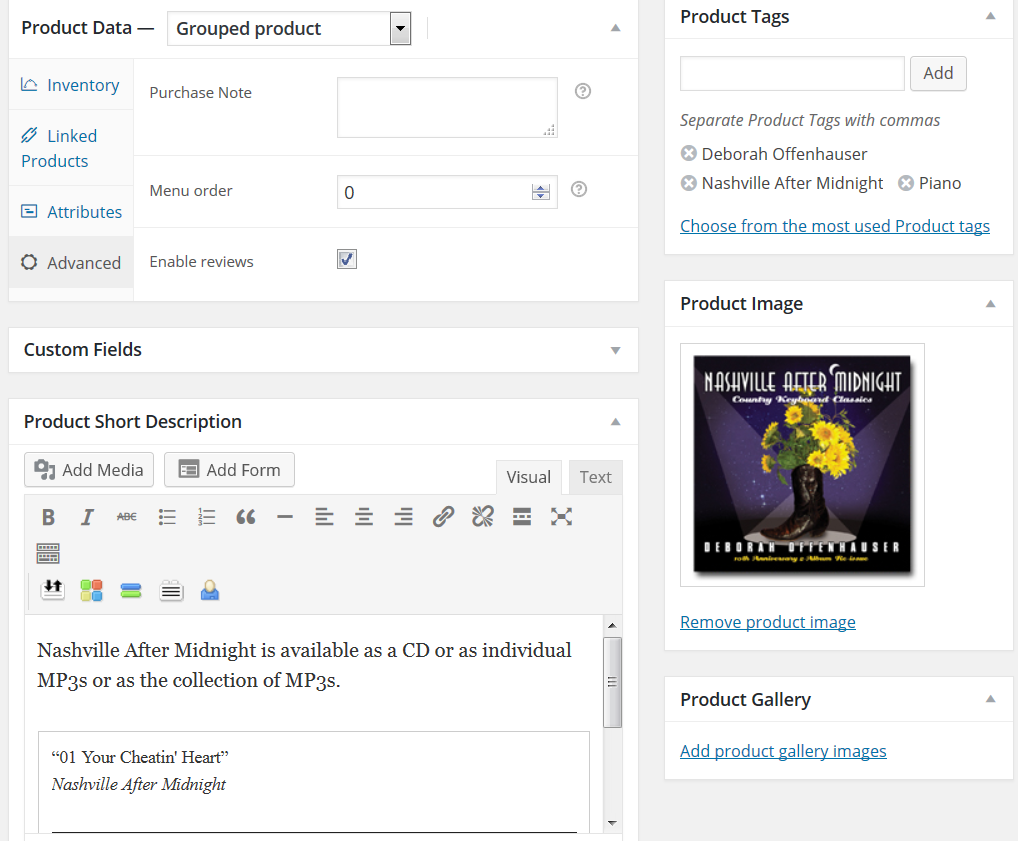
    I did video tutorials on setting up WooCommerce Grouped Products, so you can sell a CD and the tracks of the CD as MP3s. Grouping them displays better in the store, and lets customers see their options.

    This first video I cover how the grouped product looks in the theme, and what features will be setting up when we’re finished. Then I’ll walk you through setting up the first step, creating the Grouped Product with CD cover and playlist with all the track samples.

    In the second video, I cover adding your music samples to the WordPress Media Library and your audio files for sale to a hidden “sales folder” for WooCommerce. This includes file naming (so you know which file has what music, in lists of files) and how to have the sample music files display well in the audio player.

    The final piece is adding products for your music CD and each Track, to the WooCommerce Grouped Product you created.

  • GoDaddy Managed WordPress Hosting and SSL Certificates

    GoDaddy Managed WordPress Hosting and SSL Certificates

    The original post is obsolete. With numerous hosting companies offering free SSL (through LetsEncrypt software), there is no valid reason for not using SSL on every site you own.

    With SSL, your WordPress login form (and every other form) is transmitted encrypted.

    Without SSL, all your form data, including your WordPress login, is sent across the Internet unencrypted — so anyone with a little technical knowledge can read your password, even that person sitting at the coffee shop, or the person with a large WiFi antenna and a notebook computer in your parking lot.

    The price of GoDaddy SSL, for one site, is about the same per year as many good hosting companies charge for a year of hosting plus SSL for many sites. Switch over as soon as you can.

    SiteGround Managed WordPress Hosting from $3.95/month
    SiteGround Managed WordPress Hosting

    What about security for your account in addition to the server-level security your hosting provider is supposed to do but most do not? I cover WordPress security software and passwords, the simple things you can do as the account owner.

    Below is obsolete information


    GoDaddy has new hosting, with much better security than their “ancient” hosting. The Managed WordPress Hosting has hardware, between the Internet and the server, to block hackers and malware. Eventually this will be rolled out to be across all of GoDaddy’s millions of hosting accounts. (Technical support Sept 2015 says 13 million.)

    You should also look at whether your site needs SSL certificates, the encryption that makes shopping from your site secure.

    If you are using WooCommerce, you don’t completely require SSL. If you are selling with PayPal and some other payment processing providers, their site needs the SSL certificate, not yours.

    You get increased perception of security, if you have SSL on your site, but you may not get an actual increase in your site’s security — as long as you are not taking or keeping personal or financial information on your site.

    If you do want SSL on your GoDaddy Managed Hosting, you have to purchase your SSL certificate through GoDaddy. They have very easy installation for your purchase through them; they have no method for installation of your certificate from any other source. There are free or $10 SSL certificates available from other sources, such as NameCheap.com but they can’t be used on GoDaddy servers (at least any shared hosting servers); GoDaddy’s prices for SSL are not much more expensive (Sept 2015 $55.99 for 1 year). There are many web hosting companies that charge about the same just for dedicated IP address they require and then you pay about that much again for the SSL.

  • Why Should You Not Host WordPress on IIS

    When I mention I have clients with WordPress on IIS7 at the local WordPress Meetup (definitely go, well worth it), I invariably get snickers and disparaging comments. Some of that, especially from the less technical people, is just “Apache/MySQL/WordPress are Open Source”, and “big bad Microsoft is not as good”; it’s like cheering for your home sports team.

    But the more technical people who have hosted WordPress for many clients, give different quality of answers.

    I have a client hosting about 300 sites for Realtors. They brought me in to install WordPress in Multi-Site mode, for them to switch from their old ASP system to WordPress, and to then help them keep it running smoothly. Their IIS7 administrator was good at IIS but didn’t know WordPress or PHP, certainly not at the diagnostic and troubleshooting level.

    Here’s the actual problems I have run into, over a few years of being their WordPress troubleshooter.

    Linux and Apache vs. Windows and IIS

    Linux (by far the most common operating system for web site hosting computers) and Apache (by far the most common web site hosting software, comes with Linux) and MySQL (the database that comes with Linux) are supported widely on web sites. You ask your search engine about an error message you get, or the tool you want, or the problem you’re having, and 15 of the top 17 sites listed will have the correct answer.

    On IIS, those answers aren’t listed on hundreds of web pages. You’re not supposed to need them. You’re supposed to have taken the expensive Microsoft certification classes, have the manuals on paper and DVD, have the official troubleshooting tools and know how to use them. If you’re still stuck, you contact your Microsoft troubleshooter that you’ve paid for.

    As a hosting client, you will either need to call your technical support to make the change to your IIS configuration, or you will hunt for months for a solution you can apply yourself. For something that, on Apache, you can fix yourself with a little learning in a few minutes from free resources.

    Getting Help On Apache is Much Easier

    WordPress Security on IIS vs Apache

    I’m sure there are IIS security experts. IIS is used mainly on corporate web sites; they require experts on their security.

    WordPress isn’t often hosted on IIS. WordPress has security issues that you aren’t going to see on web sites that are done by the one company, using only Microsoft tools for development.

    Most web sites hosted on IIS have to deal with security holes in the operating system (whether Windows or Linux), on the web server (whether IIS or Apache), on the database (whether MSSQL or MySQL), and on the vulnerabilities in the development tools (e.g. the file uploader or the JavaScript form checking).  But the site itself is written in house.

    WordPress sites are developed using themes and plugins, mostly available open source for free. These plugins and themes are written by programmers who have unknown attention on security; every vulnerability in every plugin and theme offered on the WordPress repository, and every other well-known plugin or theme store, is known by hackers.

    IIS security people are not used to thinking about security holes where every site owner can be installing plugins and themes that could unwittingly contain malware or insecure code.

    One of the most common routes for hackers to install malware on your WordPress site, is to access a plugin that has file uploading, for example to upload images to a scrolling image slider. But instead of uploading an image, they upload a PHP program, or they upload it with a file extension saying it is (should be) an image and then rename it to a PHP program. The hackers know the folder their new file will be stored in; they can execute it any time.

    There is a simple block for this — disallow execution of any PHP files, and since this is an IIS 7 server, any ASP files or C# files, in the wp-content/uploads folder. Really easy to implement, at the server level for all installations of WordPress on the server, once.

    An IIS security person who knows he is “good at security” emailed me he’s not going to do that, “We need not invest any time going after problems that don’t threaten us. For instance, while the server supports ASP, there may currently be no ASP scripts on it, but there might sometime be, and blocking calls to scripts that don’t even exists serves no other purpose except to possibly cause excessive troubleshooting in the future when someone tries to put an ASP script on the server. Such a change would have zero positive effects, and potentially create negative consequences.” Do you notice that he isn’t thinking of hackers uploading a file? Even though the hack he just got hit by, uploaded .php files but could have uploaded .asp files. He still hasn’t blocked execution of PHP files in the wp-content/uploads folder!

    IIS Administrators “know security” and have trouble adjusting their thinking to WordPress open-source plugin and theme attacks.

  • WordPress Security for People Without Technical WordPress Knowledge

    WordPress Security for People Without Technical WordPress Knowledge

    What I’ll Cover

    • What your hosting company should do for security
    • Making secure passwords for any web site (and why what you’ve been doing probably isn’t good enough)
    • Password Keepers
    • Limiting Login Attempts, and Keeping your User Name hidden
    • Why you should Always do Automatic Updates and what you risk if you don’t
    • Block hacker files from executing, in the most common folders
    • WordPress Security Plugins you Must use

    Hosting Company Should Provide Security (but most Do Not)

    There is a lot that your host should do, to make your hosting account and your WordPress sites secure. (And by far, most hosting companies are negligent.) You should ask the technical support people lots of tough questions about security, and talk to your technical friends, and other WordPress users, about security.

    If your host isn’t giving good answers to security questions, and doesn’t improve Fast, then move to another host as soon as you can. (Though there are things that you have to do, there are far more that only your host should do.) Security is too important and too technical for most people to be able to do properly themselves, and it isn’t your job, it is your hosts’ job.

    The best hosting companies have top-quality security hardware, and special software, to block hackers, and have someone putting about 20 hours a week into researching the global security discussion boards for the latest threats, and putting security rules in place to block them. You can’t do that yourself, unless you can put those 20-30 hours per week into learning and implementing it.

    Ask the best anti-hacker security companies, and at your local WordPress Meetup or WordCamp, for hosts they are satisfied with for excellent technical support and excellent security. There are a few web hosting companies I recommend.

    There are, however, many things that affect security that only you can do, and things that you can do if your host isn’t doing their job.

    Use Password Keepers and Very Strong Passwords

    The first of those is picking good passwords. Strong Passwords for WordPress and your Password Manager. This is essential. The ways we’ve been taught for decades, how to make passwords, as known to hackers, and using those rules makes passwords that are far to easy for hackers to guess.

    The “substitute a 3 for the first e” type of rule makes passwords that are hard for you to remember and hard to type, but easy for computers to guess. I teach you how to make passwords that are easy to remember, easy to type, and very hard for computers to guess (for your password keeper software and the few passwords you type often), and how to use computer-generated passwords stored in your password keeper for all other passwords.

    Using strong passwords is essential for Every site you log into. And each site should have a unique password, to reduce damage if a site’s data is stolen.

    Limit Login Attempts

    Given enough computers and time, hackers can guess any passwords that are not long strings of computer-generated random characters. So you should limit how many attempts they can make.

    There are WordPress plugins that limit the number of attempts at logging in, usually by IP address, within a short amount of time. These plugins also limit attempts at guessing passwords for the same user name. Violations result in being completely locked out of WordPress for a long time (60 minute lock-out for 5 attempts might be a good setting).

    Instead of being able to try the WordPress login form perhaps 100 to 1000 times every second, limit login attempts to 4 times every 5 minutes, and lock them out for an hour. (Hey, if you’re a lousy typist, with your long secure password, slow way down your third try and get it right!)

    I have seen over 100,000 attempts in a single night, on a small site where I deliberately left this open for a week. (With a WordPress Administrator user name that is not obvious, and a very strong password, you can test this. But block bad guys every way you can.)

    Suggested plugin: iThemes Security and/or WordFence are my overall favorite plugins for security. Some options you have to test if it works on your hosting account, or if it blocks something you need; and one of the options that will work on every WordPress site is the limit login attempts.

    WordFence is a direct competitor with iThemes Security and also excellent (if I were starting newly, I’d probably pick WordFence, it’s the most popular among technical people at WordPress Meetups).  I haven’t used it yet (simply because I know iThemes Security so well).

    Sucuri WP Plugin also has limiting logins as an option, excellent. (Works well with either iThemes Security or WordFence.) Among other features, has single-click run Sucuri Site Check on the current site.

    (Only use one plugin to limit logins, these plugins have this feature as an option.)

    Do Not Use (hasn’t been updated in over 4 years): Limit Login Attempts plugin, only compatible up to WordPress version 3.3.2. Even though it “seems to run” it still doesn’t check as many things as the plugins I mentioned. Any software that old is likely to stop working as WordPress changes.

    Periodically check for plugins that haven’t been updated in a long time. If they are actively being supported (check the support page for the plugin) and “keep working fine” that’s okay; but most often if a plugin isn’t being updated, the plugin author isn’t paying attention any more, and hackers can find holes that aren’t being filled.

    If you have a smart phone or tablet, definitely look into “2-Factor Authentication”, where you type a password and a short 2nd password delivered to your other device. Clef Two-Factor Authentication and Google Authenticator are excellent.

    Keep Your Administrator Login Name Secure

    Password Crackers expect your login name to be the WordPress default, “admin”. Some will look at pages and posts on your site, find who the author is, and try that for the login name. They also know that many “one button install” programs will take your hosting account name or domain name and put that in as your WordPress login. Don’t Do It!

    You should have one login for everyday editing pages (with Editor privileges), and a different login for administrative tasks such as updating and installing themes (with Administrator or Network Administrator privileges). I have the Profile, Admin Color Scheme set to Sunrise for the administrator user, so I can tell at a glance and remember to log out.

    It is easy for anyone to find the name for each users, for example https://molten-salt-reactor.lc.lndo.site/?author=1 shows the posts for the 1st author (?author=2, =3, etc.) The “display name” is shown on the top of the page. So, in the Profile screen, specify a Nickname, and for “Display name publicly as…”, select the nickname. Now the Author page, and themes that display the author of a page or post, aren’t giving away your login name.

    To change the administrator login name, use iThemes Security, which has a single-button way to do this; or you can log in as administrator, and create another user with administrator permissions. Then log in with that new user, and delete the user with the default login name.

    Block Logins at the Server Level

    Loading WordPress 100,000 extra times in a night is work for your server, taking up page loads and bandwidth that your hosting account might charge extra for.

    That many page loads at maximum speed slows your entire site down, for your actual visitors.

    You can put a server password on the WordPress login page. Minimal work for the server, easy to implement. Ask your technical person to put it in your .htaccess file. This doesn’t need to be a secure password, as these are bots not people trying 100,000 times; a simple riddle will work. Prompt “say hello there” with user name hello and password there. This adds security simply through being an extra step that is used on few sites.

    This double login is an extra step for you, but blocks a lot of nonsense. However, you wouldn’t want this for a membership site, where every member has to log in (unless of course you are teaching your members about security, right?)

    Automatic Updates

    I advise always doing WordPress theme and plugin updates quickly, at least every week. Then, after the theme and plugin updates, do any WordPress core updates.

    There are sometimes problems with a WordPress or a plugin update. Extremely rarely, that could take your site down. Less rarely, an important feature of a plugin would not work, especially if the plugin was written with out-dated programming practices.

    If there are important security fixes, WordPress will release the fix as soon as it is ready and passes their testing, but before all plugin authors have had several days to make sure their plugin works with the “pre-release” version of the security update.

    If you have someone on staff whose job includes doing all updates promptly after they are released but after testing on your important site (every day, no vacations, someone does this), you can keep doing WordPress and plugin and theme updates that way.

    For everyone else, keep automatic updates on. Even if there is a problem with a plugin, getting the update for the plugin in a few days (or replacing the plugin) is much less work than removing a hack from your site; much less damage to your reputation; much less inconvenience for your customers.

    Security first, then “backwards compatibility”.

    To minimize the chance of problems, I recommend updating your plugins and themes, and then update WordPress. Many of those plugin and theme updates will be to correct any problems with the new version of WordPress.

    Hackers love sites where updates were “forgotten about”, and still haven’t been done months or years after they were released. That means you have to update all of those “temporary” or “test” installations you have in your hosting account, too…

    Prevent Execution of PHP in WP-Content/Uploads

    Many hackers target plugins that have an “upload file” feature. (For example, upload images for a slider; or upload settings from the same plugin on another site, to make this site have the same settings.) Very useful in the plugin, but many plugin authors can’t check their work for security holes nearly as well as the hackers can. Once uploaded as a PHP file, or renamed to be one, the hackers know what location the plugin puts uploaded files in, and can execute it directly by the URL (bypassing loading WordPress, and any security in WordPress).

    This requires edits to your main .htaccess file and/or a .htaccess file in the wp-content/uploads folder. Most security plugins that have this feature will tell you what to paste in, if your .htaccess file is write protected (a very good idea). Keep your .htaccess files with permission 444, except 644 for the few minutes you are making a change.

    Sucuri WP Plugin has many WordPress “hardening” features, including blocking execution of files in vulnerable folders.

    Block Access to Critical Files

    Your .htaccess file, wp-config.php, and your site backups are files that should never be able to be accessed from the browser.

    Sucuri plugin (among others) blocks .htaccess and wp-config.php.

    Your backup software should create a .htaccess file in the backups folder (if you save it on the server, for example to FTP it to your computer; many backup programs will save the backup on other sites, e.g. DropBox or Amazon S3).

    FTP and XMLRPC Security

    Disable “anonymous FTP”. There was a use for it in 1980, not today. But many hosts have it enabled. Turn It Off.

    FTP doesn’t have a “limit logins” feature. Use the longest random password your host allows. If the host only allows 8 characters, throw a “lousy security tantrum”.

    XMLRPC attacks are fairly new. You can log in and post via XMLRPC. It reports back if your login was successful. Until 2014, this article says, none of the login limit plugins were checking this. Make sure yours does, if you truly need XMLRPC (I don’t). Of course, also make sure you have your password for XMLRPC is very strong (it is probably the same as your administrator password, but you can assign which users can use XMLRPC).

    WordPress Security Plugins

    iThemes Security is excellent.

    WordFence also excellent. You must install and configure either iThemes Security or WordFence or both.

    Block Bad Queries Pro (or free version, which has the same security rules but less nice user interface). If you don’t have the technical skill to edit .htaccess to paste in the suggested text, and don’t have a friend who does, this plugin is absolutely simple. It takes the hacker-phrases most often used, and blocks them. If you have .htaccess skills, or if you want to understand what Block Bad Queries does, read Building the 5G Blacklist and the 6G Blacklist is coming out soon.

    No conflicts with iThemes Security or Sucuri (5G Blacklist and iThemes and Sucuri do their security before WordPress loads, and if you have several of these loaded, the first one with a block for a specific “baddie” stops it completely).

    Get clean with Sucuri — this company is the expert at removing malware from WordPress sites, and has a firewall to block getting malware. They also have a free Sucuri Security Plugin – Auditing, Malware Scanner and Security Hardening. Also, frequently run their free quick scan of your site.

    What’s Next?

    Please leave questions and comments. I’ll update this post as I can; I’ll also do some step-by-step instructions for pieces of this puzzle.

  • SFTP FileZilla “No Supported Authentication Methods”

    SFTP is a secure file transfer method, that is supported by FileZilla and many other FTP programs.

    When your ISP changes your IP address, and you try to connect the way that used to work, you get this in the FileZilla command section:

    Status: Connecting to yourserver.com:18765...
    Response: fzSftp started
    Command: keyfile "F:\path\to\keyfile.ppk"
    Command: open "username@servername.com" 18765
    Error: Disconnected: No supported authentication methods available (server sent: publickey)

    (more…)

  • Semalt Taking Over Your Google Analytics? Block It!

    Semalt claims to be an SEO service, but there are many clear reports that they are using malware to boost search engine rankings. They should be blocked!

    Above all, do Not use their “removal tool”, it messes up your entire Google Analytics history.  https://productforums.google.com/forum/#!topic/analytics/ePCUyPkDVvs has numerous very upset people after using Semalt’s “Removal Tool”

    Semalt taps into a malware network of hundreds of infected computers, to make their activities harder to spot.  Read http://www.infosecurity-magazine.com/news/semalt-hijacks-hundreds-of/

    You can block semalt.com web bot from accessing your site, or you can instruct Google Analytics to ignore all activity from semalt about your site (or do both).

    To tell Google Analytics to ignore Semalt, see http://www.hallaminternet.com/2014/remove-semalt-google-analytics/

    (Same idea, to tell Analytics to ignore your own accessing your site, see http://www.hallaminternet.com/2012/get-a-clearer-picture-of-your-website-traffic-how-to-exclude-internal-visitors-from-google-analytics/ )

    To completely block Semalt from ever getting into your site, make add these lines to your .htaccess file. These should go before the WordPress lines. Notice that the period in semalt.com has to have a backslash \ before it. Replace “/shared/bad-webbot.php” with the actual location of your minimal HTML page, mine simply displays “Bad Webbot! Sit in the Corner” and logs what they tried to do.

    SetEnvIfNoCase User-Agent (semalt\.com) badUserAgent=$1
    # If the environment variable greater than nothing, and not loading an error page, display minimal error page just for bad bots. If simply use     RewriteRule (.*) - [F]     get a 500 Server Error, have to exclude the error page.
    RewriteCond %{ENV:badUserAgent} >""
    RewriteCond %{REQUEST_URI} !/shared/bad-webbot.php$ [NC]
    RewriteCond %{REQUEST_URI} !/shared/403.php$ [NC]
    RewriteRule (.*) /shared/bad-webbot\.php [L]

    While you’re at it, block several other bad bots. Insert these lines right before the semalt (first) line:

    SetEnvIfNoCase User-Agent (binlar|casper|cmsworldmap|comodo|diavol|dotbot|feedfinder|flicky|ia_archiver|jakarta|kmccrew|nutch|planetwork|purebot|pycurl|skygrid|sucker|turnit|vikspider|zmeu) badUserAgent=$1
    SetEnvIfNoCase User-Agent ia_archiver\ \(+http://www\.alexa\.com\/site\/help\/webmasters;\ crawler@alexa\.com) !badUserAgent
    SetEnvIfNoCase User-Agent LinkedInBot/1\.0\ \(compatible;\ Mozilla/5\.0;\ Jakarta\ Commons-HttpClient/3\.1\ +http://www\.linkedin\.com) !badUserAgent

    That says Alexa and LinkedIn are exceptions (!badUserAgent means not bad), all those other user agents are nuisances or worse.

  • Protect Yourself from Brute Force Login Attacks

    If you don’t have a secret user name and a very good password, hackers can easily log into your WordPress account as you.

    If you have created a password that you can remember, one that you have a chance of typing correctly, well, hackers already know the tricks people use to make a password, thinking it is “secure”. It is Not. With published lists of the top 10,000 passwords (that’s actually small, there are lists with up to 14 million unique passwords that people really used), and some readily available free software to try variations of those passwords, and enough time (a few hours to a few days), they have over 90% odds they will know your password.

    I’m going to give you some simple yet very effective ways to stop them. Ways to stop the numerous attempts at your login form. Ways to generate passwords the hackers can’t guess, even if they stole a copy of your database and work on it from home. Ways to make passwords you can remember that the hackers can’t guess. (more…)

  • Debugging WordPress Problems (for Only You)

    How do you figure out what is wrong in WordPress?

    WordPress has some good diagnosing and troubleshooting information available to you, but the default is it is turned off. (For good reasons, including it is visually very distracting on screen, and it has candy for hackers.)

    Most of what you might see are PHP errors, PHP warnings, MySQL errors. If you don’t understand what they mean, even emailing the messages to the plugin author or your technical support person can be extremely helpful.

    Normally you can turn debugging on or turn it off, in your wp-config.php file.

    I have a page that shows you exactly how to turn on WordPress Debugging for Only you, and only when you want it. Work normally most of the time, and when something is not working you can see what error messages you are getting.

    Without debugging, you might get a message like this:
    Download failed. Destination directory for file streaming does not exist or is not writable.

    This specific message I got trying to update a plugin. Okay, which directory is the problem?

    Turn on debugging, and you get this instead:
    Warning: touch() [function.touch]: Unable to create file /home/USERNAME/public_html/wp-content/temp/plugin-name.tmp because No such file or directory in /home/USERNAME/public_html/wp-admin/includes/file.php on line 155
    Warning: unlink(/home/USERNAME/public_html/wp-content/temp/plugin-name.tmp) [function.unlink]: No such file or directory in /home/USERNAME/public_html/wp-admin/includes/file.php on line 500
    Download failed. Destination directory for file streaming does not exist or is not writable.

    Ah, something with /wp-content/temp/.

    And if you notice it affects all plugin updates, you might search for

    wordpress "Download failed. Destination directory for file streaming does not exist or is not writable." and the first page when I searched, gives the correct answer. In this case, it’s add to your wp-config.php this: /* Setup a temporary folder for uploading and updating */
    define( 'WP_TEMP_DIR', ABSPATH . 'wp-content/temp/') ;

    and of course create that folder on your server.

    If it only affected a single plugin, search that plugin’s support board. (I obviously changed the actual plugin file name to ‘plugin-name’, since the plugin wasn’t the problem. Normally you get the folder name of the plugin as part of the error message.)

  • Does Using WordPress in Multi-Site Mode Slow Sites Down?

    If you have multiple WordPress sites, how should you set that up?

    Some people say to install each site on a separate installation of WordPress, keep each site lean and fast. Some people say WordPress in Multi-Site mode is fewer files, less administration, just as fast. Which is it?

    How does the use for your entire hosting account compare?

    Overall, keep your installed themes and plugins to the minimum you need; keep your unused themes and plugins “elsewhere”, for security and speed. In Multi-Site, only “network enable” the plugins you actually need on all or almost all sites. But does using single-site or multi-site change overall speed or efficiency or storage? (more…)