Category: WordPress Consulting and Computer Help for Small Businesses

Migrated content from computerhelp.lc.lndo.site

  • Pet Care

    I have improved the health and energy and fun of a few dogs.

    We can’t get affordable health insurance for dogs, and they can’t verbalize what their health issues are, so we have to pay attention to subtle indications of their health. I seem to be good at sensing what they need and want. Probably you can too.

    Diet

    One of the simplest things you can do for all your pets is feeding them whole, ripe, fresh, delicious, nutritious food. (That’s what some top doctors say works well for humans, too…) But there are some things that you love to eat, that you must not feed your pet.

    Many dogs do not handle grains well. Just like humans, they can’t digest several of the many proteins in grains. It’s not just gluten, there are several proteins that affect our digestion, make gaps in our intestines that leak toxins into our blood, change our appetite and cravings, and alter our metabolisms. Grains are often mentioned as one of the main digestive irritants that make dogs frequently lick their butts, after clogged-up anal glands. Costco has a line of grain-free kibble, at a good price. It isn’t addictively yummy, but if you think about it, it’s often the unhealthy ingredients like sugar and wheat that are the most addictive.

    Veterinarians often suggest raw or lightly steamed vegetables for dog treats, as long as you serve them without spices. Look up what foods to never feed dogs, and what foods are most often listed as causing irritation or allergies or scratching; garlic and onion are not good for dogs. Dangerous Foods That Dogs Should Never Eat is one good site.

    My dog loves several vegetables.

    • Broccoli, but since she always chews using proper dog etiquette, mouth open nose down, I only give her the stems, I eat the broccoli flowers. Lightly steamed might be easier to digest, but my dog definitely likes crunching raw broccoli.
    • Carrots are another crunchy treat, wash them and cut off the stem; I only cut them if the carrot is too wide for her to easily chew.
    • Snow Peas? Loves them, I cut off the tips.
    • Cucumber? Yes, definitely.
    • Green beans, usually, but sometimes they get left on the floor.
    • Apples almost always, but sometimes she’s not in the mood; I don’t know yet what her favorite breed is, maybe gala or envy or Jonagold.

    I also get high-Omega 3 eggs, and cook them in olive oil for her. Giving her more olive oil and omega-3, both healthy fats for dogs and humans, seems to be decreasing her leg tremors. I don’t know if the fat absorbs and clears out toxins, or if the fat improves how nerve cells function; I do know that many veterinarians recommend high amounts of omega 3 for dogs, and that her energy level and play have improved.

    Eliminate Scratching

    The first thing to check, if your dog is scratching often, is for any chemicals that might be skin irritants. Also check what they roll in. They love scratching the ground making clouds of dust, and that dust gets in their fur; Arizona dust is coarse and sharp. When they roll in the grass, or the dry grass, or the gravel, or the pile of leaves, well, all those can be scratchy. Frequent use of a damp cloth will remove much of the dust or grass. But skin irritants could also be in the shampoo you use for them, or your skin care products; check that the ingredients in everything that can get on their fur, is good for dogs. Just like the medicines you take should never be given to dogs without veterinarian approval, what’s good for their skin and fur is different than what we use (and many things we put on our skin are often not healthy for humans either).

    Another thing to look at is what they eat. Avoid spices, preservatives, grains, dairy, any food that is a common dog allergen or that many dogs are sensitive to.

    [asa comment=”Miracle Coat shampoo”]B0002YFP4K[/asa]

    [asa comment=”Miracle Coat Miracle Mist spray”]B0002YFPL8[/asa]

    Miracle Mist leaves her coat soft, shiny, static free. Don’t spray it near her eyes (I spray it on my hand and rub it on her ears and neck and head), the little tea tree oil in it would be painful in eyes. Miracle Mist has many skin conditioners and natural anti-bacterial ingredients. For a while I was spraying her about daily, rubbing it into her coat, spraying even between her legs. Then, she wasn’t needing spray nearly as often, so I would only spot-spray anywhere I saw her scratching, or felt a hot spot. A clean damp washcloth to wipe off dust seems to help reduce scratching, with the coarse Arizona dust. I also spray her with Miracle Mist if I get static electricity when petting her, Miracle Mist does a great job of eliminating static.

    Water

    Dogs do not perspire. They cool off by panting. In hot weather, you have to keep them in shade, and give them water frequently. If they get lethargic or unsteady, cool them by sprinkling cool water all over their coat.

    A little salt is also good; when my dog got diarrhea and vomiting from too much time outside on a hot humid day (okay, humid for Arizona), a little salt on my fingertip, taken from the bottom of a bag of roasted peanuts so it had the peanut smell she loves, perked her up quickly. Remember how ranchers would take their cattle to a salt lick? Now I put a little salt on an egg I cook for her, since nothing else I give her has salt.

    The dog water bottle design I like best is the AquaDog. Give it a squeeze, and water goes up into a little bowl; a simple valve keeps water from going back down into the bottle, so the water in the bottle is always fresh. Comes with a velcro belt strap that can hold it snug against your waist. The Gulpy bottle has a flip-down bowl, costs a little less than the AquaDog but looks like it is not quite as convenient.

    [asa comment=”AquaDog bottle”]B00YNK9VPI[/asa]

    [asa comment=”Gulpy pet water bottle, 20oz”]B000TG7YRM[/asa]

    Arthritis

    Dogs get arthritis just like humans do, and similar to us reducing inflammatory food reduces their arthritis symptoms.

    GlycoFlex is one dog treat that has good food ingredients that help with arthritis and was recommended by our vet. Get the bite-size chews, instead of chewable tablets, since the tablets might need peanut butter or marshmallow incentives to be eaten.

    [asa comment=”GlycoFlex 3, bite-size chews 120ct”]B002LVTTYE[/asa]

  • Blank web page during WordPress Add New Post

    Blank web page during WordPress Add New Post

    When trying to add a “New Post” in WordPress, I was getting a blank web page. I was getting no error message, no content at all. Even when viewing the page source (in Firefox or in Chrome, right-click on the page and select “View Page Source”) it was empty. When viewing the “network” data in the Chrome Inspector or in Firefox (Tools, Web Developer, Network), no data.

    I was logged in as a WordPress user with “Editor” permission. What the …

    When I tried to make a new post while I was logged in as an “Administrator” I got the normal WordPress “New Post” page.

    Ah, that’s a good clue what the problem is. Something was wrong with how permissions were set.

    WordPress knows if you are logged in as a user with permission to add/edit pages or posts. There are many specific permissions that can be assigned to individual users; “editor” is one of the pre-defined sets of permissions, “author” is another. There are also plugins that can help you assign permissions for specific scenarios, permissions to use data for specific plugins, etc.

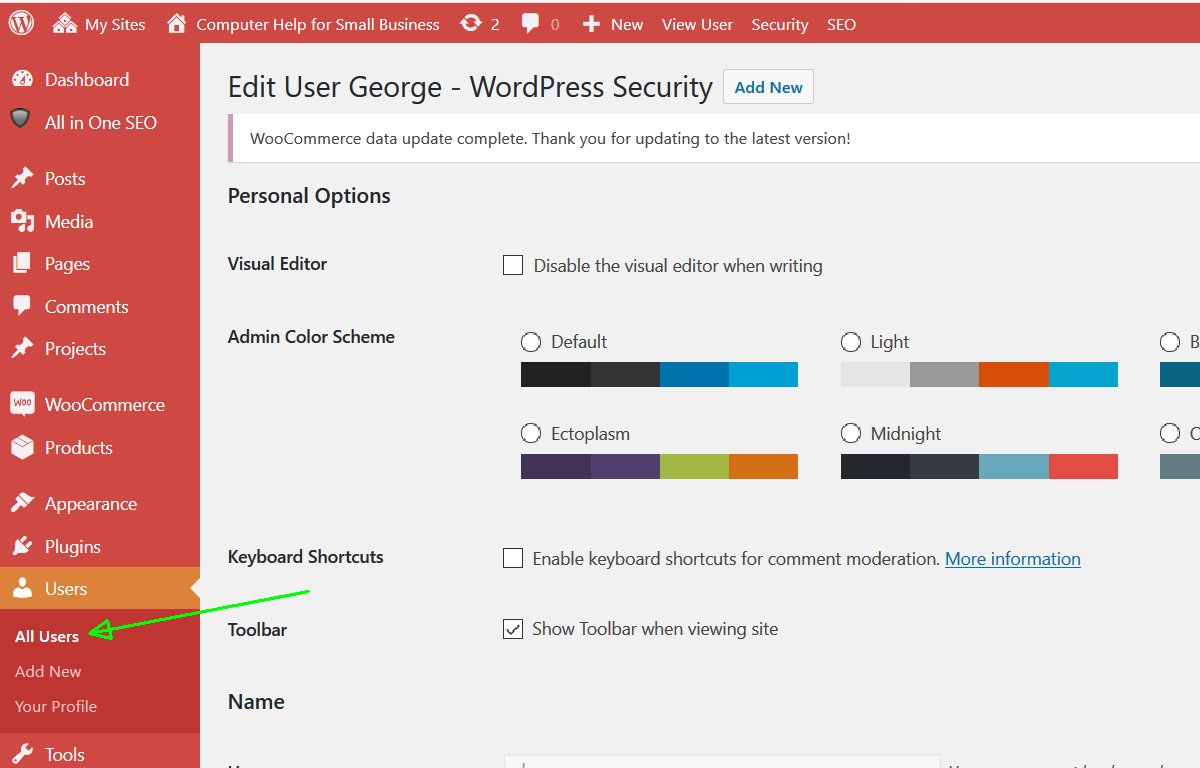
    But first, I tried a simpler approach to resetting the “Editor” permissions for that user. I changed (while logged in as Administrator) the permissions for that user, from “editor” to “administrator”, saved the changes, and changed back to “editor”.  This is done in the Users menu, hover over the user’s login name, and click “edit”.

    I don’t know what made the user’s permissions wrong, but that did reset the permissions.

  • Avoid Phishing, Spoofing, Spammers

    Phishing Emails are Very Tricky

    They look like the emails an actual company sends out. But if you fall for the trickery, and click a link in the email, your information goes to a spammer, a hacker, a thief. “Phishing” is an attempt by hackers to get you to click a link, thinking it is a link to a company you actually do business with (e.g. your bank or your package shipper), so they can gather your personal information.

    Before clicking on any link in any email, even one where you recognize the company, even if you send them emails regularly, think about what would happen if you gave private information to someone you shouldn’t.

    Look for bad grammar, bad spelling, anything suspicious in the email.

    Look for places where the actual company already has your information, yet the email is asking for it.

    Hovering over a link, *without clicking it* often reveals URL trickery. Watch for additional letters, misspellings, etc. in the URL, the link destination. Sometimes the link is very obviously fake, sometimes you have to look at each character.

    If you don’t know what to look for, have someone who is “good with computers” show you a few times, and practice looking yourself while they are watching.

    View Source of the email is always safe, and you can see all the tricks (if you can peer into the HTML without running in horror, since both phishers and legitimate newsletters often have horrifying messy HTML).

    Email Program Warnings

    If your email program alerts you there is something suspicious about the email, it is probably correct.

    The only time you should ignore the warning your email program gives, is if you registered with the company, and want them to be tracking your clicks on their email links. A good example of this would be the email that confirms you wanting to get their newsletter or become a member of their site; those will have tracking codes in the link URL.

    Browse Directly To Company Web Sites

    If you could simply browse to the company’s web site, instead of using a link from the email, do that. For example, if you get an email that you need to confirm a transaction, and you recently did a transaction with that company, log into the website, the way you normally do. If that email is real then you will see the problem mentioned on the company’s web site.

    Many phishers will have very obvious bad-URLs in their emails. But some will do amazing tricks to look like the real site. If the real URL has a double-L in it, they might use a triple-L. Or use a one instead of an el. Or a zero instead of an oh. Or an extra word (e.g. amazon.abc.com instead of amazon.com). They know more tricks than you do…

    Don’t read the text and think the link is valid. You must check the link destination, not the link text.

    Browse to the company web site, don’t use links in emails.

    If the link has a tracking code, or coupon code, and you can’t simply type in the URL, learn how to copy just the “extra stuff” and paste it in your browser after you type the domain name. So for a link like “View This Message In Your Browser” with a URL of
    http://mail.ebay.com/r/slink/257lxrwzbh3w4cngiq5w2kral/1baf8943748/50db1cII6d22b1II1baf89bf884II2/http%3A%2F%2Fmail.ebay.com%2Fr%2Fmail%2F50db1cII6d22b1II1baf89bf884II2
    copy the link (in many email programs you right click the link and select copy link location) and paste it to your text editor, then select everything after the domain name. Or, if you prefer, and can see in the text editor that every character of the domain name is correct (easier to do in a text editor with a fixed-width font, than in your email program), you can paste the whole link in your browser.

    What Can You Do About Phishers?

    If you want to report the phishing attempt, or the spam, or the spoofing, so the company can do something about it (perhaps legal action, or getting the similar domain name cancelled, or getting the hosting account closed), forward the messages — as attachments, not as an inline response — to the company.

    It is fine to simply delete the garbage message. It’s too much work to try and report them all.

    But do not ever respond to the phisher, or click their “unsubscribe” link — that just confirms to them that this is a valid email with a human being that might get suckered next time.

    There are so many of these, I added a keyword to all mine (e.g. “report spam” or “report phishing”) in my email address book, to find them easily.

    UPS fraud@ups.com
    https://www.ups.com/us/en/help-center/legal-terms-conditions/fight-fraud.page

    FedEx Spoof Reporting abuse@fedex.com

    Apple Phishing or Spam reportphishing@apple.com

    Wells-Fargo Report Phishing reportphish@wellsfargo.com

    Chase Spoof Reporting abuse@chase.com

    American Express Spoof Reporting spoof@americanexpress.com

    Federal Trade Commission Spam Reporting spam@uce.gov

    eBay Spoof Reporting spoof@ebay.com

    PayPal Spoof Reporting spoof@paypal.com

    Amazon Spoof Reporting stop-spoofing@amazon.com

    abuse@cox.net

    abuse@godaddy.com

  • What if your hacked site has custom code?

    Normally when a potential client brings you a site that is hacked, you do everything you can to get it cleaned thoroughly. That would include updating all files for WordPress and plugins and your theme, to the latest version. New versions of the software often contain fixes for recently discovered security issues.

    But what do you do if that client says there is custom code for WordPress or plugins? Code that is needed for something in the site, and updating WordPress and the plugins, would remove that. They have concerns that updating WordPress, the plugins, and the theme, would break something necessary for the site.

    The WordPress blog of a friend of mine has been hacked. It’s his fault because the core and a lot of plugins are out of date but he customized a lot of code and now he doesn’t want to update and manage (pay for…) the maintenance on the customization. I’ve reverted back the posts into pages, restored original revisions, changed all the password. I’ve installed WP security plugin. Now the site is apparently back to the normal condition but I’m not allowed to update the core nor the plugins so it’s not a safe condition. What other things can I do to prevent this kind of attack again?

    What Exactly Are the Changes For?

    Site owners have little ability to predict whether the change they want, that might be a big change visually, is going to take a slight tweak or a major change in the code. Developers have that expertise, not people whose businesses are other than website development.

    Most of the time, the changes made to WordPress or plugins are actually small changes, from a developer’s point of view. No matter how the change looks on screen, in code it is usually a very little change. Developers know that big changes would be better done by making a plugin specifically for this site’s needs. Developers who have the skills to make large changes, to a WordPress site, know how to make a plugin, and know the issues with making several changes to some other plugin or WordPress core.

    Good developers know WordPress well enough to know what small changes will produce the results; good non-WordPress developers might be able to make a change but in a way that is incompatible with WordPress updates; bad developers make changes not knowing what WordPress updates will do to their changes.

    Said another way, only amateurs make changes to someone plugins written by someone else, to be updated by someone else. (That of course is different than people submitting fixes or improvements to the author of the plugin, hoping they will be incorporated into future releases of the plugin.)

    The changes are likely to be inserting code for some external script; or changing the HTML of something. Small, targeted, specific changes. There are always better places to make these changes than in the WordPress core files.

    These probably seem “major” to the site owner, bringing some obvious visible changes to the site. But these would not be major changes for an experienced developer. These changes very likely can be brought into a simple plugin, or into a child theme’s CSS. Or maybe WordPress now has features that handle the information directly, no modifications needed. Examples would be incorporating YouTube videos, or Google Analytics code.

    Find out what the customized code is, and you might discover that there are simple ways of accomplishing the same thing while keeping your plugins and WordPress itself updated.

    While you are identifying the changes made to your site’s code, also have a programmer assess whether there are security risks in that code. Any form handling must be coded to prevent SQL injection. Any file uploads must be carefully screened, to not allow uploading malware; all files installed on your hosting account are given full permission to execute — if hackers install one file they can take over everything on your site. (Upload only into the default uploads folder, and have security blocking execution of all files in that folder, except image files and audio files, which still should be validated with your audio player.)

    Should You Update?

    What is the cost to their business of losing the custom code?

    What is the cost to their business of the site being hacked again, perhaps very soon? How is their reputation affected? How is their “reputation” with the search engines affected?

    If the changes were for important business information being displayed, move the changes into a properly written plugin.

    The costs of getting hacked almost certainly outweigh the costs of re-doing the changes the right way. Update early, at least weekly.

    What order do you perform updates in? Update your plugins, then your theme, then WordPress. There could be changes in the plugins to make them compatible with upcoming changes in WordPress, so update WordPress after the other updates. And, update WordPress now.

    What if there have not been any updates in a very long time? Probably best to update a few minor version updates at a time. That way, any changes to the database are more likely to be done correctly. (Plugins, themes, core, in that order, a few months at a time.)

    Do They Really Need to Re-Think Their Site?

    Have they clearly identified the specific people they want to talk to? So they can write as if to a single person, addressing exactly what that person is looking for?

    Do they know what problems that specific person is hungry to solve, that they can take care of?

    The old site is very likely not focused on the right person, or even worse is talking to “everyone” (which winds up meaning “no one”). The old site likely knows nothing about what search engines are looking for, which is current relevant content for exactly what their users are looking for.

    The old site likely doesn’t work well with mobile devices, which might be the biggest group of visitors that might become customers or clients.

    Is it time to redo the site, to fit what they want to accomplish with their potential clients via their website?

    What questions should the site answer for people? What is important to their visitors, that they really want to see on the site? What actions do they want visitors to the site to take? How can the site best have people interacting with them?

    Even if only briefly, find out what they want with their site, before updating it.

    Maybe the way to stop the malware is to quarantine the entire site, and copy/paste the text into the re-designed site.

    Ongoing WordPress Maintenance

    I do WordPress maintenance for small businesses. I know how to keep sites working well. Maybe it will make sense for you to have me take care of your site for you, so you focus on what to say to your visitors.

    Don’t get hacked, especially not again. I’ll keep your site safe.

  • Android Apps I Use

    There are millions of Android apps available. How do you know which ones to get?

    The first Android app I use is Hotspot Shield, a virtual private network (VPN) application. This encrypts all Internet traffic, including web site and email, between your Android (or your Windows or Apple OS/X or iOS) device, and the VPN server, and then to the server with the information you requested. Public WiFi is almost always insecure (and your home WiFi needs a very strong password and updated software). Your cell phone web connection is of course readable to your cell phone company, unless it is encrypted. People near you in that coffee shop or airport, using that WiFi, can snoop on your web browsing. Any passwords or private information you type into a form, that isn’t on an https:// site, can be seen and collected. Browse safely, even on public WiFi.

    Google Authenticator — Your WordPress site should have SSL, even if it is a free SSL such as LetsEncrypt, so your login form is encrypted. Still, adding a 2-Factor authentication makes your password more secure. iThemes Security and WordFence have the ability to add 2-Factor Authentication, and this Android app is one of the several that they connect with. (I currently do not have SSL, as I am learning SSH Secure Tunnels and other security measures. Plus, I want to know how to keep people safe when they are hosting on a lousy host that charges $60/yr for SSL, e.g. GoDaddy charges $69.99/yr as of April 2017, or $49.99/yr if you buy 3 years. I only login to WordPress )

    Sound Meter — I have done audio and video setup for workshops. This lets me know what volume I’m getting out of the audio system, to adjust the settings correctly.

    Manual Distance — Use your Android’s camera to measure size or distance. “Manual Distance allows you to measure the distance to the target object with known length, or measure the length and dimension of target object if you know the distance to the object.” Save the picture with the size. Calibrate this one time (for example, measure your distance to a yard stick, use this, set the actual distance, adjust the calculated height to 36″), and it works well without you needing to carry around a measuring tape.

    Army Knife for Android collection of simple tools, including “a flashlight (widget too), a unit converter, a timer, a stop watch, a compass a bubble level, a calculator, a magnifying glass (Android 2.2+ required), a mirror (Android 2.3+ and front camera required) and a ruler”.

  • What to Do If A Site You Use is Pwned (Data Breach)

    What to Do If A Site You Use is Pwned (Data Breach)

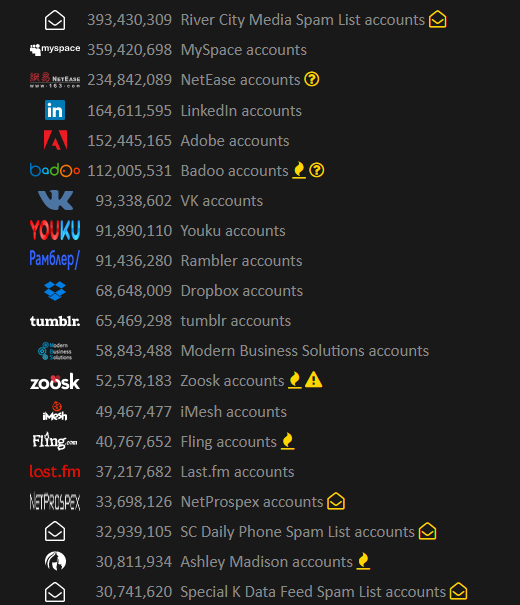
    “Pwned” is the slang for when an account of yours, on some web site, got compromised in a data breach. So, hackers probably have personal information of yours.

    There are hackers trying to steal information from web sites, all the time. Some site that you’ve registered with, probably has been hacked at some time.

    You can check sites to find out what major sites are known to have had data stolen. Having checked one of those sites, and then saying “I have been pwned twice” is not likely accurate. More likely it has happened dozens of times, you just don’t know about it. On the other hand, hopefully some of the sites didn’t get anything really useful about you. (more…)

  • Hardware I Love

    Most of my writing is about websites and software, but I also love good tools, equipment, computer hardware.

    I have a leaky toilet tank flow valve, that controls when to turn off the water when you flush. My friend who frequently repairs houses, likes the Korky fill valves better than FluidMaster, because of the ease of installing them. To set the height of the valve in the tank, you simply turn the stem, pull it to the correct height, and lock the height by turning the opposite direction. They work well, last long, and are inexpensive.

    You probably want to replace the flapper, the plastic that covers where the water flows from the tank into the toilet bowl, each time you replace the flow valve. You’ll also replace the flapper if the tank leaks; if you listen carefully you may hear a little water flowing, or put a few drops of food coloring in the tank and see if it appears in the bowl without flushing.

    If you just need the fill valve, you can buy it separately.

    [asa_collection]Hardware[/asa_collection]

  • Methods with the same name as their class will not be constructors

    If you are using older PHP programs, you might see error messages, either on screen (oops, you should turn those off) or in your error_log file (that’s where error messages belong).

    In PHP 7, there are several functions that are now deprecated and won’t run, that have been labeled for years as “will be deprecated”. Programmers should have updated their code long ago.

    One of the deprecated practices is naming object-oriented programming class constructor methods with the name of the class. (Search through the code for the constructor, it can be anywhere in the class.)

    Here’s an example of this deprecated code:
    class CSS_Color extends PEAR {
      function CSS_Color($fgHex, $bgHex='', $minbdif=0, $mincdif=0) {

    That gives a warning:
    PHP Deprecated:  Methods with the same name as their class will not be constructors in a future version of PHP; CSS_Color has a deprecated constructor in /FOLDERNAME/csscolor.php on line __

    The fix for this is amazingly easy.
    class CSS_Color extends PEAR {
      function __construct($fgHex, $bgHex='', $minbdif=0, $mincdif=0) {

    (That is two underscore _ characters, followed by ‘construct’)

    This is an improvement in the language, allowing a well-named class to have the name of the class as a function that could be used; the constructor has a special name.

    Here’s another example:

    PHP Deprecated:  Methods with the same name as their class will not be constructors in a future version of PHP; GeSHi has a deprecated constructor in /USERFOLDER/public_html/wp-content/plugins/wp-geshi-highlight/geshi/geshi.php on line 259

    class GeSHi {
      function GeSHi($source = '', $language = '', $path = '') {

    Change that to

      function __construct($source = '', $language = '', $path = '') {

  • Security — Block Executing Files Uploaded in wp-content/

    One of the most common hacker techniques on WordPress sites is to find a plugin that has a vulnerability, and use that plugin to upload an initial malware file onto your site. The hackers would then access the malware file directly (bypassing WordPress) to install any malware they want, and/or access your database. Hackers know the most common place plugins would put files is in your WordPress wp-content/uploads/ folder. You must Block executing files in your wp-content folder.

    There are folders such as wp-content/plugins/ and wp-content/themes/ where you should allow files to execute (or your plugins and theme won’t work). You could even get more specific, and enable just the folders that each plugin specifically uses. However, that is more maintenance work for you; let a top security plugin (WordFence) take care of that for you.

    You Must Protect Your Uploads Folder

    This is a serious security issue. One reason you must do plugin updates frequently, is plugin authors (well, the good ones, at least) will patch security issues as soon as anyone informs them. That’s because there are security people who check the hacker’s bulletin boards for issues the hackers are bragging about, and alert the plugin authors.

    Here is an example of the kind of hacker junk you would see if your security software were capturing the information:

    errorstatuserrortriggerrequriquerystringuseragentcookiesallowheaderspostvariables
    403badRequestString:wpcontent/wp-content/plugins/work-the-flow-file-upload/public/assets/jQuery-File-Upload-9.5.0/server/php/index.php Mozilla/5.0 (Windows NT 6.1; rv:34.0) Gecko/20100101 Firefox/34.0 Accept: */* Accept-Encoding: gzip, deflate–31aa900beb174efa942c7958119e7885
    Content-Disposition:_form-data;_name–>”action”upload
    –31aa900beb174efa942c7958119e7885
    Content-Disposition: form-data; name=”files”; filename=”wp-classes.php”
    Content-Type: text/plain–31aa900beb174efa942c7958119e7885–
    403badRequestString:wpcontent/wp-content/plugins/work-the-flow-file-upload/public/assets/jQuery-File-Upload-9.5.0/server/php/index.php Mozilla/5.0 (Windows NT 6.1; rv:34.0) Gecko/20100101 Firefox/34.0 Accept: */* Accept-Encoding: gzip, deflate–f2ee98a757e94b9897a2c9b1a9ffa74f
    Content-Disposition:_form-data;_name–>”action”upload
    –f2ee98a757e94b9897a2c9b1a9ffa74f
    Content-Disposition: form-data; name=”files”; filename=”wp-classes.php”
    Content-Type: text/plain
    –f2ee98a757e94b9897a2c9b1a9ffa74f–

    What Do These Columns Mean?

    ErrorStatus 403 means “Forbidden”, the server or hosting account security rules are blocking this.

    ErrorStatus 404 means “File Not Found”, but there is nothing forbidding them accessing the file if it did exist.

    (If the requested file did exist, the hackers found a file that, at least in some version of the file, they think had a vulnerability; you wouldn’t see an error. Your site access log would have the file name with an ErrorStatus 200 “OK”, or 304 “Not Modified”.)

    ErrorTrigger is my security system letting me know what caused this to be blocked, in this case the use of “wp-content” in the Request String.

    Requri is the Request String, in this case beginning with “/wp-content/plugins/work-the-flow-file-upload”. So we guess that some version of the “Work The Flow File Upload” plugin had a vulnerability (because somebody, probably a hacker, was looking for it). We don’t know that the current version of the plugin is flawed, we know that hackers are interested in some version of the plugin.

    This plugin looks risky, in the description at https://wordpress.org/plugins/work-the-flow-file-upload/faq/ . However, know that all plugin authors can mess up and allow a hacker to gain access beyond the plugin author’s intentions.

    You want to specifically block hacker behavior, and only attempt to guess whether the plugin author is to be trusted while you decide whether to install a plugin.

    In this example, simply the attempt to access program files directly in wp-content/ is enough to conclude the request is by a hacker. Only images or music or video should ever be accessible directly, in wp-content/uploads or any sub-folders.

    Query String is, in these examples, not used. If you type a URL in, and it has a question mark in it, everything after the question mark is the query string. For the URL http://computerhelp.lc.lndo.site/wp-admin/post.php?post=abcde&action=edit the query string is “post=abcde&action=edit”.

    User Agent is used by all software that accesses web pages, letting the server know what capabilities or special formatting to use. Some hackers use web bots with unique names, “bragging” about who they are; these can be blocked by the user agent. In this case, it’s simply Firefox version 34. If there is the word “semalt” or “nutch” or “ImageSucker” in the User Agent, those are known baddies. You can find several lists of user agents, e.g. http://www.useragentstring.com

    Cookies aren’t set here. Hmm, if they were actually using WordPress, there would be several cookies set. So, this is another clue they are hackers.

    Allow Headers: These are meant to be used to let the server know what language the browser prefers, for example “I want to read the French version of the page if you have one, but if not I’ll take British English or any other version of English”. Similarly, the header is used to indicate if the browser can take compressed output. In this case, no foreign language preferences, and can use gzip or deflate for compression. Nothing to look at here, in this example, for security; this is useful for troubleshooting other types of problems.

    Post Variables: Every form you fill out on the Internet uses Post Variables (or rarely, the URL) to submit the data. In this case, the “Action” is “Upload” (the hacker is submitting a file for the server to upload), and the file name is “wp-classes.php”. Well, that looks like a legitimate file name, right? Wrong! This is being uploaded, which is a definite give-away, but if you didn’t catch the upload the hackers are hoping you won’t notice a file with a name that looks legitimate.

    How Do I Block Files Uploaded to wp-content/

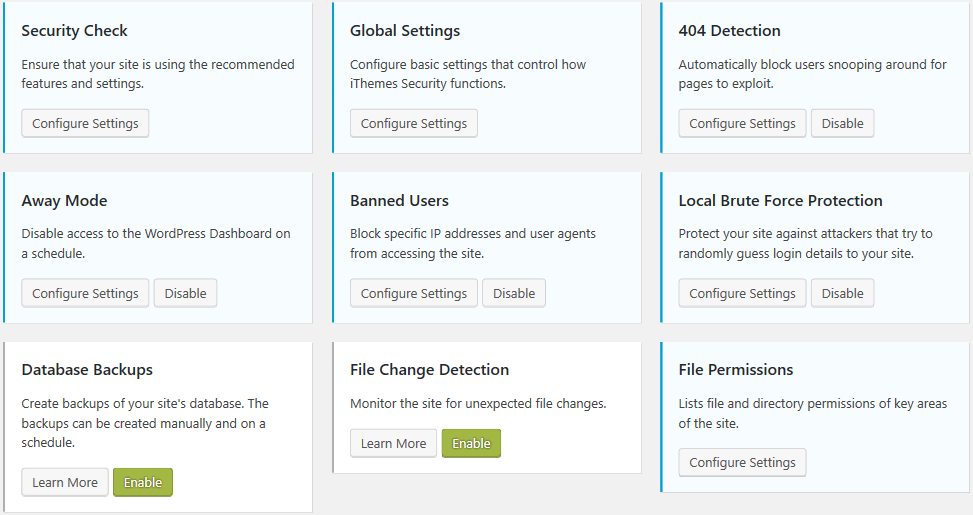
    The easiest way is use a good security plugin such as WordFence (my preference) or iThemes Security (doesn’t include a Web Application Firewall in the free version, and sends useless emails to me, for example “file changes found”). Both will do far more than block uploading executable files and block executing files in wp-content. Definitely use either WordFence or iThemes Security

    If you want to modify your own .htaccess file? Don’t, it’s a lot more work! Okay, if you really want to, here’s what I use, including setting a server environment variable that my error page can read:

    SetEnvIf Request_URI (?i)^/wp-content/(.*)$  badRequestString=wpcontent
    SetEnvIf Request_URI (?i)^/wp-content/themes/(.*)\.(css|js|gif|jpg|jpeg|png|eot|svg|ttf|woff)$  !badRequestString
    SetEnvIf Request_URI (?i)^/wp-content/plugins/(.*)\.(css|js|gif|jpg|jpeg|png|eot|svg|ttf|woff)$  !badRequestString
    SetEnvIf Request_URI (?i)^/wp-content/uploads/(.*)\.flv$  !badRequestString
    SetEnvIf Request_URI (?i)^/wp-content/uploads/(.*)\.gif$  !badRequestString
    SetEnvIf Request_URI (?i)^/wp-content/uploads/(.*)\.jpg$  !badRequestString
    SetEnvIf Request_URI (?i)^/wp-content/uploads/(.*)\.jpeg$  !badRequestString
    SetEnvIf Request_URI (?i)^/wp-content/uploads/(.*)\.m4v$  !badRequestString
    SetEnvIf Request_URI (?i)^/wp-content/uploads/(.*)\.mp3$  !badRequestString
    SetEnvIf Request_URI (?i)^/wp-content/uploads/(.*)\.mpeg$  !badRequestString
    SetEnvIf Request_URI (?i)^/wp-content/uploads/(.*)\.mpg$  !badRequestString
    SetEnvIf Request_URI (?i)^/wp-content/uploads/(.*)\.png$  !badRequestString
    SetEnvIf Request_URI (?i)^/wp-content/uploads/(.*)\.pdf$  !badRequestString
    SetEnvIf Request_URI (?i)^/wp-content/uploads/(.*)\.txt$  !badRequestString
    SetEnvIf Request_URI (?i)^/wp-content/cache/supercache/(.*)$  !badRequestString
    Order Allow,Deny
    Allow from all
    Deny from env=badRequestString

    I make exceptions for style sheets and images and fonts in your theme folders and plugin folders; and for images, pdf files, text files, movies in your WordPress uploads folder (the WordPress Media Library folder). You also should allow cache files (I’m no longer using WP Super Cache, my hosting provider has better).

    Want Me to Check Your Security and Do Regular Maintenance?

    I do WordPress Ongoing Maintenance and Security for small business sites, making sure your site runs smoothly and is safe from most hackers. I can’t block the CIA (or Russian, Chinese, etc equivalent) from getting in, but I can thwart many hacking attempts at the WordPress and Plugin level. I have your site run quickly, and without errors. I can make sure your pages are showing up well in social media sites, including Facebook, Twitter, LinkedIn, Pinterest.

  • WordPress Ongoing Maintenance and Security

    WordPress Ongoing Maintenance and Security

    Having web sites run smoothly and safe from hackers, is important to me. It probably is important to you too, if you think about it a little. If you heard of any web site getting hacked, you know that could ruin your business day quickly.

    When you find out your site has been hacked, or your site stopped working so you can’t generate sales, you know you’re not going to be having a good day.

    After all, it’s easier to prevent problems like these, than to fix them…

    You have been told, already, you need to keep your software updated… You need to do regular backups… You know you should be blocking hackers, even if you don’t know how… Are you hoping you can last a little longer, letting maintenance slide?

    Preventing hackers from abusing your site is one very important part of running your web site, yet so many people and businesses just don’t have the time to do all the steps it takes. Even if you know how, or learn how, it’s not a good use of your time. You have better things to do!

    We all know your web site working, the way it should, helps to keep your reputation good. It also increases sales, right?

    Maintenance, done frequently, is important for your site.

    Latest updates to your WordPress software (and all other software) does several things, including fixing bugs that keep your site operating well, adding new features, and also fixing any security problems that have been discovered.

    Hackers know all those security problems. They study every security problem found world-wide, for how to take advantage of them.

    Updates Without Problems

    If an update does make a problem on your site, I know how to identify the problem very quickly, and get your site working again.

    However, I also prevent problems by testing plugin updates on a testing site, before doing the update on your site.

    I can replicate your site setup, plugins, theme, and content, on a testing site that is not accessible from the Internet. I will check the updates don’t introduce errors, whether with PHP or the WordPress database or other plugins.

    How Do You Get Your Site Secure From Hackers?

    Whether hackers want to post ads for their junk, or add links to steal traffic from you, or install malware to get your private information, or use your website hosting account to hack other sites, I hate hackers!

    Most businesses don’t have anyone who knows how to do maintenance and security checks properly. It’s complex. It takes time to learn, time to check everything each month. Most people could learn to do it themselves, if they were interested and had the time; but it’s just not your most fun and exciting thing to do. It’s not what you would best be spending your time on.

    (If that does sound good to you, contact me, I need more people helping have web sites run smoothly and be safe from hackers…)

    There are WordPress plugins that take care of many security steps. These have to be configured, and tested (some website hosting companies have non-standard server configurations, so not all security options will work on all hosting). [Note: If you’re on a Microsoft IIS server, which can’t use the most common WordPress security plugins, I feel for you, and I can help some…]

    You have to host your WordPress site on a company that has very strong security. Most of the best-known hosting companies are negligent about security; they don’t even keep the server software current; they don’t know WordPress security and troubleshooting; and they are not actively looking for ways to improve security. The best hosting companies have staff researching global security discussion boards for the latest hacker vulnerabilities, and put specific security rules in dedicated hardware installed between the Internet and the servers they host your site on.

    Another important security step is using passwords for every login that are difficult for hackers to guess. And the way we’ve been taught to make “secure” passwords, for example substituting punctuation for vowels or adding a digit and punctuation mark at the end, are known by hackers too — and now those passwords are easily and quickly guessed. Long computer-generated passwords are highly secure, but impossible for people to remember and difficult to type. I can teach you how to make secure passwords both easy to remember and easy to type.

    What I Provide

    Whether you want to learn to do it yourself, or you want me to take care of your maintenance and site security, here is what I provide:

    • Set up your WordPress site so it runs well. This includes removing plugins you don’t use, or that are security risks, or haven’t been updated in ages; adding plugins that are essential to the your site running properly; setting up site security so the most common attacks are blocked
    • Keep your site security updated so it is much harder to hack (so you keep out most hackers, but I can’t stop government-level hacking groups).
    • Keep current and past backups so your site can be recovered if something goes wrong. You always need a good backup!
    • If you have more than one site, or know you want more sites, I can set up WordPress Multi-Site for you, easier for most companies than working with many single-site installations of WordPress.
    • Select good plugins and themes. I find well written plugins and themes, that work well, don’t slow your site down, and are unlikely to have security vulnerabilities that hackers could exploit. Tip: with the WordPress block editor, you most likely can use the default TwentyTwenty theme, or a child theme that simply specifies your colors.
    • Migrate your site to an excellent hosting company, if you think you might already be hacked, or if you don’t know your host has excellent security and technical support. A few hosting companies charge comparable amounts per year of hosting, but provide much better quality service and much better protection against hackers, than the normal hosting company. You almost certainly can’t find better hosting on your own, than the Arizona WordPress Meetup has found.
    • Work with your hosting company technical support, to resolve any issues, so you won’t have to. (You’ll be able to use them or me for technical support.)
    • Improve your marketing, including install and configure software for telling Facebook, Twitter, LinkedIn, Pinterest and other social media sites what you want them to display (text and image) when someone references a page on your site.
    • Find what would speed up your site, which your visitors will love and so will search engines.

    Contact me about your site maintenance and security and what you want, and we’ll know if we’re a good match.

    Improve Your WordPress Site

    Consistent monthly amount, low $20 setup charge.

    Most basic sites, the kinds most small businesses need, I charge only $80/month, whether everything is working (that’s my job) or I have to put in many hours fixing something. This includes the first month, when I have to setup or reconfigure and check everything.

    For enhancing your website, we’ll talk about what you need and I’ll let you know if I can include it in your monthly maintenance, or if it will cost extra; we’ll agree before I make the enhancements.

    No contract, and I ask you set up minimum 6 months auto-pay so you don’t have to remember. Cancel any time, simply don’t pay for the next month and please let me know; but I don’t give refunds, since each month I will keep your site working.

  • Strong Passwords for WordPress and Your Password Keeper

    Strong Passwords for WordPress and Your Password Keeper

    More security steps you can take, beyond good passwords: WordPress Security for People Without Technical WordPress Knowledge.

    Password Security on Your WordPress Site and the Internet

    I’m going to cover:

    • Why you must use strong passwords, and a different password for each site.
    • Choosing and using a Password Keeper to save every password you use;
    • How to store other secure information such as bank account numbers and ;
    • How easily most passwords are guessed by hacker software, since the rules people use for making passwords are thoroughly known by hackers.

    What I Don’t Cover Here

    How to make a truly secure password for your password keeper master password, and for the (very few) passwords you type frequently. This must be hard for hackers to guess, easy for you to remember and easy for you to type. For this, see my page on Making a Master Password for your Password Keeper.

    Must Have Strong Passwords for Every Website

    You must use very strong passwords on your WordPress site. You should use very strong passwords on every web site you use.

    WordPress encrypts your passwords, and the encryption is strong enough hackers can’t break the encryption. But hackers know the way we’ve all been taught to make “secure” passwords, and that lets them automate scripts that guess your passwords.

    If hackers have stolen a copy of the site database (for example, an un-encrypted backup), or have hacked access to the database, they can test literally billions of password-guesses per second, using free widely-available software.

    Hackers have gotten the username and password for every user of several large websites. If you are using one of the 100 million most common passwords, hackers just have to compare the encrypted form of the password against the encrypted entries in their password list — very easy for computers to do.

    If hackers can test passwords using the standard WordPress login form, and you haven’t restricted that, they can test thousands of passwords in a couple of hours. (To restrict login attempts, install a WordPress security plugin such as WordFence or iThemes Security. Most WordPress security plugins have the feature to restrict login attempts.)

    Making a Secure Password

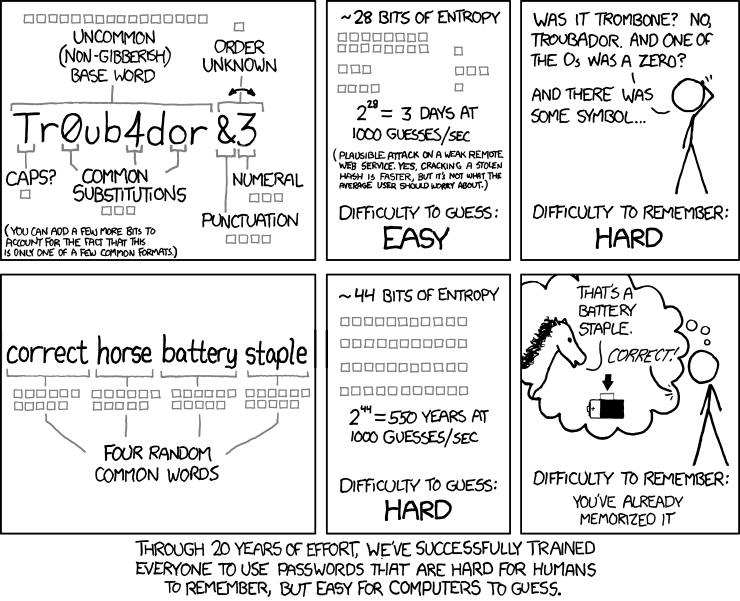
    The rules we’ve been taught for years that should make a secure password, aren’t good enough. Those rules actually limit the possible passwords a hacker’s software would have to check. For example, the “word plus number plus punctuation” rule makes a password that is basically as easy to guess as a three-letter password; the word is in the dictionary, plus about 100 characters for all letters and punctuation, twice).

    Hackers know all the “substitute a number instead of a letter” rules, such as 3 for m or 0 for o (zero for oh)”, and that password is easier for computers to guess than it is for you to remember.

    One way of making passwords that is actually secure, but you’ll never be able to remember, is use a password generator. Use the password generator in a password keeping software, and all you have to remember is the “master password” for the password keeper.

    The password keeper software will remember all your user names, account numbers, and passwords, plus any other information you keep as notes for that site.

    Password Keepers

    “A password manager is just software that creates, stores and organizes all your passwords for your computers, websites, applications and networks.”

    http://thehackernews.com/2016/07/best-password-manager.html

    I’ll give you my recommendation for which password keeper to use. But first, it’s important that you understand how to select a password manager.

    Beyond storing user names and passwords, you can also use your password keeper for storing “secure notes” such as bank account numbers, credit cards, library cards, any account numbers, serial numbers, registration numbers, router configuration details, etc. Many password keepers have fields specially for these uses, which is better than only having a “notes” area.

    You can only download software that is so obviously about security, from a site that has technical strength, has industry-leading anti-virus software, has excellent reviews, has a reputation to maintain.

    Never download any software because there was a pretty advertisement about it on _____ (fill in the social media site). If you use a hacker’s program as your password keeper, guess what they’ll do…

    For password storage, you also must select a program that has 256-bit (or stronger) open source encryption. The more security experts who have had a chance to review the software for weaknesses the better. Proprietary software doesn’t get as many eyes checking for problems; companies are proud of their software, and look at how good it is, not where is it weak.

    You also need a program that you have on your computer, and your password keeper has to be able to work from your thumb drive, and/or your tablet or phone. A web based solution is okay if you synchronize to them or can easily backup the data to your computer in an encrypted format (e.g. a .zip file with a password); you can’t risk their business suddenly closing with all your passwords gone.

    Another feature to look for is a standard method for exporting your information, for example an XML or CSV text file, should you ever want to change to another program. But know this export is an insecure file; make backups of your encrypted password file not the un-encrypted export.

    This is not a complete list of good password keepers, but these work very well, and are trusted sources:

    LastPass

    The password manager I am currently using is LastPass, free for all devices (but free is either for desktop or for mobile, not both).

    LastPass is easier to use than KeePass (which I used to use), in several small but important ways. It notices when you visit a site, and offers to fill in the login form for you. (Or you can configure it, per site, to let you pick which login name to use, for example I host websites for several clients.) It notices when you log into a site that you haven’t added yet to LastPass, and offers to save the login information into LastPass. It also has fields for some common information, for example credit cards and WiFi credentials.

    The complete database is encrypted, not only the password fields. So, your user names, notes, etc. are encrypted, too. Only the encrypted data is ever sent across the Internet.

    They also have a paid version, with additional features. The most interesting paid feature is much better sharing of passwords, for example with a spouse. With the free version, you can specify single password entries to share with a specific person; you can even specify whether they can see the shared password or only use LastPass to fill it in when they log into a site.

    LastPass works on Windows, OS/X, Linux, iOS, and Android.

    There are LastPass browser extensions for Chrome and for Firefox. Definitely install these, they make using LastPass easier.

    Other Windows Password Keepers

    On Windows, I download almost all my shareware and open source software from CNET or SourceForge. For iOS and Android, use the main Apple and Google libraries.

    KeePass

    If you want a password keeper that is completely on your computer (doesn’t talk to some company’s computer for storage), look at KeePass and also get the portable version (runs off your thumb drive). (Unless you have a strong reason to use the original version, which is still being maintained, get the KeePass 2.x edition.) The main site is on SourceForge (downloads here), and the KeePass web site is excellent for learning what makes good password software, even if their software isn’t what you use. I used to use KeePass, before switching to LastPass. KeePass has versions or ports for Android, OS/X with Mono, iPhone, Linux. Some of the key features:

    • KeePass supports the Advanced Encryption Standard (AES, Rijndael) and the Twofish algorithm to encrypt its password databases. Both of these ciphers are regarded as being very secure. For example, AES became effective as a U.S. Federal government standard and is approved by the National Security Agency (NSA) for top secret information.
    • The complete database is encrypted, not only the password fields. So, your user names, notes, etc. are encrypted, too.
    • Your computer’s clipboard is cleared in a few seconds, your un-encrypted password isn’t left in memory.

    1Password is also excellent, top security, more fields for storing special information than KeePass (KeePass only has title, user name, password, URL, and notes fields). 1Password has the ability to share a group of passwords with other people, so you have access to the password (or other secure data such as account numbers); for example, as you are managing your elderly parent’s accounts you have all their vital account numbers and passwords, before they forget them.

    OS/X Password Keepers

    On OS/X: Either use 1Password or LastPass, or you can use KeePass with Mono.

    Many people simply use Keychain http://www.macworld.com/article/2013756/how-to-manage-passwords-with-keychain-access.html . But it doesn’t give you the structured fields for storing other information.

    Keychain easily synchronizes across your devices if they are connected to iCloud, but I know many people where they’ve entered passwords on one device and then been unable to login from their other devices, and of course don’t find out for long enough they don’t know which device has the correct password. Keychain doesn’t have the ability to share certain passwords, for example with family members. Keychain is great for some things (for example saving software licenses) but don’t use it as a password keeper.

    Linux Password Keepers

    On Linux Mint, I use LastPass. It also works on Kali Linux.

    There are several password keepers available via the Software Manager; check what they are designed for, several are “on your computer” only, don’t save to a central computer so you can access your passwords on your other devices.

    You might be satisfied simply using the Chrome or Firefox browser extensions of whichever password keeper you use, if Linux isn’t your primary computer.

    Exceptions to Using Password Keepers for Security

    The only passwords you would ever casually share with someone should be your WiFi password. If your WiFi hardware supports it, use the “guest” account for visitors. Read how to make secure passwords for WiFi you can type.

    The only passwords you should frequently type are the ones for your computer and for your password keeper, and your bank card pin. All others should be pasted from your password keeper.

    Your printers and other Internet-enabled (or in-house WiFi enabled) devices will also need the WiFi password typed in. Type it in once, the device remembers the settings, and you don’t type it in again until you change the password.

    Tip: find out if the device can use a Bluetooth keyboard; or organize the password into letters on the same “virtual keyboard”, e.g. numbers all together, punctuation all together, uppercase letters all together.

    Sharing Passwords

    You should use your password keeper to share passwords for bank accounts or other financial institutions, where you share the account. For most people, this would only be your spouse or parents, or a business partner. (If possible, make a separate login for each person. But if not, most good password keeper software can securely share passwords you specify with a person.)

    You should share your password keeper’s master password with the executor of your estate, or the person you have given power of attorney, the person who would need to access your accounts if you are unable to.

    If you die, and you have made someone able to access your account information, it will be much easier for them to finalize your accounts, cancel your subscriptions, turn off your repeating payments.

    For technical support, make them a temporary user name, and let the software email them a password update link. It is a bad idea to ever send a password by email or text message or phone, too easy for email to be intercepted (and hackers can program searches of email traffic for “here’s your password” type message.

    When the technical support person is done, definitely disable their access completely or change the password.

    Basics of Password Security

    For each site, use the longest password the site allows, up to maybe 60 characters. Your password keeper will let you copy/paste the password, so you don’t have to ever type it. (As long as it is a random computer-generated password, 60 characters is “lifetime strong”.)

    Never use a password on more than one site. If someone gets your password at your favorite pizza place, and orders a pizza “for carry out” on your card, you don’t want them also able to use your video streaming account, right? LastPass will even warn you to change passwords if it is used on more than one site.

    Whatever password keeper you use, keep the master password with someone trusted (for example your attorney keeping your will, or the main person who will manage your estate) in case of your death or other inability to type your password. See The 1Password Emergency Kit: Version 3.0 for how to do this.

    Old Rules to Make “Secure” Passwords Are Too Easy to Guess

    You have to remember your password keeper’s master password. Forget it and all your other passwords are encrypted in a way that can not be broken (unless of course your master password is so weak it can be guessed by password cracking software).

    But the rules we’ve been told by technical support people for decades for making passwords are not secure any more. The main reason is simple: there is software that can make billions of guesses of your password per minute, and hackers using it know all the “clever” rules people come up with for making passwords.

    Yes, if the software had to try every combination of letters, numbers, punctuation in an 8-character password (26 lower case letters, 26 upper case letters, 10 digits, about 32 punctuation marks) that’s 6,095,689,385,410,816 combinations. So your password generator can generate a password that is even 8 characters long, that would take a very long time to break, and many sites will allow 40 characters or longer (use the longest the site will take).

    But if you need to make a password that you can remember, those ways of making a “secure but memorable” password are all known, and even 8 character passwords (and often longer) can be guessed in under a day. You need a password that can’t be guessed during your lifetime!

    Don’t believe it? Maybe you will when you read this…

    https://arstechnica.com/security/2013/05/how-crackers-make-minced-meat-out-of-your-passwords/ says “In March [2013], readers followed along as Nate Anderson, Ars deputy editor and a self-admitted newbie to password cracking, downloaded a list of more than 16,000 cryptographically hashed passcodes [encrypted with MD5 but not salted]. Within a few hours, he deciphered almost half of them. The moral of the story: if a reporter with zero training in the ancient art of password cracking can achieve such results, imagine what more seasoned attackers can do… Even the least successful cracker of our trio — who used the least amount of hardware, devoted only one hour, used a tiny word list, and conducted an interview throughout the process — was able to decipher 62 percent of the passwords. Our top cracker snagged 90 percent of them… Using a commodity computer with a single AMD Radeon 7970 graphics card, it took him 20 hours to crack 14,734 of the hashes, a 90-percent success rate. Jens Steube, the lead developer behind oclHashcat-plus, achieved impressive results as well. Steube unscrambled 13,486 hashes (82 percent) in a little more than one hour, using a slightly more powerful machine that contained two AMD Radeon 6990 graphics cards.”

    (oclHashcat-plus is the freely available password-cracking software both Anderson and all crackers in that article used.)

    https://arstechnica.com/security/2012/08/passwords-under-assault/ “A PC running a single AMD Radeon HD7970 GPU, for instance, can try on average an astounding 8.2 billion password combinations each second, depending on the algorithm used to scramble them.” [Notice the date, that’s with an “ancient” 2012 computer.]

    That 8 billion per second would be if someone stole a backup of the website’s database, for example. If they were going to try logging in to WordPress, perhaps 100-200 attempts per second would be easy, from a single computer. How many computers working together in a hacker network could attack your site at once, if you don’t have software limiting the number of attempts?

    I’ve seen over 100,000 password guesses in a night, from about 10 computers, about a day after turning off protections on a testing site with a very good password.

    The comments on the original correct horse battery staple page point out that if all four words you pick are in the 5,000 most popular English words, then you should calculate the time it takes the password software to go through 625,000,000,000,000 (5000 x 5000 x 5000 x 5000) combinations.

    There are 60 seconds * 60 minutes * 24 hours = 86,400 seconds/day. At 8 billion password guesses per second, they have your “four common words” password in about 1 day, using a “wimpy” 2012 computer.

    Making Secure Passwords You Can Remember

    Obviously one way to make your password (pass phrase) more secure is use at least one word that is not in that tiny dictionary of most popular words. Engineering, scientific, medical, or any other more obscure words will do; but they have to be easy for you to remember, and remember how to spell. (Or, remember consistently how to mis-spell). Common foreign language words are also in hacker dictionaries, but less common ones are good to use; pick a language that is not common in the websites you use.

    Another way to make your password more secure is use 6-8 words. But remembering 4 random words is hard enough for most people. (Tip: get one of the associative memory courses, such as MegaMemory.) If you have a system memorized already, okay. If you have the type of memory where you know every move of every chess game Kasparov ever played, good for you, use it. But if you don’t have a system, there is a good way to remember a short phrase.

    [adinserter block=”2″ ]

    Making a Memorable Secure Password Phrase

    You need a very secure password as the master password for your password keeper software, for your computer login, and for the very few sites that you log into often.

    See my post on how to make a good password phrase for your password keeper, it’s easier than you might think.