Category: WordPress Consulting and Computer Help for Small Businesses

Migrated content from computerhelp.lc.lndo.site

  • Make Your Own WordPress Color Palette, From Just One Color

    I’m going to demonstrate in Coolors, but a similar approach will work with any website that will let you work with a “color wheel”, or colors that are analogous or complementary to a given color.

    From the single color, I will walk you through making several tints/shades of that color. As you do, take note of the positions of the shades relative to the main color, so you can repeat the positions with the next colors.

    Check the options for “color harmonies” and pick which you like, based on the mood of your website and what you know of the people visiting your website. For most people, get one or two analogous colors (colors that are adjacent to your first color on the color wheel). If you prefer, you can use an analogous color and a complementary color (the color directly opposite your color on the wheel).

    Once you have a main color and some related colors, you will make tints/shades of those related colors.

    You want one tint of each color that is very light, to pair with white backgrounds; you want one shade that is very dark, to pair with black text.

    Pick tints and shades that are not visibly close to each other. You want your website visitors to be able to tell them apart.

    Color #6D7B51, a Fern Green

    (For color blind visitors, WordPress now has a way to specify alternate color palettes, and you can make one palette that has good contrast with each of the types of color blindness.)

    Let’s start with color #6D7B51, a Fern Green. Browse to https://coolors.co/6D7B51. Yes, the color number is at the end of that URL, without the ‘#’.

    Copy the full URL you are using for the main color, you’ll likely want to return to it.

    First thing to do is scroll down to “Contrast Checker” to make sure this color has enough contrast with white and black backgrounds. Notice if the Contrast Checker Tool says it has good contrast to be used only for headings (or said another way, only at larger font size), or if also has enough to be used as a text color.

    Normally, only use black or white as text colors. For example, the image here shows white text on fern green. If your pick for text color doesn’t have good contrast with your chosen background color, use a Contrast Checker to adjust it. Nobody likes having to read text with poor contrast.

    I’m going to pick some tints and shades of the main color and one tint of each of two hues. Another approach is to pick either an analogous or complementary color (scroll down on the Coolors page to see the “Color Harmonies”), and take tints and/or shades of those.

    Scroll down the page, you will see Shades, Tints, Tones, Hues, Temperatures.

    For Shades, I like right-two 5E6A45 and right-six 3E472E; you use whatever shades appear “different enough” to you, and don’t look like black.

    For Tints, I’m picking 4th-from-the-right E1E5D7 and 4th-from-the-left 8FA06E. (As you’ll see later, I found a better choice would be 4th and 6th from the right.) You want tints that will work well as alternate backgrounds to white, just a little bit of color.

    For Hues, I’m picking the left-most 7A5651 and right-most 517A67.

    To make tints for the hue colors, use the URL you started with, but use the new color numbers, like this https://coolors.co/7a5651. Again I will take 4th-from-the-left tints, e5d9d8 and d8e5df.

    I usually organize my WordPress color palettes with black andwhite, then the tints, then the main color, then the shades, then other hues. You might prefer putting the light colors together, then the medium colors, then the dark colors.

    Now, I have several colors to pick from. To see them as a palette, make a URL of them, separated by ‘-‘, like this:

    https://coolors.co/E1E5D7-8FA06E-6d7b51-5E6A45-3E472E-7A5651-E5D9D8-517A67-D8E5DF

    Coolors shows you color names, very nice touch. If you are using a site that doesn’t give names, make up names, even if it’s just “pale, light, medium, darker, dark green; medium brown, light pink, blue-green, pale blue-green”. You’ll be putting these into WordPress, and you’ll want names to keep track of the colors.

    , , , , , , , , #e1e5d7 #8FA06E #6d7b51 #5e6a45 #3e472e #7a5651 #e5d9d8 #517a67 #d8e5df Alabaster Moss Green Fern Green Dark Olive Green Rifle Green Deep Taupe Timberwolf Hookers Green Mint Cream Alabaster Moss Green Fern Green Dark Olive Green Rifle Green Deep Taupe Timberwolf Hookers Green Mint Cream

    I added black and white color names to the palette image, so you can see the contrast. All colors have good contrast with one or both text colors.

    I can tell that 8FA06E “Moss Green” is too dark to use as a pale section background, and I’d rather have dark olive green for a dark green color. So, I’m replacing moss green with 6th from the right, CCD4BD ash gray.

    Rifle Green looks too dark compared to all other colors, and isn’t needed, so I’m deleting it.

    https://coolors.co/E1E5D7-CCD4BD-6d7b51-5E6A45-7A5651-E5D9D8-517A67-D8E5DF

    , , , , , , , #e1e5d7 #ccd4bd #6d7b51 #5e6a45 #7a5651 #e5d9d8 #517a67 #d8e5df Alabaster Ash Gray Fern Green Dark Olive Green Deep Taupe Timberwolf Hookers Green Mint Cream Alabaster Ash Gray Fern Green Dark Olive Green Deep Taupe Timberwolf Hookers Green Mint Cream

    I can combine colors in many ways with this palette.

    • Alternate section background colors (White, Alabaster, Ash Gray).
    • Outside the content area is Fern Green, and Headings use Dark Olive Green.
    • Links in paragraphs Deep Taupe, and also use it for button background colors and video controls; everything that you can click.
    • Make the hover color for links and buttons use Timberwolf.
    • Rows in a table alternate (with a simple CSS command) between Hookers Green and Mint Cream. Or alternate Fern Green with Dark Olive Green. Or alternate Fern Green with Hookers Green.
    • Normally use white or black text color, whichever has higher contrast on a background color. Check whether any of the pale colors (Alabaster, Ash Gray, Timberwolf, Mint Cream) have good contrast against the dark colors or black.

    in new themes, that use Full Site Editing, you can specify in your theme.json file what the default colors are, for any element. But then use the color palette to make changes, very easily, to specifc elements. And, if you change the palette but keep the order of colors in the palette the same (maybe light-to-dark blue, related green and pale, related orange and pale), then the new palette will work well in the site. Read up on how to use named CSS Variables for colors, and assign the variables to block colors.

    Now you can put this color palette into WordPress, and into GIMP. With the palette in both places, you can make images for your social media posting that use your website colors.

  • How to Connect Your Water Filter to Your Faucet Aerator

    What size water filter diverter do you need for your sink? Do you need a male or female diverter? Should you get a diverter that sends water to your water filter, or one that also takes filtered water to your faucet? There is a lot to think about when buying a diverter for your water filter.

    Some sinks have a hole with a cover, at the side of the hot and cold water valves, for you to add a soap dispenser or a filtered water faucet. Can you connect a water filter that is expecting you to have a faucet mounted in your sink, to your regular water spout? If your faucet has an aerator at the end then yes you probably can.

    If your sink has no place to mount a “filtered water only faucet”, and the faucet has an aerator, you can install a diverter to connect your counter-top water filter.

    If your sink has a place to mount a faucet or soap dispenser, the water filter could go under the sink. If your filter will go under your sink, consider the option of installing a valve that pierces into your cold water pipe, to send water to your filter and then connect to the mounted “filtered water only” faucet; this doesn’t use a diverter on your sink’s faucet. (You might want to have a plumber install this piercing valve, so it doesn’t leak.)

    If your sink doesn’t have one of these “cut-out” places to mount a faucet, you will have to either drill a hole in your counter to mount a faucet, or use a water filter designed to be on your counter.

    An aerator (pronounced “air-ator”) is a small tip on your faucet, that makes the water come out with less splashing, by adding air into the water flow. The tiny air bubbles make the water flow white instead of clear.

    You can probably remove the aerator by placing a towel around it (the towel protects the finish so it doesn’t get scratched) and gripping the towel with an adjustable wrench. Looking from above the faucet, turn the wrench from right to left to loosen the aerator.

    What Size Aerator Do You Have?

    Aerators come in several sizes. Common sizes are the size of a USA quarter dollar coin, a nickel coin, or a penny coin.

    There are also different “gender” threads. If the threads are on the inside of your aerator, you need a female diverter. If the threads are on the outside of your aerator, you need a male diverter.

    There are adapters available to connect to other size faucets, and for faucets that need the other gender threads.

    Faucet Diverters for Water Filters

    After finding out what size and gender aerator you have, to know what size diverter you need, you have to pick getting one with a one-way diverter or a two-way diverter.

    A one-way diverter sends tap water to your filter; the water filter must have a built-in faucet or connect to a faucet mounted on your sink.

    A two-way diverter sends tap water to your filter and also sends filtered water to come out of the diverter. The filtered water comes out right next to where the un-filtered water would.

    Both types have a lever or knob, for you to let water out your normal faucet or divert the water to your water filter.

    I have not tested these diverters, they just look like they will do the job.

    PureSec 2-Way Kitchen Faucet Diverter Valve/Splitter for Counter Water Filter

    with Female M22 (≈22mm) Thread

    For 1/4″ Outer Diameter Tubing, OR for 3/4″ OD tubing, you select on the order page.

    Two way diverter, diverts tap water to your water filter, and then filtered water out of your faucet

    Hydicmart Faucet Diverter Valve with Aerator M22 Female Thread, for Faucet Tap to Countertop water Filter

    with Female M22 (≈22mm) Thread

    Three Styles: Fits Single Way 1/4″ OD Tubing, OR Fits Two Way 1/4″ OD Tubing Outlet, OR Fits Single Way 3/8″ OD Tubing

    One-way diverter, diverts tap water to your water filter. You’ll need a faucet wtih your water filter.

    Two-way diverter, diverts tap water to your water filter then filtered water out your faucet.

    Avalon 2052-1 Faucet Aerator Water Filter Adapter with Diverter 1/8 Inch to 1/4 Inch Barb, Polished Chrome Finish

    with Female M22(≈22mm) Thread

    1/4 inch barb, fits 1/8 inch to 1/4 inch tubing

    2.2 GPM at 60 PSI

    One-way diverter, diverts tap water to your water filter. Your water filter needs to have a built-in faucet or connect to a counter-mounted faucet.

  • How to Easily Add a Block Pattern from WordPress Repository

    How to Easily Add a Block Pattern from WordPress Repository

    The WordPress Repository now has Block Patterns, right next to where you find plugins and themes. You can very easily Add that Block Pattern from the Repository, for use in your WordPress sites. Then, you can change the images, colors, fonts, etc; everything that is appropriate for the pattern, using the Block Editor controls you are using for changing the appearance of a paragraph or columns.

    In the Repository, each pattern has a page demonstrating it. Notice the “handles” at each side of the pattern? Those are so you can see how the pattern looks at different browser window sizes.

    Here’s one example, a “large background image with title and description”. This pattern is on https://wordpress.org/patterns/pattern/large-background-image-with-title-and-description/

    Insert A Block Pattern

    Find a block pattern you like in the Repository, and on the page that shows an example of the pattern, there is a “Copy Pattern” button. Then you paste into your WordPress page or post, where you want it to appear. (Click on the block before where you want it, in the hover Options (three vertical dots) menu, select Insert After, then press Ctrl-V to paste the pattern.)

    FISHING BOATS

    Winslow Homer, 1903

    Winslow Homer was an American landscape painter best known for his marine subjects. He is considered one of the foremost painters in 19th-century America.

    Learn More →

    I changed the background color of the text, to one that fits more with the colors of the site. Specifically, I took a background color from the Palette. To do that, open List View (3 stacked lines icon at the top of the Editor near the left), select the Group that contains the two columns with paragraphs. Now, you can change the background color, for the entire group at once. In the Block Options panel, in Color, set the default text and background colors for the group. Do the same for the Group that contains the heading “Fishing Boats”.

    How did I move what part of the picture is shown? That is with the “Focal point picker”. When you select the correct block (in this example, the Cover block), you will see the focal point picker. Since the focal point picker is built into WordPress, most blocks that contain images have this. Drag the small circle around, to see the portion of the picture you prefer.

    How to Change the Image in This Pattern

    You probably want to change the image, to one that is in your Media Library. When you select the correct block (in this case the Cover block), it has a “Replace” button on the hover menu. You then have options to open the Media Library to pick a better cover photo, or to upload a new photo into the Media Library and use it here.

    Here’s how the same pattern looks with new photo and text:

    Block Patterns vs Reusable Blocks

    When you edit a reusable block, the change will be reflected in all the places where that reusable block was used.

    If you wish to update a reusable block on a specific page or post only, you can use the Convert to Regular Blocks option

    https://wordpress.com/support/wordpress-editor/blocks/reusable-block/

    So, Reusable blocks are best for something that should look the same on every page, and have the same text. For example your “Author Tagline” or the company contact info.

    Block Patterns are for when the layout stays the same, but the content will be different each time you use it. They are for when you want to reuse a pattern, not for when you want to reuse the contents.

    Saving Your Customized Pattern As A Block Pattern

    Block Patterns are easy to copy, including from the public WordPress Repository. Block patterns have no tie back to the original, so when you edit the pattern it is only in that one place.

    You might want to insert some dummy text “Put Text Here” so you remember to edit it every place you put the pattern. And use a default image, to remind you to replace it; don’t use some gorgeous image that you might forget to customize to the specific page it is placed on.

    To copy a Block Pattern, simply select the correct block, in this example the Cover block that contains the forest picture; then you can paste it into any programmer text editor (I like Atom and Visual Studio Code) to save it. You can, of course, copy it from any other page that has it (select the block, options (3 vertical dots), Copy.

    You can then simply paste it wherever you want to, just like you did pasting a pattern from the Repository.

    Saving Your Customized Pattern As A Reusable Block

    When I save a Reusable Block, I preface the name with my initials or the company initials, so I can find it easily.

    If you want to change a reusable block so all the places where you used the block will be affected, that is the perfect use of a Reusable Block.

    https://wordpress.com/support/wordpress-editor/blocks/reusable-block/ says “If you’d like to edit a reusable block in all the places on your site, add the reusable block and edit it by adding more paragraphs or other types of blocks. When you’re done with the changes, click the Publish button and then the Save button.”

  • How You Can Improve Media Library’s Alt Text, Accessibility, File Names, Free

    How You Can Improve Media Library’s Alt Text, Accessibility, File Names, Free

    Did you forget to change the file name of the image, from what your camera randomly gave it to something where you can know what the image is by looking at the name? I’ve certainly done that. Or maybe you misspelled the name of the person in the picture? Oops. I will teach you how to edit Media Library fields, which will improve SEO (how search engines can know what the page is about) and make your pages and images more accessible to all your visitors.

    I will include editing Media Library fields such as the file name, Alt text, and the image URL. These fields show up in many places in WordPress, and therefore in your website; but they are also seen by search engines.

    I’m going over all the steps for editing the fields in the Media Library, and the much better Media Library Assistant.

    The Media Library is the best place to put, for example, the Alt Text for the image. Put it there, and every place you use the image has the good Alt Text you wrote. The Alt Text is what would display on your website if the image doesn’t load, or the visitor has turned off images in their browser. And, if your visitor uses a screen reader, the Alt Text is what the software will speak to describe the image. Search engines use the Alt Text in exactly the same way.

    Which Fields Should You Change, for Search Engines and Accessibility?

    Don’t change image File Names for every image, it’s not really important, just one more bit you can do well.

    Changing the Slug (the part that gets used as the “internal name” for the image or other media in the Media Library) is more important than the file name. (Unless of course the file name is the camera-generated random name, so you can’t tell what the picture is by the name. You’ll want to change those, preferably before you import the images into WordPress.)

    Changing the Alt Text is really good, especially for people who are using a screen reader, or for search engines.

    Editing Alt Tags For Website Accessibility

    For website accessibility, write the Alt Text like you were describing the picture to someone who was blind. This is a great place to put a long description. You should cover what is important, in this picture, to people who would be interested in this page.

    Search engines and screen readers also look at, well, basically all the fields in the Media Library. Use these to your advantage, to be very clear what your page is about, to all your visitors.

    How to Edit the Media Library Fields

    While logged in to WordPress, browse to the page the image is included in. I’ll use the example https://www.lc.lndo.site/well-being-articles/soffegio-frequencies-for-healing-and-balance/ and that has a misspelled word in it. “Soffegio” should be “Solfeggio”.

    Click Edit Page (even if you know it’s an Elementor page).

    While I’m here, I notice Yoast has the misspelling in the “Focus keyphrase”; so, I edit it now.

    Both Yoast (the section below where you were editing the page) and the Options, Page tab (settings on right of the screen, if not there click the “gear” icon top right of the WordPress Block Editor screen) have a place to edit the Slug. (If you notice, they are both Yoast; Yoast replaced the normal WordPress slug field). Change to a good slug for this Page (though most of this post is about the Image), solfeggio-frequencies-for-healing-and-balance

    No Featured Image set, if there is an image it might have the same misspelling. But, can’t edit the slug of the image from within Featured Image, must go to the main Media Library interface.

    When You Change the URL, Yoast Makes a Redirect For You

    Click “Update” for editing the page, Yoast says:

    Redirect created
    Yoast SEO Premium just created a redirect from the old URL to the new URL.
    Old URL: https://www.lc.lndo.site/well-being-articles/soffegio-frequencies-for-healing-and-balance
    New URL: https://www.lc.lndo.site/well-being-articles/solfeggio-frequencies-for-healing-and-balance”

    Media Library Assistant Plugin

    Media Library hover, select Assistant.

    This plugin lets you search your Media Library much more powerfully. And, you can change more fields than the default Media Library can.

    Start with changing what is shown on screen when you open the Assistant. Here’s how I set my Screen Options (top right of screen)

    Search Media Library for “soffegio” and for “solfeggio” and for other misspellings (in the Media Library with the Media Assistant plugin installed, type (without quotes) “solfeggio, sofeggio, soffegio, soffeggio” and click the “or” button.

    That many fields to search in is wonderful, especially for the images that you have just been working with, so you know what fields have been set. Tip: The plugin’s settings let you default to having those checkmarks you use.

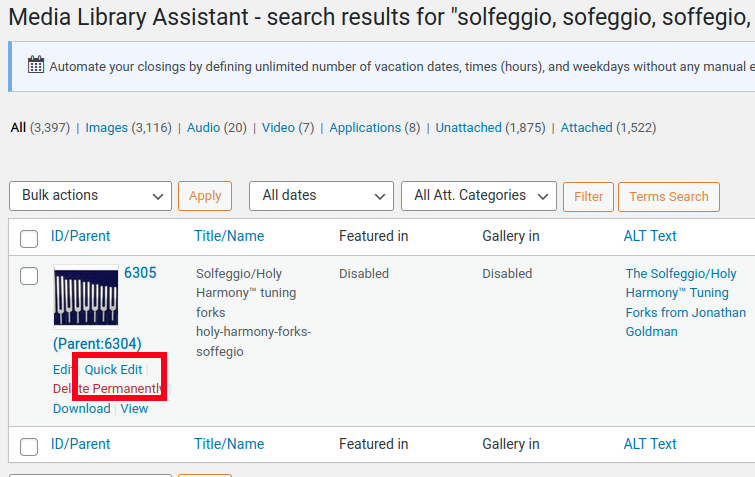
    Holy-Harmony-Forks-Soffegio.jpg oops, misspellings; check the URL, the Alt Tag, the Title, the Description.

    While I’m here, looks like the image has a lot of white space above and below, click Edit, in the Editing window click the “Crop” button, adjust the crop area and (not obvious but important) click the Crop button again; when done processing, you can click the Save button.

    Editing the Image URL

    Now, fix the URL if needed. Hover over the image, click Quick Edit

    If you want to use Media Library categories and tags, you add them in Media Library, “Att. Category” (or “Att. Tag”). Not sure all the places where you use these, but you can at least search on them; maybe visitors can search too, maybe social media tagging uses them.

    Now the media fields are correct: Title, Slug, Alt Text. Save it.

    Editing the Image File Name

    But, the file name of the image is still incorrect. https://www.lc.lndo.site/wp-content/uploads/2018/09/Holy-Harmony-Forks-Soffegio-e1642359315478.jpg

    I will test a plugin, Phoenix Media Rename — https://wordpress.org/plugins/phoenix-media-rename/ which should do exactly what you want, rename a single image or selected several images.

    For now, I’m going to do a quick-and-dirty replace in the database, and manually edit the file name in FTP. (To have me do this for you, Just tell me “wp search-replace” and the before and after file names). For this one, I changed ‘Holy-Harmony-Forks-Soffegio-e1642359315478.jpg’  to ‘Solfeggio-holy-harmony-tuning-forks-e1642359315478.jpg’. Warning: search-replace can replace things in too many places, if you use a bad choice of search text, so don’t use it unless you’re sure what you’re replacing, especially doing a “dry run” first.

    Using the Phoenix Media Rename plugin

    The plugin doesn’t have any menu item, so you’re probably wondering how to use it. That’s because what this plugin does is simply add a field, in a few places in the Media Library, where you can edit the file name.

    In the Media Library, in List view (top left of the screen, icon with a few horizontal lines next to an icon with a few squares), there is now a field where you can edit the file name. For it to take effect, you have to select the Bulk Action “Rename and Retitle”.

    On an individual Media Library item’s page, below the image, “Alternative Text”, “Caption” and “Description” fields, there is now a “Filename” field. Edit the filename right there, when you press Enter in the file name field, or click “Update” the Media Library entry, the file name gets changed.

    Check It Looks Good

    In the regular Media Library, see this:

    That looks good, but I’m noticing this file name is better than what was used before (beyond the misspelling), I’m changing the image slug to solfeggio-holy-harmony-tuning-forks (the same way I changed it above). That’s the way improving headlines and alt text goes, you keep seeing ways to improve it.

    Check the page they are displaying on (the “Parent ID”) displays it correctly. In the Media Library Assistant, Attached To column, click the link.

    Rebuilding Thumbnails

    Now have to build the other image sizes. The thumbnails, the mobile phone sized image, the WooCommerce product image sizes.

    I recommend using the Regenerate Thumbnails plugin. Now, in Media Library and in Media Library Assistant, there is a “Regenerate Thumbnails” button for each image. (The plugin also lets you regenerate thumbnails for all your images at once, for example when you change to a theme that uses different image sizes.)

  • Making Payments to Bellridge with Zelle

    Making Payments to Bellridge with Zelle

    Want to pay your rent easily with Zelle? You probably have Zelle through your bank. Bellridge takes payments through Zelle. Here’s how to make payments with Zelle, and how to know the (optionally recurring) payments are what you want.

    Before you set up payments to Bellridge via Zelle, fill out the Bellridge form authorizing Bellridge to collect money for your rent. This form is in the office.

    The office does not set up collecting payments with Zelle from you. You set up Zelle to make payments to Bellridge.

    What is Zelle?

    Zelle® | “A fast, safe and easy way to send and receive money, to most individuals and many companies.”

    “Get started by enrolling your email or U.S. mobile number through your mobile banking app or with the Zelle® app.
    You can send money to almost anyone you know and trust with a bank account in the U.S.”

    Of course, you can also do everything with Zelle from any modern web browser, such as Chrome, Firefox, Edge, Safari.

    Look for Zelle® in your banking app, or your bank’s website, to get started. Then, enroll your mobile number and Visa® or Mastercard® debit card so you can start sending and receiving money.

    Zelle payment options offered through Chase Bank include Zelle, "pay people in moments, no additional fees"

    Do Banks Close to Bellridge offer Making Payments With Zelle?

    Many banks very close to Bellridge offer Zelle, including: Bank of America, Chase Bank, MidFirst Bank, PNC Bank, Wells Fargo Bank.

    Some common credit card companies and credit unions also offer Zelle, including: Capital One, Geico Credit Union.

    How to Make a Payment to Bellridge With Zelle

    In my bank, in the “Pay & Transfer” menu, there is a box with Zelle. So when you click on “Send Money”, you then “Choose a recipient to send money” by clicking “Add a new recipient”.

    The Zelle recipient name and email are not what is on the Bellridge flyer, so you have to use these:
    Name: BR BELLRIDGE APARTMENTS
    Email: bellridge@optimams.com

    How to add a recipient for your payments via Zelle. Use the name, email, and mobile phone number. The form asks you to confirm the email and phone.
    How to add a recipient for your payments via Zelle. Use the name, email, and mobile phone number. The form asks you to confirm the email and phone.

    Once you have entered the recipient, then you can click Add a Payment.

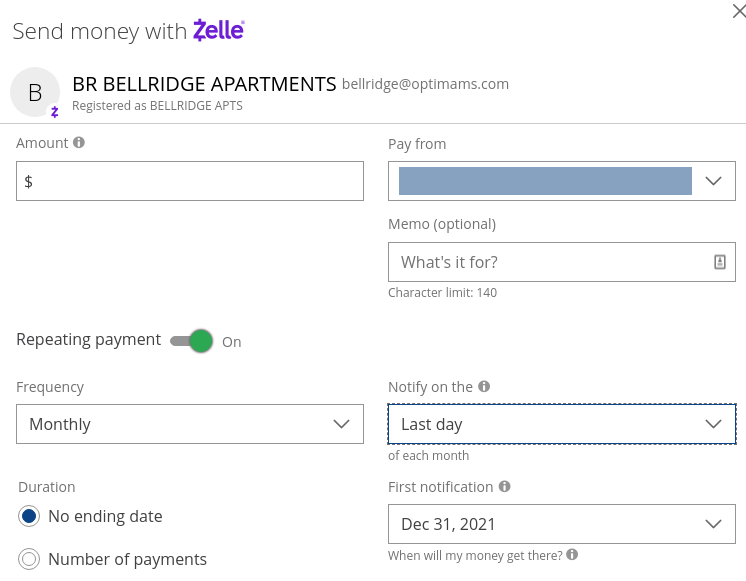
    How to add a recurring payment in Zelle. In addition to specifying who to pay and the amount,Click the toggle by "Repeating payment" and specify how often to repeat (for example, monthly) and what day to notify the recipient (I used "Last day" of the month).
    How to add a recurring payment in Zelle. In addition to specifying who to pay and the amount,Click the toggle by “Repeating payment” and specify how often to repeat (for example, monthly) and what day to notify the recipient (I used “Last day” of the month).


    The amount would normally be your monthly rent, but you also can pay late fees or deposits.

    The “Pay From” is where you select which of your accounts to use, for most people that would be your checking account.

    In the “Memo” field put your apartment number, to make it easier for Bellridge to know to credit the payment to you.

    Repeating Payment: you probably want to set it up so you don’t have to remember to pay your rent each month.

    You can set the payment for the 1st of the month, but I picked “Last day” of the month.

    You have to remember to turn automatic payments off if you move out, and also let your family (or whoever would handle your money when you die) know to turn the repeating payment off.

    If Bellridge Requests A Payment via Zelle From You

    You will get an email from your bank notifying you of their request.

    My bank sent an email including “Your payment is requested. BR BELLRIDGE APARTMENTS requested money from you through QuickPay® with Zelle®.” Yours would say something similar.

    Notice that the company name to use paying Bellridge must be exact.

    Also notice the email address (which you will see if you make a payment to them) is different than what you use for maintenance requests, or to see an apartment; it’s only used for making payments.

    What Happens After You Say to Pay With Zelle?

    You will get an email verifying the payment being sent, including the amount and when the payment should clear.

    Bellridge will also get an email notifying them of your payment, when it will clear, how much the payment is.

  • Printer Paper Types and Trays

    “Every time I would go to print something it would tell me that the photo paper was out, even though I was not printing a photo.”

    Some software might have set your default “print to this paper”, to the photo tray. You can also set each document to the paper you want, in many software programs.

    For example, I have my PDF software set to default to “manual feed tray, paper type: labels”, since what I print most often is USPS address labels.

    On the printer, set the paper in each paper tray, using the printer’s menu. Or, when the printer is paused waiting for a specific paper type (requested by your computer’s software), when you press the “OK” button (or whatever button your printer expects) it remembers that paper “is in that tray”.

    If you print a bunch of documents, and some have different paper types specified, you can send them to the printer all at once, and the printer will print those for the “current paper”. Then when you tell the printer you’ve changed to another paper type (letter/legal, plain/colored/labels, etc) it will print all those documents. A business might have the first page of documents on letterhead and other pages on matching bond paper; and other documents all on plain paper. If the printer has three paper trays, it will automatically pick the tray for the current page.

    In LibreOffice Writer, go to the File, Printer Settings menu; when you click the “Help” button, it says “Select the default printer for the current document”; so you can set the paper type for each document, and if you use a document template to make the document the document will inherit the settings from the template.

    In Printer Settings, in the Paper tab you set Paper Size and Duplex (aka “double-sided” printing) and Paper Tray; in the Device tab you set Media Type (plain, several paper weights, labels, letterhead, envelopes, preprinted, colored, bond, etc).

  • How to Know if a Website is Safe to Use

    There are a couple of “ways to use” a site.

    If your browser gives you a warning about a site

    Leave immediately, don’t go back.

    Close the browser tab. Since you don’t want to accidentally go there, consider removing that URL from your browser history.

    If you get a warning about a site that you know, that used to be good, contact the site owners some other way, alerting them their site very likely got hacked.

    To fill out a form on a site

    Never fill out a form on a site that doesn’t have an SSL “lock” icon showing in your browser bar. It should also show the URL is “https” instead of “http”, but beyond using https, the browser needs to validate the security certificate is for the site.

    Use a “disposable email address”, one that you can delete any time. You might set it up as an “email forwarder”, so you receive the emails from them in your main email account. You can use a GMail account, only for that purpose, knowing that GMail is very good at recognizing spam and blocking the spammer for everyone.

    I have a general email account for signing up on websites, so the email account I give to friends and family isn’t cluttered with that flood of “one step better than spam” junk emails.

    To visit a site, not running any unsafe scripts

    Use a JavaScript blocker, in your web browser. I use NoScript on Firefox, leaving it set to default to blocking scripts that I have not explicitly allowed to run.

    For Known sites: I set NoScript to always allow scripts from that site.

    (Often a site uses JavaScript for menus and slide shows and showing videos; I avoid sites that have lots of scripts, from many companies, they are tracking you through all those scripts.)

    Use minimal add-ons to your browser. Those shopping “helpers” are not worth the risk; you’ve just given the author a whole lot of information and control.

    To visit a site from an email or FaceBook or other link

    Don’t. Browse to the site by typing the URL in to your browser.

    The link it “claims” to be could be different than the URL that you are taken to when you click the link. (Web page links consist of “link text” and “link URL”, and the link text can be anything.)

    If you right-click on a link (or command-click on OS/X) you will get a menu, and from there you can “Copy Link Location”. You can look at the URL in your text editor, and remove unwanted parameters. Parameters on a URL are “the stuff after the question mark”, if the URL has some. Very often you can see the page just fine without all those tracking code parameters.

    For any site that is important, make sure you are on the actual site. Call your bank on the phone using the number on your credit card, instead of clicking the link that you “think” is valid, but is actually a site that “looks just like” your bank.

    To visit a site that you don’t trust but you still want something from them

    Visit the site using the Tor browser, which uses multi-hop secure transmission (so your location can’t be tracked), has all scripts disabled by default (so they can’t run bad scripts when you visit). While you are there, don’t fill out any forms or supply any important information about you.

    Anti-Virus Software

    Many common anti-virus software includes browser security. They can alert you if you are browsing to a website that is known to contain malware, and they will disable malware downloaded onto your computer before it infects your computer. Norton, Avast or Panda are good ones; I’m using the free version of Panda on my computer and Avast on my phone.

    In general

    Don’t give out any information about you, that they don’t legitimately need.

    Your pizza place needs to deliver to your address, and needs a valid credit card number, but they don’t need to know your mother’s maiden name or your favorite color.

    When sites ask you for information about you, and they don’t need to know it, for example your age/city/phone, Lie.
    Use your password keeper to keep track of the answer you gave them.
    “What street was your first house on?” say “Banana”.
    “What is your mother’s maiden name?”, say “Sea of Tranquility” (Apollo 11 lunar landing site).
    “What’s your birthday?” Either July 4, 1976 or 1/1/2001.

    Use a different password for each and every site. Use a password keeper to generate the passwords and remember them, so you don’t remember them. (The hacker who broke into your pizza place, knows many people use the same password at all sites, including for their bank. Or, they use a minor variation of the password, easy for a computer to guess.)

    I use LastPass, 1Password is also excellent but not to be confused with OnePassword which I’ve never used. Keep your passwords, website credentials, software license keys, etc. in the password keeper. All fields are encrypted on your computer, before being sent to the company; even if the company gets hacked, all the hacker would get is an encrypted form of your information. Of course, use a very strong password phrase as the master password for your password keeper.

  • WordPress Updates with WP-CLI

    Most people do plugin, theme and WordPress core updates via the WordPress Update page.

    But if you are managing multiple sites, you might find it’s easier for you if you use the command line.

    Once you are logged into the site via SSH (a secure encrypted text-based terminal for accessing your web hosting account’s files and many Linux commands), then many WordPress command line functions are available to you.

    One requirement: you have to be using a website hosting company that gives you access to the command line, via SSH. I recommend SiteGround for hosting almost all sites.

    WP-CLI works in your WordPress folder (for most people, that’s the public_html folder, aka the www folder). It also works in WordPress sub-folders, e.g. ~/www/wp-content/

    cd ~/www

    Plugin and Themes Updates

    Get a list of plugins your site uses:

    wp plugin list

    Plugins that need updates:

    wp plugin list --update=available

    Update all plugins:

    wp plugin update --all 

    Update all plugins excluding WooCommerce (or any other plugin that itself has plugins, and therefore you should update all the plugins-plugins first and then update the main plugin). Substitute the name of the plugin, from the “wp plugin list” command:

    wp plugin update --all --exclude=woocommerce

    Updating Your Themes

    wp theme list
    wp theme update --all

    Updating WordPress Core from SSH

    wp core update

    What Other WP-CLI Commands Are Available?

    wp help

    That shows you a list of commands, and a brief description. You can then get help on any of those commands

    wp help core

    Many of the WP-CLI commands have several levels, and several parameters. For example:

    wp user create bob bob@example.com --role=author

    So use “wp help user create” to see what the available parameters and options are for the “wp user create” command.

    If you simply type the command without the required parameters, you will get a brief usage prompt.

    wp user create
    usage: wp user create [--role=] [--user_pass=] [--user_registered=] [--display_name=] [--user_nicename=] [--user_url=] [--nickname=] [--first_name=] [--last_name=] [--description=] [--rich_editing=] [--send-email] [--porcelain]

    Some plugins have their own WP-CLI access, check the plugin’s documentation or the “wp help” list.

    The help documents are displayed using “less” (the Linux command for paging through a text document, at least on some flavors of Linux; your flavor of Linux might use “more”), PgUp and PgDn work, as does searching for text with the “/” key, or getting help on using less by pressing the “h” key. Exit by pressing the “q” key.

  • Business Teams during covid-19 — Despite Corporations

    Business Teams during covid-19 — Despite Corporations

    Corporations forcing (urging, pushing) people to work when they are at risk of getting covid-19 and infecting their family, hurts Us.

    Corporations dumping food, when people are hungry and scared they won’t get food; when other kinds of businesses would find a way to get that food to people; that hurts Us.

    What can you, as a group, standing for a community, accomplish?

    What can you accomplish, as a group, that you can’t accomplish as an individual?

    There are other kinds of businesses, that do care about the community, and do care about your groups. Corporations can’t. It isn’t the “tax filing status”, it’s the kind of thinking, what the corporation is aware of, what they are unable to understand. To a corporation, a group or a community is just “lots of people”, and employees are just “workers”, expenses to be reduced.

    A course you’ve likely done or heard of, says (or at least, we can reasonably expect to get) that standing as a group is:

    1) Survivable. Though corporations tell us endlessly, in their every action and as a “conversation in the background” of everything they say, that if you don’t “shut up and do what you’re told” you will be fired, and your family will be outcast, and you will be forced to live in the wilderness, where you will all be devoured by animals and Die…

    Though all corporations always and only convince us of that, you standing for a community is survivable.

    2) Workable. You as-a-group can get corporations to change their behavior, to stop harming the community, to change their policy, to spend some money so people are safe, to spend some money so the work environment is safe, to spend some money so the products are safe. Though corporations are always and only interested in “make more money, make more profit”, you as a group can force corporations to change. Yes, even that corporation.

    3) Worthwhile. Whether you get the corporation to change how you as a group want, or not, standing as a group for a community, is almost always worthwhile. It might not be easy, you might have to keep at it and keep at it, and keep going, and keep having more people join you, and try something else, and then another something else. It is worth it.

    Are you actually limited to doing the tasks that someone assigns you? Or has it only seemed that way, but really isn’t? It often seems like every corporation thinks, or more accurately “thinks from”, you are a low-level employee, and so of course it’s appropriate to give you tasks, you’re not capable of anything better. Is that real?

    While so many offices are closed, due to covid-19, so it is obvious that they-as-a-corporation have few tasks for you to do, what can you, as a group, committed to making a difference in your communities, accomplish?

    You as a group, in your several groups and several communities, always have wanted, at the highest level, causing “a world that works for everyone, with nobody and nothing left out”. You as a group want that; you as a community and as several communities want that; no corporation can ever want that.

    Like every corporation, ___ Corporation is terrified of You-As-Group. You can make the corporation spend money or lose money. You can make the corporation look bad, which will cost the corporation customers. You can come up with great ideas, which makes the corporation look bad (how come they didn’t think of it). You can start businesses that will compete with the dumb corporation. You can generate lawsuits, which could lead to the state revoking the business license, killing the corporation.

    You have been so busy being scared of the corporation, you didn’t notice that every corporation is Terrified of You. But not you as an individual, always you-as-group.

    If someone tells you “get on task”, you know immediately they are a “corporate agent” and are not empowering you to make a difference in your communities. Therefore, you never have to follow their orders. (However, if that corporate agent is paying you money you depend on, consider continuing to play dumb for them, at least until you aren’t dependent on that money.)

    If you’re empowering someone, or a team, that’s more important than their task. No matter what task they want you to do.

    If you’re training people to work as a team to produce something, that’s more important than their task.

    If you’re completing something, that is in the way of you as a group making something happen, that is more important than their task.

    If you are accomplishing something, that makes the community better, that’s more important than any task a “dumb boss” is capable of giving you. (Have you noticed that bosses in other types of business can be intelligent, but in a corporation there are only dumb bosses?)

    How can you act, now and when non-corporate businesses open again, standing for a community instead of doing tasks?

    How can you get trained in planning projects, so the team knows what everyone is doing, so you or the team pick people for each of the roles needed for the project, react well when something goes wrong or happens that wasn’t anticipated, and everyone on the team succeeds? (Tip: look into Scrum management.)

    How can you train your group to determine what the community will need, where specifically, when exactly? Trump’s administration isn’t doing that for your community, since corporations and corporate-minded government agencies don’t care what your community needs. We need You.

  • Making a Memorable Secure Password Phrase

    Making a Memorable Secure Password Phrase

    You need a very secure password to use as the master password for your password keeper software, and for your computer login. There may be a very few sites that you log into often that you might think can use a typed password, but avoid that.

    These few passwords have to be very easy to remember and easy for you to type. But they have to be difficult for computers to guess, in the rest of your lifetime.

    More security steps you can take, beyond good passwords: WordPress Security for People Without Technical WordPress Knowledge.

    Why do you need a Password Phrase, instead of the way you’ve been making a password for years? Because hackers know how to guess those passwords.

    See Strong Passwords for WordPress and Your Password Keeper.

    What I’m Going to Cover:

    • How to make a truly secure password phrase for your password keeper master password, and for the few passwords you type frequently. This must be hard for hackers to guess, easy for you to remember and easy for you to type;
    • How to pick a password phrase in a way you will remember it in seconds or minutes.

    You must use very strong passwords on your WordPress site (and you must have an SSL certificate, to prevent your WordPress login from being sent as plain text; many excellent hosting companies like SiteGround provide SSL certificates for free). You should use very strong passwords on every web site you use, and every password should be different.

    WordPress encrypts your passwords, and the encryption is strong enough hackers can’t break the encryption. But hackers know the way we’ve all been taught to make “secure” passwords, and that lets them automate scripts that guess your passwords.

    Making a Secure Password

    One way of making passwords that are actually secure, but you’ll never be able to remember, is use a password generator. Use the password generator in a password keeping software, and all you have to remember is the “master password” for the password keeper.

    “A password manager is just software that creates, stores and organizes all your passwords for your computers, websites, applications and networks.”

    http://thehackernews.com/2016/07/best-password-manager.html

    I give you my recommendations on how to select which password keeper you want to use, in Strong Passwords for WordPress and Your Password Keeper. I’m using LastPass, since it is easy to use, and it works on Windows, OS/X, Linux, iOS, and Android.

    The password keeper software will remember all your user names, account numbers, and passwords, plus any other information you keep as notes for that site. You can also use your password keeper for securely storing bank account numbers, credit cards, library cards, WiFi passwords, serial numbers, registration numbers, router configuration details, etc.

    The only passwords you should frequently type are the ones for your computer and for your password keeper, your phone pin, and your bank card pin. All others should be pasted from your password keeper.

    Basics of Password Security

    For each site, use the longest password the site allows, up to maybe 60 characters. Your password keeper will let you copy/paste the password, so you don’t have to ever type it. Most password keepers also have an option to simply fill in all the login information, skipping the copy/paste.

    (As long as it is a random computer-generated password, 60 characters is “lifetime strong”.)

    Never use a password on more than one site. If someone gets your password at your favorite pizza place, and orders a pizza “for carry out” on your card, you don’t want them also able to use your video streaming account or your bank, right? Many hacks on simple websites are to get 1) the password or 2) the password-making rule, for every registered user.

    Why? Because hackers know most people use the “same or similar” password on all websites.

    LastPass and many other password keepers will even warn you to change passwords if a password is used on more than one site.

    Old Rules to Make “Secure” Passwords Are Too Easy to Guess

    The rules we’ve been told by technical support people for decades, make passwords that are not secure any more. The main reason is simple: there is software that can make billions of guesses of your password per minute, and hackers using it know all the “clever” rules people come up with for making passwords.

    The rules we’ve been taught for years that should make a secure password, aren’t good enough. Those rules actually limit the possible passwords a hacker’s software would have to check. For example, the “word plus number plus punctuation” rule makes a password that is basically as easy to guess as a three-letter password; the word is in the dictionary, plus about 100 characters for all letters and punctuation, twice). Hackers know all the “substitute a number instead of a vowel” rules too, such as “3 for m or 0 for o (zero for oh)”, and that is easier for computers to check than it is for you to remember.

    Even 8 character random passwords can be guessed in under a day, if they are looking for Your password and have stolen the website’s database. While most hackers are looking for the easy targets on a website, you need a password that can’t be guessed during your lifetime!

    Making Secure Passwords You Can Remember

    Password Strength cartoon from xkcd.com/936/

    You have to remember your password keeper’s master password. Forget it and all your other passwords are encrypted in a way that can not be broken (unless of course your master password is so weak it can be guessed by password cracking software).

    The comments on the original correct horse battery staple page point out that if all four words you pick are in the 5,000 most popular English words, then you should calculate the time it takes the password software to go through 625,000,000,000,000 (5000 x 5000 x 5000 x 5000) combinations.

    There are 60 seconds * 60 minutes * 24 hours = 86,400 seconds/day. At 8 billion password guesses per second, they have your “four common words” password in about 1 day, using a “wimpy” 2012 computer.

    Obviously one way to make your password (pass phrase) more secure is use at least one word that is not in that tiny dictionary of most popular words. Engineering, scientific, medical, or any other more obscure words will do; but they have to be easy for you to remember, and remember how to spell. (Or, remember consistently how to mis-spell). Common foreign language words are also in hacker dictionaries, but less common ones are good to use; pick a language that is not common in the websites you use.

    Another way to make your password more secure is use 6-8 words. But remembering 4 random words is hard enough for most people. (Tip: get one of the associative memory courses, such as MegaMemory.) If you have a system memorized already, okay. If you have the type of memory where you know every move of every chess game Kasparov ever played, good for you, use it. But if you don’t, here’s how.

    Making a Memorable Secure Password Phrase

    I think the proper person for teaching this task is Mary Poppins:

    Julie Andrews in “A Spoonful of Sugar” from Mary Poppins 1964

    Now, pick a “mini-scene”, for example the robin or the mirror, and describe it in 6-8 words. For this mini-scene, perhaps “robin feathering fly mary whistle duet” (a robin feathering his nest flies to Mary Poppins and they whistle a duet) but don’t use that, make your own story. As long as you pick a vivid, memorable mini-scene, the “story” you make up will be completely memorable to you, but not easy for anyone to guess, even if they know what movie you love.

    • Ignore any 1-3 letter words unless important.
    • Don’t take a lyric or famous quote, as those could be in the “dictionary” of some hackers. “spoonful of sugar” is a lousy password, “spoonful of sugar to help the medicine go down” is so famous it’s not much better than “spoonful1964”
    • No punctuation between words (spaces aren’t allowed on some sites, and punctuation are harder to type); or if you must, use the same common punctuation between each word of every password; no having to remember which one you used.
    • Pick one place to put a capital letter, probably the first letter of the first word, and use that place for every password you make.
    • Pick one place to put a digit (probably the end), and one place to put a punctuation mark (probably after the digit). Use the same digit, punctuation mark and place for every password you make, so you don’t have to remember what and where you picked.
    • Only use punctuation that is accepted on almost all web sites, e.g. the top row of your keyboard, ~!@#$%^&*)_+-= so you don’t have to remember which sites use which punctuation mark.
    • If you’re not certain whether to use singular or plural (“was it penguin or penguins who bowed in the cafe?” in “It’s a Jolly Holiday with Mary”) always use singular (the simpler word). Or, move slightly ahead or back in time, so it is clear (“how many penguins gave Mary a kiss?” You do remember, don’t you, even after the years since you watched Mary Poppins? Go watch again…)
    • Any time remembering it “wrong” will be highly memorable, go with it. If you can vividly see in your imagination that in “The Matrix”, Neo did a cartwheel and grabbed a Howitzer off the floor (instead of a machine gun), excellent.
    • Any time a more complex or less common word would be memorable, use it. Know your birds? Use the actual type of robin Mary sang to, instead of “bird”.

    Some more practice making stories from mini-scenes (but soon quit practicing, pick a movie you love, change your password keeper’s master password!). This is quite a curtain call:

    Mary Poppins (1964) The Penguin Dance

    What does Neo do?

    https://youtu.be/855w0sdZjgA?t=131
    The Matrix (1999) | Lobby Shootout Scene
  • Domain Name Transfer

    Domain Name Transfer

    Many people register their domain name with GoDaddy, simply because they have heard of it. But Google Domains or NameCheap might be better for you.

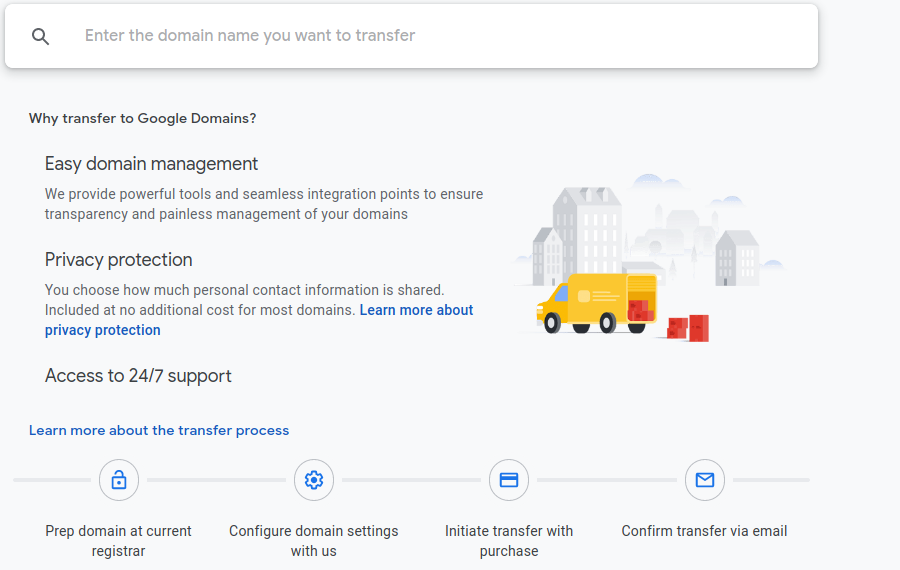
    You can transfer your existing domain name registration to another registrar, except the few days before the registration expires. Google Domains has clear instructions how to transfer.

    There are features that you might want, that GoDaddy charges extra for. And GoDaddy does not always have the best price (among the reliable, well-known domain registrars).

    I never use GoDaddy for hosting websites. Their security is lacking: too many people who wanted me managing their sites, who were hosting on GoDaddy, were already hacked; I moved their site hosting to SiteGround and rebuilt it.) Also, GoDaddy charges for SSL certificates, which every website needs today (for example, without SSL, your WordPress login page is not encrypted so your username and password can be collected). SiteGround and many other hosts provide SSL certificates for free. Their Managed WordPress hosting isn’t better than SiteGround’s, their technical support isn’t as good (SiteGround has Excellent support), the management interface is harder to use. Don’t host websites on GoDaddy, even though GoDaddy is much better than many other hosting companies.

    I have used GoDaddy for Domain Name Registration, decent price, reliable. But they charge extra for keeping your information private.

    Do a Whois search to see what information is public, for example at Google Domains, type in any domain name, and if it is registered by someone, click on the More Options link ( https://domains.google.com/m/registrar/search ). Another way to get the Whois information is ICANN Who Is Lookup or GoDaddy Whois. I notice that GoDaddy displays much more personal information than ICANN or Google.

    One reason for transferring your domain registration to Google Domains is “Privacy protection included. Google Domains covers the cost of keeping your details private.”

    Google Domains has lower cost for domain registration than GoDaddy (at least on the domain I was about to renew), and privacy protection is included; so GoDaddy loses on two counts.

    As of early January 2020, Google wants $12/yr for a .com, GoDaddy wants $18/year for renewing that .com plus $9.99/year more for privacy. (Tip: A GoDaddy support person mentioned May 2020 that the Domain Registry will soon have all Domain Registrars give privacy for free.)

    “When you transfer, you retain all the time of your current registration and add an extra year. The current expiration date for YOURDOMAIN.com is January 10, 2020. After the transfer is complete, YOURDOMAIN.com will be registered until January 10, 2021. Transferring your domain to Google requires an additional year of registration ($12 plus tax).”

    Google Domains has a user interface that is clear and easy to use, for managing a large number of domains. Several people who are in the Arizona WordPress Meetup who set up websites for many clients, prefer the Google Domains interface over GoDaddy’s.

  • 2-Factor Authentication on Ring Cameras

    Ring security cameras have a password, to prevent unauthorized people accessing your video. You should always add 2-Factor Authentication for additional security.

    There are videos in the news lately (Dec 2019) of Ring and other brands of Internet-connected video cameras being hacked. One shows a hacker talking with a young girl in her room; this was done making a podcast to show they could hack the camera. One of the simplest ways to prevent this is using 2-Factor Authentication.

    Hackers are able to guess your password, unless you use a very good password. 1) The password has to be actually hard for hackers to guess; and 2) the password has to be different than all your other passwords. Hackers have gotten millions of user name and password combinations from hacked websites.

    The “rules” we’ve been taught for decades on how to make a password, are rules that all hackers know and can therefore use to guess your password. To make a secure password, and to use a password keeper software so you can keep track of all your passwords and easily fill them into your sites, see https://computerhelp.lc.lndo.site/2016-strong-passwords-for-wordpress/

    Definitely Use 2-Factor Authentication

    “2-Factor Authentication” aka “2FA”, blocks someone from logging in even if they know your password. The second factor in authentication is you typing in a code that is generated on your mobile phone. (The device or site you are logging into, negotiates with your phone which code to display on your phone that you have to type into the login.)

    For your Ring camera, you have the option of using 2-Factor Authentication. You run a free app such as Authy on your mobile phone, and type the code shown on the app into your Ring. (You can use the same app for all the websites that offer 2-factor authentication.)

    Some of the best 2-factor authentication apps for your mobile phone are: Authy, Google Authenticator, LastPass Authenticator, QR Code, Push Notification, Soft Token and Security Questions(KBA). I picked Authy because it ran on older Android devices, has lower overhead; but you can use any well-written app.

    On WordPress, I recommend using the 2-Factor Authentication built into WordFence (or if you prefer, in iThemes Security). Since you definitely should be running one of these security plugins, don’t install a separate plugin for 2-Factor Authentication.