Category: WordPress Consulting and Computer Help for Small Businesses

Migrated content from computerhelp.lc.lndo.site

  • Removing Hacks from Your Site

    Hi, I’ve been getting the same bunch of exe files uploaded to the root of my server for the past few weeks. I installed WordFence and also bought an expensive “Sitelock” service / firewall for $50 a month! Sadly my site is not making any money yet so this is a huge expense. I’m at my wits end and hope you can help. Thank you!

    Hopefully this isn’t about your site…

    There are many indications your site has been hacked. Seeing many unknown files is a clear sign. Seeing a warning from your web browser or Google Analytics is definitely something to take seriously. Seeing pages of your site listed in search engines containing content you didn’t write, is another common way of finding out your site is hacked.

    I would say you do not need both WordFence and Sitelock, especially since your site is not making money yet. Use WordFence, and many sites can use the free version unless you see a paid feature you really want.

    It is important to go through all the WordFence settings, to make sure that you have the most secure settings that will work on your hosting account. (Change a few settings, make sure everything works on your hosting account, then make more setting changes.)

    The WordFence application firewall is especially useful for blocking malware from spreading. For example, an image slider plugin that has a security vulnerability might allow a hacker to upload malware instead of an image; but the firewall would likely stop it from running, so there would be no damage to your website. (It would likely alert you to any attempts to run that file, and recommend you delete it.)

    Is the Site Still Hacked?

    How confident are you that you have found the source of the “bunch of exe files” and removed it? Almost nobody should attempt cleaning a hacked site themselves. It truly requires an expert. Hire WordFence to clean your site, using the money you have been paying to SiteLock. (I have nothing against SiteLock, but most sites will be adequately protected with WordFence, especially if you are using a good hosting company.)

    There are sites that offer “site scans”. However, these are not thorough assessments of every part of your hosting account. WordFence and Sucuri offer them, and they say clearly their free scans are not thorough.

    For example, some hackers install scripts that “stay asleep” for a while, to avoid detection, and only act when the hacker has work for them to do. Said another way, your site could have been hacked months before you noticed anything wrong, or a site check noticed anything.

    When the WordFence Application Firewall is installed on your site (different than scanning from outside your site), it can check every file for problems and every action your site takes, and every incoming request to your site. If the firewall reports your site is clean, you have much more certainty it is accurate.

    How to Prevent Many Hacking Attempts

    You should also look at removing plugins you do not need, and look at removing plugins that do not have excellent reviews in the WordPress plugin repository. Replace any plugins that have not had any updates recently. (Same rules apply for themes.) Do not simply deactivate them, you should delete them from all your WordPress installations. (Never have WordPress installations “lying around”, you must keep every installation of all your software updated.)

    The hacker could have gotten in through insecure plugins. Don’t install plugins that haven’t been thoroughly vetted by the WordPress repository, and by your most technical friends/colleagues (or better still, your WordPress Meetup). Keep all plugins updated, and WordPress updated — many of those updates include security patches.

    The hacker could have logged in as You, and installed malware. It is much easier than you think, for hackers to guess your password, unless you have a computer-generated password. Use a password keeper such as LastPass, have it store and fill in your login information on all sites you visit (and use it to store all other important data, e.g. your WiFi password, router administration login, credit card information, software licencse, etc.) Have your password keeper generate the longest password each site will accept (up to maybe 50 characters). No using the same password on different sites. See my Strong Passwords for WordPress for why you really need to use a password keeper, and how to make a hard-to-guess but easy-to-remember and easy-to-type password for your password keeper’s master password. (I also use a very good password for access to my computer.)

    Another way hackers could get your login information is by your not using SSL. You must have SSL on every website. Why do you need SSL? Because without it, anyone with WiFi sniffing software can see the plain-text information sent by your WordPress forms, including your login form. When SSL certificates were expensive and hard to install, the rule was you needed SSL if you were doing anything ecommerce; now SSL certificates are available (on all the good hosting companies) for free and installation is “click a button”.

    The hacker could have gotten in through your hosting company not having adequate security; now is a good time to assess whether you can evaluate hosting companies for WordPress security (most people can not). Many popular hosting companies have inadequate security.

    What Hosting Company to Use?

    The Arizona WordPress Meetup has many people who set up and maintain sites for clients, and they have identified very few hosting companies that are worth using for your website. I use SiteGround.

    SiteGround is probably about the same cost as your current hosting company, if you picked your hosting company by price (most people do). But SiteGround provides excellent technical support and excellent website security.

    On SiteGround and other excellent hosting companies, SSL certificates are free; unlike GoDaddy which charges more for SSL for a year than for hosting.

    As a website developer, SiteGround provides many tools to make my job easier.

    Could You Do It Yourself?

    If you can’t hire WordFence to clean your site, if your site is a small enough number of pages, make a copy of Just the Text and Just the Images of your site, of every page. Then have your hosting company Wipe your entire site completely clean, every file, the entire database, every configuration setting.

    Then install WordPress fresh, then WordFence right away, then only the plugins you need, then the default WordPress TwentyTwenty theme (or Astra theme) and Elementor page builder, and then remake all your posts.

    That is the only way to have any certainty the hack is removed, if you’re going to “do it yourself”.

  • Entering Passwords on Video Streaming Devices

    Entering Passwords on Video Streaming Devices

    Video streaming devices are really nice. But those remote-control virtual keyboards are too tedious to use for browsing. They are much too hard to use for typing in a secure password.

    You have to type in your account password, for Google Mail, for your Netflix account, for your YouTube account, for your Hulu account, etc.

    (See my page on Password Keepers and Secure Passwords, and how to make a password that is easier to type on mobile devices or streaming devices.)

    Check your specs on the streaming device. It probably uses a Bluetooth or USB-2.4GHz wireless keyboard. Your Roku almost certainly does. Your Amazon Firestick does. Most no-brand video streamers do.

    Look on eBay for things like this:

    “Wireless Colorful Backlit Mini Keyboard Air Mouse with Touchpad 2.4GHz” for under $10 (there are Bluetooth versions of similar keyboards). Keywords might be “Bluetooth mini keyboard” or “Backlit 2.4GHz mini keyboard” or “wireless 2.4 keyboard”.

    Mini keyboards are convenient when you’re on the sofa watching TV. Backlit keyboards are really nice when you’re watching in a darkened room. (Touch a key, e.g. the shift key, and the back-light comes back on.) Having a touchpad built into the keyboard, and arrow keys that toggle into mouse-mode, are both really convenient for moving around on the screen.

    Really makes searching and browsing and typing much easier on those streaming TV devices.

  • LastPass Login Lasts Only Seconds, Easy Settings Fix

    LastPass Login Lasts Only Seconds, Easy Settings Fix

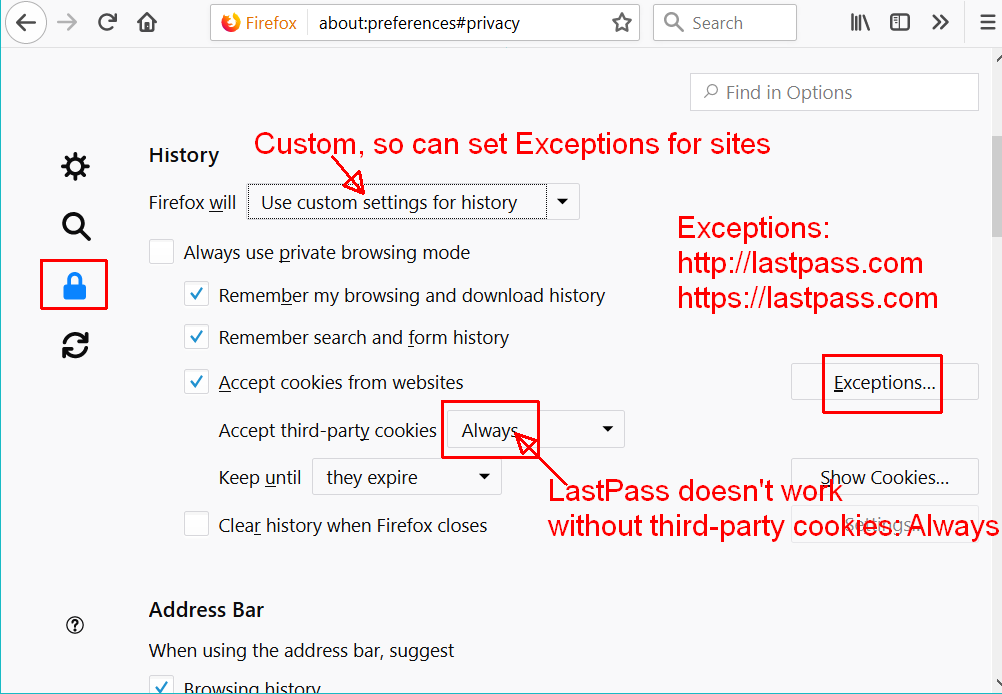
    I was logging into LastPass, the password was accepted, the LastPass icon changed to red (indicating that I was logged in). Then a few seconds later, the icon would change to yellow, indicating the login had expired. Clearly my LastPass settings were off.

    I use LastPass as my password keeper. When I log into a new website or change a password on a site, it remembers the login details for me. Next time I go to that site, LastPass will either automatically log in for me, or let me pick which login to use on the site. (I can set my preference in general and for specific sites). Go to my LastPass password keeper and Using Strong Passwords page for making a secure password that you can remember and type.

    I have all my passwords in it so I need it working right, and it had worked a long time. (I could use my phone to get the passwords, and I had not tested but probably logging directly in the LastPass.com site would work. I also have the Chrome browser, and LastPass would almost certainly work on that. I was really suspecting this was a temporary problem just on the one browser.) But the browser add-on is really convenient. (more…)

  • Twitter Forcing You to mobile.twitter.com? Or is it NoScript settings?

    Twitter Forcing You to mobile.twitter.com? Or is it NoScript settings?

    Are you logging in to Twitter, and for some reason it redirects you to the Twitter mobile version even though you are on your desktop computer?

    http://mobile.twitter.com/ is good when browsing on a mobile phone, but not what I want when I’m using Firefox on a widescreen monitor.

    At first I thought it was something that Twitter didn’t like about the newest version of Firefox, but that isn’t what the problem actually was.

    I like security, including blocking scripts that I don’t know about. I don’t want to visit a site and have some hacker JavaScript run on my browser. Anything you can do to block hackers is good.

    So, I use the Firefox add-on NoScript. NoScript defaults to blocking all scripts, and then you white-list the scripts that you want to allow. You specify what scripts to run by the domain name, or sub-domain name.

    It has a feature to temporarily allow all scripts on a page, for testing. It also has a feature to temporarily trust scripts from a specific domain name, for example allow this page to run today but not automatically. (I use this for testing what scripts I need to enable on a page for the page features to work how I want.) And you can revoke all temporary permissions. You can trust https: while blocking http: (without SSL) scripts.

    NoScript is a very nice tool!

    In Firefox, tap the Alt key to see the top menu, Tools, Add-Ons, scroll to the bottom of the page to click “See more add-ons“. Then in the search bar, type NoScript and click “NoScript Security Suite“.

    Next you’ll have to spend some time, as you visit sites, enabling the scripts you want to allow. Most often, you only allow scripts for the https version of the site itself. Then you test if the site works right, and allow additional minimal domains until everything you want working, does work. You can Google the domain name and “scripts” to get an idea what the script’s reputation is.

    Here’s what I was setting for Twitter, visible from https://help.twitter.com/ which doesn’t redirect for mobile browsers:
    NoScript settings lead Twitter to redirect to mobile

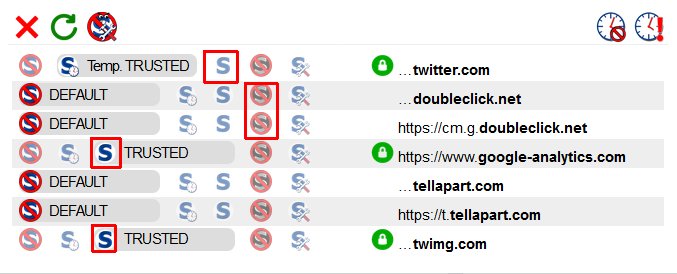
    The problem (getting the mobile version) was due to my having the “Default” for twitter.com and all it’s subdomains that aren’t specifically listed. (Again, the Default is all scripts and objects blocked.) But I couldn’t see that while I was being redirected to mobile.twitter.com (which you also want to set “Trusted”).

    In this specific case, I could see “…twitter.com” and click the “S” icon to make it “Trusted”. If not, or if you want to specify several domains at once, click the third icon from the top left, the “No S” icon with the wrench, for Options. See Wikipedia Noscript and jeaye.com for a clear explanation of NoScript, and of course the NoScript help pages https://noscript.net/faq and https://noscript.net/features

    Which permissions do you want for a site? Here’s some ideas about setting them:

    Allowing only HTTPS (not HTTP) — Look at the lock symbol by the domain name. If it is red, HTTP is allowed, if it is green, only HTTPS is allowed. Click the lock to toggle it.

    Fetch is to be granted only if essential — http://www.redotheweb.com/2015/11/09/api-security.html

    Now I have these settings for NoScript for Twitter:

    NoScript settings I use for Twitter

    Change …twitter.com to Trusted, and …twimg.com (for Twitter images) to Trusted.

    DoubleClick tracks your site visits, for advertisers. I keep it set to Untrusted.

    Google Analytics I set to Trusted.

    Tellapart.com I haven’t researched at all, and I don’t notice anything about Twitter not working without it, so I leave it set to Default.

    You can also click that “monster wrench” icon (third from the left on top), and add mobile.twitter.com if you want.

    (My current settings for Default are everything un-checked, so everything is blocked. My settings for Untrusted are everything blocked.)

    You may need to force a refresh of the page, so it doesn’t load from the browser cache. On Windows, for Firefox or Chrome, either hold down Ctrl and click the Reload button, or hold down Ctrl and press F5. On OS/X Safari, pressing CMD + SHIFT + R reloads the page ignoring cache.


  • Should you Email a Password? Never! Use a Password Keeper

    Should you Email a Password? Never! Use a Password Keeper

    Never email passwords or other confidential information. Use LastPass, or another top-rated password keeper such as OnePassword, to send passwords.

    Email is not a good way to communicate passwords. Email servers get hacked, and email transmissions get intercepted. You can set up encrypted emails, but that takes some work for you and the recipient (another topic).

    With LastPass, one of the things you never have to do again is “email someone a password”.

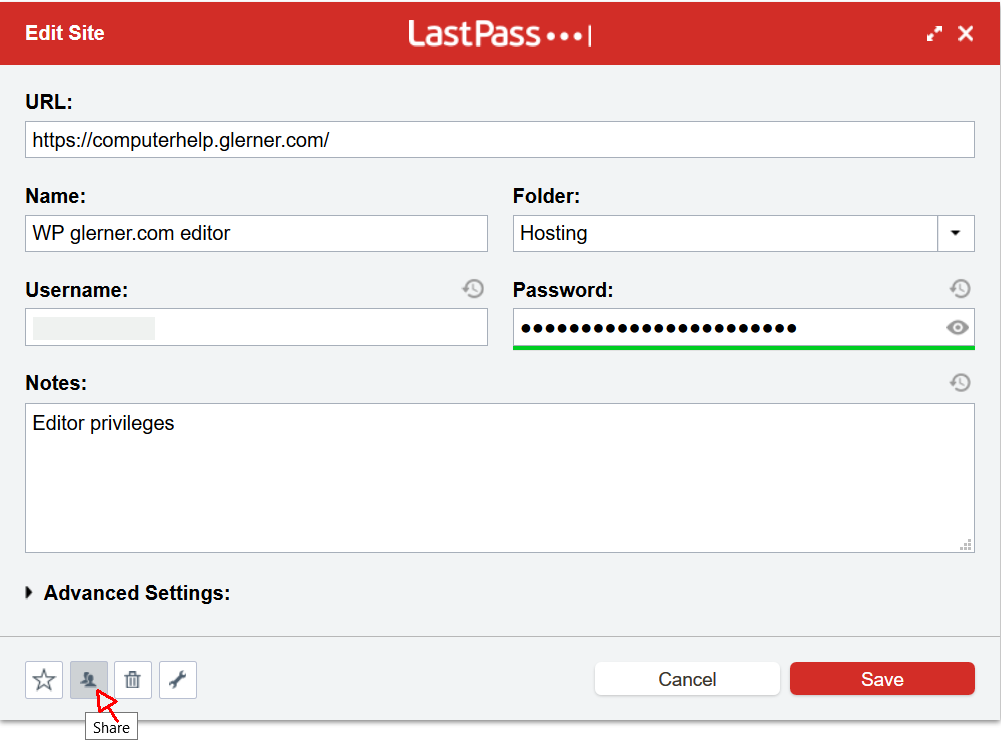
    Better approach with LastPass is to click their icon to Share a password. When you share a password, you can specify whether the other person can ever see it or just can have LastPass fill it in for them. You can also store and share notes, account numbers, etc. via LastPass.

    A better approach for WordPress is for you to create a user. You specify what permissions they should have (for example, Editor or Author, or if they truly need it Administrator). You email them (to their email address you used when creating the user) the URL to your website/wp-admin/. When they try to log in, they click the “Forgot password” link and make their own password (using, of course, LastPass to generate it and store it).

    Want to make a good Master Password for your password manager, that is extremely difficult for hackers to guess, yet easy for you to remember and type? Read my Strong Passwords for WordPress .

  • What You Can Do to Improve Your Health and Wellness

    Books and Videos and Newsletters by top health experts, who have their patients get healthy; not by drug companies or doctors who primarily work with medicines.

    There are several Inexpensive yet effective ways to improve your health and your sense of wellness, from medical doctors who have produced excellent health in many of their patients.

    Want to think more clearly, even as you age?

    Feeling soreness in your joints, hands, back, or neck? Taking medications for arthritis or joint pain?

    There are good books and programs for increasing many aspects of your long-term health and wellness. These are written for people without medical degrees, who don’t know how to read a medical researcher’s detailed reports, but are intelligent enough to learn what works for their health.

    Your doctor may only know about the drugs and surgeries that are available. They may not have the best information for preventing illness, preventing or slowing cancer, restoring your joints and flexibility, reducing or eliminating chronic pain, eliminating or reducing or preventing heart disease, and many more ways of improving your health.

    Many medical doctors know medicine and surgery and medical procedures, but not nutrition or food sensitivities or what kinds of movement improves wellness — though these have been shown to be effective by numerous hospital or university medical studies.

    These books and DVDs give information that seems sensible, that present inexpensive things to eat or do, and what they suggest seems safe. I’m not a doctor, but they are; so look at what they recommend. If it makes sense to you and you assess it might help you, and you see how it is likely safe, then check with your doctor and take the advice these doctors give.

    There are numerous references to medical studies done, that you can read or give to your physician.

    Some of the products I’ve used, and enjoy. Some of the books I’ve seen their PBS health specials or TED talks, that look very good and I would love to try. (A few are simply good food.)

    [asa_collection items=25 tpl=”flat_box_vertical” type=random ]Health_Wellness[/asa_collection]

    As I’m sure you’ll agree, it is always good to find out more about your health!

  • HTML Tag Selection in NotePad++

    I’m moving or deleting sections of HTML or XML code, several times a day. NotePad++ has the ability for you to press a single keystroke to select the entire block of code. Big time saver.

    You simply install a NotePad++ Plugin from http://docs.notepad-plus-plus.org/index.php/Plugin_Central

    The plugin you want for selecting and copying or moving HTML tags is the “HTMLTag (Unicode)” plugin, which “provides two core functions to Notepad++”:

    • HTML and XML tag matching, like the built-in brace matching (Ctrl+B / Shift+Ctrl+B)
    • HTML entity encoding/decoding (example: é to é and vice versa)

    Unfortunately, the HTMLTag plugin is a 32-bit plugin. That means if you are using the 64-bit version of NotePad++, you will get a message about the plugin “is not compatible with the current version of NotePad++”. The Compare plugin is also 32-bit, though there is mention of a 64-bit version on GitHub.

    The Compare plugin is one I use very often, to quickly compare two text files. It does much of what the Linux diff command does, showing the difference between files. It is smart enough to detect lines that have been moved or deleted. It can highlight the differences within lines of the two files. You can easily navigate among the differences. Even if you are using GIT to track version changes, you will likely find you want to compare files that are not in your version management system, and this is a good plugin for that.

    CSSlist is a very useful plugin, lists all the CSS classes and colors for easier inserting the names into your code. Even “adds the ability to list the different colors that are in the document and export the list as an SVG file for Inkscape or Gimp palette.”

    NppSnippets is another plugin that looks interesting. “A easy to use snippet / template plug-in: NppSnippets. Similarity with the TextPad Clip Library is no accident. To insert a snippet simply double click on the item in the list and the snippet is inserted at the current cursor position. To edit right-click on that item. ”

    Take a look at the TakeNotes plugin, too.

  • NotePad++ Settings to Edit .log Files

    NotePad++ Settings to Edit .log Files

    Getting an error in NotePad++ about a “session file” error when opening a .log file?

    What Is NotePad++ ?

    NotePad++ is an excellent text editor for Windows, much better than Windows Notepad, especially for editing multiple documents. If you are a website designer or computer programmer, I recommend it as one of the best available. NotePad++ knows the syntax of most computer programming languages, with Syntax Highlighting and Syntax Folding to help you see errors in your code. NotePadd++ has Perl Compatible Regular Expressions for searching and replacing. It has good macro recording and saving. (But, if you are wanting an integrated development environment, with debugging and viewing the results all in one, NotePad++ is not one.)

    There is also a NotePad++ portable version, running off a thumb drive without any installation needed, so you have your favorite text editor with you on any computer you’re using.

    NotePad++ Use of Log Files

    But if you try viewing a .log file, for example from a website you are managing, it gives an error “Session file is either corrupted or not valid”. Huh?

    Notepad++ lets you open a collection of files and remember them next time you start the program. The list of files, and other settings that make up your editing “session” are stored by default in .log files. So NotePad++ has default settings to open .log files as if they are NotePad++ session files.

    Editing Log Files

    Fortunately, almost all aspects of NotePadd++ can be configured how you want. Keystroke commands, menu items, tab settings, temporary file locations, and more.

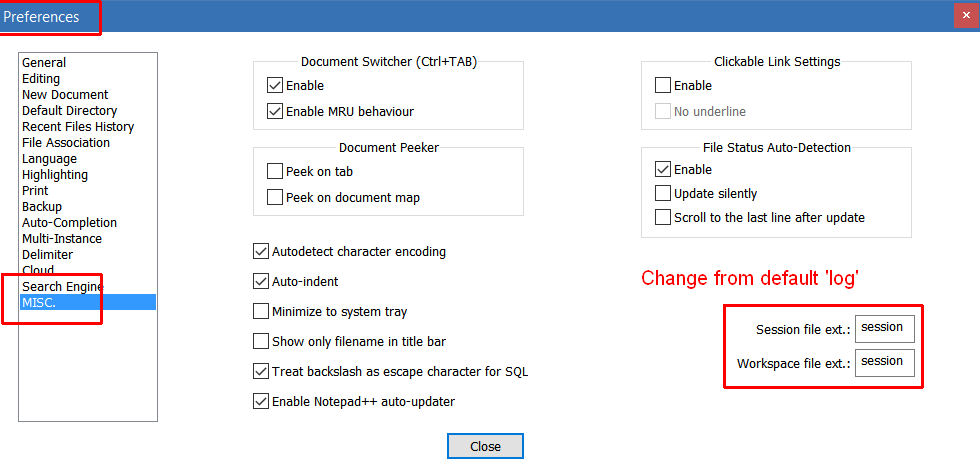
    To change the file extension NotePad++ uses for storing its own session information, go to the Settings, Preferences menu, and select “MISC”.

    On that screen, change “Session file ext” and “Workspace file ext” both to “log” (without leading period).

    Saving Your Editing Session

    You’ll probably want to save the editing session from time to time. Do this with File, Save Session. I put the date in my session file name, e.g. “notepad-plus-plus session 2018-02-05”.

    I also have Preferences set to automatically save the editing session and backup of all my (unsaved) edits. Do this with Settings, Preferences, Backup, put a checkmark in “Remember current session for next launch” and in “Enable session snapshot and periodic backup”.

    NotePad++ settings to save editing session


  • Configuring Your Email DMARC Record for email deliverability and reducing spam

    A DMARC record is important so the emails you send are more likely to get delivered. It also helps reduce spam where your domain name is forged into the emails being sent.

    DMARC – this is a TXT record that practically tells the receiver to send an email to a particular e-mail address, if he gets spam mails from a certain domain. The record is added from cPanel -> Advanced DNS Zone Editor, and should look like this:

    _dmarc.domain.TLD IN TXT 14400 "v=DMARC1; p=none; rua=mailto:postmaster@your_domain.com"

    where you need to change domain.TLD and postmaster@your_domain.com to the proper ones according to your case.

    — SiteGround Configure SPF, DKIM and DMARC records

    DMARC is one setting that other sites use to assess the credibility of your site’s emails. If you have DMARC records, your emails are more likely to be delivered, instead of refused or silently discarded. Spammers will forge your domain name into the emails they send, pretending to be you. DMARC records are one of the ways sites determine whether the email being sent to one of their people is legitimate.

    Okay, go to your cPanel, click the Advanced DNS Zone Editor icon. (more…)

  • Find How to Register to Vote in Your State

    Find How to Register to Vote in Your State

    The USA location for finding out how to register to vote in your state or local government is Find My State or Local Election Office Website

    This site also has ways to determine if you are registered to vote.

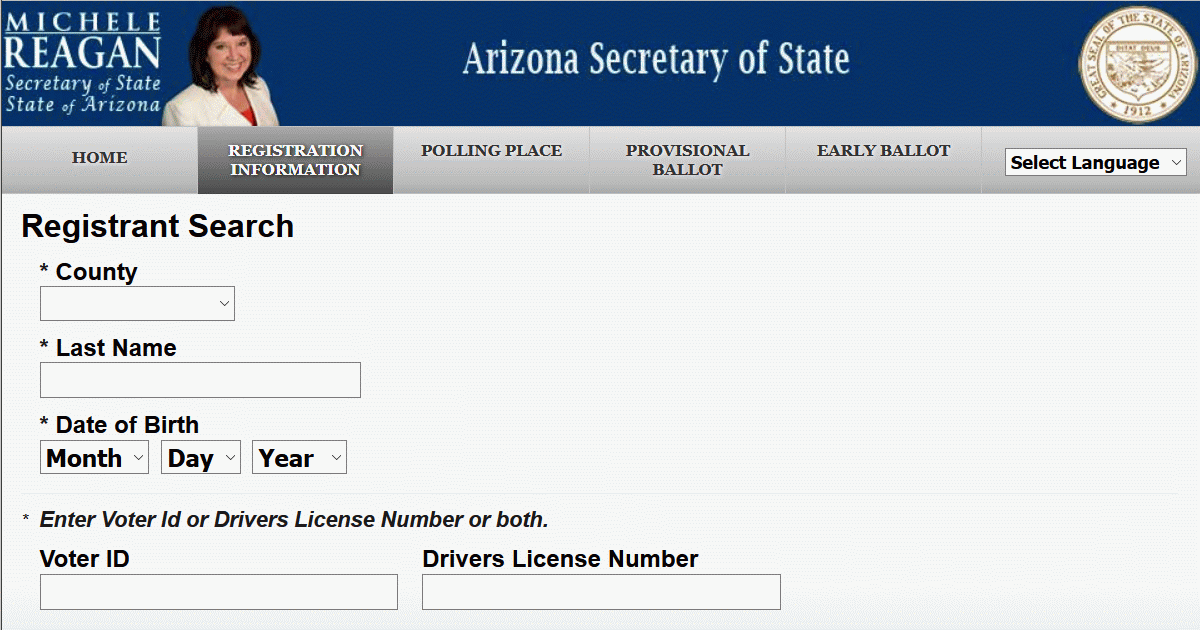
    In Arizona, visit the AZ Secretary of State – Elections page and check the status of your AZ voter registration.

    Fighting Voter Suppression | American Civil Liberties Union

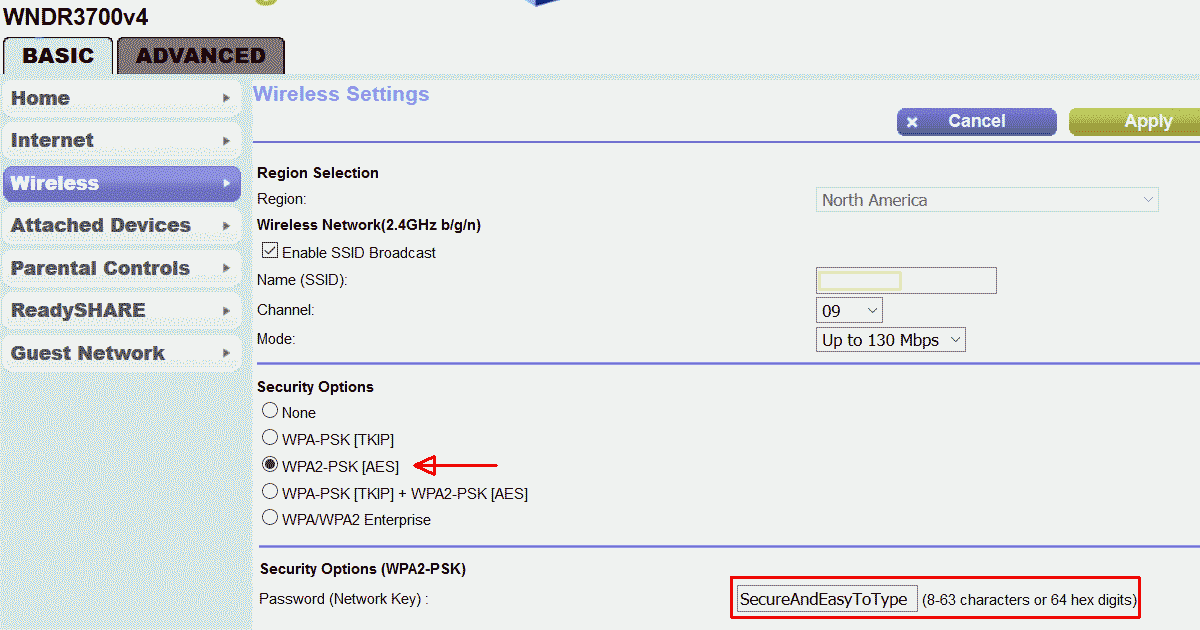
  • Secure Passwords for WiFi, That You Can Type

    Secure Passwords for WiFi, That You Can Type

    Most of the time, to have a password that is secure, you use a password manager software. You have the password manager make a unique password for each and every web site or account. You have it make a password that is random, very difficult to type, and as many characters as the website will allow. The password manager will then paste the password into the login page. You never need to know what the password is, and you never type it.

    The rules we’ve all been taught for year, to make a “secure” password, result in passwords that are hard to type, hard to remember, and are easy for hackers to guess. Hackers know those simple rules, too. And hackers have lists of the top milion most-used passwords.

    You have to either use a password manager, or make a memorable 5-7 word pass-phrase, to have a secure password.

    When Would You Type A Password?

    You might have to type WiFi passwords without using your password keeper, for example on your new phone, or to connect your printer to your WiFi.

    Basically, you type a password only in those few cases where you can’t use your password manager. You can’t use your password manager to type in the WiFi password into the phone, because you can’t connect to your password manager until you have entered the WiFi password to connect to the Internet.

    You need to type in the password for your computer, before you can access your password manager.

    You also might want to connect a friend’s or house mate’s computer to your WiFi, so you can get them set up using a password keeper. You want your WiFi password easy to type, for this scenario, but not highly memorable.

    If you are setting up your Internet router or cable modem, you’ll have to type in the password. Then you can use the password manager to store all the router settings. Most password managers have places for storing notes, and keeping everything encrypted.

    What About Those Pesky Keyboards?

    The keyboards on mobile phones, and on device panels (for example, your printer), are quite difficult to use for most computer-generated passwords.

    These keyboards make typing random characters even harder, since you have to change from the uppercase keyboard to the special character keyboard to the lowercase keyboard to the numeric keyboard.

    You might find that your WiFi or your printer won’t accept a long enough password to make a password phrase from 4-5 long words. One common length is maximum of 63 characters for a WiFi password. If your hardware is wimpy about security, you might have to make a secure password using computer generated characters.

    You should change your passwords occasionally (twice a year might be a good frequency), or if you think someone shouldn’t be using your WiFi any more. If you suspect or know someone has broken into your WiFi or computer, change the password right away. You might be able, depending on your hardware, to copy/paste the old password and new password; but you might have to type it.

    How to make passwords that are fairly easy to type, yet highly secure

    If you group the characters by which keyboard they are on (uppercase, lowercase, etc), they will be easier to type, and easier to say to yourself or the other person you are giving the password to.

    Use KeePass, a free password generator with the ability to specify patterns of characters, to generate a password with groups of uppercase, lowercase, numbers, punctuation. (Most password generators do not have this feature, including LastPass.) Or you can use your current password generator to generate several short passwords, each from characters all on the same keyboard, and paste them together to make a long password.

    KeePass can use a pattern to generate the password, that is easy to type on phone keyboards. An example l{8}u{4}l{4}d{4}l{8}d{4}s would make a password with 8 lowercase letters, then 4 uppercase letters, then 4 lowercase, then 4 digits, then 8 lowercase, then 4 digits, then 1 special character.

    You make your own pattern, specifying the number of uppercase, lowercase, digits, and special characters. For most people, 4 or 5 characters at a time are easy to remember long enough to type, or 8 characters is two easy groups of 4.

    I’m now using LastPass for my passwords, but I still have KeePass on my computer for generating those passwords I know I would need to type.

    Should You Use a Special Character?

    To have KeePass generate a printable 7-bit special character, one of !”#$%&'()*+,-./:;<=>?@[\]^_`{|}~, add a lowercase ‘s’ in the pattern. To use 4 of them, use s{4} in the pattern.

    If you prefer, you can simply pick a special character you will always use. Most people would put the special character at the end; or pick some place you always put it such as after the 4th character. Always use a special character in every password, since so many web sites and WiFi routers require one. If you always use one you won’t have to remember.

    In KeePass, do not click the Advanced button and enable “Exclude look-alike characters”, since you will know whether it is O or 0, l or 1 (that’s an oh, zero, lowercase el, one) by the pattern.

    For all the KeePass pattern options, see https://keepass.info/help/base/pwgenerator.html#pattern


  • Why GoDaddy SSL Certificates Are Not the Best Option

    Why GoDaddy SSL Certificates Are Not the Best Option

    Many people are hosting their web sites on GoDaddy, and buy their SSL certificates from them. GoDaddy’s Managed WordPress hosting is pretty good, certainly better than what they’ve offered for years.

    But the hosting account doesn’t include an SSL security certificate. SSL is needed so logging into WordPress is secure. Form data should always be secured (sent across the Internet encrypted) including your login form, comment forms, and all other forms. Even if you do not have an eCommerce site, or other reason to be taking credit card information, every web site now needs to send form data encrypted.

    For having an SSL security certificate, you have 3 options:

    1) Stay with GoDaddy for now, buying SSL certificates

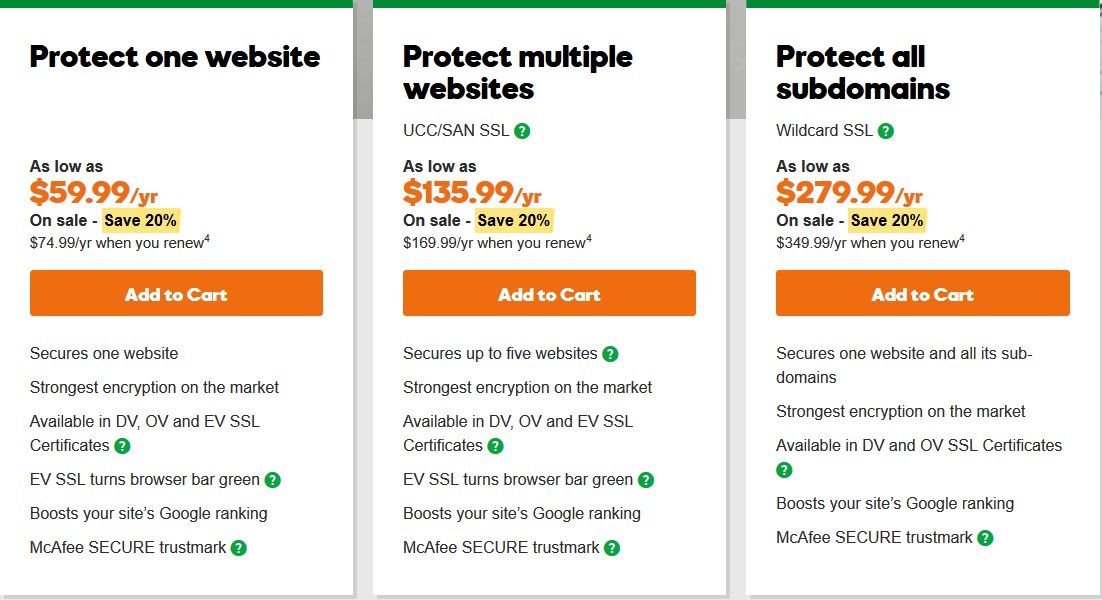
    Not what I recommend, but you can buy the SSL certificate your hosting company sells. GoDaddy and most hosting companies will install an SSL certificate for you. GoDaddy’s currently sale price is $59.99 for first year, renew at 74.99/yr.

    This is the simplest solution for you, if you are hosting on a site that doesn’t offer free SSL certificates, but it is not the best overall. GoDaddy technical support and user interface and pricing are not the best. One simple thing to check for how good a hosting company is: do they offer the latest software, frequently updated. LetsEncrypt is one software the hosting company should have installed.

    However, this probably costs more money than other options.

    Don’t let GoDaddy or other hosting company talk you into buying their more expensive certificate unless you know you need it. The encryption on all their certificates is the same (SHA-2 2048-bit encryption). All SSL certificates verify the domain name matches the site (so if a hacker intercepted your traffic, pretending to be your site, the “SSL padlock” would not show, and visitor’s web browsers would warn them). Very few companies would benefit from the extra validation that you are the company you claim to be (in addition to validating the domain name is correct), which is what is provided by the more expensive SSL certificates GoDaddy offers.

    2) Stay with GoDaddy until your current hosting expires, without SSL

    This is less expensive than discarding your current hosting subscription. But know that form information sent by your site, from your login form or any other form, is sent un-encrypted across the Internet.

    That makes this option only worthwhile if you are truly unable to afford the purchase of either the SSL certificate or new hosting that includes a free SSL certiifcate.

    You would take credit cards not on your site but through a payment processing company (e.g. PayPal or Stripe).

    You would protect your WordPress login with a “two-factor authentication” plugin so you have to log in both with a password and by typing in a code that is sent to an app on your cell phone. If someone steals your WordPress password, they still won’t be able to log in. (Don’t use the email option of your two-factor plugin, use the cell phone app; it is more secure, since most email is not transmitted encrypted unless you specifically configure using SSL/TLS for your email accounts.)

    3) Move to hosting that comes with free SSL certificates

    You can get free SSL certifcates by LetsEncrypt or other providers, on many hosting companies. LetsEncrypt has the same encryption as other SSL providers. Hosting companies can install LetsEncrypt on their servers and then you create and install your SSL certificates yourself. If LetsEncrypt is installed (most likely you’ll see it in your cPanel), simply specify which domain you want to make a certificate for, and LetsEncrypt installs the SSL certificate for you. You can make an SSL certificate for each domain name you’re hosting, one domain (or sub-domain) per certificate.

    My Hosting Recommendation

    I recommend hosting with SiteGround. Their StartUp plan would be adequate for most personal or small business sites. Currently their StartUp hosting is on sale for $3.95/month ($47.40/yr or lock in the sale price buying 2 or 3 years). Normal price (and price for additional years) is currently $9.95/month. Their hosting includes free LetsEncrypt SSL certificates, for every site you host.

    SiteGround’s technical support is much better than GoDaddy’s; their security is better than GoDaddy’s; their speed is better too. SiteGround technical support knows WordPress enough to troubleshoot plugin problems, so you can contact the plugin author to fix the specific bug; SiteGround can remove the bad plugin so your site is up again, quickly. This level of knowledge is very rare among hosting companies, but SiteGround trains all their technical support people to become this good.

    The Arizona WordPress Meetup only recommends SiteGround or WPEngine, based on the experience of several people who host sites for clients, and have learned the good and the bad of many hosting companies. They have also cleaned sites that got hacked on other hosts; moving to SiteGround or WPEngine, and installing Sucuri and WordFence (and/or iThemes Security) makes you much less likely to ever get hacked again.

    If the company can spend the money to get an SSL certificate from GoDaddy, it will spend less to simply switch Now to SiteGround.

    Get SiteGround Hosting through my link, they’ll give me a little money for referring you. Plus, you can have me start taking care of your site.