Category: Uncategorized

  • Text Editors to Use With WordPress

    Inside WordPress, of course use the Block Editor (or the editor in your page builder, if you use one).

    But you will probably have many uses for a text editor on your computer, as you are writing your WordPress pages, and throughout your day.

    I often write my ideas for a post, in a text editor, to get a good idea what I’m going to say.

    Many of the text files I make, grow cluttered.
    Then I convert them to a WordPress page,
    using sections and headings and outlines.
    WordPress pages are clearer than text files,
    even when I am reading my own text files.

    Good Programming Editors for WordPress Authors

    There are text editors that know the correct syntax for many computer programming languages, including HTML and CSS (the markup languages for writing website pages) and PHP and JavaScript (the programming languages WordPress itself plus plugins and themes are written in).

    These programming editors are also great for editing text.

    If “something doesn’t look right” in a web page, copy the HTML for that “something” to your programmer’s editor, and you are more likely to see the typing error, or the syntax error, or the error in the structure of the code. Programmer’s editors have tools to “beautify” the code so it is easier for you to see the structure. Programmer’s editors have syntax coloring, so you have a visual indicator of where there is a syntax error.

    Suggested Editors for Windows Users

    NotePad++

    NotePad++ was the editor I used for years, and it is great.  https://notepad-plus-plus.org/downloads/  

    Unlike “wimpy” Notepad, this lets you edit multiple files in tabs, and even show multiple portions of a file in different tabs. It has options to automatically save your work every few minutes. It knows the syntax of many computer languages, including HTML and CSS.

    You’ll never use WordPad, Notepad, or Word for your text files again.

    If you are not “a programmer” and just need a well-done editor for multiple documents open at once, I highly recommend it.

    It doesn’t have some of the “programmer only” tools, like version control and showing the reference code for a function. (If you don’t know what that is, that’s fine, it just means you aren’t a programmer.)

    Suggested Editors for Windows, OS/X and Linux Users

    I don’t use Windows any more, I use Linux Mint for my computers. Mint is free, it is less trouble, it runs better on old computers that Windows doesn’t support any more. Well, there are computers that aren’t very old, that Windows doesn’t support any more. Mint runs great on old OS/X computers that don’t run the latest OS/X. Yes, the identical thumb drive will boot either computer.

    So, I know about editors that run on all operating systems.

    Atom

    My favorite general-purpose text editor, for “normal” text and any programming language you and I will ever use, is Atom from https://sourceforge.net/projects/atom.mirror/ 

    For taking notes it is great. Ctrl-L to select the current line. Ctrl-D to duplicate the current selection (if you have nothing selected it duplicates the current line).

    Atom does have “too many options”, don’t go into the settings area unless you have something specific to change, and let someone know where you’re going so when you get lost they can send a rescue party to find you. This is true for all the best programmer editors, but Atom is “extra-configurable”.

    Change the settings in Atom to save your work every 5 or 10 minutes: Editor, Preferences, Core section, “Restore Previous Windows on Start” Yes. And in the Packages section, search for “autosave”, install it if it isn’t already, click the Settings icon, make sure is “Enabled”

    Visual Studio Code

    This is my favorite Microsoft product. Since I don’t use Windows, and use LibreOffice (or the almost-identical OpenOffice) instead of Microsoft Office, this is the only Microsoft product I use.

    “Visual Studio Code is a source code editor developed by Microsoft for Windows, Linux and macOS. It includes support for debugging, embedded Git control, syntax highlighting, intelligent code completion, snippets, and code refactoring.” Wikipedia

    Visual Studio Code edits WordPress theme.json files better than Atom does; it reads the full “schema” to know what options are permitted in what section of the file. It has ways for you to jump to the section you are interested in without scrolling. It will alert you where in the file there are syntax errors.

    VSC is meant to be used by programmers. It reads every file in a folder, expecting to find function definitions so it can prompt you with the parameters “intelligent code completion”. So, don’t use it for your Documents folder, it will “complain” the folder is too large. But you can use it for your local development folder and open documents from any folder.

    Works well with GIT, connects with XDebug for PHP programming.

    Note that “Visual Studio” is a different Microsoft product than “Visual Studio Code”.

    Sublime Text

    Sublime Text – Text Editing, Done Right

    “Sublime Text may be downloaded and evaluated for free, however a license must be purchased for continued use. There is currently no enforced time limit for the evaluation.“

    I have not used Sublime Text, and it is the first or second most popular among the AZ WordPress Meetup’s developers, with Visual Studio Code.

    Programmers Also Use

    NetBeans https://netbeans.org/

    PHPStorm

    Eclipse IDE

    Associate Your Text Files with Your Editor

    In Windows, associate any text file types that you use, with Settings > Preferences > File Association or other Windows-standard means to “associate” that file type with the editor.

    For most operating systems, right-click a file in your file manager, select “Open With” or similar term, there is probably an option to set your choice as the default. (I use Dolphin file manager on Linux Mint, make your life easier and use a 2-pane file manager for copying/moving files).

    Fonts for Your Text Editor and Spreadsheet

    Set the “Font Family” to fonts that look great on whatever operating system you have. There are fonts designed to be very easy to read, even at small sizes. Mono spacing is essential, easier to tell letters apart than proportional spacing. But beyond that, “source code” fonts are custom tweaked to make common programming languages look better.

    Here is the font stack that I use, based on good looking fonts that already exist on users’ computers, Linux then OS/X then Windows. Then, I added two of the best fonts from Google Fonts:

    Fira Code, Source Code Pro, Liberation Mono, Nimbus Mono L, FreeMono, DejaVu Mono, Bitstream Vera Mono, Lucida Console, Andale Mono, Courier New, monospace 

    Fira Code and Source Code Pro are from fonts.google.com and you can download them to your computer and install them. Then all applications that use fonts can use these.

    Good examples of how some of these fonts look for "similar characters" are on 5 open source fonts ideal for programming, and especially look at the images that show 
    1 I l | i O 0 o B 8
    (one, capital eye, lower el, vertical bar, lower eye, upper oh, zero, lower oh, capital bee, eight)
    You should be seeing this on my website in Fira Code Medium.

    The best example of Fira Code is FiraCode: Free monospaced font with programming ligatures, which shows how the ligatures improve the look of your code.

    Source Code Pro is good, but there is a font based on it: Hasklig – a code font with monospaced ligatures which you can download from https://www.download-free-fonts.com/details/91866/hasklig
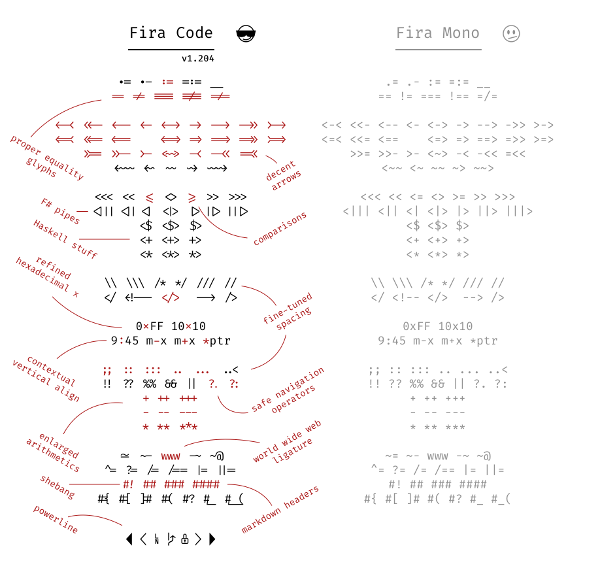
    Fira Code ligatures and examples for programmers, from https://opensource.com/sites/default/files/u128651/firacode2.png

  • One Website Page Doesn’t Display, but Looks Fine in Another Browser

    There are ways to check if a website not displaying is a problem with your browser, or with the site itself.

    Could the Page Not Work on This Browser?

    Most website developers use HTML5, and CSS3, and JavaScript that works with those. If they follow the coding standards (and most do, it’s easier to write and easier to test) then the page would at least display, even if not “ideally”, on any modern browser on any device.

    “Browser incompatibility” is essentially gone on any website written recently; developers use modern coding standards or get fired. (I’m not simplifying much.) Modern browsers all work with the same HTML and CSS standards.

    Browser Cache Problems

    One site being down on one device, and staying down for a while, yet it displays on another device, is more likely involving your browser cache, or your browser’s script blocker and/or tracker blocker.

    Your browser blocking scripts and marketing trackers, is probably helping you. You can try enabling scripts on this site, and see if that helps, and then try enabling trackers; but good sites would at least tell you what won’t work unless you turn something back on.

    Think about whether you want that site running unknown scripts and gathering marketing trackers, before you enable them.

    Login Might Need Scripts

    A common problem is sites use cookies to help notify other parts of the site that you are currently logged in, or how long to allow your current login to last; this is not the best approach but common; so you might have to: enable that site’s cookies, log out, log back in.

    Internet Problems Affect Browser Cache

    A momentary glitch in the Internet (at any point between your house and your Internet provider and the company’s website server) would block the page fully loading all its components. That partial web page could remain in your browser cache. 

    What About Site Bugs?

    A bug in the site that blocks a page from loading, would likely bring it down for all browsers, and maybe even all pages of the site.

    Clearing Your Browser Cache, for This Site

    You can manually clear your browser cache, but that clears the cache for all websites. Probably more than you need to clear.

    Try loading the website in your browser’s Private Window (that’s the term in Firefox and Chrome, Safari has something similar) which starts downloading the entire page fresh. This will have no cache, no cookies, no “behind the scenes tokens”.

    You could also wait for the error on the big corporate site to be fixed, which will then have a new timestamp for the page, and your browser will know it has to re-load the page. 

    For testing a single page without the cache, open your browser’s Inspector, and find the “disable cache” checkbox, to force loading all the elements of the page newly. 

    What About Old Browsers?

    Website developers check how widely new features are accepted at sites like https://caniuse.com/?search=flexbox and easily specify fall-back solutions for browsers that don’t have the newest features yet. For example, “slightly older browsers, use columns; but if you know about flexbox, here’s how I really want it displayed”.

    For ancient browsers like Internet Explorer 6, website developers simply say “fine, they get the one-column, minimal features layout I use for a minimal mobile phone” rather than trying to maintain special coding tricks for browsers that don’t use HTML5 and CSS3. There are simple JavaScript libraries that make most HTML5 commands work ancient browsers, see HTML5 Shiv and simple “antique” conditional browser commands to load the shiv.

  • Using Fonts in Emails, That Can Be Read by Anyone

    All email clients know about “serif”, “sans-serif” and “monospace”.

    All email programs (probably going back to Netscape Navigator) have a list of fonts built-in, and have a minimal font stack that include a likely Windows font and a likely OS/X font, and falls back to serif/sans-serif/monospace.

    My email program has “Courier” in the user interface, but it is put into the HTML part of the email as   font-family: "courier new", courier, monospace;

    Translated to English, “If your computer has Courier New use it, if not, Courier, and if still not then use whatever font your computer uses for monospace.”

    (Or, a text-only email client uses “no fonts” and displays in your terminal’s font, or browser’s font, which is almost always a monspace font.)

    Your email program probably defaults to something like, “font-family: sans-serif;” and then your email client substitutes some font to use instead of sans-serif (maybe Arial).

    Just specify a   monospace font   when you’re emailing code  .  I inserted two spaces before and after, in the code font, to separate them visually.

    You could even change the background color to make the code really stand out:

    cd /Applications/Install\ OS\ X\ El\ Capitan.app/Contents/Resources/

    or 

    cd "/Applications/Install OS X El Capitan.app/Contents/Resources/"

    [If anyone Does Not see that in a different font, when you try it in your email program, let me know, so I can find a work-around for you in your email client. But I bet you All do…]

    Should see it like in this image, including different font for “monospace font” and “code” and the two commands:

    I suggest displaying an image in addition to the text, if you have doubts that it will display correctly via email. An example would be if you are a website designer asking your website client “do you prefer Lato or Poppins” font for your site? (image taken from Google Fonts, https://fonts.google.com/

    Google Fonts shows you different fonts, using text you specify. You can even look at the selected fonts in different text sizes.

    p.s. The full list of default ‘generic-family’ values to be used as fall-back fonts are in https://w3c.github.io/csswg-drafts/css-fonts/#generic-font-families

    p.s. Chrome (and therefore Brave) has Settings, Appearance, Customize Fonts. Firefox and Safari have similar settings. I look at so many websites with HTML/CSS/PHP code that I changed my browser settings to use Fira Code for monospace. You can use any font installed on your computer, and you can install any font on Google Fonts onto your computer. 

  • Make Your SSH Keys for FileZilla and SiteGround

    You can use SSH keys to connect with Terminal to your hosting account, and also to connect with SFTP programs like FileZilla. Using SSH keys is more secure than using a password, with either SFTP (secure FTP, the data is encrypted) or the terminal. Instead of a hacker needing your password, they need to get both your SSH private key and the SSH key’s password.

    Any Linux or macOS computer can generate SSH keys using steps I’ll cover; WIndows computers need a similar process.

    You need to have one format of SSH key for FileZilla, and one for Terminal to connect to SiteGround. Most other SFTP programs, and most other website hosting companies, use these same two formats.

    These instructions for making keys are standard Linux commands; they should work for almost any flavor of Linux, any FTP program and almost any website host. (I’ll give instructions for installing the keys in FileZilla FTP and in SiteGround hosting. You can ask your hosting company for instructions for their SSH and other file transfer programs.)

    The generated files are simply text format. You can copy your private key to your other computers (with pretty much any operating system) if you want, although for even better security you use different keys for each device. You can also restrict the IP address (or IP range) that can access a key; if you are using home internet providers, be prepared for the company to change your IP address without warning, which would make your login fail.

    Quick version, if you only need the commands

    cd ~/.ssh
    ssh-keygen -t rsa -b 4096 -C "glerner.info SG" -f gli-sg
    puttygen gli-sg -C "glerner.info SG" -O private -o gli-sg.ppk

    Here’s the brief version, then I’ll give an explanation of each of the steps.

    Substitute your abbreviation for your site and hosting company where I have “gli-sg”, and substitute your comment in double quotes (I use the comment to keep track of which domain name and host the key is for).

    You will be prompted for a password for the SSH key; I advise using one generated by and stored in your password keeper. (I advise against using no password, even though it is permitted.)

    Those commands generate a private key file (gli-sg with no extension), a public key file (gli-sg.pub) and a Putty-format key file (gli-sg.ppk), all in your ~/.ssh folder.

    To see the key details including comment:

    ssh-keygen -l -f gli-sg

    All SSH keys should have strict permissions (probably set automatically, check your system):

    chmod 600 gli-sg*

    in SiteGround Site Tools, Dev section, SSH Keys Manager section, in the Add New section click the Import tab, and then click “Import Key from File” and browse to the public key you created (with the .pub extension).

    While you are in SSH Keys Manager, in the Manage SSH Keys section, click the “hamburger” 3 dots under “Actions” at the right of the key you just generated, click “SSH Credentials”. I paste this information into LastPass, in the Notes for the SSH record for this site. You will use it in FileZilla and in your SSH Config file.

    In FileZilla, import the .ppk file (gli-sg.ppk) in Site Manager, General tab, Logon Type: key file, specify the Key file. Fill in the other SSH Credentials. In the Advanced tab, fill in the path on your computer and on the server to your WordPress public_html folder.

    Add the SSH details to your ~/.ssh/config file. For Host, put the initials you use for your site; you will be typing this in the SSH terminal command. Fill in your hosting company’s connection info (user, host, port). For IdentityFile, put the path to your private key file. For my convenience, I put the two forms of path to WordPress as comments:

    Host GLI
        User YOURUSER
        Hostname YOURHOSTNAME
        Port YOURPORT
        Compression yes
        IdentityFile /home/YOURCOMPUTERNAME/.ssh/gli-sg
    # ~/www/YOURHOSTNAME/public_html/wp-content
    # /home/YOURUSER/www/YOURHOSTNAME/public_html/wp-content
    

    A good tutorial on .ssh/config, see https://linuxize.com/post/using-the-ssh-config-file/

    With that in your .ssh/config file, you would connect via SSH with simply:

    ssh GLI

    Your scp commands would reference GLI: for example copy a file from your computer’s ~/sites/ folder to your hosting WordPress folder

    scp ~/sites/mysite/file1.txt GLI:/home/YOURUSER/www/YOURHOSTNAME/public_html/file1.txt

    Tip: I add a line on my hosting account’s ~/.bashrc file

    WP="$HOME/www/YOURDOMAIN/public_html"

    Substitute the path to your WordPress, inside the double quotes.

    Reload .bashrc without logging out and back in

    source ~/.bashrc

    With this, cd $WP is really nice.

    Can’t You Use Keys from Your Host?

    These commands might not be needed for your hosting. Your hosting might provide SSH keys that work with your FTP program.

    As of June 2021, I’m using Linux Mint 19 Tara with Cinnamon version 3.8.9 and Linux Kernel 4.15.0-142-generic. I want to connect to SiteGround hosting, with Filezilla 3.28.0 (the newest in the Mint repository, though it was built 2017-10-18, ancient). I also want to connect to SiteGround with Terminal (SSH connections and SCP file copy).

    The SSH key currently generated with SiteGround’s Site Tools, in the Dev menu, SSH Keys Manager, does work with SSH from Mint’s Terminal, but FileZilla does not recognize that key format. FileZilla doesn’t even give a message about it. (You can check if it works, SiteGround will hopefully update this soon.)

    Note: as of May 2021, https://my.siteground.com/support/tutorials/ssh/putty says SiteGround generates OpenSSH format, and Putty can read it and convert it. Nope, puttygen release 0.70 can’t. And FileZilla can’t read it either, it only uses Putty format.

    Save Your SSH Key Info in LastPass

    Any password keeper that generates passwords, stores other kinds of private information, and is accessible from all your devices, would work. I use the free version of LastPass.

    Make sure you use a highly secure password for your password keeper’s master password; see my article on Making a Secure Memorable Password Phrase.

    I immediately copy the generated password, paste it into a SSH record in LastPass, in the Passphrase field; then paste it into Terminal when prompted (twice).

    Remember, in Terminal you need to press Shift-Ctrl-C to copy and Shift-Ctrl-V to paste (or use the menu); Ctrl-C in Terminal is for canceling the current task.

    LastPass has two things very useful for SSH keys:

    1) I use LastPass to generate a random password, with upper and lower case letters and numbers and no special characters. Some versions of Putty (on some operating systems) don’t like passwords with a few of the special characters that LastPass could include.

    2) LastPass has fields for saving SSH Information, so I don’t have to put everything in the notes area. I save the password in LastPass, and paste the private and public keys, and save the connection information from SiteGround in the Notes. I also put the SSH command to connect to SiteGround in the Notes, for use if I’m away from my computer. Tip: The Private Key section in LastPass looks like a single line, and that your pasting didn’t work; however, if you use arrow keys to scroll up inside the field, you see all of your key.

    You can have the same password and SSH key for each website in a single hosting account. (Use a single LastPass entry for them.) You should never use the same password on websites on different hosting accounts.

    Tip: some web browsers and operating systems prompt for passwords in a way that is difficult to switch windows to get your password, so get your password from LastPass into your clipboard, before you connect to SSH. The LastPass add-on for Firefox lets me move around with the mouse to copy the password, but I can’t type in it while Terminal has the password dialog open.

    To make a key for Terminal SSH, using your Linux Mint terminal:

    cd ~/.ssh
    ssh-keygen -t rsa -b 4096 -C "glerner.info SG" -f gli-sg

    ~/.ssh is the folder to store your SSH keys in.

    ssh-keygen is the command to generate SSH keys.

    -t rsa is the type of SSH key to generate, RSA keys are very common. Use RSA unless the server you are connecting to uses a different type; ask their technical support people.

    -b 4096 is the number of bits to use. (The only other common number to use is -b 2048, there is no reason to use lower bits unless the server you’re connecting to doesn’t yet take 4096 bits.)

    -C “glerner.info SG” is a comment, substitute your domain name and hosting company, inside the double quotes, for your keeping track of your keys.

    -f gli-sg is the base file name to save to; again, substitute a short way to know which website and host the key is for. You’ll be typing the file name often, so keep it short.

    To make a key for FileZilla, using your Linux Mint terminal:

    You will make the Putty-format key from the key you just generated, with the password you just created:

    cd ~/.ssh
    puttygen gli-sg -C "glerner.info SG" -O private -o gli-sg.ppk

    (Yes, puttygen can generate a key directly, if you only need a key for FileZilla; I’m going to keep these instructions clearer with only one method.)

    Start in the ~/.ssh folder.

    puttygen will convert a key to Putty format

    gli-sg specify the file name of the existing (RSA format) key

    -C “glerner.info SG” is a comment. That’s an upper-case C. Specify your domain name and hosting company, inside double quotes, for your keeping track of your keys.

    -O private is the output format. That’s an upper-case oh.

    -o gli-sh.ppk is the output file name. That’s a lower-case oh.

    Adding Your SSH Key in SiteGround

    In SiteGround’s Site Tools, Devs menu, SSH Keys Manager, in the Add New section click the Import tab. Type a name for the key, and click “Import Key from File”.

    Select the public key you created (with the .pub extension).

    In SiteGround’s Site Tools, Devs menu, SSH Keys Manager, in the Manage SSH Keys section, click the “hamburger” 3 dots icon under “Actions” at the right of the key you just generated, click “SSH Credentials”. I paste this into LastPass, in the Notes for the SSH record for this site.

    You will use this information in FileZilla and in connecting via SSH.

    You’ll also use this in your ~/.ssh/config file (if you don’t have one, create it).

    SiteGround information looks like this:

    Hostname: YOURDOMAIN
    Username: YOURUSERNAME
    Password: The SSH key password
    Port: The SSH and FTP port

    Installing Your SSH Key in FileZilla

    Now in FileZilla Site Manager, select the site (or add a new site), and in the General tab set the Host and Port that SiteGround says for the site.

    Set the Protocol to “SFTP – SSH File Transfer Protocol”.

    Set the Logon Type to “Keyfile”. Then click Browse by the Key file line, and select the file you created with puttygen (with the .ppk extension).

    Set the User that SiteGround says for the site. (SiteGround used to have a single user for all your sites, now it has a different user for each site on your account.)

    in the Advanced tab, you can set the “Default local directory” (browse on your computer), and the “Default remote directory” which for WordPress would be /home/customer/www/YOURDOMAIN/public_html if you’re hosting on SiteGround. You could also use the Username that SiteGround gave for your site, instead of “customer”.

    Save the settings, as soon as you install the key in SiteGround you will be able to connect with FileZilla.

    Making SSH Easier From Your Computer

    In ~/.ssh/config you will put this, substituting what SiteGround provided for your site:

    fill in those lines. For IdentityFile, put the path to your private key file. For my convenience, I put the two forms of path to WordPress as comments:

    # YOURDOMAIN on SiteGround
    Host INITIALSFORYOURSITE
        User YOURUSERNAME
        HostName YOURDOMAIN
        Port YOURPORT
        Compression yes
        IdentityFile /home/YOURCOMPUTERUSERNAME/.ssh/gli-sg-rsa.ppk
    # ~/www/YOURDOMAIN/public_html
    # /home/YOURUSERNAME/www/YOURDOMAIN/public_html
    

    For Host, put the initials you use for your site; you will be typing this in the SSH terminal command.

    From your hosting company’s connection info (user, host, port), substitute your values for YOURDOMAIN, YOURUSERNAME, and YOURPORT.

    For IdentityFile, specify the full path on your computer of the .ppk file you just created.

    The lines that start with # are comments.

    ~/www/YOURDOMAIN/public_html is what you’ll most often type for changing folders to your WordPress files.

    /home/YOURUSERNAME/www/YOURDOMAIN is what you would use in scripts, or for settings in WordPress plugins, for example where to store backup files or log files.

    With that in your .ssh/config file, you would connect via SSH by copying your SSH key password to the clipboard, and typing:

    ssh GLI

    Remember, in Terminal you need to press Shift-Ctrl-C to copy and Shift-Ctrl-V to paste (or use the menu); Ctrl-C in Terminal is for canceling the current task.

    This is much simpler than the normal way of connecting via SSH, ssh USER@HOST_NAME -pPORT with an optional path:

    ssh YOURUSERNAME@YOURDOMAIN~/www/YOURDOMAIN/public_html -p18765

    You’re done. You now have secure FTP file transfer, and a secure shell connection to your hosting account. Your SSH connection command is very simple.

    Viewing Key Information

    ssh-keygen -l -f ~/.ssh/gli-sg
    (If you leave off the file, ssh-keygen prompts you to enter file in which the key is.)

    Displays as
    BITS ENCRYPTION:KEYFINGERPRINT YOURCOMMENT (ENCRYPTION TYPE)
    e.g.
    4096 SHA256:6cbM3giCtcUuS8VipCQDF9Xdsx+LWVeayxpvespHgrM glerner.info SG (RSA)

    Restrict Access to Specific IP Addresses

    You edit the server’s ~/.ssh/authorized_keys file. In front of the relevant entry, you add the IP address or IP range. For example

    from="192.168.1.0/24" ssh-rsa AAAAB3NzaC...

    That would restrict access to the local network.

  • Delicious Desserts and Breads, Diabetes Healthy

    Thanks to a new breed of healthy natural sweeteners, low glycemic flours, and slimming fats (yes, you read that right!), you can whip up delicious treats and breads that pack serious nutrition and burn fat too!

    These books give recipes that have the taste and texture of breads and desserts we love, but without the health costs.

    Guilt-free desserts, delicious and healthy for diabetics

    Divinely delicious desserts with all-natural, low glycemic ingredients, without the sugar (but with healthy sweeteners that don’t spike blood sugar), easy to make and very nutritious.

    Better breads, low glycemic, delicious

    Breads that are low glycemic, gluten free, no grain, low starch, heart healthy (lacking the specific type of LDL cholesterol that is the main risk factor for heart disease, yet wheat is full of), and weight improving.

    Gluten-free breads with the texture we love, and very healthy.

    Creating REAL Bread with Good-for-You Ingredients. The goal was to create breads so good they could be served in a restaurant.

    No complicated techniques… no fancy equipment (not even a bread machine)… and no need to knead. fat-burning brownies, gluten free

    All these delicious foods had to be made with inexpensive real-food ingredients. They would contain NO grains or gluten. And the final product had to be low-glycemic – no blood sugar spikes.

    And that’s not all… they would only be satisfied if the recipes were fast and easy to make.

    Guilt-Free Desserts: 50 All-Natural, Gluten-Free, Fail-Proof, Low-Glycemic Desserts
    Plus:
    Better Breads – A Dozen Quick & Delicious, Gluten Free, Low Glycemic, Breads, Biscuits, Crepes & Crusts
    and:
    Awesome Appetizers – Tips, Sips & Healthy Hor d’Oeuvres Perfect for any Occasion

    Go let your eyes check out how good they look, and your mouth will begin wanting them!

    https://lc.lndo.site/recommends/gfdesserts

  • Connecting Via WiFi

    Connecting Via WiFi

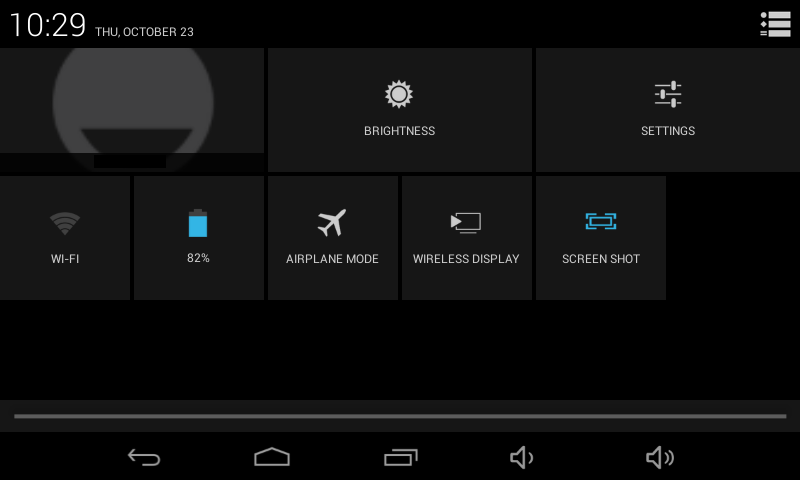
    To get to the menu for connecting via WiFi, swipe down the top edge of the screen. You get the notifications screen (might be messages about emails received, or apps with updates, for example).

    Swipe-down the top edge of screen, for notifications.
    Swipe-down the top edge of screen, for notifications.

    Tap the icon in the top right corner (looks like a small head silhouette with five squares). You will get several common setting options or informative widgets, such as battery charge level, “airplane mode”, and screen brightness.

    If you are not connected to WiFi, there will be a widget named “WiFi”; if you are connected, the widget will have the name of the WiFi you are connecting through. Tap this widget.

    Settings, WiFi
    Tap On/Off, when On tap the WiFi you want to connect to


  • Turning On the Power

    Turning On the Power

    The power switch is on top of the tablet, as viewed in landscape mode (wider than it is tall), near the right edge. Press and hold the power button until you see the screen come on.

    If the screen blanked recently, then a quick press will be enough.

    If the tablet turned off to save battery, after not being used for a while, you will have to hold the power button down for several seconds.

    7" Android (Solotab) Switches and Plugs
    7″ Android (Solotab) Switches and Plugs

    Turning the Tablet Off

    To turn the tablet off (for example, you know you aren’t going to use it, and don’t want the battery draining), hold the power button down until a shutoff dialog appears. Tap the option you want.

  • Oatmeal Cookies, No Wheat

    4 cups Rolled Oats
    3/4 cup Canola Oil (more omega-3 and less allergens than corn or soy oil)
    1/3 cup Honey (raw, unfiltered, more nutrients and more flavor)
    Mix and let stand 8 hours

    1 tsp vanilla extract
    4 tsp ground cinnamon

    If you want cookie shape instead of oatmeal crumble:
    2 eggs, well beaten
    1/2 tsp salt (dissolve in eggs, or get salty bites)

    Add to taste:
    raisins
    chocolate chips or
    1 tbsp chocolate powder (natural and Dutch processed, no added sugar)
    raw almonds or walnuts, finely chopped

    Preheat oven to 350F
    Lightly coat baking sheet with butter, or natural cooking spray
    Spoon mixture onto sheet (about 1/2 inch thick; if making cookies, about 2 dozen)

    Crispy: bake 17 minutes, store in a non-airtight container

    Moist: bake 14 minutes, store in airtight container

    Original recipe (“Awake Oatmeal Cookies”) was much sweeter. 2 cups brown sugar instead of honey, 1 cup oil (use less oil when use honey).

  • XAMPP “Limit Not Allowed” in .htaccess

    Quick Version:
    In \xampp\apache\conf\httpd.conf
    Find each occurrence of AllowOverride None
    Change it to AllowOverride All

    In \xampp\apache\conf\extra\httpd-vhosts.conf
    Make the same change.

    How I Have XAMPP Set Up

    I have XAMPP, a full Apache web server for Windows, installed on my computer. Lets me develop and test web sites where only I can see my mistakes, then upload a working page to the Internet.

    I have my web site files on a USB drive, so if I need to I can easily take it with me.

    I have XAMPP Portable installed on that USB drive (connect the drive to any Windows computer, my testing web server is ready to go). I also have NotePad++ Portable (HTML editor), Filezilla Portable (FTP), and Firefox Portable (browser) with Firebug plugin (lot of features, invaluable for adjusting CSS until looks right, browser updates as I make changes, then copy correct CSS into NotePad++); all the tools I need for modifying web sites on-the-go.

    I have XAMPP also installed on my computer, as a Windows Service, configured to use the web pages on that USB drive. Why both? Because I am nuts. I mean, so I could teach you how to do it that way! There may be some performance advantages to using the non-portable version, and probably some security advantages to using the Windows Service. Knowing how, it certainly isn’t harder to use. And I’m telling you how.

    Change Configuration to Allow .htaccess More Control

    The error messages “Limit Not Allowed” or (Options, DirectoryIndex, IndexIgnore, see http://httpd.apache.org/docs/2.4/mod/core.html#allowoverride for full list) is a configuration issue.

    XAMPP default installation is configured for you as a server administrator, with full control over your testing environment. (XAMPP says clearly the default is not configured for security needed in a production server, but for testing.)

    I want to be able to test the .htaccess files I write, just like clients would have (and like I have) on shared hosting accounts. But the default configuration blocks changing some things in .htaccess, that are better configured in server configuration files if you have access to them. (more…)

  • Web Site Development Tools (Windows and OS/X)

    Web Site Development Tools (Windows and OS/X)

    You really should use an FTP program. (No, don’t use your web hosting company’s HTML file browser. Not as fast, easy, reliable. Also, don’t edit plugin or theme files using WordPress built-in editor, you need a programmers editor, and then FTP.) Windows FileZilla or FileZilla Portable; OS/X FileZilla Client or just search for FileZilla on download.cnet.com, it’s completely free and well done. Find out from your hosting provider if you can connect securely (SFTP is most common).

    If you don’t already have a good programmers editor, get Notepad++, Notepad++ Portable, or for OS/X TextWrangler or BBEdit look like good choices (but I haven’t used either). TextWrangler vs BBEdit Comparison. Both are from the same company, so get TextWrangler (free) until you know you Need a feature in BBEdit.

    I have clients who use CoffeeCup Free HTML editor, or who have purchased the full version. Very nice. I haven’t used their other tools, I either already had free tools that work great, or wasn’t interested, but those tools all look well done. http://coffeecup.com/

    Having a development server lets you put only working pages on your public web site. I use XAMPP, a full free Apache server, with PHP, Perl, MySQL, and more, to run on your Windows computer. Even a portable version (install on a USB drive, have a web site development server on any Windows computer). Changes the development flow; instead of making updates with edit-upload-refresh browser-repeat, updates become edit-refresh browser. Small change, but it really adds up. Plus of course, it enforces developing and testing on one server, putting the working product on the production server. Develop WordPress plugins on your notebook, without crashing your production WordPress multi-site setup with 30 client blogs.

    If you want a full professional HTML/PHP/Javascript development environment with debugger, I’ve used NetBeans IDE and like it. Versions for Windows, OS/X and others. Get the “PHP Bundle” unless you know you are going to use other languages; you can always “add or remove packs later using the IDE’s Plugin Manager (Tools | Plugins)”. But unless I am working on something where stepping through the code to find bugs is what I need to do, I find I use NotePad++ most, perhaps just because I learned it first.

    For website development you have to have Firefox, with the Firebug addon. And it’s really good to have Google Chrome too, there are occasional CSS slight differences; mostly I’ve found I was sloppy with CSS sometimes, Chrome would show my sloppiness where Firefox would interpret my CSS to do what I meant. Chrome has the developer tools built in (the Inspector), that look a lot like Firebug; both let you see all the CSS statements are loaded for the element, which are over-ridden vs active, and adjust the CSS until you see the results you want. Both have a lot more, and that’s the feature you’ll use every time something on any page doesn’t look right.

    (I don’t use Internet Explorer except occasionally I quickly check my site displays in an older version; IE9 came on my new computer. Any version of IE older than that gets the same standards compliant, responsive, minimal HTML, formatted by CSS web site that I give to any smart phone, plus a very small IE-specific CSS file that makes it display simply; anyone using old IE today is used to web pages not looking great.)

    I use the Fireshot plugin for screen captures, Firefox/Chrome/IE. Excellent for communicating technical visual things with other people.

    Check out Xplorer2 for file browsing, much easier to have two panes in a single window, than using Windows Explorer. Use bookmarks for your favorite folders, instead of endlessly navigating up and down the tree of folders. (on download.cnet.com)

    For images, I use IrfanView for viewing and minor edits such as cropping and color balance. GIMP is the best free image editor; I barely know how to use it for simple things; graphic artists compare its features to PhotoShop.

    For keeping all my passwords for all those sites and banks and stores, settings for FTP sites, settings for databases, etc, I use KeePass Portable (on download.cnet.com)

    GMail and Google Hangouts have custom email accounts for free, view email from any web browser, forward GMail messages to any POP or IMAP account (e.g. on Thunderbird). Google Hangouts is connected to a GMail account, chat audio or webcam audio/video. Screen sharing, if you do any technical support you can guide the other person as you watch their screen. Completely free calls to any USA phone number.

    VLC Media Player: http://videolan.org/vlc excellent media player capable of reading most audio and video formats.

    7 Zip: http://7-zip.org An open source, free alternative to WinZip, has higher compression, great integration with Windows Explorer or xplorer2.

    Adobe Reader: http://get.adobe.com/reader the standard free PDF viewer.

    Audacity: http://audacity.sourceforge.net for recording & editing audio files, a lot of professional-level multi-track editing capabilities. Easy for trimming audio (e.g. the long pause from starting recording to start of talking), and making people who talked at different volumes sound the same. Open source.

    Evernote: http://evernote.com Scan your notes, receipts, etc, will OCR the content, save it, and make it searchable. Free.

    GIMP: http://gimp.org (free download)
    An open source program used to create & edit – free alternative to Photoshop.

    Open Office: http://openoffice.org (free download)
    Open source office suite software – word processing, spreadsheets, databases, presentations. Reads .csv files better than Microsoft Office (if a text field has multiple lines, MSOffice can’t read it).

    Panda Cloud Antivirus (download.cnet.com) or AVG: http://free.avg.com (free download)
    Anti-virus and anti-spyware protection.

    BrowserShots: http://browsershots.org (free online tool)
    Use this to see how your website look in various browsers, browser versions, operating systems.


    Other Software, Others Recommended

    CamStudio: http://camstudio.org (free download)
    Lets you record all screen & audio activity on your computer and create video files.

    CCleaner: http://ccleaner.com (free download)
    Removes unused files from your pc allowing Windows to run faster and freeing up space.

    Color Cop: http://colorcop.net (free online tool)
    A multi-purpose color picker – great for web designers and programmers.

    Down For Everyone: http://downforeveryoneorjustme.com (free online tool)
    Is your site down? Use this tool to see if your website is down for other people.

    DupeFree: http://dupefreepro.com (free download)
    Quickly check for duplicate content & LSI keywords.

    Give Away Of The Day: http://giveawayoftheday.com (free download)
    Unique site that offers you a free license digital product daily.

    Launchy: http://launchy.net (free download)
    Opens your documents, project files, folders, and bookmarks with just a few keystrokes .

    NicheBot Classic: http://nichebotclassic.com (free online tool)
    Online keyword research tool helps you target the correct keywords.

    OSWD: http://oswd.org/ (free downloads)
    Open Source Web Design offers free web design templates.

    PDF995: http://pdf995.com (free download)
    Use this tool to easily convert files to PSD format.

    PDF to Word Converter: http://pdftoword.com (free online tool)
    Easily create editable Word Doc files from PDF content – for legit purposes only! 🙂

    Pixie: http://nattyware.com/pixie.php (free download)
    Great for web designers – just point to a color and it will tell you the code value for that color.

    Private Label Rights Forum: http://resell-rights-weekly.com/forum (free online tool)
    Very helpful forum with lots of good info on internet marketing. Friendly members too.

    Resell Rights Weekly: http://resell-rights-weekly.com/ (free downloads)
    Free membership where you can download over 150 PLR/RR products for free.

    Roboform: http://roboform.com (free download)
    Easily & safely manage your passwords.

    ScreenHunter: http://wisdom-soft.com/sh/sh_free.htm (free download)
    Software that allows you to “capture” any part of your desktop, a window or full screen.

    ShortKeys: http://shortkeys.com (free download)
    Allows you to set up replacement text or paragraphs for any user defined keystrokes.

    SpyBot: http://safer-networking.org (free download)
    Effectively detects and removes spyware from your PC.

    Textpad: http://textpad.com (free download)
    A powerful text editor, for editing HTML code.

    TimeLeft: http://nestersoft.com/timeleft (free download)
    A countdown, reminder, clock, alarm clock, stopwatch, timer, & web countdown tool.

    Tweet Deck: http://tweetdeck.com (free download)
    Great for staying in touch with your contacts across Twitter, Facebook, MySpace and more.

    Kompozer: http://kompozer.net (free download)
    An easy to use WYSIWYG HTML editor. Less buggy than NVU (the project was picked up where NVU left off). But doesn’t know anything about PHP, won’t even open a PHP file (copy/paste results into your PHP file, in NotePad++.) As of 9/1/2013: “Latest development version: 0.8b3 (2010-02-28)”, so the project has halted. I recommend get the CoffeeCup Free HTML Editor, which displays the preview in a portion of the screen. Or if you really want to have WYSIWYG web editing, use WordPress!

  • Favorite FireFox Add-Ons

    Here are the FireFox add-ons that I use

    NoScript

    Essential security for your web browser! Allow active content to run only from sites you trust, and protect yourself against XSS and Clickjacking attacks.

    Firebug

    Firebug integrates with Firefox to put a wealth of development tools at your fingertips while you browse. You can edit, debug, and monitor CSS, HTML, and JavaScript live in any web page.

    CodeBurner for Firebug

    CodeBurner is a Firefox add-on that integrates with Firebug, to extend it with reference material for HTML and CSS.

    Firefinder for Firebug

    Finds HTML elements matching chosen CSS selector(s) or XPath expression

    CoLT

    CoLT makes it easy to copy either a hyperlink’s text or both the link and the link’s text (in a format you specify). Two handy context-menu items make this possible, and don’t add clutter; the items are only visible when right-clicking a link! Using CoLT to make this list, right click on the link to the Add-On in the search page, press o (for “cOpy link text and location as”), press Enter (HTML is the default, plain text and BBCode are some of the other options).

    ColorZilla

    Advanced Eyedropper, ColorPicker, Page Zoomer and other colorful goodies…

    Live HTTP Headers

    View HTTP headers of a page while browsing.

    TwitterBar

    Post to Twitter from your address bar.

    BetterPrivacy

    Ever wondered why you are still tracked though you tried everything to prevent it?
    BetterPrivacy is a safeguard which protects from usually not deletable LSO’s on Google, YouTube, Ebay…

    Clipmarks

    Clipmarks lets you clip and share specific parts of articles, blog posts or anything else you read on the web. With our newly integrated Amplify service, you can post clips directly to Twitter or Facebook – or share them on clipmarks.com and more.

    Download Statusbar

    View and manage downloads from a tidy statusbar – without the download window getting in the way of your web browsing.

    Pixel Perfect

    Pixel Perfect is a Firefox/Firebug extension that allows web developers and designers to easily overlay a web composition over top of the developed HTML.

    CSS Usage

    Just found this one, I’ve been wanting to clean out my CSS! Firebug extension to view which CSS rules are actually used.

    FireFTP

    FireFTP is a free, secure, cross-platform FTP client for Mozilla Firefox which provides easy and intuitive access to FTP servers. (I use FileZilla instead, easier for multiple projects; but FireFTP runs inside Firefox.)

    FlashGot

    Download all the links, movies and audio clips of a page at the maximum speed with a single click, using the most popular, lightweight and reliable external download managers.

    IE View Lite

    This is a cut down version of IE View by Paul Roub, which is 47.4 KB. All the same UI and features are there. It has a right click menu item to open a page in IE and a list of sites to always open in IE. It can close tabs automatically and send.

    iMacros for Firefox

    Automate Firefox. Record and replay repetitious work. If you love the Firefox web browser, but are tired of repetitive tasks like visiting the same sites every days, filling out forms, and remembering passwords, then iMacros for Firefox is the solution you’ve been dreaming of! Whatever you do with Firefox, iMacros can automate it.

    I have automated reading ClickBank data into a database form; and reading real estate listings, home values and rental prices, into a database.

    Combined with MySQL PHP Generator – Free PHP MySQL Generator by SQL Maestro Group you have a relatively easy to use (compared to coding in PHP) data scraping to database system.

    InFormEnter

    InFormEnter adds a small, clickable icon next to every input field in a web form, from where you can select the item to be inserted – no typing required (but I press Insert, quicker). You can configure it to display your frequently used information such as name, email, address, library card number.

    Minimap Sidebar

    The Minimap Addon gives you a suite of built-in maps and mapping tools for your web browser. Drag and Drop addresses or address links you find on web pages to view their location in the Map Sidebar, or by manually adding locations.

    Operator

    Operator leverages microformats and other semantic data that are already available on many web pages to provide new ways to interact with web services.

    Save Complete

    Saves a webpage completely, providing a better alternative to the built-in save functionality of Firefox.

    Screengrab

    Screengrab! saves webpages as images…

    It will capture what you can see in the window, the entire page, just a selection, a particular frame… basically it saves webpages as images – either to a file, or to the clipboard. It captures Flash too!

    SenSEO

    SenSEO is an extension checking the most important on-page-SEO-criteria and calculating a grade of how good your site fulfills these criteria.

    Add-Ons I Sometimes Use

    DOM Inspector

    DOM Inspector is a tool that can be used to inspect and edit the live DOM of any web document or XUL application. The DOM can be navigated using a two-paned window displaying a variety of different views on the document and all nodes within.

  • iMacros for Retrieving Information from Multiple Web Pages

    iMacros is a great tool for grabbing information from web sites. People often use it for grabbing the latest stock prices, or getting the latest prices on many products. Putting the data into a spreadsheet-compatible file is easy.

    You can also use iMacros to fill out forms from a spreadsheet (.csv) text file.

    iMacros is a free plugin for Firefox (or IE), or there is a more powerful paid version.

    You specify the information to grab using a simple scripting language, that can search a web page for HTML tags or attributes. So, you could search for the the paragraph with an ID, and grab the text. Or look for a link that starts with a particular domain, and grab either the link or the text.

    iMacros automatically handles looping through all the occurrences on a page (for example, each row of a table), the most common need.

    The Firefox version lets you control switching tabs, to grab the data from one tab and write it to a form on another tab. (The form could process the data and save it to a database, or anything else you could program a form processing routine to do.)

    But it doesn’t have a full programming language, with testing variables and calling subroutines based on the test. It doesn’t have FOR loops, or WHILE loops. So, you can grab all the prices on one page, or keep grabbing one value from pages as long as there is a “Next” link. But you can’t easily do both. You can grab and save All the values, but not save only the ones that meet your conditions.

    Well, iMacros for Firefox has a Javascript interface. With that, you can have Javascript control the looping, testing for special conditions, massaging the data, checking for errors. You can pass values from Javascript to iMacros, and return extracted information to Javascript.

    I’m going to show some code snippets for using loops to pass values to iMacros scripts and back to Javascript, and testing for errors.

    So you have some idea what the script does, in my task, one web page lists the MapID of each Map in a section of the County. Another web page lists the Parcels contained in a specific Map. Yet another web page shows what I want, details about a Parcel. I then have iMacros put the details in a custom form, and submit the form data to a PHP program that writes it to a MySQL database.

    Since each section of the county could have an unknown number of Map IDs, and each Map would have an unknown number of Parcels, and each Parcel has information on several web pages, and since there is so much information to collect it couldn’t be done in one day (probably non-stop gathering for 4 months!) and therefore I needed to have the scripts keep track of what had been completed, it was too complex for any iMacros script. But with the Javascript interface controlling 6 scripts, it works!

    mapidnum = 1
    /* Javascript uses labeled loops so you can break out of multiple loops */
    loopm:
    do {
    iimSet("mapidnum", mapidnum)
    /* get the nth map id */
    iret = iimPlay("macro-that-finds-each-map-id.iim")
    if (iret == -101) {
    /* user pressed Stop button */
    break loopm;
    }
    mapid = iimGetLastExtract() /* 849/849010100 */
    if (mapid == "#EANF#") {
    continue;
    }
    iimDisplay("TownshipRange "+t+"("+l+") SectionCount:"+s+" Section "+sections[s]+" Township "+tr[0]+" Range "+tr[1]+" MapIDnum: "+mapidnum+" MapID: "+mapid+" TotAPN="+totalapnsfound);
    mapid = mapid.slice(4,13) /* 849010100 */
    iimSet("mapid", mapid)
    /* read number of parcel IDs for this map ID */
    iret = iimPlay("macro-that-finds-how-many-detail-records-for-map-id.iim")
    apnsfoundstr = iimGetLastExtract()
    if (iret == -101) {
    /* user pressed Stop button */
    break loopm;
    }
    n = apnsfoundstr.indexOf(" APN(s) Found",0)
    if (n != -1) {
    apnsfound = parseInt(apnsfoundstr.slice(0,n))
    } else apnsfound = 0
    loopn:
    for (n=1; n<= apnsfound; n++) { iimSet("parcelloop", n) iimDisplay("TownshipRange "+t+"("+l+") SectionCount:"+s+" Section "+sections[s]+" Township "+tr[0]+" Range "+tr[1]+" MapIDnum: "+mapidnum+" MapID: "+mapid+" TotAPN="+totalapnsfound+" APN "+n+"("+apnsfound+")") iret = iimPlay("macro-that-reads-detail-record.iim") if (iret == -101) { /* user pressed Stop button, break out of labeled loop (both FOR loop and DO...WHILE) */ break loopm; } if (iret == -933) { /* when disconnect WiFi get: -933 Error Loading Page */ /* do something to retry, or run a script PROMPT "Error Loading Page (WiFi Error?)" */ continue; } parceldash = iimGetLastExtract(1) /* have single parcel number (with dashes, maybe with split letter), next step needs parcel number without dashes */ parcel = parceldash.replace(/-/g,''); /* take all values so far, pass to iMacros to put into Form for writing to Database */ iimSet("county", county) iimSet("parcel", parcel) iimSet("parceldash", parceldash) iimSet("mapid", mapid) iimSet("township", tr[0]) iimSet("range", tr[1]) iimSet("section", sections[s]) iimDisplay("TownshipRange "+t+"("+l+") SectionCount:"+s+" Section "+sections[s]+" Township "+tr[0]+" Range "+tr[1]+" MapIDnum: "+mapidnum+" MapID: "+mapid+" TotAPN="+totalapnsfound+" APN "+n+"("+apnsfound+") Parcel:"+parcel); iret = iimPlay("macro-that-reads-parcel-data-puts-it-in-form-that-writes-to-MySQL.iim") } /* end for APNs found */ mapidnum++ } while (mapid != "#EANF#")

    iMacros web site has full documentation on all the commands, including iimSet (sets a variable for use in an iMacros script), iimPlay (play an iMacros script), iimGetLastExtract (bring extracted data into Javascript), and iimDisplay (display text in a status area of the screen).

    In iMacros scripts you would access the variables (set with iimSet).

    ' macro-that-finds-each-map-id.iim uses the parameter like this:
    ' Find the nth Map ID. The page displays a link to a PDF of the map; the Map ID is the text of the link.
    TAG POS=R{{mapidnum}} TYPE=A ATTR=HREF:http://156.42.37.20* EXTRACT=TXT

    ' macro-that-reads-detail-record.iim uses the parameter like this:
    ' Find the nth Parcel Number, displayed as a link to the first page of the parcel's information (the County Assessor's page has links to the County Treasurer's info for this parcel).
    TAG POS=R{{parcelloop}} TYPE=A ATTR=HREF:/Assessor/ParcelApplication/Detail.aspx* EXTRACT=TXT

    Want Me to Help?

    If this is giving you ideas for grabbing information you could use, I can probably write iMacros scripts to get what you need, into a database or web page. Contact Me so we can talk.