Category: George Lerner – Website Tech

Migrated content from website-tech.lc.lndo.site

  • WordFence Blocked bot traffic Trying to Read /docker-compose.yml. Should I Do Anything?

    A docker-compose.yml file should only be in your local development environment, or in your source code repository (e.g. github).

    If you’re not a website developer, you probably don’t have any Docker files. You likely have no idea what that file is, and don’t need to.

    Hackers know that if you have that file where they can find it, then you aren’t likely to check that file for modifications.

    If the file exists where hackers could find it, the hackers put you in the “sucker” category for further probing. “Oh look, let’s find out if we can modify it.” If they get a “403 Forbidden” response, like WordFence gives, they move on to test the next website on their list.

    If a hacker can modify your compose file, they could insert a library to install at each rebuild (that you or someone using your code does). That library could “do anything”.

    If you are writing code, you could tell at a glance if your own docker-compose.yml was changed. Of course GIT would tell you if the file was changed. Either way, check it as you publish to your repository.

    You have WordFence blocking access to your compose file, and perhaps WordFence then watches that hacker IP address more closely.

    With WordFence installed, you can ignore the probing. WordFence will show you that your website, like all websites, can get thousands of probes every day. You can’t possibly react to all the probes; WordFence is one of a few companies that every day updates their rules for blocking hacker probes.

    Of course, if you have the file where it doesn’t belong, fix that.

    Are there problems with Docker itself, or exploits that require Docker? Not likely, and if one is found then, like all well-programmed and -maintained software, there will quickly be an update.

    If you are using Docker or any other tools, keep your software updated, just like you keep WordPress plugins and themes and core updated.

    Docker should only be used on your local development environment, or a restricted staging environment. If your website hosting company lets you run Docker on your account, they should keep Docker updated and they should block “anyone but you” accessing it; if they don’t, I advise you change hosting companies.

  • Computer Slow? Check “Thermal Protection Mode”, and Fix It Fast

    “Reduce overheating”. Don’t just put up with your computer running very slow. Your computer could be overheating, and going into “thermal protection mode”.

    The “thermal protection mode” is your CPU automatically slowing way down when it is too hot, to protect from destroying the entire computer. You should not run your computer in thermal protection mode, it still has brief yet frequent times at “too hot”, so will eventually ruin your CPU.

    What Causes Thermal Protection Mode?

    Thermal protection mode is from either the CPU fan not working (whether it is clogged or has failed), or from the CPU thermal grease being old. The thermal grease conducts heat from the CPU to the fan. CPU thermal grease needs to be replaced every few years, before it dries out and no longer conducts heat properly. Yeah, nobody ever told you, right?

    How do you know if your computer is in thermal protection mode?

    Check your system information apps, to see the temperature of the CPU (look up in search engines how to do it in your version of operating system).

    Every CPU model has a recommended maximum temperature, but most should never exceed 100 degrees Celsius, and better not to exceed 95 degrees. Some should never exceed 80 degrees. Check https://www.cputemper.com/maximum-and-normal-cpu-temperature/ for some CPU max temperatures, or the Intel/AMD page for your exact model of CPU. Also, see Normal CPU Temperature: How Hot Is Too Hot For CPU

    Note: my computer’s CPU is currently 34 degrees Celsius, but if I run an application that is extremely CPU intensive, such as BOINC, it runs at a maximum of about 85 degrees (briefly, before the fan speed increases cooling). My graphics GPU maximum temperature is 62 degrees, but I don’t do much graphics-intensive work.

    What Can You Do To Cool Your Computer?

    If you’re comfortable working inside a computer (for example, adding RAM or replacing a hard disk), you could likely learn how to replace your CPU thermal grease, yourself; any computer technician should definitely be able to do it.

    While you are replacing the thermal grease, make sure the fan is clean, and the path the dust should flow out of the computer is clear. Gently hold the fan with your fingers so the blades won’t spin, and blow it with compressed air. Never let the fan spin while you are blowing it clean, as it can break, and because the spinning fan can generate electricity that could damage parts. Don’t spray any part in a computer for more than a brief burst, as the air comes out of the can very cold; that cold could damage parts.

    Then learn how to check for applications that are constantly using high CPU, which will make the CPU hot. There may be a bug in that version of the program, or there may be a better written program that does the same thing.

    If you have a desktop computer, consider Buy a better CPU cooler.

    How Do You Replace CPU and GPU Thermal Grease?

    Find the instructions for your model of computer, to get to the CPU. Then there is a simple clamp that holds the fan against the CPU. Carefully take off the fan, wipe off or (carefully!) scrape off the old grease, and apply new grease. Then re-attach the fan, and put together the rest of the computer. Same idea for applying thermal grease to your graphics processor.

    Replacing the CPU thermal grease on notebook computers is harder than on desktop computers, because you usually have to disassemble the entire computer just to get to the CPU fan; but it is more important to keep your notebook computer running cool, as the notebook is more enclosed and so will tend to run hot.

    The thermal paste (aka thermal grease) gets applied to the top of the CPU. You either use a flat edge (maybe a clean Popsicle stick or expired credit card) or a tool designed for this, to spread the paste over the entire top of the CPU without going past the edges of the CPU. Or, you apply what the instructions say should be the right amount in a “pea sized ball” at the center of the CPU and when you press the CPU fan in place it will spread the thermal paste for you; you hope it spreads it right.

    Figure out for your next computer if you really need a notebook, or if a mini desktop (about 5″ by 5″ by 2″, very easy to open up) will be easy enough to move around. Mini desktops tend to have faster CPUs than mobile computers, and cost less, so getting two monitors and USB hubs, one for home and one for office, will still likely cost the same or less than buying a notebook.

    What Thermal Paste Should You Use?

    There are several different types of thermal paste to use in computers. (Don’t use one made for use in other equipment, not computers, those could damage computer parts.)

    You’ll know you spread the thermal paste right, when you see the CPU temperature staying cool enough.

    There are thermal pastes made with metallic particles. Good at cooling, but you have to be careful applying it so you don’t short pins on the CPU.

    There are thermal pastes made with carbon, or even artificial diamond particles. These are good heat conductors that don’t conduct electricity, so you don’t have to be as careful to not put too much on the CPU. But of course it is still good to only apply the amount you need, not have it squeeze out past the edges of the CPU.

    There are also some sheets of thermal conductor, and you buy or cut it to be the right size for your CPU (or GPU). These normally can be peeled off and used again, if you didn’t get the position exactly right.

    Look for a thermal grease that lasts long enough for how infrequently you want to replace the grease. Some good brands last two years, some with different materials last 6 years.

    Look for a consistency you like, some are thicker and hard to spread exactly how you want; some are thin and if you apply too much in a ball could spread paste the edges of your CPU onto the pins.

    There are websites that have good reviews of quality thermal pastes.

    Some good ones:

    ARCTIC MX-4 Premium Performance Thermal Paste for all processors (CPU, GPU – PC), very high thermal conductivity, long durability, safe application, non-metalic paste, incl. Spatula to apply it.
    https://amzn.to/3WdC4LD

    SYY-157 thermal paste is metal-free and non-conductive, which eliminates any risk of short circuit and adds more protection to the CPU and VGA card. Very high thermal conductivity. Should last 5 years, longer than many CPU pastes.

  • Troubleshooting Invalid Characters in Website Forms

    I found this when I had trouble pasting a phone number from Google Voice, into Zoho Contacts.

    4158826300 typed in, works
    415-882-6300 typed in, works
    (415) 882-6300 typed in, works
    (415) 882-6300‬ pasted from Google Voice, invalid (has UTF-8 characters)
    415-882-6300, pasted from Google Voice, invalid (it’s not the parentheses)
    (415) 882-6300 pasted into Atom from Google Voice, copied from Atom into the form, invalid
    +14158826300 Google Voice, right-click Copy Phone Number, works
    (415) 882-6300 from Google Voice, Edit, select, paste into my programmer’s editor, copy to the form, works

    Change the Website Form

    The website form should either use UTF-8 (or perhaps UTF-16) encoding for the characters.

    If you are the developer of the website, you can easily specify what encoding to use.

    Then, with HTML5 you can specify what character ranges are acceptible, and how many characters are allowed. For example, for a City field, only allow the characters that make sense for the language of your website, and only allow probably 30 characters. Maybe you only allow the Latin alphabet characters (used in Europe and North America and South America, but most other languages in the world that aren’t based on Latin have “Latin spellings”).

    Using JavaScript to validate form entries is more complex, and harder to debug and maintain. I suggest only using JavaScript for validation after the HTML5 validation is done.

    But don’t reject a form entry for characters that are not visible to your users. That is very bad user interface.

    Are There Simple Filter Tools to Show Lines with Invalid Characters?

    How to Find Non-ASCII Characters in Text Files in Linux | Baeldung on Linux — https://www.baeldung.com/linux/find-non-ascii-chars is good, shows a lot of Linux commands for checking file contents.

    grep --color='auto' -n "[^[:alnum:]]" junk.txt shows only (, ), and – as not alphanumeric. So, that isn’t a valid test for these stray characters.

    (The Baeldung page has an option that doesn’t work on my Linux Mint: grep --color='auto' -n "[^[:ascii:]]" the “ascii” isn’t known, use alnum instead.)

    grep --color='auto' -P -n "[^\x00-\x7F]" junk.txt also shows only the line(s) that has irregular characters, but doesn’t show you what those characters are.

    Similarly, perl -ne 'print if /[^[:ascii:]]/' junk.txt doesn’t show what those characters are.

    On my computer, pcregrep --color='auto' -n "[^[:ascii:]]" junk.txt gives “Command ‘pcregrep’ not found, but can be installed with: sudo apt install pcregrep”.

    How Do You See The “Invisible” Characters?

    Linux Mint (and many other Linux varieties), have a utility to show the hexadecimal dump of a file.

    hd junk.txt
    00000000 34 31 35 38 38 32 36 33 30 30 20 77 6f 72 6b 73 |4158826300 works|
    00000010 0a 34 31 35 2d 38 38 32 2d 36 33 30 30 20 77 6f |.415-882-6300 wo|
    00000020 72 6b 73 0a e2 80 aa 28 34 31 35 29 20 38 38 32 |rks….(415) 882|
    00000030 2d 36 33 30 30 e2 80 ac 20 63 6f 70 69 65 64 20 |-6300… copied |
    00000040 66 72 6f 6d 20 47 6f 6f 67 6c 65 20 56 6f 69 63 |from Google Voic|
    00000050 65 2c 20 69 6e 76 61 6c 69 64 0a e2 80 aa 28 34 |e, invalid….(4|
    00000060 31 35 29 20 38 38 32 2d 36 33 30 30 e2 80 ac 20 |15) 882-6300… |
    00000070 70 61 73 74 65 64 20 68 65 72 65 20 66 72 6f 6d |pasted here from|
    00000080 20 47 6f 6f 67 6c 65 20 56 6f 69 63 65 2c 20 63 | Google Voice, c|
    00000090 6f 70 69 65 64 20 66 72 6f 6d 20 68 65 72 65 2c |opied from here,|
    000000a0 20 69 6e 76 61 6c 69 64 0a 28 34 31 35 29 20 38 | invalid.(415) 8|

    Atom in UTF-8 encoding doesn’t show the characters. Setting Atom to “Windows 1252” encoding, shows the invalid characters. On the bottom toolbar in Atom, right of where it shows either “LF” or “CRLF” (for the type of line endings), is the character encoding, probably shows “UTF-8”.

    In Atom, those stray characters display like this in Windows 1252 encoding:

    (415) 882-6300‬ pasted from Google Voice, invalid

    The invalid characters, from a site that uses UTF-8 encoding, that don’t work pasted into that form, as hexadecimal characters are: e2 80 ac

    Is The Problem the Page Encoding?

    Google Voice, and Zoho Mail, and Zoho Contacts, all have content-type text/html; charset=utf-8 encoding.

    So, it isn’t the Zoho Contacts form’s encoding, it’s the JavaScript they use for testing for valid phone numbers.

    How to Convert Text File Encoding

    Bash/Linux Find non-ASCII character in a .txt file and replace it with an ASCII character – Stack Overflow — https://stackoverflow.com/questions/44663963/bash-linux-find-non-ascii-character-in-a-txt-file-and-replace-it-with-an-ascii has a good way to convert multiple-byte formats to a different encoding that is single-byte.

    “I think the problem is that È in utf-8 is a multibyte character consisting of \xc3 and \x88 and sed can’t seem to deal with that for whatever reason… Another method could be to convert the whole file using iconv. iso-8859-15 (latin-9) is one example of single-byte character encoding. The command to convert the file using iconv would be:

    iconv -f utf-8 -t iso-8859-15 -o <converted-file> <input-file>

    Atom Changing File Formats

    Note: Opening a file in Atom in UTF-8 mode, then switching to “Windows 1252” encoding and saving it, then switching back to UTF-8, changes the non-ASCII characters.

  • Installing Shutter on Linux Mint, without message about Goo::Canvas

    Installing Shutter on Linux Mint, without message about Goo::Canvas

    Shutter is a good screen capture program, that also lets you edit the screen. For example, you can draw boxes, add text, add arrows, blank out sensitive information.

    For some versions of Linux Mint (for example Linux Mint 19.3), when you install Shutter from the Software Manager, you get a message in Shutter that the edit functions require a library to be installed, Goo::Canvas.

    I first found the solution in How to Install Shutter on Linux to Take Screenshots but that had out-dated information about the repository to use.

    When you install from the old repository you get this message:

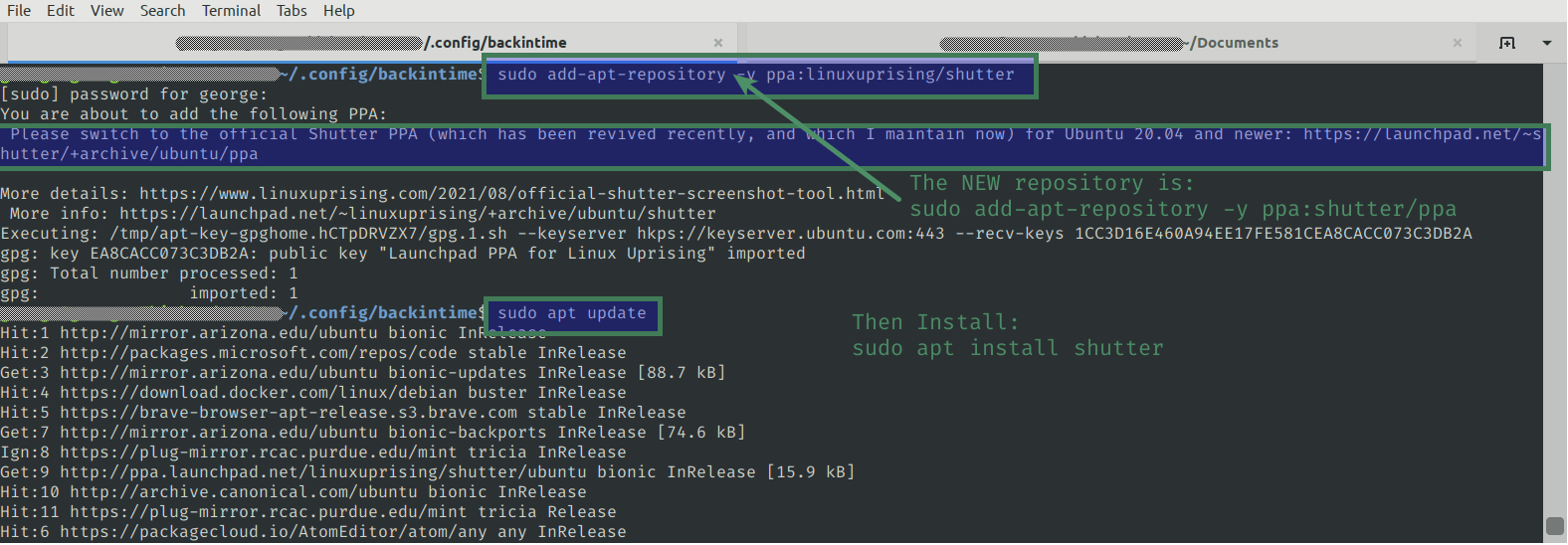
    Please switch to the official Shutter PPA (which has been revived recently, and which I maintain now) for Ubuntu 20.04 and newer: https://launchpad.net/~shutter/+archive/ubuntu/ppa

    More details: https://www.linuxuprising.com/2021/08/official-shutter-screenshot-tool.html
     More info: https://launchpad.net/~linuxuprising/+archive/ubuntu/shutter
    Author

    https://launchpad.net/~shutter/+archive/ubuntu/ppa says the new command to add the updated repository is
    sudo add-apt-repository ppa:shutter/ppa

    Here’s how to get the editing functions of Shutter to work, with the updated repository.

    Installing Shutter

    Open your Terminal.

    sudo add-apt-repository -y ppa:shutter/ppa

    Then update your system’s repository list:
    sudo apt update

    Now you are ready to install Shutter.

    sudo apt install shutter

    Remove the Old Repository from Your Computer

    sudo add-apt-repository -r ppa:linuxuprising/shutter

    Note that this remove option (the -r ) doesn’t show in man add-apt-repository, but it does show in add-apt-repository --help

  • Make Your SSH Keys for FileZilla and SiteGround

    You can use SSH keys to connect with Terminal to your hosting account, and also to connect with SFTP programs like FileZilla. Using SSH keys is more secure than using a password, with either SFTP (secure FTP, the data is encrypted) or the terminal. Instead of a hacker needing your password, they need to get both your SSH private key and the SSH key’s password.

    Any Linux or macOS computer can generate SSH keys using steps I’ll cover; WIndows computers need a similar process.

    You need to have one format of SSH key for FileZilla, and one for Terminal to connect to SiteGround. Most other SFTP programs, and most other website hosting companies, use these same two formats.

    These instructions for making keys are standard Linux commands; they should work for almost any flavor of Linux, any FTP program and almost any website host. (I’ll give instructions for installing the keys in FileZilla FTP and in SiteGround hosting. You can ask your hosting company for instructions for their SSH and other file transfer programs.)

    The generated files are simply text format. You can copy your private key to your other computers (with pretty much any operating system) if you want, although for even better security you use different keys for each device. You can also restrict the IP address (or IP range) that can access a key; if you are using home internet providers, be prepared for the company to change your IP address without warning, which would make your login fail.

    Quick version, if you only need the commands

    cd ~/.ssh
    ssh-keygen -t rsa -b 4096 -C "glerner.info SG" -f gli-sg
    puttygen gli-sg -C "glerner.info SG" -O private -o gli-sg.ppk

    Here’s the brief version, then I’ll give an explanation of each of the steps.

    Substitute your abbreviation for your site and hosting company where I have “gli-sg”, and substitute your comment in double quotes (I use the comment to keep track of which domain name and host the key is for).

    You will be prompted for a password for the SSH key; I advise using one generated by and stored in your password keeper. (I advise against using no password, even though it is permitted.)

    Those commands generate a private key file (gli-sg with no extension), a public key file (gli-sg.pub) and a Putty-format key file (gli-sg.ppk), all in your ~/.ssh folder.

    To see the key details including comment:

    ssh-keygen -l -f gli-sg

    All SSH keys should have strict permissions (probably set automatically, check your system):

    chmod 600 gli-sg*

    in SiteGround Site Tools, Dev section, SSH Keys Manager section, in the Add New section click the Import tab, and then click “Import Key from File” and browse to the public key you created (with the .pub extension).

    While you are in SSH Keys Manager, in the Manage SSH Keys section, click the “hamburger” 3 dots under “Actions” at the right of the key you just generated, click “SSH Credentials”. I paste this information into LastPass, in the Notes for the SSH record for this site. You will use it in FileZilla and in your SSH Config file.

    In FileZilla, import the .ppk file (gli-sg.ppk) in Site Manager, General tab, Logon Type: key file, specify the Key file. Fill in the other SSH Credentials. In the Advanced tab, fill in the path on your computer and on the server to your WordPress public_html folder.

    Add the SSH details to your ~/.ssh/config file. For Host, put the initials you use for your site; you will be typing this in the SSH terminal command. Fill in your hosting company’s connection info (user, host, port). For IdentityFile, put the path to your private key file. For my convenience, I put the two forms of path to WordPress as comments:

    Host GLI
        User YOURUSER
        Hostname YOURHOSTNAME
        Port YOURPORT
        Compression yes
        IdentityFile /home/YOURCOMPUTERNAME/.ssh/gli-sg
    # ~/www/YOURHOSTNAME/public_html/wp-content
    # /home/YOURUSER/www/YOURHOSTNAME/public_html/wp-content
    

    A good tutorial on .ssh/config, see https://linuxize.com/post/using-the-ssh-config-file/

    With that in your .ssh/config file, you would connect via SSH with simply:

    ssh GLI

    Your scp commands would reference GLI: for example copy a file from your computer’s ~/sites/ folder to your hosting WordPress folder

    scp ~/sites/mysite/file1.txt GLI:/home/YOURUSER/www/YOURHOSTNAME/public_html/file1.txt

    Tip: I add a line on my hosting account’s ~/.bashrc file

    WP="$HOME/www/YOURDOMAIN/public_html"

    Substitute the path to your WordPress, inside the double quotes.

    Reload .bashrc without logging out and back in

    source ~/.bashrc

    With this, cd $WP is really nice.

    Can’t You Use Keys from Your Host?

    These commands might not be needed for your hosting. Your hosting might provide SSH keys that work with your FTP program.

    As of June 2021, I’m using Linux Mint 19 Tara with Cinnamon version 3.8.9 and Linux Kernel 4.15.0-142-generic. I want to connect to SiteGround hosting, with Filezilla 3.28.0 (the newest in the Mint repository, though it was built 2017-10-18, ancient). I also want to connect to SiteGround with Terminal (SSH connections and SCP file copy).

    The SSH key currently generated with SiteGround’s Site Tools, in the Dev menu, SSH Keys Manager, does work with SSH from Mint’s Terminal, but FileZilla does not recognize that key format. FileZilla doesn’t even give a message about it. (You can check if it works, SiteGround will hopefully update this soon.)

    Note: as of May 2021, https://my.siteground.com/support/tutorials/ssh/putty says SiteGround generates OpenSSH format, and Putty can read it and convert it. Nope, puttygen release 0.70 can’t. And FileZilla can’t read it either, it only uses Putty format.

    Save Your SSH Key Info in LastPass

    Any password keeper that generates passwords, stores other kinds of private information, and is accessible from all your devices, would work. I use the free version of LastPass.

    Make sure you use a highly secure password for your password keeper’s master password; see my article on Making a Secure Memorable Password Phrase.

    I immediately copy the generated password, paste it into a SSH record in LastPass, in the Passphrase field; then paste it into Terminal when prompted (twice).

    Remember, in Terminal you need to press Shift-Ctrl-C to copy and Shift-Ctrl-V to paste (or use the menu); Ctrl-C in Terminal is for canceling the current task.

    LastPass has two things very useful for SSH keys:

    1) I use LastPass to generate a random password, with upper and lower case letters and numbers and no special characters. Some versions of Putty (on some operating systems) don’t like passwords with a few of the special characters that LastPass could include.

    2) LastPass has fields for saving SSH Information, so I don’t have to put everything in the notes area. I save the password in LastPass, and paste the private and public keys, and save the connection information from SiteGround in the Notes. I also put the SSH command to connect to SiteGround in the Notes, for use if I’m away from my computer. Tip: The Private Key section in LastPass looks like a single line, and that your pasting didn’t work; however, if you use arrow keys to scroll up inside the field, you see all of your key.

    You can have the same password and SSH key for each website in a single hosting account. (Use a single LastPass entry for them.) You should never use the same password on websites on different hosting accounts.

    Tip: some web browsers and operating systems prompt for passwords in a way that is difficult to switch windows to get your password, so get your password from LastPass into your clipboard, before you connect to SSH. The LastPass add-on for Firefox lets me move around with the mouse to copy the password, but I can’t type in it while Terminal has the password dialog open.

    To make a key for Terminal SSH, using your Linux Mint terminal:

    cd ~/.ssh
    ssh-keygen -t rsa -b 4096 -C "glerner.info SG" -f gli-sg

    ~/.ssh is the folder to store your SSH keys in.

    ssh-keygen is the command to generate SSH keys.

    -t rsa is the type of SSH key to generate, RSA keys are very common. Use RSA unless the server you are connecting to uses a different type; ask their technical support people.

    -b 4096 is the number of bits to use. (The only other common number to use is -b 2048, there is no reason to use lower bits unless the server you’re connecting to doesn’t yet take 4096 bits.)

    -C “glerner.info SG” is a comment, substitute your domain name and hosting company, inside the double quotes, for your keeping track of your keys.

    -f gli-sg is the base file name to save to; again, substitute a short way to know which website and host the key is for. You’ll be typing the file name often, so keep it short.

    To make a key for FileZilla, using your Linux Mint terminal:

    You will make the Putty-format key from the key you just generated, with the password you just created:

    cd ~/.ssh
    puttygen gli-sg -C "glerner.info SG" -O private -o gli-sg.ppk

    (Yes, puttygen can generate a key directly, if you only need a key for FileZilla; I’m going to keep these instructions clearer with only one method.)

    Start in the ~/.ssh folder.

    puttygen will convert a key to Putty format

    gli-sg specify the file name of the existing (RSA format) key

    -C “glerner.info SG” is a comment. That’s an upper-case C. Specify your domain name and hosting company, inside double quotes, for your keeping track of your keys.

    -O private is the output format. That’s an upper-case oh.

    -o gli-sh.ppk is the output file name. That’s a lower-case oh.

    Adding Your SSH Key in SiteGround

    In SiteGround’s Site Tools, Devs menu, SSH Keys Manager, in the Add New section click the Import tab. Type a name for the key, and click “Import Key from File”.

    Select the public key you created (with the .pub extension).

    In SiteGround’s Site Tools, Devs menu, SSH Keys Manager, in the Manage SSH Keys section, click the “hamburger” 3 dots icon under “Actions” at the right of the key you just generated, click “SSH Credentials”. I paste this into LastPass, in the Notes for the SSH record for this site.

    You will use this information in FileZilla and in connecting via SSH.

    You’ll also use this in your ~/.ssh/config file (if you don’t have one, create it).

    SiteGround information looks like this:

    Hostname: YOURDOMAIN
    Username: YOURUSERNAME
    Password: The SSH key password
    Port: The SSH and FTP port

    Installing Your SSH Key in FileZilla

    Now in FileZilla Site Manager, select the site (or add a new site), and in the General tab set the Host and Port that SiteGround says for the site.

    Set the Protocol to “SFTP – SSH File Transfer Protocol”.

    Set the Logon Type to “Keyfile”. Then click Browse by the Key file line, and select the file you created with puttygen (with the .ppk extension).

    Set the User that SiteGround says for the site. (SiteGround used to have a single user for all your sites, now it has a different user for each site on your account.)

    in the Advanced tab, you can set the “Default local directory” (browse on your computer), and the “Default remote directory” which for WordPress would be /home/customer/www/YOURDOMAIN/public_html if you’re hosting on SiteGround. You could also use the Username that SiteGround gave for your site, instead of “customer”.

    Save the settings, as soon as you install the key in SiteGround you will be able to connect with FileZilla.

    Making SSH Easier From Your Computer

    In ~/.ssh/config you will put this, substituting what SiteGround provided for your site:

    fill in those lines. For IdentityFile, put the path to your private key file. For my convenience, I put the two forms of path to WordPress as comments:

    # YOURDOMAIN on SiteGround
    Host INITIALSFORYOURSITE
        User YOURUSERNAME
        HostName YOURDOMAIN
        Port YOURPORT
        Compression yes
        IdentityFile /home/YOURCOMPUTERUSERNAME/.ssh/gli-sg-rsa.ppk
    # ~/www/YOURDOMAIN/public_html
    # /home/YOURUSERNAME/www/YOURDOMAIN/public_html
    

    For Host, put the initials you use for your site; you will be typing this in the SSH terminal command.

    From your hosting company’s connection info (user, host, port), substitute your values for YOURDOMAIN, YOURUSERNAME, and YOURPORT.

    For IdentityFile, specify the full path on your computer of the .ppk file you just created.

    The lines that start with # are comments.

    ~/www/YOURDOMAIN/public_html is what you’ll most often type for changing folders to your WordPress files.

    /home/YOURUSERNAME/www/YOURDOMAIN is what you would use in scripts, or for settings in WordPress plugins, for example where to store backup files or log files.

    With that in your .ssh/config file, you would connect via SSH by copying your SSH key password to the clipboard, and typing:

    ssh GLI

    Remember, in Terminal you need to press Shift-Ctrl-C to copy and Shift-Ctrl-V to paste (or use the menu); Ctrl-C in Terminal is for canceling the current task.

    This is much simpler than the normal way of connecting via SSH, ssh USER@HOST_NAME -pPORT with an optional path:

    ssh YOURUSERNAME@YOURDOMAIN~/www/YOURDOMAIN/public_html -p18765

    You’re done. You now have secure FTP file transfer, and a secure shell connection to your hosting account. Your SSH connection command is very simple.

    Viewing Key Information

    ssh-keygen -l -f ~/.ssh/gli-sg
    (If you leave off the file, ssh-keygen prompts you to enter file in which the key is.)

    Displays as
    BITS ENCRYPTION:KEYFINGERPRINT YOURCOMMENT (ENCRYPTION TYPE)
    e.g.
    4096 SHA256:6cbM3giCtcUuS8VipCQDF9Xdsx+LWVeayxpvespHgrM glerner.info SG (RSA)

    Restrict Access to Specific IP Addresses

    You edit the server’s ~/.ssh/authorized_keys file. In front of the relevant entry, you add the IP address or IP range. For example

    from="192.168.1.0/24" ssh-rsa AAAAB3NzaC...

    That would restrict access to the local network.
  • Securely Wipe Unused Hard Disk Space

    Securely Wipe Unused Hard Disk Space

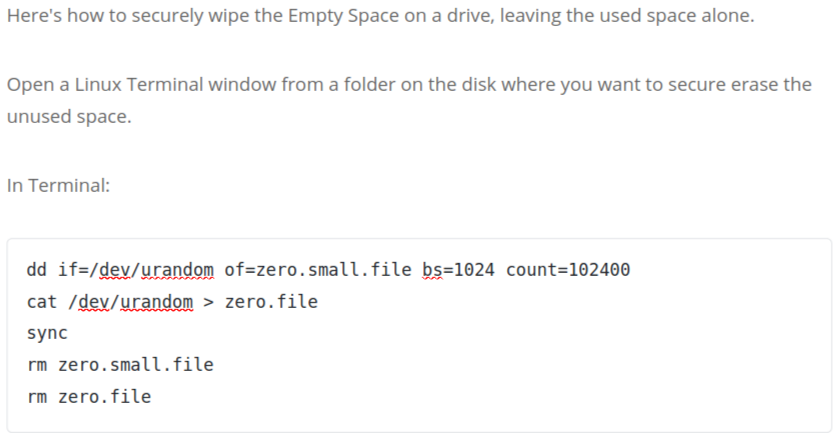
    Here’s how to securely wipe the Empty Space on a drive, leaving the used space alone.

    Open a Linux Terminal window from a folder on the disk where you want to secure erase the unused space.

    In Terminal:

    dd if=/dev/urandom of=zero.small.file bs=1024 count=102400 
    cat /dev/urandom > zero.file 
    sync 
    rm zero.small.file 
    rm zero.file

    That makes a small file (100 MB = 1024x1024x100 bytes) filled with a random character,

    then fills the disk with a random character (which takes a very long time),

    then sync (prevents a smart disk cache from blocking writing to disk),

    then deletes the small file so the time you have with “disk full” is short,

    then deletes the big ‘zero.file’.

    Run this several times for even more security, if you really need to.

    Instead of /dev/urandom you can use /dev/zero to fill the disk with zeros.

    All the sectors that are filled, will be tested by the drive’s SMART test, and any bad blocks will be marked so they aren’t used any more.

    You should then check the SMART disk tool, to make sure there are few bad blocks; if there are many, or the number increases over time, immediately move data to a new drive and discard this one.

  • WordPress White Screen of Death

    Errors in WordPress files can make WordPress only display a plain white screen. Since the screen is all white, it’s difficult to figure out what is going on.

    What Causes A White Screen?

    Some causes could be:

    • Errors in a WordPress update, leaving files incomplete. (Syntax errors)
    • Errors in a Theme update (or bugs in the theme)
    • Errors in a Plugin (or bugs in the plugin)
    • Exceeding the PHP memory limit of a web hosting provider (can be changed in most cases, try editing your php.ini to include: memory_limit = 33554432 (32MB, or a higher number)

    How to Find the Problem

    A temporary thing to try (don’t leave this set!) is to edit your .htaccess adding this line: php_flag display_errors on, which could let you see if files are missing or what file and line number has the syntax error. Any PHP programmer could then help you fix it, since it is highly likely something simple.

    But the most common solution you’re going to find online is to remove a blank line and that “blank line” was the problem, since removing it fixed it! (Not accurate) A Variant is “a space” did it (also not accurate).

    Simple Fix for the Most Common Problem

    (more…)

  • Blocking Access to the Most Important WordPress Files, including .htaccess, wp-config.php

    Blocking Access to the Most Important WordPress Files, including .htaccess, wp-config.php

    There are several files that are part of every web site hosting account, that must be kept secret for security. Hackers are very interested in these files, as they contain key information about your hosting account and WordPress database.

    This is good to understand, and Everything here is covered by WordFence with less effort for You. Install WordFence on every WordPress site. I wrote this before I found out about WordFence.

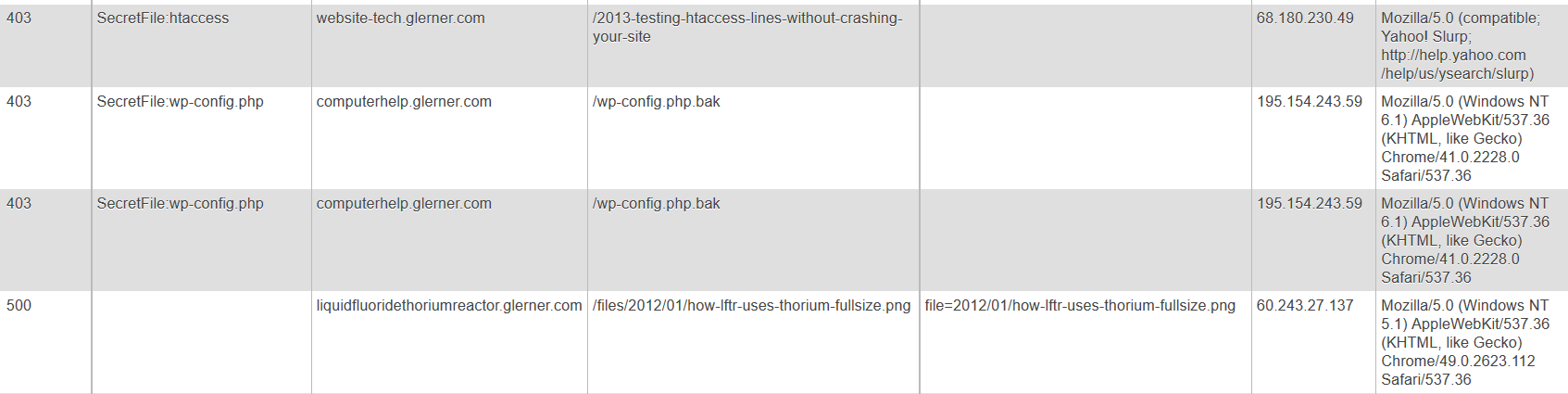
    403SecretFile:wp-config.phpcomputerhelp.lc.lndo.site/wp-config.php195.154.243.59Mozilla/5.0 (Windows NT 6.1) AppleWebKit/537.36 (KHTML, like Gecko) Chrome/41.0.2228.0 Safari/537.36Accept: */*
    403SecretFile:wp-config.phpcomputerhelp.lc.lndo.site/wp-config.php.bak195.154.243.59Mozilla/5.0 (Windows NT 6.1) AppleWebKit/537.36 (KHTML, like Gecko) Chrome/41.0.2228.0 Safari/537.36Accept: */*
    403SecretFile:htaccesswebsite-tech.lc.lndo.site/2013-testing-htaccess-lines-without-crashing-your-site68.180.230.49Mozilla/5.0 (compatible; Yahoo! Slurp; http://help.yahoo.com/help/us/ysearch/slurp)Accept: */* Accept-Encoding: gzip

    My error pages log the errors that are detected, into a database. This lets me easily search for errors, and also easily troubleshoot when a valid file triggers an error. These three examples were in my database coincidentally almost the same time, from someone (IP address 195.154.243.59) trying to get information about my site, and someone trying to read an article I wrote but my security system was blocking.

    How to Block Files

    This is in my .htaccess file:

    # prevent access to PHP error logs, other secret files
    # need to escape periods (or behaves as "any character"), don't need to escape underscores
    SetEnvIf Request_URI (?i).*(htaccess|php\.ini|wp-config\.php|wp-config\.bak|wp-configbak1\.php|debug_log|error_log|404\.log|ignore404\.log|error_log403|error_logbot|500\.log|readme\.html|readme\.txt) badSecretFile=$1
    
    # use syntax like this to enable any special case URLs, the exclamation point un-sets the environment variable
    SetEnvIf Request_URI (?i)(/2013-testing-htaccess-lines-without-crashing-your-site) !badSecretFile
    SetEnvIf Request_URI (?i)(/2013-xampp-limit-not-allowed-in-htaccess) !badSecretFile
    SetEnvIf Request_URI (?i)(/2013-error-reporting-from-htaccess) !badSecretFile
    SetEnvIf Request_URI (?i)(/2016-blocking-access-to-htaccess-wp-config-php-other-important-files) !badSecretFile
    SetEnvIf Request_URI (?i)(/files/2016/11/security-htaccess-wp-config.php-with-exceptions.*png) !badSecretFile
    SetEnvIf Request_URI (?i)(/tag/htaccess) !badSecretFile
    
    # deny doesn't transfer environment variables, except Deny from env= and should be inside a  or  to work
    RewriteCond %{ENV:badSecretFile} >"" [NC]
    RewriteRule (.*) - [F,L]
    

    Lines 1 and 2 are comments (start with a #)

    Line 3 uses a | to separate options. Set an Environment Variable if one of these things matches. Request_URI (the page being requested, so in http://www.yourdomain.com/abcdefg.html, the Request_URI is “abcdefg.html”) is checked for a match. Then (?i) says to ignore upper/lower case. Ignore anything before what we’re interested in, using .* (period for “any character”, asterisk for “zero or more times”). Then a list of file names to check for, e.g. htaccess or wp-config.php. Then we set an environment variable (badSecretFile) to $1 which is the first “something in parenthesis” that was matched. End result, badSecretFile gets set to “htaccess” or “wp-config.php” or “error_log”, etc.

    Line 5 through 11 “un-set” the environment variable badSecretFile for some of my pages. I’m writing about techniques on .htaccess, so I have to un-block my pages from the security rules saying nobody gets to read any file with “htaccess” in the name. (When writing security rules like this, be very specific, use the full name of your WordPress page.)

    Line 10 has something specific to WordPress. Images are often resized by WordPress to match the sizes your theme wants; the size is added in the file name. http://website-tech.lc.lndo.site/files/2016/11/security-htaccess-wp-config.php-with-exceptions-1080×425.png is the actual file name used in this case, so have to tell .htaccess to allow (with .* ) any extra characters in that location.

    Line 13 is a comment about the normal way of blocking access to files, using for example <Files> or similar statements. However, that method doesn’t allow exceptions (would block my articles on how to use .htaccess, for example) and doesn’t provide a way for error pages to report on what triggered the request getting blocked.

    Line 14 says that if the environment variable badSecretFile has been set, then the RewriteRule in line 15 gets executed. Line 15 says any file name (.*) gets redirected to – which is the shorthand for “nowhere”, and then the [F,L] says Fail (with a 403 status code, triggering your error page) and this is the Last thing to do (stop executing .htaccess now).

    How to Track .htaccess Errors

    This is a very long topic, so for now I’ll just say that PHP can read the environment variables that exist in .htaccess.

    Here is the snippet of PHP code I use for detecting this particular error, where I used badSecretFile to store what was blocked.

    if (!empty($_SERVER['REDIRECT_badSecretFile'])) {
    	$htaccessErrors[] = 'SecretFile:'.$_SERVER['REDIRECT_badSecretFile'];
    }
    

    PHP gets the environment values from the requested page in (for example) REDIRECT_badSecretFile, and the values for the error page do not have the “REDIRECT_” prefix. You also have to check for errors that get re-triggered by subdomains, and have REDIRECT_REDIRECT_ prefixes. All of the $_SERVER variables are available to PHP. For example if (!empty($_SERVER['REMOTE_HOST'])) { /* do something */ }

    Why Was My Page Blocked?

    Simple. I had been blocking page names with a trailing slash, and this person didn’t have the trailing slash in their request (http://website-tech.lc.lndo.site/2013-testing-htaccess-lines-without-crashing-your-site and I only enabled http://website-tech.lc.lndo.site/2013-testing-htaccess-lines-without-crashing-your-site/ )

    If I had not been logging my site errors, and checking my log, I probably wouldn’t have found this mistake.

    My logging to a database, including having the server tell me what made this be blocked (in this example, “SecretFile:htaccess”) had me see the error and be able to fix it.

    If I had not logged what triggered the error, even if my eyes had gone over the log entry, I would not have seen it; I would have thought it was blocked by User Agent (what type of browser was used), or by IP address, or “something”.

  • Troubleshooting Delays (several seconds) in PHP or WordPress

    Troubleshooting Delays (several seconds) in PHP or WordPress

    My custom error pages were running extremely slowly, taking about 60 seconds “waiting” and then displaying all at once.

    The hosting company said they don’t have any performance profiling software. “Have you tried renaming your .htaccess file, you have a lot of redirects, that’s probably what’s causing it.” (No, of course I’d already looked into that. Dumb hosting tech support advice.)

    Well, then “try checking your error logs”. No, I’ve already installed code in my WordPress wp-config.php, and in my error pages, to log extra PHP errors. No errors at all related to this; just some undeclared variables in one WordPress plugin. See my page on Error Information Only For You.

    I have been a PHP programmer for years. I know that there are debugging tools, and there are tools to measure where exactly in a program are the most resources being used, or where is the program taking the most time.

    I found Benchmark, a “framework to benchmark PHP scripts or function calls”. On some web hosts, you install Benchmark via cPanel under “PHP PEAR Packages”; on others you install it yourself with SSH commands; or your hosting company may not have any way for you to install it. (Even if you think you won’t ever use SSH, don’t even know what that is, “SSH included” is a good indicator for a good hosting company, and so is “PHP Pear Packages”.)

    Testing your own programs

    First put in some code so only I can generate testing results, as some of the testing methods (especially Iterate) can use many resources. You also may want to display testing items in the browser, only for you. There are also some required initialization lines for Benchmark. Much of this section of code is a long comment, giving examples of Benchmark calls.

    if ( in_array($ip, $myipaddress ) || in_array($forwardedfor, $myipaddress) ) {
    	echo "<p>Docroot $docroot</p>";
    	$onlyMe = true;
    } else {
    	$onlyMe = false;
    }
    if ($onlyMe) { 
    /* http://pear.php.net/package/Benchmark/docs/latest/ 
    Install via cPanel PHP PEAR Packages 
    */
    
    /* must add to path if haven't already */
    	ini_set("include_path", '/home/USERNAME/php:' . ini_get("include_path") );
    
    /* some examples of Benchmark calls
    	require_once 'Benchmark/Iterate.php';
    	$benchmark = new \Benchmark_Iterate;
    	$benchmark->run(10, 'err->update_errorlog', 'test');
    	$result = $benchmark->get();
    	$benchmark->display(true);
    	
    	require_once 'Benchmark/Profiler.php';
    	$benchmark = new \Benchmark_Profiler(TRUE);
    	$benchmark->enterSection('update_errorlog');
    	$err->update_errorlog();
    	$benchmark->leaveSection('update_errorlog');
    	//Returns formatted informations
    	$benchmark->display(true);
    end of examples */
    
    	require_once 'Benchmark/Profiler.php';
    	$benchmark = new \Benchmark_Profiler(TRUE);
    }
    

    Defining Sections of Your Code To Test

    Now you select parts of your code where you want to test the performance, especially separating out places that you think might be too slow.

    You use “enterSection” and “leaveSection” commands, and give your own description of the section of code. This short description will appear in the chart of results.

    if ($onlyMe) { 
    	$benchmark->enterSection('ini set');
    }
    
    /* code for initialization  */
    
    if ($onlyMe) {
     	$benchmark->leaveSection('ini set');
    	$benchmark->enterSection('which log file');
    }
    
    /* setting which log file to use */
    
    if ($onlyMe) {
     	$benchmark->leaveSection('which log file');
    	$benchmark->enterSection('define functions');
    }
    
    /* code for defining functions */
    
    if ($onlyMe) { 
    	$benchmark->leaveSection('define functions');
    	$benchmark->enterSection('gather error info');
    }
    
    /* code for gathering error info */
    
    if ($onlyMe) { 
    	$benchmark->leaveSection('gather error info');
    	$benchmark->enterSection('shutdown function');
    }
    
    /* code for defining shutdown function */
    
    if ($onlyMe) { 
    	$benchmark->leaveSection('shutdown function');
    	$benchmark->enterSection('get POST content');
    }


    You can define as many sections as you want. However, I suggest beginning with only a few, and narrow down the section of code that testing shows is taking the longest. In this case, it was inside ‘get POST content’ so I split it into 3 sections for further testing.

    if ($onlyMe) { 
    	$benchmark->leaveSection('get POST content');
    	$benchmark->enterSection('get POST content 2');
    }
    
    $junk = file_get_contents('php://input'); /* the POST content */
    
    if ($onlyMe) { 
    	$benchmark->leaveSection('get POST content 2');
    	$benchmark->enterSection('get POST content 3');
    }
    

    I never would have guessed it, but turns out the problem was with php://stdin… aren’t those supposed to be automatically enabled? Well, not on this server. Perhaps they are opening php://stdin for SSH but leaving php://stdin not opened for web pages, since it is so rarely used in web pages?

    /* this file_get_contents() delays 60 seconds, found with Benchmark */
    $junk = file_get_contents('php://stdin'); /* the POST content */
    
    parse_str($junk, $post_vars);
    $posts = implode_with_key($post_vars, $inglue = '-->', $outglue = "\n");
    
    if ($onlyMe) { 
    	$benchmark->leaveSection('get POST content 3');
    	$benchmark->enterSection('rest of file before update');
    }
    
    /* code for rest of file */


    PHP Benchmark Profile showing error with get-post-content 2016103110

    Results of Testing

    if ($onlyMe) { 
    	$benchmark->leaveSection('update_errorlog');
    	
    	//Returns formatted information
    	$benchmark->display(true);
    } else {
    	$err->update_errorlog();
    }
    

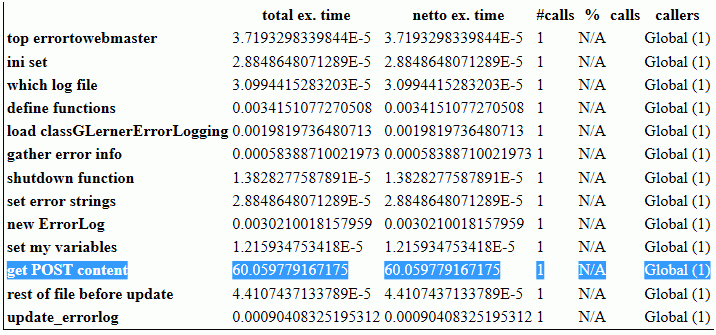
    The results are numbers that are hard to read; some people may never have seen “scientific notation”, with numbers displayed always with a single digit left of the decimal point, and a power-of-ten exponent. All you need to really know is any number ending in “E-5” or “E-6” is a very small number.

    The problem will likely be a number between “E-1” (multiply by 0.1) to “E+1” (multiply by 10). “E0” isn’t shown (multiply by 1).

    From the top line in the image, 3.7193 E-5 would be written in “standard” notation as 0.000037193

    From the highlighted line in the image, something in the “Get POST content” section of code is taking a full 60 seconds. (Happens to match the 60-second timeout tech support says is set for some things in PHP.)

    Add a few more enterSection and leaveSection profiling statements in the slow portion of your code, to narrow down what specifically the problem is, down to the single line of code in this case.

    Fixing the Problem

    Now that I have identified the problem, that tech support couldn’t identify, and that I wouldn’t have guessed, time to search for a solution to the problem.

    In this case, there are two likely explanations. 1) One of the standard input streams was waiting for 60 seconds for something to be typed in, and then timing out, or 2) the stream was never opened, and the function call timed out.

    /* what seems to fix the problem, declaring the STDIN before attempt to use it, though I'd thought it was always declared */
    
    if (!defined('STDIN')) {	/* not always defined, when PHP called by web browser; define to stop error warnings */
    	$stdin = fopen('php://stdin', 'r');
    	define('STDIN', $stdin);
    }
    

    This might be useful for reading STDIN from command line versions of PHP. I haven’t yet tested it.

    if (php_sapi_name() == 'cli' || php_sapi_name() == 'cli_server') {
    	$sapi = 'command line';
    	echo '<code>'; print_r($_SERVER); echo '</code>';  /* pre looks better than code, but my PHP display plugin uses pre */
    } else { $sapi = 'not command line'; }
    
    if (defined('STDIN')) { /* STDIN is available */ }
    
    $junk = file_get_contents('php://input'); /* the actual POST content */
    if (empty($junk) && $sapi == 'command line') {
    	/* Apache uses php://input, CLI uses php://stdin */
    	/* not tested on IIS server, might get 60 second timeout waiting for user input if isn't any */
    	
    	/* stream_set_blocking(STDIN, 0);
    	stream_set_timeout(STDIN, 2);
    	*/
    	
    	/* this doesn't work, can't have string parameter -- 
            stream_set_blocking('php://stdin', 0);
    	stream_set_timeout('php://stdin', 2);
    	should be a "valid path" not a string -- 
    	$junk = file_get_contents($stdin);
    	*/
    	
    	/* this file_get_contents() delays 60 seconds, found with Benchmark */
    	$junk = file_get_contents('php://stdin'); /* the POST content */
    }
    
    /* check if this works for reading STDIN from PHP-CLI */
    $ctx = stream_context_create(array(
    	'http' => array(
    		'timeout' => 1
    		)
    	)
    );
    $junk = file_get_contents('php://stdin', 0, $ctx); 


    Other Resources

    https://gregheo.com/blog/benchmarking-php/ has clear examples of using Benchmark.

    http://pear.php.net/package/Benchmark/docs/1.2.9/elementindex.html for the main Benchmark documentation

    Save

    Save

  • LESS for WordPress to compile Bootstrap 3.1+

    Many of the LESS compilers for WordPress or PHP use the Leafo LessPHP library, from https://github.com/leafo/lessphp (see http://leafo.net/lessphp/docs/ ). For example, the current (6/1/2015) version of AssetsMinify plugin for WordPress uses LessPHP.

    The Leafo LessPHP library doesn’t compile the LESS extend command, used heavily in Bootstrap 3.1+ and many other LESS packages. “Extend is a Less pseudo-class which merges the selector it is put on with ones that match what it references.” And it seems Leafo LessPHP isn’t getting updated.

    Even worse, many libraries haven’t modified the Leafo package to even catch the failure — they fail with a PHP fatal error such as

    PHP Fatal error: Uncaught exception 'Exception' with message 'parse error: failed at &:extend(.clearfix all);'

    At a minimum, the library should catch the exception, so that PHP doesn’t abort; the exception should leave a comment in the generated CSS such as “This version of LessPHP uses a version of Less that does not support this code: &:extend(.clearfix all);“.

    If you use the Leafo LessPHP library and it produces a PHP fatal error in WordPress, you will probably get a “white screen”. If you know how to turn on WordPress and PHP debugging information you can see that uncaught exception in your error logs, and at least know your LESS file having an unsupported command was what brought your site down.

    How do you get around this? One way is to simply use LESS without the ‘extend’. But the LESS extend command has been around for years now. The Bootstrap release log shows v3.1.0 released on Jan 30, 2014 had “With switch to LESS compiler, remove duplicate CSS generated from the nested .clearfix class and mixin by switching to &:extend(.clearfix all).” The Extend command has a lot of benefits.

    As of 6/1/2015, Bootstrap is currently v3.3.4 and there are many improvements over version 3.0. Good thing there are ways to use Bootstrap 3.3.4 .less files with WordPress.

    https://github.com/oyejorge/less.php is a different Less compiler for PHP. I haven’t compared the main package yet. But reading about it, I saw it has a section on replacing the leafo lessc.inc.php with oyejorge lessc.inc.php. You copy lessc.inc.php and the lib/ folder from oyejorge’s less.php-master.zip into a folder (I used the folder in my WordPress theme with my .less files, /wp-content/themes/THEMENAME/less)

    I’m able to generate a custom version of Bootstrap 3.3.4, incorporating my own changes (.less files that calculate a “color wheel” to produce background colors that look great with a main color I select, and making text colors that have good contrast against their background color, and applying those colors throughout Bootstrap.

    I have my main file, style.less, include all the other .less files; these are all in /wp-content/themes/THEMENAME/less
    Example:

    @import "scheme.less";
    @import "bootstrap/bootstrap.less";
    @import "my-bootstrap-variables.less";
    @import "my-mixins.less";
    

    The oyejorge version of lessc.inc.php is also in /wp-content/themes/THEMENAME/less
    The oyejorge lib/ folder and all the files in it are in /wp-content/themes/THEMENAME/less (making /wp-content/themes/THEMENAME/less/lib/)
    The Bootstrap Less files are in /wp-content/themes/THEMENAME/less/bootstrap

    (Since Less definitions found afterwards overwrite definitions found before, and only then are applied in functions and mixins, I have my-bootstrap-variables.less and my-mixins.less after the import for Bootstrap, and all the colors generated in scheme.less get put into Bootstrap goodies.)

    Here is the code I have in my functions.php (in /wp-content/themes/THEMENAME/) :

    require "less/lessc.inc.php"; // uses less/lib/ from less.php-master.zip
    $options = array( 'sourceMap' => true );
    $parser = new Less_Parser($options);
    $less = new lessc;
    
    try {
    // works, but autoCompileLess is better, this compiles every time -- $less->compileFile(__DIR__."/less/style.less", __DIR__.'/style.css');
    	autoCompileLess(__DIR__."/less/style.less", __DIR__.'/style.css');
    } catch (exception $e) {
    	echo '<p>Error making CSS files: ' . $e->getMessage() .'</p>';
    }
    

    Here is the autoCompileLess function, also goes in functions.php:

    /* from http://leafo.net/lessphp/docs/#compiling_automatically
    */
    function autoCompileLess($inputFile, $outputFile) {
    	// load the cache
    	$cacheFile = $inputFile.".cache";
    
    	if (file_exists($cacheFile)) {
    	    $cache = unserialize(file_get_contents($cacheFile));
    	} else {
    	    $cache = $inputFile;
    	}
    
    	$less = new lessc;
    	$newCache = $less->cachedCompile($cache);
    
    	if (!is_array($cache) || $newCache["updated"] > $cache["updated"]) {
    	    file_put_contents($cacheFile, serialize($newCache));
    	    file_put_contents($outputFile, $newCache['compiled']);
    	}
    }
    
  • Delicious Desserts and Breads, Diabetes Healthy

    Thanks to a new breed of healthy natural sweeteners, low glycemic flours, and slimming fats (yes, you read that right!), you can whip up delicious treats and breads that pack serious nutrition and burn fat too!

    These books give recipes that have the taste and texture of breads and desserts we love, but without the health costs.

    Guilt-free desserts, delicious and healthy for diabetics

    Divinely delicious desserts with all-natural, low glycemic ingredients, without the sugar (but with healthy sweeteners that don’t spike blood sugar), easy to make and very nutritious.

    Better breads, low glycemic, delicious

    Breads that are low glycemic, gluten free, no grain, low starch, heart healthy (lacking the specific type of LDL cholesterol that is the main risk factor for heart disease, yet wheat is full of), and weight improving.

    Gluten-free breads with the texture we love, and very healthy.

    Creating REAL Bread with Good-for-You Ingredients. The goal was to create breads so good they could be served in a restaurant.

    No complicated techniques… no fancy equipment (not even a bread machine)… and no need to knead. fat-burning brownies, gluten free

    All these delicious foods had to be made with inexpensive real-food ingredients. They would contain NO grains or gluten. And the final product had to be low-glycemic – no blood sugar spikes.

    And that’s not all… they would only be satisfied if the recipes were fast and easy to make.

    Guilt-Free Desserts: 50 All-Natural, Gluten-Free, Fail-Proof, Low-Glycemic Desserts
    Plus:
    Better Breads – A Dozen Quick & Delicious, Gluten Free, Low Glycemic, Breads, Biscuits, Crepes & Crusts
    and:
    Awesome Appetizers – Tips, Sips & Healthy Hor d’Oeuvres Perfect for any Occasion

    Go let your eyes check out how good they look, and your mouth will begin wanting them!

    https://lc.lndo.site/recommends/gfdesserts