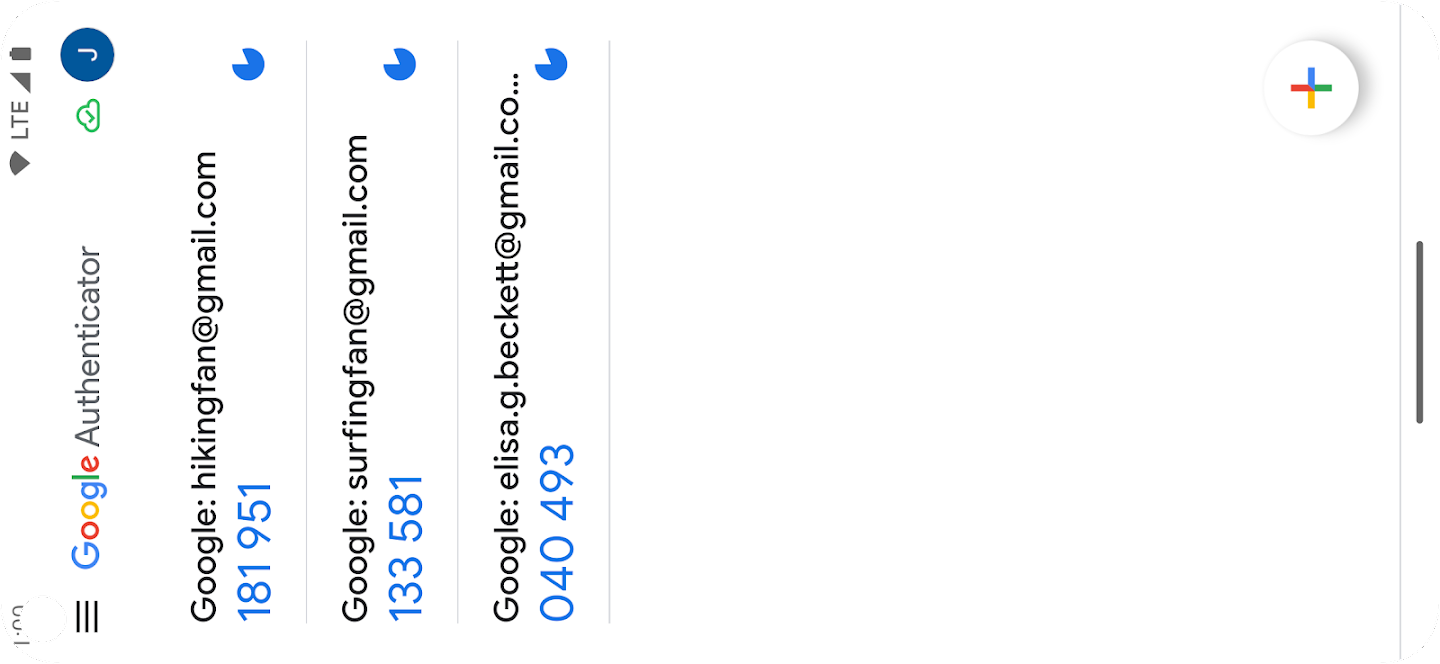
Google Authenticator is a common Two-Factor Authentication (2FA) app for mobile phones. When you log into a website, it asks for a code, you get the code from your 2FA app, type that code into the website form.
I’m using Google Authenticator and Authy. Why both? I had Authy already, and it works great, and then started seeing Google Authenticator is popular, so I simply added it also. Either should work for all your sites.
WordFence (my favorite WordPress security software), has 2FA as one of its many features, and connecting with Google Authenticator is built-in.
Now that I have 2FA set up for a few accounts, the code often doesn’t work. Huh?
The codes expire quickly. Google Authenticator shows a “decreasing pie” icon; the code expires when the pie is “all eaten”. You’d think the code would automatically update. But it doesn’t.
On my old phone, the code doesn’t always update when I start the app, either.
Updating Your Authenticator Codes
Updates are paused while they are visible. I’d prefer noticing a code is about to expire and wait for it to refresh before typing it into a website, but okay, they are paused.
To update the code, finger-hold (or very-long-tap) for a few seconds on any of the codes, and all the codes will get updated.
It is that simple.
p.s. The other thing many sites say to do is check the app’s settings, refresh the “Time correction for codes”, the time on your app should be synchronized with the “real time”, but they can get out of synch. This time is different from your phone’s clock (resetting the time correction doesn’t change your phone’s time). If this “time correction” setting fixes your problem with 2FA, you could check your phone’s time is being updated, normally to your phone network clock.
Is your wp-cli using an old version of PHP, older than WordPress runs in? If you get errors in wp-cli, for example with wp plugin list, about a plugin needing a newer version of PHP, this is how to fix it (temporarily).
Sometimes website hosting companies upgrade your WordPress PHP version, but fall behind updating the PHP version for your SSH terminal connection to the site.
The long-term solution is get your hosting company to update the ssh version of PHP.
Boo, hiss to those negligent website hosting companies. They should always keep PHP versions updated, at least above the minimum recommended version for WordPress. In June 2023, that minimum is PHP 7.4. It is currently very common now for sites to be running on PHP 8.1 or newer. Even though the recommended minimum version of PHP for WordPress is PHP 7.4, I suggest don’t run WordPress anymore on PHP older than PHP 8.1, and it’s better to be using PHP 8.2 or newer.
Plugin authors are starting to use the good enhancements in newer versions of PHP, setting their minimum PHP version to 7.4. Good for them!
This error is not the plugin author’s fault. It is the hosting company’s fault, for still having an old version of PHP in use.
Here is the full error message for one plugin, but understand that each plugin will have a different message. The important part is this: dependencies require a PHP version ">= 7____" whatever the version number is.
Fatal error: Composer detected issues in your platform: Your Composer dependencies require a PHP version ">= 7.4.0". You are running 7.3.33-1+0~20211119.91+debian9~1.gbp618351. in /_____/wp-content/plugins/woo-store-vacation/vendor/composer/platform_check.php on line 24
That site’s SSH terminal is running PHP 7.3.__ (even though WordPress on that site is using PHP 8.1), while the plugin requires at least PHP 7.4.
Solution (the hard way):
Change the wp-cli command to tell it to skip running the plugins that require a newer PHP. This is harder because you have to type so many characters for so many commands.
For example, change wp plugin status to
wp plugin status --skip-plugins=ti-woocommerce-wishlist,woo-store-vacation
That “skip plugins” is a comma-separated list of the folder names of the plugins that require a newer version of PHP than your hosting company provides for your SSH terminal.
Remember, if WordPress itself is being run in too old a PHP version, this won’t fix it. Have your hosting company run WordPress in a newer version of PHP, minimum version 8.1. If they can’t do that, eww, move to a better hosting company!
How do you get a list of the plugins that need to be excluded? It’s right there in that error message. See “wp-content/plugins/woo-store-vacation/” in the error?
So in this case, –skip-plugins=woo-store-vacation
If you run wp plugin status again, you may see another plugin that has the same issue. Next time I ran that command, I saw “wp-content/plugins/ti-woocommerce-wishlist/” so, the new command includes --skip-plugins=ti-woocommerce-wishlist,woo-store-vacation .
Everything from “/plugins/” to the next “/”, and separate each of them with a comma and no spaces. The order of the plugins doesn’t matter.
Which wp-cli commands need this?
Many of them. Most of the commands that I use every time I am updating plugins and checking every plugin is okay and every administrative user is okay.
What is the Easy Way?
Instead of modifying each wp-cli command, tell wp-cli to always use the settings you need.
You can set global settings for wp-cli in a wp-cli.yml file in the WordPress root folder.
The hosts I use happen to all have nano as the text editor. Ask your hosting company what text editor to use.
Navigate to your WordPress root folder (the folder with wp-admin/ and wp-content/ ). Edit wp-cli.yml (you are likely making a new file, so it is empty, unless you created one before).
nano wp-cli.yml
Add a line like this, adjusting it to exclude your set of plugins:
If you get content generated with the correct formatting commands, from ChatGPT or any other source, you can paste it into WordPress not as text, but as paragraphs, headings, lists, code, containers, quotes.
You can train ChatGPT to deliver a long article in pieces, and have special formatting for a piece. For example, a container with two columns, with text in the left column and an image on the right.
To train ChatGPT, I took examples of different blocks made by WordPress. I viewed a block in the Code Editor, copied it and pasted it into ChatGPT. After a few rounds of “no, I don’t want you to repeat this to me, this is the format I want you to learn” I got what I wanted.
(ChatGPT is like a naive genius child, it often doesn’t understand you, with a lot of words. So, ask a different way until you get what you want. Also, remember to use what it says as a 1st draft; you have to go over what it generates to make sure it wrote well, without misunderstanding you or including things you wouldn’t say.)
Along the way, I found that Heading level 2 uses one format, <!-- wp:heading -->, but subheadings, with higher heading levels, require an additional parameter. For example an H3 heading needs this: <!-- wp:heading {"level":3} --> (otherwise, the Block Editor has to “attempt recovery”).
Finally, ChatGPT gave me results I could paste directly into WordPress.
Then, I asked it to give a succinct way to instruct it what format I wanted.
It gave a good answer. Then I asked “Can you remember for my account, what “WordPress Block Editor format” is? Or should I paste what you said for each new article?”
As an AI language model, I don’t have access to personal account information or the ability to remember specific details about individual users. Therefore, I cannot remember the specific details of your account or preferences. To ensure accuracy and consistency, it’s recommended to refer to the provided HTML code snippet or the guidelines mentioned earlier [see below] when working with the “WordPress Block Editor” format for each new article. By using the provided example and instructions, you can follow the proper syntax and structure for creating content in the WordPress Block Editor.
ChatGPT
You can use this to tell ChatGPT how you want it to output the article you are going to have it write.
Here’s what it said.
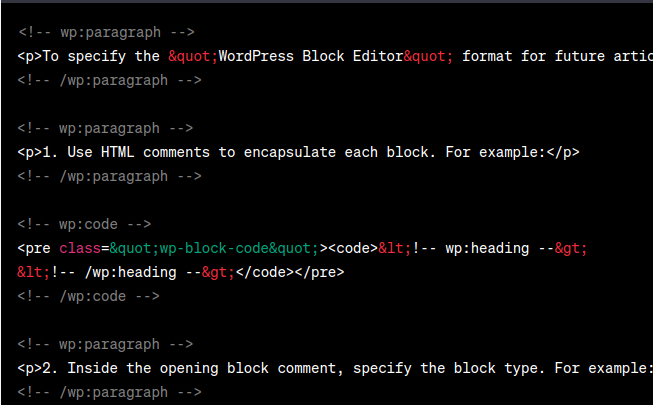
To specify the “WordPress Block Editor” format for future articles, you can follow these guidelines:
1. Use HTML comments to encapsulate each block. For example:
<!-- wp:heading -->
<!-- /wp:heading -->
2. Inside the opening block comment, specify the block type. For example:
<!-- wp:heading -->
3. To add attributes to a block, include them within the opening block comment. For example:
<!-- wp:heading {"level":3} -->
Using <!-- wp:heading {"level":3} --> for H3 headings, <!-- wp:heading {"level":4} --> for H4 headings, and <!-- wp:heading {"level":5} --> for H5 headings is the correct syntax to set the appropriate heading levels in the WordPress Block Editor format.
4. Add content within each block using appropriate HTML tags. For example:
<!-- wp:paragraph -->
<p>This is a paragraph block.</p>
<!-- /wp:paragraph -->
5. Maintain proper indentation and spacing for better readability.
6. If you want to include multiple blocks within a container or column layout, nest the appropriate block comments and HTML tags accordingly.
7. Remember to refer to the WordPress Block Editor documentation for additional block types, attributes, and features that you can use to customize your content.
So, you don’t tell ChatGPT “write me an article on _____”. You say “write me an article on _____ in this tone of voice, with about this many words. I want the article formatted for the WordPress Block Editor, and here is how to do that: (and you paste that entire set of guidelines, all 7 points).
Sony NSZ-GS7 Network Media Player requires a login to a GMail account during setup. There is no way around it.
It even allows you to create a GMail account during setup.
But then you have to login. And that login always fails, saying your user name and password don’t match.
That’s what the message says, but that isn’t the problem. (You did type your correct password, it’s not your fault.)
Google says logging in with a “less secure app or device” is no longer available.
“To help keep your account secure, from May 30, 2022, Google no longer supports the use of third-party apps or devices which ask you to sign in to your Google Account using only your username and password.”
https://myaccount.google.com/u/0/lesssecureapps
Maybe someday Google will allow “whitelisting” in a GMail account, after a failed login attempt, for only the specific MAC address. Perhaps this would only provide a severely restricted access (e.g. only verifying login).
Or, someone will come up with some crazy hack that fakes an old-style Google response to only the one MAC address (so your real Google access is not interfered with)… installed in your Router? installed via USB to the device? …
There are keyboards that are marketed as “spill proof”, but most keyboards are made so that water is unlikely to get inside the individual keys. And most keyboards are made with holes so water spills can be gently shaken out.
While it is possible that the liquid shorted something in the keyboard, and it’s damaged, that doesn’t happen often.
Cleaning Liquids You Can Use
Wouldn’t distilled water be a good way to get the wine or soda out? A little bit of mild dish detergent can also help, maybe two drops in a bowl of water.
But don’t use unfiltered tap water, you don’t want any chemicals in your water eating at the plastic of the keyboard. If you live in an area with hard water, you shouldn’t use even filtered water, since those minerals can mess up the tiny levers of your keys. Or, understand that if the keyboard starts getting “sticky”, you’ll replace it.
Power Completely Off
Turn off your computer, all the way off not just low-power mode. Unplug the keyboard from the computer.
Tools
Find the old toothbrush that you kept for cleaning electronics, the one that has a rubber band around it so you never again put it in your mouth.
Not the toothbrush you use for cleaning bathrooms or cars or anything else, that now has traces of harsh chemicals on it.
A camera lens brush “so old you can replace it” would be great. Just don’t later use the keyboard brush on an expensive camera lens.
You’ll also want compressed air (those small cans, specially made for use on electronics). They usually have a tiny straw to get the air into tiny places.
Initial Cleaning
First, use the toothbrush and compressed air to get the crumbs and dust and pet hairs from the entire keyboard.
Then check for all the places where there is dried wine visible.
Notebook Computers Need More Cleaning
If you have a notebook computer, the keyboard was probably designed to keep spills out of the rest of the computer.
Hopefully, tipping the computer to let liquids drip out, is all that is needed to keep liquids from the rest of the computer.
After removing “most” liquid, remove the keyboard from the computer. That is usually one of the easiest things to remove from a notebook computer. Find your specific model’s repair instructions, and follow those instructions exactly. It probably requires remove a few screws, slide the keyboard so it is away from the rest of the case, then carefully disconnect the keyboard cable.
Check carefully for any signs of liquid in the rest of the notebook. Warning: likely any liquid on a notebook battery will cause corrosion, and with some batteries that could be dangerous. Maybe it is time to replace it with a new battery.
Keep yourself grounded (touch any large metal piece of electronics, maybe the bare-metal screw on a power strip) working in a notebook computer. Use only all-natural cloth (cotton, hemp, probably not silk) as nylon and polyester and so many other fabrics generate static. Wipe out all the liquid you can, then make sure the computer is completely dried before you power on again.
Don’t try rinsing inside a notebook computer. Only use a damp cloth to soak up drinks. Any slight residue: probably best to completely ignore it. Or find a cleaner that is specifically designed for cleaning electronic circuits. Or have a computer repair professional do it.
Removing Keycaps (Only if needed)
Only remove a keycap if you cleaned most of the dried gunk, and the key still doesn’t work. There is a risk you will break the tiny clip the keycap attaches to, every time you remove and replace a keycap.
There are small plastic clips that hold the keycap in place. These clips are usually located on the top and bottom edges of the keycap.
Gently pry up one of the clips using a small screwdriver or other thin tool. Be careful not to apply too much force, as this could damage the key or the keyboard.
Remove Spilled Liquid and Dried-On Gunk
Pour water on the coffee or wine or soda, then very gently rub after it has soaked a few minutes, until there is none visible.
Rinse, then gently shake water off the keyboard, many angles to get water out of all the corners and edges.
Dry Thoroughly
Let the entire keyboard dry thoroughly. Do not put any keycaps you removed back on, until it has dried thoroughly.
Maybe have a dish with a puddle, next to the keyboard, and you can only proceed when the puddle is completely dried.
Gently Put Keycaps Back On
If you have the keycap in exactly the right position, it will snap on with very little force. If it doesn’t snap on with very little force, you have it positioned incorrectly, even if by 0.1 millimeter, or one degree off the correct angle.
Do not use more force, you can very easily break the tiny clips the keycap attaches to. Use the minimal force to depress the key, plus ever so slightly more.
Keep gently trying, and suddenly what you did, seemingly no different than what you did before, will work.
Get A New Keyboard
If that sounds like too much work, or if the keycap breaks, buy a new keyboard. Or your friend probably has a keyboard “that came with their old computer” and you can have it.
Notebook replacement keyboards are available, just make sure it is for the exact model computer you have. Or, leave the bad keyboard in the notebook and use a USB keyboard. (If the whole keyboard is defective, you have to replace it, don’t leave blown circuits in the notebook.)
Keyboards on Amazon or at the swap meet, are inexpensive, especially if you don’t have to have the expensive brand. If the reviews of a keyboard aren’t “crappy feel” then you’ll likely find it is just fine.
If you need a keyboard “right now!” any Windows keyboard will work on a Mac, use the “windows flag” and the “Alt” keys, you’ll figure it out.
Don’t Do It Again
Now that you’ve done all that work, maybe you will change to “only water in a closed container” at the computer desk. No crumby or oily snacks.
There are a lot of backup programs. Some back up your documents, some back up your operating system and programs. Some back up your choice of folders, and you should check often you included all of your project folders in the list.
There are now many programs that back up to some Internet server. I recommend you also backup to an external hard disk. You will likely find it easier to restore your operating system and programs and documents, to a new computer, from a hard disk.
It is much quicker to restore from backup, than to re-install the operating system and each of your programs, and all of your configurations and settings.
I recommend you backup your documents every day or every week (depends on how often you make changes to your documents, and how much work you could lose without being upset).
What if a Backup Drive Fails?
Don’t mess with a backup drive that doesn’t work. Or with a single backup file that doesn’t work.
Make a new backup.
Before you need to use it.
Of course, test the backup. How do you do that? 1) the backup software should have a “verify backup against the files on disk”, and 2) test by restoring to another computer, probably your old computer that you keep around.
Do This Before Backing Up Your Operating System
First, make another backup of Your data, on another drive.
Remember, different backup software defaults to backing up different folders. Check that you are backing up your documents, settings, pictures.
Music and videos, large files that you want but don’t change often, don’t belong in your daily backup. Back these up on a different schedule.
Check that you are backing up every one of your projects that isn’t in your documents folder.
Check that you are not backing up temporary files, or folders that you used as a “temporary backup” months ago. For example, your Internet browser makes thousands of temporary files, in a folder that is probably inside your documents folder.
Why? Because Murphy’s Law is having a lot of fun with you.
Can You Re-Use a Drive That Gave Errors?
Backups need to be Reliable. Don’t simply make a new backup on a drive that had some issue, where you couldn’t restore a backup.
If you have errors with a backup, keep it. You might need it. But label it as “probably damaged”. Then when you know you have a couple of other backups made, you can delete it.
Reformat a drive (as soon as you know there’s nothing on it you need, or nothing more can be recovered).
Test the drive, while it is empty, the longest sector-by-sector test your software allows. Do the test with writing different patterns to each sector. Do the test that takes all night.
A freshly formatted drive, that you ran full error checking on, will work for storing backups.
However, if the drive gives errors during formatting, for example many bad sectors, trash it. Hard drives used to be much more expensive, so it made sense to try to fix them; now it is simply too much work.
(If the information on that drive is truly valuable, pay for a company that specializes in data recovery; the more you do on a drive that isn’t working, the less likely anyone will be able to recover the data.)
New Drives for Backups
New drives, especially the slower drives, e.g. USB 2 drives, are very inexpensive.
Backup drives don’t have to be fast, they have to be reliable.
Buy a “spinner” for backups, don’t buy an SSD. SSDs cost more.
As of April 2023, 4TB USB 3.1 drives on Amazon $92 + free shipping.
USB2 drives would be a little less yet completely adequate for backups
What About Online Backups
Your files, excluding all OS/X and application files, will also likely fit on common online backup locations. (Pay more and you can store anything online.)
Ideally, you have both an online backup, and a backup stored in another room in your house, not next to your computer (if someone steals your computer, they will steal anything else on your desk). Consider storing an occasional backup at another location, maybe a friend’s house.
Ventoy is an open source tool which creates a USB boot drive, with everything needed to boot off that drive and get a boot menu to select the operating system version you want.
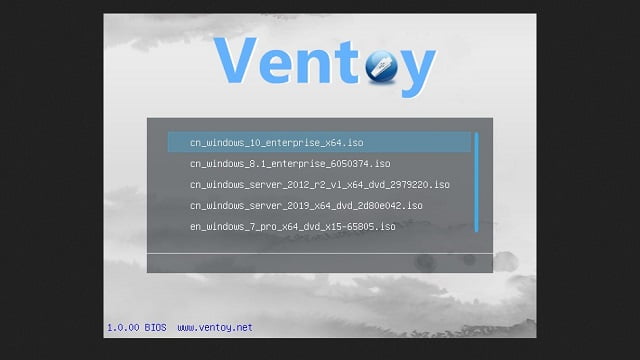
On that Ventoy USB drive, you simply copy multiple ISO files, and Ventoy shows them as a bootable menu.
When you boot from the Ventoy USB drive, the menu lists all the ISOs you placed in the partition and you can boot any of them.
Installing Ventoy
See that “Windows ISOs and multiboot USB” page for more details about how to download and install Ventoy.
Download the tar.gz archive and decompress it. (In Dolphin, or Files aka Nemo, right-click and select “Open with Archive Manager” or “Extract here”. Double Commander is the same.)
How Do You Use Ventoy?
Right-click the decompressed Ventoy folder and choose Open in terminal.
Run the following command to start Ventoy:
sudo ./VentoyGUI.x86_64
Choose the device which corresponds to your USB drive.
Click the Install button.
Once Ventoy is installed on your USB drive, the drive will be named “ventoy”.
Mount it, and copy ISO files to the stick. Each ISO file is the installation (and often “live boot”) file for a specific version of an operating system (e.g. Linux, Windows, OS/X). You could even add an anti-virus scan boot.
The USB drive is now ready to use as a boot drive.
Boot on the Ventoy USB stick. (Each computer has some way of booting from a different drive than the normal drive. Check your computer’s manual, or as you power-on your computer try pressing keys such as: Del, Esc, F2, F10, F12, F1. This key is usually displayed during the boot process. For example, you may see “Press Del to enter setup” or “Press F2 to access the BIOS.” Or try How to Boot Your Computer From a Disc or USB Drive for more details.)
The ISOs you copied should appear as bootable options.
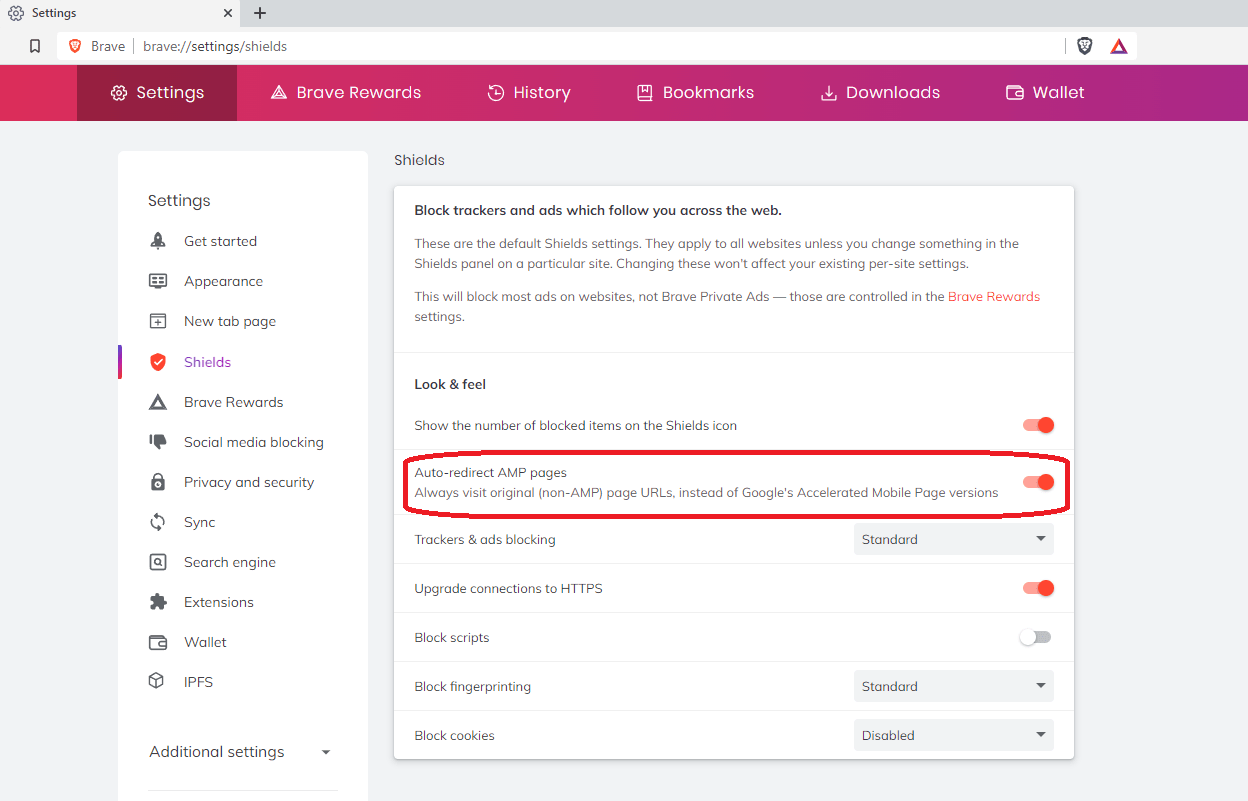
Brave is based on the Chrome browser, but has security and ad-blocking turned on by default. You get faster browsing speed, and your Internet data usage decreases.
Google Site Kit plugin is a low-resource way to connect your WordPress site to your Google Analytics account.
Flushing your DNS cache is separate from flushing your Browser cache.
Your computer’s operating system will save DNS information for sites you’ve recently visited, to load them faster. Sometimes that old information can conflict with the site’s most recent version
If your computer’s DNS cache is old or bad, some sites might just “not load”. They load on other computers, just not on yours.
Where I’ve seen this most, is when I use a notebook that hasn’t been used for a while. I mainly work on my desktop computer; the notebook I might not use for many weeks.
If a website hosting company changes the IP address of the server a site is on, the DNS records need to be updated. Normally that update happens seamlessly (probably with a “change of address” notice, for a while). If it doesn’t happen seamlessly, you can manually clear your DNS cache, so all DNS entries will be queried anew.
Types of Errors That Have Pages Not Load
Preloader
You might simply see the “loading” icon spinning endlessly. This could be a JavaScript error in the page preloader, not a DNS error. Try right clicking in your page, select the Inspector. Find the element that has “preloader”
<div id="si-preloader">
...<!-- Probably stuff here -->
</div><!-- END .si-preloader-1 -->
Change this to not display the preloader, like this:
<div id="si-preloader" style="display:none;" >
DNS Propagation
You would see errors like “This site’s domain name is either not yet pointed or is still propagating. Propagation may take up to 72 hours. Please check back later.”
400 Bad Request
You might get a “400: Bad Request” error in your browser (similar to how when you attempt to visit a page that doesn’t exist, you get a “404 Not Found” error).
There are other problems that can give you a 400 error, including illegal characters in the URL. So check on that first, before you clear your DNS cache. For example, spaces aren’t supposed to be in a URL, you’re supposed to replace a space character with %20. Instead of “somesite.com/error code.html” you should have “somesite.com/error%20code.html“. Another problem would be a % sign in the URL that isn’t followed by one of the valid characters it can be paired with (for example a two-digit hexadecimal number). Clearing your browser cache is another easy thing to do, that can eliminate a 400 Bad Request error.
Flush DNS Cache In Windows
open the command prompt (tap the Windows key, type cmd and press Enter).
The dig command in Linux is used to gather DNS information. It stands for Domain Information Groper, and it collects data about Domain Name Servers. The dig command is helpful for troubleshooting DNS problems, but is also used to display DNS information.
dig -v                      confirm you have it installed
dig google.com
The most important section is the ANSWER section:
The first column in the Answer section, lists the name of the server that was queried
The second column is the Time to Live, a set timeframe after which the record is refreshed
The third column shows the class of query – in this case, “IN” stands for Internet
The fourth column displays the type of query – in this case, “A” stands for an A (address) record
The final column displays the IP address associated with the domain name
Notice there is no “Answer Section” after “Question Section”? That tells you that the DNS record for the domain name hasn’t propagated to wherever your computer gets the DNS information from.
If you have moved the hosting for the domain name to a different hosting company, look to see the new server IP address showing.
When new domain propagated to the host
See IP address of the host, in the Answer section? (IN A 34.125.9.164)
“Our systems keep a cache of DNS records, which allows for faster resolution of IP address. After changing of IP address of any domain, it takes time to update local cache. In the meantime, you may get a broken page error. In this situation, you need to flush the local DNS cache.”
In terminal, use this command to flush your DNS cache:
Inside WordPress, of course use the Block Editor (or the editor in your page builder, if you use one).
But you will probably have many uses for a text editor on your computer, as you are writing your WordPress pages, and throughout your day.
I often write my ideas for a post, in a text editor, to get a good idea what I’m going to say.
Many of the text files I make, grow cluttered. Then I convert them to a WordPress page, using sections and headings and outlines. WordPress pages are clearer than text files, even when I am reading my own text files.
Converting formatted paragraphs to WordPress
If you use a word processor, for example Microsoft Word, you shouldn’t paste directly into WordPress. The word processor formatting may get transferred to WordPress in a way that is inconsistent with the formatting of the rest of your website.
I’m looking at simple ways to convert Word to HTML without cutting and pasting all the LI’s and such between lines. [Note: LI is the HTML for list elements.]
What I’ve tried so far gives me HTML for the page and not for the specifics – all jumbled together.
For now I’ll go back to one at a time – like the good old days.
JH, a WordPress/WooCommerce user
To make a “clean copy”, do this:
Copy from Word
Paste into a programmer’s text editor
Now it is “plain text”. Copy from text editor
Paste into WordPress.
Now you can use WordPress to convert the text into a List, if you want. See WordPress Paragraph Block and List Block
Good Programming Editors for WordPress Authors
There are text editors that know the correct syntax for many computer programming languages, including HTML and CSS (the markup languages for writing website pages) and PHP and JavaScript (the programming languages WordPress itself plus plugins and themes are written in).
These programming editors are also great for editing text.
If “something doesn’t look right” in a web page, copy the HTML for that “something” to your programmer’s editor, and you are more likely to see the typing error, or the syntax error, or the error in the structure of the code. Programmer’s editors have tools to “beautify” the code so it is easier for you to see the structure. Programmer’s editors have syntax coloring, so you have a visual indicator of where there is a syntax error.
Unlike “wimpy” Notepad, this lets you edit multiple files in tabs, and even show multiple portions of a file in different tabs. It has options to automatically save your work every few minutes. It knows the syntax of many computer languages, including HTML and CSS.
You’ll never use WordPad, Notepad, or Word for your text files again.
If you are not “a programmer” and just need a well-done editor for multiple documents open at once, I highly recommend it.
It doesn’t have some of the “programmer only” tools, like version control and showing the reference code for a function. (If you don’t know what that is, that’s fine, it just means you aren’t a programmer.)
Suggested Editors for Windows, OS/X and Linux Users
I don’t use Windows any more, I use Linux Mint for my computers. Mint is free, it is less trouble, it runs better on old computers that Windows doesn’t support any more. Well, there are computers that aren’t very old, that Windows doesn’t support any more. Mint runs great on old OS/X computers that don’t run the latest OS/X. Yes, the identical thumb drive will boot either computer.
So, I know about editors that run on all operating systems.
For taking notes it is great. Ctrl-L to select the current line. Ctrl-D to duplicate the current selection (if you have nothing selected it duplicates the current line).
Atom does have “too many options”, don’t go into the settings area unless you have something specific to change, and let someone know where you’re going so when you get lost they can send a rescue party to find you. This is true for all the best programmer editors, but Atom is “extra-configurable”.
Change the settings in Atom to save your work every 5 or 10 minutes: Editor, Preferences, Core section, “Restore Previous Windows on Start” Yes. And in the Packages section, search for “autosave”, install it if it isn’t already, click the Settings icon, make sure is “Enabled”
Visual Studio Code
This is my favorite Microsoft product. Since I don’t use Windows, and use LibreOffice (or the almost-identical OpenOffice) instead of Microsoft Office, this is the only Microsoft product I use.
“Visual Studio Code is a source code editor developed by Microsoft for Windows, Linux and macOS. It includes support for debugging, embedded Git control, syntax highlighting, intelligent code completion, snippets, and code refactoring.” Wikipedia
Visual Studio Code edits WordPress theme.json files better than Atom does; it reads the full “schema” to know what options are permitted in what section of the file. It has ways for you to jump to the section you are interested in without scrolling. It will alert you where in the file there are syntax errors.
VSC is meant to be used by programmers. It reads every file in a folder, expecting to find function definitions so it can prompt you with the parameters “intelligent code completion”. So, don’t use it for your Documents folder, it will “complain” the folder is too large. But you can use it for your local development folder and open documents from any folder.
Works well with GIT, connects with XDebug for PHP programming.
Note that “Visual Studio” is a different Microsoft product than “Visual Studio Code”.
“Sublime Text may be downloaded and evaluated for free, however a license must be purchased for continued use. There is currently no enforced time limit for the evaluation.“
I have not used Sublime Text, and it is the first or second most popular among the AZ WordPress Meetup’s developers, with Visual Studio Code.
Programmers Also Use
NetBeans https://netbeans.org/
PHPStorm
Eclipse IDE
Associate Your Text Files with Your Editor
In Windows, associate any text file types that you use, with Settings > Preferences > File Association or other Windows-standard means to “associate” that file type with the editor.
For most operating systems, right-click a file in your file manager, select “Open With” or similar term, there is probably an option to set your choice as the default. (I use Dolphin file manager on Linux Mint, make your life easier and use a 2-pane file manager for copying/moving files).
Fonts for Your Text Editor and Spreadsheet
Set the “Font Family” to fonts that look great on whatever operating system you have. There are fonts designed to be very easy to read, even at small sizes. Mono spacing is essential, easier to tell letters apart than proportional spacing. But beyond that, “source code” fonts are custom tweaked to make common programming languages look better.
Here is the font stack that I use, based on good looking fonts that already exist on users’ computers, Linux then OS/X then Windows. Then, I added two of the best fonts from Google Fonts:
Fira Code and Source Code Pro are from fonts.google.com and you can download them to your computer and install them. Then all applications that use fonts can use these.
Good examples of how some of these fonts look for "similar characters" are on 5 open source fonts ideal for programming, and especially look at the images that show
1 I l | i O 0 o B 8
(one, capital eye, lower el, vertical bar, lower eye, upper oh, zero, lower oh, capital bee, eight)
You should be seeing this on my website in Fira Code Medium.
Source Code Pro is good, but there is a font based on it: Hasklig – a code font with monospaced ligatures which you can download from https://www.download-free-fonts.com/details/91866/hasklig
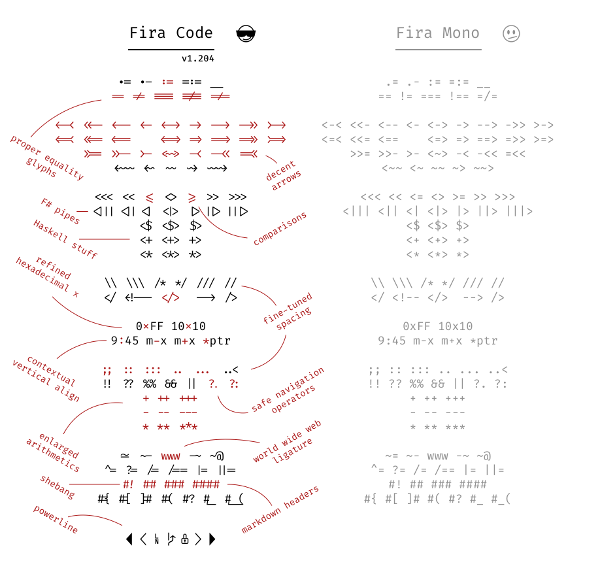
Fira Code ligatures and examples for programmers, from https://opensource.com/sites/default/files/u128651/firacode2.png
There are ways to check if a website not displaying is a problem with your browser, or with the site itself.
Could the Page Not Work on This Browser?
Most website developers use HTML5, and CSS3, and JavaScript that works with those. If they follow the coding standards (and most do, it’s easier to write and easier to test) then the page would at least display, even if not “ideally”, on any modern browser on any device.
“Browser incompatibility” is essentially gone on any website written recently; developers use modern coding standards or get fired. (I’m not simplifying much.) Modern browsers all work with the same HTML and CSS standards.
Browser Cache Problems
One site being down on one device, and staying down for a while, yet it displays on another device, is more likely involving your browser cache, or your browser’s script blocker and/or tracker blocker.
Your browser blocking scripts and marketing trackers, is probably helping you. You can try enabling scripts on this site, and see if that helps, and then try enabling trackers; but good sites would at least tell you what won’t work unless you turn something back on.
Think about whether you want that site running unknown scripts and gathering marketing trackers, before you enable them.
Login Might Need Scripts
A common problem is sites use cookies to help notify other parts of the site that you are currently logged in, or how long to allow your current login to last; this is not the best approach but common; so you might have to: enable that site’s cookies, log out, log back in.
Internet Problems Affect Browser Cache
A momentary glitch in the Internet (at any point between your house and your Internet provider and the company’s website server) would block the page fully loading all its components. That partial web page could remain in your browser cache.
What About Site Bugs?
A bug in the site that blocks a page from loading, would likely bring it down for all browsers, and maybe even all pages of the site.
Clearing Your Browser Cache, for This Site
You can manually clear your browser cache, but that clears the cache for all websites. Probably more than you need to clear.
Try loading the website in your browser’s Private Window (that’s the term in Firefox and Chrome, Safari has something similar) which starts downloading the entire page fresh. This will have no cache, no cookies, no “behind the scenes tokens”.
You could also wait for the error on the big corporate site to be fixed, which will then have a new timestamp for the page, and your browser will know it has to re-load the page.
For testing a single page without the cache, open your browser’s Inspector, and find the “disable cache” checkbox, to force loading all the elements of the page newly.
What About Old Browsers?
Website developers check how widely new features are accepted at sites like https://caniuse.com/?search=flexbox and easily specify fall-back solutions for browsers that don’t have the newest features yet. For example, “slightly older browsers, use columns; but if you know about flexbox, here’s how I really want it displayed”.
For ancient browsers like Internet Explorer 6, website developers simply say “fine, they get the one-column, minimal features layout I use for a minimal mobile phone” rather than trying to maintain special coding tricks for browsers that don’t use HTML5 and CSS3. There are simple JavaScript libraries that make most HTML5 commands work ancient browsers, see HTML5 Shiv and simple “antique” conditional browser commands to load the shiv.
All email clients know about “serif”, “sans-serif” and “monospace”.
All email programs (probably going back to Netscape Navigator) have a list of fonts built-in, and have a minimal font stack that include a likely Windows font and a likely OS/X font, and falls back to serif/sans-serif/monospace.
My email program has “Courier” in the user interface, but it is put into the HTML part of the email as font-family: "courier new", courier, monospace;
Translated to English, “If your computer has Courier New use it, if not, Courier, and if still not then use whatever font your computer uses for monospace.”
(Or, a text-only email client uses “no fonts” and displays in your terminal’s font, or browser’s font, which is almost always a monspace font.)
Your email program probably defaults to something like, “font-family: sans-serif;” and then your email client substitutes some font to use instead of sans-serif (maybe Arial).
Just specify a monospace font when you’re emailing code . I inserted two spaces before and after, in the code font, to separate them visually.
You could even change the background color to make the code really stand out:
cd /Applications/Install\ OS\ X\ El\ Capitan.app/Contents/Resources/
or
cd "/Applications/Install OS X El Capitan.app/Contents/Resources/"
[If anyone Does Not see that in a different font, when you try it in your email program, let me know, so I can find a work-around for you in your email client. But I bet you All do…]
Should see it like in this image, including different font for “monospace font” and “code” and the two commands:
I suggest displaying an image in addition to the text, if you have doubts that it will display correctly via email. An example would be if you are a website designer asking your website client “do you prefer Lato or Poppins” font for your site? (image taken from Google Fonts, https://fonts.google.com/
Google Fonts shows you different fonts, using text you specify. You can even look at the selected fonts in different text sizes.
p.s. Chrome (and therefore Brave) has Settings, Appearance, Customize Fonts. Firefox and Safari have similar settings. I look at so many websites with HTML/CSS/PHP code that I changed my browser settings to use Fira Code for monospace. You can use any font installed on your computer, and you can install any font on Google Fonts onto your computer.