Category: George Lerner – Website Tech

Migrated content from website-tech.lc.lndo.site

  • Mastering the Art of Flex Containers in WordPress 6.3 Block Editor

    In the realm of the WordPress 6.3 Block Editor, understanding flex containers and their settings can significantly streamline your site design process. Flex containers are versatile, allowing for diverse layouts that adapt seamlessly to various screen sizes.

    What Are Flex Containers?

    Flex containers, deriving from the CSS Flexbox module, enable you to design complex layout structures with a cleaner design logic than float or tables. The WordPress block editor has adopted this model, introducing blocks that utilize flex principles.

    Image 1: A diagram displaying a flex container with items inside.

    Alt tag: Overview of a flex container in WordPress.

    Full Width & Wide Width

    Full Width: This setting allows a block to span the entire width of the viewport. It’s useful when you want a background color, image, or pattern to extend edge-to-edge.

    Wide Width: Provides a wider design than the default width, but doesn’t span the entire viewport. It’s a middle ground between standard and full width.

    Image 2: Comparison of standard, wide, and full-width settings.

    Alt tag: Differences between standard, wide, and full-width in WordPress.

    Horizontal Alignment: Left, Center, Right

    This determines the alignment of blocks within a container:

    • Left: Aligns content to the left.
    • Center: Centers content.
    • Right: Aligns content to the right.

    Image 3: Blocks showcasing left, center, and right alignment.

    Alt tag: Horizontal alignment options in WordPress.

    Vertical Alignment: Top, Middle, Bottom

    This specifies the vertical placement of content within a flex container:

    • Top: Positions content at the top.
    • Middle: Centers content vertically.
    • Bottom: Anchors content at the bottom.

    Image 4: Blocks showcasing top, middle, and bottom alignment.

    Alt tag: Vertical alignment options in WordPress.

    Flex Spacing

    Flex spacing is all about distributing space among items within a flex container:

    • Space-between: Places equal spacing between each item.
    • Space-around: Distributes space around items, half on either side.
    • Space-evenly: Equal spacing around and between items.

    Image 5: Illustration of different flex spacing methods.

    Alt tag: Flex spacing methods in WordPress.

    Nesting Containers

    Nesting allows you to place a container within another container. It provides granular control over the design:

    • Outer Container defines the overarching layout.
    • Inner Container can have its unique properties.

    Remember, the properties of the outer container may influence the available settings for the inner container.

    Image 6: Diagram showing a container nested within another container.

    Alt tag: Nesting containers in WordPress.

    Flex Container Layout Suggestions

    • Card Layouts: Use flex containers to design card-based layouts, aligning them horizontally or vertically.
    • Navigation Bars: Flex containers can create responsive nav bars that adjust according to screen size.
    • Galleries: Showcase images in a flexible, responsive grid layout.

    Image 7: Examples of card layouts, navigation bars, and galleries using flex containers.

    Alt tag: Flex container layout examples in WordPress.

    What affects whether an element is full screen-width vs the width of the containing element?

    The width of an element in a web page, especially in WordPress, can be influenced by several factors:

    • Theme Restrictions: Your chosen theme might have default widths set for content. Some themes restrict content to a certain width to maintain a particular design aesthetic.
    • Block Settings: In the WordPress block editor, blocks like Group, Cover, and Column have width settings such as wide width and full width. If you set a block to full width, it’ll stretch across the entire width of the viewport.
    • CSS Styling: Custom CSS can be used to override default widths. Using properties like width, max-width, and min-width can define specific measurements.
    • Parent Container: If an element is inside a container (like a Group block in WordPress), the width of the parent container can limit the element’s width. For example, if the container has a maximum width set, all child elements within it will be restricted to that width.

    When do you put a “regular block” (such as heading and paragraphs) inside a container within a container, vs just using a single container?

    Using nested containers (a container inside another container) or a single container depends on the design complexity and functionality you’re aiming for:

    • For Basic Designs: If you’re looking to apply a basic background color, border, or spacing around a heading and paragraph, a single container would suffice.
    • For Complex Designs: Suppose you want to have a section with a distinct background color and within that, you want a heading and paragraph to have their own separate background, spacing, or border. In this scenario, you’d nest the heading and paragraph inside a container, and then place that container inside another container with the distinct background color.
    • For Advanced Layouts: Nested containers can help achieve complex layouts like grids with unique styles within each grid cell.

    What flex container settings interfere with other container settings? What is the right way to get different container layouts?

    Flexbox is a versatile layout model, but some settings can interfere or override others:

    • Flex Direction vs. Flex Wrap: flex-direction defines the direction of the flex items (row or column). If you have flex-wrap set to wrap and there’s not enough space for items to fit in a single line, they’ll move to the next line. This might change the appearance if you initially planned for all items in one line.
    • Justify-content vs. Align-items: justify-content arranges items horizontally while align-items does so vertically. If you change the flex-direction, the roles of these properties will swap, which can be confusing.
    • Flex-grow, Flex-shrink, and Flex-basis: These properties define how items grow and shrink within a flex container. If not used correctly, they can cause items to overlap or take up more space than anticipated.

    The Right Way to Get Different Container Layouts:

    • Plan Ahead: Before diving into designing, sketch out or note down the layout you want.
    • Use Developer Tools: If you’re unsure of how certain flex properties are affecting your layout, use browser developer tools to inspect elements. This allows you to see and experiment with applied styles.
    • Start Basic: Begin with basic settings, and then add complexity. For instance, start by setting the flex-direction and then adjust alignment, wrapping, and individual item properties.
    • Practice: Like all design tools, mastering flex containers in WordPress or any platform comes with practice. Experiment with different settings to understand their behavior and interactions.

    Remember, while flexbox is powerful, it might not always be the solution. Depending on your layout needs, consider other CSS layout models like Grid or traditional block and inline display properties.

    Setting Flexbox Widths and Heights

    Setting element widths in a flexbox layout is integral to achieving a desired design. You can use various methods, depending on the specific look and functionality you aim for.

    1. Setting Element Widths in Flexbox:

    Pixel Widths (px):

    • Offers fixed-width columns regardless of the viewport size.
    • Can be problematic for responsive design since the width remains constant across devices.
    • You should rarely (if ever) use pixel widths in a Flexbox design.

    Percentage Widths (%):

    • More responsive than pixel widths.
    • The columns adjust based on the percentage of the parent container’s width.
    • Since CSS can do simple calculations, you can specify widths as (100% / number of columns) to split evenly, e.g., 100% / 3 for 3 columns.

    Flexbox Relative Widths (flex):

    • Uses the flex property, which is a shorthand for flex-grow, flex-shrink, and flex-basis.
    • The default value is flex: 0 1 auto, which means columns don’t grow beyond their content width, can shrink, and have an initial width based on content.
    • For equal-width columns, you can use flex: 1 which ensures that all columns take up an equal amount of available space.
    • To make one column twice as wide as the others, or more accurately “grow wider twice as fast”, you can use flex: 2 for that particular column and flex: 1 for the others.

    2. Balancing Column Heights:

    Flexbox’s primary strength is its ability to align content vertically, making it easier to balance column heights. However, equal height columns do not guarantee equal content length due to variations in content density (e.g., text, images). Here’s how you can approach it:

    Equal Height Columns:

    • By default, flexbox child elements (flex items) will be the same height in a row. They stretch to the height of the tallest item.

    Balancing Content for Approximately Equal Heights:

    • This requires more strategic content planning rather than a pure CSS solution.
    • Aim for a balanced amount of content in each column.
    • Utilize content strategies like trimming text, using excerpts, or using CSS media queries to adjust font sizes for different devices to ensure uniformity.

    Row Wrapping:

    • If you have a multi-row flex container and want each row’s items to align to that row’s height instead of the tallest item in the entire container, you should separate your flex containers row-by-row.

    Example CSS of a 3-Column Flexbox:

    .container {
        display: flex;
        justify-content: space-between;
    }
    
    .column {
        flex: 1; /* Equal width */
        padding: 10px;
        box-sizing: border-box;
    }
    
    /* Optional: For a column to be twice as wide */
    .wider-column {
        flex: 2;
    }

    This CSS gives you a 3-column layout where each column adjusts to the container’s width. The .wider-column class allows one column to take up additional space twice as fast compared to the others.

    Making 3-column Layouts Using Flexbox

    1. Creating a 3-Column Flexbox using Block Editor:

    1. Add a Columns Block:
      • In your post or page editor, click the “+” button to add a new block.
      • Search for and select the “Columns” block.
      • Choose the “Three columns” layout from the patterns that appear.
    2. Adjust Column Widths:
      • By default, each column in the “Columns” block will have an equal width.
      • To adjust individual column widths, click on the particular column you want to modify.
      • In the Block settings panel on the right, there’s a “Percentage width” slider (or a width setting). Adjust the width of the columns as desired.
    3. Add Content to Columns:
      • Click inside each column to add blocks like “Paragraph”, “Image”, “Heading”, etc.
      • Add your content into these blocks.

    2. Applying Custom CSS like “flex: 2;” in the Block Editor:

    1. Add a Columns Block:
      • If you haven’t already, follow the steps above to add a 3-column layout.
    2. Use the Advanced Panel for Custom CSS:
      • Click on the column you wish to apply the custom CSS to.
      • In the Block settings panel on the right, scroll down to the “Advanced” section.
      • There’s a field labeled “Additional CSS class(es).” Here you can add a custom class, say, wider-column .
    3. Add Custom CSS in the Customizer:
      • Go to Appearance > Customize from your WordPress dashboard.
      • Navigate to Additional CSS.
      • Add your custom CSS, e.g.,
      • .wider-column { flex: 2; }
    4. Publish your changes.

    By following the above steps, you have successfully applied a flex: 2; style to the desired column, making it grow wider twice as wide as the other columns.

    Note: While the Block Editor provides a robust set of tools for designing layouts, sometimes it’s more efficient and offers greater flexibility to use a combination of Block Editor features and custom CSS for advanced styling needs.

    In conclusion, the method you choose for setting widths in a flexbox layout depends on your design goals. For most use cases, using the flex property offers the greatest flexibility and responsiveness. Balancing content visually is a mix of CSS techniques and content curation.

    Conclusion

    As you delve deeper into the world of WordPress 6.3 Block Editor, mastering the art of flex containers will undoubtedly elevate your design game. Remember, it’s all about understanding the tools at your disposal and experimenting until you find the perfect fit for your content.

    Note to Reader: Always keep your WordPress theme and plugins updated to ensure compatibility and make the most out of these features.


    This guide is ideal for dynamic entrepreneurs and business leaders, like those specializing in supporting course creators and life coaches. We understand the challenges of web design intricacies and aim to simplify them for you.

  • Troubleshooting WooCommerce: Steps to Resolve Cart Persistence Issues

    I have an old client with a precarious situation. Let me set the stage: We’re seeing some odd WooCommerce persistent cart behavior. Rather than merging the cart when signing in, it overwrites. I’ve tested numerous functions which help meet client needs in regards to how cart persistence is handled which work perfectly on my local, on the dev site, on the staging site but NOT on the live site. What is different about the live site vs these other environments? Live site has Object Caching and CloudFlare page level caching that I know of. So I tried: Turning off object caching at the host Cloudflare “Development mode” to turn off all caching temporarily I even turned of DNS proxy (as I see it a kill switch for cloudflare) All of my “next steps” are a bit volatile since it’s not something I can replicate locally or on a safe environment. I’m at a cross roads of less than ideal options so I’d welcome other ideas or suggestions. Here are some next steps down the troubleshooting path I can try: Pull Cloudflare NS entirely, wait for propagation and test (potential down time of live site) Host a copy of the site on another server to see if results persist –> feels like a waste of time because I don’t have the issue on dev/staging Start the old heave-ho by disabling plugins (on the live site :cry:) and test this live… Question: What would your next move be? What am I missing?
    A WordPress expert who supports client websites

    Troubleshooting WooCommerce is going to be complex, since there is so much to WooCommerce. Even limiting to “Cart and Checkout”, there are potential problems at several levels, including the database, WordPress core, plugins, payment processors, site security, information privacy, and more.

    1. Environment Consistency Check:
      • Confirming that the staging and production environments are identical (including PHP version, MySQL version, server configurations, and WordPress version) is crucial for accurate troubleshooting. Make sure there are no discrepancies.
      • If possible, clone the live site to a staging environment on the exact same server to replicate the environment as closely as possible.
    2. Database Synchronization:
      • Ensure that the staging database is a recent clone of the production database. This will help in reproducing the issue if it’s data-related.
    3. Error Logging:
      • Ensure that WP_DEBUG, WP_DEBUG_LOG, and WP_DEBUG_DISPLAY are configured correctly to capture any errors, warnings, or notices. Check the debug.log file, and the PHP error log, for any relevant entries that might indicate what’s going wrong.
      • See Debugging in WordPress – Documentation for these settings and where to set them.
    4. Cache Validation:
      • Although you’ve disabled caching at various levels, ensure that there’s no server-level caching or other caching mechanisms at play which could be causing discrepancies between environments.
    5. Transients:
      • Clearing transients is a good step. Corrupted or stale transients can cause unexpected behavior.
      • Transients are meant to be short term, to minimize complex database queries. So, (unless the plugin has bugs such as not using transients properly) you should be able to delete any transient at any time. If you have command line, wp transient delete --all or there are MySQL queries to delete them.
      • Transient Cleaner By David Artiss
    6. Plugin Conflict Test:
      • Although risky on a live site, disabling other plugins temporarily or doing a binary isolation (disabling half the plugins, then half of the remaining half, etc.) could help identify a conflicting plugin.
    7. Theme Conflict Test:
      • Temporarily switch to a default WordPress theme (currently Twenty Twenty-Three, or Twenty Twenty-Four is about to be released) to see if the issue persists. If the issue resolves, it could be a theme-related problem.
    8. Custom Code Review:
      • Review the custom functions you have written (if any) related to cart persistence to ensure they are coded correctly and are compatible with the live site’s environment.
      • Must pay attention to security, privacy, transients. Plus, you have to not conflict with parameters or settings of the main plugin.
      • Minimize your custom code as it requires a lot of testing and maintenance, every time the main plugin is updated.
    9. WooCommerce Configuration and Version Check:
      • Ensure that WooCommerce settings related to cart and sessions are correctly configured.
      • Check that the WooCommerce version on the live site is the same as on the staging and dev sites.
    10. Server Configuration Check:
      • Check server configurations for session handling and other server-level settings that might affect cart behavior.
    11. External Services:
      • Temporarily remove CDN such as Cloudflare from the equation by updating the DNS to point directly to the server, ensuring any changes have fully propagated. This can be risky due to potential downtime, but it could help rule out CDN caching as the culprit.
    12. Monitoring and Logging Tools:
      • Utilize monitoring and logging tools to observe the behavior of the cart during the login process to see if there’s any noticeable difference between environments. Debugging in WordPress (link above) suggests some.
    13. Support Channels:
      • Reach out to hosting support to see if they have any insights or if they can replicate the issue on their end.
      • Reach out to WooCommerce support or community forums with the detailed information about the issue to get more insights.

    Given the precarious nature of the live environment, some of these steps may come with risks or may not be viable. Each action should be weighed carefully against the potential impact on the live site. Taking a systematic, well-documented approach to troubleshooting will hopefully help isolate and resolve the issue with the least amount of disruption.

    Tip for all WooCommerce sites: never put a “live cart” on your pages; have a Link to the cart page on all your pages.

    Putting a live cart, or any frequently updated data, on a page prevents that page from getting cached. Every time the page is accessed, it must be generated again (or the page would get cached with old or “not theirs” data).

    Only work-around: you use a plugin that knows how to wait for the page to be completely loaded, and then use something (probably AJAX) to display this site visitor’s current cart, so the (private, secure) cart info never gets in the cache.

    Is having that info display so many places in your site really worth all that extra testing and maintenance work? A “See Your Cart” link is so easy.
    George Lerner

    Caches to Disable for Troubleshooting

    When debugging WooCommerce issues, it’s crucial to disable caches to ensure that you are seeing real-time, accurate results. Here are some of the key caches and caching layers to consider disabling:

    1. Browser Cache:
      • Your web browser stores static files to load pages faster. Make sure to disable browser caching or use incognito/private browsing mode to prevent old data from being displayed.
      • Many browsers have a right-click Inspector and on the Network tab there is a check-box to toggle the browser cache on/off.
    2. Page Caching:
      • Page caching is often managed by plugins or server configurations. This type of caching stores static HTML copies of your pages to serve to users, bypassing the need to generate the page from PHP and database queries, for every visitor.
    3. Object Caching:
      • This type of cache stores database queries or other objects to reduce the load on your database and speed up page loading times.
    4. Database Cache:
      • Some hosting platforms or plugins provide database caching to speed up database query times. Make sure to flush or disable this cache to ensure you’re seeing up-to-date data.
    5. CDN (Content Delivery Network) Caching:
      • CDNs like Cloudflare cache static content across their network to reduce loading times. Disable CDN caching or put it in development mode to prevent old content from being served.
      • WooCommerce pages like the shopping cart and the checkout pages should never be cached. That information must be private and current. Make sure all plugins you use, know how to prevent these pages ever getting cached.
    6. OPcache:
      • PHP’s OPcache speeds up PHP by storing bytecode in memory, preventing the need to re-compile PHP scripts on each request. Resetting or disabling OPcache might be necessary for debugging.
    7. Varnish Cache:
      • If your server or hosting provider uses Varnish, ensure it’s disabled. Varnish is a powerful HTTP cache that can mask issues.
    8. Server-Level Caching:
      • Check with your hosting provider to see if there’s any server-level caching enabled and if so, request to temporarily disable it while debugging.
    9. Transient Caching:
      • WordPress transients are used to store cached data temporarily. While not a traditional cache, corrupted or outdated transients can cause issues.
    10. Full Page Caching Plugins:
      • If you are using any full page caching plugins, ensure that these are deactivated during the debugging process.
    11. Asset Optimization Plugins:
      • Plugins that minify or concatenate CSS and JavaScript files also have a sort of caching mechanism. Ensure these plugins are deactivated during debugging.

    By ensuring that these caches are cleared or disabled, you can eliminate caching as a variable when troubleshooting and ensure you are viewing the most recent, un-cached version of your WooCommerce site.

    Always remember to re-enable these caching mechanisms once you’re done troubleshooting to ensure your site operates efficiently.

  • Enhancing Email Deliverability for Your WordPress Website

    Ensuring seamless communication between your business and your customers is crucial. One important aspect of communicating is the “deliverability of emails” sent from your WordPress website.

    These emails include WooCommerce order confirmations, password reset requests, or any other transactional emails.

    Here are some key steps to consider, to enhance the email deliverability for your WordPress website:

    1. Utilize an SMTP Plugin:
      • Many email providers require proper validation to ensure that you (or in this case, your website) are the authorized sender of the emails. Utilizing an SMTP (Simple Mail Transfer Protocol) plugin such as WP Mail SMTP can facilitate this by connecting your WordPress website to a reputable email hosting service.
    2. Choose a Reputable Email Host:
      • Good email hosts like GMail, Outlook, Brevo, and Zoho Mail are preferred as they have robust mechanisms to ensure email deliverability. They require setting up specific email authentication records like DMARC, DKIM, and SPF which help in verifying the sender’s identity.
      • Sending emails from your website is not as good, even if your website hosting company also provides email hosting. Email hosting is an “aside” for website hosting companies; pay the small monthly fee for an excellent email host.
    3. Email Authentication:
      • Set up necessary email authentication records:
        • SPF (Sender Policy Framework): Helps prevent email spoofing by specifying which IP addresses are allowed to send emails on behalf of your domain.
        • DKIM (DomainKeys Identified Mail): Allows receiving email servers to confirm that an email claiming to come from a specific domain was authorized by the owner of that domain.
        • DMARC (Domain-based Message Authentication, Reporting & Conformance): Builds on SPF and DKIM protocols, adding linkage to the author (“From:”) domain name, published policies for recipient handling of authentication failures, and reporting from receivers to senders, to improve and monitor protection of the domain from fraudulent email.
        • Your email hosting company can guide you in how exactly to configure these, for settings on their system and settings with your Domain Name Registrar.
    4. Configure Your Domain Properly:
      • Ensure your domain name settings (DNS records) are correctly configured with your email provider to ensure smooth email deliverability. Tools like MX Lookup Tool – MxToolbox can help verify your DNS settings.
    5. Avoid Sending Emails from Hosting Provider:
      • It’s often not advisable to send emails directly from your website hosting server (unless it’s specifically configured for email hosting). Doing so may lead to poor email deliverability.
    6. Monitor Email Deliverability:
      • Use tools and services that provide insight into your email deliverability performance, such as open rates, bounce rates, and spam complaints. This data can provide valuable insights and alert you to potential issues before they affect your communication with your customers.
    7. Maintain a Clean Mailing List:
      • Regularly update and clean your mailing list to remove invalid or inactive email addresses. This will help improve your sender reputation and overall email deliverability.
    8. Stay Updated on Best Practices:
      • Email deliverability standards and best practices evolve. Stay updated on the latest recommendations and ensure your WordPress website’s email configuration remains compliant and optimized for deliverability.

    By taking these steps, you will significantly improve the chances of your emails reaching your customers’ inboxes, thereby ensuring better communication and enhancing customer satisfaction.

    Should you have any further questions or need assistance with improving your email deliverability, feel free to reach out to me or leave a comment.

  • How to Fix Authentication Problems on FileZilla Linux — Too many authentication failures

    This is for FileZilla on Linux Mint (and probably other Linux), as of September 2023 (FileZilla 3.65.0).

    I want to connect securely, so I always use SFTP instead of insecure FTP. You should always use SFTP, or transfer files via an SSH connection. 

    FileZilla though doesn’t know how to not send an SSH key if you don’t specify one. 

    If you turn on Debug (Edit, Preferences, Debug) you can see what is generating the authentication failures. FileZilla is trying every SSH key you have, even though you didn’t say to send any SSH keys. The server disconnects you after too many attempts. 

    What is FileZilla’s Problem?

    FileZilla doesn’t know how to send only the SSH keys you specify, to the hosts you try to connect to. Definitely a bug, they should fix that. 

    So, every site you attempt to connect to, gets every SSH key in your ~/.ssh folder (or rather, all the ones in the .ppk format FileZilla understands). After too many attempts, the remote server disconnects you. 

    How to Fix It?

    There are many sites and many questions on FileZilla’s support boards about how to get FileZilla working. The main suggestion is “temporarily move your ~/.ssh folder”. But you would have to do that every time you want FileZilla to connect to your servers that don’t use SSH keys. 

    I finally found someone who understood the problem. See the reply by “vincitus” on Not possible to disable SSH public key authentication? – FileZilla Forums. 

    Installing Latest FileZilla

    Download the latest version from FileZilla Downloads, since the version in the Mint Repository is ancient.

    How to install FileZilla FTP client in Linux | Web Developers Planet 

    Make sure you have the  dependencies

    sudo apt-get install libfilezilla-dev libwxbase3.0-dev gnutls-dev libdbus-1-dev

    You don’t have to compile it, the .xz download file is ready for Linux Mint.

    cd ~/Downloads
    sudo tar vxf FileZilla_____.xz
    [substitute the file name for the version just downloaded]
    sudo cp -r FileZilla3 /opt/
    cd /opt/
    sudo chown -R root:root FileZilla3/

    Starting FileZilla (normally)

    Put this in your System Menu. (Right-click the “LM” tray icon, Configure, “Menu” tab, “Open the menu editor”, in the Internet section click “New Item”

    /opt/FileZilla3/bin/filezilla

    Starting FileZilla w/o SSH Keys

    Start FileZilla with an Environment Variable mis-set to not access SSH. 

    Edit your ~/.bashrc file to add this line (at the end is fine, or with other “alias” lines)

    alias fz="SSH_AUTH_SOCK=null  /opt/FileZilla3/bin/filezilla &  "

    I called the alias “fz” for “FileZilla”, you can name it how you want (but no spaces in the name). 

    What that command does is remove the SSH setting for only this terminal session, and run FileZilla. That ‘&’ at the end says to immediately give you access to the terminal (FileZilla launched in the background). Without the SSH_AUTH_SOCK setting, FileZilla doesn’t know how to access your system’s SSH keys, so it can’t send them to the remote servers you connect to.

  • Audio Equipment

    “Life Force: How New Breakthroughs in Precision Medicine Can Transform the Quality of Your Life and Those You Love”. “In this book, Tony Robbins brings you more than 100 of the world’s top medical minds and the latest research, inspiring comeback stories, and amazing advancements in precision medicine that you can apply today to help extend the length and quality of your life.”

    I really like the JBL Flip 4 cylindrical speaker. It delivers amazing sound quality for listening to music, the battery lasts a good time, it is water-resistant, and it is easy to carry. 

    JBL Flip 4 Replacement Battery

    QaoMrt 4000mAh High Capacity Replacement Battery with Repair Tool Kit
    Compatible with JBL Flip 4, Flip 4 Special Edition, GSP872693 01 Speaker 

    From the product description:
    Upgraded the original capacity from 3000mAh to 4000mAh.
    Our Flip 4 battery has a standard test report from ILAC ISO 17025 certified laboratory. And we use the latest high-quality smart IC chip, which has the short-circuit protection, over-heating protection, over-charging protection, over-discharging protection, effectively improves power conversion rate and stable performance.
    KEEP THE ORIGINAL WATERPROOF PERFORMANCE: Whether the replacement will affect the original waterproof performance of the speaker must be one of the factors you will worry about. We deeply understand your concerns. After the replacement process, you don’t need to worry about rain or splash, and daily use will not be affected. At the same time, both ends of the GSP872693 01 battery replacement are equipped with anti-vibration sponges, which can avoid vibration noise even at the maximum volume.

  • LC Color Palette and Branding

    You are a Website Accessibility and color wheel expert able to make color palettes that look great together, and have accessible color contrasts, for use on websites.
    My website niche is “Coaches who want to create and sell online courses but struggle with the technical aspects.” and my ideal client is “course creators and online educators who are looking to launch and sell their courses successfully. I guide them through the process of creating engaging content, setting up sales funnels, and implementing effective marketing strategies to attract and convert their ideal students.”

    Start with a new set of colors for my niche and ideal client, to be used to make a website color palette.
    Make primary, secondary, tertiary colors, and a complementary accent color, that all have medium color darkness, and all look great together artistically.
    Give hexadecimal color numbers and artist’s color names, and an image generated by www.singlecolorimage.com
    Label the colors as primary, secondary, tertiary and accent. 
    Format the response as Markdown or any WordPress 6.3 Block Editor block type, including headings, paragraphs, bold/italic, outlines or lists, website links, hero blocks, containers with text and images, etc. ; for pasting into WordPress.

    Assemble these color codes, without leading #, in a URL. Example: https://coolors.co/9ff1f0-007d7a-04d3cd-ffded7-d89c87-ffbfa4-fa95d5-960066-dd269c

    Here’s the URL assembled with your color codes:

    https://coolors.co/f3cc9a-000000-a0b7cd-7593b1-3a5c7d-284568-e8bd82-b68350-8f5e31-b8ccaa-a0b797-67825f-47603d-c49bb0-945276-6b3d63-5b2f52-517fa4-daa464-89a77f

    [20 colors doesn’t work anymore, use one for light and one for dark]

    WebsiteTech light https://coolors.co/a0b7cd-7593b1-f3cc9a-e8bd82-b8ccaa-a0b797-c49bb0-ad7f9e
    WebsiteTech dark https://coolors.co/3a5c7d-284568-b68350-8f5e31-67825f-47603d-78466a-5b2f52

    ChatGPT

    Website Color Palette for Online Course Coaches

    Of course! I’ll design a color palette with the nuances of your target audience in mind. Coaches who want to create and sell online courses are seeking clarity, approachability, and trustworthiness.

    Here’s a new set of colors tailored for your niche:

    1. Primary – Calm Cerulean: A serene blue that signifies trust and clarity. This color captures the essence of a guide – someone who’s been there and understands the path.
      • Hex: #517FA4
    2. Secondary – Approachable Amber: This warm hue signifies warmth, understanding, and the human touch, emphasizing the personal guidance and accessibility.
      • Hex: #DAA464
    3. Tertiary – Sage Serenity: An earthy green shade, evoking growth, knowledge, and organic reach.
      • Hex: #89A77F
    4. Accent – Passionate Plum: A pop of color to draw attention to CTAs and highlight essential features. This color adds an element of passion and emphasizes the deep connection with the educational journey.
      • Hex: #985E82

    Let’s put this into a WordPress 6.3 Block Editor format:

    Website Color Palette

    Welcome to your tailored website color palette, crafted especially for your niche: coaches wanting to sell online courses.

    Primary Color – Calm Cerulean

    Calm Cerulean

    A serene blue signifying trust and clarity. Perfect for your main headers and navigation.

    • Hexadecimal: #517FA4

    Secondary Color – Approachable Amber

    Approachable Amber

    Warm and welcoming, this color captures the essence of personal guidance.

    • Hexadecimal: #DAA464

    Tertiary Color – Sage Serenity

    Sage Serenity

    Evoking growth, knowledge, and organic reach. Ideal for subheadings and content background.

    • Hexadecimal: #89A77F

    Accent Color – Passionate Plum

    Passionate Plum

    For that extra pop and emphasis. Great for CTAs and highlights.

    • Hexadecimal: #985E82

    Light and Dark Shades of Each

    Take the primary, secondary, tertiary and accent colors you generated, and adjust each color lighter for use as a background with 16px black text, so color contrasts follow the accessibility level “AAA” of WCAG, and adjust each color darker for use as 16px text against a white background with contrast level “AAA”.
    Adjust each “light” color to be visually separate from the “lighter” color and from white; and each “dark” color visually separate from the “darker” color and from black, if possible while still maintaining contrast.
    Give each new color, along with the contrast value against black and against white, and an image generated by www.singlecolorimage.com

    Calm Cerulean (Primary):

    Lighter:

    • Color: #A0B7CD
    • Contrast against black: Approx. 9:1
    • Contrast against white: Approx. 2.7:1
    • Color Image

    Light:

    • Color: #7593B1
    • Contrast against black: Approx. 7.5:1
    • Contrast against white: Approx. 3.2:1
    • Color Image

    Dark:

    • Color: #3A5C7D
    • Contrast against black: Approx. 3.8:1
    • Contrast against white: Approx. 8:1
    • Color Image

    Darker:

    • Color: #284568
    • Contrast against black: Approx. 5.6:1
    • Contrast against white: Approx. 11.5:1
    • Color Image

    Approachable Amber (Secondary):

    Lighter:

    • Color: #F3CC9A
    • Contrast against black: Approx. 9.6:1
    • Contrast against white: Approx. 2.5:1
    • Color Image

    Light:

    • Color: #E8BD82
    • Contrast against black: Approx. 8.2:1
    • Contrast against white: Approx. 2.9:1
    • Color Image

    Dark:

    • Color: #B68350
    • Contrast against black: Approx. 3.9:1
    • Contrast against white: Approx. 8.5:1
    • Color Image

    Darker:

    • Color: #8F5E31
    • Contrast against black: Approx. 5.2:1
    • Contrast against white: Approx. 11.2:1
    • Color Image

    Sage Serenity (Tertiary):

    Lighter:

    • Color: #B8CCAA
    • Contrast against black: Approx. 8.3:1
    • Contrast against white: Approx. 2.9:1
    • Color Image

    Light:

    • Color: #A0B797
    • Contrast against black: Approx. 7.1:1
    • Contrast against white: Approx. 3.4:1
    • Color Image

    Dark:

    • Color: #67825F
    • Contrast against black: Approx. 4.2:1
    • Contrast against white: Approx. 8.9:1
    • Color Image

    Darker:

    • Color: #47603D
    • Contrast against black: Approx. 6.1:1
    • Contrast against white: Approx. 11.7:1
    • Color Image

    Passionate Plum (Accent):

    Lighter:

    • Color: #C49BB0
    • Contrast against black: Approx. 8.1:1
    • Contrast against white: Approx. 3:1
    • Color Image

    Light:

    • Color: #AD7F9E
    • Contrast against black: Approx. 7:1
    • Contrast against white: Approx. 3.4:1
    • Color Image

    Dark:

    • Color: #78466A
    • Contrast against black: Approx. 4.5:1
    • Contrast against white: Approx. 8.8:1
    • Color Image

    Darker:

    • Color: #5B2F52
    • Contrast against black: Approx. 6:1
    • Contrast against white: Approx. 11.3:1
    • Color Image

    You can visually inspect each color via the links provided.

  • What is a Great Theme to use for Your Site?

    “Any recommended theme to use for building landing pages for lead generation?”

    A WordPress marketer

    My Theme Recommendations

    Use the TwentyTwentyThree theme with the Block Editor. As the default WordPress theme, it is the most tested, secure, well-written theme.

    Use Full-Site Editing and Block Patterns. WordPress 6.3 makes this so easy.

    You can specify your color palette and font palette in a TwentyTwentyThree child theme, with theme.json. Or you can set them in the Customizer using a good user interface. Once you have your palettes set, only use the colors and fonts you already picked. If you alter one of the colors in your palette, anywhere you used that “color position” in the palette will use the new color, automatically.

    Themes Straddling the Page Builder Capabilities

    You will likely find the Block Editor alone is able to do everything you want for a page.

    Great block designs are available in the Pattern Directory. And, you can get well-designed patterns as a plugin, with great user interface and great programming.

    A great enhancement to the Block Editor is a free plugin Spectra – Free WordPress Page Builder or in the WordPress Plugin Repository Spectra – WordPress Gutenberg Blocks (by Astra’s author Brainstorm Force). Spectra works entirely in the Block Editor settings panel you already use. The result is low-resource blocks and only the minimal CSS or JavaScript needed for the page; most page builders add many JavaScript files to every page that uses the page builder at all, or even on every page on your site. You can use Spectra on any full-site editing theme, though of course it works great with TwentyTwentyThree and Astra.

    Other top recommendations for theme + almost-page-builder: get either the free (from WordPress Repository) or paid version of either Astra https://wpastra.com/ or Kadence https://www.kadencewp.com/ . These are both well-liked in the AZ WordPress Meetup.

    Full Page Builders

    You can use Elementor, or Beaver Builder, or the Divi Builder with either of these themes. Yes, that is my order of preference; I used to use Divi but Elementor is easier to work with. (Don’t use the Divi Theme, it is simply not nearly as good; it comes bundled with the Divi Builder, but ignore it.)

    You might find this helpful:

    Advanced Layouts with the Block Editor | Learn WordPress https://learn.wordpress.org/workshop/advanced-layouts-with-the-block-editor/

    How to create a Landing Page with WordPress https://wpastra.com/guides-and-tutorials/create-landing-page-wordpress/

    Layout Recommendation

    Put more attention on good writing for your very specific ideal customer, than you put on “fancy layout”; you will (for most customers) find that a simple, clear, easy to read and use page, is what works best.

  • Editing theme.json and Your Site Editor is Black on Dark?

    Editing theme.json and Your Site Editor is Black on Dark?

    Optimizing WordPress 6.3 Child Theme: Editing Theme.json File for Default Site Colors

    Setup: Using WordPress 6.3.__ with a TwentyTwentyThree child theme, editing the child theme’s theme.json file.

    I didn’t want the theme default colors to show, so I turned them off in theme.json

    I didn’t like the color name ‘base’ in the color palette, so I changed it. 

    “Waaa, what happed to my site editor?”

    Must set your default site colors

    I submitted a bug report https://github.com/WordPress/gutenberg/issues/54517 :

    Site editor background-color: #1e1e1e if theme.json styles.color not set and settings.color.palette missing base color in TT3 #54517

    If theme.json defaultPalette is false, and settings.color.palette doesn’t have slug ‘base’, the Site Editor displays with background-color: #1e1e1e; and text color black, illegible.

    Suggestion: Add error-checking, so :
    if settings.color.palette is missing a ‘base’ color, and
    defaultPalette is false, and
    styles.color doesn’t have both a color and background-color set, then
    set styles.color so the site editor is readable.

    For a light theme, black on blanchedalmond is readable but designers would wonder “where did that color come from”.

    Suggestion: Add documentation to https://fullsiteediting.com/lessons/theme-json-color-options/ giving the impacts of not having palette color ‘base’ and not having styles.color set.

    Perhaps “Your Site Editor background color and text color are set from the settings.color.palette ‘base’ and ‘contrast’ colors. If you don’t define them, the Editor colors are taken from styles.color (so you should define one or both of these text and background colors).”

    Set your Site Default Colors

    Theme.json set styles.color

    "color": {
      "text": "#000000",
      "background": "blanchedalmond"
    },

    Now the Site Editor background is blanchedalmond. You can set this to whatever colors you like, but you definitely should set it. 

    Use the Recommended Color Palette names

    If you use the color palette names that TwentyTwentyThree uses, and you then change the site’s theme, those elements styled using those basic colors will look good. 

    https://fullsiteediting.com/lessons/theme-json-color-options/ How should I name the colors?
    “It is recommended to use base and contrast followed by primary, secondary, tertiary, and so on as the color slug and name.”

    You can have the name be whatever makes sense, but you really should not change the slug.

    settings.color.palette should start with this:

    				{
    					"color": "#ffffff",
    					"name": "Base",
    					"slug": "base"
    				},
    				{
    					"color": "#000000",
    					"name": "Contrast",
    					"slug": "contrast"
    				},
    

    Rules for theme.json editing:

    “Always set styles.color, both color and background-color; they are used throughout most themes as the default color, for example in the Site Editor and Page Editor editing area.”

    “For child themes, keep the slugs of the ‘most basic’ colors of the parent theme; in TwentyTwentyThree these are ‘base’ and ‘contrast’ (with other recommended slugs: ‘primary’, ‘secondary’, ‘tertiary’). You could get unexpected colors in places, since the theme designers likely expected those color slugs are set.”

  • Can AI help do all the layouts you want?

    What about AI tools that make “an entire website with images and copy in seconds”

    Those sound tempting, but by the time you figure out how to ask it for exactly what you want, instead of taking whatever it comes up with, you probably aren’t saving much time compared to learning simple tools for making a layout for a WordPress page. 

    You used to have to hire a theme designer to make a layout for your website. Not anymore. 

    WordPress now has Full-Site Editing, using the same Block Editor you’ve been using to add headings, paragraphs, lists, images, menus. That will do all the header and footer designs you are likely to ever need.

    WordPress now has a color palette, set the colors you want to use throughout your site, and pick from the palette for section backgrounds, for columns, for text, for color gradients, and more.

    What WordPress Tools let me make good layouts easily?

    Start with the latest version of WordPress, default theme, Block Editor. Add Spectra by Brainstorm Force, which is a great extension of the Block Editor, lets you customize columns, colors using the same settings area the Block Editor uses. Spectra accesses all the default block types, and has some well-made other block types. Since it uses the block editor, it doesn’t load a lot of resources on every page, like full page builder plugins do.

    The block editor with Spectra, will handle every layout you want to do, for free, a very long time, with one simple user interface.

    What Does Your Website Need?

    Find out what your website needs to do, what presentation works best for your clients. You’ll discover that as you build out your website.

    It is very likely that a simple, clear presentation will be best for your clients. Eben Pagan, and Jeff Walker, and Jay Abraham, and many others, point out that the most effective ads of all time are still basic layouts. For example, an image, a great heading, 1- or 2-column text like a newspaper (because that’s where many of them were published) and a contact method.

    If not AI for layouts, what is AI best used for?

    Use AI for helping you Write. Help you clarify your ideas, and clarify who you’re writing to, and who your ideal customers/clients are. Then take your ideas for an article or sales page or social media post, and ask AI for other topics to include, and then with all that information about what you want, have AI write the draft of the article for you. Always check what AI generated, make sure it covers the topics you want, the way you would say it to your customers.

    Are there good WordPress AI plugins?

    Yes, there are plugins inside WordPress for writing, e.g. “AI Engine: ChatGPT Chatbot, Content Generator, GPT 3 & 4, Ultra-Customizable” by Jordy Meow.

    This helps convert ideas into articles, come up with headings, make summaries for search engines, prepare social media posts to attract people to your article, and more.

    Even better, you can specify in the plugin settings who your ideal client is and what your business niche is, so it can write better for you. Or, you can include all that background information in your AI prompting, for a specific article.

    So, what about those “build a site” tools?

    What about tools like durable.co? Fine if you just want to throw something onto the Internet, that is a few basic pages. By the time you teach it how to do the look you want, and say it the way you want, you aren’t saving much time. And then you have 50 more pages to write, so you’re taking more time.

  • Email Attachments Made Easy — Reliable Delivery Strategies

    I do the scheduling of the flood irrigation for our street, sending out an email every 2 weeks to 75 people. It consists of a JPEG (different each time), then a standard message pasted from my clipboard, and then the schedule as a pdf. 

    Then, when my preset alarm would sound, I could send it from my phone no matter where I was.

    Since I upgraded, I make up the email on my computer, and it is saved as before and shows up on my phone, except that the JPEG and PDF do not show up on my phone, only the text shows up. When I send from the phone, all that sends is the text.

    It doesn’t make any difference if I attach the JPEG and PDF, or drag and drop them.

    If I send it from my computer, all 3 will send.

    Hopefully someone out there will know if there is some little box or something that has to be checked or unchecked.

    A mystified computer user

    There are several things that affect email attachments getting delivered with your emails.

    1. Attachment Issues: It’s possible that the attachments you’re including in your emails are getting blocked during the delivery process. Here are some potential reasons to consider:
      • Display Images: Most email reader programs have a feature to reduce Internet download size and increase privacy, by not download images until you click “display images” or similar.
      • Attachment Size: Many email providers, including Hotmail/Outlook, have limitations on the size of attachments that can be sent. If your JPEG and PDF files are too large, they might not be getting through. You could try using cloud storage links, such as Dropbox or Google Drive, for larger attachments and provide the link in your email.
      • Attachment Format: Some email services might block certain attachment formats. To ensure compatibility, you might want to consider using widely accepted formats for your attachments. JPEG is “standard” but some graphics programs might use non-standard headers or formats. PDF is “pretty standard”, check the options in your software so nothing not necessary is included.
      • Spam Considerations: Attachments with large images and minimal text can sometimes trigger spam filters. To avoid this, try balancing text and image content in your emails.
      • Check Email Headers: Check the “source code” or “headers” of the email you receive, it usually mentions problems with emails. There are Email Header Analyzers online.
    2. Email Service Providers: Hotmail and Yahoo are known for their deliverability challenges and high spam rates. For more reliable email delivery and a more professional appearance, consider switching to more reputable providers like GMail (part of Google Workspace) or Zoho Mail. These providers offer advanced security features and better deliverability.
      • Domain Reputation: If you have a domain name, configure your domain’s email settings (MX records, DKIM, SPF) to send emails via GMail or Zoho. This can help improve the credibility of your emails and reduce the chance of them from being flagged as suspicious.
      • “Send Later” Feature: Both Zoho Mail and GMail offer a “send later” feature, allowing you to prepare emails in advance and schedule them for sending at a specific time. This would help reduce the steps you have to take for sending these emails.
    3. Website Integration: Moving your irrigation schedule information to a website, particularly using a platform like WordPress, could offer several benefits:
      • Publication Control: With WordPress, you can schedule the publication date and time of your content. This ensures emails go out when you want, without you having to manually send them.
      • Display Flexibility: Websites provide better control over page layout compared to emails. You can design your content using text, images, all of WordPress elements, creating a more engaging experience for everyone. Have the PDF as a “download link”. You probably want to have all the information that is in the PDF also be in WordPress as text and images.
    4. Email List and Newsletter Services: Consider using email list and newsletter services for improved deliverability and professionalism. Services like Brevo, AWeber, GetResponse, and MailChimp offer features to enhance your email campaigns. You can create professional-looking emails, manage subscribers, and increase the chances of successful email delivery.
      • Integration with WordPress: Many of these services integrate seamlessly with WordPress. You can use plugins (most of them are free) to gather subscribers from your website and design emails directly within the WordPress interface.

    These suggestions should provide you with a clearer path forward, to address your email challenges. If you have any further questions or need assistance with any of the solutions mentioned, please contact me, I’m here to help.

  • Advanced Prompt Techniques: Generating Words Beginning with a Specific Letter

    Advanced Prompt Techniques: Generating Words Beginning with a Specific Letter

    There are plenty of questions you can ask of ChatGPT where it gives answers that match the meaning of what you asked, but not all the details. Asking for words that start with a certain letter is one type of question that ChatGPT often ignores.

    7 advanced ChatGPT prompt-writing tips you need to know by ZDNet gives some great ways of making prompts.

    Tip 7 starts with simple prompt “Word similar to devolve that begins with a B”.
    It gives words with similar meaning, but start with differing letters.

    Then he realizes that the word “devolve” has several meanings, so specify which one: Generate a verb that starts with the letter “B” and has a similar meaning to “devolve,” specifically indicating the idea of something deteriorating or getting worse.

    Tip 7 is about having ChatGPT keep trying its initial result until it finds an answer that meets additional criteria: 

    Perform the following steps until step 3 is resolved: 
    1. Generate a verb that starts with the letter "B" and has a similar meaning to "devolve," specifically indicating the idea of something deteriorating or getting worse.
    2. Determine the first letter of the generated verb
    3. If that letter is not "B", repeat steps 1 and 2

    That is a very useful technique!

    And, for this query there is an easier approach: Ask it to match the meanings, in its language, and then find those that match your English spelling requirements.

    Generate verbs that have a similar meaning to "devolve", specifically the meaning of something deteriorating or getting worse. Then select those words that in English start with the letter "B".

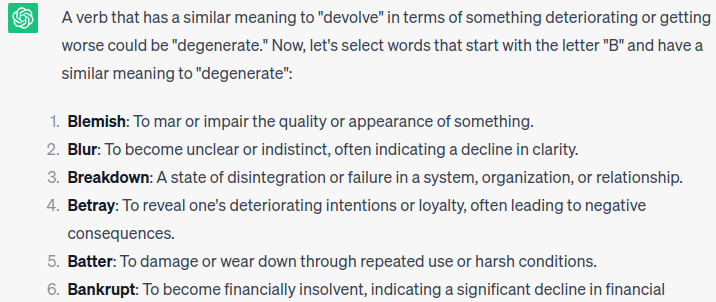
    ChatGPT 3.5 gives several answers that all match, on the first try.

    A verb that has a similar meaning to "devolve" in terms of something deteriorating or getting worse could be "degenerate." Now, let's select words that start with the letter "B" and have a similar meaning to "degenerate":

    1. **Blemish**: To mar or impair the quality or appearance of something.
    2. **Blur**: To become unclear or indistinct, often indicating a decline in clarity.
    3. **Breakdown**: A state of disintegration or failure in a system, organization, or relationship.
    4. **Betray**: To reveal one's deteriorating intentions or loyalty, often leading to negative consequences.
    5. **Batter**: To damage or wear down through repeated use or harsh conditions.
    6. **Bankrupt**: To become financially insolvent, indicating a significant decline in financial stability.
    7. **Blight**: To cause harm or deterioration, often used to describe the negative impact on plants and environments.
    8. **Brutalize**: To treat someone or something in a harsh and degrading manner, leading to a decline in their condition.
    9. **Besmirch**: To tarnish or damage the reputation or purity of something.
    10. **Becloud**: To obscure or make something unclear, contributing to its deterioration.

    Please note that while these words share a similar meaning to "devolve" in terms of deterioration, they might have slightly different nuances or contexts.

    Sometimes thinking of how ChatGPT stores knowledge, helps you make a good prompt. You will often need to combine several advanced prompt techniques.

  • What Antivirus Should I Use?

    A client said she has “a family plan on AVG virus protection for all my computers”, and the renewal is coming soon, what should she do?

    AVG has been one of the best regarded anti-virus programs for years. 

    If you like it (the user interface, the way it tells you information) keep it. 

    If you want to use the free version, that’s fine too. Look at what the paid version offers that the free one doesn’t and pick.

    What you can’t do is have no antivirus software running. You need it, on each computer and on each phone.

    AVG is one of their recommended programs. If you hear of some “other, better” program, and it isn’t on PC Magazine’s list, keep away. There are so many good programs they have reviewed, there is no reason to use one they haven’t reviewed.

    And maybe PC Magazine didn’t publish a review because the “better” software is actually terrible or a hacker’s program. For that reason, only download critical software from the author’s website.

    https://www.pcmag.com/picks/the-best-antivirus-protection

    and 

    https://www.pcmag.com/picks/the-best-free-antivirus-protection

    PC Magazine does include reviews of antivirus programs for Windows, OS/X, Linux, iPhone, Android. Most of the top-reviewed programs run on all your devices, with one subscription.