Category: Website Hosting

  • WordPress White Screen of Death

    Errors in WordPress files can make WordPress only display a plain white screen. Since the screen is all white, it’s difficult to figure out what is going on.

    What Causes A White Screen?

    Some causes could be:

    • Errors in a WordPress update, leaving files incomplete. (Syntax errors)
    • Errors in a Theme update (or bugs in the theme)
    • Errors in a Plugin (or bugs in the plugin)
    • Exceeding the PHP memory limit of a web hosting provider (can be changed in most cases, try editing your php.ini to include: memory_limit = 33554432 (32MB, or a higher number)

    How to Find the Problem

    A temporary thing to try (don’t leave this set!) is to edit your .htaccess adding this line: php_flag display_errors on, which could let you see if files are missing or what file and line number has the syntax error. Any PHP programmer could then help you fix it, since it is highly likely something simple.

    But the most common solution you’re going to find online is to remove a blank line and that “blank line” was the problem, since removing it fixed it! (Not accurate) A Variant is “a space” did it (also not accurate).

    Simple Fix for the Most Common Problem

    (more…)

  • Configuring Your Email DMARC Record for email deliverability and reducing spam

    A DMARC record is important so the emails you send are more likely to get delivered. It also helps reduce spam where your domain name is forged into the emails being sent.

    DMARC – this is a TXT record that practically tells the receiver to send an email to a particular e-mail address, if he gets spam mails from a certain domain. The record is added from cPanel -> Advanced DNS Zone Editor, and should look like this:

    _dmarc.domain.TLD IN TXT 14400 "v=DMARC1; p=none; rua=mailto:postmaster@your_domain.com"

    where you need to change domain.TLD and postmaster@your_domain.com to the proper ones according to your case.

    — SiteGround Configure SPF, DKIM and DMARC records

    DMARC is one setting that other sites use to assess the credibility of your site’s emails. If you have DMARC records, your emails are more likely to be delivered, instead of refused or silently discarded. Spammers will forge your domain name into the emails they send, pretending to be you. DMARC records are one of the ways sites determine whether the email being sent to one of their people is legitimate.

    Okay, go to your cPanel, click the Advanced DNS Zone Editor icon. (more…)

  • Blank web page during WordPress Add New Post

    Blank web page during WordPress Add New Post

    When trying to add a “New Post” in WordPress, I was getting a blank web page. I was getting no error message, no content at all. Even when viewing the page source (in Firefox or in Chrome, right-click on the page and select “View Page Source”) it was empty. When viewing the “network” data in the Chrome Inspector or in Firefox (Tools, Web Developer, Network), no data.

    I was logged in as a WordPress user with “Editor” permission. What the …

    When I tried to make a new post while I was logged in as an “Administrator” I got the normal WordPress “New Post” page.

    Ah, that’s a good clue what the problem is. Something was wrong with how permissions were set.

    WordPress knows if you are logged in as a user with permission to add/edit pages or posts. There are many specific permissions that can be assigned to individual users; “editor” is one of the pre-defined sets of permissions, “author” is another. There are also plugins that can help you assign permissions for specific scenarios, permissions to use data for specific plugins, etc.

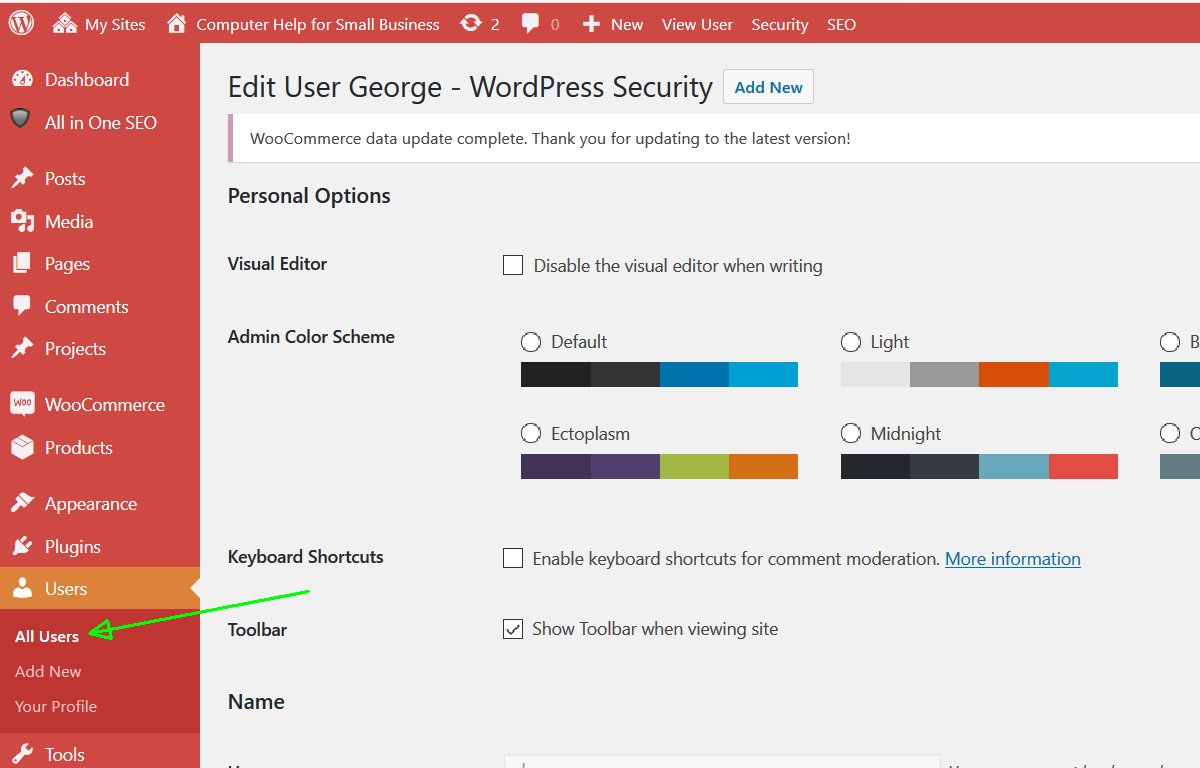
    But first, I tried a simpler approach to resetting the “Editor” permissions for that user. I changed (while logged in as Administrator) the permissions for that user, from “editor” to “administrator”, saved the changes, and changed back to “editor”.  This is done in the Users menu, hover over the user’s login name, and click “edit”.

    I don’t know what made the user’s permissions wrong, but that did reset the permissions.

  • Blocking Access to the Most Important WordPress Files, including .htaccess, wp-config.php

    Blocking Access to the Most Important WordPress Files, including .htaccess, wp-config.php

    There are several files that are part of every web site hosting account, that must be kept secret for security. Hackers are very interested in these files, as they contain key information about your hosting account and WordPress database.

    This is good to understand, and Everything here is covered by WordFence with less effort for You. Install WordFence on every WordPress site. I wrote this before I found out about WordFence.

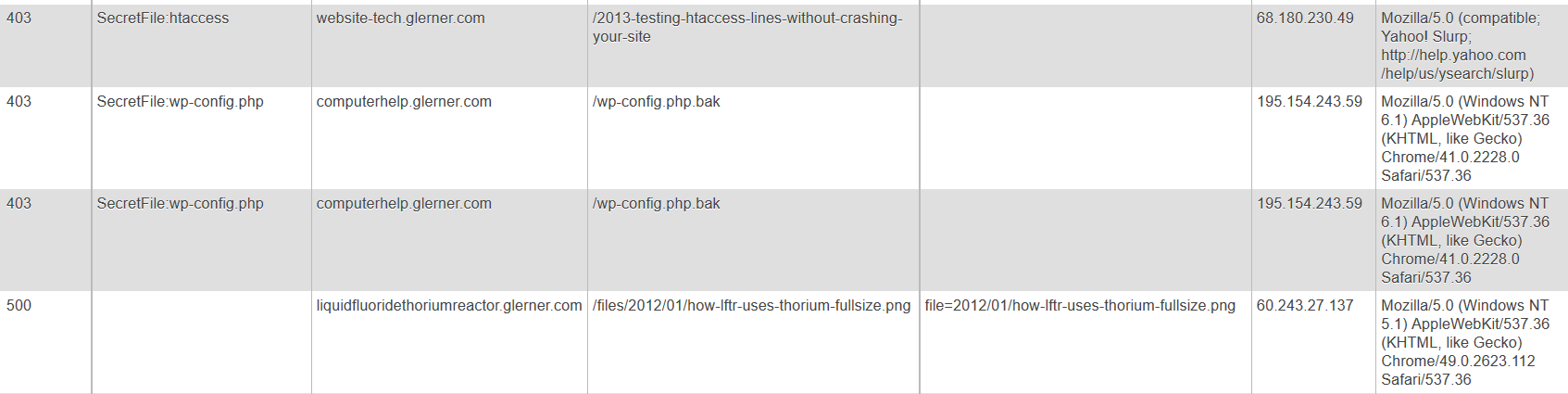
    403SecretFile:wp-config.phpcomputerhelp.lc.lndo.site/wp-config.php195.154.243.59Mozilla/5.0 (Windows NT 6.1) AppleWebKit/537.36 (KHTML, like Gecko) Chrome/41.0.2228.0 Safari/537.36Accept: */*
    403SecretFile:wp-config.phpcomputerhelp.lc.lndo.site/wp-config.php.bak195.154.243.59Mozilla/5.0 (Windows NT 6.1) AppleWebKit/537.36 (KHTML, like Gecko) Chrome/41.0.2228.0 Safari/537.36Accept: */*
    403SecretFile:htaccesswebsite-tech.lc.lndo.site/2013-testing-htaccess-lines-without-crashing-your-site68.180.230.49Mozilla/5.0 (compatible; Yahoo! Slurp; http://help.yahoo.com/help/us/ysearch/slurp)Accept: */* Accept-Encoding: gzip

    My error pages log the errors that are detected, into a database. This lets me easily search for errors, and also easily troubleshoot when a valid file triggers an error. These three examples were in my database coincidentally almost the same time, from someone (IP address 195.154.243.59) trying to get information about my site, and someone trying to read an article I wrote but my security system was blocking.

    How to Block Files

    This is in my .htaccess file:

    # prevent access to PHP error logs, other secret files
    # need to escape periods (or behaves as "any character"), don't need to escape underscores
    SetEnvIf Request_URI (?i).*(htaccess|php\.ini|wp-config\.php|wp-config\.bak|wp-configbak1\.php|debug_log|error_log|404\.log|ignore404\.log|error_log403|error_logbot|500\.log|readme\.html|readme\.txt) badSecretFile=$1
    
    # use syntax like this to enable any special case URLs, the exclamation point un-sets the environment variable
    SetEnvIf Request_URI (?i)(/2013-testing-htaccess-lines-without-crashing-your-site) !badSecretFile
    SetEnvIf Request_URI (?i)(/2013-xampp-limit-not-allowed-in-htaccess) !badSecretFile
    SetEnvIf Request_URI (?i)(/2013-error-reporting-from-htaccess) !badSecretFile
    SetEnvIf Request_URI (?i)(/2016-blocking-access-to-htaccess-wp-config-php-other-important-files) !badSecretFile
    SetEnvIf Request_URI (?i)(/files/2016/11/security-htaccess-wp-config.php-with-exceptions.*png) !badSecretFile
    SetEnvIf Request_URI (?i)(/tag/htaccess) !badSecretFile
    
    # deny doesn't transfer environment variables, except Deny from env= and should be inside a  or  to work
    RewriteCond %{ENV:badSecretFile} >"" [NC]
    RewriteRule (.*) - [F,L]
    

    Lines 1 and 2 are comments (start with a #)

    Line 3 uses a | to separate options. Set an Environment Variable if one of these things matches. Request_URI (the page being requested, so in http://www.yourdomain.com/abcdefg.html, the Request_URI is “abcdefg.html”) is checked for a match. Then (?i) says to ignore upper/lower case. Ignore anything before what we’re interested in, using .* (period for “any character”, asterisk for “zero or more times”). Then a list of file names to check for, e.g. htaccess or wp-config.php. Then we set an environment variable (badSecretFile) to $1 which is the first “something in parenthesis” that was matched. End result, badSecretFile gets set to “htaccess” or “wp-config.php” or “error_log”, etc.

    Line 5 through 11 “un-set” the environment variable badSecretFile for some of my pages. I’m writing about techniques on .htaccess, so I have to un-block my pages from the security rules saying nobody gets to read any file with “htaccess” in the name. (When writing security rules like this, be very specific, use the full name of your WordPress page.)

    Line 10 has something specific to WordPress. Images are often resized by WordPress to match the sizes your theme wants; the size is added in the file name. http://website-tech.lc.lndo.site/files/2016/11/security-htaccess-wp-config.php-with-exceptions-1080×425.png is the actual file name used in this case, so have to tell .htaccess to allow (with .* ) any extra characters in that location.

    Line 13 is a comment about the normal way of blocking access to files, using for example <Files> or similar statements. However, that method doesn’t allow exceptions (would block my articles on how to use .htaccess, for example) and doesn’t provide a way for error pages to report on what triggered the request getting blocked.

    Line 14 says that if the environment variable badSecretFile has been set, then the RewriteRule in line 15 gets executed. Line 15 says any file name (.*) gets redirected to – which is the shorthand for “nowhere”, and then the [F,L] says Fail (with a 403 status code, triggering your error page) and this is the Last thing to do (stop executing .htaccess now).

    How to Track .htaccess Errors

    This is a very long topic, so for now I’ll just say that PHP can read the environment variables that exist in .htaccess.

    Here is the snippet of PHP code I use for detecting this particular error, where I used badSecretFile to store what was blocked.

    if (!empty($_SERVER['REDIRECT_badSecretFile'])) {
    	$htaccessErrors[] = 'SecretFile:'.$_SERVER['REDIRECT_badSecretFile'];
    }
    

    PHP gets the environment values from the requested page in (for example) REDIRECT_badSecretFile, and the values for the error page do not have the “REDIRECT_” prefix. You also have to check for errors that get re-triggered by subdomains, and have REDIRECT_REDIRECT_ prefixes. All of the $_SERVER variables are available to PHP. For example if (!empty($_SERVER['REMOTE_HOST'])) { /* do something */ }

    Why Was My Page Blocked?

    Simple. I had been blocking page names with a trailing slash, and this person didn’t have the trailing slash in their request (http://website-tech.lc.lndo.site/2013-testing-htaccess-lines-without-crashing-your-site and I only enabled http://website-tech.lc.lndo.site/2013-testing-htaccess-lines-without-crashing-your-site/ )

    If I had not been logging my site errors, and checking my log, I probably wouldn’t have found this mistake.

    My logging to a database, including having the server tell me what made this be blocked (in this example, “SecretFile:htaccess”) had me see the error and be able to fix it.

    If I had not logged what triggered the error, even if my eyes had gone over the log entry, I would not have seen it; I would have thought it was blocked by User Agent (what type of browser was used), or by IP address, or “something”.

  • Troubleshooting Delays (several seconds) in PHP or WordPress

    Troubleshooting Delays (several seconds) in PHP or WordPress

    My custom error pages were running extremely slowly, taking about 60 seconds “waiting” and then displaying all at once.

    The hosting company said they don’t have any performance profiling software. “Have you tried renaming your .htaccess file, you have a lot of redirects, that’s probably what’s causing it.” (No, of course I’d already looked into that. Dumb hosting tech support advice.)

    Well, then “try checking your error logs”. No, I’ve already installed code in my WordPress wp-config.php, and in my error pages, to log extra PHP errors. No errors at all related to this; just some undeclared variables in one WordPress plugin. See my page on Error Information Only For You.

    I have been a PHP programmer for years. I know that there are debugging tools, and there are tools to measure where exactly in a program are the most resources being used, or where is the program taking the most time.

    I found Benchmark, a “framework to benchmark PHP scripts or function calls”. On some web hosts, you install Benchmark via cPanel under “PHP PEAR Packages”; on others you install it yourself with SSH commands; or your hosting company may not have any way for you to install it. (Even if you think you won’t ever use SSH, don’t even know what that is, “SSH included” is a good indicator for a good hosting company, and so is “PHP Pear Packages”.)

    Testing your own programs

    First put in some code so only I can generate testing results, as some of the testing methods (especially Iterate) can use many resources. You also may want to display testing items in the browser, only for you. There are also some required initialization lines for Benchmark. Much of this section of code is a long comment, giving examples of Benchmark calls.

    if ( in_array($ip, $myipaddress ) || in_array($forwardedfor, $myipaddress) ) {
    	echo "<p>Docroot $docroot</p>";
    	$onlyMe = true;
    } else {
    	$onlyMe = false;
    }
    if ($onlyMe) { 
    /* http://pear.php.net/package/Benchmark/docs/latest/ 
    Install via cPanel PHP PEAR Packages 
    */
    
    /* must add to path if haven't already */
    	ini_set("include_path", '/home/USERNAME/php:' . ini_get("include_path") );
    
    /* some examples of Benchmark calls
    	require_once 'Benchmark/Iterate.php';
    	$benchmark = new \Benchmark_Iterate;
    	$benchmark->run(10, 'err->update_errorlog', 'test');
    	$result = $benchmark->get();
    	$benchmark->display(true);
    	
    	require_once 'Benchmark/Profiler.php';
    	$benchmark = new \Benchmark_Profiler(TRUE);
    	$benchmark->enterSection('update_errorlog');
    	$err->update_errorlog();
    	$benchmark->leaveSection('update_errorlog');
    	//Returns formatted informations
    	$benchmark->display(true);
    end of examples */
    
    	require_once 'Benchmark/Profiler.php';
    	$benchmark = new \Benchmark_Profiler(TRUE);
    }
    

    Defining Sections of Your Code To Test

    Now you select parts of your code where you want to test the performance, especially separating out places that you think might be too slow.

    You use “enterSection” and “leaveSection” commands, and give your own description of the section of code. This short description will appear in the chart of results.

    if ($onlyMe) { 
    	$benchmark->enterSection('ini set');
    }
    
    /* code for initialization  */
    
    if ($onlyMe) {
     	$benchmark->leaveSection('ini set');
    	$benchmark->enterSection('which log file');
    }
    
    /* setting which log file to use */
    
    if ($onlyMe) {
     	$benchmark->leaveSection('which log file');
    	$benchmark->enterSection('define functions');
    }
    
    /* code for defining functions */
    
    if ($onlyMe) { 
    	$benchmark->leaveSection('define functions');
    	$benchmark->enterSection('gather error info');
    }
    
    /* code for gathering error info */
    
    if ($onlyMe) { 
    	$benchmark->leaveSection('gather error info');
    	$benchmark->enterSection('shutdown function');
    }
    
    /* code for defining shutdown function */
    
    if ($onlyMe) { 
    	$benchmark->leaveSection('shutdown function');
    	$benchmark->enterSection('get POST content');
    }


    You can define as many sections as you want. However, I suggest beginning with only a few, and narrow down the section of code that testing shows is taking the longest. In this case, it was inside ‘get POST content’ so I split it into 3 sections for further testing.

    if ($onlyMe) { 
    	$benchmark->leaveSection('get POST content');
    	$benchmark->enterSection('get POST content 2');
    }
    
    $junk = file_get_contents('php://input'); /* the POST content */
    
    if ($onlyMe) { 
    	$benchmark->leaveSection('get POST content 2');
    	$benchmark->enterSection('get POST content 3');
    }
    

    I never would have guessed it, but turns out the problem was with php://stdin… aren’t those supposed to be automatically enabled? Well, not on this server. Perhaps they are opening php://stdin for SSH but leaving php://stdin not opened for web pages, since it is so rarely used in web pages?

    /* this file_get_contents() delays 60 seconds, found with Benchmark */
    $junk = file_get_contents('php://stdin'); /* the POST content */
    
    parse_str($junk, $post_vars);
    $posts = implode_with_key($post_vars, $inglue = '-->', $outglue = "\n");
    
    if ($onlyMe) { 
    	$benchmark->leaveSection('get POST content 3');
    	$benchmark->enterSection('rest of file before update');
    }
    
    /* code for rest of file */


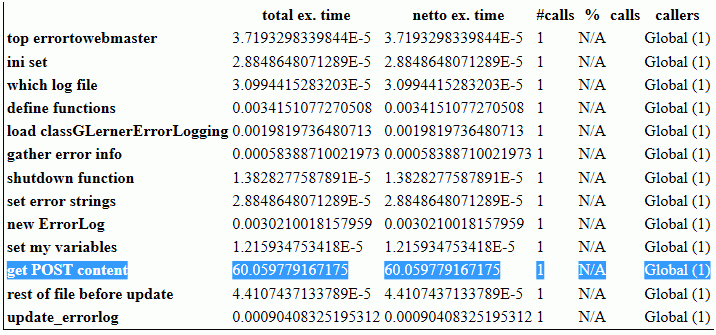
    PHP Benchmark Profile showing error with get-post-content 2016103110

    Results of Testing

    if ($onlyMe) { 
    	$benchmark->leaveSection('update_errorlog');
    	
    	//Returns formatted information
    	$benchmark->display(true);
    } else {
    	$err->update_errorlog();
    }
    

    The results are numbers that are hard to read; some people may never have seen “scientific notation”, with numbers displayed always with a single digit left of the decimal point, and a power-of-ten exponent. All you need to really know is any number ending in “E-5” or “E-6” is a very small number.

    The problem will likely be a number between “E-1” (multiply by 0.1) to “E+1” (multiply by 10). “E0” isn’t shown (multiply by 1).

    From the top line in the image, 3.7193 E-5 would be written in “standard” notation as 0.000037193

    From the highlighted line in the image, something in the “Get POST content” section of code is taking a full 60 seconds. (Happens to match the 60-second timeout tech support says is set for some things in PHP.)

    Add a few more enterSection and leaveSection profiling statements in the slow portion of your code, to narrow down what specifically the problem is, down to the single line of code in this case.

    Fixing the Problem

    Now that I have identified the problem, that tech support couldn’t identify, and that I wouldn’t have guessed, time to search for a solution to the problem.

    In this case, there are two likely explanations. 1) One of the standard input streams was waiting for 60 seconds for something to be typed in, and then timing out, or 2) the stream was never opened, and the function call timed out.

    /* what seems to fix the problem, declaring the STDIN before attempt to use it, though I'd thought it was always declared */
    
    if (!defined('STDIN')) {	/* not always defined, when PHP called by web browser; define to stop error warnings */
    	$stdin = fopen('php://stdin', 'r');
    	define('STDIN', $stdin);
    }
    

    This might be useful for reading STDIN from command line versions of PHP. I haven’t yet tested it.

    if (php_sapi_name() == 'cli' || php_sapi_name() == 'cli_server') {
    	$sapi = 'command line';
    	echo '<code>'; print_r($_SERVER); echo '</code>';  /* pre looks better than code, but my PHP display plugin uses pre */
    } else { $sapi = 'not command line'; }
    
    if (defined('STDIN')) { /* STDIN is available */ }
    
    $junk = file_get_contents('php://input'); /* the actual POST content */
    if (empty($junk) && $sapi == 'command line') {
    	/* Apache uses php://input, CLI uses php://stdin */
    	/* not tested on IIS server, might get 60 second timeout waiting for user input if isn't any */
    	
    	/* stream_set_blocking(STDIN, 0);
    	stream_set_timeout(STDIN, 2);
    	*/
    	
    	/* this doesn't work, can't have string parameter -- 
            stream_set_blocking('php://stdin', 0);
    	stream_set_timeout('php://stdin', 2);
    	should be a "valid path" not a string -- 
    	$junk = file_get_contents($stdin);
    	*/
    	
    	/* this file_get_contents() delays 60 seconds, found with Benchmark */
    	$junk = file_get_contents('php://stdin'); /* the POST content */
    }
    
    /* check if this works for reading STDIN from PHP-CLI */
    $ctx = stream_context_create(array(
    	'http' => array(
    		'timeout' => 1
    		)
    	)
    );
    $junk = file_get_contents('php://stdin', 0, $ctx); 


    Other Resources

    https://gregheo.com/blog/benchmarking-php/ has clear examples of using Benchmark.

    http://pear.php.net/package/Benchmark/docs/1.2.9/elementindex.html for the main Benchmark documentation

    Save

    Save
  • WordPress Ongoing Maintenance and Security

    WordPress Ongoing Maintenance and Security

    Having web sites run smoothly and safe from hackers, is important to me. It probably is important to you too, if you think about it a little. If you heard of any web site getting hacked, you know that could ruin your business day quickly.

    When you find out your site has been hacked, or your site stopped working so you can’t generate sales, you know you’re not going to be having a good day.

    After all, it’s easier to prevent problems like these, than to fix them…

    You have been told, already, you need to keep your software updated… You need to do regular backups… You know you should be blocking hackers, even if you don’t know how… Are you hoping you can last a little longer, letting maintenance slide?

    Preventing hackers from abusing your site is one very important part of running your web site, yet so many people and businesses just don’t have the time to do all the steps it takes. Even if you know how, or learn how, it’s not a good use of your time. You have better things to do!

    We all know your web site working, the way it should, helps to keep your reputation good. It also increases sales, right?

    Maintenance, done frequently, is important for your site.

    Latest updates to your WordPress software (and all other software) does several things, including fixing bugs that keep your site operating well, adding new features, and also fixing any security problems that have been discovered.

    Hackers know all those security problems. They study every security problem found world-wide, for how to take advantage of them.

    Updates Without Problems

    If an update does make a problem on your site, I know how to identify the problem very quickly, and get your site working again.

    However, I also prevent problems by testing plugin updates on a testing site, before doing the update on your site.

    I can replicate your site setup, plugins, theme, and content, on a testing site that is not accessible from the Internet. I will check the updates don’t introduce errors, whether with PHP or the WordPress database or other plugins.

    How Do You Get Your Site Secure From Hackers?

    Whether hackers want to post ads for their junk, or add links to steal traffic from you, or install malware to get your private information, or use your website hosting account to hack other sites, I hate hackers!

    Most businesses don’t have anyone who knows how to do maintenance and security checks properly. It’s complex. It takes time to learn, time to check everything each month. Most people could learn to do it themselves, if they were interested and had the time; but it’s just not your most fun and exciting thing to do. It’s not what you would best be spending your time on.

    (If that does sound good to you, contact me, I need more people helping have web sites run smoothly and be safe from hackers…)

    There are WordPress plugins that take care of many security steps. These have to be configured, and tested (some website hosting companies have non-standard server configurations, so not all security options will work on all hosting). [Note: If you’re on a Microsoft IIS server, which can’t use the most common WordPress security plugins, I feel for you, and I can help some…]

    You have to host your WordPress site on a company that has very strong security. Most of the best-known hosting companies are negligent about security; they don’t even keep the server software current; they don’t know WordPress security and troubleshooting; and they are not actively looking for ways to improve security. The best hosting companies have staff researching global security discussion boards for the latest hacker vulnerabilities, and put specific security rules in dedicated hardware installed between the Internet and the servers they host your site on.

    Another important security step is using passwords for every login that are difficult for hackers to guess. And the way we’ve been taught to make “secure” passwords, for example substituting punctuation for vowels or adding a digit and punctuation mark at the end, are known by hackers too — and now those passwords are easily and quickly guessed. Long computer-generated passwords are highly secure, but impossible for people to remember and difficult to type. I can teach you how to make secure passwords both easy to remember and easy to type.

    What I Provide

    Whether you want to learn to do it yourself, or you want me to take care of your maintenance and site security, here is what I provide:

    • Set up your WordPress site so it runs well. This includes removing plugins you don’t use, or that are security risks, or haven’t been updated in ages; adding plugins that are essential to the your site running properly; setting up site security so the most common attacks are blocked
    • Keep your site security updated so it is much harder to hack (so you keep out most hackers, but I can’t stop government-level hacking groups).
    • Keep current and past backups so your site can be recovered if something goes wrong. You always need a good backup!
    • If you have more than one site, or know you want more sites, I can set up WordPress Multi-Site for you, easier for most companies than working with many single-site installations of WordPress.
    • Select good plugins and themes. I find well written plugins and themes, that work well, don’t slow your site down, and are unlikely to have security vulnerabilities that hackers could exploit. Tip: with the WordPress block editor, you most likely can use the default TwentyTwenty theme, or a child theme that simply specifies your colors.
    • Migrate your site to an excellent hosting company, if you think you might already be hacked, or if you don’t know your host has excellent security and technical support. A few hosting companies charge comparable amounts per year of hosting, but provide much better quality service and much better protection against hackers, than the normal hosting company. You almost certainly can’t find better hosting on your own, than the Arizona WordPress Meetup has found.
    • Work with your hosting company technical support, to resolve any issues, so you won’t have to. (You’ll be able to use them or me for technical support.)
    • Improve your marketing, including install and configure software for telling Facebook, Twitter, LinkedIn, Pinterest and other social media sites what you want them to display (text and image) when someone references a page on your site.
    • Find what would speed up your site, which your visitors will love and so will search engines.

    Contact me about your site maintenance and security and what you want, and we’ll know if we’re a good match.

    Improve Your WordPress Site

    Consistent monthly amount, low $20 setup charge.

    Most basic sites, the kinds most small businesses need, I charge only $80/month, whether everything is working (that’s my job) or I have to put in many hours fixing something. This includes the first month, when I have to setup or reconfigure and check everything.

    For enhancing your website, we’ll talk about what you need and I’ll let you know if I can include it in your monthly maintenance, or if it will cost extra; we’ll agree before I make the enhancements.

    No contract, and I ask you set up minimum 6 months auto-pay so you don’t have to remember. Cancel any time, simply don’t pay for the next month and please let me know; but I don’t give refunds, since each month I will keep your site working.

  • Is WordPress Multi-Site More or Less Secure?

    When looking at site security, is using WordPress Multi-Site more secure than using multiple installations of WordPress (in single-site mode) on the same hosting account? Is Multi-Site less secure? One thing to remember is that they are the same software with some configuration options changed. You don’t install “new software” to change from WordPress to WordPress Multi-Site; you add database tables for each new site, that’s all. The “network management” screen becomes available when you are managing multiple sites, there is an additional login permission (network admin); but the software is identical files on your server.

    “The more plugins you have, the more security issues you potentially open up. If 1 plugin from 1 site lets in hackers, they take over the entire set of sites you have installed. Then, secondly, you run into security issues that may be less common, but can happen when a person registers on 1 site and is able to cross over to another site with admin based security holes. If the core directory gets hacked, all websites hosted together will contain the hacked files, likely phishing sites, making a hackers job 30x more powerful and easy (if you had 30 sites).” http://sethmatics.com/2014/03/multisite-multisite-question/

    Let’s look at that, one item at a time.

    I completely agree with the first two sentences: “The more plugins you have, the more security issues you potentially open up. If 1 plugin from 1 site lets in hackers, they take over the entire set of sites you have installed [in your WordPress Multi-Site installation].”

    All plugins have direct access to the WordPress database manipulation functions. Same with all themes. Get plugins and themes only from major trusted sources (there are some free ones). Check the reviews. Check the support area. If there are reports of security problems, have they been addressed quickly? (Or, on the other side, are the reports debunked? Any site can have false negative reports…).

    Similar argument about plugins and themes having full access to the entire file structure, on your whole hosting account. (Apache has had secured cross-account access for several years. If your host has ancient server software, throw a fit! And, move to a host with good server software, proper update procedures, and always use web hosting with strong attention to security.)

    You must keep updated, every installation of WordPress on your hosting account, including that one tucked away in some folder that you have forgotten about, so go in FTP and look through all your folders. Update all WordPress core, plugins, and themes. If a plugin or theme is no longer being supported, you won’t be notified about it, so look (in FTP) for moldy plugins/themes. (Old doesn’t mean bad, it could be a well-written plugin that hasn’t needed any updates. But if it was written for an old major release of WordPress, e.g. if the current version is WordPress 4.4.1, a plugin written for WordPress 4.0 is suspect and don’t use a plugin written for WordPress 3.9.)

    This applies equally to WordPress in single-site or multi-site mode. (If you have 30 single sites, aren’t you highly likely to have most of the plugins on each of your sites?)

    One place where this is a concern is if you are a hosting reseller for many clients, and you let clients install plugins or themes. I advise hosting each on their own hosting account, to limit the affect one client can have on the others. Take advantage of the cross-account security the host provides! Many hosts will let you charge the clients, and you pay the host, but you pay for multiple accounts. Security is complex; few clients who would “have you take care of it for them” are competent to pick good plugins and themes. One of your services should be “you pick good plugins and themes for them”; but if not, host them separately.

    “secondly, you run into security issues that may be less common, but can happen when a person registers on 1 site and is able to cross over to another site with admin based security holes.”

    If a hacker gets into the network admin account of a multi-site installation, they don’t need to “cross over to another site” to affect all the sites on this installation; they already Are the admin. (WordPress multi-site admin permission is only on a single site, unlike the network admin.)

    Any (single-site or multi-site) WordPress installation is a possible source of infection of any other on the same hosting account. All PHP files installed on your account (and any other programming language, including JavaScript and Perl and C# etc.) have full access to the file system and databases on your account. (Unless you have a hosting account that has taken specific steps to block that, which would normally be implemented as you having separate accounts with single-billing and a management interface for all of them.)

    Passwords: Never use the password for your network administrator account, for anything else on the network. Never use your admin password for an account that only needs “editor” privileges. Use a password keeper software, such as KeePass or LastPass.

    Which is easier to infect? “Yes, no, sometimes, I don’t know”. Which has more impact? Since it’s possible that an infected installation won’t infect another installation on the same account, I’ll say an infected multi-site has bigger impact. Which is harder to clean? Since it’s possible that any infected installation can infect, and re-infect, every installation on your hosting account, and multi-site has fewer files that could be infected (but still several thousand files per installation), multi-site is easier. Recommendation: 1) don’t get infected, by having good security configuration (including WordPress iThemes Security or WordFence plugins, and Sucuri plugin) 2) have professionals clean your sites, e.g. Sucuri. Best time to have Sucuri on your site? Before you get hacked!

    What about another account on the same hosting company infecting your sites? If your hosting company doesn’t talk extensively and often about security, or “security” for them is only “backup diesel generators and security guard”, switch companies today. Server software that keeps hosting accounts completely isolated has been available for years, and is free and standard-issue and yet many hosting companies haven’t updated their software. The best companies have staff that Every Day check for globally-announced newly-found security holes, and add security rules. Check my page on selecting hosting providers, or my recommended do it yourself hosting, or WordPress Managed Hosting.

  • GoDaddy Managed WordPress Hosting and SSL Certificates

    GoDaddy Managed WordPress Hosting and SSL Certificates

    The original post is obsolete. With numerous hosting companies offering free SSL (through LetsEncrypt software), there is no valid reason for not using SSL on every site you own.

    With SSL, your WordPress login form (and every other form) is transmitted encrypted.

    Without SSL, all your form data, including your WordPress login, is sent across the Internet unencrypted — so anyone with a little technical knowledge can read your password, even that person sitting at the coffee shop, or the person with a large WiFi antenna and a notebook computer in your parking lot.

    The price of GoDaddy SSL, for one site, is about the same per year as many good hosting companies charge for a year of hosting plus SSL for many sites. Switch over as soon as you can.

    SiteGround Managed WordPress Hosting from $3.95/month
    SiteGround Managed WordPress Hosting

    What about security for your account in addition to the server-level security your hosting provider is supposed to do but most do not? I cover WordPress security software and passwords, the simple things you can do as the account owner.

    Below is obsolete information


    GoDaddy has new hosting, with much better security than their “ancient” hosting. The Managed WordPress Hosting has hardware, between the Internet and the server, to block hackers and malware. Eventually this will be rolled out to be across all of GoDaddy’s millions of hosting accounts. (Technical support Sept 2015 says 13 million.)

    You should also look at whether your site needs SSL certificates, the encryption that makes shopping from your site secure.

    If you are using WooCommerce, you don’t completely require SSL. If you are selling with PayPal and some other payment processing providers, their site needs the SSL certificate, not yours.

    You get increased perception of security, if you have SSL on your site, but you may not get an actual increase in your site’s security — as long as you are not taking or keeping personal or financial information on your site.

    If you do want SSL on your GoDaddy Managed Hosting, you have to purchase your SSL certificate through GoDaddy. They have very easy installation for your purchase through them; they have no method for installation of your certificate from any other source. There are free or $10 SSL certificates available from other sources, such as NameCheap.com but they can’t be used on GoDaddy servers (at least any shared hosting servers); GoDaddy’s prices for SSL are not much more expensive (Sept 2015 $55.99 for 1 year). There are many web hosting companies that charge about the same just for dedicated IP address they require and then you pay about that much again for the SSL.

  • Why Should You Not Host WordPress on IIS

    When I mention I have clients with WordPress on IIS7 at the local WordPress Meetup (definitely go, well worth it), I invariably get snickers and disparaging comments. Some of that, especially from the less technical people, is just “Apache/MySQL/WordPress are Open Source”, and “big bad Microsoft is not as good”; it’s like cheering for your home sports team.

    But the more technical people who have hosted WordPress for many clients, give different quality of answers.

    I have a client hosting about 300 sites for Realtors. They brought me in to install WordPress in Multi-Site mode, for them to switch from their old ASP system to WordPress, and to then help them keep it running smoothly. Their IIS7 administrator was good at IIS but didn’t know WordPress or PHP, certainly not at the diagnostic and troubleshooting level.

    Here’s the actual problems I have run into, over a few years of being their WordPress troubleshooter.

    Linux and Apache vs. Windows and IIS

    Linux (by far the most common operating system for web site hosting computers) and Apache (by far the most common web site hosting software, comes with Linux) and MySQL (the database that comes with Linux) are supported widely on web sites. You ask your search engine about an error message you get, or the tool you want, or the problem you’re having, and 15 of the top 17 sites listed will have the correct answer.

    On IIS, those answers aren’t listed on hundreds of web pages. You’re not supposed to need them. You’re supposed to have taken the expensive Microsoft certification classes, have the manuals on paper and DVD, have the official troubleshooting tools and know how to use them. If you’re still stuck, you contact your Microsoft troubleshooter that you’ve paid for.

    As a hosting client, you will either need to call your technical support to make the change to your IIS configuration, or you will hunt for months for a solution you can apply yourself. For something that, on Apache, you can fix yourself with a little learning in a few minutes from free resources.

    Getting Help On Apache is Much Easier

    WordPress Security on IIS vs Apache

    I’m sure there are IIS security experts. IIS is used mainly on corporate web sites; they require experts on their security.

    WordPress isn’t often hosted on IIS. WordPress has security issues that you aren’t going to see on web sites that are done by the one company, using only Microsoft tools for development.

    Most web sites hosted on IIS have to deal with security holes in the operating system (whether Windows or Linux), on the web server (whether IIS or Apache), on the database (whether MSSQL or MySQL), and on the vulnerabilities in the development tools (e.g. the file uploader or the JavaScript form checking).  But the site itself is written in house.

    WordPress sites are developed using themes and plugins, mostly available open source for free. These plugins and themes are written by programmers who have unknown attention on security; every vulnerability in every plugin and theme offered on the WordPress repository, and every other well-known plugin or theme store, is known by hackers.

    IIS security people are not used to thinking about security holes where every site owner can be installing plugins and themes that could unwittingly contain malware or insecure code.

    One of the most common routes for hackers to install malware on your WordPress site, is to access a plugin that has file uploading, for example to upload images to a scrolling image slider. But instead of uploading an image, they upload a PHP program, or they upload it with a file extension saying it is (should be) an image and then rename it to a PHP program. The hackers know the folder their new file will be stored in; they can execute it any time.

    There is a simple block for this — disallow execution of any PHP files, and since this is an IIS 7 server, any ASP files or C# files, in the wp-content/uploads folder. Really easy to implement, at the server level for all installations of WordPress on the server, once.

    An IIS security person who knows he is “good at security” emailed me he’s not going to do that, “We need not invest any time going after problems that don’t threaten us. For instance, while the server supports ASP, there may currently be no ASP scripts on it, but there might sometime be, and blocking calls to scripts that don’t even exists serves no other purpose except to possibly cause excessive troubleshooting in the future when someone tries to put an ASP script on the server. Such a change would have zero positive effects, and potentially create negative consequences.” Do you notice that he isn’t thinking of hackers uploading a file? Even though the hack he just got hit by, uploaded .php files but could have uploaded .asp files. He still hasn’t blocked execution of PHP files in the wp-content/uploads folder!

    IIS Administrators “know security” and have trouble adjusting their thinking to WordPress open-source plugin and theme attacks.

  • SFTP FileZilla “No Supported Authentication Methods”

    SFTP is a secure file transfer method, that is supported by FileZilla and many other FTP programs.

    When your ISP changes your IP address, and you try to connect the way that used to work, you get this in the FileZilla command section:

    Status: Connecting to yourserver.com:18765...
    Response: fzSftp started
    Command: keyfile "F:\path\to\keyfile.ppk"
    Command: open "username@servername.com" 18765
    Error: Disconnected: No supported authentication methods available (server sent: publickey)

    (more…)

  • Does Using WordPress in Multi-Site Mode Slow Sites Down?

    If you have multiple WordPress sites, how should you set that up?

    Some people say to install each site on a separate installation of WordPress, keep each site lean and fast. Some people say WordPress in Multi-Site mode is fewer files, less administration, just as fast. Which is it?

    How does the use for your entire hosting account compare?

    Overall, keep your installed themes and plugins to the minimum you need; keep your unused themes and plugins “elsewhere”, for security and speed. In Multi-Site, only “network enable” the plugins you actually need on all or almost all sites. But does using single-site or multi-site change overall speed or efficiency or storage? (more…)

  • Tracking Down Deprecated Functions

    You may be seeing warnings like this if you have WordPress Debug mode enabled:

    “Notice: wpdb::escape is deprecated since version 3.6! Use wpdb::prepare() or esc_sql() instead. in /home/USERNAME/public_html/wp-includes/functions.php on line 2913”

    I am getting this with WordPress version 3.8.1, and the Domain Mapping plugin wordpress-mu-domain-mapping version 0.5.4.3 but “deprecated” messages happen with many, many plugins.

    The wp-includes/functions.php is a WordPress core file. The function at the line mentioned is reporting the error, not the line with the error. To fix the error, you need to know where the error originates. I’m going to show you how to find that. (more…)