Category: Website Hosting

  • Hosting Companies I Can Recommend

    There are very few hosting companies that have adequate security against hackers, and excellent page speed, and good technical support.

    You likely can’t identify the best ones yourself. So, use your local WordPress Meetup or other group where there are people who host websites for clients. These are people who have done technical support for a wide range of clients, with a wide range of WordPress expertise; they know more about the hosts they have tried than most people ever will.

    My Favorites

    I heard of most of these from my local WordPress Meetup which has many people hosting sites or developing sites for clients.

    1

    10WebSuperb page load times, excellent support

    I’m hosting now with 10Web for superb page load speed, security, and support. They also have AI-based page builder that implements via free Elementor. Mobile PageSpeed score, with WooCommerce, Elementor & Pro, Astra & Pro, many other plugins: 90. Many hosts can’t get 90 for a Desktop score.

    2

    A2 HostingTalked to them at WordCamp 2024, knowledgeable about WordPress support and page speed

    3

    SiteGroundTalked to them at WordCamp years ago, very knowledgeable about WordPress support and page speed. As a technical support person, they were the first hosting company I hosted with that often solved problems before I could solve them. At a WordCamp I talked to the SiteGround person whose job was researching global web threat boards, and adding the security rules to their dedicated hardware that blocked hackers and malware, taking him about 20 hours each week; very few hosts do that.

    4

    WordPress Support Services – OnSiteWPSupport by one of the top leaders of AZ WordPress Meetup. Server and security expertise lead to top page speed.

    5

    SiteDistrictHosted with them, very knowledgeable about WordPress support and page speed. Runs an advanced WordPress-specific firewall embedded into their web servers. Specialize in websites that have few pages, that need highest page speed. (Not recommended for large ecommerce sites, their caching isn’t designed for many occasional-use pages).

    6

    WordPress.comThis is The Only free hosting to use

    WordPress.com has excellent vetted plugins (can’t install other plugins from the WordPress Repository), superb security. You can pay to use a custom domain name or some other benefits. If you want truly free hosting, this is the only host you can use.

    7

    ClosteGreat for small, “just sits there” sites

    One WPAZ expert about Closte: “Don’t be scared of their pricing model. I have a site that just sits there. Excellent performance, much faster than SiteGround, and 10x faster than Bluehost. About $4/month. https://closte.com/ I also like Closte because you can start with paying only $10 or so. Then see how your usage goes. No need to pay for a year or more. I found their control panel clean and very well-designed. One of the better ones out there. It could be a bit prettier, and could use a designers touch, but it’s functional, pretty well organized, and does the job.

    Others I recommend from Other Experts recommending

    Pagely one of the fast hosts

    Hostinger looks low priced, full-featured for most people’s websites, proper attention to security, probably one of the hosting companies with fast page load speed.

    Managed Vultr Cloud Hosting Platform on Cloudways, one of the fast hosts.

    BlueHost is a local Phoenix host, so several people of the AZ WordPress Meetup work there, in support or development. Good for the price, not the fastest page speed, they do pay proper attention to security. Much better, I think, than GoDaddy (also a local Phoenix office).

    8

    GoDaddy (hosting or domains)Bad user interface keeps changing, push for upgrades you don’t need, charge for SSL

    GoDaddy charges for SSL, so costs more than hosting companies that have LetsEncrypt SSL (and to not reveal your admin password at login, all WordPress sites need SSL). They keep changing their user interface, so I have to re-find how to do simple things (add an add-on domain, ssh key, ftp user, etc). Technical support is not nearly as good as SiteGround’s. I wouldn’t require clients leave GD, like I would for many hosting companies; they’re very good but not “the best” for hosting, so I suggest moving 1-2 months before their current contract expires. Cloudflare has domains, often less expensive than GoDaddy’s domains, and their user interface better than GoDaddy’s for managing lots of domains.

    9

    WPEngineToo expensive for what they offer, too corporate

    Too many reports on AZ WordPress Slack channel about bad attitude towards customers, about poor user interface, and of course there is the lawsuit about promoting themselves as if they are WordPress.

    How Not to Pick a Hosting Company

    Don’t pick a host by price, nor by a recommendation from someone you don’t know on social media. There are too many mediocre or dangerous hosts out there.

    Don’t host WordPress on a company that does not specialize in WordPress. There are many more attacks on a WordPress site, because it is so popular; and there are so many plugins that a user could install which could have security holes in them. Security on a WordPress host must be a priority.

  • Regenerate Image Thumbnails

    If you are changing your theme, you likely should generate images in the sizes your theme uses. Three common sizes would be the largest an image is displayed on desktop, tablet, and mobile. There is also going to be the size of image thumbnails.

    If you are using a CDN such as Cloudflare, the CDN will take care of this for you. I definitely recommend using a CDN for page caching, and image optimization, and delivering your site as fast as possible.

    If you don’t use a CDN, you can make images the sizes your theme uses, easily

    WP-CLI

    If you have SSH access, use WP-CLI:

    wp media regenerate 

    for the options see:

    wp help media regenerate

    With a Plugin

    https://wordpress.org/plugins/force-regenerate-thumbnails/ is maintained, currently says works with WP 6.7.2

  • What is the Best Performance Plugin for Your Site?

    Never run a caching plugin on your site, it is extra work for your account that is better done elsewhere.

    Caching should be done at the hosting company level, or at the Content Delivery Network (CDN, such as Cloudflare) level.
    Cloudflare free version is excellent for all but the largest websites.

    Same answer for image optimization plugins: let free Cloudflare do it.
    Your hosting company should know exactly how to set it up for you.

    For a client’s complex Elementor/Pro and WooCommerce site, 10Web Hosting gets PageSpeed 90 for mobile.

    One speedup for Elementor is disable the elements you aren’t using, as each widget loads several files whether it is used on that page or not.

  • Too Many “HTTP_HOST” errors in Site Logs? Eliminate them

    The solution is simple: have your wp-config.php define $SERVER[“HTTP_HOST”] if it is not set.

    Many hosts don’t define this, as it isn’t needed for normal traffic. But bots, or people for some weird reason accessing your site by IP address or with a very old browser, will generate errors that clutter up your site error log.

    Also, you using SSH to maintain your site in wp-cli, will often not have this set.

    How to Fix It

    You might be able to modify your wp-config.php file directly. Or your hosting company (especially WordPress managed hosting accounts) will require you to modify it via their user dashboard. For example, in Sites, Settings, Wp-config, “Additional wp-config.php content”.

    A good place to add the code would be before this:

    if ( !defined('ABSPATH') )
            define('ABSPATH', dirname(__FILE__) . '/');

    Or right before the common (but not always there) line with /* That's all, stop editing! Happy publishing. */

    Warning: if you are not comfortable editing your wp-config.php file, or don’t know the basics of PHP code, then have your “computer friend” do this for you. Or have your hosting company do this for you.

    The Code to Add

    if ( defined( 'WP_CLI' ) && WP_CLI && ! isset( $_SERVER['HTTP_HOST'] ) ) {
        $_SERVER['HTTP_HOST'] = '';
    }

    That will prevent errors from using WP-CLI (a great tool for command line maintenance of your site).

    If you want to stop errors from all sources:

    if ( ! isset( $_SERVER['HTTP_HOST'] ) ) {
        $_SERVER['HTTP_HOST'] = '';
    }

    Note: many sites online suggest $_SERVER['HTTP_HOST'] = 'example.com'; or some other “dummy URL”, but that won’t work in wp-cli on a WordPress Multi-Site where define('DOMAIN_CURRENT_SITE', $_SERVER['HTTP_HOST'] ); tells WordPress what site to use.

    That’s it, you are done.

  • 10Web Booster, superb WordPress speed

    A powerhouse for solving WordPress speed issues, 10Web Booster eliminates speed-related issues for WordPress sites, automatically.

    10Web Booster QR code

    Automated 90+ PageSpeed

    lc.lndo.site/10webBooster

    Improved Core Web Vitals

    Cloudflare Enterprise CDN, easy setup

    Full website caching

    Unmatched security

    I had a client with a large WooCommerce site, using Astra, Astra Pro, Elementor, Elementor Pro, and several payment processors. It was on a good hosting company that paid attention to site speed, but the PageSpeed score was 42 for Mobile (with a First Contentful Paint of 8.1 seconds). There were simply too many plugins needed!

    I moved that website to 10Web Hosting and the 10Web Booster, and the PageSpeed score for mobile was, even with the same plugins running, 91. The desktop score was 98.

    I recommend hosting with 10Web, and this plugin will speed up your website on any hosting company.

    Use the coupon code 10WebFeb2024 for a discount on 10Web hosting

    George

    Here is the old hosting score:

    Here is the 10Web PageSpeed Booster score for Mobile viewers, with no customization of the Booster:

    Then I adjusted the settings for the site logo, which was getting “lazy loaded” (waited until the rest of the page was loaded) slowing down the First Contentful Paint. That one change brought the PageSpeed score to 91.

    That score is for the same site, with the same plugins, plus the 10Web PageSpeed Booster and the AI Assistant by 10Web plugins. No other changes to the site, other than the hosting and the plugins.

    And the 10Web PageSpeed Booster score for Desktop viewers:

    8.1 seconds down to 2.1 seconds, by installing the 10Web PageSpeed Booster on 10Web Hosting!

  • Warning Signs Of Outdated Website Hosting to NOT Use for WordPress

    Choosing a WordPress hosting company involves evaluating various factors to ensure that the service aligns well with your website’s needs. Here’s a detailed breakdown of the good criteria to consider:

    1. Type of Hosting Offered:
      • Shared Hosting: Suitable for small websites or blogs with low traffic. Economical but limited in resources and performance. But only use shared hosting on companies that know WordPress security and mentions how they improve WordPress performance.
      • VPS Hosting: Offers more power and flexibility than shared hosting. Good for medium-sized businesses.
      • Dedicated Hosting: Provides entire servers for high traffic websites. Offers maximum control and performance but is more expensive.
      • Managed WordPress Hosting: Specifically optimized for WordPress with added services like optimized database servers, optimized page caching, automatic updates, backups, and enhanced security.
    2. Performance and Uptime:
      • Look for a hosting provider that guarantees high uptime (99.95% or higher).
      • Fast loading times are crucial for user experience and SEO.
    3. Security Features:
      • Includes regular backups, malware scanning, and removal.
      • SSL certificate for secure data transfer.
      • Firewall and other security measures to protect against hacking and DDoS attacks.
    4. Customer Support:
      • Availability of 24/7 support via multiple channels like chat, phone, and email.
      • Knowledgeable and responsive support team.
      • Access to a comprehensive knowledge base or resources.
    5. Scalability:
      • Ability to easily upgrade plans as your website grows.
      • Flexible plans that cater to varying levels of traffic and resource needs.
    6. Pricing and Value for Money:
      • Competitive pricing for the features offered.
      • Transparency in pricing structure to avoid hidden costs.
      • Consider long-term costs, not just introductory offers.
    7. WordPress Specific Features:
      • One-click WordPress installation.
      • Automatic WordPress updates.
      • WordPress-centric security measures.
      • Compatibility with WordPress plugins and themes.
    8. Ease of Use:
      • User-friendly control panel like cPanel.
      • Easy to manage domains, install apps, and access email accounts.
    9. Server Locations:
      • Data centers located near your target audience for faster content delivery.
      • Availability of Content Delivery Network (CDN) integration.
    10. Reputation and Reviews:
      • Read customer reviews and testimonials.
      • Check for any recurring complaints or issues.
      • Look at the company’s history and stability in the market.
    11. Additional Services and Features:
      • Domain registration and management.
      • Email hosting.
      • Staging environments for testing.
      • Access to developer tools like Git repositories.
    12. Compliance and Data Policies:
      • Compliance with legal requirements like GDPR.
      • Clear data privacy and handling policies.

    Evaluating these criteria will help you choose a WordPress hosting company that best fits your website’s requirements in terms of performance, security, support, and budget. Remember to prioritize the factors that are most critical for your specific needs.

    What are “security” items that outdated hosting companies mention?

    When evaluating WordPress hosting companies, certain “security” items touted by outdated hosting companies can be red flags, suggesting that their security measures are not up-to-date. Identifying these can help you eliminate a hosting company from consideration. Here are some key points to watch out for:

    1. Lack of SSL/TLS Certificates:
      • Modern websites require SSL/TLS certificates for secure data transmission. If a hosting company does not offer or support these as a basic feature, it’s a significant security shortfall. (Many good hosting companies offer free SSL certificates, most commonly by LetsEncrypt.)
    2. No Mention of DDoS Protection:
      • In today’s online environment, protection against Distributed Denial of Service (DDoS) attacks is essential. Lack of such protection indicates inadequate security infrastructure.
    3. Absence of Automatic Backups:
      • Regular, automatic backups are crucial for data security. If a hosting service does not provide or offer this feature, it’s a sign of outdated services.
    4. Limited or No Firewall and Malware Scanning:
      • Firewalls and regular malware scanning are basic security necessities. If these aren’t mentioned or are offered as expensive add-ons, it suggests a lack of commitment to current security standards.
      • Proper security at the hosting-company level (separate from what you can do) should be a primary role for a team of employees at the hosting company.
    5. Manual Updates for Software and Applications:
      • Prompt updates for software, especially for servers, security hardware, programming languages and databases, but also for WordPress and its plugins, are vital for security. Infrequent manual-only updates are a sign of outdated practices.
    6. No Two-Factor Authentication (2FA) for Account Access:
      • 2FA adds an extra layer of security to your hosting account. Its absence can make your account more vulnerable to unauthorized access.
    7. Lack of GDPR Compliance or Data Privacy Assurance:
      • In the era of data privacy, compliance with regulations like GDPR is important. Non-compliance indicates a disregard for modern data protection standards.
    8. Outdated PHP Version Support:
      • Support for only outdated PHP versions (like PHP 5.x) can expose your site to security vulnerabilities. Modern hosting should support the latest or recent PHP versions.
      • As of November 2023 the earliest version of PHP you should use is version 8.1, which has “Active Support” until 25 Nov 2023 at midnight, but “Security Support” until 25 Nov 2024.
    9. Limited Customer Support for Security Issues:
      • If the hosting company offers limited or no specialized support for security concerns, it suggests an inadequate approach to managing security threats.
    10. No Mention of Regular Security Audits:
      • Regular security audits are essential to identify and rectify vulnerabilities. If a host doesn’t conduct these, it might not be proactive in managing security risks.
    11. Absence of Secure FTP (SFTP) or SSH Access:
      • Secure file transfer protocols like SFTP or secure shell access (SSH) are important for safely managing web files. If a host doesn’t provide these options, it’s a potential security risk.
      • FTP is standard, but not secure. Always use SFTP instead, available in programs like FileZilla.

    Understanding the Many Pitfalls of Bad WordPress Hosting

    Bad web hosting can be a nightmare, often characterized by:

    • Subpar Technical Support: Overly simplistic responses that don’t address your actual issues.
    • Inadequate Security: Poor protection against hackers and malware.
    • Outdated or Unclear Instructions: Making simple tasks like setting up email or transferring files a hassle.
    • Misleading Offers: Promises of “unlimited” disk space and bandwidth that don’t hold up under scrutiny.
    • Inferior Hardware and Overloaded Servers: Great marketing but poor performance due to overcrowded servers.

    What to Steer Clear Of

    • Free or Excessively Cheap Hosting: Often leads to compromised security, terrible speed, and inadequate support. The only free hosting you should use is WordPress.com, which has excellent security and speed; the company makes money hosting WordPress sites for other companies.
    • Windows or IIS Hosting: Not ideal for WordPress sites. For example, security plugins like WordFence don’t work on IIS servers.
    • Hosting From Non-Specialized Providers: Like credit card processing companies that added website hosting.
    • Outdated Features: Like FrontPage Extensions, indicating a lack of updates and poor security.

    Recognizing Red Flags

    • Poorly Monitored Hosting: Bad customers on the same server can affect your site’s integrity.
    • Overly Technical Offerings: Complicated hardware options that are difficult to understand and potentially overpriced.
    • Neglecting WordPress Specific Needs: Some resellers overlook the importance of WordPress-specific security and support.

    The Silver Lining

    Despite the challenges, there are hosting companies that excel in technical support, security, hardware, and pricing. Tapping into your WordPress community and social networks can lead you to these reliable providers.


    What to Expect from Any Good Hosting Provider

    A competent web host should inherently offer:

    • “Unlimited” Resources: For bandwidth and disk space, suitable for personal or small business sites.
    • Essential Server Types: Apache or NGINX, but not Microsoft IIS.
    • Fundamental Email Services: Including POP/IMAP email, catch-all email, email forwarding, and spam blocking. (However, use a dedicated email hosting company, such as Google Workspace or Zoho, instead.)
    • 24/7 Support Systems: A standard ticket system, possibly supplemented by phone and online chat support.
    • User-Friendly Control Panels: Like cPanel or Plesk, for effortless management of your website’s backend.
    • Softaculous or Similar Tools: For easy installation of applications like WordPress. There is usually a large selection of applications available to use, for free. Explore whether there are services better suited to your needs; and these are all usually quite good.
    • Basic Web Tools: Customizable error pages, access to error logs, and adding domain names to your sites.

    Going Beyond the Basics

    Better hosts often provide:

    • Advanced Security Measures: Look for mentions of partnerships with companies like WordFence, Sucuri or CloudFlare.
    • FTP over TLS or SFTP: For secure file transfers. (Don’t use insecure FTP, only “FTP over TLS” or “SFTP”.
    • Staging Environments: Allowing you to test and perfect your site before going live.
    • Technical Support: Knowledgeable in WordPress specifics, including backup and security measures.

    By being aware of these outdated or inadequate security offerings, you can make a more informed decision and choose a hosting provider that takes the security of your WordPress site seriously.

  • Enhancing Email Deliverability for Your WordPress Website

    Ensuring seamless communication between your business and your customers is crucial. One important aspect of communicating is the “deliverability of emails” sent from your WordPress website.

    These emails include WooCommerce order confirmations, password reset requests, or any other transactional emails.

    Here are some key steps to consider, to enhance the email deliverability for your WordPress website:

    1. Utilize an SMTP Plugin:
      • Many email providers require proper validation to ensure that you (or in this case, your website) are the authorized sender of the emails. Utilizing an SMTP (Simple Mail Transfer Protocol) plugin such as WP Mail SMTP can facilitate this by connecting your WordPress website to a reputable email hosting service.
    2. Choose a Reputable Email Host:
      • Good email hosts like GMail, Outlook, Brevo, and Zoho Mail are preferred as they have robust mechanisms to ensure email deliverability. They require setting up specific email authentication records like DMARC, DKIM, and SPF which help in verifying the sender’s identity.
      • Sending emails from your website is not as good, even if your website hosting company also provides email hosting. Email hosting is an “aside” for website hosting companies; pay the small monthly fee for an excellent email host.
    3. Email Authentication:
      • Set up necessary email authentication records:
        • SPF (Sender Policy Framework): Helps prevent email spoofing by specifying which IP addresses are allowed to send emails on behalf of your domain.
        • DKIM (DomainKeys Identified Mail): Allows receiving email servers to confirm that an email claiming to come from a specific domain was authorized by the owner of that domain.
        • DMARC (Domain-based Message Authentication, Reporting & Conformance): Builds on SPF and DKIM protocols, adding linkage to the author (“From:”) domain name, published policies for recipient handling of authentication failures, and reporting from receivers to senders, to improve and monitor protection of the domain from fraudulent email.
        • Your email hosting company can guide you in how exactly to configure these, for settings on their system and settings with your Domain Name Registrar.
    4. Configure Your Domain Properly:
      • Ensure your domain name settings (DNS records) are correctly configured with your email provider to ensure smooth email deliverability. Tools like MX Lookup Tool – MxToolbox can help verify your DNS settings.
    5. Avoid Sending Emails from Hosting Provider:
      • It’s often not advisable to send emails directly from your website hosting server (unless it’s specifically configured for email hosting). Doing so may lead to poor email deliverability.
    6. Monitor Email Deliverability:
      • Use tools and services that provide insight into your email deliverability performance, such as open rates, bounce rates, and spam complaints. This data can provide valuable insights and alert you to potential issues before they affect your communication with your customers.
    7. Maintain a Clean Mailing List:
      • Regularly update and clean your mailing list to remove invalid or inactive email addresses. This will help improve your sender reputation and overall email deliverability.
    8. Stay Updated on Best Practices:
      • Email deliverability standards and best practices evolve. Stay updated on the latest recommendations and ensure your WordPress website’s email configuration remains compliant and optimized for deliverability.

    By taking these steps, you will significantly improve the chances of your emails reaching your customers’ inboxes, thereby ensuring better communication and enhancing customer satisfaction.

    Should you have any further questions or need assistance with improving your email deliverability, feel free to reach out to me or leave a comment.

  • How to Fix Authentication Problems on FileZilla Linux — Too many authentication failures

    This is for FileZilla on Linux Mint (and probably other Linux), as of September 2023 (FileZilla 3.65.0).

    I want to connect securely, so I always use SFTP instead of insecure FTP. You should always use SFTP, or transfer files via an SSH connection. 

    FileZilla though doesn’t know how to not send an SSH key if you don’t specify one. 

    If you turn on Debug (Edit, Preferences, Debug) you can see what is generating the authentication failures. FileZilla is trying every SSH key you have, even though you didn’t say to send any SSH keys. The server disconnects you after too many attempts. 

    What is FileZilla’s Problem?

    FileZilla doesn’t know how to send only the SSH keys you specify, to the hosts you try to connect to. Definitely a bug, they should fix that. 

    So, every site you attempt to connect to, gets every SSH key in your ~/.ssh folder (or rather, all the ones in the .ppk format FileZilla understands). After too many attempts, the remote server disconnects you. 

    How to Fix It?

    There are many sites and many questions on FileZilla’s support boards about how to get FileZilla working. The main suggestion is “temporarily move your ~/.ssh folder”. But you would have to do that every time you want FileZilla to connect to your servers that don’t use SSH keys. 

    I finally found someone who understood the problem. See the reply by “vincitus” on Not possible to disable SSH public key authentication? – FileZilla Forums. 

    Installing Latest FileZilla

    Download the latest version from FileZilla Downloads, since the version in the Mint Repository is ancient.

    How to install FileZilla FTP client in Linux | Web Developers Planet 

    Make sure you have the  dependencies

    sudo apt-get install libfilezilla-dev libwxbase3.0-dev gnutls-dev libdbus-1-dev

    You don’t have to compile it, the .xz download file is ready for Linux Mint.

    cd ~/Downloads
    sudo tar vxf FileZilla_____.xz
    [substitute the file name for the version just downloaded]
    sudo cp -r FileZilla3 /opt/
    cd /opt/
    sudo chown -R root:root FileZilla3/

    Starting FileZilla (normally)

    Put this in your System Menu. (Right-click the “LM” tray icon, Configure, “Menu” tab, “Open the menu editor”, in the Internet section click “New Item”

    /opt/FileZilla3/bin/filezilla

    Starting FileZilla w/o SSH Keys

    Start FileZilla with an Environment Variable mis-set to not access SSH. 

    Edit your ~/.bashrc file to add this line (at the end is fine, or with other “alias” lines)

    alias fz="SSH_AUTH_SOCK=null  /opt/FileZilla3/bin/filezilla &  "

    I called the alias “fz” for “FileZilla”, you can name it how you want (but no spaces in the name). 

    What that command does is remove the SSH setting for only this terminal session, and run FileZilla. That ‘&’ at the end says to immediately give you access to the terminal (FileZilla launched in the background). Without the SSH_AUTH_SOCK setting, FileZilla doesn’t know how to access your system’s SSH keys, so it can’t send them to the remote servers you connect to.

  • WordFence Blocked bot traffic Trying to Read /docker-compose.yml. Should I Do Anything?

    A docker-compose.yml file should only be in your local development environment, or in your source code repository (e.g. github).

    If you’re not a website developer, you probably don’t have any Docker files. You likely have no idea what that file is, and don’t need to.

    Hackers know that if you have that file where they can find it, then you aren’t likely to check that file for modifications.

    If the file exists where hackers could find it, the hackers put you in the “sucker” category for further probing. “Oh look, let’s find out if we can modify it.” If they get a “403 Forbidden” response, like WordFence gives, they move on to test the next website on their list.

    If a hacker can modify your compose file, they could insert a library to install at each rebuild (that you or someone using your code does). That library could “do anything”.

    If you are writing code, you could tell at a glance if your own docker-compose.yml was changed. Of course GIT would tell you if the file was changed. Either way, check it as you publish to your repository.

    You have WordFence blocking access to your compose file, and perhaps WordFence then watches that hacker IP address more closely.

    With WordFence installed, you can ignore the probing. WordFence will show you that your website, like all websites, can get thousands of probes every day. You can’t possibly react to all the probes; WordFence is one of a few companies that every day updates their rules for blocking hacker probes.

    Of course, if you have the file where it doesn’t belong, fix that.

    Are there problems with Docker itself, or exploits that require Docker? Not likely, and if one is found then, like all well-programmed and -maintained software, there will quickly be an update.

    If you are using Docker or any other tools, keep your software updated, just like you keep WordPress plugins and themes and core updated.

    Docker should only be used on your local development environment, or a restricted staging environment. If your website hosting company lets you run Docker on your account, they should keep Docker updated and they should block “anyone but you” accessing it; if they don’t, I advise you change hosting companies.

  • WordPress Updates with WP-CLI

    Most people do plugin, theme and WordPress core updates via the WordPress Update page.

    But if you are managing multiple sites, you might find it’s easier for you if you use the command line.

    Once you are logged into the site via SSH (a secure encrypted text-based terminal for accessing your web hosting account’s files and many Linux commands), then many WordPress command line functions are available to you.

    One requirement: you have to be using a website hosting company that gives you access to the command line, via SSH. I recommend SiteGround for hosting almost all sites.

    WP-CLI works in your WordPress folder (for most people, that’s the public_html folder, aka the www folder). It also works in WordPress sub-folders, e.g. ~/www/wp-content/

    cd ~/www

    Plugin and Themes Updates

    Get a list of plugins your site uses:

    wp plugin list

    Plugins that need updates:

    wp plugin list --update=available

    Update all plugins:

    wp plugin update --all 

    Update all plugins excluding WooCommerce (or any other plugin that itself has plugins, and therefore you should update all the plugins-plugins first and then update the main plugin). Substitute the name of the plugin, from the “wp plugin list” command:

    wp plugin update --all --exclude=woocommerce

    Updating Your Themes

    wp theme list
    wp theme update --all

    Updating WordPress Core from SSH

    wp core update

    What Other WP-CLI Commands Are Available?

    wp help

    That shows you a list of commands, and a brief description. You can then get help on any of those commands

    wp help core

    Many of the WP-CLI commands have several levels, and several parameters. For example:

    wp user create bob bob@example.com --role=author

    So use “wp help user create” to see what the available parameters and options are for the “wp user create” command.

    If you simply type the command without the required parameters, you will get a brief usage prompt.

    wp user create
    usage: wp user create [--role=] [--user_pass=] [--user_registered=] [--display_name=] [--user_nicename=] [--user_url=] [--nickname=] [--first_name=] [--last_name=] [--description=] [--rich_editing=] [--send-email] [--porcelain]

    Some plugins have their own WP-CLI access, check the plugin’s documentation or the “wp help” list.

    The help documents are displayed using “less” (the Linux command for paging through a text document, at least on some flavors of Linux; your flavor of Linux might use “more”), PgUp and PgDn work, as does searching for text with the “/” key, or getting help on using less by pressing the “h” key. Exit by pressing the “q” key.

  • Domain Name Transfer

    Domain Name Transfer

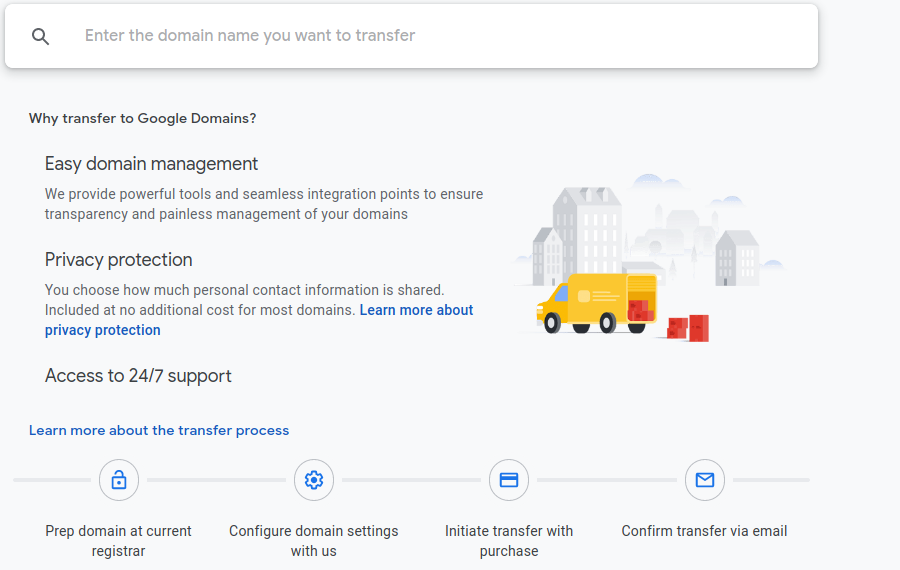
    Many people register their domain name with GoDaddy, simply because they have heard of it. But Google Domains or NameCheap might be better for you.

    You can transfer your existing domain name registration to another registrar, except the few days before the registration expires. Google Domains has clear instructions how to transfer.

    There are features that you might want, that GoDaddy charges extra for. And GoDaddy does not always have the best price (among the reliable, well-known domain registrars).

    I never use GoDaddy for hosting websites. Their security is lacking: too many people who wanted me managing their sites, who were hosting on GoDaddy, were already hacked; I moved their site hosting to SiteGround and rebuilt it.) Also, GoDaddy charges for SSL certificates, which every website needs today (for example, without SSL, your WordPress login page is not encrypted so your username and password can be collected). SiteGround and many other hosts provide SSL certificates for free. Their Managed WordPress hosting isn’t better than SiteGround’s, their technical support isn’t as good (SiteGround has Excellent support), the management interface is harder to use. Don’t host websites on GoDaddy, even though GoDaddy is much better than many other hosting companies.

    I have used GoDaddy for Domain Name Registration, decent price, reliable. But they charge extra for keeping your information private.

    Do a Whois search to see what information is public, for example at Google Domains, type in any domain name, and if it is registered by someone, click on the More Options link ( https://domains.google.com/m/registrar/search ). Another way to get the Whois information is ICANN Who Is Lookup or GoDaddy Whois. I notice that GoDaddy displays much more personal information than ICANN or Google.

    One reason for transferring your domain registration to Google Domains is “Privacy protection included. Google Domains covers the cost of keeping your details private.”

    Google Domains has lower cost for domain registration than GoDaddy (at least on the domain I was about to renew), and privacy protection is included; so GoDaddy loses on two counts.

    As of early January 2020, Google wants $12/yr for a .com, GoDaddy wants $18/year for renewing that .com plus $9.99/year more for privacy. (Tip: A GoDaddy support person mentioned May 2020 that the Domain Registry will soon have all Domain Registrars give privacy for free.)

    “When you transfer, you retain all the time of your current registration and add an extra year. The current expiration date for YOURDOMAIN.com is January 10, 2020. After the transfer is complete, YOURDOMAIN.com will be registered until January 10, 2021. Transferring your domain to Google requires an additional year of registration ($12 plus tax).”

    Google Domains has a user interface that is clear and easy to use, for managing a large number of domains. Several people who are in the Arizona WordPress Meetup who set up websites for many clients, prefer the Google Domains interface over GoDaddy’s.

  • Removing Hacks from Your Site

    Hi, I’ve been getting the same bunch of exe files uploaded to the root of my server for the past few weeks. I installed WordFence and also bought an expensive “Sitelock” service / firewall for $50 a month! Sadly my site is not making any money yet so this is a huge expense. I’m at my wits end and hope you can help. Thank you!

    Hopefully this isn’t about your site…

    There are many indications your site has been hacked. Seeing many unknown files is a clear sign. Seeing a warning from your web browser or Google Analytics is definitely something to take seriously. Seeing pages of your site listed in search engines containing content you didn’t write, is another common way of finding out your site is hacked.

    I would say you do not need both WordFence and Sitelock, especially since your site is not making money yet. Use WordFence, and many sites can use the free version unless you see a paid feature you really want.

    It is important to go through all the WordFence settings, to make sure that you have the most secure settings that will work on your hosting account. (Change a few settings, make sure everything works on your hosting account, then make more setting changes.)

    The WordFence application firewall is especially useful for blocking malware from spreading. For example, an image slider plugin that has a security vulnerability might allow a hacker to upload malware instead of an image; but the firewall would likely stop it from running, so there would be no damage to your website. (It would likely alert you to any attempts to run that file, and recommend you delete it.)

    Is the Site Still Hacked?

    How confident are you that you have found the source of the “bunch of exe files” and removed it? Almost nobody should attempt cleaning a hacked site themselves. It truly requires an expert. Hire WordFence to clean your site, using the money you have been paying to SiteLock. (I have nothing against SiteLock, but most sites will be adequately protected with WordFence, especially if you are using a good hosting company.)

    There are sites that offer “site scans”. However, these are not thorough assessments of every part of your hosting account. WordFence and Sucuri offer them, and they say clearly their free scans are not thorough.

    For example, some hackers install scripts that “stay asleep” for a while, to avoid detection, and only act when the hacker has work for them to do. Said another way, your site could have been hacked months before you noticed anything wrong, or a site check noticed anything.

    When the WordFence Application Firewall is installed on your site (different than scanning from outside your site), it can check every file for problems and every action your site takes, and every incoming request to your site. If the firewall reports your site is clean, you have much more certainty it is accurate.

    How to Prevent Many Hacking Attempts

    You should also look at removing plugins you do not need, and look at removing plugins that do not have excellent reviews in the WordPress plugin repository. Replace any plugins that have not had any updates recently. (Same rules apply for themes.) Do not simply deactivate them, you should delete them from all your WordPress installations. (Never have WordPress installations “lying around”, you must keep every installation of all your software updated.)

    The hacker could have gotten in through insecure plugins. Don’t install plugins that haven’t been thoroughly vetted by the WordPress repository, and by your most technical friends/colleagues (or better still, your WordPress Meetup). Keep all plugins updated, and WordPress updated — many of those updates include security patches.

    The hacker could have logged in as You, and installed malware. It is much easier than you think, for hackers to guess your password, unless you have a computer-generated password. Use a password keeper such as LastPass, have it store and fill in your login information on all sites you visit (and use it to store all other important data, e.g. your WiFi password, router administration login, credit card information, software licencse, etc.) Have your password keeper generate the longest password each site will accept (up to maybe 50 characters). No using the same password on different sites. See my Strong Passwords for WordPress for why you really need to use a password keeper, and how to make a hard-to-guess but easy-to-remember and easy-to-type password for your password keeper’s master password. (I also use a very good password for access to my computer.)

    Another way hackers could get your login information is by your not using SSL. You must have SSL on every website. Why do you need SSL? Because without it, anyone with WiFi sniffing software can see the plain-text information sent by your WordPress forms, including your login form. When SSL certificates were expensive and hard to install, the rule was you needed SSL if you were doing anything ecommerce; now SSL certificates are available (on all the good hosting companies) for free and installation is “click a button”.

    The hacker could have gotten in through your hosting company not having adequate security; now is a good time to assess whether you can evaluate hosting companies for WordPress security (most people can not). Many popular hosting companies have inadequate security.

    What Hosting Company to Use?

    The Arizona WordPress Meetup has many people who set up and maintain sites for clients, and they have identified very few hosting companies that are worth using for your website. I use SiteGround.

    SiteGround is probably about the same cost as your current hosting company, if you picked your hosting company by price (most people do). But SiteGround provides excellent technical support and excellent website security.

    On SiteGround and other excellent hosting companies, SSL certificates are free; unlike GoDaddy which charges more for SSL for a year than for hosting.

    As a website developer, SiteGround provides many tools to make my job easier.

    Could You Do It Yourself?

    If you can’t hire WordFence to clean your site, if your site is a small enough number of pages, make a copy of Just the Text and Just the Images of your site, of every page. Then have your hosting company Wipe your entire site completely clean, every file, the entire database, every configuration setting.

    Then install WordPress fresh, then WordFence right away, then only the plugins you need, then the default WordPress TwentyTwenty theme (or Astra theme) and Elementor page builder, and then remake all your posts.

    That is the only way to have any certainty the hack is removed, if you’re going to “do it yourself”.