Category: Android Tablet Instructions

Migrated content from android.lc.lndo.site

  • Connecting Via WiFi

    Connecting Via WiFi

    To get to the menu for connecting via WiFi, swipe down the top edge of the screen. You get the notifications screen (might be messages about emails received, or apps with updates, for example).

    Swipe-down the top edge of screen, for notifications.
    Swipe-down the top edge of screen, for notifications.

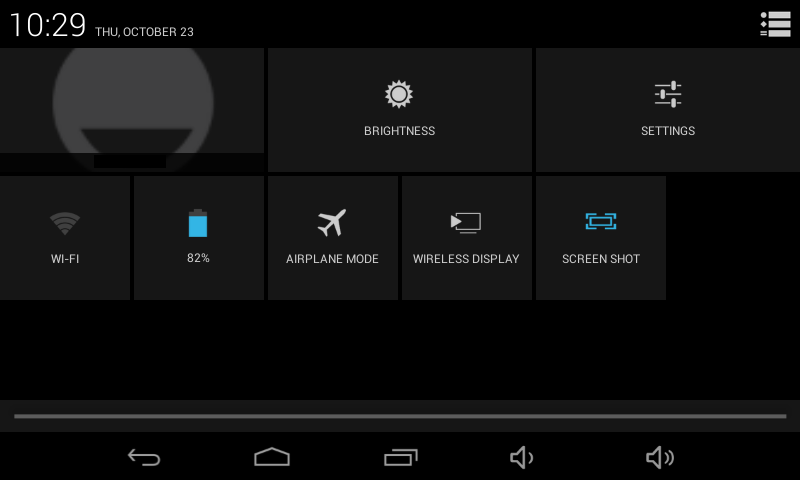
    Tap the icon in the top right corner (looks like a small head silhouette with five squares). You will get several common setting options or informative widgets, such as battery charge level, “airplane mode”, and screen brightness.

    If you are not connected to WiFi, there will be a widget named “WiFi”; if you are connected, the widget will have the name of the WiFi you are connecting through. Tap this widget.

    Settings, WiFi
    Tap On/Off, when On tap the WiFi you want to connect to


  • Connecting the Keyboard

    Connecting the Keyboard

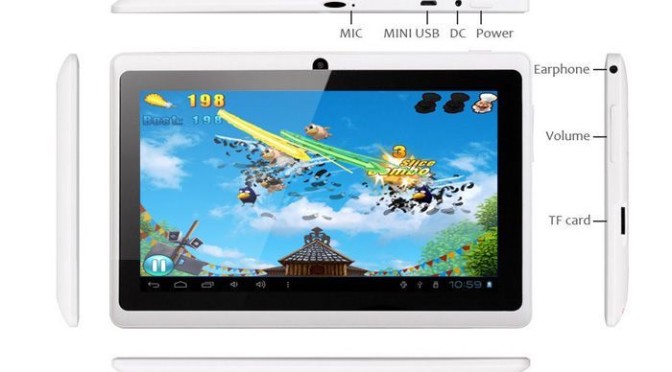
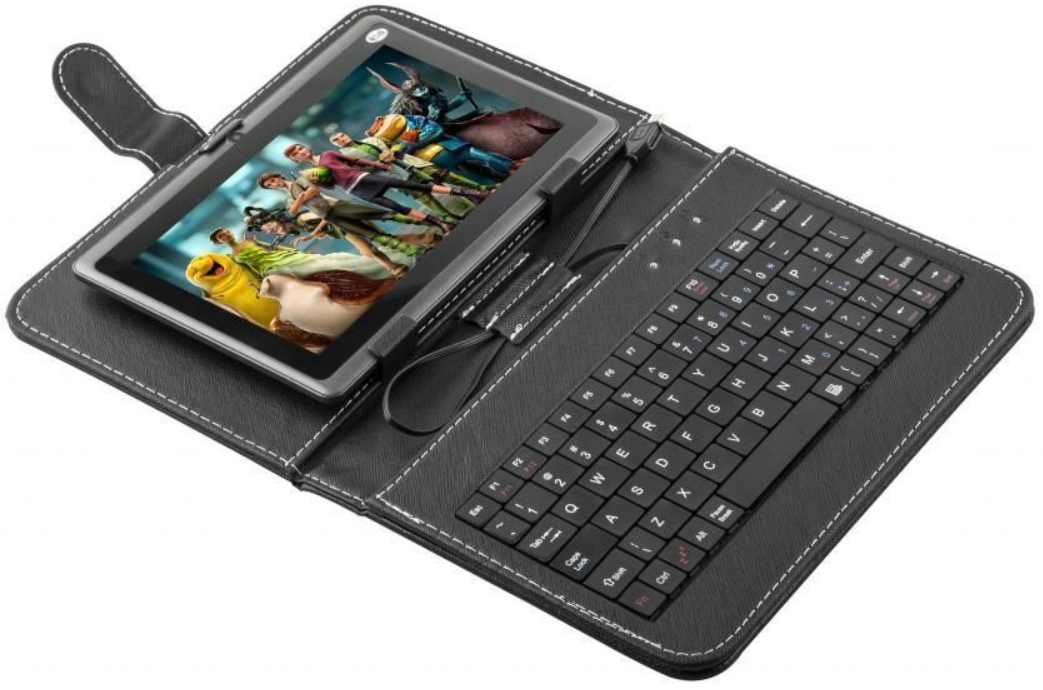
    To connect the keyboard, plug the USB cable into the ‘mini USB’ connector on top of the tablet. That connector is about half way between the center and the right edge. (more…)

  • Turning On the Power

    Turning On the Power

    The power switch is on top of the tablet, as viewed in landscape mode (wider than it is tall), near the right edge. Press and hold the power button until you see the screen come on.

    If the screen blanked recently, then a quick press will be enough.

    If the tablet turned off to save battery, after not being used for a while, you will have to hold the power button down for several seconds.

    7" Android (Solotab) Switches and Plugs
    7″ Android (Solotab) Switches and Plugs

    Turning the Tablet Off

    To turn the tablet off (for example, you know you aren’t going to use it, and don’t want the battery draining), hold the power button down until a shutoff dialog appears. Tap the option you want.