Tag: Twitter

  • Twitter Forcing You to mobile.twitter.com? Or is it NoScript settings?

    Twitter Forcing You to mobile.twitter.com? Or is it NoScript settings?

    Are you logging in to Twitter, and for some reason it redirects you to the Twitter mobile version even though you are on your desktop computer?

    http://mobile.twitter.com/ is good when browsing on a mobile phone, but not what I want when I’m using Firefox on a widescreen monitor.

    At first I thought it was something that Twitter didn’t like about the newest version of Firefox, but that isn’t what the problem actually was.

    I like security, including blocking scripts that I don’t know about. I don’t want to visit a site and have some hacker JavaScript run on my browser. Anything you can do to block hackers is good.

    So, I use the Firefox add-on NoScript. NoScript defaults to blocking all scripts, and then you white-list the scripts that you want to allow. You specify what scripts to run by the domain name, or sub-domain name.

    It has a feature to temporarily allow all scripts on a page, for testing. It also has a feature to temporarily trust scripts from a specific domain name, for example allow this page to run today but not automatically. (I use this for testing what scripts I need to enable on a page for the page features to work how I want.) And you can revoke all temporary permissions. You can trust https: while blocking http: (without SSL) scripts.

    NoScript is a very nice tool!

    In Firefox, tap the Alt key to see the top menu, Tools, Add-Ons, scroll to the bottom of the page to click “See more add-ons“. Then in the search bar, type NoScript and click “NoScript Security Suite“.

    Next you’ll have to spend some time, as you visit sites, enabling the scripts you want to allow. Most often, you only allow scripts for the https version of the site itself. Then you test if the site works right, and allow additional minimal domains until everything you want working, does work. You can Google the domain name and “scripts” to get an idea what the script’s reputation is.

    Here’s what I was setting for Twitter, visible from https://help.twitter.com/ which doesn’t redirect for mobile browsers:
    NoScript settings lead Twitter to redirect to mobile

    The problem (getting the mobile version) was due to my having the “Default” for twitter.com and all it’s subdomains that aren’t specifically listed. (Again, the Default is all scripts and objects blocked.) But I couldn’t see that while I was being redirected to mobile.twitter.com (which you also want to set “Trusted”).

    In this specific case, I could see “…twitter.com” and click the “S” icon to make it “Trusted”. If not, or if you want to specify several domains at once, click the third icon from the top left, the “No S” icon with the wrench, for Options. See Wikipedia Noscript and jeaye.com for a clear explanation of NoScript, and of course the NoScript help pages https://noscript.net/faq and https://noscript.net/features

    Which permissions do you want for a site? Here’s some ideas about setting them:

    Allowing only HTTPS (not HTTP) — Look at the lock symbol by the domain name. If it is red, HTTP is allowed, if it is green, only HTTPS is allowed. Click the lock to toggle it.

    Fetch is to be granted only if essential — http://www.redotheweb.com/2015/11/09/api-security.html

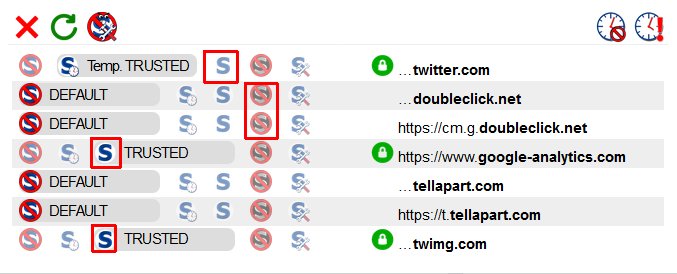
    Now I have these settings for NoScript for Twitter:

    NoScript settings I use for Twitter

    Change …twitter.com to Trusted, and …twimg.com (for Twitter images) to Trusted.

    DoubleClick tracks your site visits, for advertisers. I keep it set to Untrusted.

    Google Analytics I set to Trusted.

    Tellapart.com I haven’t researched at all, and I don’t notice anything about Twitter not working without it, so I leave it set to Default.

    You can also click that “monster wrench” icon (third from the left on top), and add mobile.twitter.com if you want.

    (My current settings for Default are everything un-checked, so everything is blocked. My settings for Untrusted are everything blocked.)

    You may need to force a refresh of the page, so it doesn’t load from the browser cache. On Windows, for Firefox or Chrome, either hold down Ctrl and click the Reload button, or hold down Ctrl and press F5. On OS/X Safari, pressing CMD + SHIFT + R reloads the page ignoring cache.


  • Easily Market ClickBank Products to More Twitter Followers

    I found this great tool to help you:

    • Find more people interested in your niche
    • Send them tweets relevant to their interests
    • Promote products you market, both your own and ones on ClickBank
    • Find more products to market, that are in your niche as well as the best-selling niches.

    Tweet-o-Matic Profiteer: Easily Promote the ClickBank Marketplace With Our Market-Smashing Twitter Software

    Combine automating targeted Twitter posts, with marketing your ClickBank affiliate products. Increases your Twitter followers, places ads for your affiliate products. Know what are the most profitable products in the most popular niches. You don’t need to know anything about affiliate marketing or search engine optimization. Need to be able to write emails. Set up as many accounts as you want. (Write tweets relevant to your followers, and they are more likely to follow your leads. Guide book goes over how to use the software and market well.)

    Get the Tweet-O-Matic Profiteer now and, you’ll make more money.

  • WordPress add-ons to improve your blog

    You want to have people find what they want to read on your blog? Well, you can customize your WordPress blog so that is easier.

    Is the appearance of your blog important to you? Do you want to have the appearance match the mood and style of your writing? You can have that.

    Changing the overall appearance of your blog

    There are hundreds of ways you can customize how your WordPress blog looks, and dozens of great features you can add. So many you could spend hours just picking which ones interest you the most.  Then you’d have to spend hours installing them, testing them, finding out which options to use. Even if you’re tech-minded, it’s too much to do, and trying out different looks is not what you should be spending your time on.

    When you are starting to blog, what is most important is writing. So here’s what I found that experts have recommended or people have said they really want to have on their blogs.

    Start with these WordPress add-ons, and configure them this way. (Later, when you’re rich and famous and have lots of people reading your blog, you can add more enhancements if you want to.)

    Themes and Appearance

    I found many themes I liked (themes specify the overall structure of how is information organized on the page) at http://alexking.org/projects/wordpress/themes and styles (the colors and fonts that make up the “look” of your blog) at http://alexking.org/projects/wordpress/styles and was done searching. I’m using the Carrington template, and haven’t changed the style: it looks professional, easy to read, and is organized better while I am composing my posts than the default template is.

    Social Networking: how do I let people on LinkedIn, Twitter, Facebook, etc know I’ve blogged?

    Twitter lets people who are interested in what you are doing stay connected with you. Let them know a mixture of your activities, what you enjoy, what you need, what you are working on, and what you offer. With these tools, you very easily post on Twitter what you blogged about.

    Twitter Tools –
    http://wordpress.org/extend/plugins/twitter-tools/
    Creates a complete integration between your WordPress blog and your Twitter account. Create a daily digest post of your tweets. Create a tweet on Twitter whenever you post in your blog, with a link to the blog post.

    Twitter Widget Pro –
    http://wordpress.org/extend/plugins/twitter-widget-pro/
    A widget that properly handles displaying twitter feeds on the sidebar of your blog, including @username and link parsing. It supports displaying profiles images, and even lets you control whether to display the time and date of a tweet or how log ago it happened (about 5 hours ago, etc). Requires PHP5 on your server.

    Facelook WordPress Plugin –
    http://wordpress.org/extend/plugins/facelook-facebook-badge-wordpress-plugin/
    Brings your FaceBook badge into your blog

    How can I make it easier for people to find what they want to read? (How do I do search engine optimization on blog posts?)

    All in One SEO Pack –
    http://wordpress.org/extend/plugins/all-in-one-seo-pack/
    I’ll write a tutorial on using this tool well. Briefly, you can easily change all the important elements of your blog posts so search engines bring people to the specific posts they are interested in.

    I want to know what people think of what I write. Can I have people rate my posts?

    Rating of posts and pages and comments
    http://wordpress.org/extend/plugins/gd-star-rating/
    (the manual is available at http://wp.gdragon.info/plugins/gd-star-rating/, or direct link for the GD Star Rating User Guide 1.0.5 – http://wp.gdragon.info/download/12/)

    My blog is very important. How can I back it up?

    WP-DB-Backup –
    http://wordpress.org/extend/plugins/wp-db-backup/

    I have great quotes I’d love to put on my blog to make it more interesting. Can I?

    Quotes Collection
    http://wordpress.org/extend/plugins/quotes-collection/
    This adds a nice interface to add, edit and manage quotes. Quotes can be displayed in a page by placing a piece of code (quick tags), selected by source or tag . This also helps keep your blog entries fresh, in a way that adds content, that search engines love.

    I want to mention books, and have links to Amazon near them. How do I do that?

    Amazon Showcase WordPress Widget –
    http://wordpress.org/extend/plugins/amazon-showcase-wordpress-widget/

    Where’d you get those amazing space photos from?

    NASA Image Of The Day –
    http://wordpress.org/extend/plugins/nasa-image-of-the-day/