For future reference, I do know of a “convert to Elementor” tool, and it is well-done and even free. It will read each page, convert it to Elementor. If the client wants to switch to Elementor, that makes it much easier to then make a page template in Elementor, and modify each page to use the template. It can even convert “pure HTML/CSS/PHP” sites. Anyone curious, can ask me about it.
It is a “bad idea” to have multiple page builders installed (mainly the page speed is hurt by loading all those program files).
That said, you can certainly take a WordPress site made recently (meaning, running a current version of WordPress and a theme that at least works with the current version of WordPress) that was done in the Block Editor, and add Elementor to it.
I’ve done many sites where “only the few special pages” used Elementor, and the rest was made with the Block Editor. This works if you know how to edit “most pages” in the Block Editor.
What if you Do have another page builder?
As an example, let’s say you have Beaver Builder.
(I will guess Beaver Builder is still one of the better page builders. It certainly is one I would say is okay to use; there are many I’d urge you to get that other junk builder off your site. I haven’t done a comparison in a long time so maybe BB is better than Divi (the Divi Builder, not the junk theme bundled with it, use Divi Builder with 2025 or Spectra One themes).
What if You Like the Block Editor, Do you Need a Page Builder?
I like the TwentyTwentyFive theme, or the Spectra One theme.
Spectra One Theme and Spectra Builder
Spectra is a freemium page builder that integrates with the WordPress Block Editor (Gutenberg), allowing you to create a WordPress site with ready-to-use blocks, and some great templates.
Spectra One is a modern and versatile WordPress theme that leverages Full Site Editing (FSE), allowing for extensive customization using blocks throughout the site, from headers to footers. It was developed by Brainstorm Force, the creators of the popular Astra theme, and is available for free on WordPress.org.
Spectra – WordPress Gutenberg Blocks generates Blocks, so it is designed to work smoothly with any theme, including the free Spectra One theme, https://wpspectra.com/ or Spectra – WordPress Gutenberg Blocks. Most of the features of full page builders, with zero page builder bloat; your site loads fast.
Spectra One is beautiful and modern, suitable for blogs, portfolios, businesses, and more.
It is fully compatible with WooCommerce, and has some WooCommerce-specific features that will significantly enhance the experience. If you want to set up a WooCommerce shop, or online course, or coaching program, Spectra One is a solid choice, especially if you plan to start with basic features and gradually expand.
Spectra Pro, the premium version of Spectra, offers advanced website design options and is designed to work smoothly with any theme, including Spectra One. Start with the free version, and upgrade when you find specific features you need.
In summary, Spectra and Spectra One are well-suited for coaches and course creators.
Also by Brainstorm Force: Ultimate Addons for Elementor (Elementor elements much like Spectra’s blocks); Schema Pro (Schema Pro offers all major types of schema, including recipe, book, article, job posting, and a lot more.) Presto Player for embedding videos and audios in your site; SureMembers if you want to have a Membership site.
Welcome to the world of WordPress 6.3! Here, we’re diving into the Block Editor – a tool that’s transforming the way we create and manage content. If you’re aiming to build a website that’s both stunning and functional, without getting bogged down in technical complexities, this guide is for you.
Embrace the Ease of the Block Editor
Imagine a tool that simplifies your website creation process, making it intuitive and straightforward. That’s what the Block Editor offers. With its drag-and-drop functionality, you have the power to craft your website, one block at a time.
Why Choose the Block Editor?
Clarity and Simplicity: Unlike other page builders, the Block Editor’s interface is clean and uncluttered, making it ideal for beginners and pros alike.
Speed and Performance: Pages built with the Block Editor load faster, providing a better experience for your visitors.
Flexibility: Whether you’re crafting a blog post or a full-fledged webpage, the Block Editor adapts to your needs. Want some ideas? Look at the WordPress Showcase: Star-studded sites built with WordPress, from Design Museum Danmark, to NASA, to Harvard University, to Massolino Winery, to Mint finance app, and about 100 others.
Training and Support: The Block Editor programmer library makes designing specialty blocks easier for developers. With one interface, training is easier; and support is readily available.
Styling Complex Blocks
With one simple panel for all styling options, you can:
Style each part of a complex block such as lists of your most recent pages, or pages in a category; with featured images, headings, excerpts; grid layout or masonry layout
Arrange several items in columns, that flex their sizes to fill the space, using multiple rows as needed, no matter what screen size
Customize basic formatting, including:
Fonts and font styles (such as bold, italics)
Colors (for fonts, backgrounds, hyperlinks)
Spacing, alignment and borders for blocks
Use an icon or symbol as bullet points in list blocks.
Enhance blocks with additional features:
Background customization (images or videos, color, gradient, parallax effect)
Visual effects (shadow, animated effects like fade or slide in)
Functional elements (sticky blocks, progress bars, carousels, slideshows)
Use custom CSS code for advanced customization
Implement interactive elements like hover effects and video backgrounds; use animated effects (e.g., fade in, slide in)
Add progress bars or bar charts within blocks to showcase data
Create carousels or slideshows within blocks to display multiple images
and so many more types of blocks…
Why Choose the Block Editor?
Clarity and Simplicity: Unlike other builders, the Block Editor’s interface is clean and uncluttered, making it ideal for beginners and pros alike.
Speed and Performance: Pages built with the Block Editor load faster, providing a better experience for your visitors.
Flexibility: Whether you’re crafting a blog post or a full-fledged webpage, the Block Editor adapts to your needs.
Key Benefits of the Block Editor
User-Friendly Interface: Easy to navigate, even for beginners.
Versatile: Suitable for all types of content creation.
Responsive Design: Ensures your site looks great on all devices.
SEO-Friendly: Optimized for search engines.
Grouping Sections: The Power of Customization
With Grouping Sections, you can cluster blocks, creating distinct sections on your page. This allows for enhanced design flexibility and a more organized layout. Each “color row” on this page is made by selecting several elements, grouping them (or adding a group element and adding elements inside it), and setting a background color (or gradient, image or video).
Text with Images: Bringing Your Content to Life
Combine your words with visuals using the ‘Media & Text’ block. This feature lets you embed images alongside your text, making your content more engaging and visually appealing.
Block Pattern Library
The Block Pattern Library is a collection of pre-designed sections or blocks that can be used to create page layouts in WordPress. It provides a wide variety of ready-to-use block templates that can be customized (using the Block Editor) and combined to quickly build visually appealing page designs without the need for design skills.
For a busy personal coach or course creator, the Block Pattern Library offers a convenient way to save time and effort when creating web pages. Search for the type of block you want, and browse through the library and choose block patterns that suit your needs.
These patterns include sections for headers, testimonials, call-to-action buttons, pricing tables, image galleries, and many more.
To make use of the Block Pattern Library, follow these steps:
Add a block: Click on the “+” button in the editor to add a new block. In the block inserter, look for the “Patterns” tab.
Browse and select patterns: Click on the “Patterns” tab to explore the Block Pattern Library. Scroll through the available patterns or use the search feature to find specific designs.
Insert the pattern: Once you find a suitable pattern, click on it to insert it into your page.
Customize the pattern: You can edit the content, colors, fonts, images, and other elements to match your brand or preferences. Each block within a pattern can be individually modified.
By leveraging the Block Pattern Library, you can rapidly create professional-looking web pages. Each pattern you customize, you can save (with all your settings), with a pattern name you choose, so your entire website will have consistent design elements.
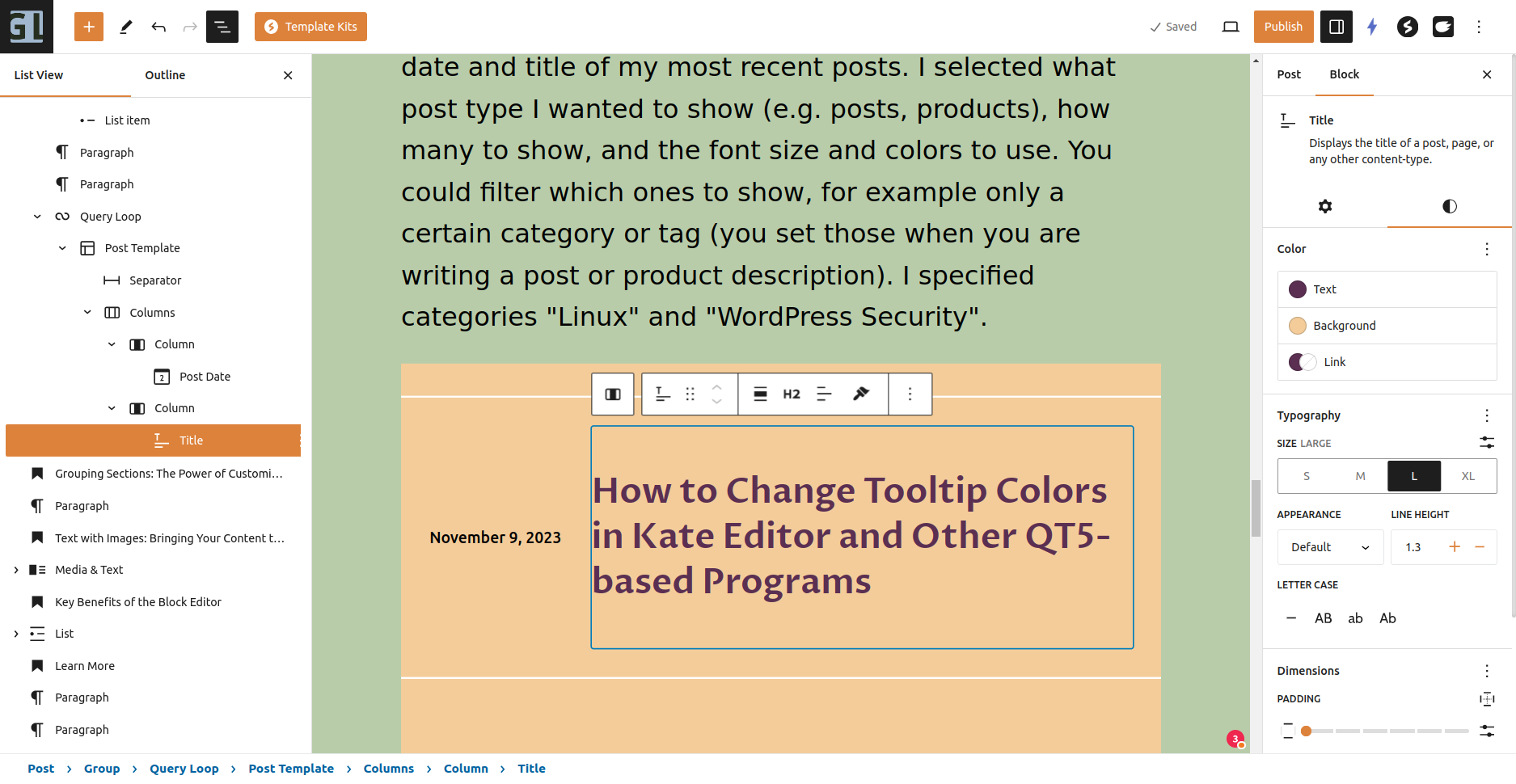
Here is a pattern that I simply downloaded from the WordPress Pattern Library: A “Query Loop”, showing the date and title of my most recent posts. I selected what post type I wanted to show (e.g. posts, products), how many to show, and the font size and colors to use. You could filter which ones to show, for example only a certain category or tag (you set those when you are writing a post or product description). I specified categories “Linux” and “WordPress Security”.
Block Editor Settings Panel
Select the block you wish to style from the List View panel on the left, or click on it in the main section. Open or close the List View by clicking the black “3 line outline” icon at the top.
The Block Settings panel is on the right. Open/close the panel with the “white on black” icon above it. Each block (and each sub-block of a complex pattern) has settings here.
The “Post Title” block has options for text and background colors, typography (font size and letter case), padding, and margins. Less commonly used options, like font family, can be found in the “3 dots” icon.
When you click on a block, that block’s settings panel appeares, and its hover menu appears.
The hover menu has convenient buttons for that block, including selecting the block’s parent block (this example: the Post Title has a “Column block” as a parent, and the column is inside a “Columns Block”). Other blocks might have a simple conversion to another block, for example a Paragraph can easily be converted to a Heading, or to a List.
That post title is currently displayed as an “H2” but you can change it to other heading levels; you can change the block width and text alignment (left/centered/right).
This is the hover menu for a Paragraph block. You can select the parent block, convert it to different block types, move it by dragging or using the up/down arrows, change the text alignment, copy the block with all its settings (a Spectra feature), enhance the text using the AI Engine plugin, convert selected words to bold or italic or a link, and perform general operations like adding a block above or below this one.
Learn More
For a comprehensive tutorial on using the Block Editor, visit Learn WordPress. This set of videos, with transcripts, is very clear.
Spectra – The Ultimate Blocks Library is a great introduction to both the Block Editor and Spectra (which is both a collection of great blocks, and blocks that make page layout easier).
Conclusion
The WordPress Block Editor is a game-changer, especially for those who value efficiency and ease of use. By embracing this tool, you’re not just building a website; you’re crafting an experience that resonates with your audience.
Ready to take your website to the next level? Explore the Block Editor today and see the difference it makes in your online journey.
If you have any questions about your website, please leave your comments here or contact me.
“Any recommended theme to use for building landing pages for lead generation?”
A WordPress marketer
My Theme Recommendations
Use the TwentyTwentyThree theme with the Block Editor. As the default WordPress theme, it is the most tested, secure, well-written theme.
Use Full-Site Editing and Block Patterns. WordPress 6.3 makes this so easy.
You can specify your color palette and font palette in a TwentyTwentyThree child theme, with theme.json. Or you can set them in the Customizer using a good user interface. Once you have your palettes set, only use the colors and fonts you already picked. If you alter one of the colors in your palette, anywhere you used that “color position” in the palette will use the new color, automatically.
Themes Straddling the Page Builder Capabilities
You will likely find the Block Editor alone is able to do everything you want for a page.
Great block designs are available in the Pattern Directory. And, you can get well-designed patterns as a plugin, with great user interface and great programming.
A great enhancement to the Block Editor is a free plugin Spectra – Free WordPress Page Builder or in the WordPress Plugin Repository Spectra – WordPress Gutenberg Blocks (by Astra’s author Brainstorm Force). Spectra works entirely in the Block Editor settings panel you already use. The result is low-resource blocks and only the minimal CSS or JavaScript needed for the page; most page builders add many JavaScript files to every page that uses the page builder at all, or even on every page on your site. You can use Spectra on any full-site editing theme, though of course it works great with TwentyTwentyThree and Astra.
Other top recommendations for theme + almost-page-builder: get either the free (from WordPress Repository) or paid version of either Astra https://wpastra.com/ or Kadence https://www.kadencewp.com/ . These are both well-liked in the AZ WordPress Meetup.
Full Page Builders
You can use Elementor, or Beaver Builder, or the Divi Builder with either of these themes. Yes, that is my order of preference; I used to use Divi but Elementor is easier to work with. (Don’t use the Divi Theme, it is simply not nearly as good; it comes bundled with the Divi Builder, but ignore it.)
You might find this helpful:
Advanced Layouts with the Block Editor | Learn WordPress https://learn.wordpress.org/workshop/advanced-layouts-with-the-block-editor/
How to create a Landing Page with WordPress https://wpastra.com/guides-and-tutorials/create-landing-page-wordpress/
Layout Recommendation
Put more attention on good writing for your very specific ideal customer, than you put on “fancy layout”; you will (for most customers) find that a simple, clear, easy to read and use page, is what works best.