In Site Editor (I’m using latest WordPress 6.7.2) you can have diferent Templates, and have different Headers and Footers, and use the header you want and footer you want in each Template. You edit header and footer and template, using the Block Editor (the same editor you probably use for your pages and posts).
Templates to Make
Here are some ideas for different templates you can make.
An obvious template is one with no header and no footer. This is very useful for landing pages, and for making HTML you will use on social media sites (maybe the site lets you make a custom HTML header for your account, instead of an account image).
Make a template that doesn’t have a menu. Then you can have your landing pages have fewer distractions; they either finish signing up, or go read other pages specifically for people who haven’t signed up (reading more about your business, what you cover, what they most want to know at the beginning). Once they log in to an account, they see your normal template with your main menu.
WooCommerce or SureCart product pages would use a different template than your articles.
Make a template for when you are launching your course. Maybe you have a countdown timer until when your course opens for registration. Maybe you say when the course will open, and a link to the initial launch video (but the link isn’t enabled yet).
Make a template for the speakers for your event. No page title, no featured image; you have their name as the h1 tag of the page, and their image in place of a featured image. You have a block (probably of a custom post type) that displays the sessions of the event this person will speak in.
Make a template for your course. The lesson pages in the course have a different menu than the pages for people who haven’t registered for your course. The other pages of this part of fthe course are in a 2nd menu below the site menu.
Changing the Header and Footer
Header and Footer are actually “template parts”. You can create multiple headers and multiple footers, to use in different places in your site.
Each template can use your choice of header and footer. You can have a template with no header, no footer. You can use a different template for Landing Pages (typically no header or footer), or where you want a different menu (maybe a series of articles would have a link to the site home page and to each of the articles).
If you enter the Site Editor using Appearance, Editor, you see Design. From there, select Patterns; Header and Footer are Patterns. This is where you can “Add New Pattern” (for example have a Header with a different background color or without a menu.
Note: This is “Edit Site” not “Edit Page” on the top bar.
The template you are editing (seen top bar, center), is probably “Single Posts – Template” or “Pages – Template, or, if you are directly editing a template part, it will show “Header (Template Part)”
Open the Document Overview (staggered 3 bar icon, Shift-Alt-O)

Templates for a Page or Post most likely have 3 areas, each containing blocks: Header, a Group, Footer. Template parts will have just one area.
Sometimes when you are editing a Page (not a template) in the Site Editor (yes, you can do that!), you will see the template’s header or footer, but you won’t see the template parts in the Document Overview. To switch to editing the Template, double-click on the header area or footer area, to select it for editing.
Select the element you want, to set the background color.
Note: If you are editing a Page or Post, you can not set the color if you have selected “Header”; you have to select an element within the header, most likely the outermost Group.
If you have a Row or Container within that outermost Group, you probably want to set that background color to “transparent” so the outermost Group sets the color. Alternate approach: deliberately set the boxing on the inner Row to show a different color.
Once you have the element you want selected, set the color just like anything else in the Block Editor. The Styles panel on the right will have colors in the current palette. Set both text and background colors.
Special Colors for Templates
What if you want to make a header for holidays or special events? Perhaps for Halloween you want an orange and black header?
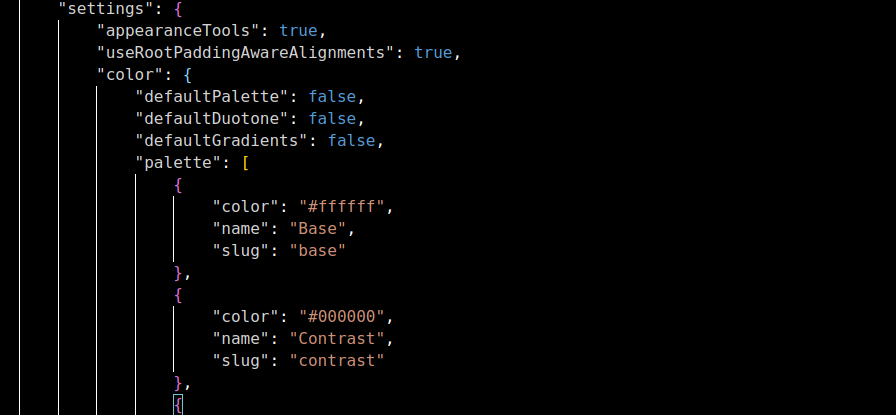
In your theme.json file (where your theme designer set the theme’s color palette) do one of two things. Either add the specialty colors to the palette (and don’t use those special colors except in a specialty header); or configure the theme.json to allow picking colors that are not in the color palette, for pages that are in a specific Category (e.g. category Holiday) or for specific pages.
(No, don’t let people pick colors not in your color palette “whenever they want”, only use the color palette. That makes changing your site colors much easier, you just change the palette.)
Suggestion: copy your theme.json to another filename in the theme’s styles folder. For a Halloween-themed site, make wp-content/YOURTHEME/styles/halloween.json. Or, make a holidays theme.json, with all the special colors you will use.
Each style variation has its own file inside a folder in the theme called
https://fullsiteediting.com/site-creators/theme-style-variations/styles. If you named your style variation “Variation 1”, the file [would be named]styles/variation-1.json.
Then without changing the color ‘slugs’, change the color values how you want (perhaps the site background becomes “scary black” and the text becomes “hideous orange”. Or probably better, add scary black and hideous orange to the color palette, don’t change the existing colors, and make a Template Part (header) named “Halloween Header” and edit the template for your site home page (and optionally other pages) to use that header instead of the normal one. Then when the holiday season is over, change the template so the header used is the normal one.
Note: There is not (that I know of) a way to have a template, or template part, use a different color palette. So use Theme Variations instead, adding only the extra colors and fonts you need.
Changing Template when Editing a Page
If you want a page to use a different template than the default, you can set it when you are editing the page.
In the right Settings panel (if it isn’t visible, click the icon next to Save top right), in the Post tab, you can set details like when you want to publish the post. You can also set what template this Page or Post should use. Just click next to where it says “Template” and swap the template. You can also preview what the page will look like, using the template.