Tag: NotePad++

  • Text Editors to Use With WordPress

    Inside WordPress, of course use the Block Editor (or the editor in your page builder, if you use one).

    But you will probably have many uses for a text editor on your computer, as you are writing your WordPress pages, and throughout your day.

    I often write my ideas for a post, in a text editor, to get a good idea what I’m going to say.

    Many of the text files I make, grow cluttered.
    Then I convert them to a WordPress page,
    using sections and headings and outlines.
    WordPress pages are clearer than text files,
    even when I am reading my own text files.

    Good Programming Editors for WordPress Authors

    There are text editors that know the correct syntax for many computer programming languages, including HTML and CSS (the markup languages for writing website pages) and PHP and JavaScript (the programming languages WordPress itself plus plugins and themes are written in).

    These programming editors are also great for editing text.

    If “something doesn’t look right” in a web page, copy the HTML for that “something” to your programmer’s editor, and you are more likely to see the typing error, or the syntax error, or the error in the structure of the code. Programmer’s editors have tools to “beautify” the code so it is easier for you to see the structure. Programmer’s editors have syntax coloring, so you have a visual indicator of where there is a syntax error.

    Suggested Editors for Windows Users

    NotePad++

    NotePad++ was the editor I used for years, and it is great.  https://notepad-plus-plus.org/downloads/  

    Unlike “wimpy” Notepad, this lets you edit multiple files in tabs, and even show multiple portions of a file in different tabs. It has options to automatically save your work every few minutes. It knows the syntax of many computer languages, including HTML and CSS.

    You’ll never use WordPad, Notepad, or Word for your text files again.

    If you are not “a programmer” and just need a well-done editor for multiple documents open at once, I highly recommend it.

    It doesn’t have some of the “programmer only” tools, like version control and showing the reference code for a function. (If you don’t know what that is, that’s fine, it just means you aren’t a programmer.)

    Suggested Editors for Windows, OS/X and Linux Users

    I don’t use Windows any more, I use Linux Mint for my computers. Mint is free, it is less trouble, it runs better on old computers that Windows doesn’t support any more. Well, there are computers that aren’t very old, that Windows doesn’t support any more. Mint runs great on old OS/X computers that don’t run the latest OS/X. Yes, the identical thumb drive will boot either computer.

    So, I know about editors that run on all operating systems.

    Atom

    My favorite general-purpose text editor, for “normal” text and any programming language you and I will ever use, is Atom from https://sourceforge.net/projects/atom.mirror/ 

    For taking notes it is great. Ctrl-L to select the current line. Ctrl-D to duplicate the current selection (if you have nothing selected it duplicates the current line).

    Atom does have “too many options”, don’t go into the settings area unless you have something specific to change, and let someone know where you’re going so when you get lost they can send a rescue party to find you. This is true for all the best programmer editors, but Atom is “extra-configurable”.

    Change the settings in Atom to save your work every 5 or 10 minutes: Editor, Preferences, Core section, “Restore Previous Windows on Start” Yes. And in the Packages section, search for “autosave”, install it if it isn’t already, click the Settings icon, make sure is “Enabled”

    Visual Studio Code

    This is my favorite Microsoft product. Since I don’t use Windows, and use LibreOffice (or the almost-identical OpenOffice) instead of Microsoft Office, this is the only Microsoft product I use.

    “Visual Studio Code is a source code editor developed by Microsoft for Windows, Linux and macOS. It includes support for debugging, embedded Git control, syntax highlighting, intelligent code completion, snippets, and code refactoring.” Wikipedia

    Visual Studio Code edits WordPress theme.json files better than Atom does; it reads the full “schema” to know what options are permitted in what section of the file. It has ways for you to jump to the section you are interested in without scrolling. It will alert you where in the file there are syntax errors.

    VSC is meant to be used by programmers. It reads every file in a folder, expecting to find function definitions so it can prompt you with the parameters “intelligent code completion”. So, don’t use it for your Documents folder, it will “complain” the folder is too large. But you can use it for your local development folder and open documents from any folder.

    Works well with GIT, connects with XDebug for PHP programming.

    Note that “Visual Studio” is a different Microsoft product than “Visual Studio Code”.

    Sublime Text

    Sublime Text – Text Editing, Done Right

    “Sublime Text may be downloaded and evaluated for free, however a license must be purchased for continued use. There is currently no enforced time limit for the evaluation.“

    I have not used Sublime Text, and it is the first or second most popular among the AZ WordPress Meetup’s developers, with Visual Studio Code.

    Programmers Also Use

    NetBeans https://netbeans.org/

    PHPStorm

    Eclipse IDE

    Associate Your Text Files with Your Editor

    In Windows, associate any text file types that you use, with Settings > Preferences > File Association or other Windows-standard means to “associate” that file type with the editor.

    For most operating systems, right-click a file in your file manager, select “Open With” or similar term, there is probably an option to set your choice as the default. (I use Dolphin file manager on Linux Mint, make your life easier and use a 2-pane file manager for copying/moving files).

    Fonts for Your Text Editor and Spreadsheet

    Set the “Font Family” to fonts that look great on whatever operating system you have. There are fonts designed to be very easy to read, even at small sizes. Mono spacing is essential, easier to tell letters apart than proportional spacing. But beyond that, “source code” fonts are custom tweaked to make common programming languages look better.

    Here is the font stack that I use, based on good looking fonts that already exist on users’ computers, Linux then OS/X then Windows. Then, I added two of the best fonts from Google Fonts:

    Fira Code, Source Code Pro, Liberation Mono, Nimbus Mono L, FreeMono, DejaVu Mono, Bitstream Vera Mono, Lucida Console, Andale Mono, Courier New, monospace 

    Fira Code and Source Code Pro are from fonts.google.com and you can download them to your computer and install them. Then all applications that use fonts can use these.

    Good examples of how some of these fonts look for "similar characters" are on 5 open source fonts ideal for programming, and especially look at the images that show 
    1 I l | i O 0 o B 8
    (one, capital eye, lower el, vertical bar, lower eye, upper oh, zero, lower oh, capital bee, eight)
    You should be seeing this on my website in Fira Code Medium.

    The best example of Fira Code is FiraCode: Free monospaced font with programming ligatures, which shows how the ligatures improve the look of your code.

    Source Code Pro is good, but there is a font based on it: Hasklig – a code font with monospaced ligatures which you can download from https://www.download-free-fonts.com/details/91866/hasklig
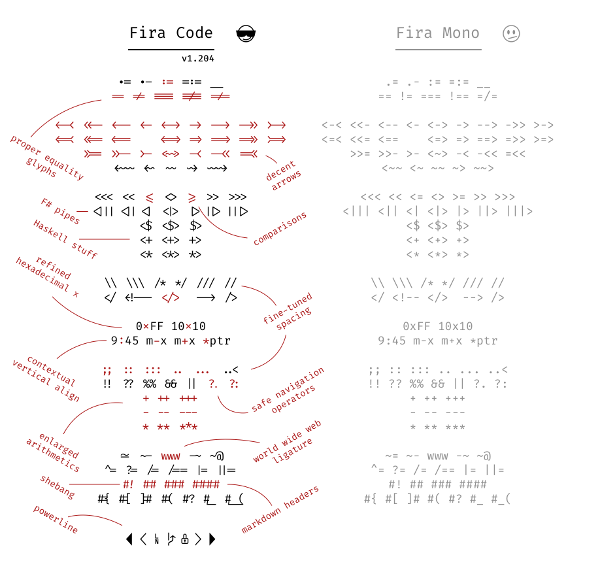
    Fira Code ligatures and examples for programmers, from https://opensource.com/sites/default/files/u128651/firacode2.png

  • HTML Tag Selection in NotePad++

    I’m moving or deleting sections of HTML or XML code, several times a day. NotePad++ has the ability for you to press a single keystroke to select the entire block of code. Big time saver.

    You simply install a NotePad++ Plugin from http://docs.notepad-plus-plus.org/index.php/Plugin_Central

    The plugin you want for selecting and copying or moving HTML tags is the “HTMLTag (Unicode)” plugin, which “provides two core functions to Notepad++”:

    • HTML and XML tag matching, like the built-in brace matching (Ctrl+B / Shift+Ctrl+B)
    • HTML entity encoding/decoding (example: é to é and vice versa)

    Unfortunately, the HTMLTag plugin is a 32-bit plugin. That means if you are using the 64-bit version of NotePad++, you will get a message about the plugin “is not compatible with the current version of NotePad++”. The Compare plugin is also 32-bit, though there is mention of a 64-bit version on GitHub.

    The Compare plugin is one I use very often, to quickly compare two text files. It does much of what the Linux diff command does, showing the difference between files. It is smart enough to detect lines that have been moved or deleted. It can highlight the differences within lines of the two files. You can easily navigate among the differences. Even if you are using GIT to track version changes, you will likely find you want to compare files that are not in your version management system, and this is a good plugin for that.

    CSSlist is a very useful plugin, lists all the CSS classes and colors for easier inserting the names into your code. Even “adds the ability to list the different colors that are in the document and export the list as an SVG file for Inkscape or Gimp palette.”

    NppSnippets is another plugin that looks interesting. “A easy to use snippet / template plug-in: NppSnippets. Similarity with the TextPad Clip Library is no accident. To insert a snippet simply double click on the item in the list and the snippet is inserted at the current cursor position. To edit right-click on that item. ”

    Take a look at the TakeNotes plugin, too.

  • NotePad++ Settings to Edit .log Files

    NotePad++ Settings to Edit .log Files

    Getting an error in NotePad++ about a “session file” error when opening a .log file?

    What Is NotePad++ ?

    NotePad++ is an excellent text editor for Windows, much better than Windows Notepad, especially for editing multiple documents. If you are a website designer or computer programmer, I recommend it as one of the best available. NotePad++ knows the syntax of most computer programming languages, with Syntax Highlighting and Syntax Folding to help you see errors in your code. NotePadd++ has Perl Compatible Regular Expressions for searching and replacing. It has good macro recording and saving. (But, if you are wanting an integrated development environment, with debugging and viewing the results all in one, NotePad++ is not one.)

    There is also a NotePad++ portable version, running off a thumb drive without any installation needed, so you have your favorite text editor with you on any computer you’re using.

    NotePad++ Use of Log Files

    But if you try viewing a .log file, for example from a website you are managing, it gives an error “Session file is either corrupted or not valid”. Huh?

    Notepad++ lets you open a collection of files and remember them next time you start the program. The list of files, and other settings that make up your editing “session” are stored by default in .log files. So NotePad++ has default settings to open .log files as if they are NotePad++ session files.

    Editing Log Files

    Fortunately, almost all aspects of NotePadd++ can be configured how you want. Keystroke commands, menu items, tab settings, temporary file locations, and more.

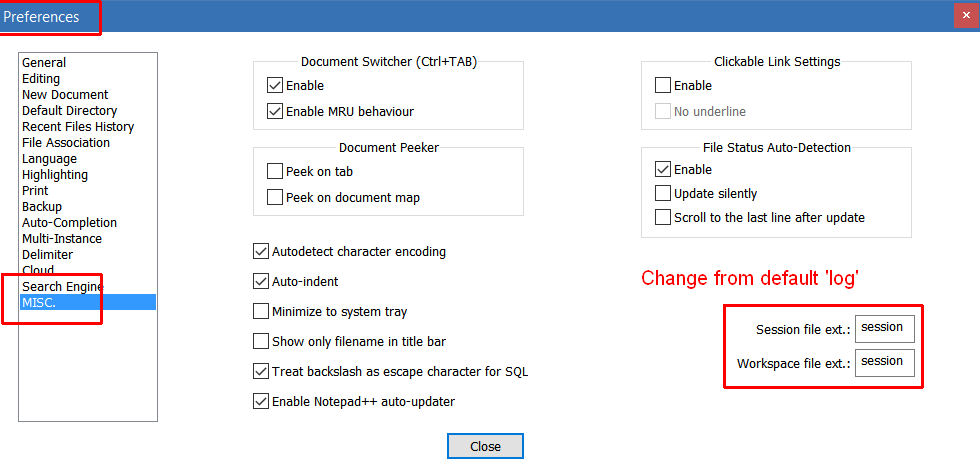
    To change the file extension NotePad++ uses for storing its own session information, go to the Settings, Preferences menu, and select “MISC”.

    On that screen, change “Session file ext” and “Workspace file ext” both to “log” (without leading period).

    Saving Your Editing Session

    You’ll probably want to save the editing session from time to time. Do this with File, Save Session. I put the date in my session file name, e.g. “notepad-plus-plus session 2018-02-05”.

    I also have Preferences set to automatically save the editing session and backup of all my (unsaved) edits. Do this with Settings, Preferences, Backup, put a checkmark in “Remember current session for next launch” and in “Enable session snapshot and periodic backup”.

    NotePad++ settings to save editing session


  • Web Site Development Tools (Windows and OS/X)

    Web Site Development Tools (Windows and OS/X)

    You really should use an FTP program. (No, don’t use your web hosting company’s HTML file browser. Not as fast, easy, reliable. Also, don’t edit plugin or theme files using WordPress built-in editor, you need a programmers editor, and then FTP.) Windows FileZilla or FileZilla Portable; OS/X FileZilla Client or just search for FileZilla on download.cnet.com, it’s completely free and well done. Find out from your hosting provider if you can connect securely (SFTP is most common).

    If you don’t already have a good programmers editor, get Notepad++, Notepad++ Portable, or for OS/X TextWrangler or BBEdit look like good choices (but I haven’t used either). TextWrangler vs BBEdit Comparison. Both are from the same company, so get TextWrangler (free) until you know you Need a feature in BBEdit.

    I have clients who use CoffeeCup Free HTML editor, or who have purchased the full version. Very nice. I haven’t used their other tools, I either already had free tools that work great, or wasn’t interested, but those tools all look well done. http://coffeecup.com/

    Having a development server lets you put only working pages on your public web site. I use XAMPP, a full free Apache server, with PHP, Perl, MySQL, and more, to run on your Windows computer. Even a portable version (install on a USB drive, have a web site development server on any Windows computer). Changes the development flow; instead of making updates with edit-upload-refresh browser-repeat, updates become edit-refresh browser. Small change, but it really adds up. Plus of course, it enforces developing and testing on one server, putting the working product on the production server. Develop WordPress plugins on your notebook, without crashing your production WordPress multi-site setup with 30 client blogs.

    If you want a full professional HTML/PHP/Javascript development environment with debugger, I’ve used NetBeans IDE and like it. Versions for Windows, OS/X and others. Get the “PHP Bundle” unless you know you are going to use other languages; you can always “add or remove packs later using the IDE’s Plugin Manager (Tools | Plugins)”. But unless I am working on something where stepping through the code to find bugs is what I need to do, I find I use NotePad++ most, perhaps just because I learned it first.

    For website development you have to have Firefox, with the Firebug addon. And it’s really good to have Google Chrome too, there are occasional CSS slight differences; mostly I’ve found I was sloppy with CSS sometimes, Chrome would show my sloppiness where Firefox would interpret my CSS to do what I meant. Chrome has the developer tools built in (the Inspector), that look a lot like Firebug; both let you see all the CSS statements are loaded for the element, which are over-ridden vs active, and adjust the CSS until you see the results you want. Both have a lot more, and that’s the feature you’ll use every time something on any page doesn’t look right.

    (I don’t use Internet Explorer except occasionally I quickly check my site displays in an older version; IE9 came on my new computer. Any version of IE older than that gets the same standards compliant, responsive, minimal HTML, formatted by CSS web site that I give to any smart phone, plus a very small IE-specific CSS file that makes it display simply; anyone using old IE today is used to web pages not looking great.)

    I use the Fireshot plugin for screen captures, Firefox/Chrome/IE. Excellent for communicating technical visual things with other people.

    Check out Xplorer2 for file browsing, much easier to have two panes in a single window, than using Windows Explorer. Use bookmarks for your favorite folders, instead of endlessly navigating up and down the tree of folders. (on download.cnet.com)

    For images, I use IrfanView for viewing and minor edits such as cropping and color balance. GIMP is the best free image editor; I barely know how to use it for simple things; graphic artists compare its features to PhotoShop.

    For keeping all my passwords for all those sites and banks and stores, settings for FTP sites, settings for databases, etc, I use KeePass Portable (on download.cnet.com)

    GMail and Google Hangouts have custom email accounts for free, view email from any web browser, forward GMail messages to any POP or IMAP account (e.g. on Thunderbird). Google Hangouts is connected to a GMail account, chat audio or webcam audio/video. Screen sharing, if you do any technical support you can guide the other person as you watch their screen. Completely free calls to any USA phone number.

    VLC Media Player: http://videolan.org/vlc excellent media player capable of reading most audio and video formats.

    7 Zip: http://7-zip.org An open source, free alternative to WinZip, has higher compression, great integration with Windows Explorer or xplorer2.

    Adobe Reader: http://get.adobe.com/reader the standard free PDF viewer.

    Audacity: http://audacity.sourceforge.net for recording & editing audio files, a lot of professional-level multi-track editing capabilities. Easy for trimming audio (e.g. the long pause from starting recording to start of talking), and making people who talked at different volumes sound the same. Open source.

    Evernote: http://evernote.com Scan your notes, receipts, etc, will OCR the content, save it, and make it searchable. Free.

    GIMP: http://gimp.org (free download)
    An open source program used to create & edit – free alternative to Photoshop.

    Open Office: http://openoffice.org (free download)
    Open source office suite software – word processing, spreadsheets, databases, presentations. Reads .csv files better than Microsoft Office (if a text field has multiple lines, MSOffice can’t read it).

    Panda Cloud Antivirus (download.cnet.com) or AVG: http://free.avg.com (free download)
    Anti-virus and anti-spyware protection.

    BrowserShots: http://browsershots.org (free online tool)
    Use this to see how your website look in various browsers, browser versions, operating systems.


    Other Software, Others Recommended

    CamStudio: http://camstudio.org (free download)
    Lets you record all screen & audio activity on your computer and create video files.

    CCleaner: http://ccleaner.com (free download)
    Removes unused files from your pc allowing Windows to run faster and freeing up space.

    Color Cop: http://colorcop.net (free online tool)
    A multi-purpose color picker – great for web designers and programmers.

    Down For Everyone: http://downforeveryoneorjustme.com (free online tool)
    Is your site down? Use this tool to see if your website is down for other people.

    DupeFree: http://dupefreepro.com (free download)
    Quickly check for duplicate content & LSI keywords.

    Give Away Of The Day: http://giveawayoftheday.com (free download)
    Unique site that offers you a free license digital product daily.

    Launchy: http://launchy.net (free download)
    Opens your documents, project files, folders, and bookmarks with just a few keystrokes .

    NicheBot Classic: http://nichebotclassic.com (free online tool)
    Online keyword research tool helps you target the correct keywords.

    OSWD: http://oswd.org/ (free downloads)
    Open Source Web Design offers free web design templates.

    PDF995: http://pdf995.com (free download)
    Use this tool to easily convert files to PSD format.

    PDF to Word Converter: http://pdftoword.com (free online tool)
    Easily create editable Word Doc files from PDF content – for legit purposes only! 🙂

    Pixie: http://nattyware.com/pixie.php (free download)
    Great for web designers – just point to a color and it will tell you the code value for that color.

    Private Label Rights Forum: http://resell-rights-weekly.com/forum (free online tool)
    Very helpful forum with lots of good info on internet marketing. Friendly members too.

    Resell Rights Weekly: http://resell-rights-weekly.com/ (free downloads)
    Free membership where you can download over 150 PLR/RR products for free.

    Roboform: http://roboform.com (free download)
    Easily & safely manage your passwords.

    ScreenHunter: http://wisdom-soft.com/sh/sh_free.htm (free download)
    Software that allows you to “capture” any part of your desktop, a window or full screen.

    ShortKeys: http://shortkeys.com (free download)
    Allows you to set up replacement text or paragraphs for any user defined keystrokes.

    SpyBot: http://safer-networking.org (free download)
    Effectively detects and removes spyware from your PC.

    Textpad: http://textpad.com (free download)
    A powerful text editor, for editing HTML code.

    TimeLeft: http://nestersoft.com/timeleft (free download)
    A countdown, reminder, clock, alarm clock, stopwatch, timer, & web countdown tool.

    Tweet Deck: http://tweetdeck.com (free download)
    Great for staying in touch with your contacts across Twitter, Facebook, MySpace and more.

    Kompozer: http://kompozer.net (free download)
    An easy to use WYSIWYG HTML editor. Less buggy than NVU (the project was picked up where NVU left off). But doesn’t know anything about PHP, won’t even open a PHP file (copy/paste results into your PHP file, in NotePad++.) As of 9/1/2013: “Latest development version: 0.8b3 (2010-02-28)”, so the project has halted. I recommend get the CoffeeCup Free HTML Editor, which displays the preview in a portion of the screen. Or if you really want to have WYSIWYG web editing, use WordPress!