Tag: malware

  • Security — Block Executing Files Uploaded in wp-content/

    One of the most common hacker techniques on WordPress sites is to find a plugin that has a vulnerability, and use that plugin to upload an initial malware file onto your site. The hackers would then access the malware file directly (bypassing WordPress) to install any malware they want, and/or access your database. Hackers know the most common place plugins would put files is in your WordPress wp-content/uploads/ folder. You must Block executing files in your wp-content folder.

    There are folders such as wp-content/plugins/ and wp-content/themes/ where you should allow files to execute (or your plugins and theme won’t work). You could even get more specific, and enable just the folders that each plugin specifically uses. However, that is more maintenance work for you; let a top security plugin (WordFence) take care of that for you.

    You Must Protect Your Uploads Folder

    This is a serious security issue. One reason you must do plugin updates frequently, is plugin authors (well, the good ones, at least) will patch security issues as soon as anyone informs them. That’s because there are security people who check the hacker’s bulletin boards for issues the hackers are bragging about, and alert the plugin authors.

    Here is an example of the kind of hacker junk you would see if your security software were capturing the information:

    errorstatuserrortriggerrequriquerystringuseragentcookiesallowheaderspostvariables
    403badRequestString:wpcontent/wp-content/plugins/work-the-flow-file-upload/public/assets/jQuery-File-Upload-9.5.0/server/php/index.php Mozilla/5.0 (Windows NT 6.1; rv:34.0) Gecko/20100101 Firefox/34.0 Accept: */* Accept-Encoding: gzip, deflate–31aa900beb174efa942c7958119e7885
    Content-Disposition:_form-data;_name–>”action”upload
    –31aa900beb174efa942c7958119e7885
    Content-Disposition: form-data; name=”files”; filename=”wp-classes.php”
    Content-Type: text/plain–31aa900beb174efa942c7958119e7885–
    403badRequestString:wpcontent/wp-content/plugins/work-the-flow-file-upload/public/assets/jQuery-File-Upload-9.5.0/server/php/index.php Mozilla/5.0 (Windows NT 6.1; rv:34.0) Gecko/20100101 Firefox/34.0 Accept: */* Accept-Encoding: gzip, deflate–f2ee98a757e94b9897a2c9b1a9ffa74f
    Content-Disposition:_form-data;_name–>”action”upload
    –f2ee98a757e94b9897a2c9b1a9ffa74f
    Content-Disposition: form-data; name=”files”; filename=”wp-classes.php”
    Content-Type: text/plain
    –f2ee98a757e94b9897a2c9b1a9ffa74f–

    What Do These Columns Mean?

    ErrorStatus 403 means “Forbidden”, the server or hosting account security rules are blocking this.

    ErrorStatus 404 means “File Not Found”, but there is nothing forbidding them accessing the file if it did exist.

    (If the requested file did exist, the hackers found a file that, at least in some version of the file, they think had a vulnerability; you wouldn’t see an error. Your site access log would have the file name with an ErrorStatus 200 “OK”, or 304 “Not Modified”.)

    ErrorTrigger is my security system letting me know what caused this to be blocked, in this case the use of “wp-content” in the Request String.

    Requri is the Request String, in this case beginning with “/wp-content/plugins/work-the-flow-file-upload”. So we guess that some version of the “Work The Flow File Upload” plugin had a vulnerability (because somebody, probably a hacker, was looking for it). We don’t know that the current version of the plugin is flawed, we know that hackers are interested in some version of the plugin.

    This plugin looks risky, in the description at https://wordpress.org/plugins/work-the-flow-file-upload/faq/ . However, know that all plugin authors can mess up and allow a hacker to gain access beyond the plugin author’s intentions.

    You want to specifically block hacker behavior, and only attempt to guess whether the plugin author is to be trusted while you decide whether to install a plugin.

    In this example, simply the attempt to access program files directly in wp-content/ is enough to conclude the request is by a hacker. Only images or music or video should ever be accessible directly, in wp-content/uploads or any sub-folders.

    Query String is, in these examples, not used. If you type a URL in, and it has a question mark in it, everything after the question mark is the query string. For the URL http://computerhelp.lc.lndo.site/wp-admin/post.php?post=abcde&action=edit the query string is “post=abcde&action=edit”.

    User Agent is used by all software that accesses web pages, letting the server know what capabilities or special formatting to use. Some hackers use web bots with unique names, “bragging” about who they are; these can be blocked by the user agent. In this case, it’s simply Firefox version 34. If there is the word “semalt” or “nutch” or “ImageSucker” in the User Agent, those are known baddies. You can find several lists of user agents, e.g. http://www.useragentstring.com

    Cookies aren’t set here. Hmm, if they were actually using WordPress, there would be several cookies set. So, this is another clue they are hackers.

    Allow Headers: These are meant to be used to let the server know what language the browser prefers, for example “I want to read the French version of the page if you have one, but if not I’ll take British English or any other version of English”. Similarly, the header is used to indicate if the browser can take compressed output. In this case, no foreign language preferences, and can use gzip or deflate for compression. Nothing to look at here, in this example, for security; this is useful for troubleshooting other types of problems.

    Post Variables: Every form you fill out on the Internet uses Post Variables (or rarely, the URL) to submit the data. In this case, the “Action” is “Upload” (the hacker is submitting a file for the server to upload), and the file name is “wp-classes.php”. Well, that looks like a legitimate file name, right? Wrong! This is being uploaded, which is a definite give-away, but if you didn’t catch the upload the hackers are hoping you won’t notice a file with a name that looks legitimate.

    How Do I Block Files Uploaded to wp-content/

    The easiest way is use a good security plugin such as WordFence (my preference) or iThemes Security (doesn’t include a Web Application Firewall in the free version, and sends useless emails to me, for example “file changes found”). Both will do far more than block uploading executable files and block executing files in wp-content. Definitely use either WordFence or iThemes Security

    If you want to modify your own .htaccess file? Don’t, it’s a lot more work! Okay, if you really want to, here’s what I use, including setting a server environment variable that my error page can read:

    SetEnvIf Request_URI (?i)^/wp-content/(.*)$  badRequestString=wpcontent
    SetEnvIf Request_URI (?i)^/wp-content/themes/(.*)\.(css|js|gif|jpg|jpeg|png|eot|svg|ttf|woff)$  !badRequestString
    SetEnvIf Request_URI (?i)^/wp-content/plugins/(.*)\.(css|js|gif|jpg|jpeg|png|eot|svg|ttf|woff)$  !badRequestString
    SetEnvIf Request_URI (?i)^/wp-content/uploads/(.*)\.flv$  !badRequestString
    SetEnvIf Request_URI (?i)^/wp-content/uploads/(.*)\.gif$  !badRequestString
    SetEnvIf Request_URI (?i)^/wp-content/uploads/(.*)\.jpg$  !badRequestString
    SetEnvIf Request_URI (?i)^/wp-content/uploads/(.*)\.jpeg$  !badRequestString
    SetEnvIf Request_URI (?i)^/wp-content/uploads/(.*)\.m4v$  !badRequestString
    SetEnvIf Request_URI (?i)^/wp-content/uploads/(.*)\.mp3$  !badRequestString
    SetEnvIf Request_URI (?i)^/wp-content/uploads/(.*)\.mpeg$  !badRequestString
    SetEnvIf Request_URI (?i)^/wp-content/uploads/(.*)\.mpg$  !badRequestString
    SetEnvIf Request_URI (?i)^/wp-content/uploads/(.*)\.png$  !badRequestString
    SetEnvIf Request_URI (?i)^/wp-content/uploads/(.*)\.pdf$  !badRequestString
    SetEnvIf Request_URI (?i)^/wp-content/uploads/(.*)\.txt$  !badRequestString
    SetEnvIf Request_URI (?i)^/wp-content/cache/supercache/(.*)$  !badRequestString
    Order Allow,Deny
    Allow from all
    Deny from env=badRequestString

    I make exceptions for style sheets and images and fonts in your theme folders and plugin folders; and for images, pdf files, text files, movies in your WordPress uploads folder (the WordPress Media Library folder). You also should allow cache files (I’m no longer using WP Super Cache, my hosting provider has better).

    Want Me to Check Your Security and Do Regular Maintenance?

    I do WordPress Ongoing Maintenance and Security for small business sites, making sure your site runs smoothly and is safe from most hackers. I can’t block the CIA (or Russian, Chinese, etc equivalent) from getting in, but I can thwart many hacking attempts at the WordPress and Plugin level. I have your site run quickly, and without errors. I can make sure your pages are showing up well in social media sites, including Facebook, Twitter, LinkedIn, Pinterest.

  • WordPress Ongoing Maintenance and Security

    WordPress Ongoing Maintenance and Security

    Having web sites run smoothly and safe from hackers, is important to me. It probably is important to you too, if you think about it a little. If you heard of any web site getting hacked, you know that could ruin your business day quickly.

    When you find out your site has been hacked, or your site stopped working so you can’t generate sales, you know you’re not going to be having a good day.

    After all, it’s easier to prevent problems like these, than to fix them…

    You have been told, already, you need to keep your software updated… You need to do regular backups… You know you should be blocking hackers, even if you don’t know how… Are you hoping you can last a little longer, letting maintenance slide?

    Preventing hackers from abusing your site is one very important part of running your web site, yet so many people and businesses just don’t have the time to do all the steps it takes. Even if you know how, or learn how, it’s not a good use of your time. You have better things to do!

    We all know your web site working, the way it should, helps to keep your reputation good. It also increases sales, right?

    Maintenance, done frequently, is important for your site.

    Latest updates to your WordPress software (and all other software) does several things, including fixing bugs that keep your site operating well, adding new features, and also fixing any security problems that have been discovered.

    Hackers know all those security problems. They study every security problem found world-wide, for how to take advantage of them.

    Updates Without Problems

    If an update does make a problem on your site, I know how to identify the problem very quickly, and get your site working again.

    However, I also prevent problems by testing plugin updates on a testing site, before doing the update on your site.

    I can replicate your site setup, plugins, theme, and content, on a testing site that is not accessible from the Internet. I will check the updates don’t introduce errors, whether with PHP or the WordPress database or other plugins.

    How Do You Get Your Site Secure From Hackers?

    Whether hackers want to post ads for their junk, or add links to steal traffic from you, or install malware to get your private information, or use your website hosting account to hack other sites, I hate hackers!

    Most businesses don’t have anyone who knows how to do maintenance and security checks properly. It’s complex. It takes time to learn, time to check everything each month. Most people could learn to do it themselves, if they were interested and had the time; but it’s just not your most fun and exciting thing to do. It’s not what you would best be spending your time on.

    (If that does sound good to you, contact me, I need more people helping have web sites run smoothly and be safe from hackers…)

    There are WordPress plugins that take care of many security steps. These have to be configured, and tested (some website hosting companies have non-standard server configurations, so not all security options will work on all hosting). [Note: If you’re on a Microsoft IIS server, which can’t use the most common WordPress security plugins, I feel for you, and I can help some…]

    You have to host your WordPress site on a company that has very strong security. Most of the best-known hosting companies are negligent about security; they don’t even keep the server software current; they don’t know WordPress security and troubleshooting; and they are not actively looking for ways to improve security. The best hosting companies have staff researching global security discussion boards for the latest hacker vulnerabilities, and put specific security rules in dedicated hardware installed between the Internet and the servers they host your site on.

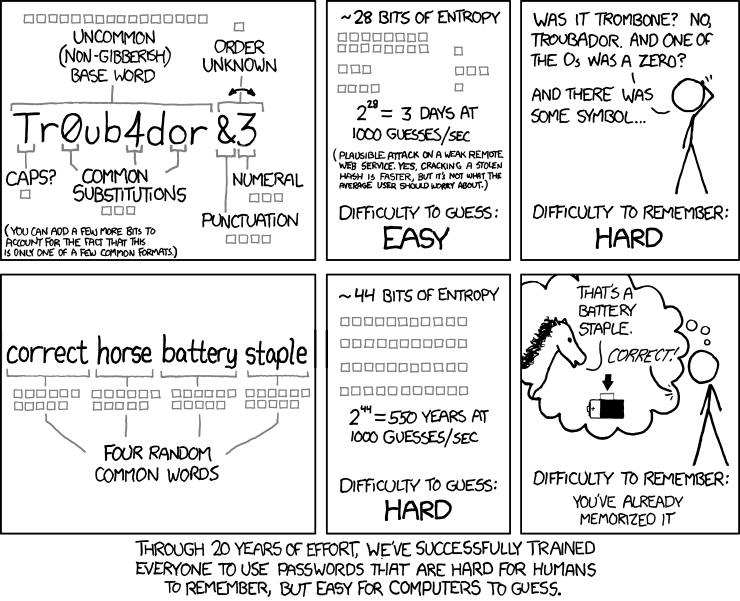
    Another important security step is using passwords for every login that are difficult for hackers to guess. And the way we’ve been taught to make “secure” passwords, for example substituting punctuation for vowels or adding a digit and punctuation mark at the end, are known by hackers too — and now those passwords are easily and quickly guessed. Long computer-generated passwords are highly secure, but impossible for people to remember and difficult to type. I can teach you how to make secure passwords both easy to remember and easy to type.

    What I Provide

    Whether you want to learn to do it yourself, or you want me to take care of your maintenance and site security, here is what I provide:

    • Set up your WordPress site so it runs well. This includes removing plugins you don’t use, or that are security risks, or haven’t been updated in ages; adding plugins that are essential to the your site running properly; setting up site security so the most common attacks are blocked
    • Keep your site security updated so it is much harder to hack (so you keep out most hackers, but I can’t stop government-level hacking groups).
    • Keep current and past backups so your site can be recovered if something goes wrong. You always need a good backup!
    • If you have more than one site, or know you want more sites, I can set up WordPress Multi-Site for you, easier for most companies than working with many single-site installations of WordPress.
    • Select good plugins and themes. I find well written plugins and themes, that work well, don’t slow your site down, and are unlikely to have security vulnerabilities that hackers could exploit. Tip: with the WordPress block editor, you most likely can use the default TwentyTwenty theme, or a child theme that simply specifies your colors.
    • Migrate your site to an excellent hosting company, if you think you might already be hacked, or if you don’t know your host has excellent security and technical support. A few hosting companies charge comparable amounts per year of hosting, but provide much better quality service and much better protection against hackers, than the normal hosting company. You almost certainly can’t find better hosting on your own, than the Arizona WordPress Meetup has found.
    • Work with your hosting company technical support, to resolve any issues, so you won’t have to. (You’ll be able to use them or me for technical support.)
    • Improve your marketing, including install and configure software for telling Facebook, Twitter, LinkedIn, Pinterest and other social media sites what you want them to display (text and image) when someone references a page on your site.
    • Find what would speed up your site, which your visitors will love and so will search engines.

    Contact me about your site maintenance and security and what you want, and we’ll know if we’re a good match.

    Improve Your WordPress Site

    Consistent monthly amount, low $20 setup charge.

    Most basic sites, the kinds most small businesses need, I charge only $80/month, whether everything is working (that’s my job) or I have to put in many hours fixing something. This includes the first month, when I have to setup or reconfigure and check everything.

    For enhancing your website, we’ll talk about what you need and I’ll let you know if I can include it in your monthly maintenance, or if it will cost extra; we’ll agree before I make the enhancements.

    No contract, and I ask you set up minimum 6 months auto-pay so you don’t have to remember. Cancel any time, simply don’t pay for the next month and please let me know; but I don’t give refunds, since each month I will keep your site working.

  • Is WordPress Multi-Site More or Less Secure?

    When looking at site security, is using WordPress Multi-Site more secure than using multiple installations of WordPress (in single-site mode) on the same hosting account? Is Multi-Site less secure? One thing to remember is that they are the same software with some configuration options changed. You don’t install “new software” to change from WordPress to WordPress Multi-Site; you add database tables for each new site, that’s all. The “network management” screen becomes available when you are managing multiple sites, there is an additional login permission (network admin); but the software is identical files on your server.

    “The more plugins you have, the more security issues you potentially open up. If 1 plugin from 1 site lets in hackers, they take over the entire set of sites you have installed. Then, secondly, you run into security issues that may be less common, but can happen when a person registers on 1 site and is able to cross over to another site with admin based security holes. If the core directory gets hacked, all websites hosted together will contain the hacked files, likely phishing sites, making a hackers job 30x more powerful and easy (if you had 30 sites).” http://sethmatics.com/2014/03/multisite-multisite-question/

    Let’s look at that, one item at a time.

    I completely agree with the first two sentences: “The more plugins you have, the more security issues you potentially open up. If 1 plugin from 1 site lets in hackers, they take over the entire set of sites you have installed [in your WordPress Multi-Site installation].”

    All plugins have direct access to the WordPress database manipulation functions. Same with all themes. Get plugins and themes only from major trusted sources (there are some free ones). Check the reviews. Check the support area. If there are reports of security problems, have they been addressed quickly? (Or, on the other side, are the reports debunked? Any site can have false negative reports…).

    Similar argument about plugins and themes having full access to the entire file structure, on your whole hosting account. (Apache has had secured cross-account access for several years. If your host has ancient server software, throw a fit! And, move to a host with good server software, proper update procedures, and always use web hosting with strong attention to security.)

    You must keep updated, every installation of WordPress on your hosting account, including that one tucked away in some folder that you have forgotten about, so go in FTP and look through all your folders. Update all WordPress core, plugins, and themes. If a plugin or theme is no longer being supported, you won’t be notified about it, so look (in FTP) for moldy plugins/themes. (Old doesn’t mean bad, it could be a well-written plugin that hasn’t needed any updates. But if it was written for an old major release of WordPress, e.g. if the current version is WordPress 4.4.1, a plugin written for WordPress 4.0 is suspect and don’t use a plugin written for WordPress 3.9.)

    This applies equally to WordPress in single-site or multi-site mode. (If you have 30 single sites, aren’t you highly likely to have most of the plugins on each of your sites?)

    One place where this is a concern is if you are a hosting reseller for many clients, and you let clients install plugins or themes. I advise hosting each on their own hosting account, to limit the affect one client can have on the others. Take advantage of the cross-account security the host provides! Many hosts will let you charge the clients, and you pay the host, but you pay for multiple accounts. Security is complex; few clients who would “have you take care of it for them” are competent to pick good plugins and themes. One of your services should be “you pick good plugins and themes for them”; but if not, host them separately.

    “secondly, you run into security issues that may be less common, but can happen when a person registers on 1 site and is able to cross over to another site with admin based security holes.”

    If a hacker gets into the network admin account of a multi-site installation, they don’t need to “cross over to another site” to affect all the sites on this installation; they already Are the admin. (WordPress multi-site admin permission is only on a single site, unlike the network admin.)

    Any (single-site or multi-site) WordPress installation is a possible source of infection of any other on the same hosting account. All PHP files installed on your account (and any other programming language, including JavaScript and Perl and C# etc.) have full access to the file system and databases on your account. (Unless you have a hosting account that has taken specific steps to block that, which would normally be implemented as you having separate accounts with single-billing and a management interface for all of them.)

    Passwords: Never use the password for your network administrator account, for anything else on the network. Never use your admin password for an account that only needs “editor” privileges. Use a password keeper software, such as KeePass or LastPass.

    Which is easier to infect? “Yes, no, sometimes, I don’t know”. Which has more impact? Since it’s possible that an infected installation won’t infect another installation on the same account, I’ll say an infected multi-site has bigger impact. Which is harder to clean? Since it’s possible that any infected installation can infect, and re-infect, every installation on your hosting account, and multi-site has fewer files that could be infected (but still several thousand files per installation), multi-site is easier. Recommendation: 1) don’t get infected, by having good security configuration (including WordPress iThemes Security or WordFence plugins, and Sucuri plugin) 2) have professionals clean your sites, e.g. Sucuri. Best time to have Sucuri on your site? Before you get hacked!

    What about another account on the same hosting company infecting your sites? If your hosting company doesn’t talk extensively and often about security, or “security” for them is only “backup diesel generators and security guard”, switch companies today. Server software that keeps hosting accounts completely isolated has been available for years, and is free and standard-issue and yet many hosting companies haven’t updated their software. The best companies have staff that Every Day check for globally-announced newly-found security holes, and add security rules. Check my page on selecting hosting providers, or my recommended do it yourself hosting, or WordPress Managed Hosting.

  • WordPress Security for People Without Technical WordPress Knowledge

    WordPress Security for People Without Technical WordPress Knowledge

    What I’ll Cover

    • What your hosting company should do for security
    • Making secure passwords for any web site (and why what you’ve been doing probably isn’t good enough)
    • Password Keepers
    • Limiting Login Attempts, and Keeping your User Name hidden
    • Why you should Always do Automatic Updates and what you risk if you don’t
    • Block hacker files from executing, in the most common folders
    • WordPress Security Plugins you Must use

    Hosting Company Should Provide Security (but most Do Not)

    There is a lot that your host should do, to make your hosting account and your WordPress sites secure. (And by far, most hosting companies are negligent.) You should ask the technical support people lots of tough questions about security, and talk to your technical friends, and other WordPress users, about security.

    If your host isn’t giving good answers to security questions, and doesn’t improve Fast, then move to another host as soon as you can. (Though there are things that you have to do, there are far more that only your host should do.) Security is too important and too technical for most people to be able to do properly themselves, and it isn’t your job, it is your hosts’ job.

    The best hosting companies have top-quality security hardware, and special software, to block hackers, and have someone putting about 20 hours a week into researching the global security discussion boards for the latest threats, and putting security rules in place to block them. You can’t do that yourself, unless you can put those 20-30 hours per week into learning and implementing it.

    Ask the best anti-hacker security companies, and at your local WordPress Meetup or WordCamp, for hosts they are satisfied with for excellent technical support and excellent security. There are a few web hosting companies I recommend.

    There are, however, many things that affect security that only you can do, and things that you can do if your host isn’t doing their job.

    Use Password Keepers and Very Strong Passwords

    The first of those is picking good passwords. Strong Passwords for WordPress and your Password Manager. This is essential. The ways we’ve been taught for decades, how to make passwords, as known to hackers, and using those rules makes passwords that are far to easy for hackers to guess.

    The “substitute a 3 for the first e” type of rule makes passwords that are hard for you to remember and hard to type, but easy for computers to guess. I teach you how to make passwords that are easy to remember, easy to type, and very hard for computers to guess (for your password keeper software and the few passwords you type often), and how to use computer-generated passwords stored in your password keeper for all other passwords.

    Using strong passwords is essential for Every site you log into. And each site should have a unique password, to reduce damage if a site’s data is stolen.

    Limit Login Attempts

    Given enough computers and time, hackers can guess any passwords that are not long strings of computer-generated random characters. So you should limit how many attempts they can make.

    There are WordPress plugins that limit the number of attempts at logging in, usually by IP address, within a short amount of time. These plugins also limit attempts at guessing passwords for the same user name. Violations result in being completely locked out of WordPress for a long time (60 minute lock-out for 5 attempts might be a good setting).

    Instead of being able to try the WordPress login form perhaps 100 to 1000 times every second, limit login attempts to 4 times every 5 minutes, and lock them out for an hour. (Hey, if you’re a lousy typist, with your long secure password, slow way down your third try and get it right!)

    I have seen over 100,000 attempts in a single night, on a small site where I deliberately left this open for a week. (With a WordPress Administrator user name that is not obvious, and a very strong password, you can test this. But block bad guys every way you can.)

    Suggested plugin: iThemes Security and/or WordFence are my overall favorite plugins for security. Some options you have to test if it works on your hosting account, or if it blocks something you need; and one of the options that will work on every WordPress site is the limit login attempts.

    WordFence is a direct competitor with iThemes Security and also excellent (if I were starting newly, I’d probably pick WordFence, it’s the most popular among technical people at WordPress Meetups).  I haven’t used it yet (simply because I know iThemes Security so well).

    Sucuri WP Plugin also has limiting logins as an option, excellent. (Works well with either iThemes Security or WordFence.) Among other features, has single-click run Sucuri Site Check on the current site.

    (Only use one plugin to limit logins, these plugins have this feature as an option.)

    Do Not Use (hasn’t been updated in over 4 years): Limit Login Attempts plugin, only compatible up to WordPress version 3.3.2. Even though it “seems to run” it still doesn’t check as many things as the plugins I mentioned. Any software that old is likely to stop working as WordPress changes.

    Periodically check for plugins that haven’t been updated in a long time. If they are actively being supported (check the support page for the plugin) and “keep working fine” that’s okay; but most often if a plugin isn’t being updated, the plugin author isn’t paying attention any more, and hackers can find holes that aren’t being filled.

    If you have a smart phone or tablet, definitely look into “2-Factor Authentication”, where you type a password and a short 2nd password delivered to your other device. Clef Two-Factor Authentication and Google Authenticator are excellent.

    Keep Your Administrator Login Name Secure

    Password Crackers expect your login name to be the WordPress default, “admin”. Some will look at pages and posts on your site, find who the author is, and try that for the login name. They also know that many “one button install” programs will take your hosting account name or domain name and put that in as your WordPress login. Don’t Do It!

    You should have one login for everyday editing pages (with Editor privileges), and a different login for administrative tasks such as updating and installing themes (with Administrator or Network Administrator privileges). I have the Profile, Admin Color Scheme set to Sunrise for the administrator user, so I can tell at a glance and remember to log out.

    It is easy for anyone to find the name for each users, for example https://molten-salt-reactor.lc.lndo.site/?author=1 shows the posts for the 1st author (?author=2, =3, etc.) The “display name” is shown on the top of the page. So, in the Profile screen, specify a Nickname, and for “Display name publicly as…”, select the nickname. Now the Author page, and themes that display the author of a page or post, aren’t giving away your login name.

    To change the administrator login name, use iThemes Security, which has a single-button way to do this; or you can log in as administrator, and create another user with administrator permissions. Then log in with that new user, and delete the user with the default login name.

    Block Logins at the Server Level

    Loading WordPress 100,000 extra times in a night is work for your server, taking up page loads and bandwidth that your hosting account might charge extra for.

    That many page loads at maximum speed slows your entire site down, for your actual visitors.

    You can put a server password on the WordPress login page. Minimal work for the server, easy to implement. Ask your technical person to put it in your .htaccess file. This doesn’t need to be a secure password, as these are bots not people trying 100,000 times; a simple riddle will work. Prompt “say hello there” with user name hello and password there. This adds security simply through being an extra step that is used on few sites.

    This double login is an extra step for you, but blocks a lot of nonsense. However, you wouldn’t want this for a membership site, where every member has to log in (unless of course you are teaching your members about security, right?)

    Automatic Updates

    I advise always doing WordPress theme and plugin updates quickly, at least every week. Then, after the theme and plugin updates, do any WordPress core updates.

    There are sometimes problems with a WordPress or a plugin update. Extremely rarely, that could take your site down. Less rarely, an important feature of a plugin would not work, especially if the plugin was written with out-dated programming practices.

    If there are important security fixes, WordPress will release the fix as soon as it is ready and passes their testing, but before all plugin authors have had several days to make sure their plugin works with the “pre-release” version of the security update.

    If you have someone on staff whose job includes doing all updates promptly after they are released but after testing on your important site (every day, no vacations, someone does this), you can keep doing WordPress and plugin and theme updates that way.

    For everyone else, keep automatic updates on. Even if there is a problem with a plugin, getting the update for the plugin in a few days (or replacing the plugin) is much less work than removing a hack from your site; much less damage to your reputation; much less inconvenience for your customers.

    Security first, then “backwards compatibility”.

    To minimize the chance of problems, I recommend updating your plugins and themes, and then update WordPress. Many of those plugin and theme updates will be to correct any problems with the new version of WordPress.

    Hackers love sites where updates were “forgotten about”, and still haven’t been done months or years after they were released. That means you have to update all of those “temporary” or “test” installations you have in your hosting account, too…

    Prevent Execution of PHP in WP-Content/Uploads

    Many hackers target plugins that have an “upload file” feature. (For example, upload images for a slider; or upload settings from the same plugin on another site, to make this site have the same settings.) Very useful in the plugin, but many plugin authors can’t check their work for security holes nearly as well as the hackers can. Once uploaded as a PHP file, or renamed to be one, the hackers know what location the plugin puts uploaded files in, and can execute it directly by the URL (bypassing loading WordPress, and any security in WordPress).

    This requires edits to your main .htaccess file and/or a .htaccess file in the wp-content/uploads folder. Most security plugins that have this feature will tell you what to paste in, if your .htaccess file is write protected (a very good idea). Keep your .htaccess files with permission 444, except 644 for the few minutes you are making a change.

    Sucuri WP Plugin has many WordPress “hardening” features, including blocking execution of files in vulnerable folders.

    Block Access to Critical Files

    Your .htaccess file, wp-config.php, and your site backups are files that should never be able to be accessed from the browser.

    Sucuri plugin (among others) blocks .htaccess and wp-config.php.

    Your backup software should create a .htaccess file in the backups folder (if you save it on the server, for example to FTP it to your computer; many backup programs will save the backup on other sites, e.g. DropBox or Amazon S3).

    FTP and XMLRPC Security

    Disable “anonymous FTP”. There was a use for it in 1980, not today. But many hosts have it enabled. Turn It Off.

    FTP doesn’t have a “limit logins” feature. Use the longest random password your host allows. If the host only allows 8 characters, throw a “lousy security tantrum”.

    XMLRPC attacks are fairly new. You can log in and post via XMLRPC. It reports back if your login was successful. Until 2014, this article says, none of the login limit plugins were checking this. Make sure yours does, if you truly need XMLRPC (I don’t). Of course, also make sure you have your password for XMLRPC is very strong (it is probably the same as your administrator password, but you can assign which users can use XMLRPC).

    WordPress Security Plugins

    iThemes Security is excellent.

    WordFence also excellent. You must install and configure either iThemes Security or WordFence or both.

    Block Bad Queries Pro (or free version, which has the same security rules but less nice user interface). If you don’t have the technical skill to edit .htaccess to paste in the suggested text, and don’t have a friend who does, this plugin is absolutely simple. It takes the hacker-phrases most often used, and blocks them. If you have .htaccess skills, or if you want to understand what Block Bad Queries does, read Building the 5G Blacklist and the 6G Blacklist is coming out soon.

    No conflicts with iThemes Security or Sucuri (5G Blacklist and iThemes and Sucuri do their security before WordPress loads, and if you have several of these loaded, the first one with a block for a specific “baddie” stops it completely).

    Get clean with Sucuri — this company is the expert at removing malware from WordPress sites, and has a firewall to block getting malware. They also have a free Sucuri Security Plugin – Auditing, Malware Scanner and Security Hardening. Also, frequently run their free quick scan of your site.

    What’s Next?

    Please leave questions and comments. I’ll update this post as I can; I’ll also do some step-by-step instructions for pieces of this puzzle.

  • Protect Yourself from Brute Force Login Attacks

    If you don’t have a secret user name and a very good password, hackers can easily log into your WordPress account as you.

    If you have created a password that you can remember, one that you have a chance of typing correctly, well, hackers already know the tricks people use to make a password, thinking it is “secure”. It is Not. With published lists of the top 10,000 passwords (that’s actually small, there are lists with up to 14 million unique passwords that people really used), and some readily available free software to try variations of those passwords, and enough time (a few hours to a few days), they have over 90% odds they will know your password.

    I’m going to give you some simple yet very effective ways to stop them. Ways to stop the numerous attempts at your login form. Ways to generate passwords the hackers can’t guess, even if they stole a copy of your database and work on it from home. Ways to make passwords you can remember that the hackers can’t guess. (more…)

  • Security for Hosting Accounts, for WordPress Sites

    There are many things you can do to make WordPress itself more secure, and I’ll cover those in another post.

    The first level of security for WordPress should be your hosting account, done at the server. But with almost all hosting providers, you have to install security; good security almost never comes with the hosting account — most hosting providers don’t know security, they know how to provide an account that matches everyone’s basic needs.

    There are major hosting companies that literally think they have good security because they have an armed guard outside their server room. Companies like these tend to have outdated server software; haven’t installed dedicated security software and dedicated someone to monitoring international security discussion groups for issues, haven’t done anything to counter these new issues.

    A few companies, such as Sucuri can help you identify if your site is compromised, and clean up the malware. You still should have good security in place, to prevent as many attacks as possible.

    You will likely have to make some exceptions to any security system, to allow requests for some of your pages. For example, ‘administrator’ is a common word targeted by hackers (for example, trying to get into database administrator tools), but also is legitimate for several non-computer web site topics.

    You can block bad people from accessing your site through bad characters or phrases in several places in the URL, (including some you might not expect); or through bad cookies, that you might not even see.

    You could detect them by the User Agent they use (though the smarter ones pretend they use a normal browser, many use the User Agent to brag about who they are).

    You could try to block them by their IP address, but hackers know how to constantly change their IP address, so this is a wasteful approach. You would have to constantly be updating your ‘banned IP’ list, and having your server check through the huge list for every request, just slows down your entire web site.

    Security experts have identified some very common methods of attacks, and nuisances that waste your server resources — and come up with very effective ways to block them.

    I added having my server keep a log of what pages where blocked And Why (what phrase or trick was thwarted by my security systems, and what part of the security script caught their foul deed) — so if the security is blocking requests for a real page on your site, you can easily make an exception to the rule, leaving the protection in place for all other pages on your sites.

    This is a big deal. When an important part of your site is blocked, you might not even know about it. Then you want to fix it quickly, not having to somehow guess right (literally, in the past I had to try removing large pieces of a security system, to hope one of the pieces was to blame, not a combination of security rules). Trying to fix a problem ‘blind’, in a very detailed technical part of your web site, under pressure, is No Fun.

    I’ll be writing how to stop each type of bad trick hackers play, so you understand how it works; and if you know .htaccess fairly well you can implement the security and reporting yourself.

    If you don’t know .htaccess well, or just want me to take care of it for you, contact me and I can probably set it up for you.

    You don’t have to leave security for your WordPress sites up to luck. Stop those bad people before they damage your site.