Tag: Linux Mint

  • Why Your Computer’s Apps Can See Your Secrets (And an Easy Way to Fix It)

    As a creator, coach, or entrepreneur, your computer is your digital office. It holds everything: client notes, financial records, passwords, and private SSH keys.

    For years, we operated under a comforting assumption: If I trust the company that made this app, I trust the app completely.

    Unfortunately, modern software has changed. Today, applications aren’t written by a single team—they are assembled from thousands of third-party pieces built by anonymous developers. And a new category of tools—autonomous AI coding assistants—can write and execute their own terminal commands on the fly.

    If an AI tool gets confused, or if a background component is compromised, standard computer permissions allow it to look at any file your user account owns.

    The Good News: You Don’t Need a Computer Science Degree to Stay Safe

    You don’t need to write complex security rules or stress over system files. You can protect your workspace using two effortless strategies:

    Strategy 1: Stick to Sandboxed App Stores (Flatpaks & Snaps)

    When installing desktop software on Linux Mint or Ubuntu, check if the app is available as a Flatpak or Snap in your software center.

    • Why it helps: These formats automatically place apps inside an invisible “sandbox”. A sandboxed text editor or media player literally cannot see your private documents or keys because the operating system hides them.

    Strategy 2: Use a Simple Startup Shield for Autonomous AI Tools

    For advanced AI coding software that needs to look at your project folders but nothing else, you can wrap its launch command in a tiny security script (often called a sandbox wrapper).

    Instead of letting an AI tool roam free across your entire home directory, a simple launcher script restricts it to a single designated folder (like ~/sites/) while cutting off access to sensitive areas like your .ssh or Documents folders.

    By taking these small steps, you keep your digital workspace secure without getting bogged down by technical headaches!

    How You Can Make a Sandbox Wrapper for Your Software That Needs A Startup Shield

    Here is a copy-and-paste prompt you can give to an assistant, a tech-savvy employee, or use yourself with Gemini.

    This prompt instructs Gemini to act as a Linux security guide, ask a few quick questions about your specific setup, and then output a ready-to-run Bubblewrap (bwrap) script tailored precisely to your computer.

    Act as a Linux security expert and systems administrator. I want to create a secure Bubblewrap (bwrap) sandbox script for a desktop application on Linux (such as an AI coding tool) to restrict it from accessing sensitive folders like ~/.ssh, ~/Documents, or ~/.aws, while allowing it to access a specific project folder, and its settings folder.
    
    To help me write the exact custom Bash script I need, please ask me the following 4 questions:
    1. What is the exact command or name of the application I want to sandbox (e.g., devin-desktop)?
    2. What specific folder(s) does the application need permission to read and write to (e.g., ~/sites/, and its own settings)?
    3. What is my Linux username?
    4. Are there any other specific folders I want to completely hide or block from this app?
    
    Once I answer those questions, write a complete, copy-pasteable Bash script using bwrap that I can save into my ~/bin/ folder, make executable, and run safely.
  • Change Dolphin’s Application Icon, in Linux Mint

    Change Dolphin’s Application Icon, in Linux Mint

    This technique should work with most applications in Linux Mint. If you are using a different variety of Linux, you may have to adjust the exact steps.

    Dolphin file manager is excellent. Two panels for easily copying or moving files. Multiple tabs to have file listing of multiple folders. Save the current tabs and panels when you exit. No more having to tediously browse to your favorite folders. Open your Terminal in the current folder.

    But the Dolphin icon uses the identical icon as the default Mint file manager. While there are a few things where I need to use File Manager (Nemo), I do want to have icons where I launch the program I want.

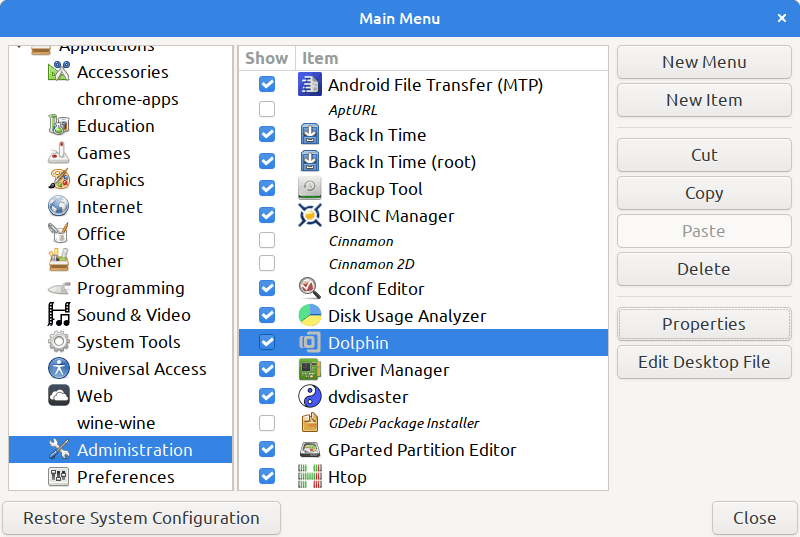
    Edit the Application Menu

    Right-click on your Start icon. (It’s the icon you’d click instead of pressing your Windows or Apple Clover key), select “Edit Menu”.

    Linux Mint's Start menu. Click the icon on the bottom left of your screen to open it, or press your Windows Flag or Apple Clover key.
    Linux Mint’s Start menu. Click the icon on the bottom left of your screen to open it, or press your Windows Flag or Apple Clover key.
    Linux Mint's application menu editor
    Linux Mint’s application Menu Editor

    Click on the Properties button. From there, click on the application’s icon in the top-left corner. Select whatever icon you like from the list. (I used the existing “add-files-to-archive-symbolic” icon.)

    How to Add Icons to the Icon List

    I don’t know yet. I looked up “linux mint change an application icon” and there are many sites explaining how. You can install an icon that you made, in formats like svg or png.

    Then I got distracted looking at sets of icons that you can install, and many of them look pretty, but didn’t see any where I could install a single icon.

    Tip: drag the top of your Start menu up, and you can see more icons in the left-most edge.

    Linux Mint start menu, with changed icon for Dolphin just below the icon for Files.

    The changed icon shows in other places, such as the Alt-Tab menu and the bottom-of-screen Applications list.

  • How to Change Tooltip Colors in Kate Editor and Other QT5-based Programs

    Have you ever struggled to read tooltips in the Kate editor because of illegible colors, such as black text on a dark gray background? You’re not alone. Many find the default setting less than ideal, or hard to read. But there’s good news – with a few tweaks, you can customize these colors to suit your preferences.

    Kate is a well-known Linux text editor, great for handling “ordinary text” files. It’s not the prime choice for programming—where editors like Visual Studio Code excel with their syntax highlighting and parameter prompting—but it’s a solid option for everyday editing.

    Adjusting Kate’s UI Elements with the QT5 Configuration Tool

    Several user interface elements for Kate, and other QT5-based applications, are governed by the “QT5 Configuration Tool”. Original setting files are locked, but you can copy and customize them to your liking.

    • Open the QT5 Configuration Tool.
    • Click the Style Sheets tab.
    • Click on the style name you wish to alter, like “tooltip-simple.qss”.
    • Click the “View” button, select all text, copy it, and then click “Create” to paste and edit your new style.

    You’ll want to remove the lines that dictate the tooltip background and text color. Mine had this (yeah, weird, I have no idea how it happened):

    background: QLinearGradient(x1: 0, y1: 0, x2: 1, y2: 1, stop: 0 palette(window), stop: 1 palette(alternate-window));

    and:

    color: palette(text);

    Substitute your preferred CSS colors. In this example, I use white text on a dark cerulean background.

    I also specified the font size for the tooltips. This should be in pixels (using ems didn’t work), e.g. 16px or 18px.

    Here is the entire text of the setting file:

    QToolTip{
    
      /* GL colors, white on Primary Darker - Calm Cerulean */
      color: #ffffff;
      background: #284568;  
      font-size: 16px;
    
      border-radius: 3px;
      border: 1px solid palette(highlight);
      padding: 1px;
    }

    Here is another example, taken from traynotificationsimple.qss (since traynotificationsimple.qss styles Balloon tips not Tool tips, just copy the color lines):

    background-color: palette(base);
    color: palette(text);

    I saved the new settings with my initials at the beginning: “GL-tooltip-simple.qss”

    After saving your new settings, click to put a checkmark by your new Setting.

    You may need to restart any QT5-based applications for the changes to take effect.

    Remember: It’s about making your work environment as comfortable and personalized as possible. With these customizations, you can ensure that your tools work for you, not against you.

  • Troubleshooting Invalid Characters in Website Forms

    I found this when I had trouble pasting a phone number from Google Voice, into Zoho Contacts.

    4158826300 typed in, works
    415-882-6300 typed in, works
    (415) 882-6300 typed in, works
    (415) 882-6300‬ pasted from Google Voice, invalid (has UTF-8 characters)
    415-882-6300, pasted from Google Voice, invalid (it’s not the parentheses)
    (415) 882-6300 pasted into Atom from Google Voice, copied from Atom into the form, invalid
    +14158826300 Google Voice, right-click Copy Phone Number, works
    (415) 882-6300 from Google Voice, Edit, select, paste into my programmer’s editor, copy to the form, works

    Change the Website Form

    The website form should either use UTF-8 (or perhaps UTF-16) encoding for the characters.

    If you are the developer of the website, you can easily specify what encoding to use.

    Then, with HTML5 you can specify what character ranges are acceptible, and how many characters are allowed. For example, for a City field, only allow the characters that make sense for the language of your website, and only allow probably 30 characters. Maybe you only allow the Latin alphabet characters (used in Europe and North America and South America, but most other languages in the world that aren’t based on Latin have “Latin spellings”).

    Using JavaScript to validate form entries is more complex, and harder to debug and maintain. I suggest only using JavaScript for validation after the HTML5 validation is done.

    But don’t reject a form entry for characters that are not visible to your users. That is very bad user interface.

    Are There Simple Filter Tools to Show Lines with Invalid Characters?

    How to Find Non-ASCII Characters in Text Files in Linux | Baeldung on Linux — https://www.baeldung.com/linux/find-non-ascii-chars is good, shows a lot of Linux commands for checking file contents.

    grep --color='auto' -n "[^[:alnum:]]" junk.txt shows only (, ), and – as not alphanumeric. So, that isn’t a valid test for these stray characters.

    (The Baeldung page has an option that doesn’t work on my Linux Mint: grep --color='auto' -n "[^[:ascii:]]" the “ascii” isn’t known, use alnum instead.)

    grep --color='auto' -P -n "[^\x00-\x7F]" junk.txt also shows only the line(s) that has irregular characters, but doesn’t show you what those characters are.

    Similarly, perl -ne 'print if /[^[:ascii:]]/' junk.txt doesn’t show what those characters are.

    On my computer, pcregrep --color='auto' -n "[^[:ascii:]]" junk.txt gives “Command ‘pcregrep’ not found, but can be installed with: sudo apt install pcregrep”.

    How Do You See The “Invisible” Characters?

    Linux Mint (and many other Linux varieties), have a utility to show the hexadecimal dump of a file.

    hd junk.txt
    00000000 34 31 35 38 38 32 36 33 30 30 20 77 6f 72 6b 73 |4158826300 works|
    00000010 0a 34 31 35 2d 38 38 32 2d 36 33 30 30 20 77 6f |.415-882-6300 wo|
    00000020 72 6b 73 0a e2 80 aa 28 34 31 35 29 20 38 38 32 |rks….(415) 882|
    00000030 2d 36 33 30 30 e2 80 ac 20 63 6f 70 69 65 64 20 |-6300… copied |
    00000040 66 72 6f 6d 20 47 6f 6f 67 6c 65 20 56 6f 69 63 |from Google Voic|
    00000050 65 2c 20 69 6e 76 61 6c 69 64 0a e2 80 aa 28 34 |e, invalid….(4|
    00000060 31 35 29 20 38 38 32 2d 36 33 30 30 e2 80 ac 20 |15) 882-6300… |
    00000070 70 61 73 74 65 64 20 68 65 72 65 20 66 72 6f 6d |pasted here from|
    00000080 20 47 6f 6f 67 6c 65 20 56 6f 69 63 65 2c 20 63 | Google Voice, c|
    00000090 6f 70 69 65 64 20 66 72 6f 6d 20 68 65 72 65 2c |opied from here,|
    000000a0 20 69 6e 76 61 6c 69 64 0a 28 34 31 35 29 20 38 | invalid.(415) 8|

    Atom in UTF-8 encoding doesn’t show the characters. Setting Atom to “Windows 1252” encoding, shows the invalid characters. On the bottom toolbar in Atom, right of where it shows either “LF” or “CRLF” (for the type of line endings), is the character encoding, probably shows “UTF-8”.

    In Atom, those stray characters display like this in Windows 1252 encoding:

    (415) 882-6300‬ pasted from Google Voice, invalid

    The invalid characters, from a site that uses UTF-8 encoding, that don’t work pasted into that form, as hexadecimal characters are: e2 80 ac

    Is The Problem the Page Encoding?

    Google Voice, and Zoho Mail, and Zoho Contacts, all have content-type text/html; charset=utf-8 encoding.

    So, it isn’t the Zoho Contacts form’s encoding, it’s the JavaScript they use for testing for valid phone numbers.

    How to Convert Text File Encoding

    Bash/Linux Find non-ASCII character in a .txt file and replace it with an ASCII character – Stack Overflow — https://stackoverflow.com/questions/44663963/bash-linux-find-non-ascii-character-in-a-txt-file-and-replace-it-with-an-ascii has a good way to convert multiple-byte formats to a different encoding that is single-byte.

    “I think the problem is that È in utf-8 is a multibyte character consisting of \xc3 and \x88 and sed can’t seem to deal with that for whatever reason… Another method could be to convert the whole file using iconv. iso-8859-15 (latin-9) is one example of single-byte character encoding. The command to convert the file using iconv would be:

    iconv -f utf-8 -t iso-8859-15 -o <converted-file> <input-file>

    Atom Changing File Formats

    Note: Opening a file in Atom in UTF-8 mode, then switching to “Windows 1252” encoding and saving it, then switching back to UTF-8, changes the non-ASCII characters.

  • Installing Shutter on Linux Mint, without message about Goo::Canvas

    Installing Shutter on Linux Mint, without message about Goo::Canvas

    Shutter is a good screen capture program, that also lets you edit the screen. For example, you can draw boxes, add text, add arrows, blank out sensitive information.

    For some versions of Linux Mint (for example Linux Mint 19.3), when you install Shutter from the Software Manager, you get a message in Shutter that the edit functions require a library to be installed, Goo::Canvas.

    I first found the solution in How to Install Shutter on Linux to Take Screenshots but that had out-dated information about the repository to use.

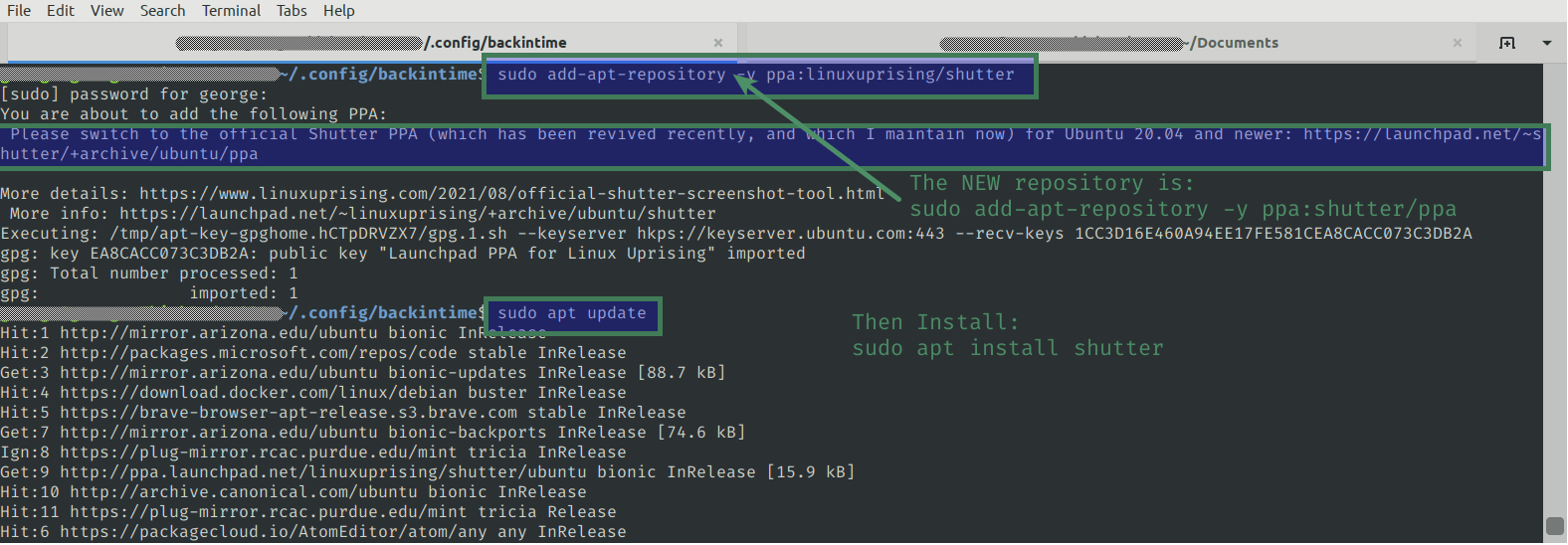
    When you install from the old repository you get this message:

    Please switch to the official Shutter PPA (which has been revived recently, and which I maintain now) for Ubuntu 20.04 and newer: https://launchpad.net/~shutter/+archive/ubuntu/ppa

    More details: https://www.linuxuprising.com/2021/08/official-shutter-screenshot-tool.html
     More info: https://launchpad.net/~linuxuprising/+archive/ubuntu/shutter
    Author

    https://launchpad.net/~shutter/+archive/ubuntu/ppa says the new command to add the updated repository is
    sudo add-apt-repository ppa:shutter/ppa

    Here’s how to get the editing functions of Shutter to work, with the updated repository.

    Installing Shutter

    Open your Terminal.

    sudo add-apt-repository -y ppa:shutter/ppa

    Then update your system’s repository list:
    sudo apt update

    Now you are ready to install Shutter.

    sudo apt install shutter

    Remove the Old Repository from Your Computer

    sudo add-apt-repository -r ppa:linuxuprising/shutter

    Note that this remove option (the -r ) doesn’t show in man add-apt-repository, but it does show in add-apt-repository --help