You need a very secure password to use as the master password for your password keeper software, and for your computer login. There may be a very few sites that you log into often that you might think can use a typed password, but avoid that.
These few passwords have to be very easy to remember and easy for you to type. But they have to be difficult for computers to guess, in the rest of your lifetime.
More security steps you can take, beyond good passwords: WordPress Security for People Without Technical WordPress Knowledge.
Why do you need a Password Phrase, instead of the way you’ve been making a password for years? Because hackers know how to guess those passwords.
See Strong Passwords for WordPress and Your Password Keeper.
What I’m Going to Cover:
- How to make a truly secure password phrase for your password keeper master password, and for the few passwords you type frequently. This must be hard for hackers to guess, easy for you to remember and easy for you to type;
- How to pick a password phrase in a way you will remember it in seconds or minutes.
You must use very strong passwords on your WordPress site (and you must have an SSL certificate, to prevent your WordPress login from being sent as plain text; many excellent hosting companies like SiteGround provide SSL certificates for free). You should use very strong passwords on every web site you use, and every password should be different.
WordPress encrypts your passwords, and the encryption is strong enough hackers can’t break the encryption. But hackers know the way we’ve all been taught to make “secure” passwords, and that lets them automate scripts that guess your passwords.
Making a Secure Password
One way of making passwords that are actually secure, but you’ll never be able to remember, is use a password generator. Use the password generator in a password keeping software, and all you have to remember is the “master password” for the password keeper.
“A password manager is just software that creates, stores and organizes all your passwords for your computers, websites, applications and networks.”
http://thehackernews.com/2016/07/best-password-manager.html
I give you my recommendations on how to select which password keeper you want to use, in Strong Passwords for WordPress and Your Password Keeper. I’m using LastPass, since it is easy to use, and it works on Windows, OS/X, Linux, iOS, and Android.
The password keeper software will remember all your user names, account numbers, and passwords, plus any other information you keep as notes for that site. You can also use your password keeper for securely storing bank account numbers, credit cards, library cards, WiFi passwords, serial numbers, registration numbers, router configuration details, etc.
The only passwords you should frequently type are the ones for your computer and for your password keeper, your phone pin, and your bank card pin. All others should be pasted from your password keeper.
Basics of Password Security
For each site, use the longest password the site allows, up to maybe 60 characters. Your password keeper will let you copy/paste the password, so you don’t have to ever type it. Most password keepers also have an option to simply fill in all the login information, skipping the copy/paste.
(As long as it is a random computer-generated password, 60 characters is “lifetime strong”.)
Never use a password on more than one site. If someone gets your password at your favorite pizza place, and orders a pizza “for carry out” on your card, you don’t want them also able to use your video streaming account or your bank, right? Many hacks on simple websites are to get 1) the password or 2) the password-making rule, for every registered user.
Why? Because hackers know most people use the “same or similar” password on all websites.
LastPass and many other password keepers will even warn you to change passwords if a password is used on more than one site.
Old Rules to Make “Secure” Passwords Are Too Easy to Guess
The rules we’ve been told by technical support people for decades, make passwords that are not secure any more. The main reason is simple: there is software that can make billions of guesses of your password per minute, and hackers using it know all the “clever” rules people come up with for making passwords.
The rules we’ve been taught for years that should make a secure password, aren’t good enough. Those rules actually limit the possible passwords a hacker’s software would have to check. For example, the “word plus number plus punctuation” rule makes a password that is basically as easy to guess as a three-letter password; the word is in the dictionary, plus about 100 characters for all letters and punctuation, twice). Hackers know all the “substitute a number instead of a vowel” rules too, such as “3 for m or 0 for o (zero for oh)”, and that is easier for computers to check than it is for you to remember.
Even 8 character random passwords can be guessed in under a day, if they are looking for Your password and have stolen the website’s database. While most hackers are looking for the easy targets on a website, you need a password that can’t be guessed during your lifetime!
Making Secure Passwords You Can Remember

You have to remember your password keeper’s master password. Forget it and all your other passwords are encrypted in a way that can not be broken (unless of course your master password is so weak it can be guessed by password cracking software).
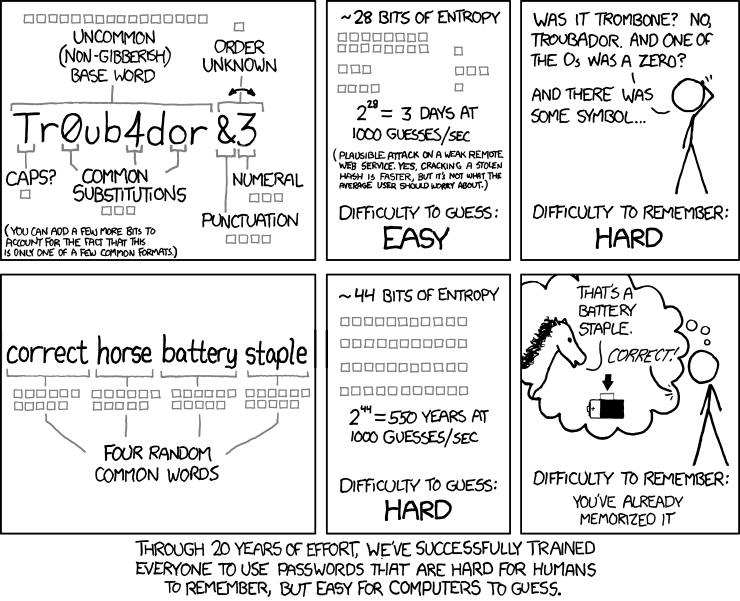
The comments on the original correct horse battery staple page point out that if all four words you pick are in the 5,000 most popular English words, then you should calculate the time it takes the password software to go through 625,000,000,000,000 (5000 x 5000 x 5000 x 5000) combinations.
There are 60 seconds * 60 minutes * 24 hours = 86,400 seconds/day. At 8 billion password guesses per second, they have your “four common words” password in about 1 day, using a “wimpy” 2012 computer.
Obviously one way to make your password (pass phrase) more secure is use at least one word that is not in that tiny dictionary of most popular words. Engineering, scientific, medical, or any other more obscure words will do; but they have to be easy for you to remember, and remember how to spell. (Or, remember consistently how to mis-spell). Common foreign language words are also in hacker dictionaries, but less common ones are good to use; pick a language that is not common in the websites you use.
Another way to make your password more secure is use 6-8 words. But remembering 4 random words is hard enough for most people. (Tip: get one of the associative memory courses, such as MegaMemory.) If you have a system memorized already, okay. If you have the type of memory where you know every move of every chess game Kasparov ever played, good for you, use it. But if you don’t, here’s how.
Making a Memorable Secure Password Phrase
I think the proper person for teaching this task is Mary Poppins:
Now, pick a “mini-scene”, for example the robin or the mirror, and describe it in 6-8 words. For this mini-scene, perhaps “robin feathering fly mary whistle duet” (a robin feathering his nest flies to Mary Poppins and they whistle a duet) but don’t use that, make your own story. As long as you pick a vivid, memorable mini-scene, the “story” you make up will be completely memorable to you, but not easy for anyone to guess, even if they know what movie you love.
- Ignore any 1-3 letter words unless important.
- Don’t take a lyric or famous quote, as those could be in the “dictionary” of some hackers. “spoonful of sugar” is a lousy password, “spoonful of sugar to help the medicine go down” is so famous it’s not much better than “spoonful1964”
- No punctuation between words (spaces aren’t allowed on some sites, and punctuation are harder to type); or if you must, use the same common punctuation between each word of every password; no having to remember which one you used.
- Pick one place to put a capital letter, probably the first letter of the first word, and use that place for every password you make.
- Pick one place to put a digit (probably the end), and one place to put a punctuation mark (probably after the digit). Use the same digit, punctuation mark and place for every password you make, so you don’t have to remember what and where you picked.
- Only use punctuation that is accepted on almost all web sites, e.g. the top row of your keyboard, ~!@#$%^&*)_+-= so you don’t have to remember which sites use which punctuation mark.
- If you’re not certain whether to use singular or plural (“was it penguin or penguins who bowed in the cafe?” in “It’s a Jolly Holiday with Mary”) always use singular (the simpler word). Or, move slightly ahead or back in time, so it is clear (“how many penguins gave Mary a kiss?” You do remember, don’t you, even after the years since you watched Mary Poppins? Go watch again…)
- Any time remembering it “wrong” will be highly memorable, go with it. If you can vividly see in your imagination that in “The Matrix”, Neo did a cartwheel and grabbed a Howitzer off the floor (instead of a machine gun), excellent.
- Any time a more complex or less common word would be memorable, use it. Know your birds? Use the actual type of robin Mary sang to, instead of “bird”.
Some more practice making stories from mini-scenes (but soon quit practicing, pick a movie you love, change your password keeper’s master password!). This is quite a curtain call:
What does Neo do?