Tag: android

  • Android Apps I Use

    There are millions of Android apps available. How do you know which ones to get?

    The first Android app I use is Hotspot Shield, a virtual private network (VPN) application. This encrypts all Internet traffic, including web site and email, between your Android (or your Windows or Apple OS/X or iOS) device, and the VPN server, and then to the server with the information you requested. Public WiFi is almost always insecure (and your home WiFi needs a very strong password and updated software). Your cell phone web connection is of course readable to your cell phone company, unless it is encrypted. People near you in that coffee shop or airport, using that WiFi, can snoop on your web browsing. Any passwords or private information you type into a form, that isn’t on an https:// site, can be seen and collected. Browse safely, even on public WiFi.

    Google Authenticator — Your WordPress site should have SSL, even if it is a free SSL such as LetsEncrypt, so your login form is encrypted. Still, adding a 2-Factor authentication makes your password more secure. iThemes Security and WordFence have the ability to add 2-Factor Authentication, and this Android app is one of the several that they connect with. (I currently do not have SSL, as I am learning SSH Secure Tunnels and other security measures. Plus, I want to know how to keep people safe when they are hosting on a lousy host that charges $60/yr for SSL, e.g. GoDaddy charges $69.99/yr as of April 2017, or $49.99/yr if you buy 3 years. I only login to WordPress )

    Sound Meter — I have done audio and video setup for workshops. This lets me know what volume I’m getting out of the audio system, to adjust the settings correctly.

    Manual Distance — Use your Android’s camera to measure size or distance. “Manual Distance allows you to measure the distance to the target object with known length, or measure the length and dimension of target object if you know the distance to the object.” Save the picture with the size. Calibrate this one time (for example, measure your distance to a yard stick, use this, set the actual distance, adjust the calculated height to 36″), and it works well without you needing to carry around a measuring tape.
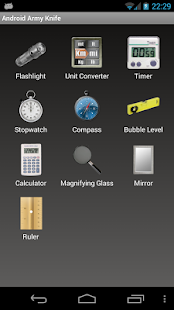
    Army Knife for Android collection of simple tools, including “a flashlight (widget too), a unit converter, a timer, a stop watch, a compass a bubble level, a calculator, a magnifying glass (Android 2.2+ required), a mirror (Android 2.3+ and front camera required) and a ruler”.

  • Screenshots on Windows, OS/X, iPhone, iPad, Android

    Windows:

    On Windows, you can take a screenshot of the currently active window by pressing Alt-PrntScrn (aka Alt-PrintScreen, hold down the Alt key, press PrntScrn, release both) and the screenshot is put in the Clipboard, open up any image program (I like IrfanView best, get it on http://download.cnet.com) or even Word or WordPad, press Ctrl-V to paste. To get the entire desktop (everything showing on screen) press PrntScrn instead of Alt-PrntScrn.

    To capture menus, including right-click menus, it is usually easier to grab the entire screen (press PrtnScrn) and then crop the captured image.

    OS/X:

    On OS/X there are several keystrokes, to get different portions of the screen. The keystrokes put the screenshot into a PNG file on your desktop (PDF in Mac OS 10.3 and earlier). If you want it put in your clipboard instead, add holding down the Ctrl key also, e.g. Command-Control-Shift-3. (Note: http://www.osxkeyboardshortcuts.com/keyboard-symbols.html has a chart of keyboard symbols and the easy-to-type names used in documentation.)

    Entire Desktop: Command-Shift-3
    A portion of the Desktop: Command-Shift-4, position the mouse at one corner of what you want to capture, click-drag to the opposite corner, when you release the mouse button the area will be captured.
    A specific application window: Command-Shift-4, space, move the mouse pointer over the application window you want captured, click the mouse.
    To include the mouse pointer or a menu in your screen shot: use the Grab utility by selecting Dock > Utilities > Grab. Set the Grab Preferences to use the cursor icon you wish to have in your screenshot.

    iPad, iPhone or iPod Touch

    Press and hold the menu button (the main button below the screen), press the power/lock button (the switch on the top edge of the device). The screen will flash white and make a camera shutter noise, to indicate the shot has been taken. Release both buttons (holding too long will give the power-down confirmation). The screenshot is saved in the default Photos app in the “Saved Photos” or (depending on your device) “Camera Roll” album. Email the photo by clicking the Menu icon (rectangle with arrow coming out of it, bottom left corner of screen). Or, click the Menu button from an index page to select multiple pictures to email.

    Android

    Different devices use different buttons, most use one of these button combinations: Power + Home, or Power + Volume Down. Mine requires holding down the Power + Volume Down for several seconds until the screenshot appears half-size on the screen.

    Open the Gallery application, the file is in the Screenshots album. In Android 4.2 and later, your screenshot will appear in your notication bar, to open it in Gallery or to Share it.

    There are apps for screenshots, make sure an app specifically supports your device. Generally they give you more control over your screen shot than the built-in screenshot function.

    You can connect your Android device to your computer, take the screenshot with your computer, see http://www.wikihow.com/Take-a-Screenshot-of-an-Android-Device-%28from-a-Computer%29