Category: WordPress

  • Asking ChatGPT for WordPress Block Editor format

    Asking ChatGPT for WordPress Block Editor format

    If you get content generated with the correct formatting commands, from ChatGPT or any other source, you can paste it into WordPress not as text, but as paragraphs, headings, lists, code, containers, quotes.

    You can train ChatGPT to deliver a long article in pieces, and have special formatting for a piece. For example, a container with two columns, with text in the left column and an image on the right.

    To train ChatGPT, I took examples of different blocks made by WordPress. I viewed a block in the Code Editor, copied it and pasted it into ChatGPT. After a few rounds of “no, I don’t want you to repeat this to me, this is the format I want you to learn” I got what I wanted.

    (ChatGPT is like a naive genius child, it often doesn’t understand you, with a lot of words. So, ask a different way until you get what you want. Also, remember to use what it says as a 1st draft; you have to go over what it generates to make sure it wrote well, without misunderstanding you or including things you wouldn’t say.)

    Along the way, I found that Heading level 2 uses one format,
    <!-- wp:heading -->,
    but subheadings, with higher heading levels, require an additional parameter. For example an H3 heading needs this:
    <!-- wp:heading {"level":3} -->
    (otherwise, the Block Editor has to “attempt recovery”).

    Finally, ChatGPT gave me results I could paste directly into WordPress.

    Then, I asked it to give a succinct way to instruct it what format I wanted.

    It gave a good answer. Then I asked “Can you remember for my account, what “WordPress Block Editor format” is? Or should I paste what you said for each new article?”

    As an AI language model, I don’t have access to personal account information or the ability to remember specific details about individual users. Therefore, I cannot remember the specific details of your account or preferences.
    To ensure accuracy and consistency, it’s recommended to refer to the provided HTML code snippet or the guidelines mentioned earlier [see below] when working with the “WordPress Block Editor” format for each new article. By using the provided example and instructions, you can follow the proper syntax and structure for creating content in the WordPress Block Editor.

    ChatGPT

    You can use this to tell ChatGPT how you want it to output the article you are going to have it write.

    Here’s what it said.


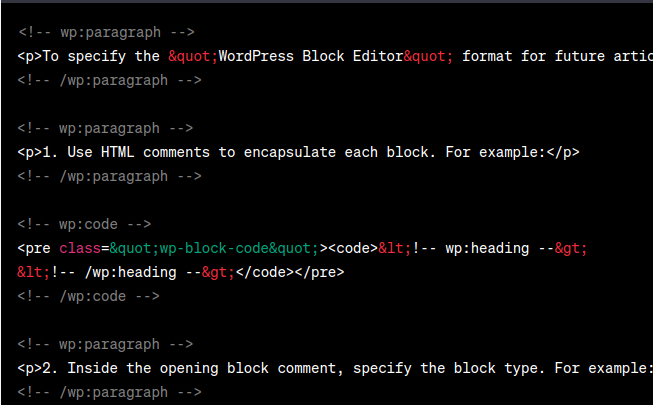
    To specify the “WordPress Block Editor” format for future articles, you can follow these guidelines:

    1. Use HTML comments to encapsulate each block. For example:

    <!-- wp:heading -->
    <!-- /wp:heading -->

    2. Inside the opening block comment, specify the block type. For example:

    <!-- wp:heading -->

    3. To add attributes to a block, include them within the opening block comment. For example:

    <!-- wp:heading {"level":3} -->

    Using <!-- wp:heading {"level":3} --> for H3 headings, <!-- wp:heading {"level":4} --> for H4 headings, and <!-- wp:heading {"level":5} --> for H5 headings is the correct syntax to set the appropriate heading levels in the WordPress Block Editor format.

    4. Add content within each block using appropriate HTML tags. For example:

    <!-- wp:paragraph -->
    <p>This is a paragraph block.</p>
    <!-- /wp:paragraph -->

    5. Maintain proper indentation and spacing for better readability.

    6. If you want to include multiple blocks within a container or column layout, nest the appropriate block comments and HTML tags accordingly.

    7. Remember to refer to the WordPress Block Editor documentation for additional block types, attributes, and features that you can use to customize your content.

    So, you don’t tell ChatGPT “write me an article on _____”. You say “write me an article on _____ in this tone of voice, with about this many words. I want the article formatted for the WordPress Block Editor, and here is how to do that: (and you paste that entire set of guidelines, all 7 points).

  • How to Easily Add a Block Pattern from WordPress Repository

    How to Easily Add a Block Pattern from WordPress Repository

    The WordPress Repository now has Block Patterns, right next to where you find plugins and themes. You can very easily Add that Block Pattern from the Repository, for use in your WordPress sites. Then, you can change the images, colors, fonts, etc; everything that is appropriate for the pattern, using the Block Editor controls you are using for changing the appearance of a paragraph or columns.

    In the Repository, each pattern has a page demonstrating it. Notice the “handles” at each side of the pattern? Those are so you can see how the pattern looks at different browser window sizes.

    Here’s one example, a “large background image with title and description”. This pattern is on https://wordpress.org/patterns/pattern/large-background-image-with-title-and-description/

    Insert A Block Pattern

    Find a block pattern you like in the Repository, and on the page that shows an example of the pattern, there is a “Copy Pattern” button. Then you paste into your WordPress page or post, where you want it to appear. (Click on the block before where you want it, in the hover Options (three vertical dots) menu, select Insert After, then press Ctrl-V to paste the pattern.)

    FISHING BOATS

    Winslow Homer, 1903

    Winslow Homer was an American landscape painter best known for his marine subjects. He is considered one of the foremost painters in 19th-century America.

    Learn More →

    I changed the background color of the text, to one that fits more with the colors of the site. Specifically, I took a background color from the Palette. To do that, open List View (3 stacked lines icon at the top of the Editor near the left), select the Group that contains the two columns with paragraphs. Now, you can change the background color, for the entire group at once. In the Block Options panel, in Color, set the default text and background colors for the group. Do the same for the Group that contains the heading “Fishing Boats”.

    How did I move what part of the picture is shown? That is with the “Focal point picker”. When you select the correct block (in this example, the Cover block), you will see the focal point picker. Since the focal point picker is built into WordPress, most blocks that contain images have this. Drag the small circle around, to see the portion of the picture you prefer.

    How to Change the Image in This Pattern

    You probably want to change the image, to one that is in your Media Library. When you select the correct block (in this case the Cover block), it has a “Replace” button on the hover menu. You then have options to open the Media Library to pick a better cover photo, or to upload a new photo into the Media Library and use it here.

    Here’s how the same pattern looks with new photo and text:

    Block Patterns vs Reusable Blocks

    When you edit a reusable block, the change will be reflected in all the places where that reusable block was used.

    If you wish to update a reusable block on a specific page or post only, you can use the Convert to Regular Blocks option

    https://wordpress.com/support/wordpress-editor/blocks/reusable-block/

    So, Reusable blocks are best for something that should look the same on every page, and have the same text. For example your “Author Tagline” or the company contact info.

    Block Patterns are for when the layout stays the same, but the content will be different each time you use it. They are for when you want to reuse a pattern, not for when you want to reuse the contents.

    Saving Your Customized Pattern As A Block Pattern

    Block Patterns are easy to copy, including from the public WordPress Repository. Block patterns have no tie back to the original, so when you edit the pattern it is only in that one place.

    You might want to insert some dummy text “Put Text Here” so you remember to edit it every place you put the pattern. And use a default image, to remind you to replace it; don’t use some gorgeous image that you might forget to customize to the specific page it is placed on.

    To copy a Block Pattern, simply select the correct block, in this example the Cover block that contains the forest picture; then you can paste it into any programmer text editor (I like Atom and Visual Studio Code) to save it. You can, of course, copy it from any other page that has it (select the block, options (3 vertical dots), Copy.

    You can then simply paste it wherever you want to, just like you did pasting a pattern from the Repository.

    Saving Your Customized Pattern As A Reusable Block

    When I save a Reusable Block, I preface the name with my initials or the company initials, so I can find it easily.

    If you want to change a reusable block so all the places where you used the block will be affected, that is the perfect use of a Reusable Block.

    https://wordpress.com/support/wordpress-editor/blocks/reusable-block/ says “If you’d like to edit a reusable block in all the places on your site, add the reusable block and edit it by adding more paragraphs or other types of blocks. When you’re done with the changes, click the Publish button and then the Save button.”

  • WordPress White Screen of Death

    Errors in WordPress files can make WordPress only display a plain white screen. Since the screen is all white, it’s difficult to figure out what is going on.

    What Causes A White Screen?

    Some causes could be:

    • Errors in a WordPress update, leaving files incomplete. (Syntax errors)
    • Errors in a Theme update (or bugs in the theme)
    • Errors in a Plugin (or bugs in the plugin)
    • Exceeding the PHP memory limit of a web hosting provider (can be changed in most cases, try editing your php.ini to include: memory_limit = 33554432 (32MB, or a higher number)

    How to Find the Problem

    A temporary thing to try (don’t leave this set!) is to edit your .htaccess adding this line: php_flag display_errors on, which could let you see if files are missing or what file and line number has the syntax error. Any PHP programmer could then help you fix it, since it is highly likely something simple.

    But the most common solution you’re going to find online is to remove a blank line and that “blank line” was the problem, since removing it fixed it! (Not accurate) A Variant is “a space” did it (also not accurate).

    Simple Fix for the Most Common Problem

    (more…)

  • WooCommerce Selling CD and MP3s

    WooCommerce Selling CD and MP3s

    I did video tutorials on setting up WooCommerce Grouped Products, so you can sell a CD and the tracks of the CD as MP3s. Grouping them displays better in the store, and lets customers see their options.

    This first video I cover how the grouped product looks in the theme, and what features will be setting up when we’re finished. Then I’ll walk you through setting up the first step, creating the Grouped Product with CD cover and playlist with all the track samples.

    In the second video, I cover adding your music samples to the WordPress Media Library and your audio files for sale to a hidden “sales folder” for WooCommerce. This includes file naming (so you know which file has what music, in lists of files) and how to have the sample music files display well in the audio player.

    The final piece is adding products for your music CD and each Track, to the WooCommerce Grouped Product you created.

  • WordPress Security for People Without Technical WordPress Knowledge

    WordPress Security for People Without Technical WordPress Knowledge

    What I’ll Cover

    • What your hosting company should do for security
    • Making secure passwords for any web site (and why what you’ve been doing probably isn’t good enough)
    • Password Keepers
    • Limiting Login Attempts, and Keeping your User Name hidden
    • Why you should Always do Automatic Updates and what you risk if you don’t
    • Block hacker files from executing, in the most common folders
    • WordPress Security Plugins you Must use

    Hosting Company Should Provide Security (but most Do Not)

    There is a lot that your host should do, to make your hosting account and your WordPress sites secure. (And by far, most hosting companies are negligent.) You should ask the technical support people lots of tough questions about security, and talk to your technical friends, and other WordPress users, about security.

    If your host isn’t giving good answers to security questions, and doesn’t improve Fast, then move to another host as soon as you can. (Though there are things that you have to do, there are far more that only your host should do.) Security is too important and too technical for most people to be able to do properly themselves, and it isn’t your job, it is your hosts’ job.

    The best hosting companies have top-quality security hardware, and special software, to block hackers, and have someone putting about 20 hours a week into researching the global security discussion boards for the latest threats, and putting security rules in place to block them. You can’t do that yourself, unless you can put those 20-30 hours per week into learning and implementing it.

    Ask the best anti-hacker security companies, and at your local WordPress Meetup or WordCamp, for hosts they are satisfied with for excellent technical support and excellent security. There are a few web hosting companies I recommend.

    There are, however, many things that affect security that only you can do, and things that you can do if your host isn’t doing their job.

    Use Password Keepers and Very Strong Passwords

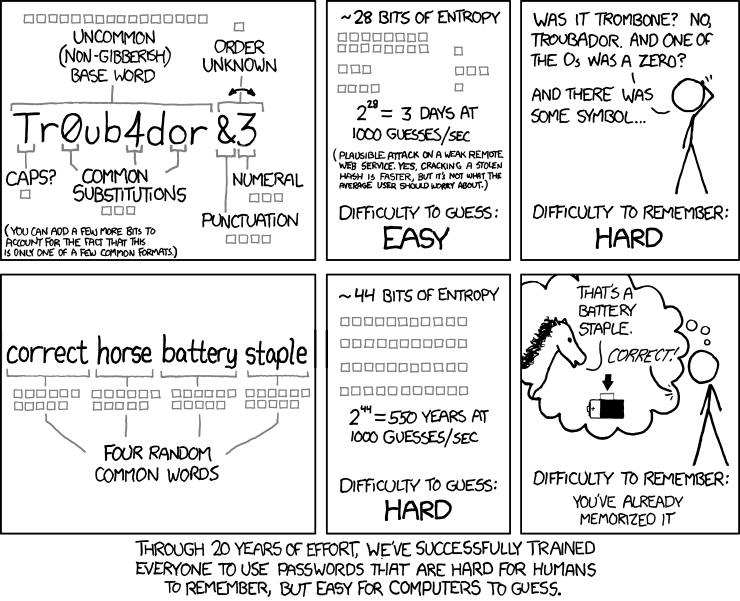
    The first of those is picking good passwords. Strong Passwords for WordPress and your Password Manager. This is essential. The ways we’ve been taught for decades, how to make passwords, as known to hackers, and using those rules makes passwords that are far to easy for hackers to guess.

    The “substitute a 3 for the first e” type of rule makes passwords that are hard for you to remember and hard to type, but easy for computers to guess. I teach you how to make passwords that are easy to remember, easy to type, and very hard for computers to guess (for your password keeper software and the few passwords you type often), and how to use computer-generated passwords stored in your password keeper for all other passwords.

    Using strong passwords is essential for Every site you log into. And each site should have a unique password, to reduce damage if a site’s data is stolen.

    Limit Login Attempts

    Given enough computers and time, hackers can guess any passwords that are not long strings of computer-generated random characters. So you should limit how many attempts they can make.

    There are WordPress plugins that limit the number of attempts at logging in, usually by IP address, within a short amount of time. These plugins also limit attempts at guessing passwords for the same user name. Violations result in being completely locked out of WordPress for a long time (60 minute lock-out for 5 attempts might be a good setting).

    Instead of being able to try the WordPress login form perhaps 100 to 1000 times every second, limit login attempts to 4 times every 5 minutes, and lock them out for an hour. (Hey, if you’re a lousy typist, with your long secure password, slow way down your third try and get it right!)

    I have seen over 100,000 attempts in a single night, on a small site where I deliberately left this open for a week. (With a WordPress Administrator user name that is not obvious, and a very strong password, you can test this. But block bad guys every way you can.)

    Suggested plugin: iThemes Security and/or WordFence are my overall favorite plugins for security. Some options you have to test if it works on your hosting account, or if it blocks something you need; and one of the options that will work on every WordPress site is the limit login attempts.

    WordFence is a direct competitor with iThemes Security and also excellent (if I were starting newly, I’d probably pick WordFence, it’s the most popular among technical people at WordPress Meetups).  I haven’t used it yet (simply because I know iThemes Security so well).

    Sucuri WP Plugin also has limiting logins as an option, excellent. (Works well with either iThemes Security or WordFence.) Among other features, has single-click run Sucuri Site Check on the current site.

    (Only use one plugin to limit logins, these plugins have this feature as an option.)

    Do Not Use (hasn’t been updated in over 4 years): Limit Login Attempts plugin, only compatible up to WordPress version 3.3.2. Even though it “seems to run” it still doesn’t check as many things as the plugins I mentioned. Any software that old is likely to stop working as WordPress changes.

    Periodically check for plugins that haven’t been updated in a long time. If they are actively being supported (check the support page for the plugin) and “keep working fine” that’s okay; but most often if a plugin isn’t being updated, the plugin author isn’t paying attention any more, and hackers can find holes that aren’t being filled.

    If you have a smart phone or tablet, definitely look into “2-Factor Authentication”, where you type a password and a short 2nd password delivered to your other device. Clef Two-Factor Authentication and Google Authenticator are excellent.

    Keep Your Administrator Login Name Secure

    Password Crackers expect your login name to be the WordPress default, “admin”. Some will look at pages and posts on your site, find who the author is, and try that for the login name. They also know that many “one button install” programs will take your hosting account name or domain name and put that in as your WordPress login. Don’t Do It!

    You should have one login for everyday editing pages (with Editor privileges), and a different login for administrative tasks such as updating and installing themes (with Administrator or Network Administrator privileges). I have the Profile, Admin Color Scheme set to Sunrise for the administrator user, so I can tell at a glance and remember to log out.

    It is easy for anyone to find the name for each users, for example https://molten-salt-reactor.lc.lndo.site/?author=1 shows the posts for the 1st author (?author=2, =3, etc.) The “display name” is shown on the top of the page. So, in the Profile screen, specify a Nickname, and for “Display name publicly as…”, select the nickname. Now the Author page, and themes that display the author of a page or post, aren’t giving away your login name.

    To change the administrator login name, use iThemes Security, which has a single-button way to do this; or you can log in as administrator, and create another user with administrator permissions. Then log in with that new user, and delete the user with the default login name.

    Block Logins at the Server Level

    Loading WordPress 100,000 extra times in a night is work for your server, taking up page loads and bandwidth that your hosting account might charge extra for.

    That many page loads at maximum speed slows your entire site down, for your actual visitors.

    You can put a server password on the WordPress login page. Minimal work for the server, easy to implement. Ask your technical person to put it in your .htaccess file. This doesn’t need to be a secure password, as these are bots not people trying 100,000 times; a simple riddle will work. Prompt “say hello there” with user name hello and password there. This adds security simply through being an extra step that is used on few sites.

    This double login is an extra step for you, but blocks a lot of nonsense. However, you wouldn’t want this for a membership site, where every member has to log in (unless of course you are teaching your members about security, right?)

    Automatic Updates

    I advise always doing WordPress theme and plugin updates quickly, at least every week. Then, after the theme and plugin updates, do any WordPress core updates.

    There are sometimes problems with a WordPress or a plugin update. Extremely rarely, that could take your site down. Less rarely, an important feature of a plugin would not work, especially if the plugin was written with out-dated programming practices.

    If there are important security fixes, WordPress will release the fix as soon as it is ready and passes their testing, but before all plugin authors have had several days to make sure their plugin works with the “pre-release” version of the security update.

    If you have someone on staff whose job includes doing all updates promptly after they are released but after testing on your important site (every day, no vacations, someone does this), you can keep doing WordPress and plugin and theme updates that way.

    For everyone else, keep automatic updates on. Even if there is a problem with a plugin, getting the update for the plugin in a few days (or replacing the plugin) is much less work than removing a hack from your site; much less damage to your reputation; much less inconvenience for your customers.

    Security first, then “backwards compatibility”.

    To minimize the chance of problems, I recommend updating your plugins and themes, and then update WordPress. Many of those plugin and theme updates will be to correct any problems with the new version of WordPress.

    Hackers love sites where updates were “forgotten about”, and still haven’t been done months or years after they were released. That means you have to update all of those “temporary” or “test” installations you have in your hosting account, too…

    Prevent Execution of PHP in WP-Content/Uploads

    Many hackers target plugins that have an “upload file” feature. (For example, upload images for a slider; or upload settings from the same plugin on another site, to make this site have the same settings.) Very useful in the plugin, but many plugin authors can’t check their work for security holes nearly as well as the hackers can. Once uploaded as a PHP file, or renamed to be one, the hackers know what location the plugin puts uploaded files in, and can execute it directly by the URL (bypassing loading WordPress, and any security in WordPress).

    This requires edits to your main .htaccess file and/or a .htaccess file in the wp-content/uploads folder. Most security plugins that have this feature will tell you what to paste in, if your .htaccess file is write protected (a very good idea). Keep your .htaccess files with permission 444, except 644 for the few minutes you are making a change.

    Sucuri WP Plugin has many WordPress “hardening” features, including blocking execution of files in vulnerable folders.

    Block Access to Critical Files

    Your .htaccess file, wp-config.php, and your site backups are files that should never be able to be accessed from the browser.

    Sucuri plugin (among others) blocks .htaccess and wp-config.php.

    Your backup software should create a .htaccess file in the backups folder (if you save it on the server, for example to FTP it to your computer; many backup programs will save the backup on other sites, e.g. DropBox or Amazon S3).

    FTP and XMLRPC Security

    Disable “anonymous FTP”. There was a use for it in 1980, not today. But many hosts have it enabled. Turn It Off.

    FTP doesn’t have a “limit logins” feature. Use the longest random password your host allows. If the host only allows 8 characters, throw a “lousy security tantrum”.

    XMLRPC attacks are fairly new. You can log in and post via XMLRPC. It reports back if your login was successful. Until 2014, this article says, none of the login limit plugins were checking this. Make sure yours does, if you truly need XMLRPC (I don’t). Of course, also make sure you have your password for XMLRPC is very strong (it is probably the same as your administrator password, but you can assign which users can use XMLRPC).

    WordPress Security Plugins

    iThemes Security is excellent.

    WordFence also excellent. You must install and configure either iThemes Security or WordFence or both.

    Block Bad Queries Pro (or free version, which has the same security rules but less nice user interface). If you don’t have the technical skill to edit .htaccess to paste in the suggested text, and don’t have a friend who does, this plugin is absolutely simple. It takes the hacker-phrases most often used, and blocks them. If you have .htaccess skills, or if you want to understand what Block Bad Queries does, read Building the 5G Blacklist and the 6G Blacklist is coming out soon.

    No conflicts with iThemes Security or Sucuri (5G Blacklist and iThemes and Sucuri do their security before WordPress loads, and if you have several of these loaded, the first one with a block for a specific “baddie” stops it completely).

    Get clean with Sucuri — this company is the expert at removing malware from WordPress sites, and has a firewall to block getting malware. They also have a free Sucuri Security Plugin – Auditing, Malware Scanner and Security Hardening. Also, frequently run their free quick scan of your site.

    What’s Next?

    Please leave questions and comments. I’ll update this post as I can; I’ll also do some step-by-step instructions for pieces of this puzzle.

  • Protect Yourself from Brute Force Login Attacks

    If you don’t have a secret user name and a very good password, hackers can easily log into your WordPress account as you.

    If you have created a password that you can remember, one that you have a chance of typing correctly, well, hackers already know the tricks people use to make a password, thinking it is “secure”. It is Not. With published lists of the top 10,000 passwords (that’s actually small, there are lists with up to 14 million unique passwords that people really used), and some readily available free software to try variations of those passwords, and enough time (a few hours to a few days), they have over 90% odds they will know your password.

    I’m going to give you some simple yet very effective ways to stop them. Ways to stop the numerous attempts at your login form. Ways to generate passwords the hackers can’t guess, even if they stole a copy of your database and work on it from home. Ways to make passwords you can remember that the hackers can’t guess. (more…)

  • Hard Coded Links in Theme File Causing Error

    The Theme Check plugin checks for errors in your design or coding of WordPress themes.

    If you are getting “INFO: Possible hard-coded links were found”, that literally means you have hard-coded links, you typed the URL in. Proper links should have been “escaped”, or passed through a function to make sure they contain only characters that are valid in URLs. If the URL is used in multiple places, you also should consider putting the URL in a PHP variable so if you need to change it, you change it in only one place.

    http://codex.wordpress.org/Theme_Development
    “Untrusted Data
    “You should escape dynamically generated content in your Theme, especially content that is output to HTML attributes. As noted in WordPress Coding Standards, text that goes into attributes should be run through esc_attr() so that single or double quotes do not end the attribute value and invalidate the XHTML and cause a security issue. Common places to check are title, alt, and value attributes.” (more…)

  • Debugging WordPress Problems (for Only You)

    How do you figure out what is wrong in WordPress?

    WordPress has some good diagnosing and troubleshooting information available to you, but the default is it is turned off. (For good reasons, including it is visually very distracting on screen, and it has candy for hackers.)

    Most of what you might see are PHP errors, PHP warnings, MySQL errors. If you don’t understand what they mean, even emailing the messages to the plugin author or your technical support person can be extremely helpful.

    Normally you can turn debugging on or turn it off, in your wp-config.php file.

    I have a page that shows you exactly how to turn on WordPress Debugging for Only you, and only when you want it. Work normally most of the time, and when something is not working you can see what error messages you are getting.

    Without debugging, you might get a message like this:
    Download failed. Destination directory for file streaming does not exist or is not writable.

    This specific message I got trying to update a plugin. Okay, which directory is the problem?

    Turn on debugging, and you get this instead:
    Warning: touch() [function.touch]: Unable to create file /home/USERNAME/public_html/wp-content/temp/plugin-name.tmp because No such file or directory in /home/USERNAME/public_html/wp-admin/includes/file.php on line 155
    Warning: unlink(/home/USERNAME/public_html/wp-content/temp/plugin-name.tmp) [function.unlink]: No such file or directory in /home/USERNAME/public_html/wp-admin/includes/file.php on line 500
    Download failed. Destination directory for file streaming does not exist or is not writable.

    Ah, something with /wp-content/temp/.

    And if you notice it affects all plugin updates, you might search for

    wordpress "Download failed. Destination directory for file streaming does not exist or is not writable." and the first page when I searched, gives the correct answer. In this case, it’s add to your wp-config.php this: /* Setup a temporary folder for uploading and updating */
    define( 'WP_TEMP_DIR', ABSPATH . 'wp-content/temp/') ;

    and of course create that folder on your server.

    If it only affected a single plugin, search that plugin’s support board. (I obviously changed the actual plugin file name to ‘plugin-name’, since the plugin wasn’t the problem. Normally you get the folder name of the plugin as part of the error message.)

  • Does Using WordPress in Multi-Site Mode Slow Sites Down?

    If you have multiple WordPress sites, how should you set that up?

    Some people say to install each site on a separate installation of WordPress, keep each site lean and fast. Some people say WordPress in Multi-Site mode is fewer files, less administration, just as fast. Which is it?

    How does the use for your entire hosting account compare?

    Overall, keep your installed themes and plugins to the minimum you need; keep your unused themes and plugins “elsewhere”, for security and speed. In Multi-Site, only “network enable” the plugins you actually need on all or almost all sites. But does using single-site or multi-site change overall speed or efficiency or storage? (more…)

  • Adding a Second Login to WordPress

    Logging in to WordPress is at the application level. You can also have a server login before getting to WordPress. This 2-step login makes your site much more secure.

    Once you know how, adding this server login is actually quite easy to do.

    Unlike plugins that might change parts of WordPress itself, this doesn’t change anything about WordPress; this uses the server’s security, so only people you say are permitted to execute programs.

    The most important folder to protect is wp-admin/ since it has, obviously, all the administrative programs for WordPress. Or, you can protect the wp-login.php file.

    One essential step is generating an encrypted version of the password you want to use. Then you have to know where to install the encrypted password, and how to tell your server to require the password for the files you want to protect.

    See my .htpassword tool for instructions and an easy way to generate the encrypted password your server would use.

  • Don’t Use HideMyWP

    Quick look: HideMyWp changes the URLs (“Change WordPress permalinks” and the URLs for plugins and administrative pages). Whoop-tee-doo.

    Hackers getting in from server-level security breaches don’t use a URL, they are already inside the security system.

    Hackers from bad plugins know the internal location they are run from (a necessary PHP function), and easily get the location of all other plugins, with a single database query; they’re already inside the security system.

    HideMyWP thinks that’s “good security”. The site says, “This means you can install unsafe plugins without worry about security.” — they are lying or incompetent. An unsafe plugin can change the content of your post/pages/comments, ruin your database, install malware, collect your user names and passwords, send out emails, etc. (more…)

  • Checking if Plugins Pass Basic “Good Programming” Test

    On http://wordpress.org/ideas/topic/plugins-and-theme-repository-thorough-bug-update-and-security-review/ there is discussion about adding to WordPress a “system of testing and making sure that plugins and themes work, are up to date (no plugins over a year old, say) and are bulletproof secure. The plugin and theme repository should demand that every single plugin and theme should be rigorously reviewed and screened for security.”

    My suggestions for a Partial solution, that could Easily be checked for by the Plugin repository and by the WordPress Core:

    1) /wp-admin/network/plugins.php shows if are using the latest version of each plugin. But it doesn’t indicate the Date of the latest version, or if the latest version date is a long time ago. Adding the date would be extremely easy.

    2) On plugins.php display the version of WordPress the plugin was written for, just like the plugin repository page does. Display the user rating from the repository, for your installed version of WordPress with your installed version of the plugin.

    3) Plugin repository could list results of installing the plugin in a default configuration, with full error reporting on, testing for a) syntax errors, b) obsolete function calls, c) database errors, d) direct MySQL calls (e.g. bypassing WordPress security and roles), e) multi-site initialization errors (e.g. are tables created for the plugin when create a site? Does the plugin put data in wp_options or in wp_SITEID_options? ).

    The test site would be restored to default state after each plugin test. The test would be run at each plugin update posted to the repository. This sounds like something that could be easily automated.

    Not a guaranteed security or quality test, but a good check of the basics.

    @Ipstenu replied “We have yet to manage to do it in a way that didn’t net a bajillion false positives that we have to look at them all manually anyway :/ ”

    Nope. Purely objective reports.

    Have PHP error logging set to maximum, use software to count each category of error, report the findings. Already includes obsolete WordPress functions, obsolete PHP functions, syntax errors, mismatched variable types, uninitialized variables, and more.

    Look for occurrences of the most common MySQL function calls (instead of WordPress database functions), report the number.

    Get a list of tables after adding a new site (single MySQL query). Software subtract the list of tables started with. Report the difference (or maybe a little more secure, the # tables).

    Another test: Any plugin using wp_ instead of the actual table prefix, isn’t programmed well.

    Similarly, # rows in [tableprefix]_options before and after (shouldn’t change, plugins should use [tableprefix]_[siteid]_options).

    Show the whole list in a new tab in the Repository, for each version, and watch plugin authors clean up their act!