Category: Website Security

  • Making a Memorable Secure Password Phrase

    Making a Memorable Secure Password Phrase

    You need a very secure password to use as the master password for your password keeper software, and for your computer login. There may be a very few sites that you log into often that you might think can use a typed password, but avoid that.

    These few passwords have to be very easy to remember and easy for you to type. But they have to be difficult for computers to guess, in the rest of your lifetime.

    More security steps you can take, beyond good passwords: WordPress Security for People Without Technical WordPress Knowledge.

    Why do you need a Password Phrase, instead of the way you’ve been making a password for years? Because hackers know how to guess those passwords.

    See Strong Passwords for WordPress and Your Password Keeper.

    What I’m Going to Cover:

    • How to make a truly secure password phrase for your password keeper master password, and for the few passwords you type frequently. This must be hard for hackers to guess, easy for you to remember and easy for you to type;
    • How to pick a password phrase in a way you will remember it in seconds or minutes.

    You must use very strong passwords on your WordPress site (and you must have an SSL certificate, to prevent your WordPress login from being sent as plain text; many excellent hosting companies like SiteGround provide SSL certificates for free). You should use very strong passwords on every web site you use, and every password should be different.

    WordPress encrypts your passwords, and the encryption is strong enough hackers can’t break the encryption. But hackers know the way we’ve all been taught to make “secure” passwords, and that lets them automate scripts that guess your passwords.

    Making a Secure Password

    One way of making passwords that are actually secure, but you’ll never be able to remember, is use a password generator. Use the password generator in a password keeping software, and all you have to remember is the “master password” for the password keeper.

    “A password manager is just software that creates, stores and organizes all your passwords for your computers, websites, applications and networks.”

    http://thehackernews.com/2016/07/best-password-manager.html

    I give you my recommendations on how to select which password keeper you want to use, in Strong Passwords for WordPress and Your Password Keeper. I’m using LastPass, since it is easy to use, and it works on Windows, OS/X, Linux, iOS, and Android.

    The password keeper software will remember all your user names, account numbers, and passwords, plus any other information you keep as notes for that site. You can also use your password keeper for securely storing bank account numbers, credit cards, library cards, WiFi passwords, serial numbers, registration numbers, router configuration details, etc.

    The only passwords you should frequently type are the ones for your computer and for your password keeper, your phone pin, and your bank card pin. All others should be pasted from your password keeper.

    Basics of Password Security

    For each site, use the longest password the site allows, up to maybe 60 characters. Your password keeper will let you copy/paste the password, so you don’t have to ever type it. Most password keepers also have an option to simply fill in all the login information, skipping the copy/paste.

    (As long as it is a random computer-generated password, 60 characters is “lifetime strong”.)

    Never use a password on more than one site. If someone gets your password at your favorite pizza place, and orders a pizza “for carry out” on your card, you don’t want them also able to use your video streaming account or your bank, right? Many hacks on simple websites are to get 1) the password or 2) the password-making rule, for every registered user.

    Why? Because hackers know most people use the “same or similar” password on all websites.

    LastPass and many other password keepers will even warn you to change passwords if a password is used on more than one site.

    Old Rules to Make “Secure” Passwords Are Too Easy to Guess

    The rules we’ve been told by technical support people for decades, make passwords that are not secure any more. The main reason is simple: there is software that can make billions of guesses of your password per minute, and hackers using it know all the “clever” rules people come up with for making passwords.

    The rules we’ve been taught for years that should make a secure password, aren’t good enough. Those rules actually limit the possible passwords a hacker’s software would have to check. For example, the “word plus number plus punctuation” rule makes a password that is basically as easy to guess as a three-letter password; the word is in the dictionary, plus about 100 characters for all letters and punctuation, twice). Hackers know all the “substitute a number instead of a vowel” rules too, such as “3 for m or 0 for o (zero for oh)”, and that is easier for computers to check than it is for you to remember.

    Even 8 character random passwords can be guessed in under a day, if they are looking for Your password and have stolen the website’s database. While most hackers are looking for the easy targets on a website, you need a password that can’t be guessed during your lifetime!

    Making Secure Passwords You Can Remember

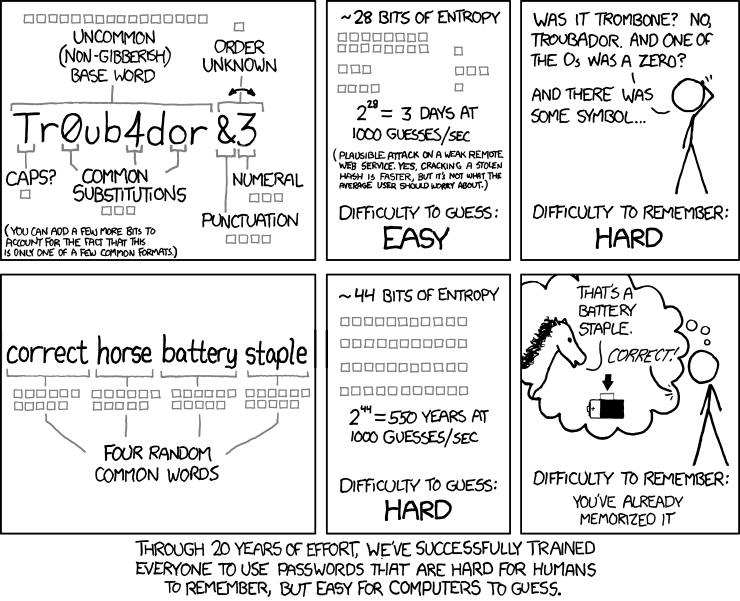
    Password Strength cartoon from xkcd.com/936/

    You have to remember your password keeper’s master password. Forget it and all your other passwords are encrypted in a way that can not be broken (unless of course your master password is so weak it can be guessed by password cracking software).

    The comments on the original correct horse battery staple page point out that if all four words you pick are in the 5,000 most popular English words, then you should calculate the time it takes the password software to go through 625,000,000,000,000 (5000 x 5000 x 5000 x 5000) combinations.

    There are 60 seconds * 60 minutes * 24 hours = 86,400 seconds/day. At 8 billion password guesses per second, they have your “four common words” password in about 1 day, using a “wimpy” 2012 computer.

    Obviously one way to make your password (pass phrase) more secure is use at least one word that is not in that tiny dictionary of most popular words. Engineering, scientific, medical, or any other more obscure words will do; but they have to be easy for you to remember, and remember how to spell. (Or, remember consistently how to mis-spell). Common foreign language words are also in hacker dictionaries, but less common ones are good to use; pick a language that is not common in the websites you use.

    Another way to make your password more secure is use 6-8 words. But remembering 4 random words is hard enough for most people. (Tip: get one of the associative memory courses, such as MegaMemory.) If you have a system memorized already, okay. If you have the type of memory where you know every move of every chess game Kasparov ever played, good for you, use it. But if you don’t, here’s how.

    Making a Memorable Secure Password Phrase

    I think the proper person for teaching this task is Mary Poppins:

    Julie Andrews in “A Spoonful of Sugar” from Mary Poppins 1964

    Now, pick a “mini-scene”, for example the robin or the mirror, and describe it in 6-8 words. For this mini-scene, perhaps “robin feathering fly mary whistle duet” (a robin feathering his nest flies to Mary Poppins and they whistle a duet) but don’t use that, make your own story. As long as you pick a vivid, memorable mini-scene, the “story” you make up will be completely memorable to you, but not easy for anyone to guess, even if they know what movie you love.

    • Ignore any 1-3 letter words unless important.
    • Don’t take a lyric or famous quote, as those could be in the “dictionary” of some hackers. “spoonful of sugar” is a lousy password, “spoonful of sugar to help the medicine go down” is so famous it’s not much better than “spoonful1964”
    • No punctuation between words (spaces aren’t allowed on some sites, and punctuation are harder to type); or if you must, use the same common punctuation between each word of every password; no having to remember which one you used.
    • Pick one place to put a capital letter, probably the first letter of the first word, and use that place for every password you make.
    • Pick one place to put a digit (probably the end), and one place to put a punctuation mark (probably after the digit). Use the same digit, punctuation mark and place for every password you make, so you don’t have to remember what and where you picked.
    • Only use punctuation that is accepted on almost all web sites, e.g. the top row of your keyboard, ~!@#$%^&*)_+-= so you don’t have to remember which sites use which punctuation mark.
    • If you’re not certain whether to use singular or plural (“was it penguin or penguins who bowed in the cafe?” in “It’s a Jolly Holiday with Mary”) always use singular (the simpler word). Or, move slightly ahead or back in time, so it is clear (“how many penguins gave Mary a kiss?” You do remember, don’t you, even after the years since you watched Mary Poppins? Go watch again…)
    • Any time remembering it “wrong” will be highly memorable, go with it. If you can vividly see in your imagination that in “The Matrix”, Neo did a cartwheel and grabbed a Howitzer off the floor (instead of a machine gun), excellent.
    • Any time a more complex or less common word would be memorable, use it. Know your birds? Use the actual type of robin Mary sang to, instead of “bird”.

    Some more practice making stories from mini-scenes (but soon quit practicing, pick a movie you love, change your password keeper’s master password!). This is quite a curtain call:

    Mary Poppins (1964) The Penguin Dance

    What does Neo do?

    https://youtu.be/855w0sdZjgA?t=131
    The Matrix (1999) | Lobby Shootout Scene
  • 2-Factor Authentication on Ring Cameras

    Ring security cameras have a password, to prevent unauthorized people accessing your video. You should always add 2-Factor Authentication for additional security.

    There are videos in the news lately (Dec 2019) of Ring and other brands of Internet-connected video cameras being hacked. One shows a hacker talking with a young girl in her room; this was done making a podcast to show they could hack the camera. One of the simplest ways to prevent this is using 2-Factor Authentication.

    Hackers are able to guess your password, unless you use a very good password. 1) The password has to be actually hard for hackers to guess; and 2) the password has to be different than all your other passwords. Hackers have gotten millions of user name and password combinations from hacked websites.

    The “rules” we’ve been taught for decades on how to make a password, are rules that all hackers know and can therefore use to guess your password. To make a secure password, and to use a password keeper software so you can keep track of all your passwords and easily fill them into your sites, see https://computerhelp.lc.lndo.site/2016-strong-passwords-for-wordpress/

    Definitely Use 2-Factor Authentication

    “2-Factor Authentication” aka “2FA”, blocks someone from logging in even if they know your password. The second factor in authentication is you typing in a code that is generated on your mobile phone. (The device or site you are logging into, negotiates with your phone which code to display on your phone that you have to type into the login.)

    For your Ring camera, you have the option of using 2-Factor Authentication. You run a free app such as Authy on your mobile phone, and type the code shown on the app into your Ring. (You can use the same app for all the websites that offer 2-factor authentication.)

    Some of the best 2-factor authentication apps for your mobile phone are: Authy, Google Authenticator, LastPass Authenticator, QR Code, Push Notification, Soft Token and Security Questions(KBA). I picked Authy because it ran on older Android devices, has lower overhead; but you can use any well-written app.

    On WordPress, I recommend using the 2-Factor Authentication built into WordFence (or if you prefer, in iThemes Security). Since you definitely should be running one of these security plugins, don’t install a separate plugin for 2-Factor Authentication.

  • Removing Hacks from Your Site

    Hi, I’ve been getting the same bunch of exe files uploaded to the root of my server for the past few weeks. I installed WordFence and also bought an expensive “Sitelock” service / firewall for $50 a month! Sadly my site is not making any money yet so this is a huge expense. I’m at my wits end and hope you can help. Thank you!

    Hopefully this isn’t about your site…

    There are many indications your site has been hacked. Seeing many unknown files is a clear sign. Seeing a warning from your web browser or Google Analytics is definitely something to take seriously. Seeing pages of your site listed in search engines containing content you didn’t write, is another common way of finding out your site is hacked.

    I would say you do not need both WordFence and Sitelock, especially since your site is not making money yet. Use WordFence, and many sites can use the free version unless you see a paid feature you really want.

    It is important to go through all the WordFence settings, to make sure that you have the most secure settings that will work on your hosting account. (Change a few settings, make sure everything works on your hosting account, then make more setting changes.)

    The WordFence application firewall is especially useful for blocking malware from spreading. For example, an image slider plugin that has a security vulnerability might allow a hacker to upload malware instead of an image; but the firewall would likely stop it from running, so there would be no damage to your website. (It would likely alert you to any attempts to run that file, and recommend you delete it.)

    Is the Site Still Hacked?

    How confident are you that you have found the source of the “bunch of exe files” and removed it? Almost nobody should attempt cleaning a hacked site themselves. It truly requires an expert. Hire WordFence to clean your site, using the money you have been paying to SiteLock. (I have nothing against SiteLock, but most sites will be adequately protected with WordFence, especially if you are using a good hosting company.)

    There are sites that offer “site scans”. However, these are not thorough assessments of every part of your hosting account. WordFence and Sucuri offer them, and they say clearly their free scans are not thorough.

    For example, some hackers install scripts that “stay asleep” for a while, to avoid detection, and only act when the hacker has work for them to do. Said another way, your site could have been hacked months before you noticed anything wrong, or a site check noticed anything.

    When the WordFence Application Firewall is installed on your site (different than scanning from outside your site), it can check every file for problems and every action your site takes, and every incoming request to your site. If the firewall reports your site is clean, you have much more certainty it is accurate.

    How to Prevent Many Hacking Attempts

    You should also look at removing plugins you do not need, and look at removing plugins that do not have excellent reviews in the WordPress plugin repository. Replace any plugins that have not had any updates recently. (Same rules apply for themes.) Do not simply deactivate them, you should delete them from all your WordPress installations. (Never have WordPress installations “lying around”, you must keep every installation of all your software updated.)

    The hacker could have gotten in through insecure plugins. Don’t install plugins that haven’t been thoroughly vetted by the WordPress repository, and by your most technical friends/colleagues (or better still, your WordPress Meetup). Keep all plugins updated, and WordPress updated — many of those updates include security patches.

    The hacker could have logged in as You, and installed malware. It is much easier than you think, for hackers to guess your password, unless you have a computer-generated password. Use a password keeper such as LastPass, have it store and fill in your login information on all sites you visit (and use it to store all other important data, e.g. your WiFi password, router administration login, credit card information, software licencse, etc.) Have your password keeper generate the longest password each site will accept (up to maybe 50 characters). No using the same password on different sites. See my Strong Passwords for WordPress for why you really need to use a password keeper, and how to make a hard-to-guess but easy-to-remember and easy-to-type password for your password keeper’s master password. (I also use a very good password for access to my computer.)

    Another way hackers could get your login information is by your not using SSL. You must have SSL on every website. Why do you need SSL? Because without it, anyone with WiFi sniffing software can see the plain-text information sent by your WordPress forms, including your login form. When SSL certificates were expensive and hard to install, the rule was you needed SSL if you were doing anything ecommerce; now SSL certificates are available (on all the good hosting companies) for free and installation is “click a button”.

    The hacker could have gotten in through your hosting company not having adequate security; now is a good time to assess whether you can evaluate hosting companies for WordPress security (most people can not). Many popular hosting companies have inadequate security.

    What Hosting Company to Use?

    The Arizona WordPress Meetup has many people who set up and maintain sites for clients, and they have identified very few hosting companies that are worth using for your website. I use SiteGround.

    SiteGround is probably about the same cost as your current hosting company, if you picked your hosting company by price (most people do). But SiteGround provides excellent technical support and excellent website security.

    On SiteGround and other excellent hosting companies, SSL certificates are free; unlike GoDaddy which charges more for SSL for a year than for hosting.

    As a website developer, SiteGround provides many tools to make my job easier.

    Could You Do It Yourself?

    If you can’t hire WordFence to clean your site, if your site is a small enough number of pages, make a copy of Just the Text and Just the Images of your site, of every page. Then have your hosting company Wipe your entire site completely clean, every file, the entire database, every configuration setting.

    Then install WordPress fresh, then WordFence right away, then only the plugins you need, then the default WordPress TwentyTwenty theme (or Astra theme) and Elementor page builder, and then remake all your posts.

    That is the only way to have any certainty the hack is removed, if you’re going to “do it yourself”.

  • Should you Email a Password? Never! Use a Password Keeper

    Should you Email a Password? Never! Use a Password Keeper

    Never email passwords or other confidential information. Use LastPass, or another top-rated password keeper such as OnePassword, to send passwords.

    Email is not a good way to communicate passwords. Email servers get hacked, and email transmissions get intercepted. You can set up encrypted emails, but that takes some work for you and the recipient (another topic).

    With LastPass, one of the things you never have to do again is “email someone a password”.

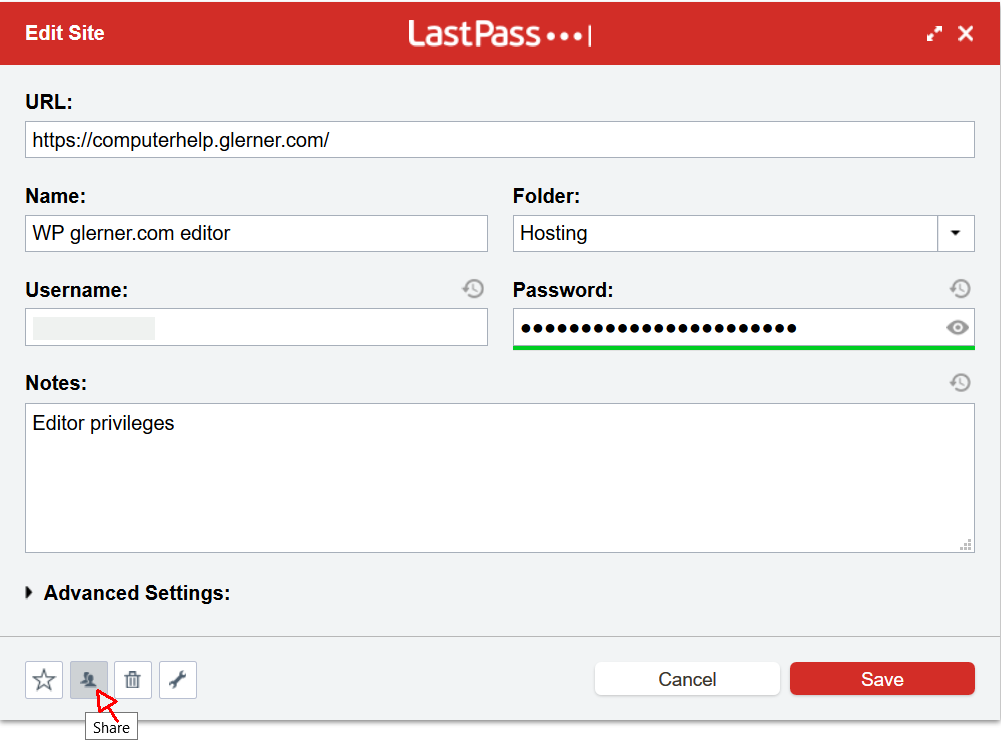
    Better approach with LastPass is to click their icon to Share a password. When you share a password, you can specify whether the other person can ever see it or just can have LastPass fill it in for them. You can also store and share notes, account numbers, etc. via LastPass.

    A better approach for WordPress is for you to create a user. You specify what permissions they should have (for example, Editor or Author, or if they truly need it Administrator). You email them (to their email address you used when creating the user) the URL to your website/wp-admin/. When they try to log in, they click the “Forgot password” link and make their own password (using, of course, LastPass to generate it and store it).

    Want to make a good Master Password for your password manager, that is extremely difficult for hackers to guess, yet easy for you to remember and type? Read my Strong Passwords for WordPress .

  • Secure Passwords for WiFi, That You Can Type

    Secure Passwords for WiFi, That You Can Type

    Most of the time, to have a password that is secure, you use a password manager software. You have the password manager make a unique password for each and every web site or account. You have it make a password that is random, very difficult to type, and as many characters as the website will allow. The password manager will then paste the password into the login page. You never need to know what the password is, and you never type it.

    The rules we’ve all been taught for year, to make a “secure” password, result in passwords that are hard to type, hard to remember, and are easy for hackers to guess. Hackers know those simple rules, too. And hackers have lists of the top milion most-used passwords.

    You have to either use a password manager, or make a memorable 5-7 word pass-phrase, to have a secure password.

    When Would You Type A Password?

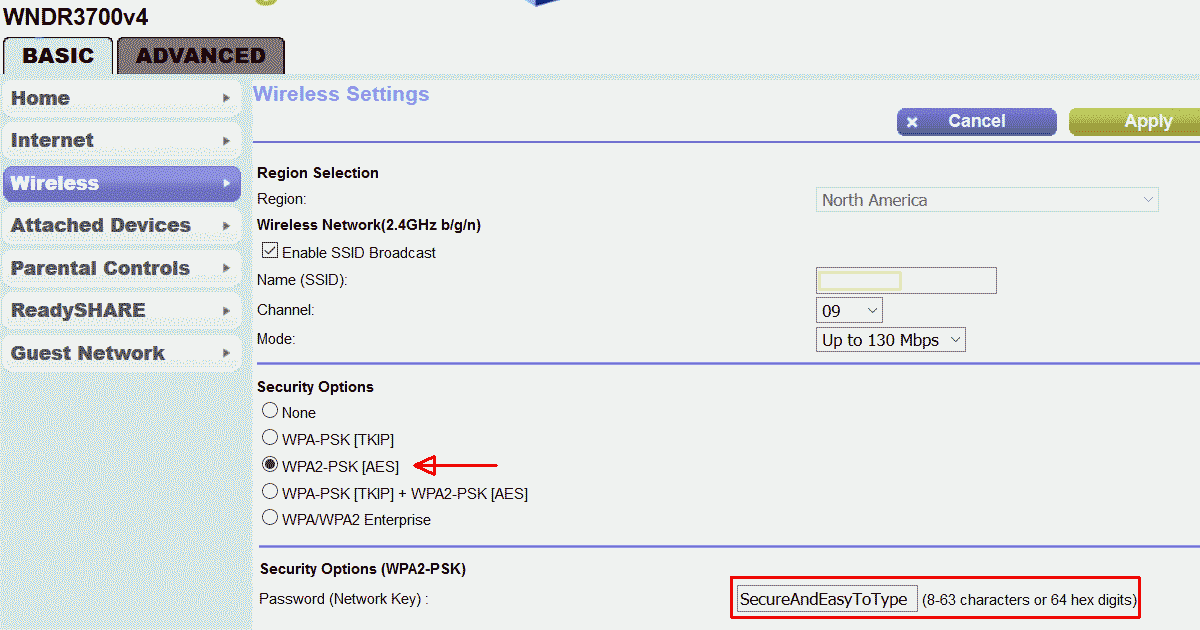
    You might have to type WiFi passwords without using your password keeper, for example on your new phone, or to connect your printer to your WiFi.

    Basically, you type a password only in those few cases where you can’t use your password manager. You can’t use your password manager to type in the WiFi password into the phone, because you can’t connect to your password manager until you have entered the WiFi password to connect to the Internet.

    You need to type in the password for your computer, before you can access your password manager.

    You also might want to connect a friend’s or house mate’s computer to your WiFi, so you can get them set up using a password keeper. You want your WiFi password easy to type, for this scenario, but not highly memorable.

    If you are setting up your Internet router or cable modem, you’ll have to type in the password. Then you can use the password manager to store all the router settings. Most password managers have places for storing notes, and keeping everything encrypted.

    What About Those Pesky Keyboards?

    The keyboards on mobile phones, and on device panels (for example, your printer), are quite difficult to use for most computer-generated passwords.

    These keyboards make typing random characters even harder, since you have to change from the uppercase keyboard to the special character keyboard to the lowercase keyboard to the numeric keyboard.

    You might find that your WiFi or your printer won’t accept a long enough password to make a password phrase from 4-5 long words. One common length is maximum of 63 characters for a WiFi password. If your hardware is wimpy about security, you might have to make a secure password using computer generated characters.

    You should change your passwords occasionally (twice a year might be a good frequency), or if you think someone shouldn’t be using your WiFi any more. If you suspect or know someone has broken into your WiFi or computer, change the password right away. You might be able, depending on your hardware, to copy/paste the old password and new password; but you might have to type it.

    How to make passwords that are fairly easy to type, yet highly secure

    If you group the characters by which keyboard they are on (uppercase, lowercase, etc), they will be easier to type, and easier to say to yourself or the other person you are giving the password to.

    Use KeePass, a free password generator with the ability to specify patterns of characters, to generate a password with groups of uppercase, lowercase, numbers, punctuation. (Most password generators do not have this feature, including LastPass.) Or you can use your current password generator to generate several short passwords, each from characters all on the same keyboard, and paste them together to make a long password.

    KeePass can use a pattern to generate the password, that is easy to type on phone keyboards. An example l{8}u{4}l{4}d{4}l{8}d{4}s would make a password with 8 lowercase letters, then 4 uppercase letters, then 4 lowercase, then 4 digits, then 8 lowercase, then 4 digits, then 1 special character.

    You make your own pattern, specifying the number of uppercase, lowercase, digits, and special characters. For most people, 4 or 5 characters at a time are easy to remember long enough to type, or 8 characters is two easy groups of 4.

    I’m now using LastPass for my passwords, but I still have KeePass on my computer for generating those passwords I know I would need to type.

    Should You Use a Special Character?

    To have KeePass generate a printable 7-bit special character, one of !”#$%&'()*+,-./:;<=>?@[\]^_`{|}~, add a lowercase ‘s’ in the pattern. To use 4 of them, use s{4} in the pattern.

    If you prefer, you can simply pick a special character you will always use. Most people would put the special character at the end; or pick some place you always put it such as after the 4th character. Always use a special character in every password, since so many web sites and WiFi routers require one. If you always use one you won’t have to remember.

    In KeePass, do not click the Advanced button and enable “Exclude look-alike characters”, since you will know whether it is O or 0, l or 1 (that’s an oh, zero, lowercase el, one) by the pattern.

    For all the KeePass pattern options, see https://keepass.info/help/base/pwgenerator.html#pattern


  • Why GoDaddy SSL Certificates Are Not the Best Option

    Why GoDaddy SSL Certificates Are Not the Best Option

    Many people are hosting their web sites on GoDaddy, and buy their SSL certificates from them. GoDaddy’s Managed WordPress hosting is pretty good, certainly better than what they’ve offered for years.

    But the hosting account doesn’t include an SSL security certificate. SSL is needed so logging into WordPress is secure. Form data should always be secured (sent across the Internet encrypted) including your login form, comment forms, and all other forms. Even if you do not have an eCommerce site, or other reason to be taking credit card information, every web site now needs to send form data encrypted.

    For having an SSL security certificate, you have 3 options:

    1) Stay with GoDaddy for now, buying SSL certificates

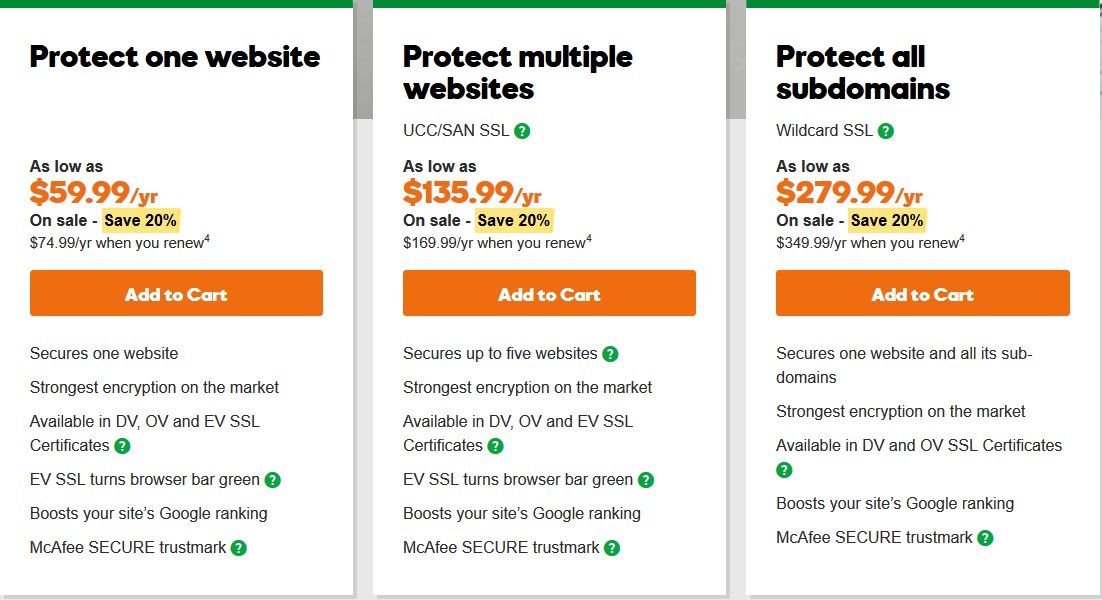
    Not what I recommend, but you can buy the SSL certificate your hosting company sells. GoDaddy and most hosting companies will install an SSL certificate for you. GoDaddy’s currently sale price is $59.99 for first year, renew at 74.99/yr.

    This is the simplest solution for you, if you are hosting on a site that doesn’t offer free SSL certificates, but it is not the best overall. GoDaddy technical support and user interface and pricing are not the best. One simple thing to check for how good a hosting company is: do they offer the latest software, frequently updated. LetsEncrypt is one software the hosting company should have installed.

    However, this probably costs more money than other options.

    Don’t let GoDaddy or other hosting company talk you into buying their more expensive certificate unless you know you need it. The encryption on all their certificates is the same (SHA-2 2048-bit encryption). All SSL certificates verify the domain name matches the site (so if a hacker intercepted your traffic, pretending to be your site, the “SSL padlock” would not show, and visitor’s web browsers would warn them). Very few companies would benefit from the extra validation that you are the company you claim to be (in addition to validating the domain name is correct), which is what is provided by the more expensive SSL certificates GoDaddy offers.

    2) Stay with GoDaddy until your current hosting expires, without SSL

    This is less expensive than discarding your current hosting subscription. But know that form information sent by your site, from your login form or any other form, is sent un-encrypted across the Internet.

    That makes this option only worthwhile if you are truly unable to afford the purchase of either the SSL certificate or new hosting that includes a free SSL certiifcate.

    You would take credit cards not on your site but through a payment processing company (e.g. PayPal or Stripe).

    You would protect your WordPress login with a “two-factor authentication” plugin so you have to log in both with a password and by typing in a code that is sent to an app on your cell phone. If someone steals your WordPress password, they still won’t be able to log in. (Don’t use the email option of your two-factor plugin, use the cell phone app; it is more secure, since most email is not transmitted encrypted unless you specifically configure using SSL/TLS for your email accounts.)

    3) Move to hosting that comes with free SSL certificates

    You can get free SSL certifcates by LetsEncrypt or other providers, on many hosting companies. LetsEncrypt has the same encryption as other SSL providers. Hosting companies can install LetsEncrypt on their servers and then you create and install your SSL certificates yourself. If LetsEncrypt is installed (most likely you’ll see it in your cPanel), simply specify which domain you want to make a certificate for, and LetsEncrypt installs the SSL certificate for you. You can make an SSL certificate for each domain name you’re hosting, one domain (or sub-domain) per certificate.

    My Hosting Recommendation

    I recommend hosting with SiteGround. Their StartUp plan would be adequate for most personal or small business sites. Currently their StartUp hosting is on sale for $3.95/month ($47.40/yr or lock in the sale price buying 2 or 3 years). Normal price (and price for additional years) is currently $9.95/month. Their hosting includes free LetsEncrypt SSL certificates, for every site you host.

    SiteGround’s technical support is much better than GoDaddy’s; their security is better than GoDaddy’s; their speed is better too. SiteGround technical support knows WordPress enough to troubleshoot plugin problems, so you can contact the plugin author to fix the specific bug; SiteGround can remove the bad plugin so your site is up again, quickly. This level of knowledge is very rare among hosting companies, but SiteGround trains all their technical support people to become this good.

    The Arizona WordPress Meetup only recommends SiteGround or WPEngine, based on the experience of several people who host sites for clients, and have learned the good and the bad of many hosting companies. They have also cleaned sites that got hacked on other hosts; moving to SiteGround or WPEngine, and installing Sucuri and WordFence (and/or iThemes Security) makes you much less likely to ever get hacked again.

    If the company can spend the money to get an SSL certificate from GoDaddy, it will spend less to simply switch Now to SiteGround.

    Get SiteGround Hosting through my link, they’ll give me a little money for referring you. Plus, you can have me start taking care of your site.

  • What to Do If A Site You Use is Pwned (Data Breach)

    What to Do If A Site You Use is Pwned (Data Breach)

    “Pwned” is the slang for when an account of yours, on some web site, got compromised in a data breach. So, hackers probably have personal information of yours.

    There are hackers trying to steal information from web sites, all the time. Some site that you’ve registered with, probably has been hacked at some time.

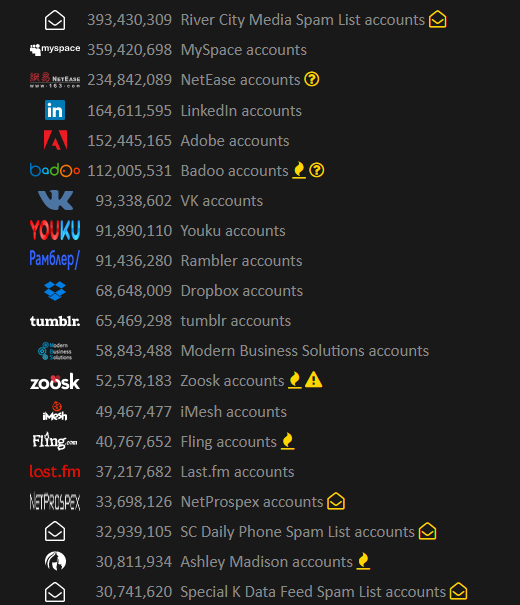
    You can check sites to find out what major sites are known to have had data stolen. Having checked one of those sites, and then saying “I have been pwned twice” is not likely accurate. More likely it has happened dozens of times, you just don’t know about it. On the other hand, hopefully some of the sites didn’t get anything really useful about you. (more…)

  • Security — Block Executing Files Uploaded in wp-content/

    One of the most common hacker techniques on WordPress sites is to find a plugin that has a vulnerability, and use that plugin to upload an initial malware file onto your site. The hackers would then access the malware file directly (bypassing WordPress) to install any malware they want, and/or access your database. Hackers know the most common place plugins would put files is in your WordPress wp-content/uploads/ folder. You must Block executing files in your wp-content folder.

    There are folders such as wp-content/plugins/ and wp-content/themes/ where you should allow files to execute (or your plugins and theme won’t work). You could even get more specific, and enable just the folders that each plugin specifically uses. However, that is more maintenance work for you; let a top security plugin (WordFence) take care of that for you.

    You Must Protect Your Uploads Folder

    This is a serious security issue. One reason you must do plugin updates frequently, is plugin authors (well, the good ones, at least) will patch security issues as soon as anyone informs them. That’s because there are security people who check the hacker’s bulletin boards for issues the hackers are bragging about, and alert the plugin authors.

    Here is an example of the kind of hacker junk you would see if your security software were capturing the information:

    errorstatuserrortriggerrequriquerystringuseragentcookiesallowheaderspostvariables
    403badRequestString:wpcontent/wp-content/plugins/work-the-flow-file-upload/public/assets/jQuery-File-Upload-9.5.0/server/php/index.php Mozilla/5.0 (Windows NT 6.1; rv:34.0) Gecko/20100101 Firefox/34.0 Accept: */* Accept-Encoding: gzip, deflate–31aa900beb174efa942c7958119e7885
    Content-Disposition:_form-data;_name–>”action”upload
    –31aa900beb174efa942c7958119e7885
    Content-Disposition: form-data; name=”files”; filename=”wp-classes.php”
    Content-Type: text/plain–31aa900beb174efa942c7958119e7885–
    403badRequestString:wpcontent/wp-content/plugins/work-the-flow-file-upload/public/assets/jQuery-File-Upload-9.5.0/server/php/index.php Mozilla/5.0 (Windows NT 6.1; rv:34.0) Gecko/20100101 Firefox/34.0 Accept: */* Accept-Encoding: gzip, deflate–f2ee98a757e94b9897a2c9b1a9ffa74f
    Content-Disposition:_form-data;_name–>”action”upload
    –f2ee98a757e94b9897a2c9b1a9ffa74f
    Content-Disposition: form-data; name=”files”; filename=”wp-classes.php”
    Content-Type: text/plain
    –f2ee98a757e94b9897a2c9b1a9ffa74f–

    What Do These Columns Mean?

    ErrorStatus 403 means “Forbidden”, the server or hosting account security rules are blocking this.

    ErrorStatus 404 means “File Not Found”, but there is nothing forbidding them accessing the file if it did exist.

    (If the requested file did exist, the hackers found a file that, at least in some version of the file, they think had a vulnerability; you wouldn’t see an error. Your site access log would have the file name with an ErrorStatus 200 “OK”, or 304 “Not Modified”.)

    ErrorTrigger is my security system letting me know what caused this to be blocked, in this case the use of “wp-content” in the Request String.

    Requri is the Request String, in this case beginning with “/wp-content/plugins/work-the-flow-file-upload”. So we guess that some version of the “Work The Flow File Upload” plugin had a vulnerability (because somebody, probably a hacker, was looking for it). We don’t know that the current version of the plugin is flawed, we know that hackers are interested in some version of the plugin.

    This plugin looks risky, in the description at https://wordpress.org/plugins/work-the-flow-file-upload/faq/ . However, know that all plugin authors can mess up and allow a hacker to gain access beyond the plugin author’s intentions.

    You want to specifically block hacker behavior, and only attempt to guess whether the plugin author is to be trusted while you decide whether to install a plugin.

    In this example, simply the attempt to access program files directly in wp-content/ is enough to conclude the request is by a hacker. Only images or music or video should ever be accessible directly, in wp-content/uploads or any sub-folders.

    Query String is, in these examples, not used. If you type a URL in, and it has a question mark in it, everything after the question mark is the query string. For the URL http://computerhelp.lc.lndo.site/wp-admin/post.php?post=abcde&action=edit the query string is “post=abcde&action=edit”.

    User Agent is used by all software that accesses web pages, letting the server know what capabilities or special formatting to use. Some hackers use web bots with unique names, “bragging” about who they are; these can be blocked by the user agent. In this case, it’s simply Firefox version 34. If there is the word “semalt” or “nutch” or “ImageSucker” in the User Agent, those are known baddies. You can find several lists of user agents, e.g. http://www.useragentstring.com

    Cookies aren’t set here. Hmm, if they were actually using WordPress, there would be several cookies set. So, this is another clue they are hackers.

    Allow Headers: These are meant to be used to let the server know what language the browser prefers, for example “I want to read the French version of the page if you have one, but if not I’ll take British English or any other version of English”. Similarly, the header is used to indicate if the browser can take compressed output. In this case, no foreign language preferences, and can use gzip or deflate for compression. Nothing to look at here, in this example, for security; this is useful for troubleshooting other types of problems.

    Post Variables: Every form you fill out on the Internet uses Post Variables (or rarely, the URL) to submit the data. In this case, the “Action” is “Upload” (the hacker is submitting a file for the server to upload), and the file name is “wp-classes.php”. Well, that looks like a legitimate file name, right? Wrong! This is being uploaded, which is a definite give-away, but if you didn’t catch the upload the hackers are hoping you won’t notice a file with a name that looks legitimate.

    How Do I Block Files Uploaded to wp-content/

    The easiest way is use a good security plugin such as WordFence (my preference) or iThemes Security (doesn’t include a Web Application Firewall in the free version, and sends useless emails to me, for example “file changes found”). Both will do far more than block uploading executable files and block executing files in wp-content. Definitely use either WordFence or iThemes Security

    If you want to modify your own .htaccess file? Don’t, it’s a lot more work! Okay, if you really want to, here’s what I use, including setting a server environment variable that my error page can read:

    SetEnvIf Request_URI (?i)^/wp-content/(.*)$  badRequestString=wpcontent
    SetEnvIf Request_URI (?i)^/wp-content/themes/(.*)\.(css|js|gif|jpg|jpeg|png|eot|svg|ttf|woff)$  !badRequestString
    SetEnvIf Request_URI (?i)^/wp-content/plugins/(.*)\.(css|js|gif|jpg|jpeg|png|eot|svg|ttf|woff)$  !badRequestString
    SetEnvIf Request_URI (?i)^/wp-content/uploads/(.*)\.flv$  !badRequestString
    SetEnvIf Request_URI (?i)^/wp-content/uploads/(.*)\.gif$  !badRequestString
    SetEnvIf Request_URI (?i)^/wp-content/uploads/(.*)\.jpg$  !badRequestString
    SetEnvIf Request_URI (?i)^/wp-content/uploads/(.*)\.jpeg$  !badRequestString
    SetEnvIf Request_URI (?i)^/wp-content/uploads/(.*)\.m4v$  !badRequestString
    SetEnvIf Request_URI (?i)^/wp-content/uploads/(.*)\.mp3$  !badRequestString
    SetEnvIf Request_URI (?i)^/wp-content/uploads/(.*)\.mpeg$  !badRequestString
    SetEnvIf Request_URI (?i)^/wp-content/uploads/(.*)\.mpg$  !badRequestString
    SetEnvIf Request_URI (?i)^/wp-content/uploads/(.*)\.png$  !badRequestString
    SetEnvIf Request_URI (?i)^/wp-content/uploads/(.*)\.pdf$  !badRequestString
    SetEnvIf Request_URI (?i)^/wp-content/uploads/(.*)\.txt$  !badRequestString
    SetEnvIf Request_URI (?i)^/wp-content/cache/supercache/(.*)$  !badRequestString
    Order Allow,Deny
    Allow from all
    Deny from env=badRequestString

    I make exceptions for style sheets and images and fonts in your theme folders and plugin folders; and for images, pdf files, text files, movies in your WordPress uploads folder (the WordPress Media Library folder). You also should allow cache files (I’m no longer using WP Super Cache, my hosting provider has better).

    Want Me to Check Your Security and Do Regular Maintenance?

    I do WordPress Ongoing Maintenance and Security for small business sites, making sure your site runs smoothly and is safe from most hackers. I can’t block the CIA (or Russian, Chinese, etc equivalent) from getting in, but I can thwart many hacking attempts at the WordPress and Plugin level. I have your site run quickly, and without errors. I can make sure your pages are showing up well in social media sites, including Facebook, Twitter, LinkedIn, Pinterest.

  • WordPress Ongoing Maintenance and Security

    WordPress Ongoing Maintenance and Security

    Having web sites run smoothly and safe from hackers, is important to me. It probably is important to you too, if you think about it a little. If you heard of any web site getting hacked, you know that could ruin your business day quickly.

    When you find out your site has been hacked, or your site stopped working so you can’t generate sales, you know you’re not going to be having a good day.

    After all, it’s easier to prevent problems like these, than to fix them…

    You have been told, already, you need to keep your software updated… You need to do regular backups… You know you should be blocking hackers, even if you don’t know how… Are you hoping you can last a little longer, letting maintenance slide?

    Preventing hackers from abusing your site is one very important part of running your web site, yet so many people and businesses just don’t have the time to do all the steps it takes. Even if you know how, or learn how, it’s not a good use of your time. You have better things to do!

    We all know your web site working, the way it should, helps to keep your reputation good. It also increases sales, right?

    Maintenance, done frequently, is important for your site.

    Latest updates to your WordPress software (and all other software) does several things, including fixing bugs that keep your site operating well, adding new features, and also fixing any security problems that have been discovered.

    Hackers know all those security problems. They study every security problem found world-wide, for how to take advantage of them.

    Updates Without Problems

    If an update does make a problem on your site, I know how to identify the problem very quickly, and get your site working again.

    However, I also prevent problems by testing plugin updates on a testing site, before doing the update on your site.

    I can replicate your site setup, plugins, theme, and content, on a testing site that is not accessible from the Internet. I will check the updates don’t introduce errors, whether with PHP or the WordPress database or other plugins.

    How Do You Get Your Site Secure From Hackers?

    Whether hackers want to post ads for their junk, or add links to steal traffic from you, or install malware to get your private information, or use your website hosting account to hack other sites, I hate hackers!

    Most businesses don’t have anyone who knows how to do maintenance and security checks properly. It’s complex. It takes time to learn, time to check everything each month. Most people could learn to do it themselves, if they were interested and had the time; but it’s just not your most fun and exciting thing to do. It’s not what you would best be spending your time on.

    (If that does sound good to you, contact me, I need more people helping have web sites run smoothly and be safe from hackers…)

    There are WordPress plugins that take care of many security steps. These have to be configured, and tested (some website hosting companies have non-standard server configurations, so not all security options will work on all hosting). [Note: If you’re on a Microsoft IIS server, which can’t use the most common WordPress security plugins, I feel for you, and I can help some…]

    You have to host your WordPress site on a company that has very strong security. Most of the best-known hosting companies are negligent about security; they don’t even keep the server software current; they don’t know WordPress security and troubleshooting; and they are not actively looking for ways to improve security. The best hosting companies have staff researching global security discussion boards for the latest hacker vulnerabilities, and put specific security rules in dedicated hardware installed between the Internet and the servers they host your site on.

    Another important security step is using passwords for every login that are difficult for hackers to guess. And the way we’ve been taught to make “secure” passwords, for example substituting punctuation for vowels or adding a digit and punctuation mark at the end, are known by hackers too — and now those passwords are easily and quickly guessed. Long computer-generated passwords are highly secure, but impossible for people to remember and difficult to type. I can teach you how to make secure passwords both easy to remember and easy to type.

    What I Provide

    Whether you want to learn to do it yourself, or you want me to take care of your maintenance and site security, here is what I provide:

    • Set up your WordPress site so it runs well. This includes removing plugins you don’t use, or that are security risks, or haven’t been updated in ages; adding plugins that are essential to the your site running properly; setting up site security so the most common attacks are blocked
    • Keep your site security updated so it is much harder to hack (so you keep out most hackers, but I can’t stop government-level hacking groups).
    • Keep current and past backups so your site can be recovered if something goes wrong. You always need a good backup!
    • If you have more than one site, or know you want more sites, I can set up WordPress Multi-Site for you, easier for most companies than working with many single-site installations of WordPress.
    • Select good plugins and themes. I find well written plugins and themes, that work well, don’t slow your site down, and are unlikely to have security vulnerabilities that hackers could exploit. Tip: with the WordPress block editor, you most likely can use the default TwentyTwenty theme, or a child theme that simply specifies your colors.
    • Migrate your site to an excellent hosting company, if you think you might already be hacked, or if you don’t know your host has excellent security and technical support. A few hosting companies charge comparable amounts per year of hosting, but provide much better quality service and much better protection against hackers, than the normal hosting company. You almost certainly can’t find better hosting on your own, than the Arizona WordPress Meetup has found.
    • Work with your hosting company technical support, to resolve any issues, so you won’t have to. (You’ll be able to use them or me for technical support.)
    • Improve your marketing, including install and configure software for telling Facebook, Twitter, LinkedIn, Pinterest and other social media sites what you want them to display (text and image) when someone references a page on your site.
    • Find what would speed up your site, which your visitors will love and so will search engines.

    Contact me about your site maintenance and security and what you want, and we’ll know if we’re a good match.

    Improve Your WordPress Site

    Consistent monthly amount, low $20 setup charge.

    Most basic sites, the kinds most small businesses need, I charge only $80/month, whether everything is working (that’s my job) or I have to put in many hours fixing something. This includes the first month, when I have to setup or reconfigure and check everything.

    For enhancing your website, we’ll talk about what you need and I’ll let you know if I can include it in your monthly maintenance, or if it will cost extra; we’ll agree before I make the enhancements.

    No contract, and I ask you set up minimum 6 months auto-pay so you don’t have to remember. Cancel any time, simply don’t pay for the next month and please let me know; but I don’t give refunds, since each month I will keep your site working.

  • Strong Passwords for WordPress and Your Password Keeper

    Strong Passwords for WordPress and Your Password Keeper

    More security steps you can take, beyond good passwords: WordPress Security for People Without Technical WordPress Knowledge.

    Password Security on Your WordPress Site and the Internet

    I’m going to cover:

    • Why you must use strong passwords, and a different password for each site.
    • Choosing and using a Password Keeper to save every password you use;
    • How to store other secure information such as bank account numbers and ;
    • How easily most passwords are guessed by hacker software, since the rules people use for making passwords are thoroughly known by hackers.

    What I Don’t Cover Here

    How to make a truly secure password for your password keeper master password, and for the (very few) passwords you type frequently. This must be hard for hackers to guess, easy for you to remember and easy for you to type. For this, see my page on Making a Master Password for your Password Keeper.

    Must Have Strong Passwords for Every Website

    You must use very strong passwords on your WordPress site. You should use very strong passwords on every web site you use.

    WordPress encrypts your passwords, and the encryption is strong enough hackers can’t break the encryption. But hackers know the way we’ve all been taught to make “secure” passwords, and that lets them automate scripts that guess your passwords.

    If hackers have stolen a copy of the site database (for example, an un-encrypted backup), or have hacked access to the database, they can test literally billions of password-guesses per second, using free widely-available software.

    Hackers have gotten the username and password for every user of several large websites. If you are using one of the 100 million most common passwords, hackers just have to compare the encrypted form of the password against the encrypted entries in their password list — very easy for computers to do.

    If hackers can test passwords using the standard WordPress login form, and you haven’t restricted that, they can test thousands of passwords in a couple of hours. (To restrict login attempts, install a WordPress security plugin such as WordFence or iThemes Security. Most WordPress security plugins have the feature to restrict login attempts.)

    Making a Secure Password

    The rules we’ve been taught for years that should make a secure password, aren’t good enough. Those rules actually limit the possible passwords a hacker’s software would have to check. For example, the “word plus number plus punctuation” rule makes a password that is basically as easy to guess as a three-letter password; the word is in the dictionary, plus about 100 characters for all letters and punctuation, twice).

    Hackers know all the “substitute a number instead of a letter” rules, such as 3 for m or 0 for o (zero for oh)”, and that password is easier for computers to guess than it is for you to remember.

    One way of making passwords that is actually secure, but you’ll never be able to remember, is use a password generator. Use the password generator in a password keeping software, and all you have to remember is the “master password” for the password keeper.

    The password keeper software will remember all your user names, account numbers, and passwords, plus any other information you keep as notes for that site.

    Password Keepers

    “A password manager is just software that creates, stores and organizes all your passwords for your computers, websites, applications and networks.”

    http://thehackernews.com/2016/07/best-password-manager.html

    I’ll give you my recommendation for which password keeper to use. But first, it’s important that you understand how to select a password manager.

    Beyond storing user names and passwords, you can also use your password keeper for storing “secure notes” such as bank account numbers, credit cards, library cards, any account numbers, serial numbers, registration numbers, router configuration details, etc. Many password keepers have fields specially for these uses, which is better than only having a “notes” area.

    You can only download software that is so obviously about security, from a site that has technical strength, has industry-leading anti-virus software, has excellent reviews, has a reputation to maintain.

    Never download any software because there was a pretty advertisement about it on _____ (fill in the social media site). If you use a hacker’s program as your password keeper, guess what they’ll do…

    For password storage, you also must select a program that has 256-bit (or stronger) open source encryption. The more security experts who have had a chance to review the software for weaknesses the better. Proprietary software doesn’t get as many eyes checking for problems; companies are proud of their software, and look at how good it is, not where is it weak.

    You also need a program that you have on your computer, and your password keeper has to be able to work from your thumb drive, and/or your tablet or phone. A web based solution is okay if you synchronize to them or can easily backup the data to your computer in an encrypted format (e.g. a .zip file with a password); you can’t risk their business suddenly closing with all your passwords gone.

    Another feature to look for is a standard method for exporting your information, for example an XML or CSV text file, should you ever want to change to another program. But know this export is an insecure file; make backups of your encrypted password file not the un-encrypted export.

    This is not a complete list of good password keepers, but these work very well, and are trusted sources:

    LastPass

    The password manager I am currently using is LastPass, free for all devices (but free is either for desktop or for mobile, not both).

    LastPass is easier to use than KeePass (which I used to use), in several small but important ways. It notices when you visit a site, and offers to fill in the login form for you. (Or you can configure it, per site, to let you pick which login name to use, for example I host websites for several clients.) It notices when you log into a site that you haven’t added yet to LastPass, and offers to save the login information into LastPass. It also has fields for some common information, for example credit cards and WiFi credentials.

    The complete database is encrypted, not only the password fields. So, your user names, notes, etc. are encrypted, too. Only the encrypted data is ever sent across the Internet.

    They also have a paid version, with additional features. The most interesting paid feature is much better sharing of passwords, for example with a spouse. With the free version, you can specify single password entries to share with a specific person; you can even specify whether they can see the shared password or only use LastPass to fill it in when they log into a site.

    LastPass works on Windows, OS/X, Linux, iOS, and Android.

    There are LastPass browser extensions for Chrome and for Firefox. Definitely install these, they make using LastPass easier.

    Other Windows Password Keepers

    On Windows, I download almost all my shareware and open source software from CNET or SourceForge. For iOS and Android, use the main Apple and Google libraries.

    KeePass

    If you want a password keeper that is completely on your computer (doesn’t talk to some company’s computer for storage), look at KeePass and also get the portable version (runs off your thumb drive). (Unless you have a strong reason to use the original version, which is still being maintained, get the KeePass 2.x edition.) The main site is on SourceForge (downloads here), and the KeePass web site is excellent for learning what makes good password software, even if their software isn’t what you use. I used to use KeePass, before switching to LastPass. KeePass has versions or ports for Android, OS/X with Mono, iPhone, Linux. Some of the key features:

    • KeePass supports the Advanced Encryption Standard (AES, Rijndael) and the Twofish algorithm to encrypt its password databases. Both of these ciphers are regarded as being very secure. For example, AES became effective as a U.S. Federal government standard and is approved by the National Security Agency (NSA) for top secret information.
    • The complete database is encrypted, not only the password fields. So, your user names, notes, etc. are encrypted, too.
    • Your computer’s clipboard is cleared in a few seconds, your un-encrypted password isn’t left in memory.

    1Password is also excellent, top security, more fields for storing special information than KeePass (KeePass only has title, user name, password, URL, and notes fields). 1Password has the ability to share a group of passwords with other people, so you have access to the password (or other secure data such as account numbers); for example, as you are managing your elderly parent’s accounts you have all their vital account numbers and passwords, before they forget them.

    OS/X Password Keepers

    On OS/X: Either use 1Password or LastPass, or you can use KeePass with Mono.

    Many people simply use Keychain http://www.macworld.com/article/2013756/how-to-manage-passwords-with-keychain-access.html . But it doesn’t give you the structured fields for storing other information.

    Keychain easily synchronizes across your devices if they are connected to iCloud, but I know many people where they’ve entered passwords on one device and then been unable to login from their other devices, and of course don’t find out for long enough they don’t know which device has the correct password. Keychain doesn’t have the ability to share certain passwords, for example with family members. Keychain is great for some things (for example saving software licenses) but don’t use it as a password keeper.

    Linux Password Keepers

    On Linux Mint, I use LastPass. It also works on Kali Linux.

    There are several password keepers available via the Software Manager; check what they are designed for, several are “on your computer” only, don’t save to a central computer so you can access your passwords on your other devices.

    You might be satisfied simply using the Chrome or Firefox browser extensions of whichever password keeper you use, if Linux isn’t your primary computer.

    Exceptions to Using Password Keepers for Security

    The only passwords you would ever casually share with someone should be your WiFi password. If your WiFi hardware supports it, use the “guest” account for visitors. Read how to make secure passwords for WiFi you can type.

    The only passwords you should frequently type are the ones for your computer and for your password keeper, and your bank card pin. All others should be pasted from your password keeper.

    Your printers and other Internet-enabled (or in-house WiFi enabled) devices will also need the WiFi password typed in. Type it in once, the device remembers the settings, and you don’t type it in again until you change the password.

    Tip: find out if the device can use a Bluetooth keyboard; or organize the password into letters on the same “virtual keyboard”, e.g. numbers all together, punctuation all together, uppercase letters all together.

    Sharing Passwords

    You should use your password keeper to share passwords for bank accounts or other financial institutions, where you share the account. For most people, this would only be your spouse or parents, or a business partner. (If possible, make a separate login for each person. But if not, most good password keeper software can securely share passwords you specify with a person.)

    You should share your password keeper’s master password with the executor of your estate, or the person you have given power of attorney, the person who would need to access your accounts if you are unable to.

    If you die, and you have made someone able to access your account information, it will be much easier for them to finalize your accounts, cancel your subscriptions, turn off your repeating payments.

    For technical support, make them a temporary user name, and let the software email them a password update link. It is a bad idea to ever send a password by email or text message or phone, too easy for email to be intercepted (and hackers can program searches of email traffic for “here’s your password” type message.

    When the technical support person is done, definitely disable their access completely or change the password.

    Basics of Password Security

    For each site, use the longest password the site allows, up to maybe 60 characters. Your password keeper will let you copy/paste the password, so you don’t have to ever type it. (As long as it is a random computer-generated password, 60 characters is “lifetime strong”.)

    Never use a password on more than one site. If someone gets your password at your favorite pizza place, and orders a pizza “for carry out” on your card, you don’t want them also able to use your video streaming account, right? LastPass will even warn you to change passwords if it is used on more than one site.

    Whatever password keeper you use, keep the master password with someone trusted (for example your attorney keeping your will, or the main person who will manage your estate) in case of your death or other inability to type your password. See The 1Password Emergency Kit: Version 3.0 for how to do this.

    Old Rules to Make “Secure” Passwords Are Too Easy to Guess

    You have to remember your password keeper’s master password. Forget it and all your other passwords are encrypted in a way that can not be broken (unless of course your master password is so weak it can be guessed by password cracking software).

    But the rules we’ve been told by technical support people for decades for making passwords are not secure any more. The main reason is simple: there is software that can make billions of guesses of your password per minute, and hackers using it know all the “clever” rules people come up with for making passwords.

    Yes, if the software had to try every combination of letters, numbers, punctuation in an 8-character password (26 lower case letters, 26 upper case letters, 10 digits, about 32 punctuation marks) that’s 6,095,689,385,410,816 combinations. So your password generator can generate a password that is even 8 characters long, that would take a very long time to break, and many sites will allow 40 characters or longer (use the longest the site will take).

    But if you need to make a password that you can remember, those ways of making a “secure but memorable” password are all known, and even 8 character passwords (and often longer) can be guessed in under a day. You need a password that can’t be guessed during your lifetime!

    Don’t believe it? Maybe you will when you read this…

    https://arstechnica.com/security/2013/05/how-crackers-make-minced-meat-out-of-your-passwords/ says “In March [2013], readers followed along as Nate Anderson, Ars deputy editor and a self-admitted newbie to password cracking, downloaded a list of more than 16,000 cryptographically hashed passcodes [encrypted with MD5 but not salted]. Within a few hours, he deciphered almost half of them. The moral of the story: if a reporter with zero training in the ancient art of password cracking can achieve such results, imagine what more seasoned attackers can do… Even the least successful cracker of our trio — who used the least amount of hardware, devoted only one hour, used a tiny word list, and conducted an interview throughout the process — was able to decipher 62 percent of the passwords. Our top cracker snagged 90 percent of them… Using a commodity computer with a single AMD Radeon 7970 graphics card, it took him 20 hours to crack 14,734 of the hashes, a 90-percent success rate. Jens Steube, the lead developer behind oclHashcat-plus, achieved impressive results as well. Steube unscrambled 13,486 hashes (82 percent) in a little more than one hour, using a slightly more powerful machine that contained two AMD Radeon 6990 graphics cards.”

    (oclHashcat-plus is the freely available password-cracking software both Anderson and all crackers in that article used.)

    https://arstechnica.com/security/2012/08/passwords-under-assault/ “A PC running a single AMD Radeon HD7970 GPU, for instance, can try on average an astounding 8.2 billion password combinations each second, depending on the algorithm used to scramble them.” [Notice the date, that’s with an “ancient” 2012 computer.]

    That 8 billion per second would be if someone stole a backup of the website’s database, for example. If they were going to try logging in to WordPress, perhaps 100-200 attempts per second would be easy, from a single computer. How many computers working together in a hacker network could attack your site at once, if you don’t have software limiting the number of attempts?

    I’ve seen over 100,000 password guesses in a night, from about 10 computers, about a day after turning off protections on a testing site with a very good password.

    The comments on the original correct horse battery staple page point out that if all four words you pick are in the 5,000 most popular English words, then you should calculate the time it takes the password software to go through 625,000,000,000,000 (5000 x 5000 x 5000 x 5000) combinations.

    There are 60 seconds * 60 minutes * 24 hours = 86,400 seconds/day. At 8 billion password guesses per second, they have your “four common words” password in about 1 day, using a “wimpy” 2012 computer.

    Making Secure Passwords You Can Remember

    Obviously one way to make your password (pass phrase) more secure is use at least one word that is not in that tiny dictionary of most popular words. Engineering, scientific, medical, or any other more obscure words will do; but they have to be easy for you to remember, and remember how to spell. (Or, remember consistently how to mis-spell). Common foreign language words are also in hacker dictionaries, but less common ones are good to use; pick a language that is not common in the websites you use.

    Another way to make your password more secure is use 6-8 words. But remembering 4 random words is hard enough for most people. (Tip: get one of the associative memory courses, such as MegaMemory.) If you have a system memorized already, okay. If you have the type of memory where you know every move of every chess game Kasparov ever played, good for you, use it. But if you don’t have a system, there is a good way to remember a short phrase.

    [adinserter block=”2″ ]

    Making a Memorable Secure Password Phrase

    You need a very secure password as the master password for your password keeper software, for your computer login, and for the very few sites that you log into often.

    See my post on how to make a good password phrase for your password keeper, it’s easier than you might think.

  • Is WordPress Multi-Site More or Less Secure?

    When looking at site security, is using WordPress Multi-Site more secure than using multiple installations of WordPress (in single-site mode) on the same hosting account? Is Multi-Site less secure? One thing to remember is that they are the same software with some configuration options changed. You don’t install “new software” to change from WordPress to WordPress Multi-Site; you add database tables for each new site, that’s all. The “network management” screen becomes available when you are managing multiple sites, there is an additional login permission (network admin); but the software is identical files on your server.

    “The more plugins you have, the more security issues you potentially open up. If 1 plugin from 1 site lets in hackers, they take over the entire set of sites you have installed. Then, secondly, you run into security issues that may be less common, but can happen when a person registers on 1 site and is able to cross over to another site with admin based security holes. If the core directory gets hacked, all websites hosted together will contain the hacked files, likely phishing sites, making a hackers job 30x more powerful and easy (if you had 30 sites).” http://sethmatics.com/2014/03/multisite-multisite-question/

    Let’s look at that, one item at a time.

    I completely agree with the first two sentences: “The more plugins you have, the more security issues you potentially open up. If 1 plugin from 1 site lets in hackers, they take over the entire set of sites you have installed [in your WordPress Multi-Site installation].”

    All plugins have direct access to the WordPress database manipulation functions. Same with all themes. Get plugins and themes only from major trusted sources (there are some free ones). Check the reviews. Check the support area. If there are reports of security problems, have they been addressed quickly? (Or, on the other side, are the reports debunked? Any site can have false negative reports…).

    Similar argument about plugins and themes having full access to the entire file structure, on your whole hosting account. (Apache has had secured cross-account access for several years. If your host has ancient server software, throw a fit! And, move to a host with good server software, proper update procedures, and always use web hosting with strong attention to security.)

    You must keep updated, every installation of WordPress on your hosting account, including that one tucked away in some folder that you have forgotten about, so go in FTP and look through all your folders. Update all WordPress core, plugins, and themes. If a plugin or theme is no longer being supported, you won’t be notified about it, so look (in FTP) for moldy plugins/themes. (Old doesn’t mean bad, it could be a well-written plugin that hasn’t needed any updates. But if it was written for an old major release of WordPress, e.g. if the current version is WordPress 4.4.1, a plugin written for WordPress 4.0 is suspect and don’t use a plugin written for WordPress 3.9.)

    This applies equally to WordPress in single-site or multi-site mode. (If you have 30 single sites, aren’t you highly likely to have most of the plugins on each of your sites?)

    One place where this is a concern is if you are a hosting reseller for many clients, and you let clients install plugins or themes. I advise hosting each on their own hosting account, to limit the affect one client can have on the others. Take advantage of the cross-account security the host provides! Many hosts will let you charge the clients, and you pay the host, but you pay for multiple accounts. Security is complex; few clients who would “have you take care of it for them” are competent to pick good plugins and themes. One of your services should be “you pick good plugins and themes for them”; but if not, host them separately.

    “secondly, you run into security issues that may be less common, but can happen when a person registers on 1 site and is able to cross over to another site with admin based security holes.”

    If a hacker gets into the network admin account of a multi-site installation, they don’t need to “cross over to another site” to affect all the sites on this installation; they already Are the admin. (WordPress multi-site admin permission is only on a single site, unlike the network admin.)

    Any (single-site or multi-site) WordPress installation is a possible source of infection of any other on the same hosting account. All PHP files installed on your account (and any other programming language, including JavaScript and Perl and C# etc.) have full access to the file system and databases on your account. (Unless you have a hosting account that has taken specific steps to block that, which would normally be implemented as you having separate accounts with single-billing and a management interface for all of them.)

    Passwords: Never use the password for your network administrator account, for anything else on the network. Never use your admin password for an account that only needs “editor” privileges. Use a password keeper software, such as KeePass or LastPass.

    Which is easier to infect? “Yes, no, sometimes, I don’t know”. Which has more impact? Since it’s possible that an infected installation won’t infect another installation on the same account, I’ll say an infected multi-site has bigger impact. Which is harder to clean? Since it’s possible that any infected installation can infect, and re-infect, every installation on your hosting account, and multi-site has fewer files that could be infected (but still several thousand files per installation), multi-site is easier. Recommendation: 1) don’t get infected, by having good security configuration (including WordPress iThemes Security or WordFence plugins, and Sucuri plugin) 2) have professionals clean your sites, e.g. Sucuri. Best time to have Sucuri on your site? Before you get hacked!

    What about another account on the same hosting company infecting your sites? If your hosting company doesn’t talk extensively and often about security, or “security” for them is only “backup diesel generators and security guard”, switch companies today. Server software that keeps hosting accounts completely isolated has been available for years, and is free and standard-issue and yet many hosting companies haven’t updated their software. The best companies have staff that Every Day check for globally-announced newly-found security holes, and add security rules. Check my page on selecting hosting providers, or my recommended do it yourself hosting, or WordPress Managed Hosting.