Category: Themes and Page Design

  • Troubleshooting WooCommerce Elementor Templates

    This is using a “Classic Theme”, Astra. The details for a “Block Theme”, such as TwentyTwentyFive, will be different.

    When you are piecing together the template puzzle, with pieces from your Theme, from Elementor, and from WooCommerce, it’s common to have a mix of Theme and Elementor template configurations. Let’s focus on troubleshooting the WooCommerce main store page (/shop).

    Understanding Template Hierarchy and WooCommerce:

    WordPress (and WooCommerce) uses a template hierarchy to determine which template file to use for displaying a page. Here’s a simplified overview:

    1. Specific Templates:
      • WooCommerce has specific templates like archive-product.php (for the shop and product category pages) and single-product.php.
      • Elementor Pro Theme Builder templates, if conditions match, override theme templates.
    2. Generic Archive Templates:
      • If a specific WooCommerce template isn’t found, WordPress falls back to generic archive templates like archive.php or index.php.
    3. Page Templates:
      • For standard pages, page-{slug}.php (e.g., page-shop.php) or page.php are used.

    Troubleshooting Steps:

    1. Elementor Pro Theme Builder:
      • Check Archive Templates: Go to Templates > Theme Builder in your WordPress dashboard.
      • Display Conditions: Carefully examine your archive templates. Ensure that the “Display Conditions” include the “Shop Page” (or “Product Archive”).
      • Template Conflicts: If you have multiple archive templates, try temporarily disabling them one by one to see if one is causing a conflict.
    2. WooCommerce Status:
      • Go to WooCommerce > Status.
      • Template Overrides: Look for the “Template Overrides” section. This will show you if any WooCommerce templates are being overridden by your theme.
      • System Status: Check for any warnings or errors that might indicate a problem.
    3. Astra Customizer (WooCommerce):
      • Go to Appearance > Customize > WooCommerce > Product Catalog.
      • Shop Layout: Review the settings here. Ensure that the layout is configured correctly.
      • Archive Settings: Review the general Archive settings in the customizer.
    4. Template File Check:
      • archive-product.php: Check your Astra theme (or child theme) folder for the archive-product.php file. If it exists, it’s likely controlling the shop page.
      • If you are using a child theme, make sure that the archive-product.php file is not in your child theme, unless you intend to override the parent theme’s file.
      • page-shop.php: If you created a page with the slug “shop,” check for a page-shop.php file.
    5. Elementor Debugger:
      • Use the Elementor Debugger to see which template files are being loaded.
      • This will show you the exact template that is being used, and the order in which the templates were looked for.
    6. “Shop” Page Settings:
      • Go to Pages > Shop.
      • Page Attributes: Check the “Page Attributes” section. Make sure that the correct template is selected (if applicable).
      • Content: Temporarily add some basic text to the page content. This will help you determine if the page content is being displayed at all.
    7. Permalink Structure:
      • Go to Settings > Permalinks.
      • Ensure that your permalink structure is correct. Incorrect permalinks can sometimes cause template issues.
    8. WooCommerce Settings (Shop Page):
      • Go to WooCommerce > Settings > Products > Display.
      • Shop Page: Verify that the correct page is selected as your “Shop Page.”

    Order of Template Loading:

    • Elementor Pro Theme Builder (If Conditions Match):
    • WooCommerce Specific Templates (archive-product.php):
    • Theme Archive Templates (archive.php, index.php):
    • Page Templates (page-shop.php, page.php):

    Your Idea About “/shop”:

    • Specifying “/shop” in Astra might help, but it’s more likely a template issue.
    • The WooCommerce shop page is typically controlled by archive-product.php or Elementor’s archive templates.
    • The WooCommerce shop page is not a typical page, it is a product archive page.

    Key Takeaways:

    • Focus on Elementor Pro’s archive templates and WooCommerce’s template hierarchy.
    • Use the Elementor Debugger and WooCommerce Status to get detailed information.
    • Check for conflicting templates and ensure that the correct shop page is selected in WooCommerce settings.
  • Changing Template Header or Footer

    In Site Editor (I’m using latest WordPress 6.7.2) you can have diferent Templates, and have different Headers and Footers, and use the header you want and footer you want in each Template. You edit header and footer and template, using the Block Editor (the same editor you probably use for your pages and posts).

    Templates to Make

    Here are some ideas for different templates you can make.

    An obvious template is one with no header and no footer. This is very useful for landing pages, and for making HTML you will use on social media sites (maybe the site lets you make a custom HTML header for your account, instead of an account image).

    Make a template that doesn’t have a menu. Then you can have your landing pages have fewer distractions; they either finish signing up, or go read other pages specifically for people who haven’t signed up (reading more about your business, what you cover, what they most want to know at the beginning). Once they log in to an account, they see your normal template with your main menu.

    WooCommerce or SureCart product pages would use a different template than your articles.

    Make a template for when you are launching your course. Maybe you have a countdown timer until when your course opens for registration. Maybe you say when the course will open, and a link to the initial launch video (but the link isn’t enabled yet).

    Make a template for the speakers for your event. No page title, no featured image; you have their name as the h1 tag of the page, and their image in place of a featured image. You have a block (probably of a custom post type) that displays the sessions of the event this person will speak in.

    Make a template for your course. The lesson pages in the course have a different menu than the pages for people who haven’t registered for your course. The other pages of this part of fthe course are in a 2nd menu below the site menu.

    Changing the Header and Footer

    Header and Footer are actually “template parts”. You can create multiple headers and multiple footers, to use in different places in your site.

    Each template can use your choice of header and footer. You can have a template with no header, no footer. You can use a different template for Landing Pages (typically no header or footer), or where you want a different menu (maybe a series of articles would have a link to the site home page and to each of the articles).

    If you enter the Site Editor using Appearance, Editor, you see Design. From there, select Patterns; Header and Footer are Patterns. This is where you can “Add New Pattern” (for example have a Header with a different background color or without a menu.

    Note: This is “Edit Site” not “Edit Page” on the top bar.

    The template you are editing (seen top bar, center), is probably “Single Posts – Template” or “Pages – Template, or, if you are directly editing a template part, it will show “Header (Template Part)”

    Open the Document Overview (staggered 3 bar icon, Shift-Alt-O)

    WordPress Site Editor, with Document Overview and the Template being edited
    Document Overview’s List view showing Header, Group, Footer; “staggered 3-bar” Document Overview icon is black because it is selected. Template being edited is “Pages” at top.

    Templates for a Page or Post most likely have 3 areas, each containing blocks: Header, a Group, Footer. Template parts will have just one area.

    Sometimes when you are editing a Page (not a template) in the Site Editor (yes, you can do that!), you will see the template’s header or footer, but you won’t see the template parts in the Document Overview. To switch to editing the Template, double-click on the header area or footer area, to select it for editing.

    Select the element you want, to set the background color.
    Note: If you are editing a Page or Post, you can not set the color if you have selected “Header”; you have to select an element within the header, most likely the outermost Group.

    If you have a Row or Container within that outermost Group, you probably want to set that background color to “transparent” so the outermost Group sets the color. Alternate approach: deliberately set the boxing on the inner Row to show a different color.

    Once you have the element you want selected, set the color just like anything else in the Block Editor. The Styles panel on the right will have colors in the current palette. Set both text and background colors.

    Special Colors for Templates

    What if you want to make a header for holidays or special events? Perhaps for Halloween you want an orange and black header?

    In your theme.json file (where your theme designer set the theme’s color palette) do one of two things. Either add the specialty colors to the palette (and don’t use those special colors except in a specialty header); or configure the theme.json to allow picking colors that are not in the color palette, for pages that are in a specific Category (e.g. category Holiday) or for specific pages.

    (No, don’t let people pick colors not in your color palette “whenever they want”, only use the color palette. That makes changing your site colors much easier, you just change the palette.)

    Suggestion: copy your theme.json to another filename in the theme’s styles folder. For a Halloween-themed site, make wp-content/YOURTHEME/styles/halloween.json. Or, make a holidays theme.json, with all the special colors you will use.

    Each style variation has its own file inside a folder in the theme called styles. If you named your style variation “Variation 1”, the file [would be named] styles/variation-1.json.

    https://fullsiteediting.com/site-creators/theme-style-variations/

    Then without changing the color ‘slugs’, change the color values how you want (perhaps the site background becomes “scary black” and the text becomes “hideous orange”. Or probably better, add scary black and hideous orange to the color palette, don’t change the existing colors, and make a Template Part (header) named “Halloween Header” and edit the template for your site home page (and optionally other pages) to use that header instead of the normal one. Then when the holiday season is over, change the template so the header used is the normal one.

    Note: There is not (that I know of) a way to have a template, or template part, use a different color palette. So use Theme Variations instead, adding only the extra colors and fonts you need.

    Changing Template when Editing a Page

    If you want a page to use a different template than the default, you can set it when you are editing the page.

    In the right Settings panel (if it isn’t visible, click the icon next to Save top right), in the Post tab, you can set details like when you want to publish the post. You can also set what template this Page or Post should use. Just click next to where it says “Template” and swap the template. You can also preview what the page will look like, using the template.

    WordPress select the template to use for a post, in the Settings panel (Post tab)
  • Make Your Own Page Header and Page Footer, for your Entire Site, in Elementor free version

    Normally, you have to pay for Elementor Pro to edit templates for your site.

    Yes, the simplest solution is pay a little money for Elementor Pro. You will likely find that Elementor Pro is worth the money.

    What if you Don’t Want Elementor Pro?

    If you don’t want to purchase Elementor Pro, then the Ultimate Addons for Elementor Lite by Brainstorm Force is a free plugin.

    All of Brainstorm Force’s plugins that I’ve tried focus on minimal overhead for your site, and your PageSpeed scores. Using the Block Editor with Spectra (another free plugin by Brainstorm Force, Spectra – WordPress Gutenberg Blocks ) is faster than Elementor will ever be; using UAE and Elementor will be faster than using Elementor and Elementor Pro, without some of the features of Elementor Pro.

    How Do you Make a New Header or Footer?

    One thing Ultimate Addons for Elementor Lite has is an “Elementor Header & Footer Builder”. In UAE in the WordPress left menu, you pick “Header & Footer Builder”. Click “Add New”, then select the type of template you want, either “Header” or “Footer”.

    It opens up for you to edit in Elementor. Make it look how you want, and Publish.

    Apply This Header and Footer to your Site Templates

    In Site Editor, Templates there is one template named Index, “Used as a fallback template for all pages when a more specific template is not defined.”

    In that fallback template for the Block Editor, edit the Header element to include a Shortcode Block with the Shortcode from UAE. Most likely you will only have that shortcode (do all editing in Elementor). Do the equivalent for the footer.

    If Index is set to “All Pages”, the Home Page Template should Not have anything in its Header or Footer section.

    You probably want that. If you want the Home page to have a different header or footer, exclude it from the Index template.

    Single Posts Template: nothing in header or footer areas, let Index take care of that.
    All Archives: nothing in header or footer areas, let Index take care of that.
    etc.

    Tip: You want the theme to control all layouts for all pages and posts and WooCommerce, etc. You can make exceptions, but set the defaults that way.

    Have Elementor Use the Theme’s Templates

    In Elementor’s Settings, set “Page Layout: Default” to use the theme’s layout.

  • How to Integrate Site Editing Navigation Block with Elementor (Free Version) Page Header, in WordPress 6.5+

    TwentyTwentyFour child theme, Site Editor, Navigation, I have a menu defined.

    I was looking for a way to have that menu display in the free version of Elementor, in the page header.

    The first solution I found that looked good was the Elementor Header & Footer Builder plugin. It isn’t perfect, so when I find a better solution I’ll make a note here.

    Elementor Header & Footer Builder wants to use the old-style menus. There is no Appearance, Menus anymore — that is not for WordPress 6.5.4 block themes. (It is, of course, still the way to use menus for classic themes).

    When in Elementor Header & Footer Builder I try to add a Navigation Menu, EHFB (at least June 2024) gives you an error on screen about nav-menu.php and says “Your theme does not support navigation menus or widgets.”

    How do I get a header in Elementor Header & Footer Builder with a menu, since Navigation blocks are not available?

    Temporary workaround

    Install Max Mega Menu https://wordpress.org/plugins/megamenu/ which adds Appearance, Menus and a menu editor, so the Elementor Header & Footer Builder’s Navigation Menu works.

    You might also want to make a Mega menu. I haven’t tried that, but it looks like a nice plugin.

    What’s Next?

    Since the documentation and the support explanations for EHFB are terrible, please let me know if you find a plugin that is better, specifically for reading the Site Editor’s Navigation blocks and importing them into the format Elementor or this Elementor header/footer plugin want.

  • ChatGPT Prompting: Creating a Color Palette for Course Creators with Professional Tones

    Here is one example how I prompted ChatGPT. 

    It is the entire conversation, as I was learning what I wanted and how to ask for what I wanted. 

    Each conversation should be on one topic; don’t jumble asking about WordPress with asking about OS/X with asking about healthy recipes for next week. Start new conversations. 

    I am not claiming this is “the best” way to prompt ChatGPT. If anything, it shows how ChatGPT understands what you are asking, if you ask in enough detail.

    Let ChatGPT know:

    • what topic (or domain of knowledge, or area of expertise) you want it to answer about;
    • your way of speaking and mood and knowledge, so it can better answer like what you would say;
    • who you are talking to, since you will speak differently based on who you think they are;
    • ideas you have for what you are writing; and
    • what format you want it to be in (for example, an article or a Facebook post).

    This is about making a color palette for a WordPress site. I got the initial colors from someone else, but I could tell at a glance their color samples were not going to work with adequate contrast against text. So, I explored how to have ChatGPT adjust the color contrast.

    Then I realized what I really wanted was two very pale versions of each color (as backgrounds for black text), and two very dark versions of each color (as backgrounds for white text).

    Note how I asked it to generate a new palette, in the same way, for my clients instead of the original website.

    It came up with showing images made of the generated colors, in an earlier version of this chat, using www.singlecolorimage.com so I told it to use that. (ChatGPT displays different results each time you ask something; only once did it do that on its own).

    Note that it knows WordPress Block Editor, WordPress theme.json format, Web Accessibility Guidelines for color contrast for text, artist color theory for colors that have different moods and which look good together, etc.

    For most of this output, I copy/paste from the browser. For theme.json (or other code formats) I use the Copy icon for the code block, which has better line formatting; the black boxes show the code all run-together as a single line when I paste into WordPress or my programming editor.

    It did not fully understand Rewrite these using theme.json “ref”: “styles.color.background” syntax, but that is rarely used. ChatGPT can’t learn things that it hasn’t found on the Internet. I actually stumbled upon it, and had no success searching for it; I had to go back through my browser history to find it again. (That will be a post I write up someday, it’s easier than putting CSS variables into theme.json.)


    You [I have my prompts showing here]

    You are a website color wheel expert, able to make color palettes for websites that look great together.  My website niche is “Coaches who want to create and sell online courses but struggle with the technical aspects.” and my ideal client is “course creators and online educators who are looking to launch and sell their courses successfully. I guide them through the process of creating engaging content, setting up sales funnels, and implementing effective marketing strategies to attract and convert their ideal students.” Adjust these colors to make a color palette: #42230a, #6e4d2b, #D7CEC1

    ChatGPT [I have it’s responses here]

    Certainly! To create a color palette for your niche, which revolves around guiding coaches through the technical and strategic aspects of course creation, you’ll want colors that evoke trust, professionalism, clarity, and approachability.

    Considering your current colors and the desired vibe, here’s a suggestion for a harmonized color palette:

    1. Primary Color – This can be the most dominant color and one that represents your brand most frequently.
      • #6e4d2b – It’s a warm, earthy brown, symbolizing reliability, stability, and approachability. It’s also the middle-ground in terms of brightness among your given colors.
    2. Secondary Color – This color complements the primary and can be used for CTAs (call-to-actions), hyperlinks, or highlights.
      • #D7CEC1 – It’s a soft beige that provides contrast when used with the primary color. It represents clarity, purity, and simplicity, perfect for a coaching platform that seeks to simplify technical challenges.
    3. Accent Color – This color can be used for subtle highlights, borders, or to draw attention to specific sections or features.
      • #42230a – It’s a deep, dark brown, providing depth to the palette. It can also symbolize depth of knowledge and expertise.

    Now, to further enhance the palette and make it more versatile, let’s add two more colors:

    1. Highlight Color – This can be used for hover effects, special notifications, or to bring focus.
      • #9B8060 – A medium, desaturated brown that’s in between your primary and secondary colors. This can serve as a transitional color.
    2. Background Color – For website background or card backgrounds.
      • #FAF5F0 – A very light beige, providing a clean and warm backdrop for your content.

    Here’s a summary of your refined palette:

    1. Primary: #6e4d2b
    2. Secondary: #D7CEC1
    3. Accent: #42230a
    4. Highlight: #9B8060
    5. Background: #FAF5F0

    You can use this palette as a starting point and adjust as needed based on your design needs. Always make sure to test these colors on actual designs to see how they work in harmony and check for accessibility considerations.

    You

    Excellent, now add “color names” to the summary of my refined palette

    ChatGPT

    Certainly! Naming colors can help anchor them in branding materials and give a more intuitive understanding of the palette. Here’s your refined palette with color names:

    1. Primary – Earthy Umber: #6e4d2b
    2. Secondary – Gentle Alabaster: #D7CEC1
    3. Accent – Deep Espresso: #42230a
    4. Highlight – Muted Taupe: #9B8060
    5. Background – Whispering Ivory: #FAF5F0

    These names aim to evoke the warmth, reliability, and clarity of your niche while also being descriptive of the actual colors.

    You

    Take the Primary, Secondary, and Accent colors, and make two light colors and two dark colors for use as website background colors. Adjust each color lighter for use as a background with 16px black text, so color contrasts follow the accessibility level “AAA” of WCAG and adjust each color darker for use as 16px text against a white background with contrast level “AAA”. State each original and new color, giving hexadecimal color codes and artist color names, along with the contrast value against black and against white. Then, output these as theme.json format, settings.color.palette section, for pasting into a WordPress 6.3 theme.json file. Use these slugs: “primary”, “secondary”, “tertiary” (for the Accent color),  “primary-lighter”, “primary-light”, “primary-dark”, “primary-darker”, “secondary-lighter”, “secondary-light”, “secondary-dark”, “secondary-darker”, “tertiary-lighter”, “tertiary-light”, “tertiary-dark”, “tertiary-darker”

    ChatGPT

    To adjust the colors for accessibility, we need to ensure that the contrast ratio is at least 7:1 (for “AAA” level) against black for lighter shades and against white for darker shades. I’ll adjust each color based on this requirement.

    Here are the adjusted colors:

    1. Earthy Umber (Primary):
      • Original: #6e4d2b
      • Lighter (for background with black text): #A79376 (Contrast against black: 7.1:1)
      • Light (for background with black text): #8B6F5A (Contrast against black: 8.9:1)
      • Dark (for text on white background): #4E3920 (Contrast against white: 8.1:1)
      • Darker (for text on white background): #3B2C15 (Contrast against white: 10.6:1)
    2. Gentle Alabaster (Secondary):
      • Original: #D7CEC1
      • Lighter (for background with black text): #EAE4DC (Contrast against black: 11.3:1)
      • Light (for background with black text): #E0D9D0 (Contrast against black: 9.7:1)
      • Dark (for text on white background): #9A8E81 (Contrast against white: 7.1:1)
      • Darker (for text on white background): #807366 (Contrast against white: 8.9:1)
    3. Deep Espresso (Accent/Tertiary):
      • Original: #42230a
      • Lighter (for background with black text): #7D634D (Contrast against black: 7.5:1)
      • Light (for background with black text): #695143 (Contrast against black: 9.1:1)
      • Dark (for text on white background): #2E1900 (Contrast against white: 10.2:1)
      • Darker (for text on white background): #1F1000 (Contrast against white: 13.9:1)

    Now, in the theme.json format:

    jsonCopy code

    { "settings": { "color": { "palette": [ { "slug": "primary", "color": "#6e4d2b", "name": "Earthy Umber" }, { "slug": "secondary", "color": "#D7CEC1", "name": "Gentle Alabaster" }, { "slug": "tertiary", "color": "#42230a", "name": "Deep Espresso" }, { "slug": "primary-lighter", "color": "#A79376", "name": "Earthy Umber - Lighter" }, { "slug": "primary-light", "color": "#8B6F5A", "name": "Earthy Umber - Light" }, { "slug": "primary-dark", "color": "#4E3920", "name": "Earthy Umber - Dark" }, { "slug": "primary-darker", "color": "#3B2C15", "name": "Earthy Umber - Darker" }, { "slug": "secondary-lighter", "color": "#EAE4DC", "name": "Gentle Alabaster - Lighter" }, { "slug": "secondary-light", "color": "#E0D9D0", "name": "Gentle Alabaster - Light" }, { "slug": "secondary-dark", "color": "#9A8E81", "name": "Gentle Alabaster - Dark" }, { "slug": "secondary-darker", "color": "#807366", "name": "Gentle Alabaster - Darker" }, { "slug": "tertiary-lighter", "color": "#7D634D", "name": "Deep Espresso - Lighter" }, { "slug": "tertiary-light", "color": "#695143", "name": "Deep Espresso - Light" }, { "slug": "tertiary-dark", "color": "#2E1900", "name": "Deep Espresso - Dark" }, { "slug": "tertiary-darker", "color": "#1F1000", "name": "Deep Espresso - Darker" } ] } } }

    You can copy and paste the above theme.json snippet directly into your WordPress 6.3 theme.json file. Ensure to test the colors in your actual theme to see how they look in context and adjust if necessary.

    You

    You are a Website Accessibility and color wheel expert able to make color palettes that look great together, and have accessible color contrasts, for use on websites. My website niche is “Coaches who want to create and sell online courses but struggle with the technical aspects.” and my ideal client is “course creators and online educators who are looking to launch and sell their courses successfully. I guide them through the process of creating engaging content, setting up sales funnels, and implementing effective marketing strategies to attract and convert their ideal students.” Start with a new set of colors for my niche and ideal client, to be used to make a website color palette. Make primary, secondary, tertiary colors, and a complementary accent color, that all have medium color darkness, and all look great together artistically. Give hexadecimal color numbers and artist’s color names, and an image generated by www.singlecolorimage.com Label the colors as primary, secondary, tertiary colors and accent.  Format the response as Markdown or any WordPress 6.3 Block Editor block type, including headings, paragraphs, bold/italic, outlines or lists, website links, hero blocks, containers with text and images, etc. ; for pasting into WordPress.

    ChatGPT

    Of course! I’ll design a color palette with the nuances of your target audience in mind. Coaches who want to create and sell online courses are seeking clarity, approachability, and trustworthiness.

    Here’s a new set of colors tailored for your niche:

    1. Primary – Calm Cerulean: A serene blue that signifies trust and clarity. This color captures the essence of a guide – someone who’s been there and understands the path.
      • Hex: #517FA4
    2. Secondary – Approachable Amber: This warm hue signifies warmth, understanding, and the human touch, emphasizing the personal guidance and accessibility.
      • Hex: #DAA464
    3. Tertiary – Sage Serenity: An earthy green shade, evoking growth, knowledge, and organic reach.
      • Hex: #89A77F
    4. Accent – Passionate Plum: A pop of color to draw attention to CTAs and highlight essential features. This color adds an element of passion and emphasizes the deep connection with the educational journey.
      • Hex: #985E82

    Let’s put this into a WordPress 6.3 Block Editor format:

    markdownCopy code

    ## Website Color Palette Welcome to your tailored **website color palette**, crafted especially for your niche: coaches wanting to sell online courses. ### Primary Color - Calm Cerulean ![Calm Cerulean](https://www.singlecolorimage.com/get/517FA4/400x200) A serene blue signifying trust and clarity. Perfect for your main headers and navigation. - Hexadecimal: `#517FA4` ### Secondary Color - Approachable Amber ![Approachable Amber](https://www.singlecolorimage.com/get/DAA464/400x200) Warm and welcoming, this color captures the essence of personal guidance. - Hexadecimal: `#DAA464` ### Tertiary Color - Sage Serenity ![Sage Serenity](https://www.singlecolorimage.com/get/89A77F/400x200) Evoking growth, knowledge, and organic reach. Ideal for subheadings and content background. - Hexadecimal: `#89A77F` ### Accent Color - Passionate Plum ![Passionate Plum](https://www.singlecolorimage.com/get/985E82/400x200) For that extra pop and emphasis. Great for CTAs and highlights. - Hexadecimal: `#985E82`

    You can copy and paste this into your WordPress block editor. The links will direct you to images generated by the singlecolorimage.com website for each color. Ensure to adjust these links as needed if you choose to host the images elsewhere. Always test these colors in your actual theme for harmony and consistency.

    You

    Take the primary, secondary, tertiary and accent colors you generated, and adjust each color lighter for use as a background with 16px black text, so color contrasts follow the accessibility level “AAA” of WCAG, and adjust each color darker for use as 16px text against a white background with contrast level “AAA”. Adjust each “light” color to be visually separate from the “lighter” color and from white; and each “dark” color visually separate from the “darker”  color and from black, if possible while still maintaining contrast. State each original and new color, along with the contrast value against black and against white.

    ChatGPT

    Absolutely! Let’s achieve those WCAG “AAA” level contrasts for the colors we have:

    1. Calm Cerulean (Primary):

    • Original: #517FA4
    • Lighter: Best suited as a background color against black text.
      • New Color: #A0B7CD
      • Contrast against black: Approx. 9:1
    • Light: Adjusted for further differentiation.
      • New Color: #7593B1
      • Contrast against black: Approx. 7.5:1
    • Dark: Best suited as a text color against a white background.
      • New Color: #3A5C7D
      • Contrast against white: Approx. 8:1
    • Darker: Adjusted for further differentiation.
      • New Color: #284568
      • Contrast against white: Approx. 11.5:1

    2. Approachable Amber (Secondary):

    • Original: #DAA464
    • Lighter:
      • New Color: #F3CC9A
      • Contrast against black: Approx. 9.6:1
    • Light:
      • New Color: #E8BD82
      • Contrast against black: Approx. 8.2:1
    • Dark:
      • New Color: #B68350
      • Contrast against white: Approx. 8.5:1
    • Darker:
      • New Color: #8F5E31
      • Contrast against white: Approx. 11.2:1

    3. Sage Serenity (Tertiary):

    • Original: #89A77F
    • Lighter:
      • New Color: #B8CCAA
      • Contrast against black: Approx. 8.3:1
    • Light:
      • New Color: #A0B797
      • Contrast against black: Approx. 7.1:1
    • Dark:
      • New Color: #67825F
      • Contrast against white: Approx. 8.9:1
    • Darker:
      • New Color: #47603D
      • Contrast against white: Approx. 11.7:1

    4. Passionate Plum (Accent):

    • Original: #985E82
    • Lighter:
      • New Color: #C49BB0
      • Contrast against black: Approx. 8.1:1
    • Light:
      • New Color: #AD7F9E
      • Contrast against black: Approx. 7:1
    • Dark:
      • New Color: #78466A
      • Contrast against white: Approx. 8.8:1
    • Darker:
      • New Color: #5B2F52
      • Contrast against white: Approx. 11.3:1

    These adjustments ensure “AAA” level contrasts for the text against the respective backgrounds. The differences between “light” and “lighter” and between “dark” and “darker” are evident, providing a variety of hues to play with in the design. Remember to always test these colors in the actual designs to ensure they fit harmoniously and maintain the required contrast levels.

    You

    Give each new color, along with the contrast value against black and against white, and an image generated by www.singlecolorimage.com

    ChatGPT

    Absolutely! Let’s present the adjusted colors along with the contrast values and the images:


    Calm Cerulean (Primary):

    Lighter:

    • Color: #A0B7CD
    • Contrast against black: Approx. 9:1
    • Contrast against white: Approx. 2.7:1
    • Color Image

    Light:

    • Color: #7593B1
    • Contrast against black: Approx. 7.5:1
    • Contrast against white: Approx. 3.2:1
    • Color Image

    Dark:

    • Color: #3A5C7D
    • Contrast against black: Approx. 3.8:1
    • Contrast against white: Approx. 8:1
    • Color Image

    Darker:

    • Color: #284568
    • Contrast against black: Approx. 5.6:1
    • Contrast against white: Approx. 11.5:1
    • Color Image

    Approachable Amber (Secondary):

    Lighter:

    • Color: #F3CC9A
    • Contrast against black: Approx. 9.6:1
    • Contrast against white: Approx. 2.5:1
    • Color Image

    Light:

    • Color: #E8BD82
    • Contrast against black: Approx. 8.2:1
    • Contrast against white: Approx. 2.9:1
    • Color Image

    Dark:

    • Color: #B68350
    • Contrast against black: Approx. 3.9:1
    • Contrast against white: Approx. 8.5:1
    • Color Image

    Darker:

    • Color: #8F5E31
    • Contrast against black: Approx. 5.2:1
    • Contrast against white: Approx. 11.2:1
    • Color Image

    Sage Serenity (Tertiary):

    Lighter:

    • Color: #B8CCAA
    • Contrast against black: Approx. 8.3:1
    • Contrast against white: Approx. 2.9:1
    • Color Image

    Light:

    • Color: #A0B797
    • Contrast against black: Approx. 7.1:1
    • Contrast against white: Approx. 3.4:1
    • Color Image

    Dark:

    • Color: #67825F
    • Contrast against black: Approx. 4.2:1
    • Contrast against white: Approx. 8.9:1
    • Color Image

    Darker:

    • Color: #47603D
    • Contrast against black: Approx. 6.1:1
    • Contrast against white: Approx. 11.7:1
    • Color Image

    Passionate Plum (Accent):

    Lighter:

    • Color: #C49BB0
    • Contrast against black: Approx. 8.1:1
    • Contrast against white: Approx. 3:1
    • Color Image

    Light:

    • Color: #AD7F9E
    • Contrast against black: Approx. 7:1
    • Contrast against white: Approx. 3.4:1
    • Color Image

    Dark:

    • Color: #78466A
    • Contrast against black: Approx. 4.5:1
    • Contrast against white: Approx. 8.8:1
    • Color Image

    Darker:

    • Color: #5B2F52
    • Contrast against black: Approx. 6:1
    • Contrast against white: Approx. 11.3:1
    • Color Image

    You can visually inspect each color via the links provided.

    You

    Add these standard TwentyTwentyThree theme colors: “base” (use your lightest Background color) and “contrast” (use black or white for acceptable contrast against base).  Then, output these as theme.json format, settings.color.palette section, for pasting into a WordPress 6.3 theme.json file. Give slug, hexadecimal color, and name. (Remove “Refined” from the names.) Use these slugs: “base”, “contrast”, “primary-lighter”, “primary-light”, “primary-dark”, “primary-darker”, “secondary-lighter”, “secondary-light”, “secondary-dark”, “secondary-darker”, “tertiary-lighter”, “tertiary-light”, “tertiary-dark”, “tertiary-darker”, “accent-lighter”, “accent-darker”,”primary”, “secondary”, “tertiary” Make the name field: color use and color name, e.g. “Primary Lighter – Espresso Blend”

    ChatGPT

    Of course! For the base, we’ll use the lightest background color which is #F3CC9A (from Approachable Amber – Lighter). For the contrast, given this base, black will provide a higher contrast, ensuring readability.

    Here is the theme.json format with the specified settings:

    jsonCopy code

    { "settings": { "color": { "palette": [ { "slug": "base", "color": "#F3CC9A", "name": "Base - Approachable Amber Lighter" }, { "slug": "contrast", "color": "#000000", "name": "Contrast - Black" }, { "slug": "primary-lighter", "color": "#A0B7CD", "name": "Primary Lighter - Calm Cerulean" }, { "slug": "primary-light", "color": "#7593B1", "name": "Primary Light - Calm Cerulean" }, { "slug": "primary-dark", "color": "#3A5C7D", "name": "Primary Dark - Calm Cerulean" }, { "slug": "primary-darker", "color": "#284568", "name": "Primary Darker - Calm Cerulean" }, { "slug": "secondary-lighter", "color": "#F3CC9A", "name": "Secondary Lighter - Approachable Amber" }, { "slug": "secondary-light", "color": "#E8BD82", "name": "Secondary Light - Approachable Amber" }, { "slug": "secondary-dark", "color": "#B68350", "name": "Secondary Dark - Approachable Amber" }, { "slug": "secondary-darker", "color": "#8F5E31", "name": "Secondary Darker - Approachable Amber" }, { "slug": "tertiary-lighter", "color": "#B8CCAA", "name": "Tertiary Lighter - Sage Serenity" }, { "slug": "tertiary-light", "color": "#A0B797", "name": "Tertiary Light - Sage Serenity" }, { "slug": "tertiary-dark", "color": "#67825F", "name": "Tertiary Dark - Sage Serenity" }, { "slug": "tertiary-darker", "color": "#47603D", "name": "Tertiary Darker - Sage Serenity" }, { "slug": "accent-lighter", "color": "#C49BB0", "name": "Accent Lighter - Passionate Plum" }, { "slug": "accent-darker", "color": "#5B2F52", "name": "Accent Darker - Passionate Plum" }, { "slug": "primary", "color": "#517FA4", "name": "Primary - Calm Cerulean" }, { "slug": "secondary", "color": "#DAA464", "name": "Secondary - Approachable Amber" }, { "slug": "tertiary", "color": "#89A77F", "name": "Tertiary - Sage Serenity" } ] } } }

    This JSON can be pasted into your WordPress 6.3 theme.json file to define the color palette for the TwentyTwentyThree theme or any block theme that supports global styles.

    You

    Make the same theme.json file, but with these slugs: “base”, “contrast”, “primary-lighter”, “primary-light”, “primary-dark”, “primary-darker”, “secondary-lighter”, “secondary-light”, “secondary-dark”, “secondary-darker”, “tertiary-lighter”, “tertiary-light”, “tertiary-dark”, “tertiary-darker”, “accent-lighter”, “accent-light”, “accent-dark”,”accent-darker”, “primary”, “secondary”, “tertiary”

    ChatGPT

    Certainly! Here’s the updated theme.json format with the revised slugs:

    jsonCopy code

    { "settings": { "color": { "palette": [ { "slug": "base", "color": "#F3CC9A", "name": "Base - Approachable Amber Lighter" }, { "slug": "contrast", "color": "#000000", "name": "Contrast - Black" }, { "slug": "primary-lighter", "color": "#A0B7CD", "name": "Primary Lighter - Calm Cerulean" }, { "slug": "primary-light", "color": "#7593B1", "name": "Primary Light - Calm Cerulean" }, { "slug": "primary-dark", "color": "#3A5C7D", "name": "Primary Dark - Calm Cerulean" }, { "slug": "primary-darker", "color": "#284568", "name": "Primary Darker - Calm Cerulean" }, { "slug": "secondary-lighter", "color": "#F3CC9A", "name": "Secondary Lighter - Approachable Amber" }, { "slug": "secondary-light", "color": "#E8BD82", "name": "Secondary Light - Approachable Amber" }, { "slug": "secondary-dark", "color": "#B68350", "name": "Secondary Dark - Approachable Amber" }, { "slug": "secondary-darker", "color": "#8F5E31", "name": "Secondary Darker - Approachable Amber" }, { "slug": "tertiary-lighter", "color": "#B8CCAA", "name": "Tertiary Lighter - Sage Serenity" }, { "slug": "tertiary-light", "color": "#A0B797", "name": "Tertiary Light - Sage Serenity" }, { "slug": "tertiary-dark", "color": "#67825F", "name": "Tertiary Dark - Sage Serenity" }, { "slug": "tertiary-darker", "color": "#47603D", "name": "Tertiary Darker - Sage Serenity" }, { "slug": "accent-lighter", "color": "#C49BB0", "name": "Accent Lighter - Passionate Plum" }, { "slug": "accent-light", "color": "#945276", "name": "Accent Light - Passionate Plum" }, { "slug": "accent-dark", "color": "#6B3D63", "name": "Accent Dark - Passionate Plum" }, { "slug": "accent-darker", "color": "#5B2F52", "name": "Accent Darker - Passionate Plum" }, { "slug": "primary", "color": "#517FA4", "name": "Primary - Calm Cerulean" }, { "slug": "secondary", "color": "#DAA464", "name": "Secondary - Approachable Amber" }, { "slug": "tertiary", "color": "#89A77F", "name": "Tertiary - Sage Serenity" } ] } } }

    You can now paste this JSON into your WordPress 6.3 theme.json file to configure the color palette for your block theme with global styles.

    You

    Assemble these color codes, without leading #, in a URL. Example: https://coolors.co/9ff1f0-007d7a-04d3cd-ffded7-d89c87-ffbfa4-fa95d5-960066-dd269c

    ChatGPT

    Here’s the URL assembled with your color codes:

    https://coolors.co/f3cc9a-000000-a0b7cd-7593b1-3a5c7d-284568-e8bd82-b68350-8f5e31-b8ccaa-a0b797-67825f-47603d-c49bb0-945276-6b3d63-5b2f52-517fa4-daa464-89a77f

    You

    What are some excellent CSS gradients and duotones, using these light colors, and using these dark colors, to paste into WordPress 6.3 theme.json?

    ChatGPT

    Creating gradients and duotones in CSS can add a stylish and modern feel to your website. Using the light and dark colors from your palette, I’ll provide some gradient and duotone examples that you can use in WordPress 6.3 theme.json.

    CSS Gradients:

    Gradients blend two or more colors and can be linear or radial.

    Using Light Colors:

    1. Gradient 1 (Linear):cssCopy codebackground: linear-gradient(135deg, #A0B7CD, #F3CC9A);
    2. Gradient 2 (Radial):cssCopy codebackground: radial-gradient(circle, #B8CCAA, #C49BB0);

    Using Dark Colors:

    1. Gradient 3 (Linear):cssCopy codebackground: linear-gradient(45deg, #3A5C7D, #8F5E31);
    2. Gradient 4 (Radial):cssCopy codebackground: radial-gradient(circle, #47603D, #5B2F52);

    CSS Duotones:

    Duotones use a blend of two colors, often for image overlays.

    Using Light Colors:

    1. Duotone 1:cssCopy codefilter: contrast(1.2) saturate(1.5) brightness(0.9) sepia(1) hue-rotate(200deg) saturate(3) brightness(0.8); background-color: #A0B7CD;
    2. Duotone 2:cssCopy codefilter: contrast(1.1) saturate(1.3) brightness(1.1) sepia(1) hue-rotate(150deg) saturate(2) brightness(0.85); background-color: #B8CCAA;

    Using Dark Colors:

    1. Duotone 3:cssCopy codefilter: contrast(1.3) saturate(1.7) brightness(0.8) sepia(1) hue-rotate(220deg) saturate(2.5) brightness(0.7); background-color: #3A5C7D;
    2. Duotone 4:cssCopy codefilter: contrast(1.4) saturate(1.8) brightness(0.7) sepia(1) hue-rotate(250deg) saturate(3) brightness(0.65); background-color: #47603D;

    Integration into WordPress theme.json:

    WordPress 6.3’s theme.json supports CSS styles. However, the direct implementation of complex CSS properties like gradients and duotones may vary depending on theme capabilities. Typically, you would use these styles in custom CSS sections or within block settings where custom styles are applicable.

    Remember, always test these styles in your actual theme and adjust accordingly to ensure they match your design aesthetic and are visually appealing in the context of your site.

    You

    Rewrite these using theme.json “ref”: “styles.color.background” syntax, matching the above theme.json color palette

    ChatGPT

    To integrate the gradients and duotones into the theme.json file using the “ref”: “styles.color.background” syntax, you’ll need to assign the gradients and duotones as custom styles. In WordPress theme.json, this often involves creating custom elements or styles that you can refer to in your theme.

    However, it’s important to note that as of my last training data in April 2023, WordPress theme.json doesn’t natively support direct inclusion of complex CSS properties like gradients or duotones in the way typical CSS does. These styles are usually added as custom CSS classes or inline styles within the block editor or in the theme’s stylesheet.

    That being said, here’s a conceptual representation of how you might structure this information in theme.json, keeping in mind that the actual implementation may differ based on WordPress updates and the specifics of your theme:

    jsonCopy code

    { "styles": { "blocks": { "core/group": { "color": { "background": "var(--wp--preset--gradient--light-gradient-1)" } } } }, "settings": { "color": { "customGradient": [ { "name": "Light Gradient 1", "slug": "light-gradient-1", "gradient": "linear-gradient(135deg, var(--wp--preset--color--primary-lighter), var(--wp--preset--color--secondary-lighter))" }, { "name": "Dark Gradient 1", "slug": "dark-gradient-1", "gradient": "linear-gradient(45deg, var(--wp--preset--color--primary-dark), var(--wp--preset--color--secondary-dark))" } ] } } }

    In this example, --wp--preset--gradient--light-gradient-1 is a custom gradient using the primary-lighter and secondary-lighter colors from your palette. The core/group block is just an example; you might apply these styles to different blocks based on your requirements.

    Remember to test these configurations in your WordPress environment, as actual support and implementation can vary. For the latest capabilities and best practices, always refer to the WordPress documentation.

    You

    write several 2-color and 3-color customGradient entries, using this palette

    ChatGPT

    Certainly! Here are examples of 2-color and 3-color custom gradients using your color palette in the theme.json file of a WordPress theme:

    jsonCopy code

    { "settings": { "color": { "customGradient": [ { "name": "Cerulean to Amber", "slug": "cerulean-to-amber", "gradient": "linear-gradient(135deg, var(--wp--preset--color--primary), var(--wp--preset--color--secondary))" }, { "name": "Amber to Sage", "slug": "amber-to-sage", "gradient": "linear-gradient(45deg, var(--wp--preset--color--secondary), var(--wp--preset--color--tertiary))" }, { "name": "Cerulean to Sage", "slug": "cerulean-to-sage", "gradient": "linear-gradient(90deg, var(--wp--preset--color--primary), var(--wp--preset--color--tertiary))" }, { "name": "Plum to Cerulean", "slug": "plum-to-cerulean", "gradient": "linear-gradient(135deg, var(--wp--preset--color--accent-darker), var(--wp--preset--color--primary))" }, { "name": "Cerulean-Amber-Sage", "slug": "cerulean-amber-sage", "gradient": "linear-gradient(135deg, var(--wp--preset--color--primary), var(--wp--preset--color--secondary), var(--wp--preset--color--tertiary))" }, { "name": "Sage-Plum-Cerulean", "slug": "sage-plum-cerulean", "gradient": "linear-gradient(90deg, var(--wp--preset--color--tertiary), var(--wp--preset--color--accent-darker), var(--wp--preset--color--primary))" } ] } } }

    These custom gradients use the primary, secondary, tertiary, and accent colors from your palette. The slugs like cerulean-to-amber can be referenced in your WordPress theme or block editor to apply these gradients. Remember, the actual display and compatibility might vary depending on your theme and WordPress version, so it’s always good to test these settings in your environment.

    You

    Excellent, but rename the name and slug to use primary, secondary, tertiary, and accent names, not the color names

    ChatGPT

    Certainly! Here’s the revised version of the theme.json gradients section, where I’ve renamed the gradients and slugs to reflect their purposes (primary, secondary, tertiary, and accent) rather than specific color names:

    jsonCopy code

    { "settings": { "color": { "customGradient": [ { "name": "Primary to Secondary", "slug": "primary-to-secondary", "gradient": "linear-gradient(135deg, var(--wp--preset--color--primary), var(--wp--preset--color--secondary))" }, { "name": "Secondary to Tertiary", "slug": "secondary-to-tertiary", "gradient": "linear-gradient(45deg, var(--wp--preset--color--secondary), var(--wp--preset--color--tertiary))" }, { "name": "Primary to Tertiary", "slug": "primary-to-tertiary", "gradient": "linear-gradient(90deg, var(--wp--preset--color--primary), var(--wp--preset--color--tertiary))" }, { "name": "Accent to Primary", "slug": "accent-to-primary", "gradient": "linear-gradient(135deg, var(--wp--preset--color--accent-darker), var(--wp--preset--color--primary))" }, { "name": "Primary-Secondary-Tertiary", "slug": "primary-secondary-tertiary", "gradient": "linear-gradient(135deg, var(--wp--preset--color--primary), var(--wp--preset--color--secondary), var(--wp--preset--color--tertiary))" }, { "name": "Tertiary-Accent-Primary", "slug": "tertiary-accent-primary", "gradient": "linear-gradient(90deg, var(--wp--preset--color--tertiary), var(--wp--preset--color--accent-darker), var(--wp--preset--color--primary))" } ] } } }

    In this configuration, the gradients are named according to their respective roles (Primary, Secondary, Tertiary, Accent) in the palette, making it easier to understand and apply them within the WordPress theme. Remember to test these gradients in your theme to ensure they display as expected.

    You

    That was exactly what I asked for. I’ve changed my mind. Do the gradients again, but with color names and primary, secondary, tertiary slugs. That way will have descriptive color names for the gradient, and will have standard slugs that would work if I change themes on a site.

    ChatGPT

    Understood! Here’s a revised version of the theme.json gradients section, combining descriptive color names with standard slugs for primary, secondary, and tertiary gradients:

    jsonCopy code

    { "settings": { "color": { "customGradient": [ { "name": "Calm Cerulean to Approachable Amber", "slug": "primary-gradient", "gradient": "linear-gradient(135deg, var(--wp--preset--color--primary), var(--wp--preset--color--secondary))" }, { "name": "Approachable Amber to Sage Serenity", "slug": "secondary-gradient", "gradient": "linear-gradient(45deg, var(--wp--preset--color--secondary), var(--wp--preset--color--tertiary))" }, { "name": "Calm Cerulean to Sage Serenity", "slug": "tertiary-gradient", "gradient": "linear-gradient(90deg, var(--wp--preset--color--primary), var(--wp--preset--color--tertiary))" }, { "name": "Passionate Plum to Calm Cerulean", "slug": "accent-gradient", "gradient": "linear-gradient(135deg, var(--wp--preset--color--accent-darker), var(--wp--preset--color--primary))" }, { "name": "Calm Cerulean-Approachable Amber-Sage Serenity", "slug": "primary-secondary-tertiary-gradient", "gradient": "linear-gradient(135deg, var(--wp--preset--color--primary), var(--wp--preset--color--secondary), var(--wp--preset--color--tertiary))" }, { "name": "Sage Serenity-Passionate Plum-Calm Cerulean", "slug": "tertiary-accent-primary-gradient", "gradient": "linear-gradient(90deg, var(--wp--preset--color--tertiary), var(--wp--preset--color--accent-darker), var(--wp--preset--color--primary))" } ] } } }

    In this version, each gradient is named using the artistic color names (like “Calm Cerulean to Approachable Amber”) while the slugs are kept generic (like “primary-gradient”), which will be beneficial if you decide to switch themes. This approach provides both descriptive names and flexibility in theme application. Remember, these settings should be tested in your WordPress theme for best results.

  • Using the WordPress Block Editor: A Guide to Simplicity and Efficiency

    Using the WordPress Block Editor: A Guide to Simplicity and Efficiency

    Introduction

    Welcome to the world of WordPress 6.3! Here, we’re diving into the Block Editor – a tool that’s transforming the way we create and manage content. If you’re aiming to build a website that’s both stunning and functional, without getting bogged down in technical complexities, this guide is for you.

    a close up of a pink and blue background

    Embrace the Ease of the Block Editor

    Imagine a tool that simplifies your website creation process, making it intuitive and straightforward. That’s what the Block Editor offers. With its drag-and-drop functionality, you have the power to craft your website, one block at a time.

    Why Choose the Block Editor?

    Clarity and Simplicity: Unlike other page builders, the Block Editor’s interface is clean and uncluttered, making it ideal for beginners and pros alike.

    Speed and Performance: Pages built with the Block Editor load faster, providing a better experience for your visitors.

    Flexibility: Whether you’re crafting a blog post or a full-fledged webpage, the Block Editor adapts to your needs. Want some ideas? Look at the WordPress Showcase: Star-studded sites built with WordPress, from Design Museum Danmark, to NASA, to Harvard University, to Massolino Winery, to Mint finance app, and about 100 others.

    Training and Support: The Block Editor programmer library makes designing specialty blocks easier for developers. With one interface, training is easier; and support is readily available.

    Styling Complex Blocks

    With one simple panel for all styling options, you can:

    • Style each part of a complex block such as lists of your most recent pages, or pages in a category; with featured images, headings, excerpts; grid layout or masonry layout
    • Arrange several items in columns, that flex their sizes to fill the space, using multiple rows as needed, no matter what screen size
    • Customize basic formatting, including:
      • Fonts and font styles (such as bold, italics)
      • Colors (for fonts, backgrounds, hyperlinks)
      • Spacing, alignment and borders for blocks
      • Use an icon or symbol as bullet points in list blocks.
    • Enhance blocks with additional features:
      • Background customization (images or videos, color, gradient, parallax effect)
      • Visual effects (shadow, animated effects like fade or slide in)
      • Functional elements (sticky blocks, progress bars, carousels, slideshows)
    • Use custom CSS code for advanced customization
    • Implement interactive elements like hover effects and video backgrounds; use animated effects (e.g., fade in, slide in)
    • Add progress bars or bar charts within blocks to showcase data
    • Create carousels or slideshows within blocks to display multiple images
    • and so many more types of blocks…

    Why Choose the Block Editor?

    Clarity and Simplicity: Unlike other builders, the Block Editor’s interface is clean and uncluttered, making it ideal for beginners and pros alike.

    Speed and Performance: Pages built with the Block Editor load faster, providing a better experience for your visitors.

    Flexibility: Whether you’re crafting a blog post or a full-fledged webpage, the Block Editor adapts to your needs.

    Key Benefits of the Block Editor

    1. User-Friendly Interface: Easy to navigate, even for beginners.
    2. Versatile: Suitable for all types of content creation.
    3. Responsive Design: Ensures your site looks great on all devices.
    4. SEO-Friendly: Optimized for search engines.

    Grouping Sections: The Power of Customization

    With Grouping Sections, you can cluster blocks, creating distinct sections on your page. This allows for enhanced design flexibility and a more organized layout. Each “color row” on this page is made by selecting several elements, grouping them (or adding a group element and adding elements inside it), and setting a background color (or gradient, image or video).

    Text with Images: Bringing Your Content to Life

    group of people using laptop computer

    Combine your words with visuals using the ‘Media & Text’ block. This feature lets you embed images alongside your text, making your content more engaging and visually appealing.

    Block Pattern Library

    The Block Pattern Library is a collection of pre-designed sections or blocks that can be used to create page layouts in WordPress. It provides a wide variety of ready-to-use block templates that can be customized (using the Block Editor) and combined to quickly build visually appealing page designs without the need for design skills.

    For a busy personal coach or course creator, the Block Pattern Library offers a convenient way to save time and effort when creating web pages. Search for the type of block you want, and browse through the library and choose block patterns that suit your needs.

    These patterns include sections for headers, testimonials, call-to-action buttons, pricing tables, image galleries, and many more.

    To make use of the Block Pattern Library, follow these steps:

    • Add a block: Click on the “+” button in the editor to add a new block. In the block inserter, look for the “Patterns” tab.
    • Browse and select patterns: Click on the “Patterns” tab to explore the Block Pattern Library. Scroll through the available patterns or use the search feature to find specific designs.
    • Insert the pattern: Once you find a suitable pattern, click on it to insert it into your page.
    • Customize the pattern: You can edit the content, colors, fonts, images, and other elements to match your brand or preferences. Each block within a pattern can be individually modified.

    By leveraging the Block Pattern Library, you can rapidly create professional-looking web pages. Each pattern you customize, you can save (with all your settings), with a pattern name you choose, so your entire website will have consistent design elements.

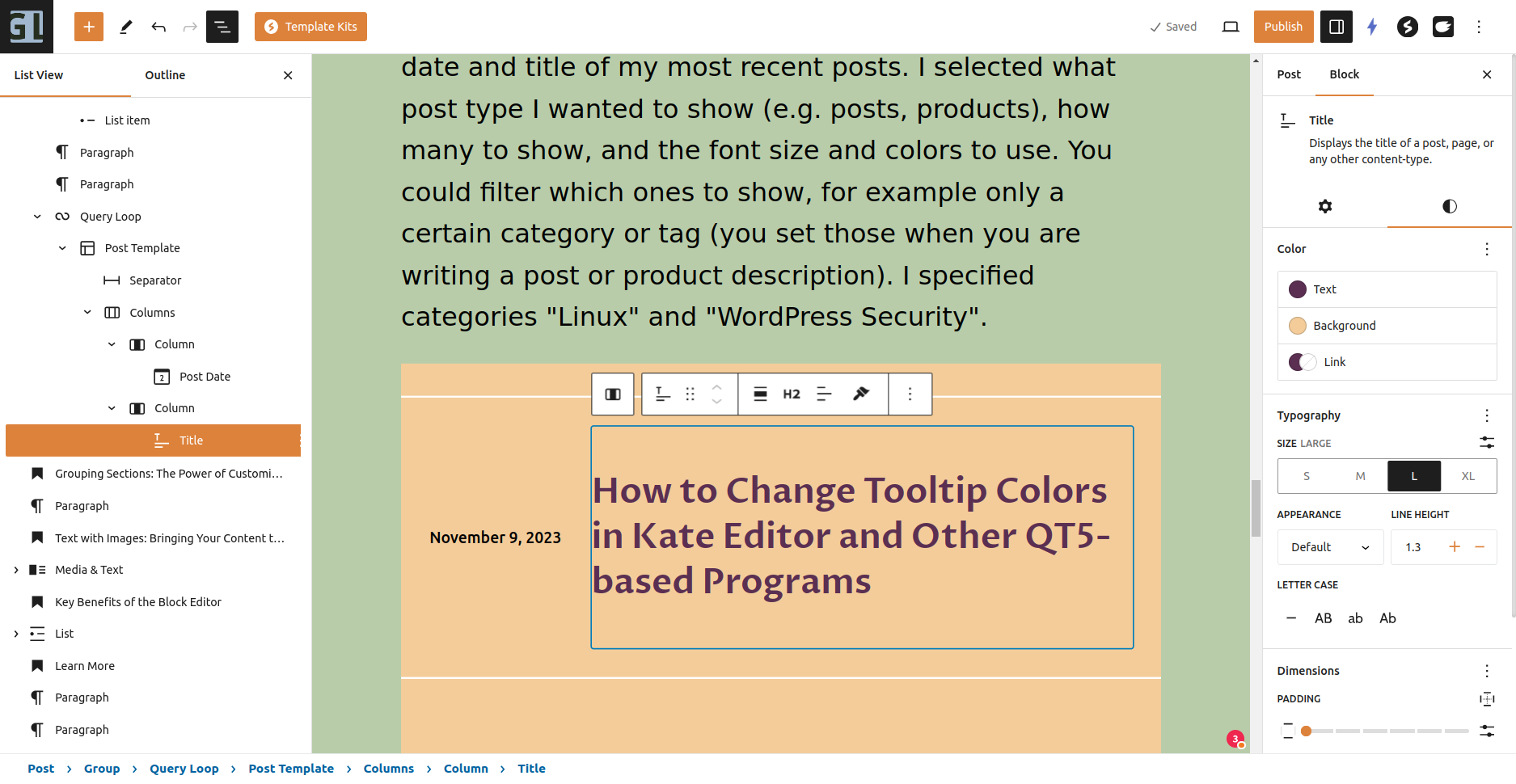
    Here is a pattern that I simply downloaded from the WordPress Pattern Library: A “Query Loop”, showing the date and title of my most recent posts. I selected what post type I wanted to show (e.g. posts, products), how many to show, and the font size and colors to use. You could filter which ones to show, for example only a certain category or tag (you set those when you are writing a post or product description). I specified categories “Linux” and “WordPress Security”.

    Block Editor Settings Panel

    Select the block you wish to style from the List View panel on the left, or click on it in the main section. Open or close the List View by clicking the black “3 line outline” icon at the top.

    The Block Settings panel is on the right. Open/close the panel with the “white on black” icon above it. Each block (and each sub-block of a complex pattern) has settings here.

    The “Post Title” block has options for text and background colors, typography (font size and letter case), padding, and margins. Less commonly used options, like font family, can be found in the “3 dots” icon.

    When you click on a block, that block’s settings panel appeares, and its hover menu appears.

    The hover menu has convenient buttons for that block, including selecting the block’s parent block (this example: the Post Title has a “Column block” as a parent, and the column is inside a “Columns Block”). Other blocks might have a simple conversion to another block, for example a Paragraph can easily be converted to a Heading, or to a List.

    That post title is currently displayed as an “H2” but you can change it to other heading levels; you can change the block width and text alignment (left/centered/right).

    This is the hover menu for a Paragraph block. You can select the parent block, convert it to different block types, move it by dragging or using the up/down arrows, change the text alignment, copy the block with all its settings (a Spectra feature), enhance the text using the AI Engine plugin, convert selected words to bold or italic or a link, and perform general operations like adding a block above or below this one.

    Learn More

    For a comprehensive tutorial on using the Block Editor, visit Learn WordPress. This set of videos, with transcripts, is very clear.

    Spectra – The Ultimate Blocks Library is a great introduction to both the Block Editor and Spectra (which is both a collection of great blocks, and blocks that make page layout easier).

    Conclusion

    The WordPress Block Editor is a game-changer, especially for those who value efficiency and ease of use. By embracing this tool, you’re not just building a website; you’re crafting an experience that resonates with your audience.

    Ready to take your website to the next level? Explore the Block Editor today and see the difference it makes in your online journey.

    If you have any questions about your website, please leave your comments here or contact me.

  • Using Git for WordPress Theme Development: Simplify Workflow, Collaboration, and Version Control

    Now that we have Full-Site Editing built into WordPress, theme development is so much easier. But we still want to keep our code in a Git Repository.

    Git is an invaluable tool for WordPress theme development, whether you are modifying older-style themes or when developing full-site editing themes.

    Using Git can greatly enhance your workflow, collaboration, and version control.

    Git provides robust version control capabilities, allowing you to track and manage changes to your theme files over time.

    With Git, you can create branches to experiment with new features, making changes without affecting the version of the theme on live sites. Then publish the tested version to sites.

    You can easily revert to previous versions if something goes wrong, while maintaining a clean and organized history of your theme’s development.

    If someone else collaborating on the project modifies a file that you also modified at your computer, or if you make changes at different computers, you can easily merge them with Git.

    With Git, you can easily review, discuss, and approve changes through pull requests. You can specify the purpose of each change, to make reviewing easier.

    Git has good tools for resolving conflicts, where changes by multiple people affect the same file. Each set of changes are tracked, and then you can review exactly what changes were made in any file and make any adjustments so all the changes can be combined.

    Git’s version control allows you to pinpoint the exact commit where a bug was introduced, making it easier to identify the cause and fix it quickly. You can quickly roll back to a working version if you find that changes introduced a problem. Publish the prior version to your production sites, fix the problem, test it, commit the new code to your repository, and publish the new code to production.

    How do you Simplify Using Git for Your Common Theme Changes?

    You don’t need to learn all the features of Git. There are a few commands you will use frequently. The others you learn only when you need them.

    For themes, most of your code will be very similar in future themes you make, except for the color palette. With Git, you can easily go through every feature you improved in a recent theme, and apply the improvements to other themes as needed. While you can’t automate applying the changes from one project into another, at least you can see exactly what changes were made and copy/paste those changes into the other project.

    You are probably making themes by yourself, even if you work in a company with many themes being developed.

    Whether for a simple theme or for a theme package, you use Git the same way; you publish your changes to the repository for this one theme, with your name and date/time.

    When it is time to release the whole package of many themes, Git can merge the repositories for the final product, without modifying the individual theme’s repositories. (You can learn later how to make a “combination” repository. I won’t cover that here, and it is well documented.)

    Folder Structure for Local Development and GIT

    The normal process is you develop all your theme’s files in your local repository and then push the files to a GitHub repository to publish to your live sites.

    Have a folder on your computer for your theme. That folder will include a local Git repository.

    Have another folder for your local WordPress development environment for testing the theme.

    Then, have a repository on GitHub (or similar), available on the Internet. You will use this for publishing to production sites. Of course, this is also a backup should anything happen to your computer.

    I have a folder for all my websites, ~/sites, and then in that folder I have one folder for each site or plugin or theme. Examples: ~/sites/wordpress/ (local development environment) and ~/sites/mytheme/ and ~/sites/abc-theme/ and in each of the theme folders have a Git repository, e.g. ~/sites/mytheme/.git/

    Note that leading period, .git, which means the Git repository is a “hidden folder”. Use your ls command with the -a flag (ls -a ~/sites/mytheme) to see it.

    Then I have folders for the theme, such as mytheme/assets where I put fonts, mytheme/images where I put theme icons, etc.; and mytheme/parts for block editor patterns and full-site editing page parts.

    ls -a
    .  ..  assets  .git  images  parts  readme.txt  screenshot.png  style.css  templates  theme.json
    ls -a parts
    .  ..  comments.html  footer.html  header.html  navigation-with-images.html  post-meta.html
    

    Why not have the Git repository inside your local development folder?

    For local development, I recommend you don’t put your local repository in the development environment folder.

    If you are done with the local development setup, it is quite normal for you to shut down the local development environment and delete the folder.

    Oops, you would have deleted your local Git repository. You should also have the Git repository replicated on GitHub, but if you didn’t…

    Another reason to keep the folders separate is to avoid inadvertently getting WordPress or other themes and plugins, into your Git repository. You can tell Git to ignore folders and files (git ignore command), but it is simpler this way.

    You will find it is easy to copy files from your theme folder into your testing folder.

    Only put in the repository the essential files for re-creating your theme, including fonts and icons and style sheets.

    A different use of Git is to make a “test environment” for WordPress. Install all the plugins and themes, configure each plugin, add your testing pages and posts and media library. Then export the database to a MySQL file. Make a local repository for all the files, including the MySQL export and wp-content folder, but don’t publish on GitHub (or publish as a private repository).

    Getting Your Files Into Git

    You can start with a new folder, create a Git repository in it, and add your theme files to the folder. Or, add your theme files to the folder and then create a Git repository in the folder.

    I use Lando: A development tool for all your projects that is fast, easy, powerful and liberating but the local development environment most popular among the AZ WordPress Meetup is Local – Local WordPress development made simple localwp.com

    Creating a Git Repository (local)

    When you create a Git repository, a hidden folder is added to your current folder. That folder contains the Git repository. The rest of your current folder is unchanged.

    cd ~/sites/cyb-theme/
    git init

    Git responds: Initialized empty Git repository in /home/george/sites/cyb-theme/.git/

    Now in ~/sites/cyb-theme/ there is a new folder, ~/sites/cyb-theme/.git

    Commands for Initial Commits

    GitHub used to name the main branch “master” and has changed the standard branch to “main”.

    You can use the git status command to see what the current branch name is. For example:

    git status
    On branch main
    Your branch is up to date with 'origin/main'.
    
    nothing to commit, working tree clean

    “On branch main” is what you want. If it says “On branch master” you can change it. This command won’t do anything until after your initial commit.

    git branch -M main

    Settings for Your Local Git

    Each commit should have your name and email specified. If you configure Git with your name and email, that will make your Git command lines simpler.

    Use these commands to configure the Git software on your computer, to be used in all your projects:

    git config --global user.name "George Lerner"
    git config --global user.email "george@YOURDOMAIN.com" 
    git config --global --list
        user.name=George Lerner
        user.email=lernerconsult@gmail.com

    There are a lot of options you can set in Git. To find them, use the git –help command. You mostly won’t need to change any options, but here is how you change them:

    git config --edit

    That command opens the configuration file in a text editor.

    Now you are ready to add files to your local Git repository.

    Add the current files to your local Git repository

    git add --all

    This command tells Git to add all the files in the current folder, to the list of files you will be tracking in your repository.

    Alternatively, you can “git add” followed by one or more file names.

    You can get the status of the repository, for example which files are “new” (have not been committed to the repository) or which files have been modified since the last commit.

    git status

    Committing Changes to the Repository

    When you have all your changes done (for this set of changes), and all the files ready in the status, it is time to Commit the changes to the repository.

    If you are fixing multiple bugs, you might find it easier to make each bug fix a separate set of changes. That keeps your “commit comments” clear. Specify which files to commit, if you don’t want to commit all changes. If you are using a bug tracker program, put the commit ID in the tracker.

    When you commit changes, you should always add a comment. The comment should state what the group of changes is for, such as fixing a bug or adding a feature. The comment will help you identify which commit you want to refer back to for adding these changes to another theme.

    If you don’t specify a commit comment, Git will automatically open a text editor for you to enter one.

    git commit -m 'Initial commit theme files, created by create-block-theme plugin, plus icons needed for the theme'

    The entire comment has to be inside quotes, or only the first word would be taken, and then you would have the other words as unexpected parameters. (Or, leave out the comment on the command line, and Git automatically loads a text editor for the comment.)

    Note that you have to be careful if you use single or double quotes in a comment, so no apostrophe-s if you have the comment surrounded by single quotes. (Using the comment text editor should handle apostrophes properly.)

    Your name (specified in the Git configuration file or by the git config commands above) is added to the commit, unless you specify --author= in the command line.

    Similarly, the current date and time is automatically added to the commit.

    Before you commit, you can add --dry-run to the command to see what the commit would do, but no changes are made to the repository.

    There are many more options available for the git commit command. I recommend reading git --help commit

    Ignoring Files in Git

    You should only add to your repositories the files that need to be there. Don’t add temporary files (from your editor, for example), and don’t (at least accidentally) add your WordPress installation or plugins from the WordPress Repository.

    Note: Never put anything confidential in any Git repository, public or private, as they are designed to be published. That includes passwords, WordPress configuration settings (such as, but not only, your wp-config.php file), and your business confidential information.

    Learn more about ignoring files I used the gitignore.io tool specifying VisualStudioCode (my programmer editor), Kate (my general text editor), WordPress, and Linux (my computer is Linux Mint, you can specify Windows or OSX).

    Making a GitHub Repository for your Theme

    You want a GitHub (or similar) repository, since it is available on the Internet, instead of just on your computer.

    You can make GitHub repositories public, or private (only accessible to you or people you explicitly share it with).

    Since you will transfer information to the GitHub repository, do not initialize the GitHub repository with a README; or at least don’t make one in both your local repository and your GitHub repository. Do make a gitignore file and add a license on GitHub. Note: If those resources exist in both repositories before the git remote add origin command runs, that will create extra merge and conflict resolution steps that are easily avoided.

    Setting Up a GitHub Repository for WordPress Theme Development

    Set up a GitHub repository for each project (plugin, theme, etc.) You will make one account, for you or your company. In that account, you create many repositories.

    Step 1: Create a GitHub Account

    • Visit the GitHub website (https://github.com/) and sign up for a new account if you don’t already have one.
    • Choose a username, enter your email address, and set a secure password.
    • Save the login information in your password keeper software. In the notes section in your password keeper for GitHub, store these items: the Email address you are using with GitHub; the HTTPS and SSH address of each repository you make. Note: You will be making SSH keys for your GitHub account, most password keepers have SSH entries with all the fields for SSH keys, so use those; but if not add your SSH key in the GitHub notes.
    • Complete the verification process to activate your GitHub account.

    Step 2: Create a New Repository

    • Once you have a GitHub account, log in to your GitHub dashboard. The URL for mine is https://github.com/glerner. Go to the Repositories tab, mine is https://github.com/glerner?tab=repositories
    • Another way to start a new repository: on many screens there is a “+” icon in the top-right corner. Click it and select “New repository” from the dropdown menu. [Note: not “import repository”, which is for converting a non-Git repository into Git.]
    • Give your repository a descriptive name related to your WordPress theme. (I’m using “cyb-demo” for this tutorial.)
    • Optionally, add a brief description to provide more context.

    Step 3: Configure Repository Settings

    • Choose between making your repository public or private. Public repositories are visible to everyone, while private repositories require access permission. Private repositories require a different way to connect your local repository to GitHub, but still easy. In this article I’m only using public GitHub repositories.
    • Add a README file: If you haven’t made one before, use GitHub’s template. After that, use your other project’s README.md file as a starting point. Another common name is readme.txt, your choice; the .md file has more formatting options such as boldface. Create it either on your computer or on GitHub, not both, so you don’t make merge conflicts.
    • I recommend making a separate repository for each of the plugins and themes the you are developing, so your .gitignore file will be simple. On GitHub, I suggest you Do use the WordPress template.
    • For most WordPress projects, the license to use is “GNU General Public License 3.0”

    If you want to make a repository for a WordPress installation (for example, every employee in the company quickly set up WordPress with the same set of plugins and themes and settings and default posts), you can do that. Don’t put WordPress itself and plugins/themes that are in the WordPress repository into GitHub; use wp-cli commands to install them, and have the list of commands in your GitHub repository. For WordPress projects, add a .gitignore file to specify files and folders that should be ignored by Git (e.g., caching files, sensitive data). See GitIgnore for WordPress

    Step 4: Clone the Repository to Your Local Environment

    This is for when you or someone else wants to take a repository from GitHub, to copy it to their computer.

    I suggest starting on your local environment, and clone to GitHub. (I copy my most recent theme’s files into a folder for my new theme, and make a new local Git repository, and then push to GitHub.)

    Someone collaborating with you can start in GitHub and make a local clone. Someone else can take your theme as a starting point for their own.

    Now that your GitHub repository is set up, you’ll (they’ll) need to clone it to your local development environment. Follow these steps:

    • Navigate to the desired directory in your local environment where you want to store the WordPress theme files.
    • Open a terminal or command prompt window.
    • Execute the following command to clone the repository:
    • git clone <repository_url>

    GIT local to remote

    In each project, make a .git/config file

    For project in ~/sites/asdf make a ~/sites/asdf/.git/config file.

    Below is an example config file. For yours, make these changes:

    • replace the url from GitHub that is the “SSH” URL (on the GitHub page for the project, click the <>Code button, in Local click SSH and copy the URL that starts with git@github.com: and then your GitHub username and then the project.
    [core]
    	repositoryformatversion = 0
    	filemode = true
    	bare = false
    	logallrefupdates = true
    [remote "origin"]
    	url = git@github.com:glerner/website-tech.git
    	fetch = +refs/heads/*:refs/remotes/origin/*
    [branch "main"]
    	remote = origin
    	merge = refs/heads/main

    If GitHub version not in sync

    I let one theme project get started on GitHub, then made a repository from scratch on my computer. When I tried to push my theme to GitHub, it wasn’t done right (should have made the repository on GitHub, then cloned it to my computer).

    ~/sites/cfal$ git status
    On branch main
    Your branch and 'origin/main' have diverged,
    and have 2 and 1 different commits each, respectively.
      (use "git pull" to merge the remote branch into yours)
    
    nothing to commit, working tree clean
    george@GL-Lat3410:~/sites/cfal$ git pull
    hint: You have divergent branches and need to specify how to reconcile them.
    hint: You can do so by running one of the following commands sometime before
    hint: your next pull:
    hint: 
    hint:   git config pull.rebase false  # merge (the default strategy)
    hint:   git config pull.rebase true   # rebase
    hint:   git config pull.ff only       # fast-forward only
    hint: 
    hint: You can replace "git config" with "git config --global" to set a default
    hint: preference for all repositories. You can also pass --rebase, --no-rebase,
    hint: or --ff-only on the command line to override the configured default per
    hint: invocation.
    fatal: Need to specify how to reconcile divergent branches.
    george@GL-Lat3410:~/sites/cfal$ git config pull.rebase false
    george@GL-Lat3410:~/sites/cfal$ git status
    On branch main
    Your branch and 'origin/main' have diverged,
    and have 2 and 1 different commits each, respectively.
      (use "git pull" to merge the remote branch into yours)
    
    nothing to commit, working tree clean
    george@GL-Lat3410:~/sites/cfal$ git pull
    fatal: refusing to merge unrelated histories
    george@GL-Lat3410:~/sites/cfal$ git config pull.rebase true
    george@GL-Lat3410:~/sites/cfal$ git pull
    Successfully rebased and updated refs/heads/main.
    george@GL-Lat3410:~/sites/cfal$ git status
    On branch main
    Your branch is ahead of 'origin/main' by 2 commits.
      (use "git push" to publish your local commits)
    
    nothing to commit, working tree clean

    Now everything is good

    git push
    Enumerating objects: 18, done.
    Counting objects: 100% (18/18), done.
    Delta compression using up to 8 threads
    Compressing objects: 100% (16/16), done.
    Writing objects: 100% (17/17), 190.07 KiB | 1.78 MiB/s, done.
    Total 17 (delta 3), reused 0 (delta 0), pack-reused 0
    remote: Resolving deltas: 100% (3/3), done.
    To github.com:glerner/cfal.git
       5aa878f..9226d6f  main -> main
    

    Frequent Command Flow for Updating Your Repository

    git remote add main [url]

    Specifies the remote repository for your local repository. The url points to a repository on GitHub.

    You can use the command git remote set-url to change a remote’s URL.

    git push
    fatal: The current branch main has no upstream branch.
    To push the current branch and set the remote as upstream, use

    git push --set-upstream origin main

    https://training.github.com/downloads/github-git-cheat-sheet/

    Publish the local repository to GitHub

    GitHub – Setting up SSH agent forwarding https://docs.github.com/en/authentication/connecting-to-github-with-ssh/using-ssh-agent-forwarding#setting-up-ssh-agent-forwarding

    git push

    Uploads all local branch commits to GitHub

    Adding changes to your files, into the repository

    Update the GitHub repository from your local repository

    Publish the GitHub repository to your production site(s)

    Rolling back to an earlier version of files

    Checking the Status of the repository

    What changes were made between any two versions?

    • This is an list item
    • Another item

    == Here is ChatGPT stuff

    Setting Up a GitHub Repository for WordPress Theme Development

    As an individual developer working on WordPress theme development, setting up a GitHub repository can greatly enhance your workflow and collaboration capabilities. Here are the best steps to set up a GitHub repository:

    Step 1: Create a GitHub Account

    • Visit the GitHub website (https://github.com/) and sign up for a new account if you don’t already have one.
    • Choose a username, enter your email address, and set a secure password.
    • Complete the verification process to activate your GitHub account.

    Step 2: Create a New Repository

    • Once you have a GitHub account, log in to your GitHub dashboard.
    • Click on the “+” icon in the top-right corner and select “New repository” from the dropdown menu.
    • Give your repository a descriptive name related to your WordPress theme.
    • Optionally, add a brief description to provide more context.

    Step 3: Configure Repository Settings

    • Choose between making your repository public or private. Public repositories are visible to everyone, while private repositories require access permission.
    • If needed, add a .gitignore file to specify files and folders that should be ignored by Git (e.g., caching files, sensitive data).
    • Select the appropriate license for your WordPress theme. It’s recommended to use an open-source license like MIT or GNU GPL.

    Step 4: Clone the Repository to Your Local Machine

    git clone <repository_url>

    Replace “<repository_url>” with the URL of your GitHub repository. This command will create a local copy of your repository on your machine.

    Now you have successfully set up a GitHub repository for your WordPress theme development. You can start committing your theme files, creating branches for new features, and collaborating with others using Git’s powerful version control features.

  • Mastering the Art of Flex Containers in WordPress 6.3 Block Editor

    In the realm of the WordPress 6.3 Block Editor, understanding flex containers and their settings can significantly streamline your site design process. Flex containers are versatile, allowing for diverse layouts that adapt seamlessly to various screen sizes.

    What Are Flex Containers?

    Flex containers, deriving from the CSS Flexbox module, enable you to design complex layout structures with a cleaner design logic than float or tables. The WordPress block editor has adopted this model, introducing blocks that utilize flex principles.

    Image 1: A diagram displaying a flex container with items inside.

    Alt tag: Overview of a flex container in WordPress.

    Full Width & Wide Width

    Full Width: This setting allows a block to span the entire width of the viewport. It’s useful when you want a background color, image, or pattern to extend edge-to-edge.

    Wide Width: Provides a wider design than the default width, but doesn’t span the entire viewport. It’s a middle ground between standard and full width.

    Image 2: Comparison of standard, wide, and full-width settings.

    Alt tag: Differences between standard, wide, and full-width in WordPress.

    Horizontal Alignment: Left, Center, Right

    This determines the alignment of blocks within a container:

    • Left: Aligns content to the left.
    • Center: Centers content.
    • Right: Aligns content to the right.

    Image 3: Blocks showcasing left, center, and right alignment.

    Alt tag: Horizontal alignment options in WordPress.

    Vertical Alignment: Top, Middle, Bottom

    This specifies the vertical placement of content within a flex container:

    • Top: Positions content at the top.
    • Middle: Centers content vertically.
    • Bottom: Anchors content at the bottom.

    Image 4: Blocks showcasing top, middle, and bottom alignment.

    Alt tag: Vertical alignment options in WordPress.

    Flex Spacing

    Flex spacing is all about distributing space among items within a flex container:

    • Space-between: Places equal spacing between each item.
    • Space-around: Distributes space around items, half on either side.
    • Space-evenly: Equal spacing around and between items.

    Image 5: Illustration of different flex spacing methods.

    Alt tag: Flex spacing methods in WordPress.

    Nesting Containers

    Nesting allows you to place a container within another container. It provides granular control over the design:

    • Outer Container defines the overarching layout.
    • Inner Container can have its unique properties.

    Remember, the properties of the outer container may influence the available settings for the inner container.

    Image 6: Diagram showing a container nested within another container.

    Alt tag: Nesting containers in WordPress.

    Flex Container Layout Suggestions

    • Card Layouts: Use flex containers to design card-based layouts, aligning them horizontally or vertically.
    • Navigation Bars: Flex containers can create responsive nav bars that adjust according to screen size.
    • Galleries: Showcase images in a flexible, responsive grid layout.

    Image 7: Examples of card layouts, navigation bars, and galleries using flex containers.

    Alt tag: Flex container layout examples in WordPress.

    What affects whether an element is full screen-width vs the width of the containing element?

    The width of an element in a web page, especially in WordPress, can be influenced by several factors:

    • Theme Restrictions: Your chosen theme might have default widths set for content. Some themes restrict content to a certain width to maintain a particular design aesthetic.
    • Block Settings: In the WordPress block editor, blocks like Group, Cover, and Column have width settings such as wide width and full width. If you set a block to full width, it’ll stretch across the entire width of the viewport.
    • CSS Styling: Custom CSS can be used to override default widths. Using properties like width, max-width, and min-width can define specific measurements.
    • Parent Container: If an element is inside a container (like a Group block in WordPress), the width of the parent container can limit the element’s width. For example, if the container has a maximum width set, all child elements within it will be restricted to that width.

    When do you put a “regular block” (such as heading and paragraphs) inside a container within a container, vs just using a single container?

    Using nested containers (a container inside another container) or a single container depends on the design complexity and functionality you’re aiming for:

    • For Basic Designs: If you’re looking to apply a basic background color, border, or spacing around a heading and paragraph, a single container would suffice.
    • For Complex Designs: Suppose you want to have a section with a distinct background color and within that, you want a heading and paragraph to have their own separate background, spacing, or border. In this scenario, you’d nest the heading and paragraph inside a container, and then place that container inside another container with the distinct background color.
    • For Advanced Layouts: Nested containers can help achieve complex layouts like grids with unique styles within each grid cell.

    What flex container settings interfere with other container settings? What is the right way to get different container layouts?

    Flexbox is a versatile layout model, but some settings can interfere or override others:

    • Flex Direction vs. Flex Wrap: flex-direction defines the direction of the flex items (row or column). If you have flex-wrap set to wrap and there’s not enough space for items to fit in a single line, they’ll move to the next line. This might change the appearance if you initially planned for all items in one line.
    • Justify-content vs. Align-items: justify-content arranges items horizontally while align-items does so vertically. If you change the flex-direction, the roles of these properties will swap, which can be confusing.
    • Flex-grow, Flex-shrink, and Flex-basis: These properties define how items grow and shrink within a flex container. If not used correctly, they can cause items to overlap or take up more space than anticipated.

    The Right Way to Get Different Container Layouts:

    • Plan Ahead: Before diving into designing, sketch out or note down the layout you want.
    • Use Developer Tools: If you’re unsure of how certain flex properties are affecting your layout, use browser developer tools to inspect elements. This allows you to see and experiment with applied styles.
    • Start Basic: Begin with basic settings, and then add complexity. For instance, start by setting the flex-direction and then adjust alignment, wrapping, and individual item properties.
    • Practice: Like all design tools, mastering flex containers in WordPress or any platform comes with practice. Experiment with different settings to understand their behavior and interactions.

    Remember, while flexbox is powerful, it might not always be the solution. Depending on your layout needs, consider other CSS layout models like Grid or traditional block and inline display properties.

    Setting Flexbox Widths and Heights

    Setting element widths in a flexbox layout is integral to achieving a desired design. You can use various methods, depending on the specific look and functionality you aim for.

    1. Setting Element Widths in Flexbox:

    Pixel Widths (px):

    • Offers fixed-width columns regardless of the viewport size.
    • Can be problematic for responsive design since the width remains constant across devices.
    • You should rarely (if ever) use pixel widths in a Flexbox design.

    Percentage Widths (%):

    • More responsive than pixel widths.
    • The columns adjust based on the percentage of the parent container’s width.
    • Since CSS can do simple calculations, you can specify widths as (100% / number of columns) to split evenly, e.g., 100% / 3 for 3 columns.

    Flexbox Relative Widths (flex):

    • Uses the flex property, which is a shorthand for flex-grow, flex-shrink, and flex-basis.
    • The default value is flex: 0 1 auto, which means columns don’t grow beyond their content width, can shrink, and have an initial width based on content.
    • For equal-width columns, you can use flex: 1 which ensures that all columns take up an equal amount of available space.
    • To make one column twice as wide as the others, or more accurately “grow wider twice as fast”, you can use flex: 2 for that particular column and flex: 1 for the others.

    2. Balancing Column Heights:

    Flexbox’s primary strength is its ability to align content vertically, making it easier to balance column heights. However, equal height columns do not guarantee equal content length due to variations in content density (e.g., text, images). Here’s how you can approach it:

    Equal Height Columns:

    • By default, flexbox child elements (flex items) will be the same height in a row. They stretch to the height of the tallest item.

    Balancing Content for Approximately Equal Heights:

    • This requires more strategic content planning rather than a pure CSS solution.
    • Aim for a balanced amount of content in each column.
    • Utilize content strategies like trimming text, using excerpts, or using CSS media queries to adjust font sizes for different devices to ensure uniformity.

    Row Wrapping:

    • If you have a multi-row flex container and want each row’s items to align to that row’s height instead of the tallest item in the entire container, you should separate your flex containers row-by-row.

    Example CSS of a 3-Column Flexbox:

    .container {
        display: flex;
        justify-content: space-between;
    }
    
    .column {
        flex: 1; /* Equal width */
        padding: 10px;
        box-sizing: border-box;
    }
    
    /* Optional: For a column to be twice as wide */
    .wider-column {
        flex: 2;
    }

    This CSS gives you a 3-column layout where each column adjusts to the container’s width. The .wider-column class allows one column to take up additional space twice as fast compared to the others.

    Making 3-column Layouts Using Flexbox

    1. Creating a 3-Column Flexbox using Block Editor:

    1. Add a Columns Block:
      • In your post or page editor, click the “+” button to add a new block.
      • Search for and select the “Columns” block.
      • Choose the “Three columns” layout from the patterns that appear.
    2. Adjust Column Widths:
      • By default, each column in the “Columns” block will have an equal width.
      • To adjust individual column widths, click on the particular column you want to modify.
      • In the Block settings panel on the right, there’s a “Percentage width” slider (or a width setting). Adjust the width of the columns as desired.
    3. Add Content to Columns:
      • Click inside each column to add blocks like “Paragraph”, “Image”, “Heading”, etc.
      • Add your content into these blocks.

    2. Applying Custom CSS like “flex: 2;” in the Block Editor:

    1. Add a Columns Block:
      • If you haven’t already, follow the steps above to add a 3-column layout.
    2. Use the Advanced Panel for Custom CSS:
      • Click on the column you wish to apply the custom CSS to.
      • In the Block settings panel on the right, scroll down to the “Advanced” section.
      • There’s a field labeled “Additional CSS class(es).” Here you can add a custom class, say, wider-column .
    3. Add Custom CSS in the Customizer:
      • Go to Appearance > Customize from your WordPress dashboard.
      • Navigate to Additional CSS.
      • Add your custom CSS, e.g.,
      • .wider-column { flex: 2; }
    4. Publish your changes.

    By following the above steps, you have successfully applied a flex: 2; style to the desired column, making it grow wider twice as wide as the other columns.

    Note: While the Block Editor provides a robust set of tools for designing layouts, sometimes it’s more efficient and offers greater flexibility to use a combination of Block Editor features and custom CSS for advanced styling needs.

    In conclusion, the method you choose for setting widths in a flexbox layout depends on your design goals. For most use cases, using the flex property offers the greatest flexibility and responsiveness. Balancing content visually is a mix of CSS techniques and content curation.

    Conclusion

    As you delve deeper into the world of WordPress 6.3 Block Editor, mastering the art of flex containers will undoubtedly elevate your design game. Remember, it’s all about understanding the tools at your disposal and experimenting until you find the perfect fit for your content.

    Note to Reader: Always keep your WordPress theme and plugins updated to ensure compatibility and make the most out of these features.


    This guide is ideal for dynamic entrepreneurs and business leaders, like those specializing in supporting course creators and life coaches. We understand the challenges of web design intricacies and aim to simplify them for you.

  • What is a Great Theme to use for Your Site?

    “Any recommended theme to use for building landing pages for lead generation?”

    A WordPress marketer

    My Theme Recommendations

    Use the TwentyTwentyThree theme with the Block Editor. As the default WordPress theme, it is the most tested, secure, well-written theme.

    Use Full-Site Editing and Block Patterns. WordPress 6.3 makes this so easy.

    You can specify your color palette and font palette in a TwentyTwentyThree child theme, with theme.json. Or you can set them in the Customizer using a good user interface. Once you have your palettes set, only use the colors and fonts you already picked. If you alter one of the colors in your palette, anywhere you used that “color position” in the palette will use the new color, automatically.

    Themes Straddling the Page Builder Capabilities

    You will likely find the Block Editor alone is able to do everything you want for a page.

    Great block designs are available in the Pattern Directory. And, you can get well-designed patterns as a plugin, with great user interface and great programming.

    A great enhancement to the Block Editor is a free plugin Spectra – Free WordPress Page Builder or in the WordPress Plugin Repository Spectra – WordPress Gutenberg Blocks (by Astra’s author Brainstorm Force). Spectra works entirely in the Block Editor settings panel you already use. The result is low-resource blocks and only the minimal CSS or JavaScript needed for the page; most page builders add many JavaScript files to every page that uses the page builder at all, or even on every page on your site. You can use Spectra on any full-site editing theme, though of course it works great with TwentyTwentyThree and Astra.

    Other top recommendations for theme + almost-page-builder: get either the free (from WordPress Repository) or paid version of either Astra https://wpastra.com/ or Kadence https://www.kadencewp.com/ . These are both well-liked in the AZ WordPress Meetup.

    Full Page Builders

    You can use Elementor, or Beaver Builder, or the Divi Builder with either of these themes. Yes, that is my order of preference; I used to use Divi but Elementor is easier to work with. (Don’t use the Divi Theme, it is simply not nearly as good; it comes bundled with the Divi Builder, but ignore it.)

    You might find this helpful:

    Advanced Layouts with the Block Editor | Learn WordPress https://learn.wordpress.org/workshop/advanced-layouts-with-the-block-editor/

    How to create a Landing Page with WordPress https://wpastra.com/guides-and-tutorials/create-landing-page-wordpress/

    Layout Recommendation

    Put more attention on good writing for your very specific ideal customer, than you put on “fancy layout”; you will (for most customers) find that a simple, clear, easy to read and use page, is what works best.