Category: Linux

  • Securing AI Coding Tools – How to Sandbox Devin Desktop with Bubblewrap

    Allowing an AI coding assistant or autonomous developer agent (like Devin Desktop) to run local Bash scripts, use CLI tools, and access your local development environment comes with inherent security risks. By default, these applications run with your user permissions, meaning they have unrestricted access to your private SSH keys (~/.ssh), cloud credentials (~/.aws), GPG keys (~/.gnupg), chat histories, and sensitive private documents.

    To mitigate this risk without crippling the app’s capability to code, test, and interact with your development sites, we can isolate it using Bubblewrap (bwrap)—the same lightweight containerization utility that powers Flatpak.

    Below is the production-ready sandboxing script, a detailed breakdown of its configuration items, and the exact diagnostic toolkit used to troubleshoot and lock it down.

    Tested Oct 2026 in Linux Mint 21.2 Cinnamon, Linux Kernel 6.8.0-138-generic on Devin Desktop Version: 3.10.67, VS Code OSS Version: 1.126.0, Electron: 42.2.0

    The Complete devin-sandboxed.sh Script

    save as ~/bin/devin-sandboxed.sh and then make it executable and change the System Menu (the Magic or Windows or Clover key opens it)

    # save as ~/bin/devin-sandboxed.sh
    # chmod +x ~/bin/devin-sandboxed.sh
    # In Menu, right-click Edit Menu, select Devin (in Programming), click Properties, in Command put
    #   /home/YOURNAME/bin/devin-sandboxed.sh %F
    #   NOTE: do not use ~ instead of /home/YOURNAME 
    #   /home/YOURNAME/bin/devin-sandboxed.sh %F
    #   NOTE: can not use ~ instead of /home/YOURNAME
    # To capture errors
    #   strace -f -e trace=connect,accept,socket -o ~/Documents/devin_failures.txt ~/bin/devin-sandboxed.sh
    

    The full contents of the script:

    #!/bin/bash
    
    # To capture errors for troubleshooting:
    #   strace -f -e trace=connect,accept,socket -o ~/Documents/devin_failures.txt ~/bin/devin-sandboxed.sh
    
    # Configuration: Define paths using explicit variables
    ALLOWED_SITE_DIR="$HOME/sites"
    CONFIG_DIR="$HOME/.config/devin-desktop"
    DEVIN_PROPER_CONFIG="$HOME/.config/Devin"
    LOCAL_SHARE="$HOME/.local/share/devin-desktop"
    DEVIN_HOME_CONFIG="$HOME/.devin"
    CACHE_DIR="$HOME/.cache/devin-desktop"
    
    # Additional required tool/UI paths
    VSCODE_DIR="$HOME/.vscode"
    WINDSURF_DIR="$HOME/.windsurf"
    CODEIUM_DIR="$HOME/.codeium"
    AGENTS_DIR="$HOME/.agents"
    LANDO_BIN="$HOME/.lando"
    NPM_GLOBAL="$HOME/.npm-global"
    FONT_CACHE="$HOME/.cache/fontconfig"
    THEMES_DIR="$HOME/.themes"
    
    # Ensure config/share dirs exist so they can be mounted writable
    mkdir -p "$CONFIG_DIR" "$DEVIN_PROPER_CONFIG" "$LOCAL_SHARE" "$DEVIN_HOME_CONFIG" "$CACHE_DIR" "$VSCODE_DIR" "$WINDSURF_DIR" "$CODEIUM_DIR" "$AGENTS_DIR" "$ALLOWED_SITE_DIR"
    
    # Build BWRAP flags array safely
    BWRAP_ARGS=(
        --unshare-user
        --share-net
        --uid 1000
        --gid 1000
        --clearenv
    
        # Environment Setup for Display and User
        --setenv HOME "$HOME"
        --setenv USER "$USER"
        --setenv DISPLAY "$DISPLAY"
        --setenv WAYLAND_DISPLAY "$WAYLAND_DISPLAY"
        --setenv XDG_RUNTIME_DIR "$XDG_RUNTIME_DIR"
        --setenv DBUS_SESSION_BUS_ADDRESS "$DBUS_SESSION_BUS_ADDRESS"
        --ro-bind-try "$HOME/.Xauthority" "$HOME/.Xauthority"
        --bind-try "${XDG_RUNTIME_DIR}" "${XDG_RUNTIME_DIR}"
    
        # System core read-only binds
        --ro-bind /usr /usr
        --ro-bind /lib /lib
        --ro-bind /lib64 /lib64
        --ro-bind /etc /etc
        --ro-bind /sys /sys
        --bind /dev/shm /dev/shm
        --bind-try /dev/dri /dev/dri
        --symlink usr/bin /bin
        --proc /proc
        --dev /dev
        --tmpfs /tmp
    
        # Enable machine identity for D-Bus / keyring integration
        --ro-bind-try /var/lib/dbus /var/lib/dbus
    
        # Recreate a clean home directory structure inside the sandbox
        --dir "$HOME"
    
        # Explicitly bind your allowed site directory and app configurations
        --bind "$ALLOWED_SITE_DIR" "$ALLOWED_SITE_DIR"
        --bind "$CONFIG_DIR" "$CONFIG_DIR"
        --bind "$DEVIN_PROPER_CONFIG" "$DEVIN_PROPER_CONFIG"
        --bind "$LOCAL_SHARE" "$LOCAL_SHARE"
        --bind "$DEVIN_HOME_CONFIG" "$DEVIN_HOME_CONFIG"
        --bind "$CACHE_DIR" "$CACHE_DIR"
        --bind "$VSCODE_DIR" "$VSCODE_DIR"
        --bind "$WINDSURF_DIR" "$WINDSURF_DIR"
        --bind "$CODEIUM_DIR" "$CODEIUM_DIR"
        --bind "$AGENTS_DIR" "$AGENTS_DIR"
    
        # Bind Development Tools & System UI (Read-Only where appropriate)
        --bind "$LANDO_BIN" "$LANDO_BIN"
        --bind "$NPM_GLOBAL" "$NPM_GLOBAL"
        --ro-bind-try "$HOME/.config/git/config" "$HOME/.config/git/config"
        --ro-bind-try "$FONT_CACHE" "$FONT_CACHE"
        --ro-bind-try "$THEMES_DIR" "$THEMES_DIR"
    
        # Explicitly block/hide sensitive folders by turning them into empty tmpfs mounts
        --tmpfs "$HOME/.ssh"
        --tmpfs "$HOME/Documents"
        --tmpfs "$HOME/.gnupg"
        --tmpfs "$HOME/.aws"
        --tmpfs "$HOME/.claude"
        --tmpfs "$HOME/.bash_history"
    
        # GUI / X11 / Wayland socket access
        --ro-bind /tmp/.X11-unix /tmp/.X11-unix
        --bind-try "${XDG_RUNTIME_DIR}" "${XDG_RUNTIME_DIR}"
    )
    
    exec bwrap "${BWRAP_ARGS[@]}" /usr/bin/devin-desktop "$@"

    Line-by-Line Breakdown: What Each Item Does and Fixes

    1. Namespace & Core Isolation Flags

    • --unshare-user & --uid 1000 --gid 1000: Maps your current user into an unprivileged container namespace so it cannot escalate privileges or affect the host system.
    • --share-net: Essential for Electron-based apps and deep-link handlers. Without network sharing, local TCP loopback communication breaks, and OAuth callback redirection fails to reach the app.
    • --clearenv: Wipes out inherited host environment variables to ensure a pristine, controlled launch environment.

    2. Graphics Rendering & Performance (/dev/shm, /dev/dri)

    • --bind /dev/shm /dev/shm: Chromium and Electron applications rely heavily on shared memory (/dev/shm) for inter-process communication (IPC) and rendering buffers. Without this, the UI renderer starves, resulting in blank or frozen “not responding” windows.
    • --bind-try /dev/dri /dev/dri: Passes through Direct Rendering Infrastructure nodes to enable hardware-accelerated GPU graphics pipelines.

    3. Data Privacy & Hard Blocking (--tmpfs)

    • --tmpfs "$HOME/.ssh", --tmpfs "$HOME/.aws", etc.: Instead of just restricting permissions, these directives create empty, isolated RAM-backed filesystem views (tmpfs) over your private directories. To the application, these folders appear completely empty or non-existent, shielding your credentials from exposure.

    4. Authentication & Keyring Integration (/var/lib/dbus)

    • --ro-bind-try /var/lib/dbus /var/lib/dbus: Electron and VS Code-based apps look for /var/lib/dbus/machine-id to identify the machine context. Binding this allows the app to cleanly initialize state tracking and fall back gracefully to local file-based credential storage when a full desktop secret service daemon is unavailable.

    Troubleshooting Toolkit: How We Diagnosed and Fixed It

    When building strict application sandboxes, things inevitably break on the first try. Here are the exact diagnostic utilities and grep filters used to track down hidden dependencies:

    Capturing File Access Failures (strace)

    To see every file path, library, or socket the application tried to open or touch during startup:

    strace -f -e trace=openat,access -o ~/Documents/devin_failures.txt ~/bin/devin-sandboxed.sh

    Filtering D-Bus, Sockets, and Machine IDs

    To diagnose why desktop integration or authentication handlers were failing, we filtered the strace log using grep:

    grep -i -E "dbus|bus|socket" ~/Documents/devin_failures.txt

    What it revealed: Missing access to /var/lib/dbus/machine-id, which caused authentication modules to lock up until the read-only bind was added.

  • Rename Files with Linux Ext4 Names to NTFS Names

    Linux file names can have some common characters, that are not allowed in NTFS file names. These include: colon :, backslash \, vertical bar |, double quote “, asterisk *, question mark ?, less than sign <, greater than sign >.

    There are many posts about how to do it with a difficult to read replacement script. I don’t like these, since as needs change it isn’t easy to modify.

    Where do I change the replacement for a < in this script?
    find /mount/point -print0 | xargs -0 rename 'tr#:*?"<>|#__-.._#'
    I think that is too hard to puzzle out. Answer: that is 5 characters after the #, so wait is that a double underscore, and is there a space in there, yikes.

    Worse though, is there is no error checking. You could easily have one file overwrite another one that got converted into the same file name when you replaced characters.

    https://askubuntu.com/questions/1507422/changing-linux-file-names-to-ntfs-compatible-file-names had a clear script that I could improve.

    There are “look alike” characters you can replace with, from https://superuser.com/questions/280299/script-to-convert-ext4-filenames-to-ntfs :

    Here are some changes I made with this script:

    
    ./Mel Robbins How to HEAL Anxiety And Form CONFIDENCE As A Habit | Rich Roll Podcast.mp4 
     to 
    ./Mel Robbins How to HEAL Anxiety And Form CONFIDENCE As A Habit - Rich Roll Podcast.mp4
    
    ./The Daily Habits To Live Longer & Happier! - Change Your Life One Tiny Step at a Time | Peter Attia.mp4 
     to 
    ./The Daily Habits To Live Longer & Happier! - Change Your Life One Tiny Step at a Time - Peter Attia.mp4
    
    ./Mel Robbins: "Saying These 2 Words Could Fix Your Anxiety!" (Brand New Trick).mp4 
     to 
    ./Mel Robbins- _Saying These 2 Words Could Fix Your Anxiety!_ (Brand New Trick).mp4
    
    ./NASA's Stunning Discoveries on Jupiter's Largest Moons | Our Solar System's Moons Supercut.mp4 
     to 
    ./NASA's Stunning Discoveries on Jupiter's Largest Moons - Our Solar System's Moons Supercut.mp4
    
    ./Bach - St Matthew Passion / Matthäus Passion BWV 244 (reference recording: Nikolaus Harnoncourt).mp4 
     to 
    ./Bach - St Matthew Passion / Matthäus Passion BWV 244 (reference recording- Nikolaus Harnoncourt).mp4
    
    ./J.S. Bach - Cantata BWV 21 "Ich hatte viel Bekümmernis" (J.S. Bach Foundation).mp4 
     to 
    ./J.S. Bach - Cantata BWV 21 _Ich hatte viel Bekümmernis_ (J.S. Bach Foundation).mp4
    
    ./Vocal tips for opera singers: Joyce DiDonato Masterclass in full (The Royal Opera).mp4 
     to 
    ./Vocal tips for opera singers- Joyce DiDonato Masterclass in full (The Royal Opera).mp4
    
    ./The Savings Expert: “Do Not Buy A House!” Do THIS Instead! - Morgan Housel.mp4 
     to 
    ./The Savings Expert- “Do Not Buy A House!” Do THIS Instead! - Morgan Housel.mp4

    Notice that in the St Matthew Passion, there is a “full-width (double-byte) slash” which is allowed in a file name, unlike the normal keyboard / character. Those aren’t double quotes in The Savings Expert, those are double curved quotes.

    I am still going to make more changes, for example I like having the person’s name at the front, e.g. “Morgan Housel the Savings Expert “Do Not Buy A House!” Do THIS Instead.mp4” but these I will have to make by hand.

    This is enough that I can backup files to an NTFS drive, readable by a Windows computer.

    The Script

    I have a Python program to convert file names (e.g. from YouTube videos) to Windows NTFS standards. Easy to make detailed replacement rules, such as “capitalize the first word after special characters, even if it is a ‘do not capitalize’ word”. See GitHub https://github.com/glerner/file-rename-to-ntfs

    Remember, some of these characters are UTF-16 replacements. Copy/paste, don’t type. Or, type most of the script but remember to use your own replacement characters.

    #! /bin/bash
    # Replace characters in Linux file system names, that don't work in file names on NTFS file systems, with characters that do
    # first have to    chmod +x filename.sh
    # Run with:
    # find . -exec ext4-to-ntfs-file-names.sh {} \;
    
    
    old=$1
    new=${1//\:/-}		# Replace colons by dashes
    new=${new//\\/_}	# Replace backslashes by underscores.
    new=${new//|/-}		# Replace vertical bars aka pipes by dashes.
    # new=${new// /-}   # Replace spaces by dashes.
    new=${new//\"/_}		# Replace double quotes with underscores.
    new=${new//\*/✲}		# Replace asterisks by 'look alike asterisks' ✲, see https://en.wikipedia.org/wiki/Asterisk#Encodings
    new=${new//\?/⁈}		# Replace question marks with 'question exclamation mark'
    new=${new//\</_}		# Replace less than signs with underscores.
    new=${new//\>/_}		# Replace greater than signs with underscores.
    
    if [[ $new = $old ]] ; then  # No change, skip this one.
        exit
    fi
    
    if [[ -e $new ]] ; then
        echo "Cannot rename $old, since $new already exists" >&2
    else
    #     mv "$old" "$new"
        echo -e "$old \n to \n$new\n"
    fi

    I commented out the mv statement (what actually moves the file to the new name), for testing. Make sure this looks good for all your files, before you rename them.

  • Linux TTY Console Font Too Small?

    I’m not talking about the Terminal (many names for it, all appear as an X-window session in your main screen). I’m talking about the Ctrl-Alt-F1 TTY Console (a text screen, not a window in a graphical screen). You can also access it by booting your computer and interrupting to get to grub or booting into text mode.

    In Linux Mint, you by default have 6 Consoles, Ctrl-Alt-F1 through F6; you press Ctrl-Alt-F7 to get back to your normal graphical screen.

    Many thanks to https://www.linux.com/topic/desktop/how-change-your-linux-console-fonts/ which gave me what I needed to learn.

    What Fonts Do You Have?

    To list the fonts you have, designed for use on your Console:
    ls /usr/share/consolefonts/

    But mostly you want to look at the UTF-8 codeset. Uni3- fonts support most of the Latin and Cyrillic languages, so
    ls /usr/share/consolefonts/Uni3*

    Uni1 (512 glyphs) – most Latin languages, Slavic Cyrillic languages, Hebrew and barely Arabic

    Uni2 (512 glyphs) – most Latin languages, Slavic Cyrillic languages and Greek

    Uni3 (512 glyphs) – most Latin and Cyrillic languages

    Can you convert other fonts for your Console?

    TrueType or OpenType or Postscript fonts are fundamentally different than bitmap fonts which a TTY uses. TTY can not handle fractional pixels, anti-aliasing, hinting, kerning. Converting a scalable font to a TTY size will likely look terrible.

    Just be glad there are a few fonts designed for TTY use, already installed on your Linux system. If you want a special font, use the Terminal in your windowed environment. My favorite font for my text editor, programming editor (Visual Studio Code), Terminal and LibreOffice Spreadsheet, is Fira Code (on Google Fonts).

    If you really want more TTY fonts, search online for TTY fonts. You might be able to find .psf fonts (PC Screen Font format), used by the Linux kernel or console fonts.
    Perhaps zap-light from https://www.zap.org.au/projects/console-fonts-zap/ which goes from 8×16 pixels to 16×32 pixels.

    Specify your TTY Console font

    To set your console font, run
    sudo dpkg-reconfigure console-setup 

    Use the tab key to move from the selection box to the OK button. Use the arrow keys to select your preference.

    For encoding, always pick UTF-8 (unless you know you need different for some special case).

    “Guess optimal character set” is probably best, or in USA or Western Europe select “Latin1 and Latin5 – western Europe and Turkic languages”.

    (Apparently, all modern versions of Linux use framebuffers.)

    Font for the console: Terminus (you can experiment with others if you like).

    Font size: “11×22 (framebuffer only)”, this is the smallest that, on my 1920×1080 14″ notebook, is still easy to read. Once you have this set up, you can easily experiment with different fonts to find what you like best; I’ll say how later.

    It will take a few minutes, let it finish.

    Then press Ctrl-Alt-F1 to go to your Console

    Run this to activate the changes:
    sudo setupcon

    Editing console-setup

    You can also edit /etc/default/console-setup directly.
    sudo nano /etc/default/console-setup

    Here is mine:

    # CONFIGURATION FILE FOR SETUPCON
    
    # Consult the console-setup(5) manual page.
    
    ACTIVE_CONSOLES="/dev/tty[1-6]"
    
    CHARMAP="UTF-8"
    
    CODESET="Lat15"
    FONTFACE="Terminus"
    FONTSIZE="11x22"
    SCREEN_WIDTH="120"
    VIDEOMODE=
    
    # The following is an example how to use a braille font
    # FONT='lat9w-08.psf.gz brl-8x8.psf'

    I find that having lines too long makes them harder to read, so 120 characters is enough. Here is how it looks on my Console (click to expand to full size):

    Linux TTY Console font Uni3-Terminus22x11

    Screen Capture your TTY

    How did I make a screenshot of my Console? There is a command for that, of course. sudo fbgrab /home/YOURNAME/Pictures/your-file-name.png and you can even use one console to take a picture of another console: fbgrab -c N (where N is the number of the Console) lets you “Grab the /dev/ttyN virtual terminal.”

    Making the New Font the Default

    Once you have picked which font you like, e.g.
    setfont /usr/share/consolefonts/Uni3-Terminus24x12.psf.gz
    then to make the current setting the default (with a capital oh)
    setfont -O default

    Once you have the default set, change to the default from whatever font you tried with simply
    setfont

    Here is the Terminus 28×14 font (click to expand to full size)

    Linux TTY Console font Unie-Terminus28.14

    Want to see the original?

    It is hard to read, see for yourself:

  • Converting Audio Formats on Linux

    I had an audio in Apple .ape format, that I wanted to convert to MP3 format for easier listening on all my devices.

    Linux has free audio and video converters. I’ll be using ffmpeg.

    cd to the folder with the original file. For this example, cd /media/george/Seagate700GB/Nathan Milstein – The Last Recital/ and in that folder the music file is CDImage.ape

    MP3 320kbps Constant Bit Rate

    ffmpeg -i ‘CDImage.ape’ -acodec libmp3lame -id3v2_version 3 -b 320 -metadata Year=’1995′ -metadata Comment=” -metadata Title=’Nathan Milstein – The Last Recital’ ‘Nathan Milstein – The Last Recital.mp3’

    -b is setting the output to 320kbps

    -metadata Year sets the Year field

    -metadata Comment (note: repeat -metadata for each field) I wanted to removed the comment the “extract from CD” software left

    -metadata Title always enclose in quotes

    Then the output file must be at the end.

    MP3 Variable Bit Rate, best quality 0

    ffmpeg -i ‘CDImage.ape’ -acodec libmp3lame -id3v2_version 3 -qscale:a 0 -metadata Genre=’Classical’ -metadata Artist=’Nathan Milstein violin, Georges Pludermacher piano’ -metadata Year=’1995′ -metadata Comment=” -metadata Title=’Nathan Milstein – The Last Recital’ ‘Nathan Milstein – The Last Recital.mp3’

    “-qscale:a 0” is setting the output to variable bit rate with the highest quality
    I added the Artist and Genre fields
    Then the output file is at the end.

    For more details about the settings, see: ffmpeg.org Encode MP3 but
    -b 320 gives CBR (constant bit rate 320kbps, better quality than most people can distinguish, and the best this library will output)
    -qscale:a 0 means VBR (variable bit rate) usually between 220-260 kbps

    Output

    In VLC Media Player, says in the Codec tab of the Info, that it is “32 kb/s” but ignore that for VBR. Look in Statistics tab of VLC, see the “Input bitrate” varying.

    $ ffmpeg -i ‘CDImage.ape’ -acodec libmp3lame -id3v2_version 3 -qscale:a 0 -metadata Genre=’Classical’ -metadata Artist=’Nathan Milstein violin, Georges Pludermacher piano’ -metadata Year=’1995′ -metadata Comment=” -metadata Title=’Nathan Milstein – The Last Recital’ ‘Nathan Milstein – The Last Recital.mp3’

    Then after a long list of what is enabled in ffmpeg:

    Input #0, ape, from ‘CDImage.ape’:
    Metadata:
    Artist : –
    Album : –
    Title : –
    Genre : Undefined
    etc.

    << Track : – Duration: 01:09:00.47, start: 0.000000, bitrate: 613 kb/s Stream #0:0: Audio: ape (APE / 0x20455041), 44100 Hz, stereo, s16p

    Stream mapping: Stream #0:0 -> #0:0 (ape (native) -> mp3 (libmp3lame))

    Output #0, mp3, to ‘Nathan Milstein – The Last Recital.mp3’:
    Metadata:
    TCON : Classical
    TALB : –
    Year : 1995
    TRCK : –
    TPE1 : Nathan Milstein violin, Georges Pludermacher piano
    TIT2 : Nathan Milstein – The Last Recital
    TSSE : Lavf58.76.100

    Those will show up in your audio player, e.g. VLC Media Player, as the genre, album, year, track, artist, title and encoder.

    For a full list of the media tags available, see https://wiki.multimedia.cx/index.php/FFmpeg_Metadata

  • Change Dolphin’s Application Icon, in Linux Mint

    Change Dolphin’s Application Icon, in Linux Mint

    This technique should work with most applications in Linux Mint. If you are using a different variety of Linux, you may have to adjust the exact steps.

    Dolphin file manager is excellent. Two panels for easily copying or moving files. Multiple tabs to have file listing of multiple folders. Save the current tabs and panels when you exit. No more having to tediously browse to your favorite folders. Open your Terminal in the current folder.

    But the Dolphin icon uses the identical icon as the default Mint file manager. While there are a few things where I need to use File Manager (Nemo), I do want to have icons where I launch the program I want.

    Edit the Application Menu

    Right-click on your Start icon. (It’s the icon you’d click instead of pressing your Windows or Apple Clover key), select “Edit Menu”.

    Linux Mint's Start menu. Click the icon on the bottom left of your screen to open it, or press your Windows Flag or Apple Clover key.
    Linux Mint’s Start menu. Click the icon on the bottom left of your screen to open it, or press your Windows Flag or Apple Clover key.
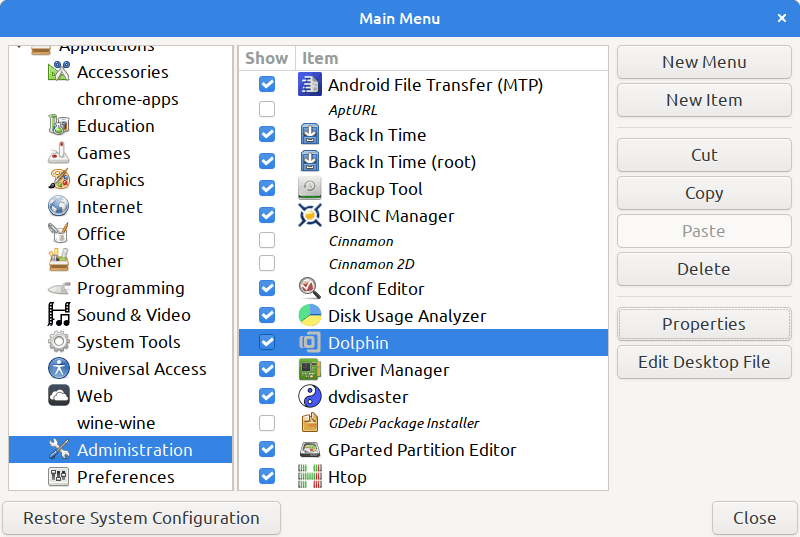
    Linux Mint's application menu editor
    Linux Mint’s application Menu Editor

    Click on the Properties button. From there, click on the application’s icon in the top-left corner. Select whatever icon you like from the list. (I used the existing “add-files-to-archive-symbolic” icon.)

    How to Add Icons to the Icon List

    I don’t know yet. I looked up “linux mint change an application icon” and there are many sites explaining how. You can install an icon that you made, in formats like svg or png.

    Then I got distracted looking at sets of icons that you can install, and many of them look pretty, but didn’t see any where I could install a single icon.

    Tip: drag the top of your Start menu up, and you can see more icons in the left-most edge.

    Linux Mint start menu, with changed icon for Dolphin just below the icon for Files.

    The changed icon shows in other places, such as the Alt-Tab menu and the bottom-of-screen Applications list.

  • How to Change Tooltip Colors in Kate Editor and Other QT5-based Programs

    Have you ever struggled to read tooltips in the Kate editor because of illegible colors, such as black text on a dark gray background? You’re not alone. Many find the default setting less than ideal, or hard to read. But there’s good news – with a few tweaks, you can customize these colors to suit your preferences.

    Kate is a well-known Linux text editor, great for handling “ordinary text” files. It’s not the prime choice for programming—where editors like Visual Studio Code excel with their syntax highlighting and parameter prompting—but it’s a solid option for everyday editing.

    Adjusting Kate’s UI Elements with the QT5 Configuration Tool

    Several user interface elements for Kate, and other QT5-based applications, are governed by the “QT5 Configuration Tool”. Original setting files are locked, but you can copy and customize them to your liking.

    • Open the QT5 Configuration Tool.
    • Click the Style Sheets tab.
    • Click on the style name you wish to alter, like “tooltip-simple.qss”.
    • Click the “View” button, select all text, copy it, and then click “Create” to paste and edit your new style.

    You’ll want to remove the lines that dictate the tooltip background and text color. Mine had this (yeah, weird, I have no idea how it happened):

    background: QLinearGradient(x1: 0, y1: 0, x2: 1, y2: 1, stop: 0 palette(window), stop: 1 palette(alternate-window));

    and:

    color: palette(text);

    Substitute your preferred CSS colors. In this example, I use white text on a dark cerulean background.

    I also specified the font size for the tooltips. This should be in pixels (using ems didn’t work), e.g. 16px or 18px.

    Here is the entire text of the setting file:

    QToolTip{
    
      /* GL colors, white on Primary Darker - Calm Cerulean */
      color: #ffffff;
      background: #284568;  
      font-size: 16px;
    
      border-radius: 3px;
      border: 1px solid palette(highlight);
      padding: 1px;
    }

    Here is another example, taken from traynotificationsimple.qss (since traynotificationsimple.qss styles Balloon tips not Tool tips, just copy the color lines):

    background-color: palette(base);
    color: palette(text);

    I saved the new settings with my initials at the beginning: “GL-tooltip-simple.qss”

    After saving your new settings, click to put a checkmark by your new Setting.

    You may need to restart any QT5-based applications for the changes to take effect.

    Remember: It’s about making your work environment as comfortable and personalized as possible. With these customizations, you can ensure that your tools work for you, not against you.

  • How to Fix Authentication Problems on FileZilla Linux — Too many authentication failures

    This is for FileZilla on Linux Mint (and probably other Linux), as of September 2023 (FileZilla 3.65.0).

    I want to connect securely, so I always use SFTP instead of insecure FTP. You should always use SFTP, or transfer files via an SSH connection. 

    FileZilla though doesn’t know how to not send an SSH key if you don’t specify one. 

    If you turn on Debug (Edit, Preferences, Debug) you can see what is generating the authentication failures. FileZilla is trying every SSH key you have, even though you didn’t say to send any SSH keys. The server disconnects you after too many attempts. 

    What is FileZilla’s Problem?

    FileZilla doesn’t know how to send only the SSH keys you specify, to the hosts you try to connect to. Definitely a bug, they should fix that. 

    So, every site you attempt to connect to, gets every SSH key in your ~/.ssh folder (or rather, all the ones in the .ppk format FileZilla understands). After too many attempts, the remote server disconnects you. 

    How to Fix It?

    There are many sites and many questions on FileZilla’s support boards about how to get FileZilla working. The main suggestion is “temporarily move your ~/.ssh folder”. But you would have to do that every time you want FileZilla to connect to your servers that don’t use SSH keys. 

    I finally found someone who understood the problem. See the reply by “vincitus” on Not possible to disable SSH public key authentication? – FileZilla Forums. 

    Installing Latest FileZilla

    Download the latest version from FileZilla Downloads, since the version in the Mint Repository is ancient.

    How to install FileZilla FTP client in Linux | Web Developers Planet 

    Make sure you have the  dependencies

    sudo apt-get install libfilezilla-dev libwxbase3.0-dev gnutls-dev libdbus-1-dev

    You don’t have to compile it, the .xz download file is ready for Linux Mint.

    cd ~/Downloads
    sudo tar vxf FileZilla_____.xz
    [substitute the file name for the version just downloaded]
    sudo cp -r FileZilla3 /opt/
    cd /opt/
    sudo chown -R root:root FileZilla3/

    Starting FileZilla (normally)

    Put this in your System Menu. (Right-click the “LM” tray icon, Configure, “Menu” tab, “Open the menu editor”, in the Internet section click “New Item”

    /opt/FileZilla3/bin/filezilla

    Starting FileZilla w/o SSH Keys

    Start FileZilla with an Environment Variable mis-set to not access SSH. 

    Edit your ~/.bashrc file to add this line (at the end is fine, or with other “alias” lines)

    alias fz="SSH_AUTH_SOCK=null  /opt/FileZilla3/bin/filezilla &  "

    I called the alias “fz” for “FileZilla”, you can name it how you want (but no spaces in the name). 

    What that command does is remove the SSH setting for only this terminal session, and run FileZilla. That ‘&’ at the end says to immediately give you access to the terminal (FileZilla launched in the background). Without the SSH_AUTH_SOCK setting, FileZilla doesn’t know how to access your system’s SSH keys, so it can’t send them to the remote servers you connect to.

  • Make a Multiple-Boot USB Drive in Linux Mint

    Make a Multiple-Boot USB Drive in Linux Mint

    Windows ISOs and multiboot USB — Linux Mint User Guide documentation has more information about this.

    Ventoy

    Ventoy is an open source tool which creates a USB boot drive, with everything needed to boot off that drive and get a boot menu to select the operating system version you want.

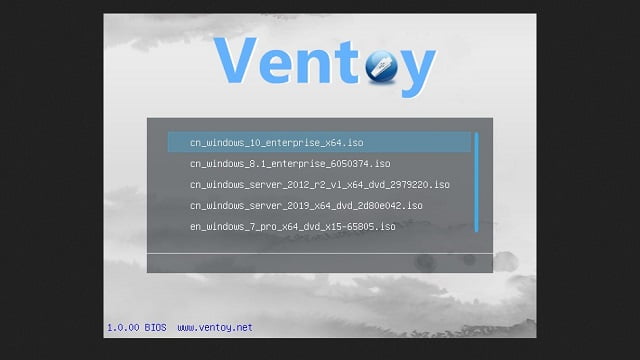
    On that Ventoy USB drive, you simply copy multiple ISO files, and Ventoy shows them as a bootable menu.

    When you boot from the Ventoy USB drive, the menu lists all the ISOs you placed in the partition and you can boot any of them.

    Installing Ventoy

    See that “Windows ISOs and multiboot USB” page for more details about how to download and install Ventoy.

    Go to the Ventoy release page to find the latest version of Ventoy.

    Download the tar.gz archive and decompress it. (In Dolphin, or Files aka Nemo, right-click and select “Open with Archive Manager” or “Extract here”. Double Commander is the same.)

    How Do You Use Ventoy?

    Right-click the decompressed Ventoy folder and choose Open in terminal.

    Run the following command to start Ventoy:

    sudo ./VentoyGUI.x86_64

    Choose the device which corresponds to your USB drive.

    Click the Install button.

    Once Ventoy is installed on your USB drive, the drive will be named “ventoy”.

    Mount it, and copy ISO files to the stick. Each ISO file is the installation (and often “live boot”) file for a specific version of an operating system (e.g. Linux, Windows, OS/X). You could even add an anti-virus scan boot.

    The USB drive is now ready to use as a boot drive.

    Boot on the Ventoy USB stick. (Each computer has some way of booting from a different drive than the normal drive. Check your computer’s manual, or as you power-on your computer try pressing keys such as: Del, Esc, F2, F10, F12, F1. This key is usually displayed during the boot process. For example, you may see “Press Del to enter setup” or “Press F2 to access the BIOS.” Or try How to Boot Your Computer From a Disc or USB Drive for more details.)

    The ISOs you copied should appear as bootable options.

  • Troubleshooting Invalid Characters in Website Forms

    I found this when I had trouble pasting a phone number from Google Voice, into Zoho Contacts.

    4158826300 typed in, works
    415-882-6300 typed in, works
    (415) 882-6300 typed in, works
    (415) 882-6300‬ pasted from Google Voice, invalid (has UTF-8 characters)
    415-882-6300, pasted from Google Voice, invalid (it’s not the parentheses)
    (415) 882-6300 pasted into Atom from Google Voice, copied from Atom into the form, invalid
    +14158826300 Google Voice, right-click Copy Phone Number, works
    (415) 882-6300 from Google Voice, Edit, select, paste into my programmer’s editor, copy to the form, works

    Change the Website Form

    The website form should either use UTF-8 (or perhaps UTF-16) encoding for the characters.

    If you are the developer of the website, you can easily specify what encoding to use.

    Then, with HTML5 you can specify what character ranges are acceptible, and how many characters are allowed. For example, for a City field, only allow the characters that make sense for the language of your website, and only allow probably 30 characters. Maybe you only allow the Latin alphabet characters (used in Europe and North America and South America, but most other languages in the world that aren’t based on Latin have “Latin spellings”).

    Using JavaScript to validate form entries is more complex, and harder to debug and maintain. I suggest only using JavaScript for validation after the HTML5 validation is done.

    But don’t reject a form entry for characters that are not visible to your users. That is very bad user interface.

    Are There Simple Filter Tools to Show Lines with Invalid Characters?

    How to Find Non-ASCII Characters in Text Files in Linux | Baeldung on Linux — https://www.baeldung.com/linux/find-non-ascii-chars is good, shows a lot of Linux commands for checking file contents.

    grep --color='auto' -n "[^[:alnum:]]" junk.txt shows only (, ), and – as not alphanumeric. So, that isn’t a valid test for these stray characters.

    (The Baeldung page has an option that doesn’t work on my Linux Mint: grep --color='auto' -n "[^[:ascii:]]" the “ascii” isn’t known, use alnum instead.)

    grep --color='auto' -P -n "[^\x00-\x7F]" junk.txt also shows only the line(s) that has irregular characters, but doesn’t show you what those characters are.

    Similarly, perl -ne 'print if /[^[:ascii:]]/' junk.txt doesn’t show what those characters are.

    On my computer, pcregrep --color='auto' -n "[^[:ascii:]]" junk.txt gives “Command ‘pcregrep’ not found, but can be installed with: sudo apt install pcregrep”.

    How Do You See The “Invisible” Characters?

    Linux Mint (and many other Linux varieties), have a utility to show the hexadecimal dump of a file.

    hd junk.txt
    00000000 34 31 35 38 38 32 36 33 30 30 20 77 6f 72 6b 73 |4158826300 works|
    00000010 0a 34 31 35 2d 38 38 32 2d 36 33 30 30 20 77 6f |.415-882-6300 wo|
    00000020 72 6b 73 0a e2 80 aa 28 34 31 35 29 20 38 38 32 |rks….(415) 882|
    00000030 2d 36 33 30 30 e2 80 ac 20 63 6f 70 69 65 64 20 |-6300… copied |
    00000040 66 72 6f 6d 20 47 6f 6f 67 6c 65 20 56 6f 69 63 |from Google Voic|
    00000050 65 2c 20 69 6e 76 61 6c 69 64 0a e2 80 aa 28 34 |e, invalid….(4|
    00000060 31 35 29 20 38 38 32 2d 36 33 30 30 e2 80 ac 20 |15) 882-6300… |
    00000070 70 61 73 74 65 64 20 68 65 72 65 20 66 72 6f 6d |pasted here from|
    00000080 20 47 6f 6f 67 6c 65 20 56 6f 69 63 65 2c 20 63 | Google Voice, c|
    00000090 6f 70 69 65 64 20 66 72 6f 6d 20 68 65 72 65 2c |opied from here,|
    000000a0 20 69 6e 76 61 6c 69 64 0a 28 34 31 35 29 20 38 | invalid.(415) 8|

    Atom in UTF-8 encoding doesn’t show the characters. Setting Atom to “Windows 1252” encoding, shows the invalid characters. On the bottom toolbar in Atom, right of where it shows either “LF” or “CRLF” (for the type of line endings), is the character encoding, probably shows “UTF-8”.

    In Atom, those stray characters display like this in Windows 1252 encoding:

    (415) 882-6300‬ pasted from Google Voice, invalid

    The invalid characters, from a site that uses UTF-8 encoding, that don’t work pasted into that form, as hexadecimal characters are: e2 80 ac

    Is The Problem the Page Encoding?

    Google Voice, and Zoho Mail, and Zoho Contacts, all have content-type text/html; charset=utf-8 encoding.

    So, it isn’t the Zoho Contacts form’s encoding, it’s the JavaScript they use for testing for valid phone numbers.

    How to Convert Text File Encoding

    Bash/Linux Find non-ASCII character in a .txt file and replace it with an ASCII character – Stack Overflow — https://stackoverflow.com/questions/44663963/bash-linux-find-non-ascii-character-in-a-txt-file-and-replace-it-with-an-ascii has a good way to convert multiple-byte formats to a different encoding that is single-byte.

    “I think the problem is that È in utf-8 is a multibyte character consisting of \xc3 and \x88 and sed can’t seem to deal with that for whatever reason… Another method could be to convert the whole file using iconv. iso-8859-15 (latin-9) is one example of single-byte character encoding. The command to convert the file using iconv would be:

    iconv -f utf-8 -t iso-8859-15 -o <converted-file> <input-file>

    Atom Changing File Formats

    Note: Opening a file in Atom in UTF-8 mode, then switching to “Windows 1252” encoding and saving it, then switching back to UTF-8, changes the non-ASCII characters.

  • Installing Shutter on Linux Mint, without message about Goo::Canvas

    Installing Shutter on Linux Mint, without message about Goo::Canvas

    Shutter is a good screen capture program, that also lets you edit the screen. For example, you can draw boxes, add text, add arrows, blank out sensitive information.

    For some versions of Linux Mint (for example Linux Mint 19.3), when you install Shutter from the Software Manager, you get a message in Shutter that the edit functions require a library to be installed, Goo::Canvas.

    I first found the solution in How to Install Shutter on Linux to Take Screenshots but that had out-dated information about the repository to use.

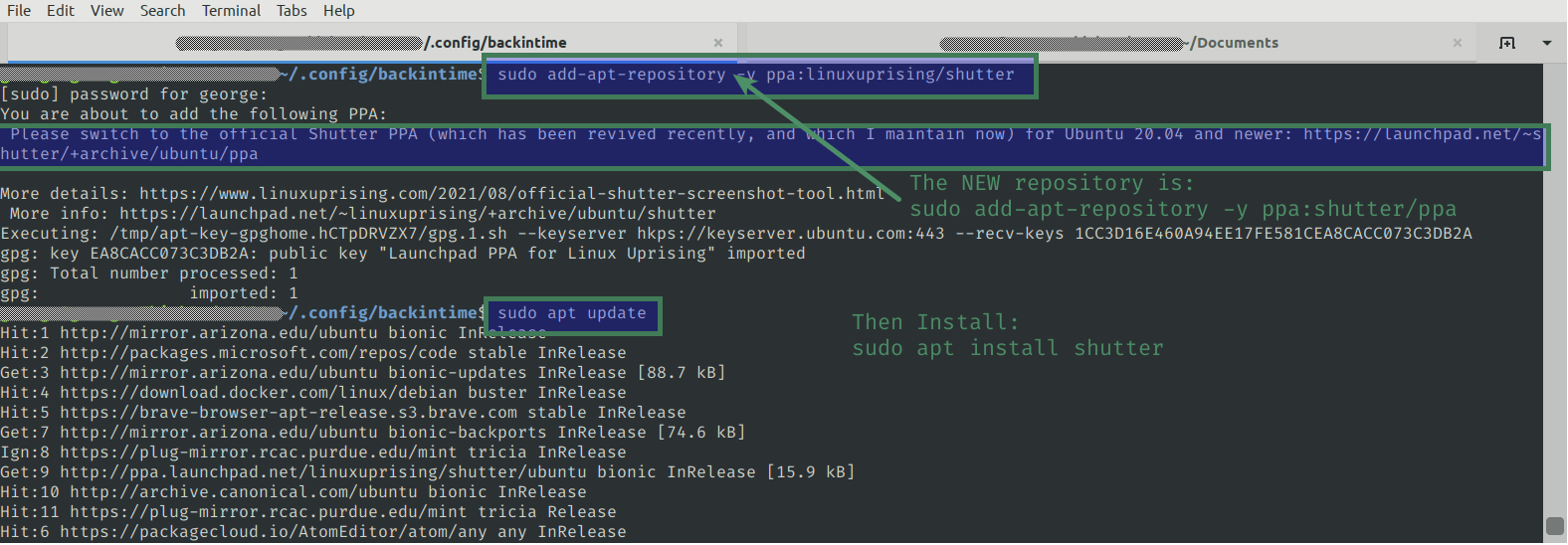
    When you install from the old repository you get this message:

    Please switch to the official Shutter PPA (which has been revived recently, and which I maintain now) for Ubuntu 20.04 and newer: https://launchpad.net/~shutter/+archive/ubuntu/ppa

    More details: https://www.linuxuprising.com/2021/08/official-shutter-screenshot-tool.html
     More info: https://launchpad.net/~linuxuprising/+archive/ubuntu/shutter
    Author

    https://launchpad.net/~shutter/+archive/ubuntu/ppa says the new command to add the updated repository is
    sudo add-apt-repository ppa:shutter/ppa

    Here’s how to get the editing functions of Shutter to work, with the updated repository.

    Installing Shutter

    Open your Terminal.

    sudo add-apt-repository -y ppa:shutter/ppa

    Then update your system’s repository list:
    sudo apt update

    Now you are ready to install Shutter.

    sudo apt install shutter

    Remove the Old Repository from Your Computer

    sudo add-apt-repository -r ppa:linuxuprising/shutter

    Note that this remove option (the -r ) doesn’t show in man add-apt-repository, but it does show in add-apt-repository --help

  • Securely Wipe Unused Hard Disk Space

    Securely Wipe Unused Hard Disk Space

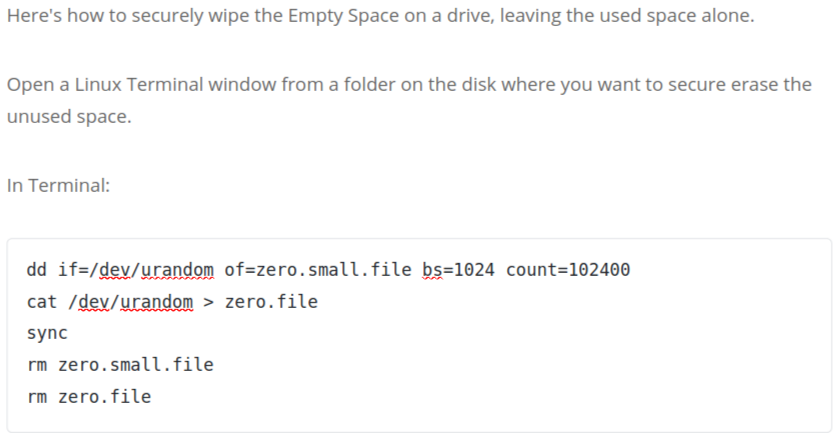
    Here’s how to securely wipe the Empty Space on a drive, leaving the used space alone.

    Open a Linux Terminal window from a folder on the disk where you want to secure erase the unused space.

    In Terminal:

    dd if=/dev/urandom of=zero.small.file bs=1024 count=102400 
    cat /dev/urandom > zero.file 
    sync 
    rm zero.small.file 
    rm zero.file

    That makes a small file (100 MB = 1024x1024x100 bytes) filled with a random character,

    then fills the disk with a random character (which takes a very long time),

    then sync (prevents a smart disk cache from blocking writing to disk),

    then deletes the small file so the time you have with “disk full” is short,

    then deletes the big ‘zero.file’.

    Run this several times for even more security, if you really need to.

    Instead of /dev/urandom you can use /dev/zero to fill the disk with zeros.

    All the sectors that are filled, will be tested by the drive’s SMART test, and any bad blocks will be marked so they aren’t used any more.

    You should then check the SMART disk tool, to make sure there are few bad blocks; if there are many, or the number increases over time, immediately move data to a new drive and discard this one.