PHP configuration is typically managed through the php.ini file and additional configuration files. While system-wide settings are stored in /etc/php/[version]/, you may want to add your own user-specific settings without modifying system files.
This guide demonstrates how to set up user-specific PHP configuration that works alongside the system configuration.
Default PHP Configuration Locations
In most Linux distributions, PHP configuration files are located in:
Main configuration file: /etc/php/[version]/cli/php.ini (for command-line PHP)
You can also check all loaded configuration files:
php --ini
Benefits of User-Specific Configuration
Non-destructive: Doesn’t modify system files
Portable: Your settings follow your user account
Isolated: Doesn’t affect other users
Maintainable: Easier to track your custom settings
Upgradable: System updates won’t overwrite your settings
Important Notes
The main php.ini file is always loaded first
Settings in your custom files will override the same settings from the main configuration
Some settings can only be set in the main php.ini file and cannot be overridden
Web server PHP (Apache, Nginx) uses different configuration files than CLI PHP
Troubleshooting
If your settings aren’t being applied:
Ensure the path in PHP_INI_SCAN_DIR is correct
Check that your .ini files have the correct syntax
Verify file permissions (should be readable)
Restart your terminal session
For web server PHP, you’ll need to restart the web server after changing PHP settings.
PHP Configuration in Containerized Development Environments
Containerized development environments like Lando and Local by Flywheel use isolated PHP configurations separate from your host system. The user-specific configuration approach described above won’t automatically apply to these environments.
Lando Configuration
Lando provides several ways to customize PHP settings:
When designing a “Separate Testing Framework Repository with Development Tools,” a key question emerged:
Does this design work for a project where another developer, who already has their environment set up, can just get the PHPUnit part? (For experienced developers, this would be the interesting part.)
This page explores two primary approaches to integrating a separate testing framework repository into WordPress plugin projects, with a focus on developer experience and flexibility.
Comparison Overview
Factor
Git Submodules
Composer Packages
Setup Complexity
Moderate
Higher
Developer Experience
Requires Git knowledge
Requires Composer knowledge
Versioning
Manual tracking
Automatic via semantic versioning
Update Process
git submodule update
composer update
Flexibility for Experienced Devs
Direct access to files
Abstracted as a dependency
Learning Curve
Git commands
Composer + Package publishing
Option A: Git Submodules
What Are Git Submodules?
Git submodules allow you to include one Git repository inside another as a subdirectory. This creates a link to a specific commit in the external repository rather than copying the code.
Implementation Steps
Create your testing framework repository:
mkdir ~/sites/wp-phpunit-framework
cd ~/sites/wp-phpunit-framework
git init
# Add your testing framework files
git add .
git commit -m "Initial commit of testing framework"
git remote add origin https://github.com/glerner/wp-phpunit-framework.git
git push -u origin main
Add the submodule to your plugin project:
cd ~/sites/gl-color-palette-generator
git submodule add https://github.com/glerner/wp-phpunit-framework.git tests/framework
git commit -m "Add testing framework as submodule"
Familiar to PHP Devs: Most PHP developers are familiar with Composer
Disadvantages
Publishing Required: Requires understanding how to publish packages
Less Direct Access: Files are in vendor directory and shouldn’t be directly modified
More Complex Setup: More complex initial setup, especially for private packages
Learning Curve: Steeper learning curve for package maintenance
Recommendation for WordPress Plugin Testing Frameworks
For a WordPress plugin testing framework that needs to be accessible to developers with varying experience levels:
Use Git Submodules When:
You’re still learning Git and Composer
You want direct control over the framework files
You prefer simplicity over standardization
You want to make frequent changes to both repositories
Your team is comfortable with Git but not necessarily with Composer package publishing
Use Composer Packages When:
You’re comfortable with Composer package management
You have multiple projects that will use the framework
You want to leverage semantic versioning
Your team is already using Composer extensively
You want to follow PHP community standards for dependency management
Practical Considerations for WordPress Developers
WordPress Development Culture: Many WordPress developers are more familiar with Git than with Composer package publishing.
Learning Path: Git submodules can be a stepping stone to learning more advanced dependency management.
Team Composition: Consider the technical background of all developers who will work with the codebase.
Long-term Maintenance: Composer packages may be easier to maintain across multiple projects in the long run.
Hybrid Approach: You can start with Git submodules and transition to Composer packages as your team’s expertise grows.
Conclusion
For the specific context of a WordPress testing framework where experienced developers should be able to easily access just the PHPUnit part, Git submodules provide a more direct and accessible approach initially. As your project and team mature, you can consider transitioning to a Composer package for better standardization and dependency management.
The most important factor is that your testing framework remains modular and well-documented, regardless of the integration method chosen.
Now that we have Full-Site Editing built into WordPress, theme development is so much easier. But we still want to keep our code in a Git Repository.
Git is an invaluable tool for WordPress theme development, whether you are modifying older-style themes or when developing full-site editing themes.
Using Git can greatly enhance your workflow, collaboration, and version control.
Git provides robust version control capabilities, allowing you to track and manage changes to your theme files over time.
With Git, you can create branches to experiment with new features, making changes without affecting the version of the theme on live sites. Then publish the tested version to sites.
You can easily revert to previous versions if something goes wrong, while maintaining a clean and organized history of your theme’s development.
If someone else collaborating on the project modifies a file that you also modified at your computer, or if you make changes at different computers, you can easily merge them with Git.
With Git, you can easily review, discuss, and approve changes through pull requests. You can specify the purpose of each change, to make reviewing easier.
Git has good tools for resolving conflicts, where changes by multiple people affect the same file. Each set of changes are tracked, and then you can review exactly what changes were made in any file and make any adjustments so all the changes can be combined.
Git’s version control allows you to pinpoint the exact commit where a bug was introduced, making it easier to identify the cause and fix it quickly. You can quickly roll back to a working version if you find that changes introduced a problem. Publish the prior version to your production sites, fix the problem, test it, commit the new code to your repository, and publish the new code to production.
How do you Simplify Using Git for Your Common Theme Changes?
You don’t need to learn all the features of Git. There are a few commands you will use frequently. The others you learn only when you need them.
For themes, most of your code will be very similar in future themes you make, except for the color palette. With Git, you can easily go through every feature you improved in a recent theme, and apply the improvements to other themes as needed. While you can’t automate applying the changes from one project into another, at least you can see exactly what changes were made and copy/paste those changes into the other project.
You are probably making themes by yourself, even if you work in a company with many themes being developed.
Whether for a simple theme or for a theme package, you use Git the same way; you publish your changes to the repository for this one theme, with your name and date/time.
When it is time to release the whole package of many themes, Git can merge the repositories for the final product, without modifying the individual theme’s repositories. (You can learn later how to make a “combination” repository. I won’t cover that here, and it is well documented.)
Folder Structure for Local Development and GIT
The normal process is you develop all your theme’s files in your local repository and then push the files to a GitHub repository to publish to your live sites.
Have a folder on your computer for your theme. That folder will include a local Git repository.
Have another folder for your local WordPress development environment for testing the theme.
Then, have a repository on GitHub (or similar), available on the Internet. You will use this for publishing to production sites. Of course, this is also a backup should anything happen to your computer.
I have a folder for all my websites, ~/sites, and then in that folder I have one folder for each site or plugin or theme. Examples: ~/sites/wordpress/ (local development environment) and ~/sites/mytheme/ and ~/sites/abc-theme/ and in each of the theme folders have a Git repository, e.g. ~/sites/mytheme/.git/
Note that leading period, .git, which means the Git repository is a “hidden folder”. Use your ls command with the -a flag (ls -a ~/sites/mytheme) to see it.
Then I have folders for the theme, such as mytheme/assets where I put fonts, mytheme/images where I put theme icons, etc.; and mytheme/parts for block editor patterns and full-site editing page parts.
ls -a
.  ..  assets  .git  images  parts  readme.txt  screenshot.png  style.css  templates  theme.json
ls -a parts
.  ..  comments.html  footer.html  header.html  navigation-with-images.html  post-meta.html
Why not have the Git repository inside your local development folder?
For local development, I recommend you don’t put your local repository in the development environment folder.
If you are done with the local development setup, it is quite normal for you to shut down the local development environment and delete the folder.
Oops, you would have deleted your local Git repository. You should also have the Git repository replicated on GitHub, but if you didn’t…
Another reason to keep the folders separate is to avoid inadvertently getting WordPress or other themes and plugins, into your Git repository. You can tell Git to ignore folders and files (git ignore command), but it is simpler this way.
You will find it is easy to copy files from your theme folder into your testing folder.
Only put in the repository the essential files for re-creating your theme, including fonts and icons and style sheets.
A different use of Git is to make a “test environment” for WordPress. Install all the plugins and themes, configure each plugin, add your testing pages and posts and media library. Then export the database to a MySQL file. Make a local repository for all the files, including the MySQL export and wp-content folder, but don’t publish on GitHub (or publish as a private repository).
Getting Your Files Into Git
You can start with a new folder, create a Git repository in it, and add your theme files to the folder. Or, add your theme files to the folder and then create a Git repository in the folder.
When you create a Git repository, a hidden folder is added to your current folder. That folder contains the Git repository. The rest of your current folder is unchanged.
cd ~/sites/cyb-theme/
git init
Git responds: Initialized empty Git repository in /home/george/sites/cyb-theme/.git/
Now in ~/sites/cyb-theme/ there is a new folder, ~/sites/cyb-theme/.git
Commands for Initial Commits
GitHub used to name the main branch “master” and has changed the standard branch to “main”.
You can use the git status command to see what the current branch name is. For example:
git status
On branch main
Your branch is up to date with 'origin/main'.

nothing to commit, working tree clean
“On branch main” is what you want. If it says “On branch master” you can change it. This command won’t do anything until after your initial commit.
git branch -M main
Settings for Your Local Git
Each commit should have your name and email specified. If you configure Git with your name and email, that will make your Git command lines simpler.
Use these commands to configure the Git software on your computer, to be used in all your projects:
There are a lot of options you can set in Git. To find them, use the git –help command. You mostly won’t need to change any options, but here is how you change them:
git config --edit
That command opens the configuration file in a text editor.
Now you are ready to add files to your local Git repository.
Add the current files to your local Git repository
git add --all
This command tells Git to add all the files in the current folder, to the list of files you will be tracking in your repository.
Alternatively, you can “git add” followed by one or more file names.
You can get the status of the repository, for example which files are “new” (have not been committed to the repository) or which files have been modified since the last commit.
git status
Committing Changes to the Repository
When you have all your changes done (for this set of changes), and all the files ready in the status, it is time to Commit the changes to the repository.
If you are fixing multiple bugs, you might find it easier to make each bug fix a separate set of changes. That keeps your “commit comments” clear. Specify which files to commit, if you don’t want to commit all changes. If you are using a bug tracker program, put the commit ID in the tracker.
When you commit changes, you should always add a comment. The comment should state what the group of changes is for, such as fixing a bug or adding a feature. The comment will help you identify which commit you want to refer back to for adding these changes to another theme.
If you don’t specify a commit comment, Git will automatically open a text editor for you to enter one.
git commit -m 'Initial commit theme files, created by create-block-theme plugin, plus icons needed for the theme'
The entire comment has to be inside quotes, or only the first word would be taken, and then you would have the other words as unexpected parameters. (Or, leave out the comment on the command line, and Git automatically loads a text editor for the comment.)
Note that you have to be careful if you use single or double quotes in a comment, so no apostrophe-s if you have the comment surrounded by single quotes. (Using the comment text editor should handle apostrophes properly.)
Your name (specified in the Git configuration file or by the git config commands above) is added to the commit, unless you specify --author= in the command line.
Similarly, the current date and time is automatically added to the commit.
Before you commit, you can add --dry-run to the command to see what the commit would do, but no changes are made to the repository.
There are many more options available for the git commit command. I recommend reading git --help commit
Ignoring Files in Git
You should only add to your repositories the files that need to be there. Don’t add temporary files (from your editor, for example), and don’t (at least accidentally) add your WordPress installation or plugins from the WordPress Repository.
Note: Never put anything confidential in any Git repository, public or private, as they are designed to be published. That includes passwords, WordPress configuration settings (such as, but not only, your wp-config.php file), and your business confidential information.
Learn more about ignoring files I used the gitignore.io tool specifying VisualStudioCode (my programmer editor), Kate (my general text editor), WordPress, and Linux (my computer is Linux Mint, you can specify Windows or OSX).
Making a GitHub Repository for your Theme
You want a GitHub (or similar) repository, since it is available on the Internet, instead of just on your computer.
You can make GitHub repositories public, or private (only accessible to you or people you explicitly share it with).
Since you will transfer information to the GitHub repository, do not initialize the GitHub repository with a README; or at least don’t make one in both your local repository and your GitHub repository. Do make a gitignore file and add a license on GitHub. Note: If those resources exist in both repositories before the git remote add origin command runs, that will create extra merge and conflict resolution steps that are easily avoided.
Setting Up a GitHub Repository for WordPress Theme Development
Set up a GitHub repository for each project (plugin, theme, etc.) You will make one account, for you or your company. In that account, you create many repositories.
Step 1: Create a GitHub Account
Visit the GitHub website (https://github.com/) and sign up for a new account if you don’t already have one.
Choose a username, enter your email address, and set a secure password.
Save the login information in your password keeper software. In the notes section in your password keeper for GitHub, store these items: the Email address you are using with GitHub; the HTTPS and SSH address of each repository you make. Note: You will be making SSH keys for your GitHub account, most password keepers have SSH entries with all the fields for SSH keys, so use those; but if not add your SSH key in the GitHub notes.
Complete the verification process to activate your GitHub account.
Step 2: Create a New Repository
Once you have a GitHub account, log in to your GitHub dashboard. The URL for mine is https://github.com/glerner. Go to the Repositories tab, mine is https://github.com/glerner?tab=repositories
Another way to start a new repository: on many screens there is a “+” icon in the top-right corner. Click it and select “New repository” from the dropdown menu. [Note: not “import repository”, which is for converting a non-Git repository into Git.]
Give your repository a descriptive name related to your WordPress theme. (I’m using “cyb-demo” for this tutorial.)
Optionally, add a brief description to provide more context.
Step 3: Configure Repository Settings
Choose between making your repository public or private. Public repositories are visible to everyone, while private repositories require access permission. Private repositories require a different way to connect your local repository to GitHub, but still easy. In this article I’m only using public GitHub repositories.
Add a README file: If you haven’t made one before, use GitHub’s template. After that, use your other project’s README.md file as a starting point. Another common name is readme.txt, your choice; the .md file has more formatting options such as boldface. Create it either on your computer or on GitHub, not both, so you don’t make merge conflicts.
I recommend making a separate repository for each of the plugins and themes the you are developing, so your .gitignore file will be simple. On GitHub, I suggest you Do use the WordPress template.
For most WordPress projects, the license to use is “GNU General Public License 3.0”
If you want to make a repository for a WordPress installation (for example, every employee in the company quickly set up WordPress with the same set of plugins and themes and settings and default posts), you can do that. Don’t put WordPress itself and plugins/themes that are in the WordPress repository into GitHub; use wp-cli commands to install them, and have the list of commands in your GitHub repository. For WordPress projects, add a .gitignore file to specify files and folders that should be ignored by Git (e.g., caching files, sensitive data). See GitIgnore for WordPress
Step 4: Clone the Repository to Your Local Environment
This is for when you or someone else wants to take a repository from GitHub, to copy it to their computer.
I suggest starting on your local environment, and clone to GitHub. (I copy my most recent theme’s files into a folder for my new theme, and make a new local Git repository, and then push to GitHub.)
Someone collaborating with you can start in GitHub and make a local clone. Someone else can take your theme as a starting point for their own.
Now that your GitHub repository is set up, you’ll (they’ll) need to clone it to your local development environment. Follow these steps:
Navigate to the desired directory in your local environment where you want to store the WordPress theme files.
Open a terminal or command prompt window.
Execute the following command to clone the repository:
git clone <repository_url>
GIT local to remote
In each project, make a .git/config file
For project in ~/sites/asdf make a ~/sites/asdf/.git/config file.
Below is an example config file. For yours, make these changes:
replace the url from GitHub that is the “SSH” URL (on the GitHub page for the project, click the <>Code button, in Local click SSH and copy the URL that starts with git@github.com: and then your GitHub username and then the project.
I let one theme project get started on GitHub, then made a repository from scratch on my computer. When I tried to push my theme to GitHub, it wasn’t done right (should have made the repository on GitHub, then cloned it to my computer).
~/sites/cfal$ git status
On branch main
Your branch and 'origin/main' have diverged,
and have 2 and 1 different commits each, respectively.
  (use "git pull" to merge the remote branch into yours)

nothing to commit, working tree clean
george@GL-Lat3410:~/sites/cfal$ git pull
hint: You have divergent branches and need to specify how to reconcile them.
hint: You can do so by running one of the following commands sometime before
hint: your next pull:
hint:
hint:   git config pull.rebase false  # merge (the default strategy)
hint:   git config pull.rebase true   # rebase
hint:   git config pull.ff only       # fast-forward only
hint:
hint: You can replace "git config" with "git config --global" to set a default
hint: preference for all repositories. You can also pass --rebase, --no-rebase,
hint: or --ff-only on the command line to override the configured default per
hint: invocation.
fatal: Need to specify how to reconcile divergent branches.
george@GL-Lat3410:~/sites/cfal$ git config pull.rebase false
george@GL-Lat3410:~/sites/cfal$ git status
On branch main
Your branch and 'origin/main' have diverged,
and have 2 and 1 different commits each, respectively.
  (use "git pull" to merge the remote branch into yours)

nothing to commit, working tree clean
george@GL-Lat3410:~/sites/cfal$ git pull
fatal: refusing to merge unrelated histories
george@GL-Lat3410:~/sites/cfal$ git config pull.rebase true
george@GL-Lat3410:~/sites/cfal$ git pull
Successfully rebased and updated refs/heads/main.
george@GL-Lat3410:~/sites/cfal$ git status
On branch main
Your branch is ahead of 'origin/main' by 2 commits.
  (use "git push" to publish your local commits)

nothing to commit, working tree clean
Now everything is good
git push
Enumerating objects: 18, done.
Counting objects: 100% (18/18), done.
Delta compression using up to 8 threads
Compressing objects: 100% (16/16), done.
Writing objects: 100% (17/17), 190.07 KiB | 1.78 MiB/s, done.
Total 17 (delta 3), reused 0 (delta 0), pack-reused 0
remote: Resolving deltas: 100% (3/3), done.
To github.com:glerner/cfal.git
   5aa878f..9226d6f  main -> main
Frequent Command Flow for Updating Your Repository
git remote add main [url]
Specifies the remote repository for your local repository. The url points to a repository on GitHub.
GitHub – Setting up SSH agent forwarding https://docs.github.com/en/authentication/connecting-to-github-with-ssh/using-ssh-agent-forwarding#setting-up-ssh-agent-forwarding
git push
Uploads all local branch commits to GitHub
Adding changes to your files, into the repository
Update the GitHub repository from your local repository
Publish the GitHub repository to your production site(s)
Rolling back to an earlier version of files
Checking the Status of the repository
What changes were made between any two versions?
This is an list item
Another item
== Here is ChatGPT stuff
Setting Up a GitHub Repository for WordPress Theme Development
As an individual developer working on WordPress theme development, setting up a GitHub repository can greatly enhance your workflow and collaboration capabilities. Here are the best steps to set up a GitHub repository:
Step 1: Create a GitHub Account
Visit the GitHub website (https://github.com/) and sign up for a new account if you don’t already have one.
Choose a username, enter your email address, and set a secure password.
Complete the verification process to activate your GitHub account.
Step 2: Create a New Repository
Once you have a GitHub account, log in to your GitHub dashboard.
Click on the “+” icon in the top-right corner and select “New repository” from the dropdown menu.
Give your repository a descriptive name related to your WordPress theme.
Optionally, add a brief description to provide more context.
Step 3: Configure Repository Settings
Choose between making your repository public or private. Public repositories are visible to everyone, while private repositories require access permission.
If needed, add a .gitignore file to specify files and folders that should be ignored by Git (e.g., caching files, sensitive data).
Select the appropriate license for your WordPress theme. It’s recommended to use an open-source license like MIT or GNU GPL.
Step 4: Clone the Repository to Your Local Machine
git clone <repository_url>
Replace “<repository_url>” with the URL of your GitHub repository. This command will create a local copy of your repository on your machine.
Now you have successfully set up a GitHub repository for your WordPress theme development. You can start committing your theme files, creating branches for new features, and collaborating with others using Git’s powerful version control features.
Errors in WordPress files can make WordPress only display a plain white screen. Since the screen is all white, it’s difficult to figure out what is going on.
What Causes A White Screen?
Some causes could be:
Errors in a WordPress update, leaving files incomplete. (Syntax errors)
Errors in a Theme update (or bugs in the theme)
Errors in a Plugin (or bugs in the plugin)
Exceeding the PHP memory limit of a web hosting provider (can be changed in most cases, try editing your php.ini to include: memory_limit = 33554432 (32MB, or a higher number)
How to Find the Problem
A temporary thing to try (don’t leave this set!) is to edit your .htaccess adding this line: php_flag display_errors on, which could let you see if files are missing or what file and line number has the syntax error. Any PHP programmer could then help you fix it, since it is highly likely something simple.
But the most common solution you’re going to find online is to remove a blank line and that “blank line” was the problem, since removing it fixed it! (Not accurate) A Variant is “a space” did it (also not accurate).
I’m moving or deleting sections of HTML or XML code, several times a day. NotePad++ has the ability for you to press a single keystroke to select the entire block of code. Big time saver.
You simply install a NotePad++ Plugin from http://docs.notepad-plus-plus.org/index.php/Plugin_Central
The plugin you want for selecting and copying or moving HTML tags is the “HTMLTag (Unicode)” plugin, which “provides two core functions to Notepad++”:
HTML and XML tag matching, like the built-in brace matching (Ctrl+B / Shift+Ctrl+B)
HTML entity encoding/decoding (example: é to é and vice versa)
Unfortunately, the HTMLTag plugin is a 32-bit plugin. That means if you are using the 64-bit version of NotePad++, you will get a message about the plugin “is not compatible with the current version of NotePad++”. The Compare plugin is also 32-bit, though there is mention of a 64-bit version on GitHub.
The Compare plugin is one I use very often, to quickly compare two text files. It does much of what the Linux diff command does, showing the difference between files. It is smart enough to detect lines that have been moved or deleted. It can highlight the differences within lines of the two files. You can easily navigate among the differences. Even if you are using GIT to track version changes, you will likely find you want to compare files that are not in your version management system, and this is a good plugin for that.
CSSlist is a very useful plugin, lists all the CSS classes and colors for easier inserting the names into your code. Even “adds the ability to list the different colors that are in the document and export the list as an SVG file for Inkscape or Gimp palette.”
NppSnippets is another plugin that looks interesting. “A easy to use snippet / template plug-in: NppSnippets. Similarity with the TextPad Clip Library is no accident. To insert a snippet simply double click on the item in the list and the snippet is inserted at the current cursor position. To edit right-click on that item. ”
If you are using older PHP programs, you might see error messages, either on screen (oops, you should turn those off) or in your error_log file (that’s where error messages belong).
In PHP 7, there are several functions that are now deprecated and won’t run, that have been labeled for years as “will be deprecated”. Programmers should have updated their code long ago.
One of the deprecated practices is naming object-oriented programming class constructor methods with the name of the class. (Search through the code for the constructor, it can be anywhere in the class.)
Here’s an example of this deprecated code: class CSS_Color extends PEAR {
function CSS_Color($fgHex, $bgHex='', $minbdif=0, $mincdif=0) {
That gives a warning: PHP Deprecated: Methods with the same name as their class will not be constructors in a future version of PHP; CSS_Color has a deprecated constructor in /FOLDERNAME/csscolor.php on line __
The fix for this is amazingly easy. class CSS_Color extends PEAR {
function __construct($fgHex, $bgHex='', $minbdif=0, $mincdif=0) {
(That is two underscore _ characters, followed by ‘construct’)
This is an improvement in the language, allowing a well-named class to have the name of the class as a function that could be used; the constructor has a special name.
Here’s another example:
PHP Deprecated: Methods with the same name as their class will not be constructors in a future version of PHP; GeSHi has a deprecated constructor in /USERFOLDER/public_html/wp-content/plugins/wp-geshi-highlight/geshi/geshi.php on line 259
class GeSHi {

  function GeSHi($source = '', $language = '', $path = '') {
My custom error pages were running extremely slowly, taking about 60 seconds “waiting” and then displaying all at once.
The hosting company said they don’t have any performance profiling software. “Have you tried renaming your .htaccess file, you have a lot of redirects, that’s probably what’s causing it.” (No, of course I’d already looked into that. Dumb hosting tech support advice.)
Well, then “try checking your error logs”. No, I’ve already installed code in my WordPress wp-config.php, and in my error pages, to log extra PHP errors. No errors at all related to this; just some undeclared variables in one WordPress plugin. See my page on Error Information Only For You.
I have been a PHP programmer for years. I know that there are debugging tools, and there are tools to measure where exactly in a program are the most resources being used, or where is the program taking the most time.
I found Benchmark, a “framework to benchmark PHP scripts or function calls”. On some web hosts, you install Benchmark via cPanel under “PHP PEAR Packages”; on others you install it yourself with SSH commands; or your hosting company may not have any way for you to install it. (Even if you think you won’t ever use SSH, don’t even know what that is, “SSH included” is a good indicator for a good hosting company, and so is “PHP Pear Packages”.)
Testing your own programs
First put in some code so only I can generate testing results, as some of the testing methods (especially Iterate) can use many resources. You also may want to display testing items in the browser, only for you. There are also some required initialization lines for Benchmark. Much of this section of code is a long comment, giving examples of Benchmark calls.
if ( in_array($ip, $myipaddress ) || in_array($forwardedfor, $myipaddress) ) {
	echo "<p>Docroot $docroot</p>";
	$onlyMe = true;
} else {
	$onlyMe = false;
}
if ($onlyMe) {
/* http://pear.php.net/package/Benchmark/docs/latest/
Install via cPanel PHP PEAR Packages
*/

/* must add to path if haven't already */
	ini_set("include_path", '/home/USERNAME/php:' . ini_get("include_path") );

/* some examples of Benchmark calls
	require_once 'Benchmark/Iterate.php';
	$benchmark = new \Benchmark_Iterate;
	$benchmark->run(10, 'err->update_errorlog', 'test');
	$result = $benchmark->get();
	$benchmark->display(true);

	require_once 'Benchmark/Profiler.php';
	$benchmark = new \Benchmark_Profiler(TRUE);
	$benchmark->enterSection('update_errorlog');
	$err->update_errorlog();
	$benchmark->leaveSection('update_errorlog');
	//Returns formatted informations
	$benchmark->display(true);
end of examples */

	require_once 'Benchmark/Profiler.php';
	$benchmark = new \Benchmark_Profiler(TRUE);
}
Defining Sections of Your Code To Test
Now you select parts of your code where you want to test the performance, especially separating out places that you think might be too slow.
You use “enterSection” and “leaveSection” commands, and give your own description of the section of code. This short description will appear in the chart of results.
if ($onlyMe) {
	$benchmark->enterSection('ini set');
}

/* code for initialization  */

if ($onlyMe) {
 	$benchmark->leaveSection('ini set');
	$benchmark->enterSection('which log file');
}

/* setting which log file to use */

if ($onlyMe) {
 	$benchmark->leaveSection('which log file');
	$benchmark->enterSection('define functions');
}

/* code for defining functions */

if ($onlyMe) {
	$benchmark->leaveSection('define functions');
	$benchmark->enterSection('gather error info');
}

/* code for gathering error info */

if ($onlyMe) {
	$benchmark->leaveSection('gather error info');
	$benchmark->enterSection('shutdown function');
}

/* code for defining shutdown function */

if ($onlyMe) {
	$benchmark->leaveSection('shutdown function');
	$benchmark->enterSection('get POST content');
}
You can define as many sections as you want. However, I suggest beginning with only a few, and narrow down the section of code that testing shows is taking the longest. In this case, it was inside ‘get POST content’ so I split it into 3 sections for further testing.
if ($onlyMe) {
	$benchmark->leaveSection('get POST content');
	$benchmark->enterSection('get POST content 2');
}

$junk = file_get_contents('php://input'); /* the POST content */

if ($onlyMe) {
	$benchmark->leaveSection('get POST content 2');
	$benchmark->enterSection('get POST content 3');
}
I never would have guessed it, but turns out the problem was with php://stdin… aren’t those supposed to be automatically enabled? Well, not on this server. Perhaps they are opening php://stdin for SSH but leaving php://stdin not opened for web pages, since it is so rarely used in web pages?
/* this file_get_contents() delays 60 seconds, found with Benchmark */
$junk = file_get_contents('php://stdin'); /* the POST content */

parse_str($junk, $post_vars);
$posts = implode_with_key($post_vars, $inglue = '-->', $outglue = "\n");

if ($onlyMe) {
	$benchmark->leaveSection('get POST content 3');
	$benchmark->enterSection('rest of file before update');
}

/* code for rest of file */
Results of Testing
if ($onlyMe) {
	$benchmark->leaveSection('update_errorlog');

	//Returns formatted information
	$benchmark->display(true);
} else {
	$err->update_errorlog();
}
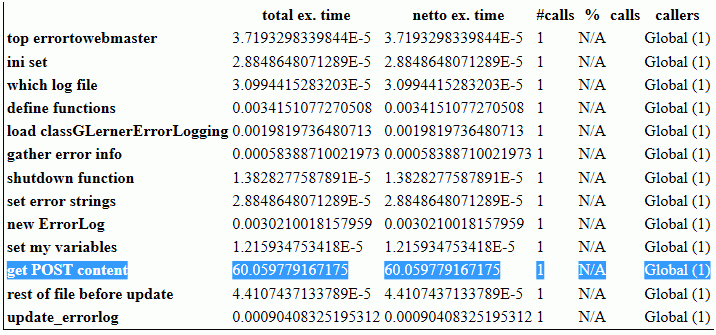
The results are numbers that are hard to read; some people may never have seen “scientific notation”, with numbers displayed always with a single digit left of the decimal point, and a power-of-ten exponent. All you need to really know is any number ending in “E-5” or “E-6” is a very small number.
The problem will likely be a number between “E-1” (multiply by 0.1) to “E+1” (multiply by 10). “E0” isn’t shown (multiply by 1).
From the top line in the image, 3.7193 E-5 would be written in “standard” notation as 0.000037193
From the highlighted line in the image, something in the “Get POST content” section of code is taking a full 60 seconds. (Happens to match the 60-second timeout tech support says is set for some things in PHP.)
Add a few more enterSection and leaveSection profiling statements in the slow portion of your code, to narrow down what specifically the problem is, down to the single line of code in this case.
Fixing the Problem
Now that I have identified the problem, that tech support couldn’t identify, and that I wouldn’t have guessed, time to search for a solution to the problem.
In this case, there are two likely explanations. 1) One of the standard input streams was waiting for 60 seconds for something to be typed in, and then timing out, or 2) the stream was never opened, and the function call timed out.
/* what seems to fix the problem, declaring the STDIN before attempt to use it, though I'd thought it was always declared */

if (!defined('STDIN')) {	/* not always defined, when PHP called by web browser; define to stop error warnings */
	$stdin = fopen('php://stdin', 'r');
	define('STDIN', $stdin);
}
This might be useful for reading STDIN from command line versions of PHP. I haven’t yet tested it.
if (php_sapi_name() == 'cli' || php_sapi_name() == 'cli_server') {
	$sapi = 'command line';
	echo '<code>'; print_r($_SERVER); echo '</code>';  /* pre looks better than code, but my PHP display plugin uses pre */
} else { $sapi = 'not command line'; }

if (defined('STDIN')) { /* STDIN is available */ }

$junk = file_get_contents('php://input'); /* the actual POST content */
if (empty($junk) && $sapi == 'command line') {
	/* Apache uses php://input, CLI uses php://stdin */
	/* not tested on IIS server, might get 60 second timeout waiting for user input if isn't any */

	/* stream_set_blocking(STDIN, 0);
	stream_set_timeout(STDIN, 2);
	*/

	/* this doesn't work, can't have string parameter --
        stream_set_blocking('php://stdin', 0);
	stream_set_timeout('php://stdin', 2);
	should be a "valid path" not a string --
	$junk = file_get_contents($stdin);
	*/

	/* this file_get_contents() delays 60 seconds, found with Benchmark */
	$junk = file_get_contents('php://stdin'); /* the POST content */
}

/* check if this works for reading STDIN from PHP-CLI */
$ctx = stream_context_create(array(
	'http' => array(
		'timeout' => 1
		)
	)
);
$junk = file_get_contents('php://stdin', 0, $ctx);
Other Resources
https://gregheo.com/blog/benchmarking-php/ has clear examples of using Benchmark.
http://pear.php.net/package/Benchmark/docs/1.2.9/elementindex.html for the main Benchmark documentation
Many of the LESS compilers for WordPress or PHP use the Leafo LessPHP library, from https://github.com/leafo/lessphp (see http://leafo.net/lessphp/docs/ ). For example, the current (6/1/2015) version of AssetsMinify plugin for WordPress uses LessPHP.
The Leafo LessPHP library doesn’t compile the LESS extend command, used heavily in Bootstrap 3.1+ and many other LESS packages. “Extend is a Less pseudo-class which merges the selector it is put on with ones that match what it references.” And it seems Leafo LessPHP isn’t getting updated.
Even worse, many libraries haven’t modified the Leafo package to even catch the failure — they fail with a PHP fatal error such as
PHP Fatal error: Uncaught exception 'Exception' with message 'parse error: failed at &:extend(.clearfix all);'
At a minimum, the library should catch the exception, so that PHP doesn’t abort; the exception should leave a comment in the generated CSS such as “This version of LessPHP uses a version of Less that does not support this code: &:extend(.clearfix all);“.
If you use the Leafo LessPHP library and it produces a PHP fatal error in WordPress, you will probably get a “white screen”. If you know how to turn on WordPress and PHP debugging information you can see that uncaught exception in your error logs, and at least know your LESS file having an unsupported command was what brought your site down.
How do you get around this? One way is to simply use LESS without the ‘extend’. But the LESS extend command has been around for years now. The Bootstrap release log shows v3.1.0 released on Jan 30, 2014 had “With switch to LESS compiler, remove duplicate CSS generated from the nested .clearfix class and mixin by switching to &:extend(.clearfix all).” The Extend command has a lot of benefits.
As of 6/1/2015, Bootstrap is currently v3.3.4 and there are many improvements over version 3.0. Good thing there are ways to use Bootstrap 3.3.4 .less files with WordPress.
https://github.com/oyejorge/less.php is a different Less compiler for PHP. I haven’t compared the main package yet. But reading about it, I saw it has a section on replacing the leafo lessc.inc.php with oyejorge lessc.inc.php. You copy lessc.inc.php and the lib/ folder from oyejorge’s less.php-master.zip into a folder (I used the folder in my WordPress theme with my .less files, /wp-content/themes/THEMENAME/less)
I’m able to generate a custom version of Bootstrap 3.3.4, incorporating my own changes (.less files that calculate a “color wheel” to produce background colors that look great with a main color I select, and making text colors that have good contrast against their background color, and applying those colors throughout Bootstrap.
I have my main file, style.less, include all the other .less files; these are all in /wp-content/themes/THEMENAME/less
Example:
The oyejorge version of lessc.inc.php is also in /wp-content/themes/THEMENAME/less
The oyejorge lib/ folder and all the files in it are in /wp-content/themes/THEMENAME/less (making /wp-content/themes/THEMENAME/less/lib/)
The Bootstrap Less files are in /wp-content/themes/THEMENAME/less/bootstrap
(Since Less definitions found afterwards overwrite definitions found before, and only then are applied in functions and mixins, I have my-bootstrap-variables.less and my-mixins.less after the import for Bootstrap, and all the colors generated in scheme.less get put into Bootstrap goodies.)
Here is the code I have in my functions.php (in /wp-content/themes/THEMENAME/) :
require "less/lessc.inc.php"; // uses less/lib/ from less.php-master.zip
$options = array( 'sourceMap' => true );
$parser = new Less_Parser($options);
$less = new lessc;

try {
// works, but autoCompileLess is better, this compiles every time -- $less->compileFile(__DIR__."/less/style.less", __DIR__.'/style.css');
	autoCompileLess(__DIR__."/less/style.less", __DIR__.'/style.css');
} catch (exception $e) {
	echo '<p>Error making CSS files: ' . $e->getMessage() .'</p>';
}
Here is the autoCompileLess function, also goes in functions.php:
/* from http://leafo.net/lessphp/docs/#compiling_automatically
*/
function autoCompileLess($inputFile, $outputFile) {
	// load the cache
	$cacheFile = $inputFile.".cache";

	if (file_exists($cacheFile)) {
	    $cache = unserialize(file_get_contents($cacheFile));
	} else {
	    $cache = $inputFile;
	}

	$less = new lessc;
	$newCache = $less->cachedCompile($cache);

	if (!is_array($cache) || $newCache["updated"] > $cache["updated"]) {
	    file_put_contents($cacheFile, serialize($newCache));
	    file_put_contents($outputFile, $newCache['compiled']);
	}
}
Logging in to WordPress is at the application level. You can also have a server login before getting to WordPress. This 2-step login makes your site much more secure.
Once you know how, adding this server login is actually quite easy to do.
Unlike plugins that might change parts of WordPress itself, this doesn’t change anything about WordPress; this uses the server’s security, so only people you say are permitted to execute programs.
The most important folder to protect is wp-admin/ since it has, obviously, all the administrative programs for WordPress. Or, you can protect the wp-login.php file.
One essential step is generating an encrypted version of the password you want to use. Then you have to know where to install the encrypted password, and how to tell your server to require the password for the files you want to protect.
See my .htpassword tool for instructions and an easy way to generate the encrypted password your server would use.
To use XAMPP for developing multiple web sites, specify a ‘host name’ for each web site to use. Each web site will have its own folder on your computer. Link a host name, to a folder with your web site files. Edit the web site files, view them on your web browser (skipping the normal FTP step for each change); when the page is working, publish it to the Internet.
You can define your own host names. Some people use .local for their naming convention (http://www.yourdomain.com on the Internet, http://www.yourdomain.local on your development computer). Or use local.yourdomain.com, which should be looked for on your computer before on the Internet. I like a simpler one, since I’m doing it only for me: yd.c (Yes, you can name it anything you want, on your own computer only). Two or three letter abbreviation, and .c, you’d be amazed how typing 4 characters instead of a long domain name, again and again, matters in developing and testing a web site.
You define “your own host name” in two places, one for XAMPP, one for Windows. (more…)
IIS servers doesn’t always set the PHP standard variable, $_SERVER[‘DOCUMENT_ROOT’]
How do you set that in one place, your configuration file that you include in all your php programs, so the rest of your code has the document root set like on Apache servers?
Output $_SERVER to see what IS given that you might be able to use:
echo "
_SERVER:
";
print_r($_SERVER);
echo "

_ENV:
";
print_r($_ENV);
echo "

";
In this example, the SCRIPT_FILENAME and SCRIPT_NAME are set.
Modify the code below to use what is given to get DOCUMENT_ROOT: