The solution is simple: have your wp-config.php define $SERVER[“HTTP_HOST”] if it is not set.
Many hosts don’t define this, as it isn’t needed for normal traffic. But bots, or people for some weird reason accessing your site by IP address or with a very old browser, will generate errors that clutter up your site error log.
Also, you using SSH to maintain your site in wp-cli, will often not have this set.
How to Fix It
You might be able to modify your wp-config.php file directly. Or your hosting company (especially WordPress managed hosting accounts) will require you to modify it via their user dashboard. For example, in Sites, Settings, Wp-config, “Additional wp-config.php content”.
A good place to add the code would be before this:
if ( !defined('ABSPATH') )
        define('ABSPATH', dirname(__FILE__) . '/');
Or right before the common (but not always there) line with /* That's all, stop editing! Happy publishing. */
Warning: if you are not comfortable editing your wp-config.php file, or don’t know the basics of PHP code, then have your “computer friend” do this for you. Or have your hosting company do this for you.
Note: many sites online suggest $_SERVER['HTTP_HOST'] = 'example.com'; or some other “dummy URL”, but that won’t work in wp-cli on a WordPress Multi-Site where define('DOMAIN_CURRENT_SITE', $_SERVER['HTTP_HOST'] ); tells WordPress what site to use.
Linux file names can have some common characters, that are not allowed in NTFS file names. These include: colon :, backslash \, vertical bar |, double quote “, asterisk *, question mark ?, less than sign <, greater than sign >.
There are many posts about how to do it with a difficult to read replacement script. I don’t like these, since as needs change it isn’t easy to modify.
Where do I change the replacement for a < in this script? find /mount/point -print0 | xargs -0 rename 'tr#:*?"<>|#__-.._#' I think that is too hard to puzzle out. Answer: that is 5 characters after the #, so wait is that a double underscore, and is there a space in there, yikes.
Worse though, is there is no error checking. You could easily have one file overwrite another one that got converted into the same file name when you replaced characters.
./Mel Robbins How to HEAL Anxiety And Form CONFIDENCE As A Habit | Rich Roll Podcast.mp4
 to
./Mel Robbins How to HEAL Anxiety And Form CONFIDENCE As A Habit - Rich Roll Podcast.mp4

./The Daily Habits To Live Longer & Happier! - Change Your Life One Tiny Step at a Time | Peter Attia.mp4
 to
./The Daily Habits To Live Longer & Happier! - Change Your Life One Tiny Step at a Time - Peter Attia.mp4

./Mel Robbins: "Saying These 2 Words Could Fix Your Anxiety!" (Brand New Trick).mp4
 to
./Mel Robbins- _Saying These 2 Words Could Fix Your Anxiety!_ (Brand New Trick).mp4

./NASA's Stunning Discoveries on Jupiter's Largest Moons | Our Solar System's Moons Supercut.mp4
 to
./NASA's Stunning Discoveries on Jupiter's Largest Moons - Our Solar System's Moons Supercut.mp4

./Bach - St Matthew Passion / Matthäus Passion BWV 244 (reference recording: Nikolaus Harnoncourt).mp4
 to
./Bach - St Matthew Passion / Matthäus Passion BWV 244 (reference recording- Nikolaus Harnoncourt).mp4

./J.S. Bach - Cantata BWV 21 "Ich hatte viel Bekümmernis" (J.S. Bach Foundation).mp4
 to
./J.S. Bach - Cantata BWV 21 _Ich hatte viel Bekümmernis_ (J.S. Bach Foundation).mp4

./Vocal tips for opera singers: Joyce DiDonato Masterclass in full (The Royal Opera).mp4
 to
./Vocal tips for opera singers- Joyce DiDonato Masterclass in full (The Royal Opera).mp4

./The Savings Expert: “Do Not Buy A House!” Do THIS Instead! - Morgan Housel.mp4
 to
./The Savings Expert- “Do Not Buy A House!” Do THIS Instead! - Morgan Housel.mp4
Notice that in the St Matthew Passion, there is a “full-width (double-byte) slash” which is allowed in a file name, unlike the normal keyboard / character. Those aren’t double quotes in The Savings Expert, those are double curved quotes.
I am still going to make more changes, for example I like having the person’s name at the front, e.g. “Morgan Housel the Savings Expert “Do Not Buy A House!” Do THIS Instead.mp4” but these I will have to make by hand.
This is enough that I can backup files to an NTFS drive, readable by a Windows computer.
The Script
I have a Python program to convert file names (e.g. from YouTube videos) to Windows NTFS standards. Easy to make detailed replacement rules, such as “capitalize the first word after special characters, even if it is a ‘do not capitalize’ word”. See GitHub https://github.com/glerner/file-rename-to-ntfs
Remember, some of these characters are UTF-16 replacements. Copy/paste, don’t type. Or, type most of the script but remember to use your own replacement characters.
#! /bin/bash
# Replace characters in Linux file system names, that don't work in file names on NTFS file systems, with characters that do
# first have to    chmod +x filename.sh
# Run with:
# find . -exec ext4-to-ntfs-file-names.sh {} \;


old=$1
new=${1//\:/-}		# Replace colons by dashes
new=${new//\\/_}	# Replace backslashes by underscores.
new=${new//|/-}		# Replace vertical bars aka pipes by dashes.
# new=${new// /-}   # Replace spaces by dashes.
new=${new//\"/_}		# Replace double quotes with underscores.
new=${new//\*/✲}		# Replace asterisks by 'look alike asterisks' ✲, see https://en.wikipedia.org/wiki/Asterisk#Encodings
new=${new//\?/⁈}		# Replace question marks with 'question exclamation mark'
new=${new//\</_}		# Replace less than signs with underscores.
new=${new//\>/_}		# Replace greater than signs with underscores.

if [[ $new = $old ]] ; then  # No change, skip this one.
    exit
fi

if [[ -e $new ]] ; then
    echo "Cannot rename $old, since $new already exists" >&2
else
#     mv "$old" "$new"
    echo -e "$old \n to \n$new\n"
fi
I commented out the mv statement (what actually moves the file to the new name), for testing. Make sure this looks good for all your files, before you rename them.
All of Brainstorm Force’s plugins that I’ve tried focus on minimal overhead for your site, and your PageSpeed scores. Using the Block Editor with Spectra (another free plugin by Brainstorm Force, Spectra – WordPress Gutenberg Blocks ) is faster than Elementor will ever be; using UAE and Elementor will be faster than using Elementor and Elementor Pro, without some of the features of Elementor Pro.
How Do you Make a New Header or Footer?
One thing Ultimate Addons for Elementor Lite has is an “Elementor Header & Footer Builder”. In UAE in the WordPress left menu, you pick “Header & Footer Builder”. Click “Add New”, then select the type of template you want, either “Header” or “Footer”.
It opens up for you to edit in Elementor. Make it look how you want, and Publish.
Apply This Header and Footer to your Site Templates
In Site Editor, Templates there is one template named Index, “Used as a fallback template for all pages when a more specific template is not defined.”
In that fallback template for the Block Editor, edit the Header element to include a Shortcode Block with the Shortcode from UAE. Most likely you will only have that shortcode (do all editing in Elementor). Do the equivalent for the footer.
If Index is set to “All Pages”, the Home Page Template should Not have anything in its Header or Footer section.
You probably want that. If you want the Home page to have a different header or footer, exclude it from the Index template.
Single Posts Template: nothing in header or footer areas, let Index take care of that. All Archives: nothing in header or footer areas, let Index take care of that. etc.
Tip: You want the theme to control all layouts for all pages and posts and WooCommerce, etc. You can make exceptions, but set the defaults that way.
Have Elementor Use the Theme’s Templates
In Elementor’s Settings, set “Page Layout: Default” to use the theme’s layout.
I’m not talking about the Terminal (many names for it, all appear as an X-window session in your main screen). I’m talking about the Ctrl-Alt-F1 TTY Console (a text screen, not a window in a graphical screen). You can also access it by booting your computer and interrupting to get to grub or booting into text mode.
In Linux Mint, you by default have 6 Consoles, Ctrl-Alt-F1 through F6; you press Ctrl-Alt-F7 to get back to your normal graphical screen.
To list the fonts you have, designed for use on your Console: ls /usr/share/consolefonts/
But mostly you want to look at the UTF-8 codeset. Uni3- fonts support most of the Latin and Cyrillic languages, so ls /usr/share/consolefonts/Uni3*
Uni1 (512 glyphs) – most Latin languages, Slavic Cyrillic languages, Hebrew and barely Arabic
Uni2 (512 glyphs) – most Latin languages, Slavic Cyrillic languages and Greek
Uni3 (512 glyphs) – most Latin and Cyrillic languages
Can you convert other fonts for your Console?
TrueType or OpenType or Postscript fonts are fundamentally different than bitmap fonts which a TTY uses. TTY can not handle fractional pixels, anti-aliasing, hinting, kerning. Converting a scalable font to a TTY size will likely look terrible.
Just be glad there are a few fonts designed for TTY use, already installed on your Linux system. If you want a special font, use the Terminal in your windowed environment. My favorite font for my text editor, programming editor (Visual Studio Code), Terminal and LibreOffice Spreadsheet, is Fira Code (on Google Fonts).
If you really want more TTY fonts, search online for TTY fonts. You might be able to find .psf fonts (PC Screen Font format), used by the Linux kernel or console fonts. Perhaps zap-light from https://www.zap.org.au/projects/console-fonts-zap/ which goes from 8×16 pixels to 16×32 pixels.
Specify your TTY Console font
To set your console font, run sudo dpkg-reconfigure console-setup
Use the tab key to move from the selection box to the OK button. Use the arrow keys to select your preference.
For encoding, always pick UTF-8 (unless you know you need different for some special case).
“Guess optimal character set” is probably best, or in USA or Western Europe select “Latin1 and Latin5 – western Europe and Turkic languages”.
(Apparently, all modern versions of Linux use framebuffers.)
Font for the console: Terminus (you can experiment with others if you like).
Font size: “11×22 (framebuffer only)”, this is the smallest that, on my 1920×1080 14″ notebook, is still easy to read. Once you have this set up, you can easily experiment with different fonts to find what you like best; I’ll say how later.
It will take a few minutes, let it finish.
Then press Ctrl-Alt-F1 to go to your Console
Run this to activate the changes: sudo setupcon
Editing console-setup
You can also edit /etc/default/console-setup directly. sudo nano /etc/default/console-setup
Here is mine:
# CONFIGURATION FILE FOR SETUPCON

# Consult the console-setup(5) manual page.

ACTIVE_CONSOLES="/dev/tty[1-6]"

CHARMAP="UTF-8"

CODESET="Lat15"
FONTFACE="Terminus"
FONTSIZE="11x22"
SCREEN_WIDTH="120"
VIDEOMODE=

# The following is an example how to use a braille font
# FONT='lat9w-08.psf.gz brl-8x8.psf'
I find that having lines too long makes them harder to read, so 120 characters is enough. Here is how it looks on my Console (click to expand to full size):
Screen Capture your TTY
How did I make a screenshot of my Console? There is a command for that, of course. sudo fbgrab /home/YOURNAME/Pictures/your-file-name.png and you can even use one console to take a picture of another console: fbgrab -c N (where N is the number of the Console) lets you “Grab the /dev/ttyN virtual terminal.”
Making the New Font the Default
Once you have picked which font you like, e.g. setfont /usr/share/consolefonts/Uni3-Terminus24x12.psf.gz then to make the current setting the default (with a capital oh) setfont -O default
Once you have the default set, change to the default from whatever font you tried with simply setfont
Here is the Terminus 28×14 font (click to expand to full size)
I had an audio in Apple .ape format, that I wanted to convert to MP3 format for easier listening on all my devices.
Linux has free audio and video converters. I’ll be using ffmpeg.
Installing ffmpeg
Your Linux computer probably already has ffmpeg installed. (If not, sudo apt update then sudo apt install ffmpeg .)
To export MP3 files, you probably need to install additional codecs.
In Ubuntu 18.10 and 19.04 the Libav codec library (additional codecs) package has been updated to libavcodec-extra58. Check what version to use for your system, if this doesn’t work.
sudo apt-get install libavcodec-extra58
cd to the folder with the original file. For this example, cd /media/george/Seagate700GB/Nathan Milstein – The Last Recital/ and in that folder the music file is CDImage.ape
MP3 320kbps Constant Bit Rate
ffmpeg -i ‘CDImage.ape’ -acodec libmp3lame -id3v2_version 3 -b 320 -metadata Year=’1995′ -metadata Comment=” -metadata Title=’Nathan Milstein – The Last Recital’ ‘Nathan Milstein – The Last Recital.mp3’
-b is setting the output to 320kbps
-metadata Year sets the Year field
-metadata Comment (note: repeat -metadata for each field) I wanted to removed the comment the “extract from CD” software left
-metadata Title always enclose in quotes
Then the output file must be at the end.
MP3 Variable Bit Rate, best quality 0
ffmpeg -i ‘CDImage.ape’ -acodec libmp3lame -id3v2_version 3 -qscale:a 0 -metadata Genre=’Classical’ -metadata Artist=’Nathan Milstein violin, Georges Pludermacher piano’ -metadata Year=’1995′ -metadata Comment=” -metadata Title=’Nathan Milstein – The Last Recital’ ‘Nathan Milstein – The Last Recital.mp3’
“-qscale:a 0” is setting the output to variable bit rate with the highest quality I added the Artist and Genre fields Then the output file is at the end.
For more details about the settings, see: ffmpeg.org Encode MP3 but -b 320 gives CBR (constant bit rate 320kbps, better quality than most people can distinguish, and the best this library will output) -qscale:a 0 means VBR (variable bit rate) usually between 220-260 kbps
Output
In VLC Media Player, says in the Codec tab of the Info, that it is “32 kb/s” but ignore that for VBR. Look in Statistics tab of VLC, see the “Input bitrate” varying.
$ ffmpeg -i ‘CDImage.ape’ -acodec libmp3lame -id3v2_version 3 -qscale:a 0 -metadata Genre=’Classical’ -metadata Artist=’Nathan Milstein violin, Georges Pludermacher piano’ -metadata Year=’1995′ -metadata Comment=” -metadata Title=’Nathan Milstein – The Last Recital’ ‘Nathan Milstein – The Last Recital.mp3’
Then after a long list of what is enabled in ffmpeg:
Input #0, ape, from ‘CDImage.ape’: Metadata: Artist : – Album : – Title : – Genre : Undefined etc.
Elementor is doing a Lot of work, so is Elementor Pro. Each element that you have enabled gets loaded for every page edit. Too many scripts, each loading slowly, has the entire loading process time out. On a “decent” hosting, there are many that could each take 300ms or longer to load. Superb hosting will load “the gazillion files” faster.
— WordPress left menu, Elementor, Element Manager, Scan Element Usage, then Deactivate Unused Elements.
— Disable your browser extensions, many of them really slow down your page load. I’m using screen shots so much in my site, I have Fireshot extension. I’m copying URLs so much I have Copy URL to Clipboard on. I’m using Bitwarden as my Password Keeper. All the others? Enable them only when you need them.
— Check that at the hosting account level or the CDN level (but not both), you have caching on, for all the scripts and css files (one or more for each Elementor element).
— Keep your WordPress plugins as low as possible, for what your site needs. Have Wordfence so you are much less likely to get hacked; Google Site Kit so your pages all get on the search engines; The SEO Framework a lower-resource and easier tool than Yoast so social media and search engines use an image heading and description for each page. If you are going to sell anything, use Surecart instead of WooCommerce as much lower resources on your site.
Here is the quick, unpolished, no screen-shot answer
Why is your Elementor “Edit with Elementor” page loading so slowly?
Lets separate the page load time of the finished page, which a “great host” will definitely help with, from “Editing the page in Elementor, the page takes a long time to load”.
Is it “taking too long” or is it “frozen while loading”?
Frozen while loading: Go back to the page where you clicked “Edit with Elementor” from the top menu and do it again; or go back to the list of pages, and click “Edit with Elementor” again. Internet glitches or timeouts will interrupt “the gazillion things Elementor has to load”. I notice it is not enough to “refresh the page”; going back and re-launching Elementor seems to work better.
Find out specifically “what is loading slow”, for example in your browser’s Inspector you can go through the Network tab to see how long each tiny “thingy” (to avoid using the word “element” so we don’t confuse it with Elementor) takes to load.
In Chrome (or Brave) browser you can use the Lighthouse tab to get an outside analysis of the page loading (make sure you select Performance in the Categories).
Gives an enormous amount of data, and some of the things it shows you can not do anything about (for example, /wp-admin/load-scripts.php is required and you can’t change it). You might see some external service is slow and holding everything up.
Make sure Network tab has “Disable cache” un-checked for when you are using Elementor; and “No Throttling” (don’t want to be emulating a 3G mobile phone).
You definitely want Inspector’s “3 dots” menu, Dock side “In separate window”, since both it and Elementor need Screen Space.
You won’t be able to make out the Waterfall graph, too tiny.
Don’t click on any of the column headings yet (Name, Status, Type, Initiator, etc) so you see things in the order they load. Once you’ve glanced at the load times, in order, and not found anything obvious delaying everything, you can click on the Time heading, to see the ones that take the longest.
On a client’s “inexpensive but WordPress optimized hosting” site, there are many things that load in over 200ms: frontend.min.css 303 ms elementor.js 209 ms widget-image.min.css 306 ms widget-google_maps.min.css 303 ms
You’ll see a lot of “widget-” scripts and css, so if you don’t use an Elementor Element at all on this site, disable it in the main page of Elementor settings.
If you do not Need a plugin, uninstall it; that is always important for page speed in any WordPress site. Unless you take the time to configure a “load plugins only when needed” plugin, and then test Everything, which most people will never do… Then in WordPress every file needed by every plugin enabled on the site, loads for Every page.
On a more complex site (with Elementor, Elementor Pro, WooCommerce with several add-ons, Astra, Astra Pro, several other plugins), on a host that gives this site a mobile PageSpeed score of 90, yet still at a great price: frontend.min.css 289 ms elementor.js 153 ms widget-image.min.css 126 ms widget-google_maps.min.css 241 ms Superb hosting has “all those gazillion files” overall load faster.
One thing that definitely will slow down Elementor loading is a slow browser add-on. Minimize your browser add-ons.
If you use the Lighthouse tab of Inspector, you will see: “There were issues affecting this run of Lighthouse: Chrome extensions negatively affected this page’s load performance. Try auditing the page in incognito mode or from a Chrome profile without extensions.”
To measure the actual page, Incognito mode will work. To analyze Elementor editing the page, you have to be logged in.
Your password keeper needs to be enabled. Your AI meeting note taker doesn’t need to be enabled. Your screen capture add-on (likely) needs to be enabled. Your video capture add-on probably doesn’t need to be enabled, at least not while editing.
Your grammar checker shouldn’t be on for WordPress editing; too many interruptions. (Check grammar on the text of your post, before you put it into WordPress, and check grammar again on the text of the final post. Don’t check while you are using Elementor.)
Don’t have multiple tabs open, each editing the Same post. That could make Elementor (or WordPress?) have to check both for changes the other is making.
Check if your browser itself is slow. Chrome/Brave has “3 dash menu”, More tools, Performance. Shows you which pages or sub-page is, right now, taking up CPU or memory. Pages “sitting idle” with a video on them often hog resources. Brave (probably Chrome too) has “free up memory from inactive tabs”; you should enable this. Firefox has equivalent tools. Many other browsers are “based on” Chrome or Firefox; but if your browser isn’t, it likely won’t have the website developer tools you need.
Don’t blame Elementor if your computer is slow because you’re trying to run a lot, with only 8GB RAM in your computer. Windows in particular barely runs in 8GB. Find out if your computer can be upgraded to 16GB RAM or even 32GB RAM. I’d rather buy a computer with a slower CPU that has plenty of RAM.
If your computer won’t run Windows 11, but runs fine with Windows 10, or if it won’t run the latest OS/X, test Linux Mint booting off a thumb drive, and if you like it even running slower-on-thumb-drive, you can install Mint dual-boot. It loads all the same disk types, runs many of the same programs such as Chrome, Brave, Firefox, LibreOffice, OpenOffice, VLC Media Player. As a user (not command line user/troubleshooter), the user interface is very similar to Windows and to OS/X.
There are a few good suggestions on https://elementor.com/help/elementor-not-loading/ mainly keeping Elementor and Elementor Pro similar versions; and “X frame restrictions and Cross-origin issues”.
If you “must have Windows”, let me know, I might take your “now worthless” computer and refurbish it with Linux Mint and sell it to a needy family at a “lower than a new Windows 11 computer” price.)
Any questions, or need something explained in more detail? Contact me, or add a comment here.
“It seems like all our pages that are build with Elementor have container width issues now on the FRONT end of the site, but they display just fine when in the editor. (See image. The 6 purple boxes should be on two rows, three boxes in each). Any thoughts on how to fix this or what the actual problem is?”
What Does Not Fix the Problem
Of course the Internet is full of “helpful tips”, that mostly don’t work.
No, you don’t need to disable some plugins (do that when you have some evidence it might be the problem).
Troubleshooting
Here is my answer in that online group:
We don’t yet have any specific information, so probably you don’t yet either. Can’t troubleshoot without information.
If you haven’t used your browser’s Inspector, look up how to use it to troubleshoot CSS issues.
Check the more likely issues, such as “3 boxes won’t fit across in this container width, with this box width and this gap width”; or “at this content width, you configured the grid to display 2-across”.
What does the browser’s Inspector say about the width of each “purple box”, the space between the boxes horizontally, and the width of the container all the purple boxes are in?
Is the width of the box-container when you are seeing it in the editor, different than when you are seeing it “actual page online”? The editor has that side panel, so it has to fudge things to display the page “screen width as best it can”.
What are the widths of the “containing containers”, especially the content area size?
What are the settings of the grid, for desktop vs tablet vs mobile?
When you have explored the CSS enough to identify where exactly the gap width and box width are set, how does altering (in the browser, not permanently on the site) the gap width or containing-container’s width affect the display?
p.s. Things like “try disabling plugins” is not a thing to check yet. You have no indication this is about a plugin conflict.
Check the settings of the grid and the surrounding container.
Then check if Elementor adjusted the default Gap size by a pixel or two, or similar change, in the recent version, if you want.
Clearing the Elementor cache and your browser cache are always good ideas, so you don’t get a cached version of the page you are editing. Elementor should already be configured to not cache anyone logged in as Administrator or Editor.
This is for Elementor December 2024, Version: 3.26.3. Elementor recently changed the user interface, perhaps so the options are less cluttered, but some things are now not easy to figure out.
I used to easily be able to move an element up/down. I could move a container from being a sub-container to being the container above or below the current one. Getting the position exactly right with the mouse was tricky, but I could do it.
Where Containers, Grids, Sections Get Added Now
I usually use the Structure panel to make sure I am selecting the element I want; for example, whether I have selected the image within a container, or the container itself.
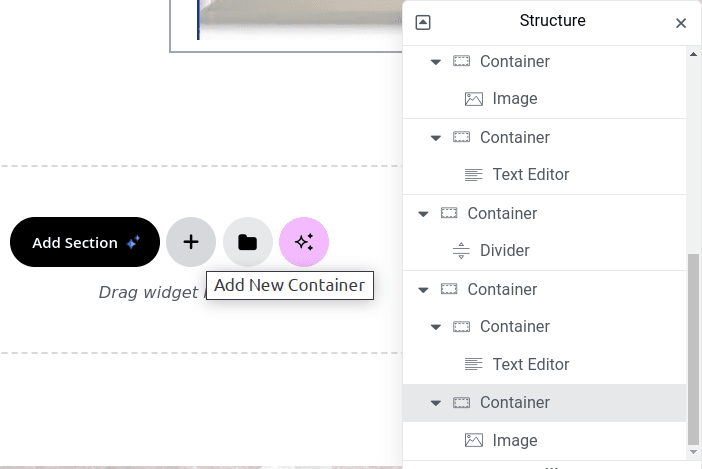
Structure panel below its icon (3 stacked pages). 1st Container below the Featured Image and Page Title. 2nd Container is inside it.
Add a Container Within the Selected One
Select a Container (either click an element inside the container and then the gray icon top left for the container, or in Structure click the container)
If in Elements you click on Container, the new container will be added as the bottom element of the original container.
You might want to add a background color to this new container, so you can see what moved where. (Remove the background color later, or set it to a good color for your site.)
In Structure, you can drag this element within this container or any other container.
But you can not move it to be a new top-level container.
Adding a Top-Level Container
To make sure the HTML commands remain in the correct order and correct closure, it is good to not move an inner container to being a top-level container.
There is a way to make a new top-level container. This new container can switch order among other top-level containers. Just drag the container in Structure.
To make a new top-level container, scroll down to the bottom of the content. There you see the AI-based “Add Section” and next to it the “+” icon to “Add New Container”.
This will be placed at the bottom of the page, as a top-level container. From here, you can move it to the top of the page, or between other top-level containers.
Organize your thinking. Get clear what you want. If your assistant didn’t do something right, clarify what you want.
AI for business, websites, your quality of life, improving health, learning any topic. Don’t ignore any area of life.
Specify who AI is to be, in each interaction. What subset of knowledge should it focus on. “You are an expert Internet marketer and trainer for small business owners”
Specify what you want to accomplish, in general terms. “I’m writing an article on how to configure Wordfence.”
Say who you are speaking to, who your ideal client is. Their mood, values, interests, what they are drawn to, what they avoid. (Have AI ask you questions to clarify “your niche”, “your ideal client”, “what makes you unique”, “your brand”.)
Give what ideas you have, what topics you want to include, what specifically you want to learn. Before writing your article or video script, ask the AI for other ideas and clarify your outline.
For a long project, for example a book, do not try to do it all in one prompt. Break it into sections (can have AI write the chapter titles and sub-sections), specify the overall design and then where you are in the process. “Book chapter headings are ____. I’m on Chapter 5 “description of chapter”, ready now for “what happens now that Charlie and Susie ____”, write the next several pages. Said another way, write your “Previously on NCIS” to tell AI what’s already done in the previous segment, so it knows what to write now.
State what format you want, details of how you want it presented “Output this in table format, for copy/pasting directly into a WordPress website, including table formatting; follow the table with explanations of the columns and summary of the information.” or “Save this in a Google Document”.
If the answers start “becoming generic”, or “sound like an AI wrote it” or “forgetting details”, know that AI can only keep a limited amount of knowledge in the forefront for making an answer. Start a new conversation, with an updated starting prompt.
Example of How I Prompt
Next is an instruction I gave an AI, to write a meeting topic about using AI. After that, I included the results that AI produced from that instruction.
Initial Prompt
I typed this into Google Gemini:
# You are a WordPress training expert, including how to use AI most effectively for writing WordPress posts, and other writings a WordPress site owner would need.

# I am writing for small business owners who are: developing an online course or coaching program, designing video scripts for clients, developing social media marketing for courses or coaching, and improving personal areas such as: life and health and productivity and learning. They have a range of WordPress experience, from pretty new to highly experienced at using WordPress for making trainings, courses, and marketing.


# I am planning a virtual meeting on how to use AI.  Topic Ideas:
"AI for writing excellent WP posts",
"AI for planning an online course"
"What is AI and how can I start using it for my WordPress site and my life?"
"How to Learn AI, ways you can use it, and how to get started"
Resources for using AI for writing article, making and editing videos, making images, social media marketing.

# Suggest other ideas to cover during this first call, and then ideas for future calls we will do, for this intended audience.
Beyond noticing the specific instructions, notice how I a) told the AI what topics or areas of knowledge I’m interested in; b) who I’m writing this for; c) what writing style and emotion and interests to pay attention to when writing; d) I could have said what format I want the results in (for pasting into WordPress with headings and bulleted items, or save to a Google Doc, or as a series of meeting slides, for example) and e) what I want it to produce.
What Google Gemini generated
Gemini generated this, including the formatting:
Here’s a breakdown of suggestions for your virtual meetings on using AI, tailored for small business owners using WordPress for courses, coaching, and marketing:
Focus for the First Call (Introductory): “Demystifying AI for Your WordPress Business”
Instead of overwhelming attendees with too many specific use cases, focus on building a foundational understanding and sparking excitement.
What to Cover:
What is AI, really? (Debunking myths, explaining basic concepts like machine learning and natural language processing in simple terms). Avoid technical jargon. Use analogies and real-world examples.
AI’s Potential for WordPress Users: Briefly showcase how AI can help with various tasks like:
Content creation (blog posts, course descriptions, social media captions)
Marketing (ad copy, email subject lines)
Course development (outlining modules, generating quiz questions)
Personal productivity (task management, scheduling)
Ethical Considerations: Briefly touch on responsible AI use (plagiarism, bias, fact-checking).
Getting Started: Practical First Steps: Introduce 1-2 easy-to-use AI tools or plugins that integrate well with WordPress. Focus on free or freemium options to lower the barrier to entry. Examples:
For writing: A free version of a grammar/style checker with AI features (like Grammarly) or a basic AI writing tool.
For images: Canva’s AI image generation or other free AI art generators.
Q&A: Dedicate ample time for questions. This is crucial for addressing specific concerns and tailoring future sessions.
Why this approach is better for the first call:
Less overwhelming: It provides a high-level overview without getting bogged down in technical details.
More engaging: It focuses on the potential benefits and practical applications for their businesses.
Sets the stage for future sessions: It creates curiosity and encourages attendees to come back for more in-depth training.
Ideas for Future Calls (Deep Dives):
Here’s a suggested progression for future sessions, building upon the foundation established in the first call:
Call 2: “AI-Powered Content Creation for WordPress”
Focus: In-depth training on using AI for writing various types of content: blog posts, landing pages, sales copy, course descriptions, email newsletters.
Topics:
Prompt engineering: How to write effective prompts to get the best results from AI writing tools.
Fact-checking and editing AI-generated content.
SEO optimization of AI-written content.
Using AI for generating different content formats (lists, how-to guides, product reviews).
WordPress plugins that integrate AI writing tools.
Call 3: “AI for Course Creation and Marketing”
Focus: Using AI to streamline course development and marketing efforts.
Topics:
AI tools for outlining course modules and creating lesson plans.
Generating quiz and exam questions with AI.
Creating engaging course descriptions and marketing copy.
Using AI for social media marketing of online courses.
AI tools for video scriptwriting and editing.
AI-powered email marketing for course promotion.
Call 4: “AI for Productivity and Personal Growth (for WordPress Business Owners)”
Focus: Applying AI to improve personal productivity, learning, and well-being.
Topics:
AI tools for task management, scheduling, and time blocking.
Using AI for research and learning new skills.
AI-powered mindfulness and meditation apps.
AI tools for tracking habits and setting goals.
Using AI to personalize learning experiences.
Call 5: “Advanced AI Strategies and Tools for WordPress”
Focus: Exploring more advanced AI techniques and tools for experienced users.
Topics:
Using AI for website analytics and optimization.
Integrating AI chatbots into WordPress websites.
Exploring different AI models and APIs.
Customizing AI solutions for specific business needs.
Ethical considerations and responsible AI development.
Key Considerations:
Keep it practical: Always focus on practical applications and real-world examples.
Show, don’t just tell: Use screen sharing and live demos to illustrate how to use the tools.
Provide resources: Offer downloadable checklists, cheat sheets, and links to relevant tools and articles.
Encourage interaction: Use polls, Q&A sessions, and breakout rooms to foster engagement.
Record the sessions: Make recordings available to attendees who couldn’t attend live.
By following this structured approach, you can effectively educate your audience about the power of AI and empower them to use it to grow their WordPress-based businesses.
Basics of Talking to an AI
The best relationship to have with an AI is “it is my assistant”. An assistant with extreme knowledge (read every book ever written in every language, read every website, the transcript of every YouTube video). But it doesn’t know your business, your ways of doing things; you have to specifically tell it how to do anything.
Kyle Van Deusen on “How I’m using Chat GPT for Websites & Content Marketing” (note it was written in June 2023)
AI websites to use
Of course, all AI offerings are expanding at a breathtaking pace, so check the latest features of several, pick one you like.
Google Gemini. I like the output a little better than ChatGPT. The free Gemini was offering more than entry-level paid ChatGPT. The entire Google Developer network is including Gemini features in every Google product, including Google Office and Android operating system. Gemini itself has, after every answer it generates, “Export to Docs” and “Draft in GMail”. The Gemini Android app can do things like take a picture or video, answer questions about it or write expanations of it, and post the result directly in your messaging app.
ChatGPT, the most known. It is really good.
Claude has a slightly different emphasis, many programmers who are interfacing with AI, like writing for it.
Image Generation
This is an area where the quality is improving very rapidly, and there are many websites for this.
Some to start looking at:
DALL-E 2, Midjourney, or Stable Diffusion can create featured images or graphics for blog posts.
All will let you generate an initial set of images from a text prompt. All will let you refine the image with text prompts.
Start reading on the websites for each, and learn what each is best at. Then pick on, start playing with it, learn how to get good results from it.
Make banner images, featured images, logos, icons. Give it a screenshot of your website, tell it to get your website color palette and use those colors most in your images.
Tell it to modify an image made with this website color palette, and modify it to use that website color palette.
Dall-E in ChatGPT
Prompt: “Generate an image, futuristic abstract and very cool, no people, as a “WordPress featured image” roughly 1/4 as high as wide, for a widescreen monitor, for a meeting series on using AI for making WordPress articles and videos and marketing. Use mainly the colors in the attached color palette image.”
Then I told it to make the same image again, but with “no text anywhere on the image”, since Dall-E 3 made terrible text (misshapen, with spelling errors). It made a different image, with less text:
After you learn how to make better image prompts, you can now do amazing images with AI. Dall-E is built into ChatGPT now, but you can definitely find better image editing tools.
Make YouTube Backgrounds with AI
Make YouTube Backgrounds with AI (SIMPLE) Step-By-Step Tutorial
Import your video into your video editor, make any edits including color/contrast/tint/brightness
𝗙𝗶𝗿𝗲𝗳𝗹𝘆𝗔𝗱𝗼𝗯𝗲 ➜ firefly.adobe.com/ free, just make an Adobe account. Mark area to change background, giving yourself some room for head movement and arm movement AI prompt for images to use as background, “office background”, “space ship background”, “home office” Import your AI generated image into your video editing software Adjust time for image to show, so covers your entire video length Draw rough area for the mask, leaving room for head movement and arm movement. If your AI image disappears just invert the mask. If see a clear line where you drew your mask, increase the “feathering” on the mask to soften the edges and blend better.
Tips: do not move around much. If you move your hands outside the masked area, you get weird “hands disappearing” effect. Experiment with light backgrounds, dark backgrounds, replacing only certain elements of your real background.
Video Editing with AI
Descript
For general-purpose editing, where I’ve recorded a video (me talking, screen shares), I like editing in Descript. The main editor is done in the transcript it makes of your video. Then you cut/paste/delete words on the transcript. No finding frames on the audio displayed. Make an arrow appear from this word to that word in the transcript. Show a different video clip, inserted at this point in the transcript.
LTX Studio by Lightricks
New AI Platform for Video Creation Does EVERYTHING! – LTX STUDIO Tutorial
Published on Mar 28, 2024 “LTX Studio is an AI platform that can turn a text prompt into a complete video. This is a platform for the complete process from ideation to a final video.”
About https://ltx.studio/ which you can start with for free.
LTX Studio It is way too powerful for just short marketing pieces. Everyone of us should be able to learn just what we need in very little time.
From Concept to Creation One Platform That Does It All We’re pioneering the integration of AI and film production, enabling the transformation of a single idea into a cohesive, AI-generated video. LTX Studio empowers individuals to share their visions, amplifying their creativity through new methods of storytelling.
made facetune and other AI programs very detailed, set the scenes, the shots within a scene, the characters, the voices of each character, specify character movement, camera positions and motion, can start a shot by uploading an image, or by text prompting edit a shot by broad-tip marker to specify an area, then a text prompt (sunglasses or “remove this computer”)
What are the unique features of LTX Studio? Distinctive features include a comprehensive approach to video creation, precise control over each and every shot, robust character consistency, and rapid generation of storyboard images and videos.
Which devices and platforms are compatible with LTX Studio? LTX Studio is a fully web-based platform designed for desktop use.
The ultimate editing tools for stunning content With Facetune app, experience the fastest, easiest way to edit with one-tap tools to bring out your best self in your photos and videos. https://www.facetuneapp.com/ Image enhancer, clothes changer, selfie generator, headshot generator, background remover, etc
invideo.ai
https://invideo.io/make/add-text-to-video-online/ From idea to videos with AI Invideo AI’s idea to video generator changes the way you made videos for your YouTube, social media and other channels. Simply prompt an idea and get ready-made videos, complete with script, stock and voiceovers. Create YouTube Shorts with AI Scale your YouTube Shorts production with invideo AI and watch your views grow. Prompt invideo AI to make Youtube Shorts for any interesting topic and get AI generated videos to boost your YouTube presence. Create Instagram Reels with AI Make videos for Instagram with invideo AI. Create Reels for topics like Finance, Tech and travel with ease.
Programming with AI
Windsurf
Windsurf works in VisualStudioCode (and other editors).
You can give in an initial prompt to start a coding project from scratch, or give it the main folder of an existing project.
You pass it ideas for what you want to change, and it codes. You give it bug indications, and it troubleshoots it. You give it error messages, and it finds what is most important and finds where in your code to fix it.
You have to be a competent programmer, to know what to change in the code, to know how to expand the code or tell it to keep focused on just what you want done now.
Or, use it to learn how to program. Ask it to explain sections of code. Ask it for how to program better. Ask it to show how to make “testing code”, code that tests sections of your program.
Cursor AI
I tried Cursor before I tried Windsurf. It does everything Windsurf does. It also works with Visual Studio Code (free, cross-platform, excellent programming editor).
I like the user interface of Windsurf better; Cursor has the prompts and its code output in the same 1/4 screen width panel, which makes scrolling up to read it more difficult.
Cursor makes me scroll through its output, to find the “approve and modify the real code” links. Windsurf has those files to edit listed at the bottom of the panel, click it to know which file of those open is the one with edits to work on next, and then the changes are in the main editor section. Both use color backgrounds to show what lines are being deleted and what are being inserted.
Cursor was sloppier, for example changing namespace or class names as it generated; Windsurf still needs to be reminded sometimes but does much better keeping track of what has already been written. Cursor made great suggestions for features to add; but then it left that code full of “code stubs” and never wrote complete code, and its ideas for some suggestions were way overblown for what I wanted to do. For example, it suggested training for color palette makers; I thought it would write a few paragraphs, it started (but never finished) a full educational training program with tests and progress tracking.
Both are excellent at figuring out what to do to fix a bug or use a different idea for what to code.
We welcome WordPress users of all levels to join us virtually for an introduction on how to get started applying artificial intelligence (AI) to your work with WordPress. We will review just a few practical applications that can improve your WordPress workflows.
Agenda:
6:30p – Welcome & Introductions (10 min) A brief welcome to our topic followed by a quick intros of each attendee:
What’s your name?
What do you do with WordPress?
What’s your level of understanding or how are you currently using AI?
6:40p – What is AI and Why Should WordPress Users Care? (10 min) Demystifying AI with a focus on the practical benefits for WordPress users.
6:50p – AI for Content Creation (50 min) We’ll review AI use cases and AI tools for content creation, such as…
Creating Blog Posts and Page Content
Image Generation
Keyword Research & SEO
Course or Coaching Program Development
Promotional Marketing and Social Media
7:40p – AI Resources (15 min) Sharing AI tools, videos, and other helpful learning resources with the group.
7:55p – Questions & Answers (15 min) Answering your questions about the topic to the best of our abilities.
This technique should work with most applications in Linux Mint. If you are using a different variety of Linux, you may have to adjust the exact steps.
Dolphin file manager is excellent. Two panels for easily copying or moving files. Multiple tabs to have file listing of multiple folders. Save the current tabs and panels when you exit. No more having to tediously browse to your favorite folders. Open your Terminal in the current folder.
But the Dolphin icon uses the identical icon as the default Mint file manager. While there are a few things where I need to use File Manager (Nemo), I do want to have icons where I launch the program I want.
Edit the Application Menu
Right-click on your Start icon. (It’s the icon you’d click instead of pressing your Windows or Apple Clover key), select “Edit Menu”.
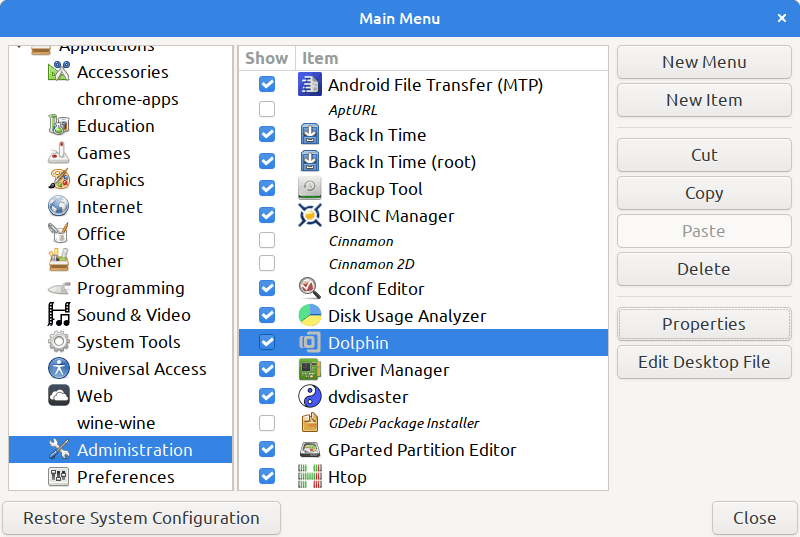
Linux Mint’s Start menu. Click the icon on the bottom left of your screen to open it, or press your Windows Flag or Apple Clover key.Linux Mint’s application Menu Editor
Click on the Properties button. From there, click on the application’s icon in the top-left corner. Select whatever icon you like from the list. (I used the existing “add-files-to-archive-symbolic” icon.)
How to Add Icons to the Icon List
I don’t know yet. I looked up “linux mint change an application icon” and there are many sites explaining how. You can install an icon that you made, in formats like svg or png.
Then I got distracted looking at sets of icons that you can install, and many of them look pretty, but didn’t see any where I could install a single icon.
Tip: drag the top of your Start menu up, and you can see more icons in the left-most edge.
The changed icon shows in other places, such as the Alt-Tab menu and the bottom-of-screen Applications list.
I recently found in a sleep study, that I snore enough to reduce how much air I get while sleeping.
My throat being irritated, makes me snore, which irritates my throat, which…
Sleeping with my torso raised 20 to 30 degrees, definitely reduces my snoring. Search “bed wedge for sleep apnea” on Amazon.
But also, check what you are eating, that might irritate your throat.
Here is a list of foods that irritate throats. Oops, I’ve been eating Mexican salsa, Chinese spicy foods, lemonade, grapefruit (when in season), pineapple (including dried one-ingredient pineapple), red pepper flakes, and a lot of “Crunchy, dry” foods,
Stevia ginger lemonade is yummy and no sugar. (When I am lazy, I make it without slices of ginger.) Still, I shouldn’t be drinking it when my throat is irritated, because of the lemon.
Me: List foods and spices that commonly irritate throats, and if there are ways to balance those spices or whether eliminating them is the best option.
Gemini:
Foods and Spices That Can Irritate Throats
Here’s a list of common foods and spices that might irritate your throat:
Foods:
Citrus fruits: Lemons, oranges, grapefruits, and limes can be acidic and irritating to the throat.
Tomatoes: Tomatoes are also acidic and can contribute to throat irritation.
Spicy foods: Foods with high amounts of capsaicin, the compound that makes chili peppers hot, can irritate the throat.
Dairy products: Some people may be sensitive to dairy products, which can cause throat irritation.
Alcohol: Alcohol, especially strong alcoholic beverages, can be dehydrating and irritating to the throat.
Acidic beverages: Carbonated drinks, coffee, and tea can be acidic and contribute to throat irritation.
Spices:
Chili peppers: As mentioned above, chili peppers are a common irritant due to capsaicin.
Black pepper: Black pepper can also be irritating to the throat, especially in large quantities.
Mustard: Mustard powder and mustard sauce can be irritating to the throat.
Vinegar: Vinegar, whether used in salad dressings, marinades, or as a condiment, can be acidic and irritating.
Balancing or Eliminating:
Whether to balance or eliminate these foods and spices depends on your individual sensitivity. Here are some tips:
Experiment: If you suspect a certain food or spice is irritating your throat, try eliminating it for a few weeks to see if your symptoms improve.
Balance: For some people, balancing the acidity or spiciness of a food can help reduce irritation. For example, you might try pairing a spicy dish with a cooling yogurt or a sweet dessert.
Cook thoroughly: Cooking foods can reduce their acidity or spiciness. For example, cooking tomatoes in a sauce can help to balance their acidity.
Use substitutes: If you can’t tolerate certain foods or spices, you can often find substitutes. For example, you can use apple cider vinegar instead of white vinegar or substitute a milder chili pepper for a hotter one.
Remember: Everyone’s sensitivity to different foods and spices is unique. If you’re experiencing persistent throat irritation, it’s a good idea to consult with a healthcare professional to determine the underlying cause and develop a personalized treatment plan.
Me:
– Tomatoes: does that include spaghetti sauce, or only raw tomatoes? You mentioned cooking reduces acidity in tomatoes
– Acidic beverages: does “tea” refer only to black tea, green tea? What about yerba mate, peppermint, chamomile, ginger turmeric?
– What about crushed red pepper like is often included with pizza?
– Black pepper: I read often that black pepper activates turmeric, and turmeric is one of the best spices to take. What amount of ground black pepper helps activate turmeric? And how much ground turmeric would be good to eat daily?
Gemini:
Food-Related Throat Irritation: A Closer Look
Tomatoes: While cooking can reduce the acidity of tomatoes, it doesn’t eliminate it entirely. So, both raw tomatoes and tomato-based products like spaghetti sauce can potentially irritate the throat, especially for those with sensitive stomachs or allergies.
Acidic Beverages: When I mentioned “tea,” I was referring to black tea and green tea, which are both generally considered acidic. However, herbal teas like yerba mate, peppermint, chamomile, and ginger turmeric can vary in acidity. Some of these herbal teas are known for their soothing properties, while others might be more acidic, depending on the specific ingredients.
Crushed Red Pepper: Crushed red pepper is a concentrated form of chili peppers and is therefore more likely to irritate the throat than the occasional use of chili peppers in a dish. If you find that crushed red pepper bothers your throat, it’s best to avoid or limit its use.
Black Pepper and Turmeric: You’re correct that black pepper can enhance the absorption of turmeric. However, the exact amount of black pepper needed for optimal absorption is still debated. Some studies suggest that a small amount, such as 1/20th of a teaspoon, can be sufficient.
As for turmeric, the recommended daily intake varies. While some studies suggest that 400-600 mg per day may be beneficial, it’s always best to consult with a healthcare professional for personalized advice. Excessive turmeric intake can have side effects, so it’s important to follow recommended guidelines.
Remember: Individual sensitivities can vary. If you’re experiencing throat irritation, it’s a good idea to experiment with eliminating or reducing certain foods and beverages to see if your symptoms improve.
Me:
How much, in teaspoons, is 400mg of ground turmeric? How much black pepper, ground, in teaspoons, is likely to be helpful with 400mg of turmeric?
Gemini:
Turmeric Dosage:
400mg of ground turmeric is approximately 1/4 teaspoon. This is a common dosage used in studies.
Black Pepper:
A typical ratio used in studies is 1/20th of a teaspoon of black pepper for every 400mg of turmeric.
Me:
How many teaspoons of ground black pepper to mix with 1 cup of turmeric?
Gemini:
For 1 cup of ground turmeric, you would use approximately 5 teaspoons of black pepper. This ratio ensures that you’re getting a sufficient amount of black pepper to enhance the absorption of turmeric.
Remember, you can also use a digital scale for more precise measurements. 1 cup of ground turmeric is approximately 125 grams. So, you would need 6.25 grams of black pepper to maintain the 1:20 ratio. [Me: that’s a 40 gram bottle of ground turmeric, add 2 grams black pepper, mix well, put it back in the glass bottle]
However, it’s important to note that excessive consumption of turmeric can have side effects. It’s generally recommended to consult with a healthcare professional before taking large amounts of turmeric or any supplement.
Me:
Dairy is often listed as irritating throats. But some websites say “ice cream” is soothing to an irritated throat. Is that a sloppy use of “ice cream” instead of “frozen non-dairy desserts”?
Gemini:
Dairy and Ice Cream:
Dairy: It’s true that dairy products are often listed as potential irritants for throats. This can be due to lactose intolerance or other sensitivities.
Ice Cream: While ice cream can be soothing to a sore throat due to its cold temperature, it’s important to consider the dairy content. If you’re sensitive to dairy, non-dairy ice cream alternatives might be a better option.
Therefore, if you’re trying to soothe a sore throat and are sensitive to dairy, opting for a non-dairy frozen dessert can be a good choice. The cold temperature can help numb the throat and reduce inflammation, while avoiding dairy can prevent further irritation.
Buy a laser printer that has inexpensive toner cartridges.
(Check the “per page” cost, don’t get a low-capacity toner cartridge by mistake, because it “costs less”.)
Buy a laser printer that automatically can print on both sides of the paper. That is a very handy feature, much easier than having to put the stack of papers printed on one side, properly back into the paper tray, to print the second side.
Figure out if you need a printer, or a printer/scanner.
Many people don’t need a scanner, can do the occasional “scan” by phone photo instead; or a separate device might work better.
You don’t need to worry about a printer description saying works with OS/X or with Linux. They “all do”, since all laser printers use either HP’s basic command set, or Postscript, or both.
(Okay, check the reviews, there might be some “weird” printers that truly don’t work at all on OS/X.)
You might miss out on some special driver features, like telling you the current toner levels, or alerting you on your screen when the printer is out of paper.
(In Arizona, buy a laser printer instead of an inkjet, unless you print Every Week, inkjet cartridges dry out quickly; if they dry out you might have to replace them. If you need a color print occasionally, send it to a Kinkos et. al.)
There might be companies in Phoenix that sell refurbished laser printers and refill toner cartridges.
I’ve had good experiences with HP, especially if you don’t need “latest greatest”, aren’t buying based on fastest print speed for hundreds of pages per day. Canon, Brother, several other brands are good too.
PC Magazine reviews from a few years ago might be good, the great printer a few years ago might be lower priced today. They would mention if a printer doesn’t work at all on (then current) OS/X.
A Hewlett-Packard HP LaserJet 400 M401dne has lasted for years.
Bonus tip: Keep your printer and your computer on a top-quality surge suppressor. Lightning can kill the brains of a laser printer.
A few brands (APC is one, for both surge suppressors and uninterruptible power supplies) have a feature where, if the surge suppression part has failed, then it will not deliver power at all.
With most brands, you have no way of knowing if the surge suppressor is “still working”. If the surge suppressor stopped a big power surge, it protected your equipment, but can’t any more.