Want to pay your rent easily with Zelle? You probably have Zelle through your bank. Bellridge takes payments through Zelle. Here’s how to make payments with Zelle, and how to know the (optionally recurring) payments are what you want.
Before you set up payments to Bellridge via Zelle, fill out the Bellridge form authorizing Bellridge to collect money for your rent. This form is in the office.
The office does not set up collecting payments with Zelle from you. You set up Zelle to make payments to Bellridge.
What is Zelle?
Zelle® | “A fast, safe and easy way to send and receive money, to most individuals and many companies.”
“Get started by enrolling your email or U.S. mobile number through your mobile banking app or with the Zelle® app. You can send money to almost anyone you know and trust with a bank account in the U.S.”
Of course, you can also do everything with Zelle from any modern web browser, such as Chrome, Firefox, Edge, Safari.
Look for Zelle® in your banking app, or your bank’s website, to get started. Then, enroll your mobile number and Visa® or Mastercard® debit card so you can start sending and receiving money.
Do Banks Close to Bellridge offer Making Payments With Zelle?
Many banks very close to Bellridge offer Zelle, including: Bank of America, Chase Bank, MidFirst Bank, PNC Bank, Wells Fargo Bank.
Some common credit card companies and credit unions also offer Zelle, including: Capital One, Geico Credit Union.
How to Make a Payment to Bellridge With Zelle
In my bank, in the “Pay & Transfer” menu, there is a box with Zelle. So when you click on “Send Money”, you then “Choose a recipient to send money” by clicking “Add a new recipient”.
The Zelle recipient name and email are not what is on the Bellridge flyer, so you have to use these: Name: BR BELLRIDGE APARTMENTS Email: bellridge@optimams.com
How to add a recipient for your payments via Zelle. Use the name, email, and mobile phone number. The form asks you to confirm the email and phone.
Once you have entered the recipient, then you can click Add a Payment.
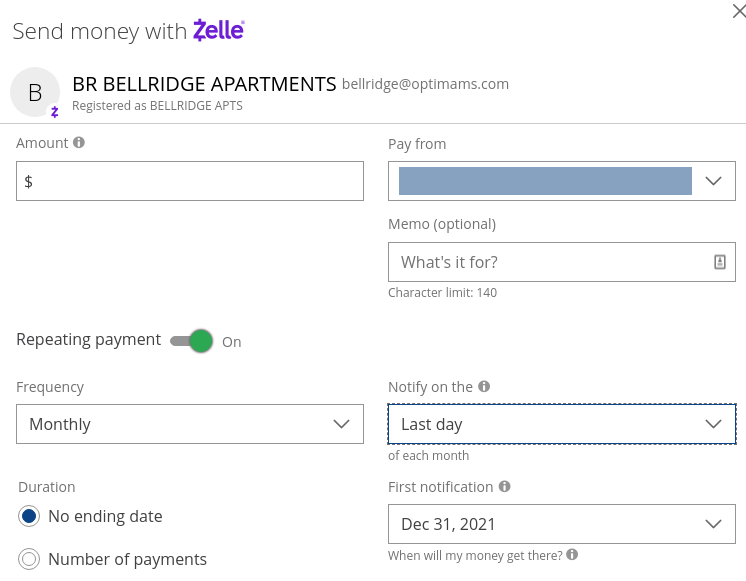
How to add a recurring payment in Zelle. In addition to specifying who to pay and the amount,Click the toggle by “Repeating payment” and specify how often to repeat (for example, monthly) and what day to notify the recipient (I used “Last day” of the month).
The amount would normally be your monthly rent, but you also can pay late fees or deposits.
The “Pay From” is where you select which of your accounts to use, for most people that would be your checking account.
In the “Memo” field put your apartment number, to make it easier for Bellridge to know to credit the payment to you.
Repeating Payment: you probably want to set it up so you don’t have to remember to pay your rent each month.
You can set the payment for the 1st of the month, but I picked “Last day” of the month.
You have to remember to turn automatic payments off if you move out, and also let your family (or whoever would handle your money when you die) know to turn the repeating payment off.
If Bellridge Requests A Payment via Zelle From You
You will get an email from your bank notifying you of their request.
My bank sent an email including “Your payment is requested. BR BELLRIDGE APARTMENTS requested money from you through QuickPay® with Zelle®.” Yours would say something similar.
Notice that the company name to use paying Bellridge must be exact.
Also notice the email address (which you will see if you make a payment to them) is different than what you use for maintenance requests, or to see an apartment; it’s only used for making payments.
What Happens After You Say to Pay With Zelle?
You will get an email verifying the payment being sent, including the amount and when the payment should clear.
Bellridge will also get an email notifying them of your payment, when it will clear, how much the payment is.
“Every time I would go to print something it would tell me that the photo paper was out, even though I was not printing a photo.”
Some software might have set your default “print to this paper”, to the photo tray. You can also set each document to the paper you want, in many software programs.
For example, I have my PDF software set to default to “manual feed tray, paper type: labels”, since what I print most often is USPS address labels.
On the printer, set the paper in each paper tray, using the printer’s menu. Or, when the printer is paused waiting for a specific paper type (requested by your computer’s software), when you press the “OK” button (or whatever button your printer expects) it remembers that paper “is in that tray”.
If you print a bunch of documents, and some have different paper types specified, you can send them to the printer all at once, and the printer will print those for the “current paper”. Then when you tell the printer you’ve changed to another paper type (letter/legal, plain/colored/labels, etc) it will print all those documents. A business might have the first page of documents on letterhead and other pages on matching bond paper; and other documents all on plain paper. If the printer has three paper trays, it will automatically pick the tray for the current page.
In LibreOffice Writer, go to the File, Printer Settings menu; when you click the “Help” button, it says “Select the default printer for the current document”; so you can set the paper type for each document, and if you use a document template to make the document the document will inherit the settings from the template.
In Printer Settings, in the Paper tab you set Paper Size and Duplex (aka “double-sided” printing) and Paper Tray; in the Device tab you set Media Type (plain, several paper weights, labels, letterhead, envelopes, preprinted, colored, bond, etc).
Close the browser tab. Since you don’t want to accidentally go there, consider removing that URL from your browser history.
If you get a warning about a site that you know, that used to be good, contact the site owners some other way, alerting them their site very likely got hacked.
To fill out a form on a site
Never fill out a form on a site that doesn’t have an SSL “lock” icon showing in your browser bar. It should also show the URL is “https” instead of “http”, but beyond using https, the browser needs to validate the security certificate is for the site.
Use a “disposable email address”, one that you can delete any time. You might set it up as an “email forwarder”, so you receive the emails from them in your main email account. You can use a GMail account, only for that purpose, knowing that GMail is very good at recognizing spam and blocking the spammer for everyone.
I have a general email account for signing up on websites, so the email account I give to friends and family isn’t cluttered with that flood of “one step better than spam” junk emails.
To visit a site, not running any unsafe scripts
Use a JavaScript blocker, in your web browser. I use NoScript on Firefox, leaving it set to default to blocking scripts that I have not explicitly allowed to run.
For Known sites: I set NoScript to always allow scripts from that site.
(Often a site uses JavaScript for menus and slide shows and showing videos; I avoid sites that have lots of scripts, from many companies, they are tracking you through all those scripts.)
Use minimal add-ons to your browser. Those shopping “helpers” are not worth the risk; you’ve just given the author a whole lot of information and control.
To visit a site from an email or FaceBook or other link
Don’t. Browse to the site by typing the URL in to your browser.
The link it “claims” to be could be different than the URL that you are taken to when you click the link. (Web page links consist of “link text” and “link URL”, and the link text can be anything.)
If you right-click on a link (or command-click on OS/X) you will get a menu, and from there you can “Copy Link Location”. You can look at the URL in your text editor, and remove unwanted parameters. Parameters on a URL are “the stuff after the question mark”, if the URL has some. Very often you can see the page just fine without all those tracking code parameters.
For any site that is important, make sure you are on the actual site. Call your bank on the phone using the number on your credit card, instead of clicking the link that you “think” is valid, but is actually a site that “looks just like” your bank.
To visit a site that you don’t trust but you still want something from them
Visit the site using the Tor browser, which uses multi-hop secure transmission (so your location can’t be tracked), has all scripts disabled by default (so they can’t run bad scripts when you visit). While you are there, don’t fill out any forms or supply any important information about you.
Anti-Virus Software
Many common anti-virus software includes browser security. They can alert you if you are browsing to a website that is known to contain malware, and they will disable malware downloaded onto your computer before it infects your computer. Norton, Avast or Panda are good ones; I’m using the free version of Panda on my computer and Avast on my phone.
In general
Don’t give out any information about you, that they don’t legitimately need.
Your pizza place needs to deliver to your address, and needs a valid credit card number, but they don’t need to know your mother’s maiden name or your favorite color.
When sites ask you for information about you, and they don’t need to know it, for example your age/city/phone, Lie. Use your password keeper to keep track of the answer you gave them. “What street was your first house on?” say “Banana”. “What is your mother’s maiden name?”, say “Sea of Tranquility” (Apollo 11 lunar landing site). “What’s your birthday?” Either July 4, 1976 or 1/1/2001.
Use a different password for each and every site. Use a password keeper to generate the passwords and remember them, so you don’t remember them. (The hacker who broke into your pizza place, knows many people use the same password at all sites, including for their bank. Or, they use a minor variation of the password, easy for a computer to guess.)
I use LastPass, 1Password is also excellent but not to be confused with OnePassword which I’ve never used. Keep your passwords, website credentials, software license keys, etc. in the password keeper. All fields are encrypted on your computer, before being sent to the company; even if the company gets hacked, all the hacker would get is an encrypted form of your information. Of course, use a very strong password phrase as the master password for your password keeper.
Corporations forcing (urging, pushing) people to work when they are at risk of getting covid-19 and infecting their family, hurts Us.
Corporations dumping food, when people are hungry and scared they won’t get food; when other kinds of businesses would find a way to get that food to people; that hurts Us.
What can you, as a group, standing for a community, accomplish?
What can you accomplish, as a group, that you can’t accomplish as an individual?
There are other kinds of businesses, that do care about the community, and do care about your groups. Corporations can’t. It isn’t the “tax filing status”, it’s the kind of thinking, what the corporation is aware of, what they are unable to understand. To a corporation, a group or a community is just “lots of people”, and employees are just “workers”, expenses to be reduced.
A course you’ve likely done or heard of, says (or at least, we can reasonably expect to get) that standing as a group is:
1) Survivable. Though corporations tell us endlessly, in their every action and as a “conversation in the background” of everything they say, that if you don’t “shut up and do what you’re told” you will be fired, and your family will be outcast, and you will be forced to live in the wilderness, where you will all be devoured by animals and Die…
Though all corporations always and only convince us of that, you standing for a community is survivable.
2) Workable. You as-a-group can get corporations to change their behavior, to stop harming the community, to change their policy, to spend some money so people are safe, to spend some money so the work environment is safe, to spend some money so the products are safe. Though corporations are always and only interested in “make more money, make more profit”, you as a group can force corporations to change. Yes, even that corporation.
3) Worthwhile. Whether you get the corporation to change how you as a group want, or not, standing as a group for a community, is almost always worthwhile. It might not be easy, you might have to keep at it and keep at it, and keep going, and keep having more people join you, and try something else, and then another something else. It is worth it.
Are you actually limited to doing the tasks that someone assigns you? Or has it only seemed that way, but really isn’t? It often seems like every corporation thinks, or more accurately “thinks from”, you are a low-level employee, and so of course it’s appropriate to give you tasks, you’re not capable of anything better. Is that real?
While so many offices are closed, due to covid-19, so it is obvious that they-as-a-corporation have few tasks for you to do, what can you, as a group, committed to making a difference in your communities, accomplish?
You as a group, in your several groups and several communities, always have wanted, at the highest level, causing “a world that works for everyone, with nobody and nothing left out”. You as a group want that; you as a community and as several communities want that; no corporation can ever want that.
Like every corporation, ___ Corporation is terrified of You-As-Group. You can make the corporation spend money or lose money. You can make the corporation look bad, which will cost the corporation customers. You can come up with great ideas, which makes the corporation look bad (how come they didn’t think of it). You can start businesses that will compete with the dumb corporation. You can generate lawsuits, which could lead to the state revoking the business license, killing the corporation.
You have been so busy being scared of the corporation, you didn’t notice that every corporation is Terrified of You. But not you as an individual, always you-as-group.
If someone tells you “get on task”, you know immediately they are a “corporate agent” and are not empowering you to make a difference in your communities. Therefore, you never have to follow their orders. (However, if that corporate agent is paying you money you depend on, consider continuing to play dumb for them, at least until you aren’t dependent on that money.)
If you’re empowering someone, or a team, that’s more important than their task. No matter what task they want you to do.
If you’re training people to work as a team to produce something, that’s more important than their task.
If you’re completing something, that is in the way of you as a group making something happen, that is more important than their task.
If you are accomplishing something, that makes the community better, that’s more important than any task a “dumb boss” is capable of giving you. (Have you noticed that bosses in other types of business can be intelligent, but in a corporation there are only dumb bosses?)
How can you act, now and when non-corporate businesses open again, standing for a community instead of doing tasks?
How can you get trained in planning projects, so the team knows what everyone is doing, so you or the team pick people for each of the roles needed for the project, react well when something goes wrong or happens that wasn’t anticipated, and everyone on the team succeeds? (Tip: look into Scrum management.)
How can you train your group to determine what the community will need, where specifically, when exactly? Trump’s administration isn’t doing that for your community, since corporations and corporate-minded government agencies don’t care what your community needs. We need You.
You need a very secure password to use as the master password for your password keeper software, and for your computer login. There may be a very few sites that you log into often that you might think can use a typed password, but avoid that.
These few passwords have to be very easy to remember and easy for you to type. But they have to be difficult for computers to guess, in the rest of your lifetime.
How to make a truly secure password phrase for your password keeper master password, and for the few passwords you type frequently. This must be hard for hackers to guess, easy for you to remember and easy for you to type;
How to pick a password phrase in a way you will remember it in seconds or minutes.
You must use very strong passwords on your WordPress site (and you must have an SSL certificate, to prevent your WordPress login from being sent as plain text; many excellent hosting companies like SiteGround provide SSL certificates for free). You should use very strong passwords on every web site you use, and every password should be different.
WordPress encrypts your passwords, and the encryption is strong enough hackers can’t break the encryption. But hackers know the way we’ve all been taught to make “secure” passwords, and that lets them automate scripts that guess your passwords.
Making a Secure Password
One way of making passwords that are actually secure, but you’ll never be able to remember, is use a password generator. Use the password generator in a password keeping software, and all you have to remember is the “master password” for the password keeper.
“A password manager is just software that creates, stores and organizes all your passwords for your computers, websites, applications and networks.”
I give you my recommendations on how to select which password keeper you want to use, in Strong Passwords for WordPress and Your Password Keeper. I’m using LastPass, since it is easy to use, and it works on Windows, OS/X, Linux, iOS, and Android.
The password keeper software will remember all your user names, account numbers, and passwords, plus any other information you keep as notes for that site. You can also use your password keeper for securely storing bank account numbers, credit cards, library cards, WiFi passwords, serial numbers, registration numbers, router configuration details, etc.
The only passwords you should frequently type are the ones for your computer and for your password keeper, your phone pin, and your bank card pin. All others should be pasted from your password keeper.
Basics of Password Security
For each site, use the longest password the site allows, up to maybe 60 characters. Your password keeper will let you copy/paste the password, so you don’t have to ever type it. Most password keepers also have an option to simply fill in all the login information, skipping the copy/paste.
(As long as it is a random computer-generated password, 60 characters is “lifetime strong”.)
Never use a password on more than one site. If someone gets your password at your favorite pizza place, and orders a pizza “for carry out” on your card, you don’t want them also able to use your video streaming account or your bank, right? Many hacks on simple websites are to get 1) the password or 2) the password-making rule, for every registered user.
Why? Because hackers know most people use the “same or similar” password on all websites.
LastPass and many other password keepers will even warn you to change passwords if a password is used on more than one site.
Old Rules to Make “Secure” Passwords Are Too Easy to Guess
The rules we’ve been told by technical support people for decades, make passwords that are not secure any more. The main reason is simple: there is software that can make billions of guesses of your password per minute, and hackers using it know all the “clever” rules people come up with for making passwords.
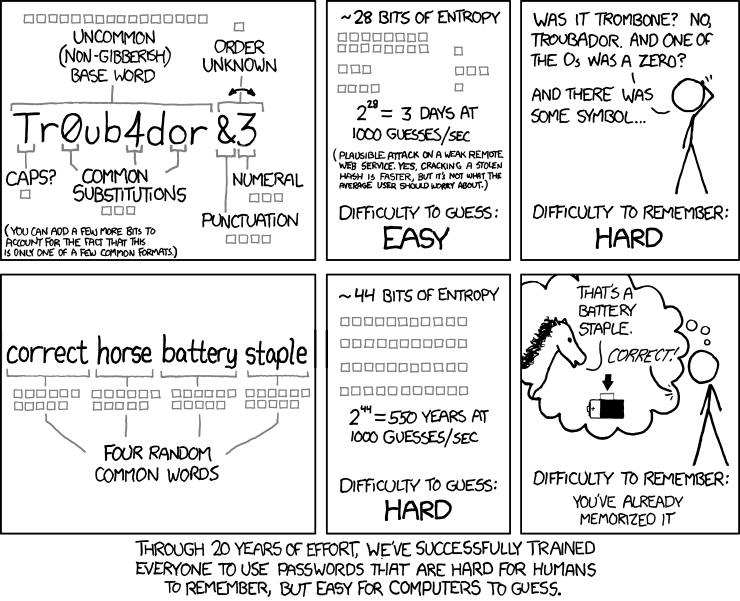
The rules we’ve been taught for years that should make a secure password, aren’t good enough. Those rules actually limit the possible passwords a hacker’s software would have to check. For example, the “word plus number plus punctuation” rule makes a password that is basically as easy to guess as a three-letter password; the word is in the dictionary, plus about 100 characters for all letters and punctuation, twice). Hackers know all the “substitute a number instead of a vowel” rules too, such as “3 for m or 0 for o (zero for oh)”, and that is easier for computers to check than it is for you to remember.
Even 8 character random passwords can be guessed in under a day, if they are looking for Your password and have stolen the website’s database. While most hackers are looking for the easy targets on a website, you need a password that can’t be guessed during your lifetime!
Making Secure Passwords You Can Remember
You have to remember your password keeper’s master password. Forget it and all your other passwords are encrypted in a way that can not be broken (unless of course your master password is so weak it can be guessed by password cracking software).
The comments on the original correct horse battery staple page point out that if all four words you pick are in the 5,000 most popular English words, then you should calculate the time it takes the password software to go through 625,000,000,000,000 (5000 x 5000 x 5000 x 5000) combinations.
There are 60 seconds * 60 minutes * 24 hours = 86,400 seconds/day. At 8 billion password guesses per second, they have your “four common words” password in about 1 day, using a “wimpy” 2012 computer.
Obviously one way to make your password (pass phrase) more secure is use at least one word that is not in that tiny dictionary of most popular words. Engineering, scientific, medical, or any other more obscure words will do; but they have to be easy for you to remember, and remember how to spell. (Or, remember consistently how to mis-spell). Common foreign language words are also in hacker dictionaries, but less common ones are good to use; pick a language that is not common in the websites you use.
Another way to make your password more secure is use 6-8 words. But remembering 4 random words is hard enough for most people. (Tip: get one of the associative memory courses, such as MegaMemory.) If you have a system memorized already, okay. If you have the type of memory where you know every move of every chess game Kasparov ever played, good for you, use it. But if you don’t, here’s how.
Making a Memorable Secure Password Phrase
I think the proper person for teaching this task is Mary Poppins:
Julie Andrews in “A Spoonful of Sugar” from Mary Poppins 1964
Now, pick a “mini-scene”, for example the robin or the mirror, and describe it in 6-8 words. For this mini-scene, perhaps “robin feathering fly mary whistle duet” (a robin feathering his nest flies to Mary Poppins and they whistle a duet) but don’t use that, make your own story. As long as you pick a vivid, memorable mini-scene, the “story” you make up will be completely memorable to you, but not easy for anyone to guess, even if they know what movie you love.
Ignore any 1-3 letter words unless important.
Don’t take a lyric or famous quote, as those could be in the “dictionary” of some hackers. “spoonful of sugar” is a lousy password, “spoonful of sugar to help the medicine go down” is so famous it’s not much better than “spoonful1964”
No punctuation between words (spaces aren’t allowed on some sites, and punctuation are harder to type); or if you must, use the same common punctuation between each word of every password; no having to remember which one you used.
Pick one place to put a capital letter, probably the first letter of the first word, and use that place for every password you make.
Pick one place to put a digit (probably the end), and one place to put a punctuation mark (probably after the digit). Use the same digit, punctuation mark and place for every password you make, so you don’t have to remember what and where you picked.
Only use punctuation that is accepted on almost all web sites, e.g. the top row of your keyboard, ~!@#$%^&*)_+-= so you don’t have to remember which sites use which punctuation mark.
If you’re not certain whether to use singular or plural (“was it penguin or penguins who bowed in the cafe?” in “It’s a Jolly Holiday with Mary”) always use singular (the simpler word). Or, move slightly ahead or back in time, so it is clear (“how many penguins gave Mary a kiss?” You do remember, don’t you, even after the years since you watched Mary Poppins? Go watch again…)
Any time remembering it “wrong” will be highly memorable, go with it. If you can vividly see in your imagination that in “The Matrix”, Neo did a cartwheel and grabbed a Howitzer off the floor (instead of a machine gun), excellent.
Any time a more complex or less common word would be memorable, use it. Know your birds? Use the actual type of robin Mary sang to, instead of “bird”.
Some more practice making stories from mini-scenes (but soon quit practicing, pick a movie you love, change your password keeper’s master password!). This is quite a curtain call:
Video streaming devices are really nice. But those remote-control virtual keyboards are too tedious to use for browsing. They are much too hard to use for typing in a secure password.
You have to type in your account password, for Google Mail, for your Netflix account, for your YouTube account, for your Hulu account, etc.
Check your specs on the streaming device. It probably uses a Bluetooth or USB-2.4GHz wireless keyboard. Your Roku almost certainly does. Your Amazon Firestick does. Most no-brand video streamers do.
Look on eBay for things like this:
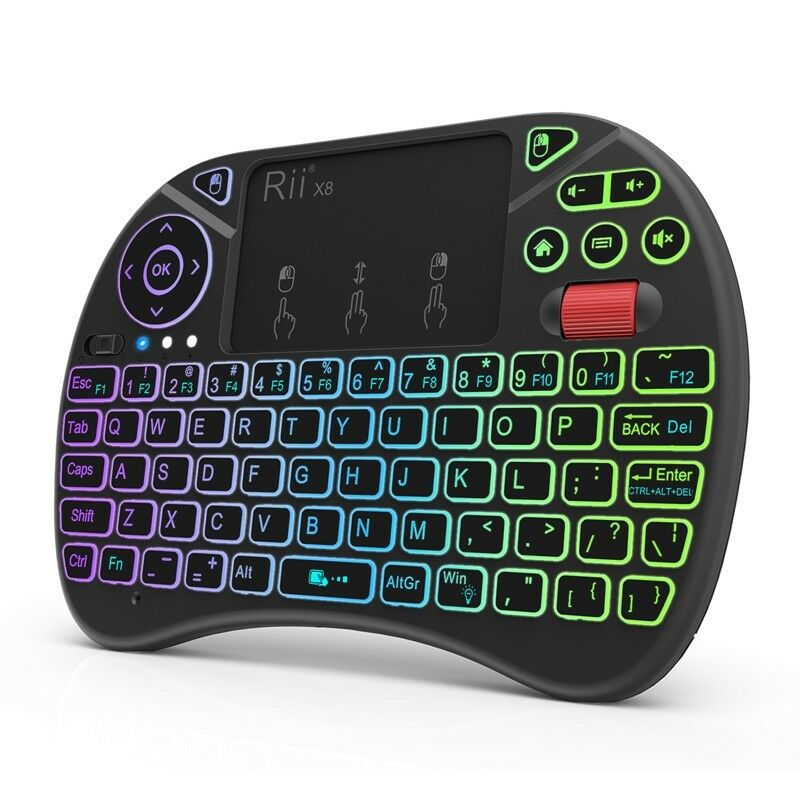
“Wireless Colorful Backlit Mini Keyboard Air Mouse with Touchpad 2.4GHz” for under $10 (there are Bluetooth versions of similar keyboards). Keywords might be “Bluetooth mini keyboard” or “Backlit 2.4GHz mini keyboard” or “wireless 2.4 keyboard”.
Mini keyboards are convenient when you’re on the sofa watching TV. Backlit keyboards are really nice when you’re watching in a darkened room. (Touch a key, e.g. the shift key, and the back-light comes back on.) Having a touchpad built into the keyboard, and arrow keys that toggle into mouse-mode, are both really convenient for moving around on the screen.
Really makes searching and browsing and typing much easier on those streaming TV devices.
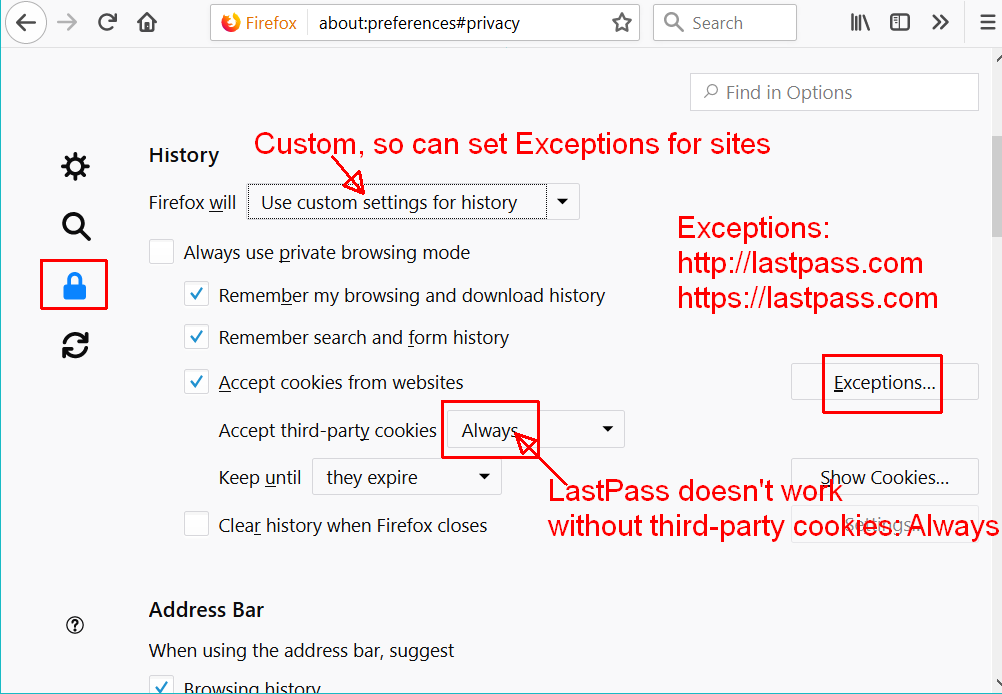
I was logging into LastPass, the password was accepted, the LastPass icon changed to red (indicating that I was logged in). Then a few seconds later, the icon would change to yellow, indicating the login had expired. Clearly my LastPass settings were off.
I use LastPass as my password keeper. When I log into a new website or change a password on a site, it remembers the login details for me. Next time I go to that site, LastPass will either automatically log in for me, or let me pick which login to use on the site. (I can set my preference in general and for specific sites). Go to my LastPass password keeper and Using Strong Passwords page for making a secure password that you can remember and type.
I have all my passwords in it so I need it working right, and it had worked a long time. (I could use my phone to get the passwords, and I had not tested but probably logging directly in the LastPass.com site would work. I also have the Chrome browser, and LastPass would almost certainly work on that. I was really suspecting this was a temporary problem just on the one browser.) But the browser add-on is really convenient. (more…)
Are you logging in to Twitter, and for some reason it redirects you to the Twitter mobile version even though you are on your desktop computer?
http://mobile.twitter.com/ is good when browsing on a mobile phone, but not what I want when I’m using Firefox on a widescreen monitor.
At first I thought it was something that Twitter didn’t like about the newest version of Firefox, but that isn’t what the problem actually was.
I like security, including blocking scripts that I don’t know about. I don’t want to visit a site and have some hacker JavaScript run on my browser. Anything you can do to block hackers is good.
So, I use the Firefox add-on NoScript. NoScript defaults to blocking all scripts, and then you white-list the scripts that you want to allow. You specify what scripts to run by the domain name, or sub-domain name.
It has a feature to temporarily allow all scripts on a page, for testing. It also has a feature to temporarily trust scripts from a specific domain name, for example allow this page to run today but not automatically. (I use this for testing what scripts I need to enable on a page for the page features to work how I want.) And you can revoke all temporary permissions. You can trust https: while blocking http: (without SSL) scripts.
NoScript is a very nice tool!
In Firefox, tap the Alt key to see the top menu, Tools, Add-Ons, scroll to the bottom of the page to click “See more add-ons“. Then in the search bar, type NoScript and click “NoScript Security Suite“.
Next you’ll have to spend some time, as you visit sites, enabling the scripts you want to allow. Most often, you only allow scripts for the https version of the site itself. Then you test if the site works right, and allow additional minimal domains until everything you want working, does work. You can Google the domain name and “scripts” to get an idea what the script’s reputation is.
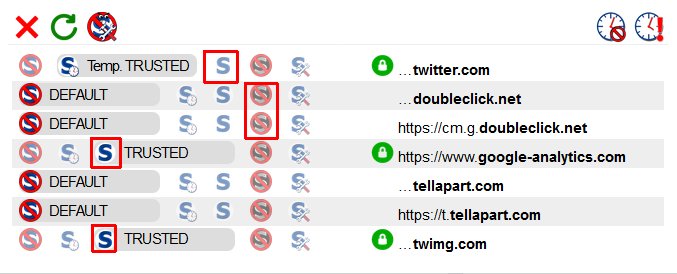
Here’s what I was setting for Twitter, visible from https://help.twitter.com/ which doesn’t redirect for mobile browsers:
The problem (getting the mobile version) was due to my having the “Default” for twitter.com and all it’s subdomains that aren’t specifically listed. (Again, the Default is all scripts and objects blocked.) But I couldn’t see that while I was being redirected to mobile.twitter.com (which you also want to set “Trusted”).
In this specific case, I could see “…twitter.com” and click the “S” icon to make it “Trusted”. If not, or if you want to specify several domains at once, click the third icon from the top left, the “No S” icon with the wrench, for Options. See Wikipedia Noscript and jeaye.com for a clear explanation of NoScript, and of course the NoScript help pages https://noscript.net/faq and https://noscript.net/features
Which permissions do you want for a site? Here’s some ideas about setting them:
Allowing only HTTPS (not HTTP) — Look at the lock symbol by the domain name. If it is red, HTTP is allowed, if it is green, only HTTPS is allowed. Click the lock to toggle it.
Fetch is to be granted only if essential — http://www.redotheweb.com/2015/11/09/api-security.html
Now I have these settings for NoScript for Twitter:
Change …twitter.com to Trusted, and …twimg.com (for Twitter images) to Trusted.
DoubleClick tracks your site visits, for advertisers. I keep it set to Untrusted.
Google Analytics I set to Trusted.
Tellapart.com I haven’t researched at all, and I don’t notice anything about Twitter not working without it, so I leave it set to Default.
You can also click that “monster wrench” icon (third from the left on top), and add mobile.twitter.com if you want.
(My current settings for Default are everything un-checked, so everything is blocked. My settings for Untrusted are everything blocked.)
You may need to force a refresh of the page, so it doesn’t load from the browser cache. On Windows, for Firefox or Chrome, either hold down Ctrl and click the Reload button, or hold down Ctrl and press F5. On OS/X Safari, pressing CMD + SHIFT + R reloads the page ignoring cache.
Never email passwords or other confidential information. Use LastPass, or another top-rated password keeper such as OnePassword, to send passwords.
Email is not a good way to communicate passwords. Email servers get hacked, and email transmissions get intercepted. You can set up encrypted emails, but that takes some work for you and the recipient (another topic).
With LastPass, one of the things you never have to do again is “email someone a password”.
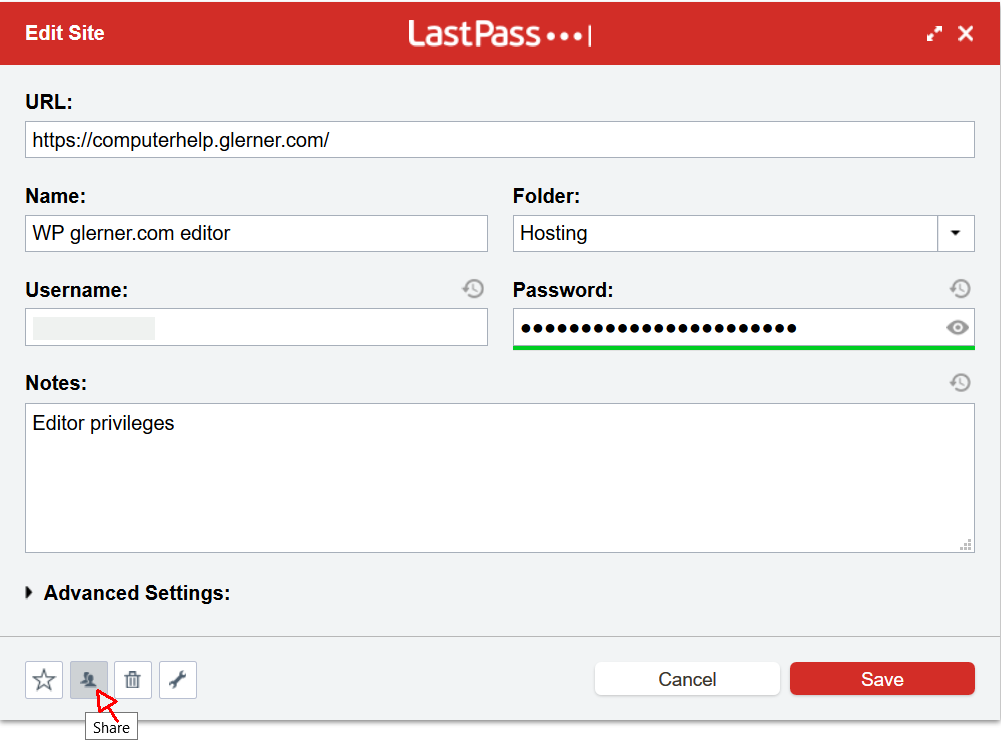
Better approach with LastPass is to click their icon to Share a password. When you share a password, you can specify whether the other person can ever see it or just can have LastPass fill it in for them. You can also store and share notes, account numbers, etc. via LastPass.
A better approach for WordPress is for you to create a user. You specify what permissions they should have (for example, Editor or Author, or if they truly need it Administrator). You email them (to their email address you used when creating the user) the URL to your website/wp-admin/. When they try to log in, they click the “Forgot password” link and make their own password (using, of course, LastPass to generate it and store it).
Want to make a good Master Password for your password manager, that is extremely difficult for hackers to guess, yet easy for you to remember and type? Read my Strong Passwords for WordPress .
Books and Videos and Newsletters by top health experts, who have their patients get healthy; not by drug companies or doctors who primarily work with medicines.
There are several Inexpensive yet effective ways to improve your health and your sense of wellness, from medical doctors who have produced excellent health in many of their patients.
Want to think more clearly, even as you age?
Feeling soreness in your joints, hands, back, or neck? Taking medications for arthritis or joint pain?
There are good books and programs for increasing many aspects of your long-term health and wellness. These are written for people without medical degrees, who don’t know how to read a medical researcher’s detailed reports, but are intelligent enough to learn what works for their health.
Your doctor may only know about the drugs and surgeries that are available. They may not have the best information for preventing illness, preventing or slowing cancer, restoring your joints and flexibility, reducing or eliminating chronic pain, eliminating or reducing or preventing heart disease, and many more ways of improving your health.
Many medical doctors know medicine and surgery and medical procedures, but not nutrition or food sensitivities or what kinds of movement improves wellness — though these have been shown to be effective by numerous hospital or university medical studies.
These books and DVDs give information that seems sensible, that present inexpensive things to eat or do, and what they suggest seems safe. I’m not a doctor, but they are; so look at what they recommend. If it makes sense to you and you assess it might help you, and you see how it is likely safe, then check with your doctor and take the advice these doctors give.
There are numerous references to medical studies done, that you can read or give to your physician.
Some of the products I’ve used, and enjoy. Some of the books I’ve seen their PBS health specials or TED talks, that look very good and I would love to try. (A few are simply good food.)
Most of the time, to have a password that is secure, you use a password manager software. You have the password manager make a unique password for each and every web site or account. You have it make a password that is random, very difficult to type, and as many characters as the website will allow. The password manager will then paste the password into the login page. You never need to know what the password is, and you never type it.
The rules we’ve all been taught for year, to make a “secure” password, result in passwords that are hard to type, hard to remember, and are easy for hackers to guess. Hackers know those simple rules, too. And hackers have lists of the top milion most-used passwords.
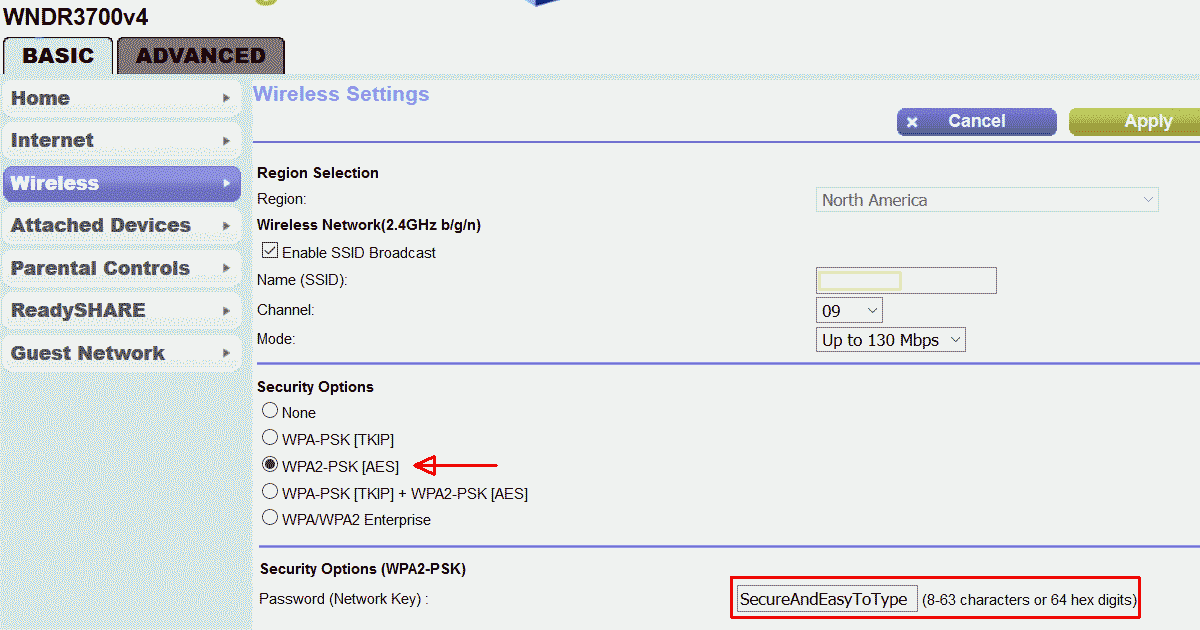
You might have to type WiFi passwords without using your password keeper, for example on your new phone, or to connect your printer to your WiFi.
Basically, you type a password only in those few cases where you can’t use your password manager. You can’t use your password manager to type in the WiFi password into the phone, because you can’t connect to your password manager until you have entered the WiFi password to connect to the Internet.
You need to type in the password for your computer, before you can access your password manager.
You also might want to connect a friend’s or house mate’s computer to your WiFi, so you can get them set up using a password keeper. You want your WiFi password easy to type, for this scenario, but not highly memorable.
If you are setting up your Internet router or cable modem, you’ll have to type in the password. Then you can use the password manager to store all the router settings. Most password managers have places for storing notes, and keeping everything encrypted.
What About Those Pesky Keyboards?
The keyboards on mobile phones, and on device panels (for example, your printer), are quite difficult to use for most computer-generated passwords.
These keyboards make typing random characters even harder, since you have to change from the uppercase keyboard to the special character keyboard to the lowercase keyboard to the numeric keyboard.
You might find that your WiFi or your printer won’t accept a long enough password to make a password phrase from 4-5 long words. One common length is maximum of 63 characters for a WiFi password. If your hardware is wimpy about security, you might have to make a secure password using computer generated characters.
You should change your passwords occasionally (twice a year might be a good frequency), or if you think someone shouldn’t be using your WiFi any more. If you suspect or know someone has broken into your WiFi or computer, change the password right away. You might be able, depending on your hardware, to copy/paste the old password and new password; but you might have to type it.
How to make passwords that are fairly easy to type, yet highly secure
If you group the characters by which keyboard they are on (uppercase, lowercase, etc), they will be easier to type, and easier to say to yourself or the other person you are giving the password to.
Use KeePass, a free password generator with the ability to specify patterns of characters, to generate a password with groups of uppercase, lowercase, numbers, punctuation. (Most password generators do not have this feature, including LastPass.) Or you can use your current password generator to generate several short passwords, each from characters all on the same keyboard, and paste them together to make a long password.
KeePass can use a pattern to generate the password, that is easy to type on phone keyboards. An example l{8}u{4}l{4}d{4}l{8}d{4}s would make a password with 8 lowercase letters, then 4 uppercase letters, then 4 lowercase, then 4 digits, then 8 lowercase, then 4 digits, then 1 special character.
You make your own pattern, specifying the number of uppercase, lowercase, digits, and special characters. For most people, 4 or 5 characters at a time are easy to remember long enough to type, or 8 characters is two easy groups of 4.
I’m now using LastPass for my passwords, but I still have KeePass on my computer for generating those passwords I know I would need to type.
Should You Use a Special Character?
To have KeePass generate a printable 7-bit special character, one of !”#$%&'()*+,-./:;<=>?@[\]^_`{|}~, add a lowercase ‘s’ in the pattern. To use 4 of them, use s{4} in the pattern.
If you prefer, you can simply pick a special character you will always use. Most people would put the special character at the end; or pick some place you always put it such as after the 4th character. Always use a special character in every password, since so many web sites and WiFi routers require one. If you always use one you won’t have to remember.
In KeePass, do not click the Advanced button and enable “Exclude look-alike characters”, since you will know whether it is O or 0, l or 1 (that’s an oh, zero, lowercase el, one) by the pattern.
For all the KeePass pattern options, see https://keepass.info/help/base/pwgenerator.html#pattern