As a creator, coach, or entrepreneur, your computer is your digital office. It holds everything: client notes, financial records, passwords, and private SSH keys.
For years, we operated under a comforting assumption: If I trust the company that made this app, I trust the app completely.
Unfortunately, modern software has changed. Today, applications aren’t written by a single team—they are assembled from thousands of third-party pieces built by anonymous developers. And a new category of tools—autonomous AI coding assistants—can write and execute their own terminal commands on the fly.
If an AI tool gets confused, or if a background component is compromised, standard computer permissions allow it to look at any file your user account owns.
The Good News: You Don’t Need a Computer Science Degree to Stay Safe
You don’t need to write complex security rules or stress over system files. You can protect your workspace using two effortless strategies:
Strategy 1: Stick to Sandboxed App Stores (Flatpaks & Snaps)
When installing desktop software on Linux Mint or Ubuntu, check if the app is available as a Flatpak or Snap in your software center.
Why it helps: These formats automatically place apps inside an invisible “sandbox”. A sandboxed text editor or media player literally cannot see your private documents or keys because the operating system hides them.
Strategy 2: Use a Simple Startup Shield for Autonomous AI Tools
For advanced AI coding software that needs to look at your project folders but nothing else, you can wrap its launch command in a tiny security script (often called a sandbox wrapper).
Instead of letting an AI tool roam free across your entire home directory, a simple launcher script restricts it to a single designated folder (like ~/sites/) while cutting off access to sensitive areas like your .ssh or Documents folders.
By taking these small steps, you keep your digital workspace secure without getting bogged down by technical headaches!
How You Can Make a Sandbox Wrapper for Your Software That Needs A Startup Shield
Here is a copy-and-paste prompt you can give to an assistant, a tech-savvy employee, or use yourself with Gemini.
This prompt instructs Gemini to act as a Linux security guide, ask a few quick questions about your specific setup, and then output a ready-to-run Bubblewrap (bwrap) script tailored precisely to your computer.
Act as a Linux security expert and systems administrator. I want to create a secure Bubblewrap (bwrap) sandbox script for a desktop application on Linux (such as an AI coding tool) to restrict it from accessing sensitive folders like ~/.ssh, ~/Documents, or ~/.aws, while allowing it to access a specific project folder, and its settings folder.

To help me write the exact custom Bash script I need, please ask me the following 4 questions:
1. What is the exact command or name of the application I want to sandbox (e.g., devin-desktop)?
2. What specific folder(s) does the application need permission to read and write to (e.g., ~/sites/, and its own settings)?
3. What is my Linux username?
4. Are there any other specific folders I want to completely hide or block from this app?

Once I answer those questions, write a complete, copy-pasteable Bash script using bwrap that I can save into my ~/bin/ folder, make executable, and run safely.
Handbrake can save a DVD (that it can read; for copy-protected DVDs need the LibDVDcss add-on that might not be automatically included)
You can specify a common format, e.g. in Preset select Hardware > “Apple 720p30 Surround” which makes a high-quality MP4 file that pretty much plays on everything.
If you want smaller file size, customize the settings (and save them) to Video tab RF:20 and Audio tab to use the highest quality audio available up to 320kbps, and set it to automatically include the subtitle language you want.
VLC Media Player is superb, plays wide range of video and audio formats, and lets you set keyboard entries so LeftArrow rewinds 10 seconds (great for “what did he say” and RightArrow is forward 1 minute.
Plays subtitles Cmd-V I think is the keystroke, and lets you select the subtitles you want.
I use VLC Media Player to play a DVD to find out what Title you want Handbrake to convert. Many copy-protected DVDs have numerous tracks, to trick you; most will be jumbled mid-scene. VLC will read the DVD menu properly to find what title to play.
Rename the subtitles to have the same filename (without changing the file extension) as the video name, in the same folder as the video. VLC Media Player (and most other players) will display the subtitles using fonts on your computer.
Buy a laser printer that has inexpensive toner cartridges.
(Check the “per page” cost, don’t get a low-capacity toner cartridge by mistake, because it “costs less”.)
Buy a laser printer that automatically can print on both sides of the paper. That is a very handy feature, much easier than having to put the stack of papers printed on one side, properly back into the paper tray, to print the second side.
Figure out if you need a printer, or a printer/scanner.
Many people don’t need a scanner, can do the occasional “scan” by phone photo instead; or a separate device might work better.
You don’t need to worry about a printer description saying works with OS/X or with Linux. They “all do”, since all laser printers use either HP’s basic command set, or Postscript, or both.
(Okay, check the reviews, there might be some “weird” printers that truly don’t work at all on OS/X.)
You might miss out on some special driver features, like telling you the current toner levels, or alerting you on your screen when the printer is out of paper.
(In Arizona, buy a laser printer instead of an inkjet, unless you print Every Week, inkjet cartridges dry out quickly; if they dry out you might have to replace them. If you need a color print occasionally, send it to a Kinkos et. al.)
There might be companies in Phoenix that sell refurbished laser printers and refill toner cartridges.
I’ve had good experiences with HP, especially if you don’t need “latest greatest”, aren’t buying based on fastest print speed for hundreds of pages per day. Canon, Brother, several other brands are good too.
PC Magazine reviews from a few years ago might be good, the great printer a few years ago might be lower priced today. They would mention if a printer doesn’t work at all on (then current) OS/X.
A Hewlett-Packard HP LaserJet 400 M401dne has lasted for years.
Bonus tip: Keep your printer and your computer on a top-quality surge suppressor. Lightning can kill the brains of a laser printer.
A few brands (APC is one, for both surge suppressors and uninterruptible power supplies) have a feature where, if the surge suppression part has failed, then it will not deliver power at all.
With most brands, you have no way of knowing if the surge suppressor is “still working”. If the surge suppressor stopped a big power surge, it protected your equipment, but can’t any more.
Remember, everyone, the “Reply To:” field is Easily faked.
Looking at that is Not a way to check whether an email is legitimate.
Your email reader software (whether a website or an app on your phone or an app on your computer)
should indicate whether an email passes some validation (e.g. DMARC, DKIM, SPF) or not.
Do not click on links in an email.
The “link text” can show anything, different than the link address
Verify the link address has no “tricky characters” in it.
Copy the link address to your clipboard, paste it into a text editor (preferably with a mono-spaced font like Fira Code) and verify it.
Or, browse to your “known important site” your normal way (e.g. your bank) and read the message directly on the Real site.
p.s. Fira Code is on Google Fonts https://fonts.google.com/specimen/Fira+Code , free to install on your computer, easy to set your programming editor and spreadsheet to use it. It was designed so all the “look similar” characters, such as a one and an el and an eye, are easily distinguished.
As dynamic entrepreneurs, especially course creators and life coaches, you often need to share large digital files containing educational content, video sessions, or extensive program materials. Email, while a powerful tool for communication, falls short when it comes to sending large files. Understanding this limitation and the alternatives at your disposal can significantly streamline your operation, ensuring your valuable time is spent on what truly matters: creating impact.
Why Email Isn’t the Best Medium for Large Files
Email services are designed for quick, text-based communication and are constrained by file size limitations. Most platforms, including popular ones like Gmail or Yahoo, restrict attachments typically to 25MB. This limitation isn’t arbitrary, but intended to keep email servers fast and reliable.
When attempting to circumvent these limitations by compressing files or splitting them across multiple emails, you risk:
Compromising file integrity. Make sure when you split files, that you and the person you are sending to know how to re-combine the file sections, and the result 100% matches the original.
Overwhelming your recipient’s inbox, creating an unprofessional impression. Remember that most people delete an email to the trash folder; for large attachments, they would also need to remove the email from their trash folder.
Exposing sensitive information through less secure methods. Unless you turn on (and use) an encryption plugin with your email, all emails are sent un-encrypted; anyone on the Internet can read them, not just your intended recipient.
Smart Solutions: Alternatives to Email
Thankfully, various secure, efficient solutions specialize in transferring large files. Here are some options:
Cloud Storage Services: Platforms like Google Drive, Dropbox, and OneDrive allow you to upload files and share access links. These services offer free storage up to a certain limit and can be upgraded for more space. For a comparison of various cloud services, visit: Best Cloud Storage and File-Sharing Services
Secure File Sharing Platforms: Services like TitanFile provide secure file-sharing solutions, bypassing email restrictions and ensuring end-to-end encryption for your files.
Wormhole: A revolutionary service allowing quick, secure sharing of large files. Wormhole offers end-to-end encryption and time-limited links, providing an extra layer of security. Learn more about their unique offering here: Wormhole’s Secure File Transfer
Key Considerations When Choosing a File-Sharing Service
Selecting the right service requires considering the following factors:
Security: End-to-end encryption is crucial, especially for confidential coaching materials.
Ease of Use: An intuitive interface is essential to prevent technology from becoming a hindrance.
Cost-Effectiveness: While many services offer free tiers, evaluate the pricing against your specific storage needs.
Integration: Consider how well the service integrates with other tools you use.
Conclusion: Embracing Efficiency and Security
The technical side of running a transformative coaching business shouldn’t overshadow your core mission. By leveraging smart, secure, and efficient file-sharing tools, you free up more space—both digital and cognitive—for the work that truly matters. Invest in tools that respect your expertise, time, and the privacy of the impactful content you share with the world.
Call to Action
Interested in more insights on streamlining your business’s technical side, from WordPress setup to content creation? Connect with a specialist who understands your hurdles. Contact George Lerner, your expert in navigating the digital world, and focus on what you do best: creating life-changing experiences.
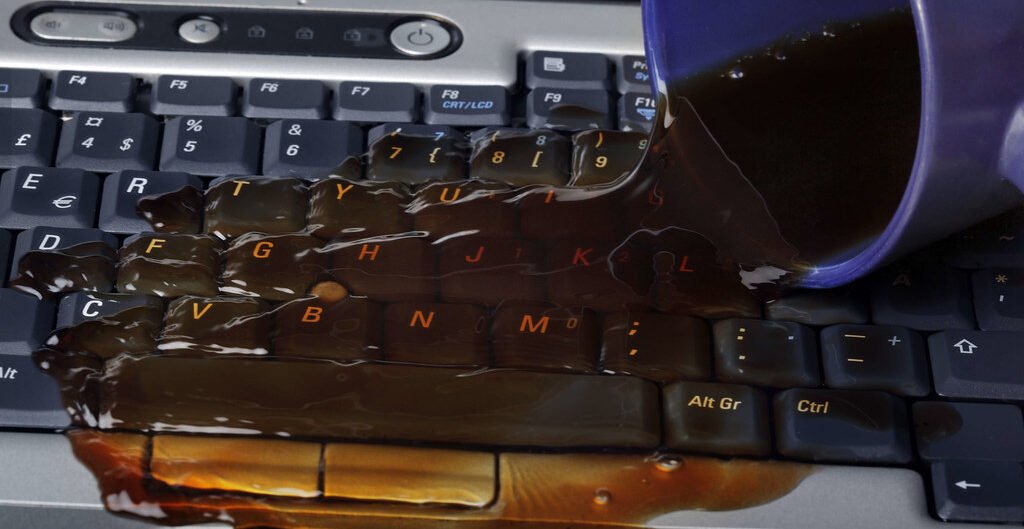
There are keyboards that are marketed as “spill proof”, but most keyboards are made so that water is unlikely to get inside the individual keys. And most keyboards are made with holes so water spills can be gently shaken out.
While it is possible that the liquid shorted something in the keyboard, and it’s damaged, that doesn’t happen often.
Cleaning Liquids You Can Use
Wouldn’t distilled water be a good way to get the wine or soda out? A little bit of mild dish detergent can also help, maybe two drops in a bowl of water.
But don’t use unfiltered tap water, you don’t want any chemicals in your water eating at the plastic of the keyboard. If you live in an area with hard water, you shouldn’t use even filtered water, since those minerals can mess up the tiny levers of your keys. Or, understand that if the keyboard starts getting “sticky”, you’ll replace it.
Power Completely Off
Turn off your computer, all the way off not just low-power mode. Unplug the keyboard from the computer.
Tools
Find the old toothbrush that you kept for cleaning electronics, the one that has a rubber band around it so you never again put it in your mouth.
Not the toothbrush you use for cleaning bathrooms or cars or anything else, that now has traces of harsh chemicals on it.
A camera lens brush “so old you can replace it” would be great. Just don’t later use the keyboard brush on an expensive camera lens.
You’ll also want compressed air (those small cans, specially made for use on electronics). They usually have a tiny straw to get the air into tiny places.
Initial Cleaning
First, use the toothbrush and compressed air to get the crumbs and dust and pet hairs from the entire keyboard.
Then check for all the places where there is dried wine visible.
Notebook Computers Need More Cleaning
If you have a notebook computer, the keyboard was probably designed to keep spills out of the rest of the computer.
Hopefully, tipping the computer to let liquids drip out, is all that is needed to keep liquids from the rest of the computer.
After removing “most” liquid, remove the keyboard from the computer. That is usually one of the easiest things to remove from a notebook computer. Find your specific model’s repair instructions, and follow those instructions exactly. It probably requires remove a few screws, slide the keyboard so it is away from the rest of the case, then carefully disconnect the keyboard cable.
Check carefully for any signs of liquid in the rest of the notebook. Warning: likely any liquid on a notebook battery will cause corrosion, and with some batteries that could be dangerous. Maybe it is time to replace it with a new battery.
Keep yourself grounded (touch any large metal piece of electronics, maybe the bare-metal screw on a power strip) working in a notebook computer. Use only all-natural cloth (cotton, hemp, probably not silk) as nylon and polyester and so many other fabrics generate static. Wipe out all the liquid you can, then make sure the computer is completely dried before you power on again.
Don’t try rinsing inside a notebook computer. Only use a damp cloth to soak up drinks. Any slight residue: probably best to completely ignore it. Or find a cleaner that is specifically designed for cleaning electronic circuits. Or have a computer repair professional do it.
Removing Keycaps (Only if needed)
Only remove a keycap if you cleaned most of the dried gunk, and the key still doesn’t work. There is a risk you will break the tiny clip the keycap attaches to, every time you remove and replace a keycap.
There are small plastic clips that hold the keycap in place. These clips are usually located on the top and bottom edges of the keycap.
Gently pry up one of the clips using a small screwdriver or other thin tool. Be careful not to apply too much force, as this could damage the key or the keyboard.
Remove Spilled Liquid and Dried-On Gunk
Pour water on the coffee or wine or soda, then very gently rub after it has soaked a few minutes, until there is none visible.
Rinse, then gently shake water off the keyboard, many angles to get water out of all the corners and edges.
Dry Thoroughly
Let the entire keyboard dry thoroughly. Do not put any keycaps you removed back on, until it has dried thoroughly.
Maybe have a dish with a puddle, next to the keyboard, and you can only proceed when the puddle is completely dried.
Gently Put Keycaps Back On
If you have the keycap in exactly the right position, it will snap on with very little force. If it doesn’t snap on with very little force, you have it positioned incorrectly, even if by 0.1 millimeter, or one degree off the correct angle.
Do not use more force, you can very easily break the tiny clips the keycap attaches to. Use the minimal force to depress the key, plus ever so slightly more.
Keep gently trying, and suddenly what you did, seemingly no different than what you did before, will work.
Get A New Keyboard
If that sounds like too much work, or if the keycap breaks, buy a new keyboard. Or your friend probably has a keyboard “that came with their old computer” and you can have it.
Notebook replacement keyboards are available, just make sure it is for the exact model computer you have. Or, leave the bad keyboard in the notebook and use a USB keyboard. (If the whole keyboard is defective, you have to replace it, don’t leave blown circuits in the notebook.)
Keyboards on Amazon or at the swap meet, are inexpensive, especially if you don’t have to have the expensive brand. If the reviews of a keyboard aren’t “crappy feel” then you’ll likely find it is just fine.
If you need a keyboard “right now!” any Windows keyboard will work on a Mac, use the “windows flag” and the “Alt” keys, you’ll figure it out.
Don’t Do It Again
Now that you’ve done all that work, maybe you will change to “only water in a closed container” at the computer desk. No crumby or oily snacks.
Inside WordPress, of course use the Block Editor (or the editor in your page builder, if you use one).
But you will probably have many uses for a text editor on your computer, as you are writing your WordPress pages, and throughout your day.
I often write my ideas for a post, in a text editor, to get a good idea what I’m going to say.
Many of the text files I make, grow cluttered. Then I convert them to a WordPress page, using sections and headings and outlines. WordPress pages are clearer than text files, even when I am reading my own text files.
Converting formatted paragraphs to WordPress
If you use a word processor, for example Microsoft Word, you shouldn’t paste directly into WordPress. The word processor formatting may get transferred to WordPress in a way that is inconsistent with the formatting of the rest of your website.
I’m looking at simple ways to convert Word to HTML without cutting and pasting all the LI’s and such between lines. [Note: LI is the HTML for list elements.]
What I’ve tried so far gives me HTML for the page and not for the specifics – all jumbled together.
For now I’ll go back to one at a time – like the good old days.
JH, a WordPress/WooCommerce user
To make a “clean copy”, do this:
Copy from Word
Paste into a programmer’s text editor
Now it is “plain text”. Copy from text editor
Paste into WordPress.
Now you can use WordPress to convert the text into a List, if you want. See WordPress Paragraph Block and List Block
Good Programming Editors for WordPress Authors
There are text editors that know the correct syntax for many computer programming languages, including HTML and CSS (the markup languages for writing website pages) and PHP and JavaScript (the programming languages WordPress itself plus plugins and themes are written in).
These programming editors are also great for editing text.
If “something doesn’t look right” in a web page, copy the HTML for that “something” to your programmer’s editor, and you are more likely to see the typing error, or the syntax error, or the error in the structure of the code. Programmer’s editors have tools to “beautify” the code so it is easier for you to see the structure. Programmer’s editors have syntax coloring, so you have a visual indicator of where there is a syntax error.
Unlike “wimpy” Notepad, this lets you edit multiple files in tabs, and even show multiple portions of a file in different tabs. It has options to automatically save your work every few minutes. It knows the syntax of many computer languages, including HTML and CSS.
You’ll never use WordPad, Notepad, or Word for your text files again.
If you are not “a programmer” and just need a well-done editor for multiple documents open at once, I highly recommend it.
It doesn’t have some of the “programmer only” tools, like version control and showing the reference code for a function. (If you don’t know what that is, that’s fine, it just means you aren’t a programmer.)
Suggested Editors for Windows, OS/X and Linux Users
I don’t use Windows any more, I use Linux Mint for my computers. Mint is free, it is less trouble, it runs better on old computers that Windows doesn’t support any more. Well, there are computers that aren’t very old, that Windows doesn’t support any more. Mint runs great on old OS/X computers that don’t run the latest OS/X. Yes, the identical thumb drive will boot either computer.
So, I know about editors that run on all operating systems.
For taking notes it is great. Ctrl-L to select the current line. Ctrl-D to duplicate the current selection (if you have nothing selected it duplicates the current line).
Atom does have “too many options”, don’t go into the settings area unless you have something specific to change, and let someone know where you’re going so when you get lost they can send a rescue party to find you. This is true for all the best programmer editors, but Atom is “extra-configurable”.
Change the settings in Atom to save your work every 5 or 10 minutes: Editor, Preferences, Core section, “Restore Previous Windows on Start” Yes. And in the Packages section, search for “autosave”, install it if it isn’t already, click the Settings icon, make sure is “Enabled”
Visual Studio Code
This is my favorite Microsoft product. Since I don’t use Windows, and use LibreOffice (or the almost-identical OpenOffice) instead of Microsoft Office, this is the only Microsoft product I use.
“Visual Studio Code is a source code editor developed by Microsoft for Windows, Linux and macOS. It includes support for debugging, embedded Git control, syntax highlighting, intelligent code completion, snippets, and code refactoring.” Wikipedia
Visual Studio Code edits WordPress theme.json files better than Atom does; it reads the full “schema” to know what options are permitted in what section of the file. It has ways for you to jump to the section you are interested in without scrolling. It will alert you where in the file there are syntax errors.
VSC is meant to be used by programmers. It reads every file in a folder, expecting to find function definitions so it can prompt you with the parameters “intelligent code completion”. So, don’t use it for your Documents folder, it will “complain” the folder is too large. But you can use it for your local development folder and open documents from any folder.
Works well with GIT, connects with XDebug for PHP programming.
Note that “Visual Studio” is a different Microsoft product than “Visual Studio Code”.
“Sublime Text may be downloaded and evaluated for free, however a license must be purchased for continued use. There is currently no enforced time limit for the evaluation.“
I have not used Sublime Text, and it is the first or second most popular among the AZ WordPress Meetup’s developers, with Visual Studio Code.
Programmers Also Use
NetBeans https://netbeans.org/
PHPStorm
Eclipse IDE
Associate Your Text Files with Your Editor
In Windows, associate any text file types that you use, with Settings > Preferences > File Association or other Windows-standard means to “associate” that file type with the editor.
For most operating systems, right-click a file in your file manager, select “Open With” or similar term, there is probably an option to set your choice as the default. (I use Dolphin file manager on Linux Mint, make your life easier and use a 2-pane file manager for copying/moving files).
Fonts for Your Text Editor and Spreadsheet
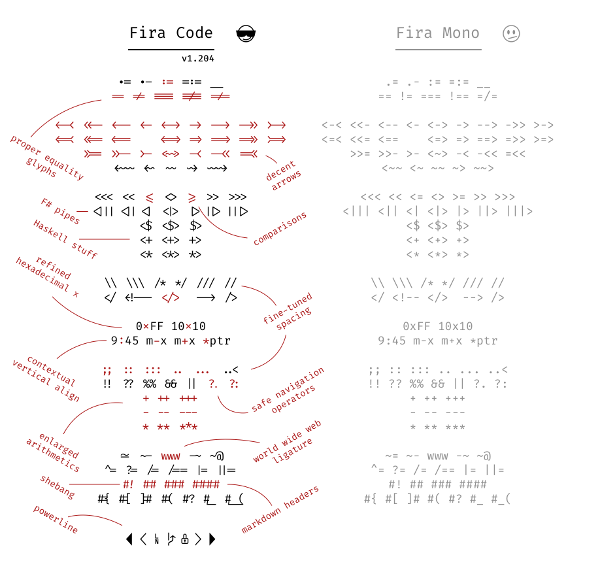
Set the “Font Family” to fonts that look great on whatever operating system you have. There are fonts designed to be very easy to read, even at small sizes. Mono spacing is essential, easier to tell letters apart than proportional spacing. But beyond that, “source code” fonts are custom tweaked to make common programming languages look better.
Here is the font stack that I use, based on good looking fonts that already exist on users’ computers, Linux then OS/X then Windows. Then, I added two of the best fonts from Google Fonts:
Fira Code and Source Code Pro are from fonts.google.com and you can download them to your computer and install them. Then all applications that use fonts can use these.
Good examples of how some of these fonts look for "similar characters" are on 5 open source fonts ideal for programming, and especially look at the images that show
1 I l | i O 0 o B 8
(one, capital eye, lower el, vertical bar, lower eye, upper oh, zero, lower oh, capital bee, eight)
You should be seeing this on my website in Fira Code Medium.
Source Code Pro is good, but there is a font based on it: Hasklig – a code font with monospaced ligatures which you can download from https://www.download-free-fonts.com/details/91866/hasklig
Fira Code ligatures and examples for programmers, from https://opensource.com/sites/default/files/u128651/firacode2.png
All email clients know about “serif”, “sans-serif” and “monospace”.
All email programs (probably going back to Netscape Navigator) have a list of fonts built-in, and have a minimal font stack that include a likely Windows font and a likely OS/X font, and falls back to serif/sans-serif/monospace.
My email program has “Courier” in the user interface, but it is put into the HTML part of the email as font-family: "courier new", courier, monospace;
Translated to English, “If your computer has Courier New use it, if not, Courier, and if still not then use whatever font your computer uses for monospace.”
(Or, a text-only email client uses “no fonts” and displays in your terminal’s font, or browser’s font, which is almost always a monspace font.)
Your email program probably defaults to something like, “font-family: sans-serif;” and then your email client substitutes some font to use instead of sans-serif (maybe Arial).
Just specify a monospace font when you’re emailing code . I inserted two spaces before and after, in the code font, to separate them visually.
You could even change the background color to make the code really stand out:
cd /Applications/Install\ OS\ X\ El\ Capitan.app/Contents/Resources/
or
cd "/Applications/Install OS X El Capitan.app/Contents/Resources/"
[If anyone Does Not see that in a different font, when you try it in your email program, let me know, so I can find a work-around for you in your email client. But I bet you All do…]
Should see it like in this image, including different font for “monospace font” and “code” and the two commands:
I suggest displaying an image in addition to the text, if you have doubts that it will display correctly via email. An example would be if you are a website designer asking your website client “do you prefer Lato or Poppins” font for your site? (image taken from Google Fonts, https://fonts.google.com/
Google Fonts shows you different fonts, using text you specify. You can even look at the selected fonts in different text sizes.
p.s. Chrome (and therefore Brave) has Settings, Appearance, Customize Fonts. Firefox and Safari have similar settings. I look at so many websites with HTML/CSS/PHP code that I changed my browser settings to use Fira Code for monospace. You can use any font installed on your computer, and you can install any font on Google Fonts onto your computer.
Essential security for your web browser! Allow active content to run only from sites you trust, and protect yourself against XSS and Clickjacking attacks.
Firebug integrates with Firefox to put a wealth of development tools at your fingertips while you browse. You can edit, debug, and monitor CSS, HTML, and JavaScript live in any web page.
CoLT makes it easy to copy either a hyperlink’s text or both the link and the link’s text (in a format you specify). Two handy context-menu items make this possible, and don’t add clutter; the items are only visible when right-clicking a link! Using CoLT to make this list, right click on the link to the Add-On in the search page, press o (for “cOpy link text and location as”), press Enter (HTML is the default, plain text and BBCode are some of the other options).
Ever wondered why you are still tracked though you tried everything to prevent it?
BetterPrivacy is a safeguard which protects from usually not deletable LSO’s on Google, YouTube, Ebay…
Clipmarks lets you clip and share specific parts of articles, blog posts or anything else you read on the web. With our newly integrated Amplify service, you can post clips directly to Twitter or Facebook – or share them on clipmarks.com and more.
Pixel Perfect is a Firefox/Firebug extension that allows web developers and designers to easily overlay a web composition over top of the developed HTML.
FireFTP is a free, secure, cross-platform FTP client for Mozilla Firefox which provides easy and intuitive access to FTP servers. (I use FileZilla instead, easier for multiple projects; but FireFTP runs inside Firefox.)
Download all the links, movies and audio clips of a page at the maximum speed with a single click, using the most popular, lightweight and reliable external download managers.
This is a cut down version of IE View by Paul Roub, which is 47.4 KB. All the same UI and features are there. It has a right click menu item to open a page in IE and a list of sites to always open in IE. It can close tabs automatically and send.
Automate Firefox. Record and replay repetitious work. If you love the Firefox web browser, but are tired of repetitive tasks like visiting the same sites every days, filling out forms, and remembering passwords, then iMacros for Firefox is the solution you’ve been dreaming of! Whatever you do with Firefox, iMacros can automate it.
I have automated reading ClickBank data into a database form; and reading real estate listings, home values and rental prices, into a database.
InFormEnter adds a small, clickable icon next to every input field in a web form, from where you can select the item to be inserted – no typing required (but I press Insert, quicker). You can configure it to display your frequently used information such as name, email, address, library card number.
The Minimap Addon gives you a suite of built-in maps and mapping tools for your web browser. Drag and Drop addresses or address links you find on web pages to view their location in the Map Sidebar, or by manually adding locations.
Operator leverages microformats and other semantic data that are already available on many web pages to provide new ways to interact with web services.
It will capture what you can see in the window, the entire page, just a selection, a particular frame… basically it saves webpages as images – either to a file, or to the clipboard. It captures Flash too!
DOM Inspector is a tool that can be used to inspect and edit the live DOM of any web document or XUL application. The DOM can be navigated using a two-paned window displaying a variety of different views on the document and all nodes within.
I’ve searched the web for a web-licensed keyboard font that has the Windows Flag, Macintosh Clover, all the special keys that are needed for computer software instructional pages. Instructions like “Type your name, press <Tab>, type your email, press <Ctrl>-<Alt>-E (on OS-X, press <Clover>-E), and <Left-Click> OK.”
Don’t need all the alphabetic, number, punctuation characters, just the special keys, that are legible and look good next to normal sized text, on web pages.
Prefer it be a separate font, so can use simple commands like <KBD>e</KBD> to display <Enter> or <KBD>c</KBD> to display <Ctrl>, or <KBD>4</KBD> to display the Clover. None of those awkward <#65432;> character codes, that don’t even show in most character maps! (more…)
from the BeInSync Technical Overview, http://www.beinsync.com/info/technical_overview.php
BeInSync create an on-the-fly private peer-to-peer network that spans your colleagues, friends, computers and online storage. Once established, BeInSync makes sure your photos, videos, music and documents are always available and up-to-date wherever you need them:
* Files and folders are efficiently synchronized so that they are available and up-to-date on all your computers. Synchronization is peer-to-peer and uses compression and byte-level file transfer for maximum speed.
* Files and folders can be easily shared over the Web or kept in sync with a group of people.
* Users may access their remote files from any Web browser.
* Files may be kept always backed up to a secure off-site online storage.