Category: Blogging

  • How to Easily Add a Block Pattern from WordPress Repository

    How to Easily Add a Block Pattern from WordPress Repository

    The WordPress Repository now has Block Patterns, right next to where you find plugins and themes. You can very easily Add that Block Pattern from the Repository, for use in your WordPress sites. Then, you can change the images, colors, fonts, etc; everything that is appropriate for the pattern, using the Block Editor controls you are using for changing the appearance of a paragraph or columns.

    In the Repository, each pattern has a page demonstrating it. Notice the “handles” at each side of the pattern? Those are so you can see how the pattern looks at different browser window sizes.

    Here’s one example, a “large background image with title and description”. This pattern is on https://wordpress.org/patterns/pattern/large-background-image-with-title-and-description/

    Insert A Block Pattern

    Find a block pattern you like in the Repository, and on the page that shows an example of the pattern, there is a “Copy Pattern” button. Then you paste into your WordPress page or post, where you want it to appear. (Click on the block before where you want it, in the hover Options (three vertical dots) menu, select Insert After, then press Ctrl-V to paste the pattern.)

    FISHING BOATS

    Winslow Homer, 1903

    Winslow Homer was an American landscape painter best known for his marine subjects. He is considered one of the foremost painters in 19th-century America.

    Learn More →

    I changed the background color of the text, to one that fits more with the colors of the site. Specifically, I took a background color from the Palette. To do that, open List View (3 stacked lines icon at the top of the Editor near the left), select the Group that contains the two columns with paragraphs. Now, you can change the background color, for the entire group at once. In the Block Options panel, in Color, set the default text and background colors for the group. Do the same for the Group that contains the heading “Fishing Boats”.

    How did I move what part of the picture is shown? That is with the “Focal point picker”. When you select the correct block (in this example, the Cover block), you will see the focal point picker. Since the focal point picker is built into WordPress, most blocks that contain images have this. Drag the small circle around, to see the portion of the picture you prefer.

    How to Change the Image in This Pattern

    You probably want to change the image, to one that is in your Media Library. When you select the correct block (in this case the Cover block), it has a “Replace” button on the hover menu. You then have options to open the Media Library to pick a better cover photo, or to upload a new photo into the Media Library and use it here.

    Here’s how the same pattern looks with new photo and text:

    Block Patterns vs Reusable Blocks

    When you edit a reusable block, the change will be reflected in all the places where that reusable block was used.

    If you wish to update a reusable block on a specific page or post only, you can use the Convert to Regular Blocks option

    https://wordpress.com/support/wordpress-editor/blocks/reusable-block/

    So, Reusable blocks are best for something that should look the same on every page, and have the same text. For example your “Author Tagline” or the company contact info.

    Block Patterns are for when the layout stays the same, but the content will be different each time you use it. They are for when you want to reuse a pattern, not for when you want to reuse the contents.

    Saving Your Customized Pattern As A Block Pattern

    Block Patterns are easy to copy, including from the public WordPress Repository. Block patterns have no tie back to the original, so when you edit the pattern it is only in that one place.

    You might want to insert some dummy text “Put Text Here” so you remember to edit it every place you put the pattern. And use a default image, to remind you to replace it; don’t use some gorgeous image that you might forget to customize to the specific page it is placed on.

    To copy a Block Pattern, simply select the correct block, in this example the Cover block that contains the forest picture; then you can paste it into any programmer text editor (I like Atom and Visual Studio Code) to save it. You can, of course, copy it from any other page that has it (select the block, options (3 vertical dots), Copy.

    You can then simply paste it wherever you want to, just like you did pasting a pattern from the Repository.

    Saving Your Customized Pattern As A Reusable Block

    When I save a Reusable Block, I preface the name with my initials or the company initials, so I can find it easily.

    If you want to change a reusable block so all the places where you used the block will be affected, that is the perfect use of a Reusable Block.

    https://wordpress.com/support/wordpress-editor/blocks/reusable-block/ says “If you’d like to edit a reusable block in all the places on your site, add the reusable block and edit it by adding more paragraphs or other types of blocks. When you’re done with the changes, click the Publish button and then the Save button.”
  • How You Can Improve Media Library’s Alt Text, Accessibility, File Names, Free

    How You Can Improve Media Library’s Alt Text, Accessibility, File Names, Free

    Did you forget to change the file name of the image, from what your camera randomly gave it to something where you can know what the image is by looking at the name? I’ve certainly done that. Or maybe you misspelled the name of the person in the picture? Oops. I will teach you how to edit Media Library fields, which will improve SEO (how search engines can know what the page is about) and make your pages and images more accessible to all your visitors.

    I will include editing Media Library fields such as the file name, Alt text, and the image URL. These fields show up in many places in WordPress, and therefore in your website; but they are also seen by search engines.

    I’m going over all the steps for editing the fields in the Media Library, and the much better Media Library Assistant.

    The Media Library is the best place to put, for example, the Alt Text for the image. Put it there, and every place you use the image has the good Alt Text you wrote. The Alt Text is what would display on your website if the image doesn’t load, or the visitor has turned off images in their browser. And, if your visitor uses a screen reader, the Alt Text is what the software will speak to describe the image. Search engines use the Alt Text in exactly the same way.

    Which Fields Should You Change, for Search Engines and Accessibility?

    Don’t change image File Names for every image, it’s not really important, just one more bit you can do well.

    Changing the Slug (the part that gets used as the “internal name” for the image or other media in the Media Library) is more important than the file name. (Unless of course the file name is the camera-generated random name, so you can’t tell what the picture is by the name. You’ll want to change those, preferably before you import the images into WordPress.)

    Changing the Alt Text is really good, especially for people who are using a screen reader, or for search engines.

    Editing Alt Tags For Website Accessibility

    For website accessibility, write the Alt Text like you were describing the picture to someone who was blind. This is a great place to put a long description. You should cover what is important, in this picture, to people who would be interested in this page.

    Search engines and screen readers also look at, well, basically all the fields in the Media Library. Use these to your advantage, to be very clear what your page is about, to all your visitors.

    How to Edit the Media Library Fields

    While logged in to WordPress, browse to the page the image is included in. I’ll use the example https://www.lc.lndo.site/well-being-articles/soffegio-frequencies-for-healing-and-balance/ and that has a misspelled word in it. “Soffegio” should be “Solfeggio”.

    Click Edit Page (even if you know it’s an Elementor page).

    While I’m here, I notice Yoast has the misspelling in the “Focus keyphrase”; so, I edit it now.

    Both Yoast (the section below where you were editing the page) and the Options, Page tab (settings on right of the screen, if not there click the “gear” icon top right of the WordPress Block Editor screen) have a place to edit the Slug. (If you notice, they are both Yoast; Yoast replaced the normal WordPress slug field). Change to a good slug for this Page (though most of this post is about the Image), solfeggio-frequencies-for-healing-and-balance

    No Featured Image set, if there is an image it might have the same misspelling. But, can’t edit the slug of the image from within Featured Image, must go to the main Media Library interface.

    When You Change the URL, Yoast Makes a Redirect For You

    Click “Update” for editing the page, Yoast says:

    Redirect created
    Yoast SEO Premium just created a redirect from the old URL to the new URL.
    Old URL: https://www.lc.lndo.site/well-being-articles/soffegio-frequencies-for-healing-and-balance
    New URL: https://www.lc.lndo.site/well-being-articles/solfeggio-frequencies-for-healing-and-balance”

    Media Library Assistant Plugin

    Media Library hover, select Assistant.

    This plugin lets you search your Media Library much more powerfully. And, you can change more fields than the default Media Library can.

    Start with changing what is shown on screen when you open the Assistant. Here’s how I set my Screen Options (top right of screen)

    Search Media Library for “soffegio” and for “solfeggio” and for other misspellings (in the Media Library with the Media Assistant plugin installed, type (without quotes) “solfeggio, sofeggio, soffegio, soffeggio” and click the “or” button.

    That many fields to search in is wonderful, especially for the images that you have just been working with, so you know what fields have been set. Tip: The plugin’s settings let you default to having those checkmarks you use.

    Holy-Harmony-Forks-Soffegio.jpg oops, misspellings; check the URL, the Alt Tag, the Title, the Description.

    While I’m here, looks like the image has a lot of white space above and below, click Edit, in the Editing window click the “Crop” button, adjust the crop area and (not obvious but important) click the Crop button again; when done processing, you can click the Save button.

    Editing the Image URL

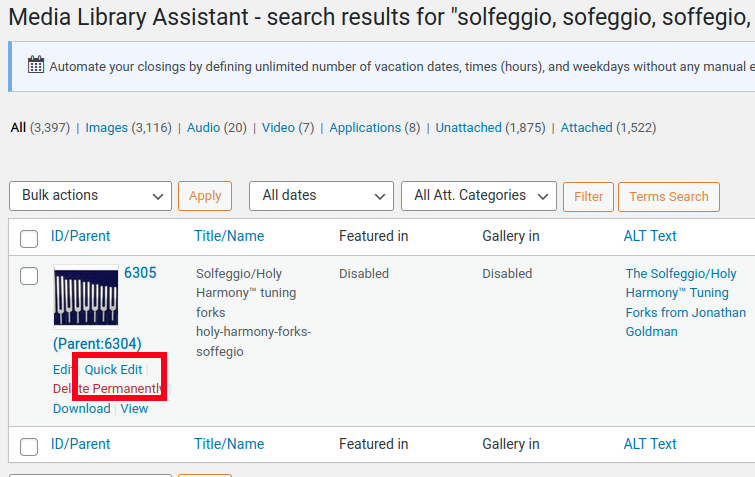
    Now, fix the URL if needed. Hover over the image, click Quick Edit

    If you want to use Media Library categories and tags, you add them in Media Library, “Att. Category” (or “Att. Tag”). Not sure all the places where you use these, but you can at least search on them; maybe visitors can search too, maybe social media tagging uses them.

    Now the media fields are correct: Title, Slug, Alt Text. Save it.

    Editing the Image File Name

    But, the file name of the image is still incorrect. https://www.lc.lndo.site/wp-content/uploads/2018/09/Holy-Harmony-Forks-Soffegio-e1642359315478.jpg

    I will test a plugin, Phoenix Media Rename — https://wordpress.org/plugins/phoenix-media-rename/ which should do exactly what you want, rename a single image or selected several images.

    For now, I’m going to do a quick-and-dirty replace in the database, and manually edit the file name in FTP. (To have me do this for you, Just tell me “wp search-replace” and the before and after file names). For this one, I changed ‘Holy-Harmony-Forks-Soffegio-e1642359315478.jpg’  to ‘Solfeggio-holy-harmony-tuning-forks-e1642359315478.jpg’. Warning: search-replace can replace things in too many places, if you use a bad choice of search text, so don’t use it unless you’re sure what you’re replacing, especially doing a “dry run” first.

    Using the Phoenix Media Rename plugin

    The plugin doesn’t have any menu item, so you’re probably wondering how to use it. That’s because what this plugin does is simply add a field, in a few places in the Media Library, where you can edit the file name.

    In the Media Library, in List view (top left of the screen, icon with a few horizontal lines next to an icon with a few squares), there is now a field where you can edit the file name. For it to take effect, you have to select the Bulk Action “Rename and Retitle”.

    On an individual Media Library item’s page, below the image, “Alternative Text”, “Caption” and “Description” fields, there is now a “Filename” field. Edit the filename right there, when you press Enter in the file name field, or click “Update” the Media Library entry, the file name gets changed.

    Check It Looks Good

    In the regular Media Library, see this:

    That looks good, but I’m noticing this file name is better than what was used before (beyond the misspelling), I’m changing the image slug to solfeggio-holy-harmony-tuning-forks (the same way I changed it above). That’s the way improving headlines and alt text goes, you keep seeing ways to improve it.

    Check the page they are displaying on (the “Parent ID”) displays it correctly. In the Media Library Assistant, Attached To column, click the link.

    Rebuilding Thumbnails

    Now have to build the other image sizes. The thumbnails, the mobile phone sized image, the WooCommerce product image sizes.

    I recommend using the Regenerate Thumbnails plugin. Now, in Media Library and in Media Library Assistant, there is a “Regenerate Thumbnails” button for each image. (The plugin also lets you regenerate thumbnails for all your images at once, for example when you change to a theme that uses different image sizes.)

  • Blank web page during WordPress Add New Post

    Blank web page during WordPress Add New Post

    When trying to add a “New Post” in WordPress, I was getting a blank web page. I was getting no error message, no content at all. Even when viewing the page source (in Firefox or in Chrome, right-click on the page and select “View Page Source”) it was empty. When viewing the “network” data in the Chrome Inspector or in Firefox (Tools, Web Developer, Network), no data.

    I was logged in as a WordPress user with “Editor” permission. What the …

    When I tried to make a new post while I was logged in as an “Administrator” I got the normal WordPress “New Post” page.

    Ah, that’s a good clue what the problem is. Something was wrong with how permissions were set.

    WordPress knows if you are logged in as a user with permission to add/edit pages or posts. There are many specific permissions that can be assigned to individual users; “editor” is one of the pre-defined sets of permissions, “author” is another. There are also plugins that can help you assign permissions for specific scenarios, permissions to use data for specific plugins, etc.

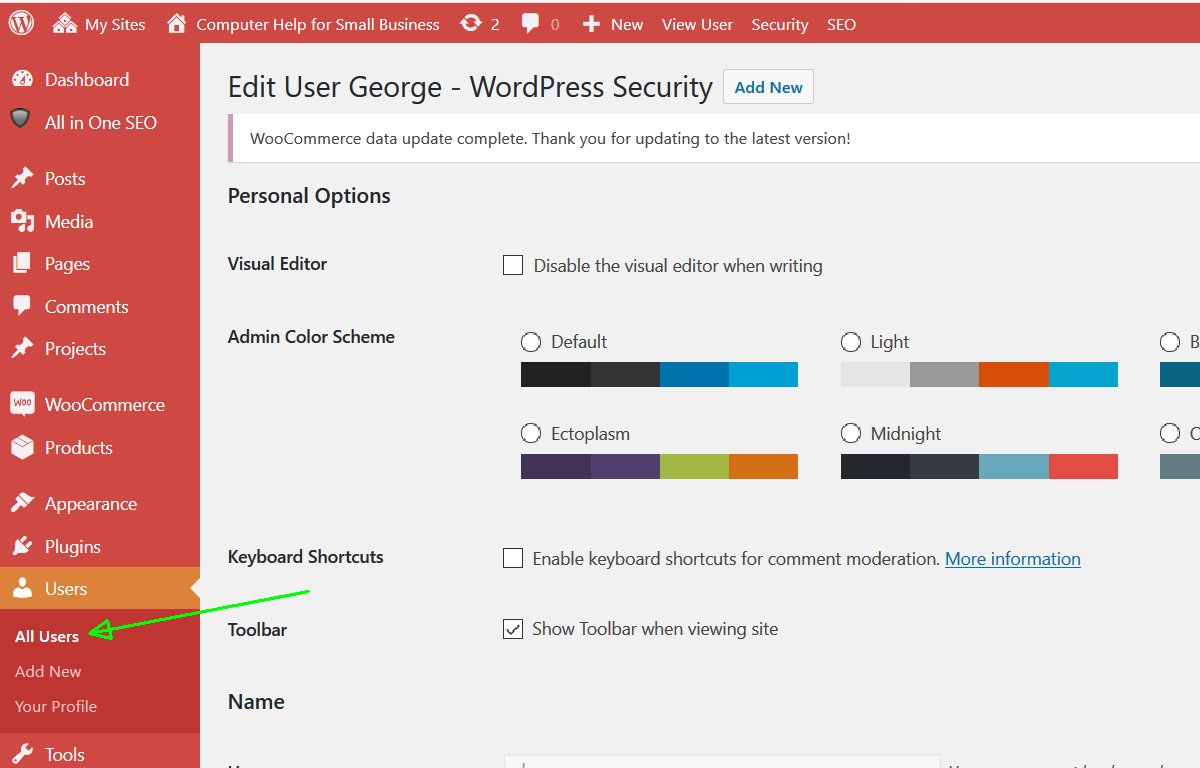
    But first, I tried a simpler approach to resetting the “Editor” permissions for that user. I changed (while logged in as Administrator) the permissions for that user, from “editor” to “administrator”, saved the changes, and changed back to “editor”.  This is done in the Users menu, hover over the user’s login name, and click “edit”.

    I don’t know what made the user’s permissions wrong, but that did reset the permissions.

  • Protect Yourself from Brute Force Login Attacks

    If you don’t have a secret user name and a very good password, hackers can easily log into your WordPress account as you.

    If you have created a password that you can remember, one that you have a chance of typing correctly, well, hackers already know the tricks people use to make a password, thinking it is “secure”. It is Not. With published lists of the top 10,000 passwords (that’s actually small, there are lists with up to 14 million unique passwords that people really used), and some readily available free software to try variations of those passwords, and enough time (a few hours to a few days), they have over 90% odds they will know your password.

    I’m going to give you some simple yet very effective ways to stop them. Ways to stop the numerous attempts at your login form. Ways to generate passwords the hackers can’t guess, even if they stole a copy of your database and work on it from home. Ways to make passwords you can remember that the hackers can’t guess. (more…)

  • Posting to Multiple Sites

    Generally writing the same thing on more than one of your sites is not such a good idea.

    But especially if you have custom post types, for example for products that you are selling, they may make perfect sense on more than one of your sites.

    With WordPress Multi-Site, making more than one site (in the same installation of WordPress) is very easy.

    How do you put a post on more than one site? Of course you can copy and paste the main text, and then manually enter all the other settings for the post (for example, SEO settings, and the many settings for your shopping cart system), but is there a better way?

    There is a Multi-Post plugin, http://wordpress.org/extend/plugins/multipost-mu/ but warning this plugin is no longer updated, probably should look for another.

    “Allow a WordPress MU site administrator to duplicate posts and pages to multiple sub-blogs at once.”

    Gives a simple list of checkboxes on the Post/Page edit page, for which other sites to also post to.

    Modify the Original page, and the copies reflect the change. Modify the copied one, and it is generated as a separate post, no longer linked.

  • SVU Episodes

    Law and Order: Special Victims Unit [text combined from IMDB.com]

    — Season 1

    Payback
    S1, Ep1
    20 Sep. 1999
    Stabler and Benson investigate the murder and castration of a New York cab driver. They discover that the victim had assumed the identity of another man because he himself was wanted by police. (more…)

  • Screenshots on Windows, OS/X, iPhone, iPad, Android

    Windows:

    On Windows, you can take a screenshot of the currently active window by pressing Alt-PrntScrn (aka Alt-PrintScreen, hold down the Alt key, press PrntScrn, release both) and the screenshot is put in the Clipboard, open up any image program (I like IrfanView best, get it on http://download.cnet.com) or even Word or WordPad, press Ctrl-V to paste. To get the entire desktop (everything showing on screen) press PrntScrn instead of Alt-PrntScrn.

    To capture menus, including right-click menus, it is usually easier to grab the entire screen (press PrtnScrn) and then crop the captured image.

    OS/X:

    On OS/X there are several keystrokes, to get different portions of the screen. The keystrokes put the screenshot into a PNG file on your desktop (PDF in Mac OS 10.3 and earlier). If you want it put in your clipboard instead, add holding down the Ctrl key also, e.g. Command-Control-Shift-3. (Note: http://www.osxkeyboardshortcuts.com/keyboard-symbols.html has a chart of keyboard symbols and the easy-to-type names used in documentation.)

    Entire Desktop: Command-Shift-3
    A portion of the Desktop: Command-Shift-4, position the mouse at one corner of what you want to capture, click-drag to the opposite corner, when you release the mouse button the area will be captured.
    A specific application window: Command-Shift-4, space, move the mouse pointer over the application window you want captured, click the mouse.
    To include the mouse pointer or a menu in your screen shot: use the Grab utility by selecting Dock > Utilities > Grab. Set the Grab Preferences to use the cursor icon you wish to have in your screenshot.

    iPad, iPhone or iPod Touch

    Press and hold the menu button (the main button below the screen), press the power/lock button (the switch on the top edge of the device). The screen will flash white and make a camera shutter noise, to indicate the shot has been taken. Release both buttons (holding too long will give the power-down confirmation). The screenshot is saved in the default Photos app in the “Saved Photos” or (depending on your device) “Camera Roll” album. Email the photo by clicking the Menu icon (rectangle with arrow coming out of it, bottom left corner of screen). Or, click the Menu button from an index page to select multiple pictures to email.

    Android

    Different devices use different buttons, most use one of these button combinations: Power + Home, or Power + Volume Down. Open the Gallery application, the file is in the Screenshots album. In Android 4.2 and later, your screenshot will appear in your notication bar, to open it in Gallery or to Share it.
    There are apps for screenshots, make sure an app specifically supports your device. Generally they give you more control over your screen shot than the built-in screenshot function.
    You can connect your Android device to your computer, take the screenshot with your computer, see http://www.wikihow.com/Take-a-Screenshot-of-an-Android-Device-%28from-a-Computer%29

  • Screenshots on Windows, OS/X, iPhone, iPad, Android

    Windows:

    On Windows, you can take a screenshot of the currently active window by pressing Alt-PrntScrn (aka Alt-PrintScreen, hold down the Alt key, press PrntScrn, release both) and the screenshot is put in the Clipboard, open up any image program (I like IrfanView best, get it on http://download.cnet.com) or even Word or WordPad, press Ctrl-V to paste. To get the entire desktop (everything showing on screen) press PrntScrn instead of Alt-PrntScrn.

    To capture menus, including right-click menus, it is usually easier to grab the entire screen (press PrtnScrn) and then crop the captured image.

    OS/X:

    On OS/X there are several keystrokes, to get different portions of the screen. The keystrokes put the screenshot into a PNG file on your desktop (PDF in Mac OS 10.3 and earlier). If you want it put in your clipboard instead, add holding down the Ctrl key also, e.g. Command-Control-Shift-3. (Note: http://www.osxkeyboardshortcuts.com/keyboard-symbols.html has a chart of keyboard symbols and the easy-to-type names used in documentation.)

    Entire Desktop: Command-Shift-3
    A portion of the Desktop: Command-Shift-4, position the mouse at one corner of what you want to capture, click-drag to the opposite corner, when you release the mouse button the area will be captured.
    A specific application window: Command-Shift-4, space, move the mouse pointer over the application window you want captured, click the mouse.
    To include the mouse pointer or a menu in your screen shot: use the Grab utility by selecting Dock > Utilities > Grab. Set the Grab Preferences to use the cursor icon you wish to have in your screenshot.

    iPad, iPhone or iPod Touch

    Press and hold the menu button (the main button below the screen), press the power/lock button (the switch on the top edge of the device). The screen will flash white and make a camera shutter noise, to indicate the shot has been taken. Release both buttons (holding too long will give the power-down confirmation). The screenshot is saved in the default Photos app in the “Saved Photos” or (depending on your device) “Camera Roll” album. Email the photo by clicking the Menu icon (rectangle with arrow coming out of it, bottom left corner of screen). Or, click the Menu button from an index page to select multiple pictures to email.

    Android

    Different devices use different buttons, most use one of these button combinations: Power + Home, or Power + Volume Down. Mine requires holding down the Power + Volume Down for several seconds until the screenshot appears half-size on the screen.

    Open the Gallery application, the file is in the Screenshots album. In Android 4.2 and later, your screenshot will appear in your notication bar, to open it in Gallery or to Share it.

    There are apps for screenshots, make sure an app specifically supports your device. Generally they give you more control over your screen shot than the built-in screenshot function.

    You can connect your Android device to your computer, take the screenshot with your computer, see http://www.wikihow.com/Take-a-Screenshot-of-an-Android-Device-%28from-a-Computer%29

  • Migrate All Your WordPress Blogs into Multi-Site and You’ll Save Lots of Time!

    Unlike most “solutions”, I bring over all your settings, configurations, customizations. Your blogs will look Exactly like before, and you’ll have much less administrative work.

    If you are considering using WordPress Multi-Site, you probably have some blogs already. In fact, you probably have some blogs with a Lot of posts.

    (If you’re just starting, WordPress Multi-Site is still good, it makes having more than one blog much easier.)

    Each blog most likely has a few widgets, and probably some settings on each post and page. Maybe you specified what image should be featured on the post. If you are marketing at all, you should have a custom search engine description and keywords for each post. Maybe you selected some Amazon books that go well with this page. Your sign-up form. Your latest Facebook or Twitter posts.

    When you want to bring blogs from WordPress (single site) into Multi-Site, you find there are tools to help with that. “Great, this will be easy”, you think. Then you find that only the text of your posts and pages and comments are migrated. (Unlike if you have me migrate your blog!) (more…)

  • Migrate All Your WordPress Blogs into Multi-Site and You’ll Save Lots of Time!

    Unlike most “solutions”, I bring over all your settings, configurations, customizations. Your blogs will look Exactly like before, and you’ll have much less administrative work.

    If you are considering using WordPress Multi-Site, you probably have some blogs already. In fact, you probably have some blogs with a Lot of posts.

    (If you’re just starting, WordPress Multi-Site is still good, it makes having more than one blog much easier.)

    Each blog most likely has a few widgets, and probably some settings on each post and page. Maybe you specified what image should be featured on the post. If you are marketing at all, you should have a custom search engine description and keywords for each post. Maybe you selected some Amazon books that go well with this page. Your sign-up form. Your latest Facebook or Twitter posts.

    When you want to bring blogs from WordPress (single site) into Multi-Site, you find there are tools to help with that. “Great, this will be easy”, you think. Then you find that only the text of your posts and pages and comments are migrated. (Unlike if you have me migrate your blog!) (more…)

  • Migrate All Your WordPress Blogs into Multi-Site and You’ll Save Lots of Time!

    Unlike most “solutions”, I bring over all your settings, configurations, customizations. Your blogs will look Exactly like before, and you’ll have much less administrative work.

    If you are considering using WordPress Multi-Site, you probably have some blogs already. In fact, you probably have some blogs with a Lot of posts.

    (If you’re just starting, WordPress Multi-Site is still good, it makes having more than one blog much easier.)

    Each blog most likely has a few widgets, and probably some settings on each post and page. Maybe you specified what image should be featured on the post. If you are marketing at all, you should have a custom search engine description and keywords for each post. Maybe you selected some Amazon books that go well with this page. Your sign-up form. Your latest Facebook or Twitter posts.

    When you want to bring blogs from WordPress (single site) into Multi-Site, you find there are tools to help with that. “Great, this will be easy”, you think. Then you find that only the text of your posts and pages and comments are migrated. (Unlike if you have me migrate your blog!) (more…)

  • Using Google Web Fonts (Needs Some Quotation Marks)

    http://www.google.com/webfonts has a great collection of web-licensed fonts to use freely in your web pages. It also has a very easy interface for picking the fonts you want and adding them to your web pages.

    One small glitch: In Firefox (at least version 14.0.1) you have to enclose CSS src url(‘site’) (and @import url(‘site’) in single quotes. The Google-supplied code doesn’t (currently) do that. Without the single quotes, the font doesn’t load. http://www.w3schools.com/cssref/css3_pr_font-face_rule.asp shows the proper syntax has the single quotes.

    Google says in your CSS file, put this:
    @import url(http://fonts.googleapis.com/css?family=Uncial+Antiqua);
    but should be this (notice the single quotes):
    @import url('http://fonts.googleapis.com/css?family=Uncial+Antiqua');

    Browse to the Google API URL (e.g. http://fonts.googleapis.com/css?family=Uncial+Antiqua). Copy the CSS from that page.

    It should output this:

    @font-face {
    font-family: 'Uncial Antiqua';
    font-style: normal;
    font-weight: 400;
    src: local('Uncial Antiqua'), local('UncialAntiqua-Regular'), url('http://themes.googleusercontent.com/static/fonts/uncialantiqua/v1/F-leefDiFwQXsyd6eaSlltK4x0DJI-T8q5ozNuxBQHo.woff') format('woff');

    [instead of url(http://themes…woff), it should have single quotes around it, url(‘http://themes…woff’) ]

    Paste the Google URL into your browser address bar, copy the result into your CSS file, and add the proper quotes.